Loyalty & Rewards
Give members points for coming in, paying, renewing and bringing friends, and let them spend those points on rewards: a smoothie at the desk, extra days on their plan, a discount code, or money off their next plan at checkout.
What it does
Members who feel rewarded come back more often and stay longer. Loyalty & Rewards adds a points program to the members you already have in Gym Builder. You decide what earns points and what members can spend them on; the add-on keeps every member's points, gives them out as things happen and shows members where they stand.
- Points for what members do — checking in to a class, visiting the gym, keeping a weekly streak, buying or renewing a membership, joining, their birthday, their membership anniversary and referring a friend. Staff can also give points by hand, for example for helping at an event.
- Rewards to spend them on — something staff hand over at the gym (with a pickup code), extra days on a membership, a discount code for a plan, a shop coupon, or money off a plan at checkout.
- Pay part of a plan with points — a Pay With Points box in the Offline Payments order window, the Stripe card checkout and the WooCommerce shop checkout.
- Refer a friend — each member gets an invite link and code. Both members get points when the friend counts, with checks for friends from the same network.
- Desk tools — find a member, see their points and history, add or take points, use points for them, and hand over rewards by pickup code.
- A Rewards tab for members — their points, what they can redeem, their rewards and codes, how to earn more, their invite link and their history, on the Member Dashboard.
- Overview — points given, used and expired over any dates, the rules and rewards that moved them, and what needs you.
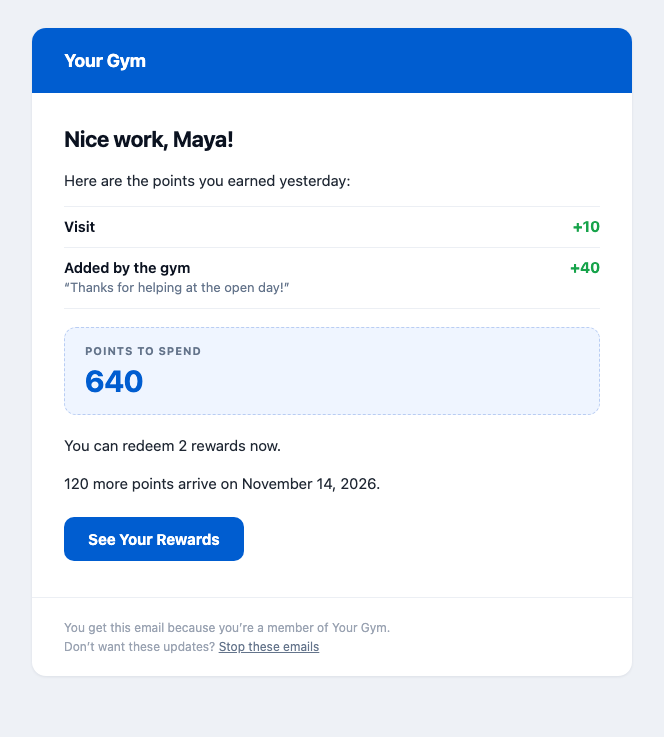
- Emails — a daily summary of points earned, warnings before points or codes run out, reward and referral emails, birthday wishes, and an email to you when a reward is waiting to be handed out.
- Fair by design — points can expire, points for payments can wait a few days before they can be spent, and a refund takes its points back.
Before you start
- Gym Builder 3.1.0 or newer. With an older Gym Builder the add-on stays switched off and shows a notice with an Update link.
- For points on check-ins, visits and streaks: Attendance. Every way of checking in counts: at the desk, from the Member Dashboard, by QR code, at the kiosk and for online classes.
- For points on buying and renewing a membership: a payment add-on — Stripe Payments, Offline Payments, or Class Booking & Payment with WooCommerce.
- For some rewards: a Discount Code needs Promotions & Trials; a Shop Coupon needs Class Booking & Payment and WooCommerce; Points Off at Checkout needs at least one of Offline Payments, Stripe Payments or Class Booking & Payment with WooCommerce.
- Your site's scheduled tasks. A daily task, just after midnight in your site's time zone, makes waiting points spendable, lets points expire and gives birthday points. WordPress runs it when someone visits the site.
- For card refunds: add the charge.refunded event to your Stripe webhook (see the Stripe Payments guide), so a refund can take its points back.
Install and switch on
- Go to Plugins → Add Plugin and click Upload Plugin.
- Choose the add-on's zip file, click Install Now, then Activate Plugin.
- Enter your license key when asked. If you skip it, the Gym Builder Dashboard shows Loyalty & Rewards → License Key in its menu until the license is active.
Once it is on, the Gym Builder Dashboard gets a Loyalty & Rewards group in its menu with six pages: Overview, Members, Earning Rules, Ways to Use Points, Rewards to Hand Out and Refer a Friend. Its settings are a Loyalty & Rewards page under Settings. Members get a Rewards tab on their Member Dashboard.
Six starter rules are made for you, all switched off: Points for Each Class, Every 10th Visit, Four-Week Streak, Points for Buying a Membership, Welcome Points and Birthday Points. Change them, switch on the ones you want, and add your first rewards. The Loyalty & Rewards pages are for site administrators.
How points work
Every member has a points account. These words appear on the screens:
- Points to Spend — what the member can use now.
- On Their Way — points still in their waiting period. Points for payments and referrals can wait a few days, so a refund can still take them back. Members see the day they arrive.
- Held at Checkout — points chosen for an order that isn't paid yet. They are used once the payment goes through, and freed if the order is rejected or runs out.
- Expiry — points can run out, by your settings or by the rule that gave them. Points are always spent soonest-expiring first, and members are warned before points expire.
- Owes points — a refund takes back the points its payment earned, in the same share (half the money back, half the points). If the member has already spent them, they owe the rest, and it comes off the next points they earn. Nobody goes below 0.
Set it up
Go to Gym Builder → Settings → Loyalty & Rewards. Change what you need and click Save Settings at the bottom.
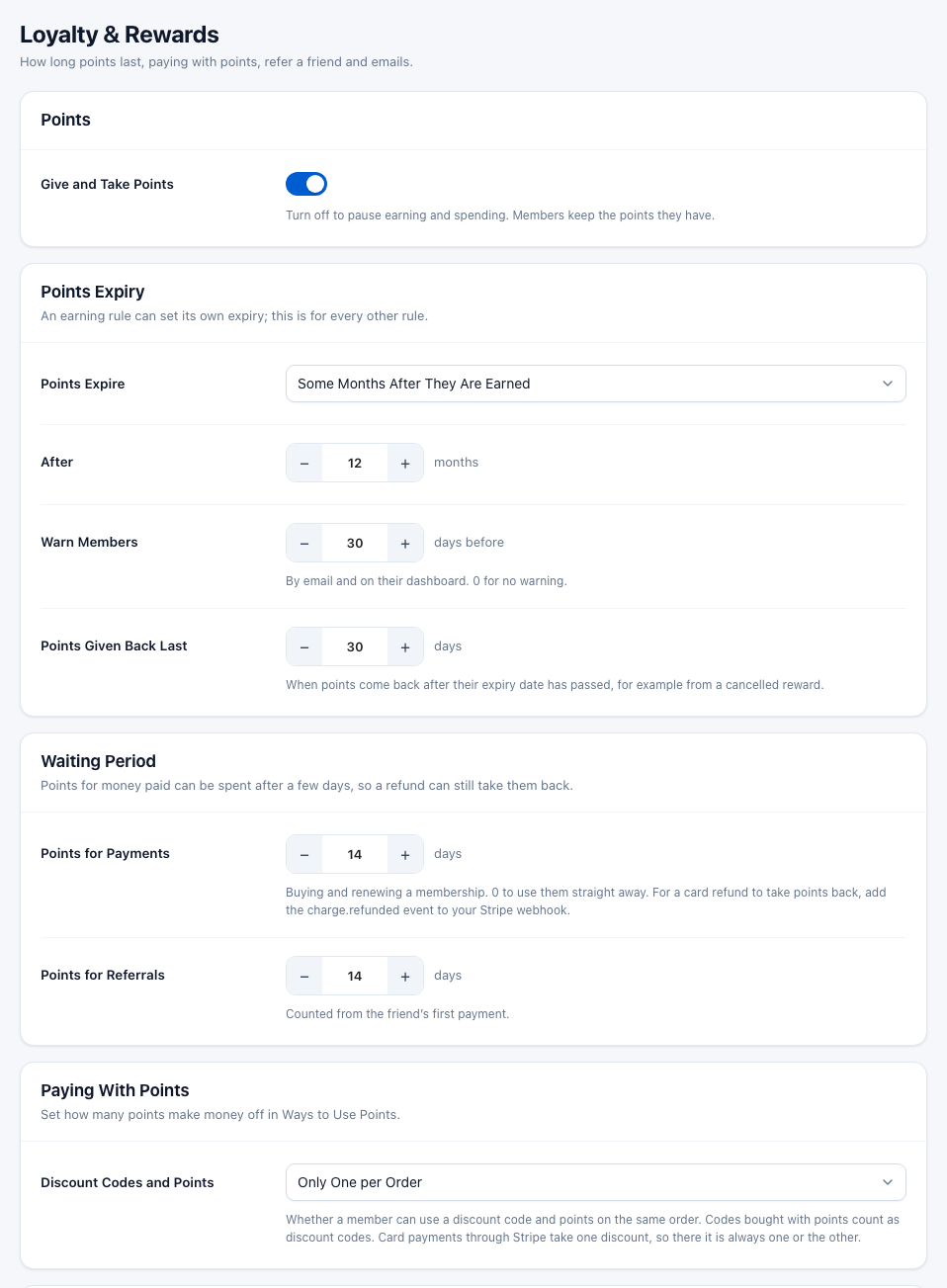
Points
- Give and Take Points — on by default. Turn it off to pause earning and spending. Members keep the points they have.
Points Expiry
- Points Expire — Never (the default), Some Months After They Are Earned, or After Some Months Without Earning or Spending. An earning rule can set its own expiry; this is for every other rule.
- After — the number of months, 1 to 120 (12 by default).
- Warn Members — how many days before points expire members are told, by email and on their dashboard (30 by default). 0 for no warning.
- Points Given Back Last — when points come back after their expiry date has passed, for example from a cancelled reward, they last this many more days (30 by default).
Waiting Period
- Points for Payments — days before points for buying and renewing a membership can be spent (14 by default). 0 to use them straight away.
- Points for Referrals — days before referral points can be spent, counted from the friend's first payment (14 by default).
Paying With Points
- Discount Codes and Points — Only One per Order (the default) or Use Both Together: whether a member can use a discount code and points on the same order. Codes bought with points count as discount codes. Card payments through Stripe take one discount, so there it is always one or the other.
How much points are worth is set in the Pay With Points reward, not here.
Refer a Friend, When a Friend Counts and Birthdays
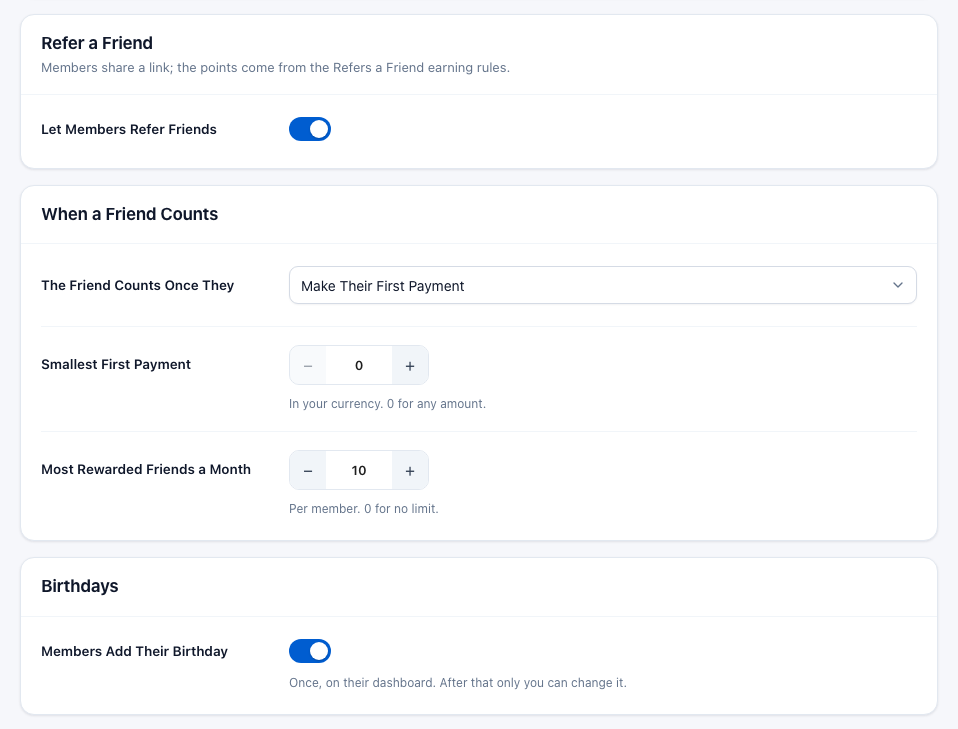
- Let Members Refer Friends — off by default. Members share a link; the points come from the Refers a Friend and Was Referred by a Friend earning rules.
- The Friend Counts Once They — Make Their First Payment or Come to Their First Classes.
- Smallest First Payment — in your currency; 0 for any amount. Classes They Come To — the number of check-ins, when the friend counts by coming to classes.
- Most Rewarded Friends a Month — per member (10 by default); 0 for no limit. Friends over the limit wait for your check.
- Members Add Their Birthday — on by default. Members add it once, on their dashboard. After that only you can change it.
Emails and Data
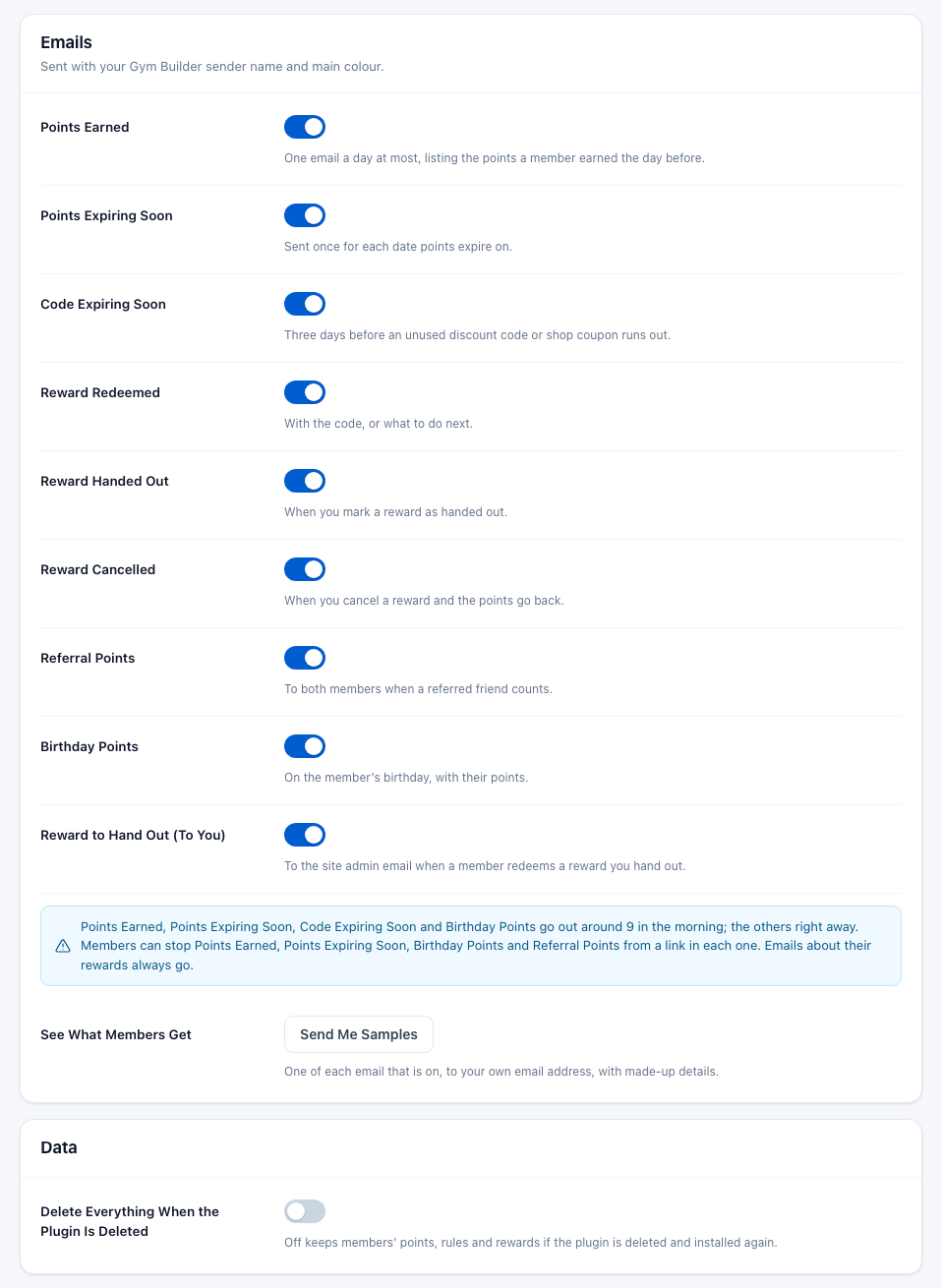
- Emails — one switch per email, all on by default. See Emails for what each one says and when it goes.
- See What Members Get — Send Me Samples sends one of each email that is on to your own email address, with made-up details.
- Delete Everything When the Plugin Is Deleted — off by default, which keeps members' points, rules and rewards if the plugin is deleted and installed again.
Earning rules
Go to Gym Builder → Loyalty & Rewards → Earning Rules. Each rule is a card: its name, what it gives in plain words, what it is for, and how often it has given points. Rules that are on run as things happen.
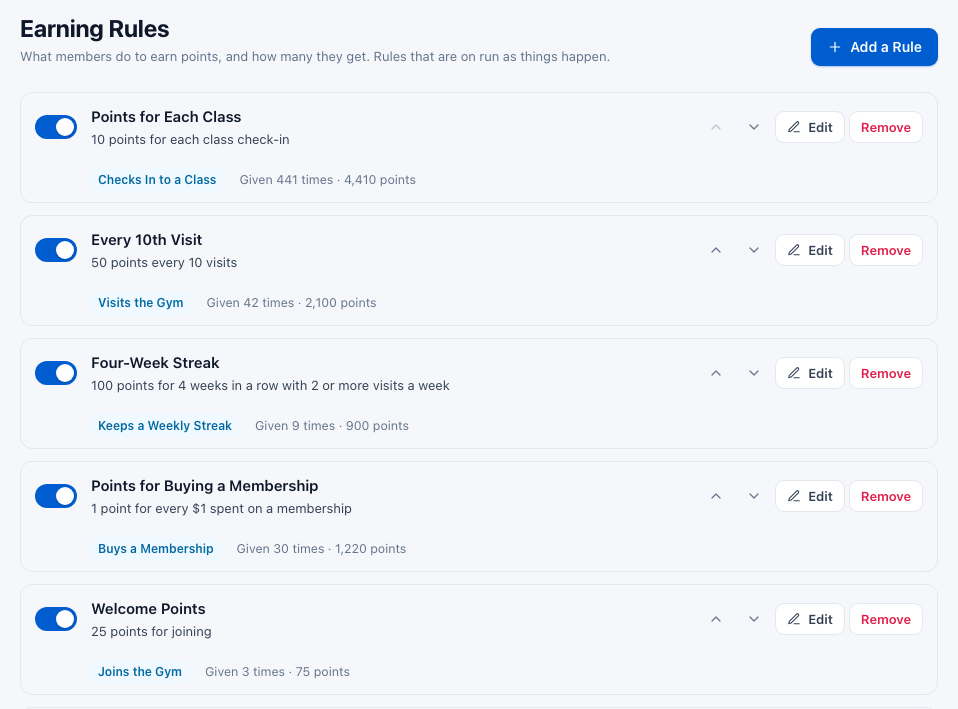
- The switch turns a rule on or off. A rule that is off gives nothing.
- The arrows move a rule up or down the list.
- Edit opens the rule. Remove asks first (Yes, Remove or Keep).
- Give Points appears on rules that staff give by hand (see Give or take points for many members).
Add a rule
- Click Add a Rule.
- Type a Name members will understand, for example Points for Each Class.
- Choose what it is for in Members Earn Points When They. The fields below change with your choice (see the table).
- Set the Points, then Give the Points (how often) and Points Expire.
- Open More Options if you need them, keep Turn the Rule On ticked, and click Add Rule.
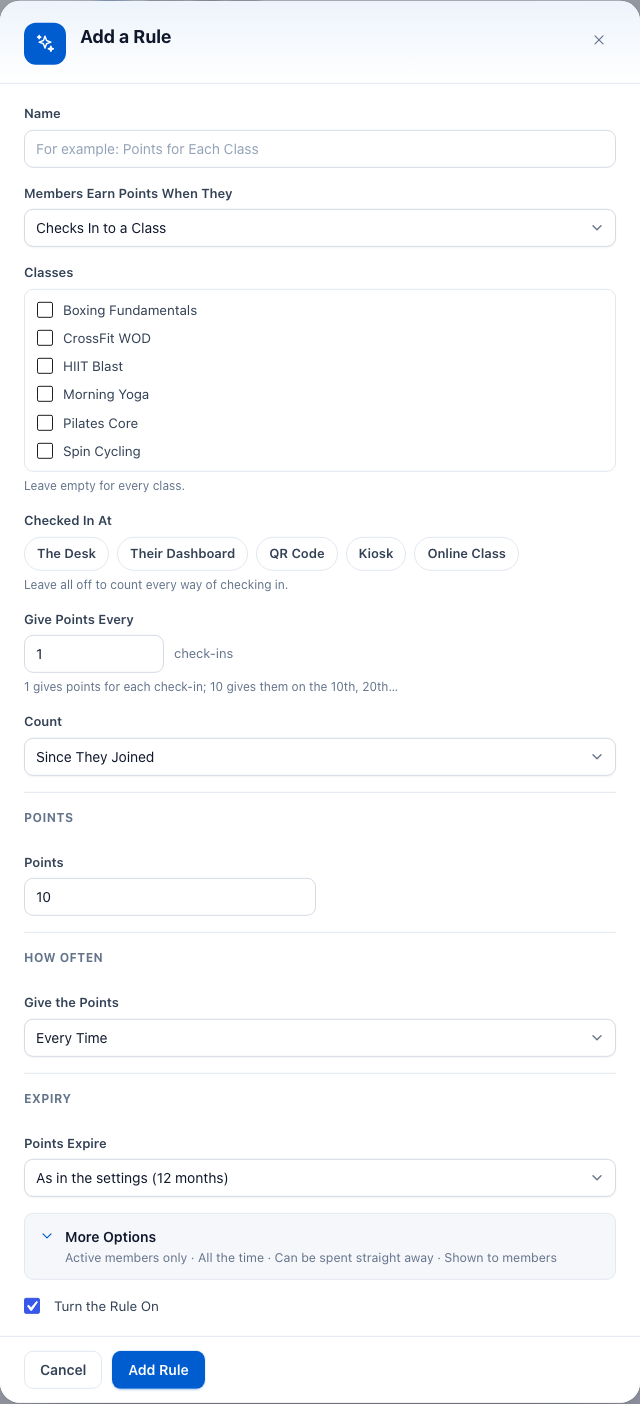
| Members Earn Points When They | What counts | Needs |
|---|---|---|
| Checks In to a Class | Each check-in, or every so many (Give Points Every: 1 for each check-in, 10 for the 10th, 20th…). Limit it to some Classes or some ways of checking in (Checked In At). Count since they joined, or from zero each week or each month. | Attendance |
| Visits the Gym | The first check-in of a day counts as one visit, however many classes they come to. Each visit, or every so many. | Attendance |
| Keeps a Weekly Streak | Weeks in a Row with at least Visits Each Week. A paused week doesn't break it. | Attendance |
| Buys a Membership | A paid membership. Limit it by Paid By (Card, Bank Transfer or at the Desk, Shop Checkout), Plans and Smallest Payment, or to Their First Membership Only. | A payment add-on |
| Renews a Membership | A renewal payment, with the same limits. | A payment add-on |
| Joins the Gym | For new members only: members who were already here when you started points don't get them. It waits up to 60 days for the member to have a running plan. Tick Members You Import Too to include imported members. Members added without a login get them within about two hours. | — |
| Has a Birthday | Once a year, on their birthday. Members add it on their dashboard, or you add it on their page. | — |
| Has a Membership Anniversary | Once a year, on the joining date on their Gym Builder member page. From Year sets the first anniversary that counts; Multiply by Their Years gives the points once for each year (3 years × 50 points = 150 points). | — |
| Refers a Friend | When a friend they invited counts (see Refer a friend). | — |
| Was Referred by a Friend | A welcome for the friend, at the same time. | — |
| Something Else (Staff Give the Points) | Never given on its own. Staff give these points from a member's page, or to many members at once, for things like helping at an event. | — |
Points, how often and expiry
- Points — a set number, 1 to 100,000. For buying and renewing, How the points are worked out can also be By the Amount Paid: points For Every amount paid (for example 1 point for every $1), with Most Points per Award (0 for no limit).
- Give the Points — Every Time, Once per Member, A Limited Number of Times (At Most so many Times Each day, week, month or year) or Once a Year. The choices depend on what the rule is for.
- Points Expire — As in the settings, Never, or After a Number of Months for this rule only.
- More Options:
- Who Can Earn Them — Only members whose membership is active (on by default) and Only Members Who Hold These Plans (empty for every member).
- When the Rule Runs — From and Until dates, for a double-points month for example. Leave both empty to run it all the time.
- Waiting Period — Points Can Be Spent Straight away or After a Number of Days.
- What Members See — Show it in “Ways to Earn” on their dashboard, and Words for Members (Optional). Left empty, the add-on describes the rule for them, for example "10 points for each class check-in".
Once a rule has given points, Members Earn Points When They can't change ("This rule has given points already, so what it is for can’t change."). Everything else can. To reward something else, add a new rule and switch the old one off.
Ways to use points
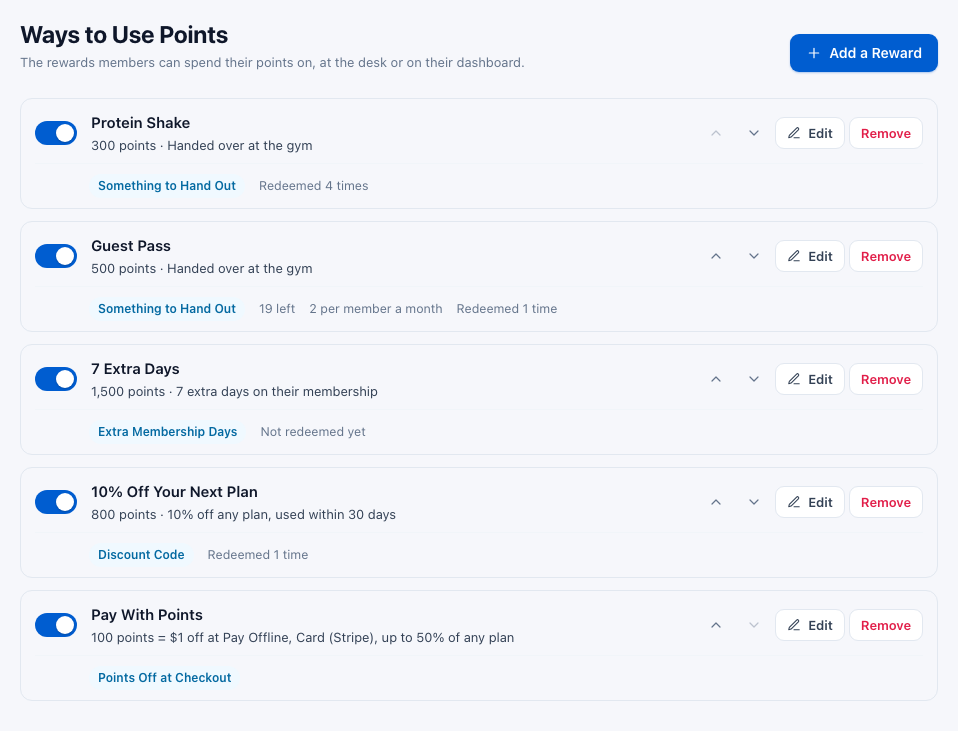
Go to Gym Builder → Loyalty & Rewards → Ways to Use Points. These are the rewards members can spend their points on, at the desk or on their dashboard.
| Members Get | What happens | Needs |
|---|---|---|
| Something to Hand Out | A smoothie, a T-shirt, a guest pass or a free session. The member gets a pickup code and staff hand it over from Rewards to Hand Out. | — |
| Extra Membership Days | Days added to the end of their running plan, wherever it was bought. Only members whose plan has an end date can choose it. | — |
| Discount Code | A code for money off a membership plan: A Percentage Off or An Amount Off, For These Plans, to Use It Within so many days (30 by default). It works once, and only for the member who got it. | Promotions & Trials |
| Shop Coupon | A coupon for the shop checkout, for some plans and classes or anything in the shop. It works once, and only with the member's own email address. | Class Booking & Payment and WooCommerce |
| Points Off at Checkout | Members pay part of a plan's price with points when they buy it. There is one of these: it sets how much points are worth. See Pay With Points. | Offline Payments, Stripe Payments, or Class Booking & Payment with WooCommerce |
Add a reward
- Click Add a Reward.
- Type a Name, for example Free Smoothie, and choose what Members Get.
- Set Points It Costs and the fields for that kind of reward.
- Open More Options if you need them, keep Offer This Reward ticked, and click Add Reward.
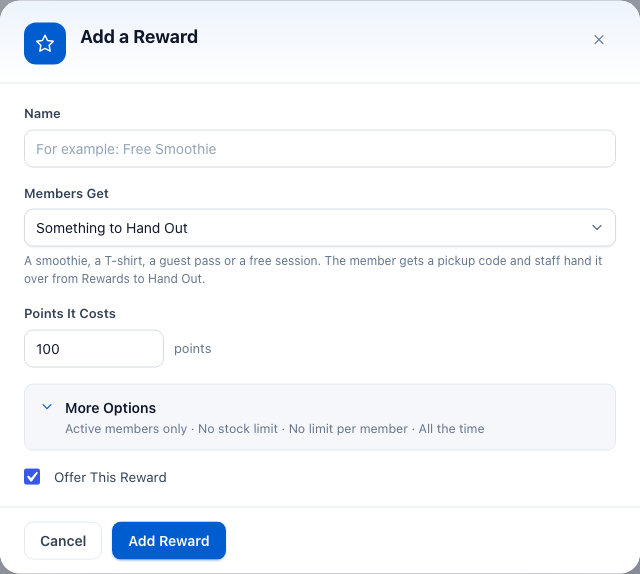
More Options:
- What Members See — Words for Members (Optional), and After Redeeming (Optional), for example "Show your pickup code at the front desk."
- How Many — How Many Are Left (No limit or a number, counted down as members redeem it) and Limit per Member (No limit, or At Most so many times Each Week, Each Month, Each Year or In All).
- Who Can Redeem It — Only members whose membership is active (on by default) and Only Members Who Hold These Plans.
- When — From and Until. Leave both empty to offer it all the time.
Once members have redeemed a reward, what it gives can't change; its name, price and options can.
Pay With Points
A Points Off at Checkout reward lets members pay part of a plan's price with points. Edit it to set how much points are worth.
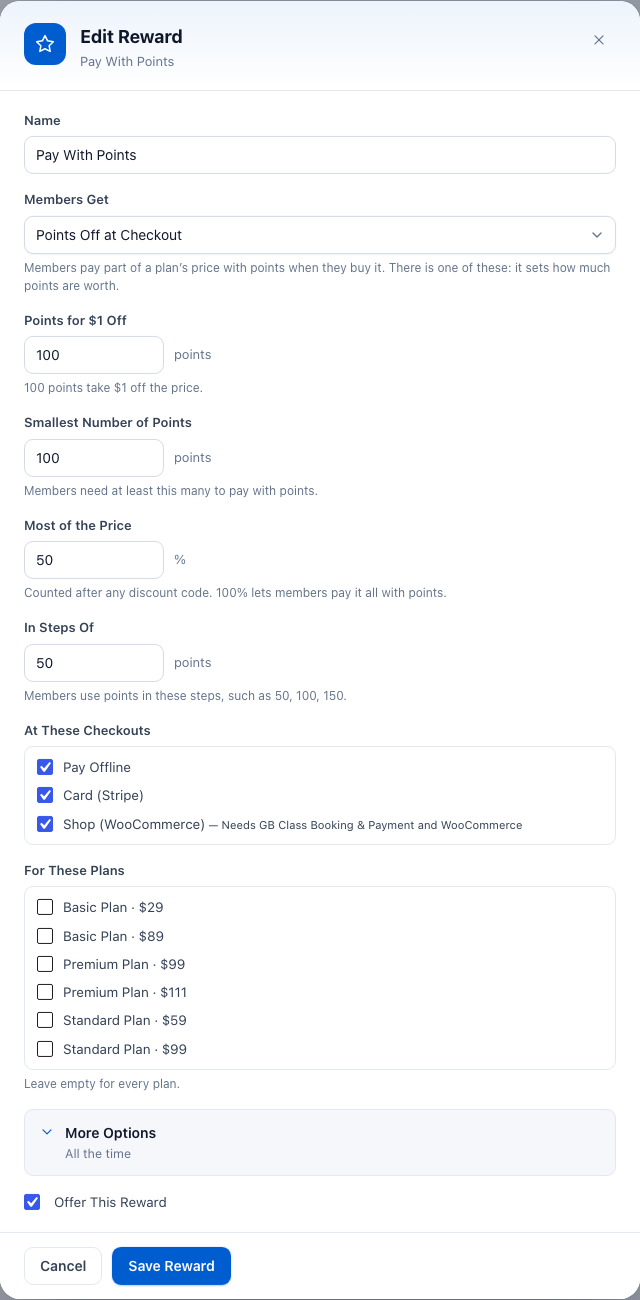
- Points for $1 Off — how many points take one unit of your currency off the price, for example 100 points for $1.
- Smallest Number of Points — members need at least this many to pay with points.
- Most of the Price — the largest share of the price points can pay, counted after any discount code. 100% lets members pay it all with points.
- In Steps Of — members use points in these steps, such as 50, 100, 150.
- At These Checkouts — Pay Offline, Card (Stripe) and Shop (WooCommerce). A checkout whose add-on isn't on says what it needs.
- For These Plans — leave empty for every plan.
See Paying with points at checkout for what members see.
Members and their points
Go to Gym Builder → Loyalty & Rewards → Members. The figures at the top are Members With Points, Points to Spend (across every member), Points on Their Way and Members Who Owe Points.
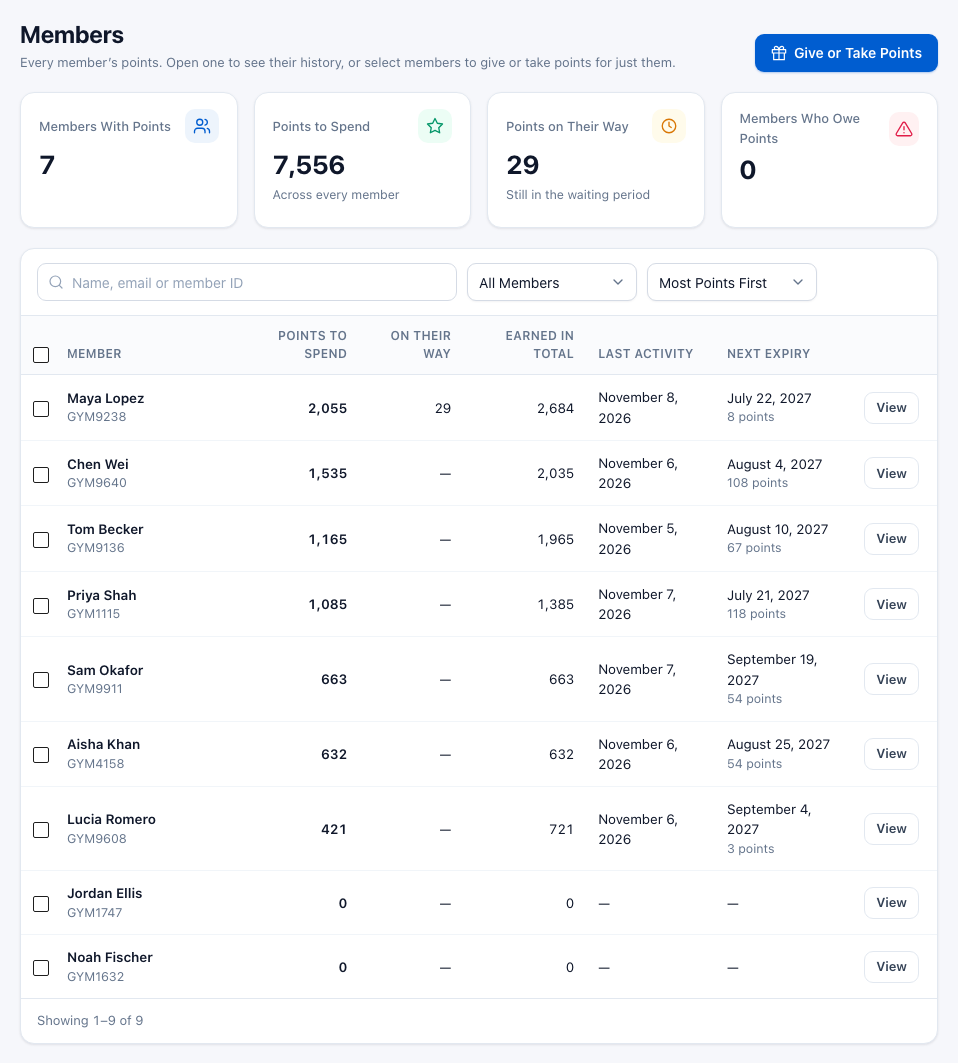
- Search by name, email or member ID.
- Show — All Members, With Points to Spend, With Points on Their Way, With Points Expiring Soon or Owing Points.
- Sort by — Most Points First, Most Earned First, Latest Activity First or Expiring Soonest First.
- Tick members, then click Give or Take Points to change points for just them.
- View opens the member's page.
A member's page
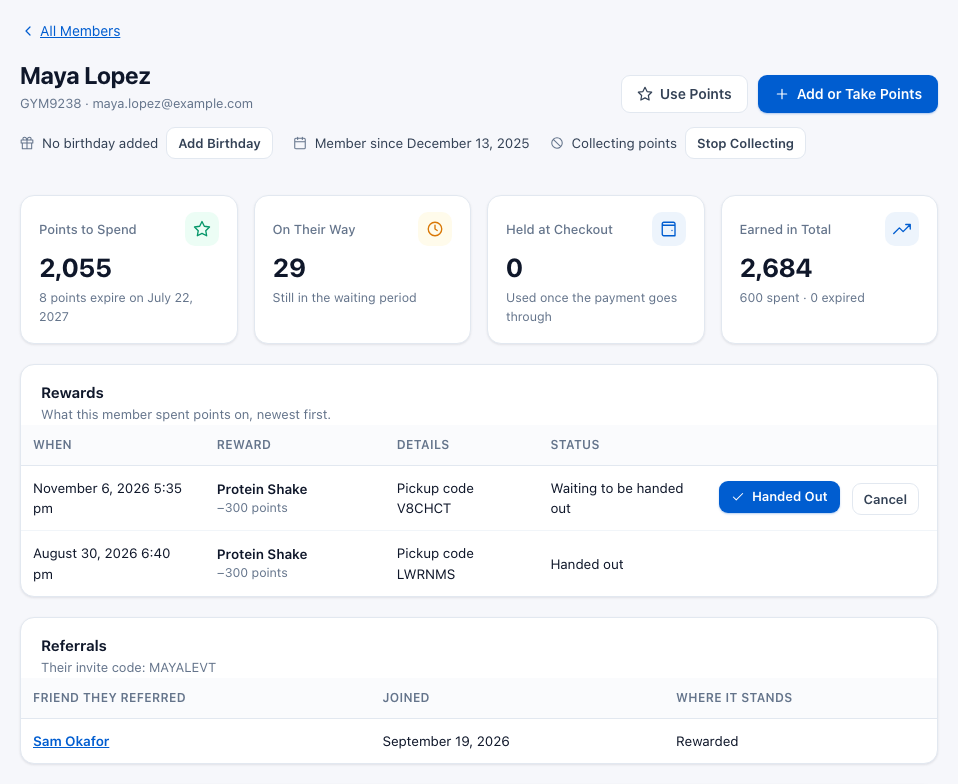
- At the top — Use Points, Add or Take Points, their birthday (Add Birthday if none), when they joined, and whether they are collecting points.
- The figures — Points to Spend (with the next points to expire), On Their Way, Held at Checkout and Earned in Total (with what they spent and what expired).
- Rewards — what they spent points on, newest first. A reward waiting to be handed over has Handed Out and Cancel.
- Referrals — their invite code and the friends they referred.
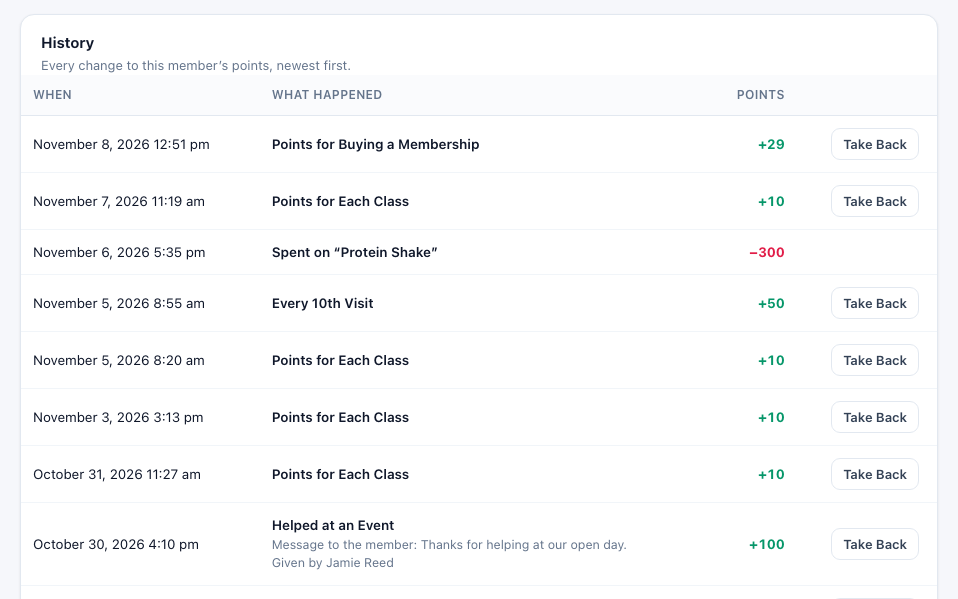
- History — every change to their points, newest first, with the message to the member and who gave them. Take Back on a line takes those points back.
- Points and When They Expire — each lot of points, what is left of it and when it expires.
Stop Collecting stops a member earning points, for example when they ask not to take part. They keep the points they have and can still spend them. Collect Points Again undoes it.
Add or take points
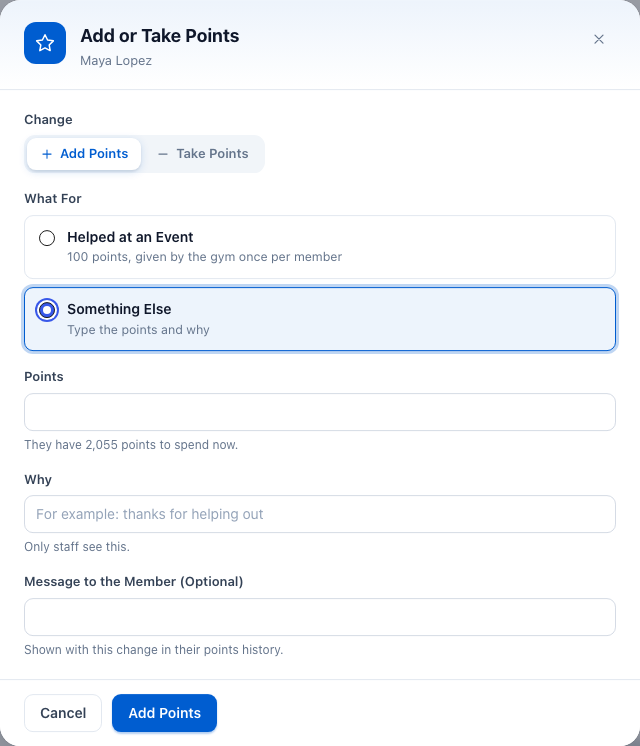
- On the member's page, click Add or Take Points.
- Choose Add Points or Take Points.
- Under What For, choose one of your staff rules, or Something Else and type the Points and Why (only staff see it). Add a Message to the Member (Optional) to show in their history.
- Click Add Points (or Take Points).
Use points for a member at the desk
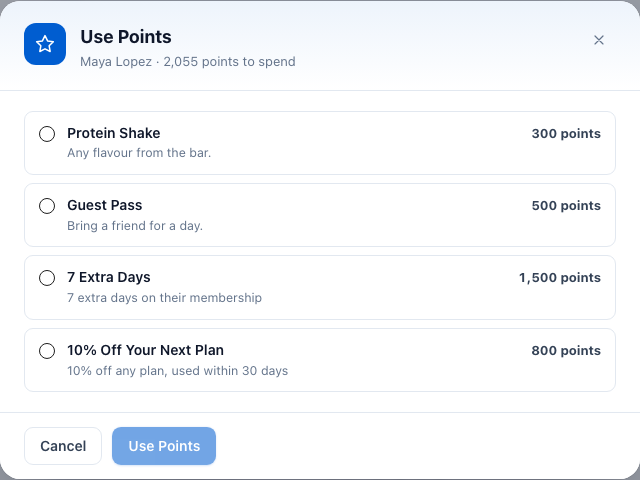
Click Use Points on the member's page, choose a reward they have enough points for and click Use Points. You see the pickup code or their code straight away. A reward to hand out waits in Rewards to Hand Out until someone hands it over.
Give or take points for many members
- On the Members page, click Give or Take Points. (To choose particular members, tick them on the list first.) On the Earning Rules page, Give Points on a staff rule starts here too, with that rule chosen.
- Under Who, choose Everyone, Active Members or Members on a Plan.
- Choose Give Points or Take Points, then what for, and click Continue.
- On Check and Confirm, read who gets the change and click the button, for example Give Points to 9 Members. Keep the page open until it finishes; if it closes, you can continue from the Members page.
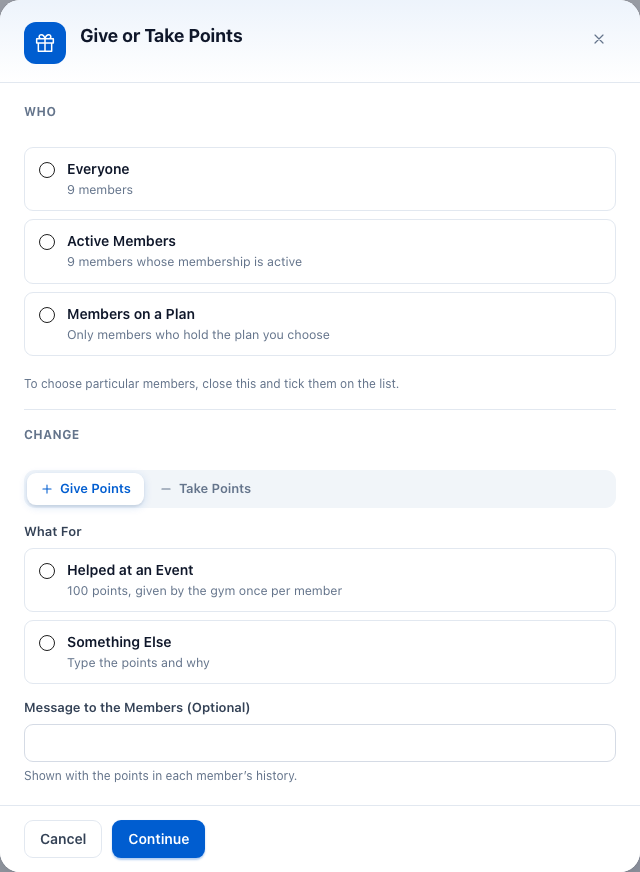
When it's done you see who got the change and who was skipped, and why: for example members who already had a once-per-member rule's points, members who chose not to collect points, or members without an active membership when the rule asks for one. Members with fewer points than you take lose only what they have.
Rewards to hand out
When a member redeems something to hand out, it waits on Gym Builder → Loyalty & Rewards → Rewards to Hand Out with its pickup code. The number on the menu is how many are waiting.
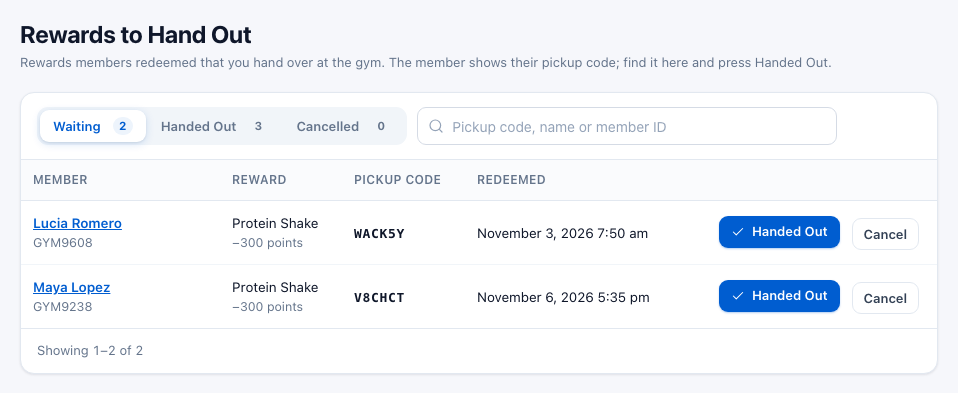
- The member shows their pickup code. Type it, or their name, in the search box.
- Give them the reward and click Handed Out.
The tabs show Waiting, Handed Out and Cancelled rewards. To cancel one, click Cancel, say Why (for example "out of stock"; only staff see it) and click Cancel Reward: the points go back to the member and the code stops working.
Refer a friend
To start, switch on Let Members Refer Friends in the settings, and switch on a Refers a Friend or Was Referred by a Friend earning rule (or both).
- A member shares their invite link (Copy Link, Email It, or Share on a phone) or gives their code.
- The friend opens the link — it is remembered for 30 days — and joins. A friend who joined without the link can type the code on their own Rewards tab in their first 14 days.
- The friend counts when they make their first payment (at least the Smallest First Payment), or come to their first classes, as set in When a Friend Counts.
- Both members' points arrive after the Points for Referrals waiting period. If the friend's payment is refunded meanwhile, neither gets them.
Go to Gym Builder → Loyalty & Rewards → Refer a Friend to follow them. The tabs are Needs Review, Joined, Counted, Rewarded and Didn’t Count.
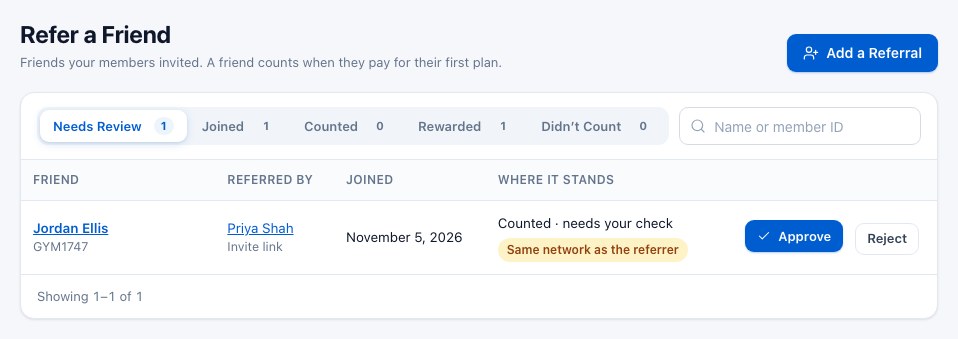
- Needs Review — a friend who joined from the referrer's network, or a referrer over Most Rewarded Friends a Month, waits for you. Approve starts both members' points; Reject (with a reason) means neither gets referral points for this friend.
- Didn’t Count — rejected friends, friends whose payment was refunded, and friends who didn't count within 90 days.
- Add a Referral — for a friend who joined without the invite link or code. If the friend has counted already, both members' points start at once.
See how points are doing
Go to Gym Builder → Loyalty & Rewards → Overview. It opens on This Month; choose Last Month, This Year or Custom Range (up to two years) for other dates. Each figure is compared with the period before.
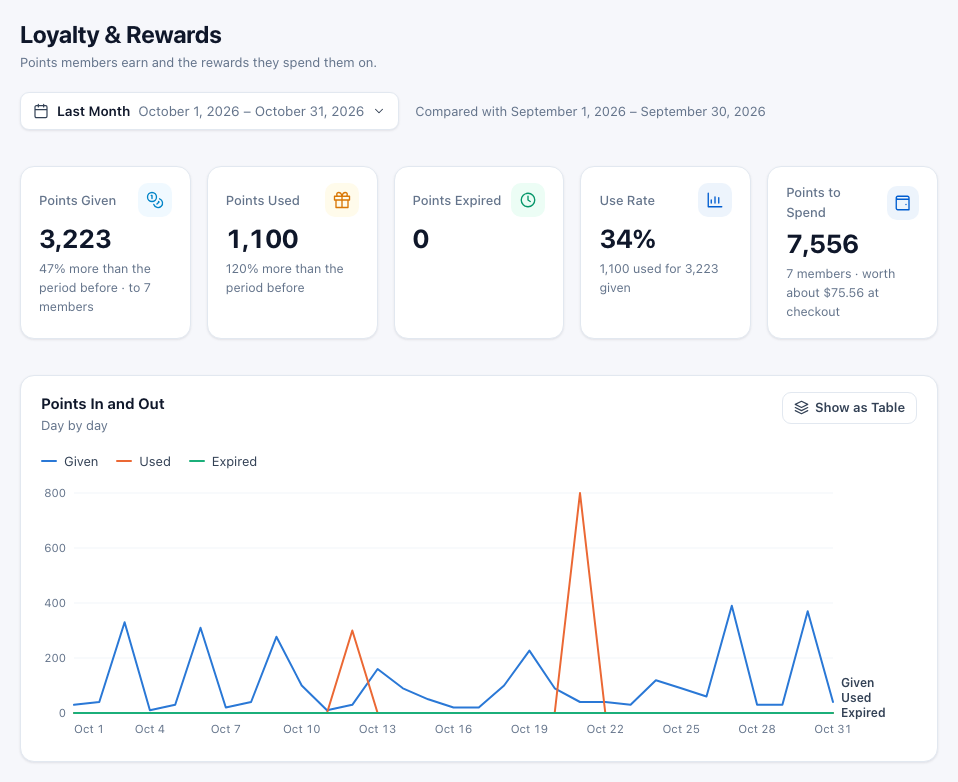
- Points Given, Points Used and Points Expired in the dates you chose.
- Use Rate — points used as a share of points given.
- Points to Spend — what members hold now, and what that is worth at checkout.
- Points In and Out — a chart by day, week or month. Show as Table shows the numbers.
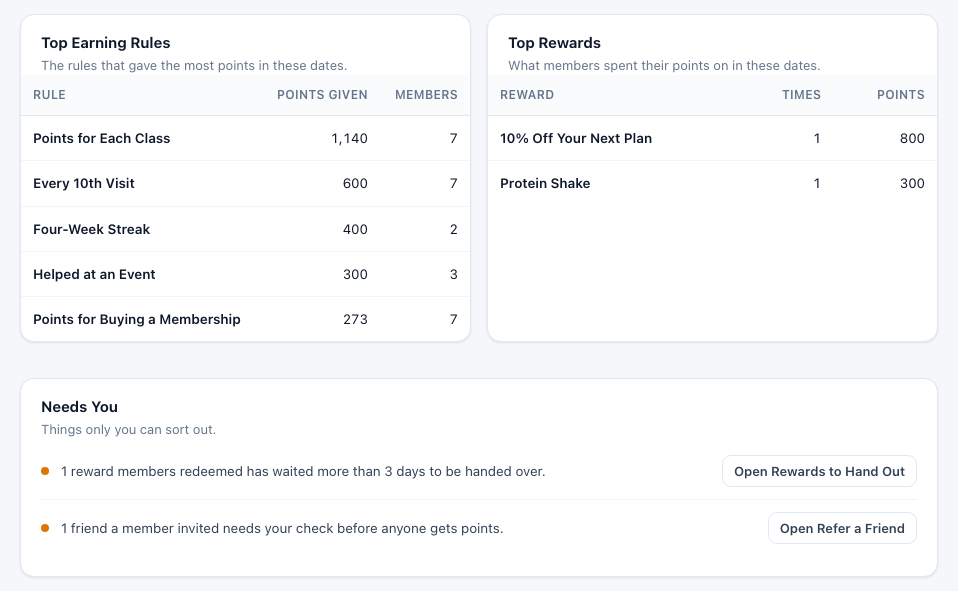
Needs You lists what only you can sort out, each with a button to open the right page: a reward waiting more than 3 days to be handed over, a friend who needs your check, members who owe points, a reward that is on but members can't use (for example because the add-on it needs is off), and the daily task running late. The same lines show in Needs You on the Gym Builder Dashboard home page.
On the Gym Builder Dashboard
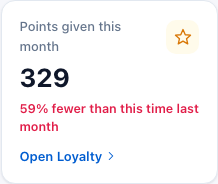
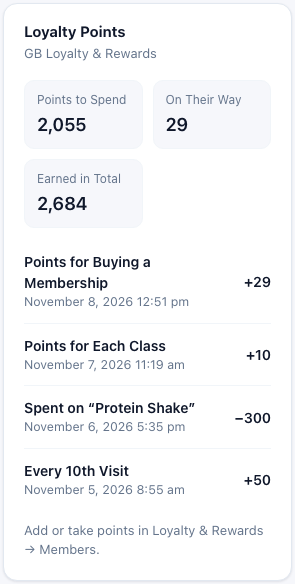
The Dashboard home page gets a Points given this month figure, compared with the same days last month; Open Loyalty opens the Overview. Each member's page in Gym Builder → Members gets a Loyalty Points panel with their points and latest changes.
What members see
The Rewards tab
Members find everything on the Rewards tab of their Member Dashboard. The number on the tab is how many of their rewards are ready to use.
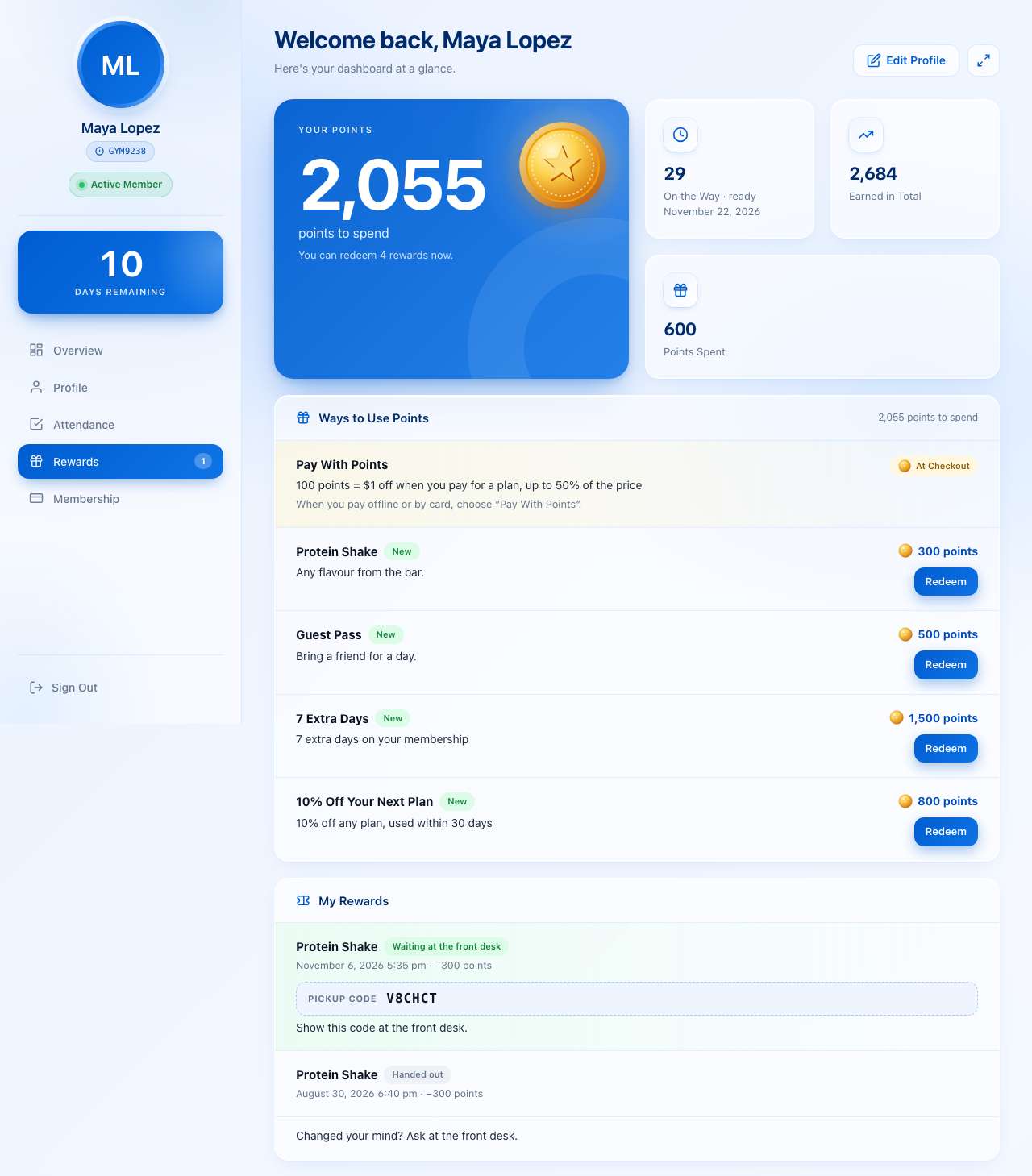
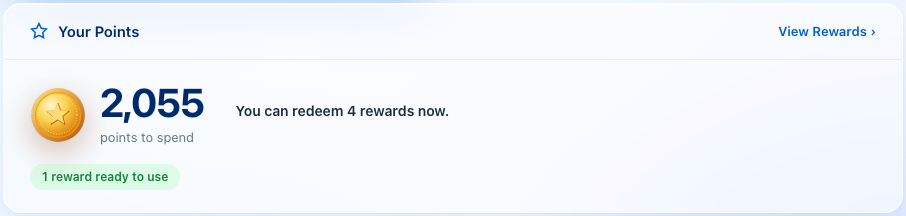
- Your Points — points to spend, how many rewards they can redeem now, how far they are from the next one, points on the way and when they arrive, and when points expire.
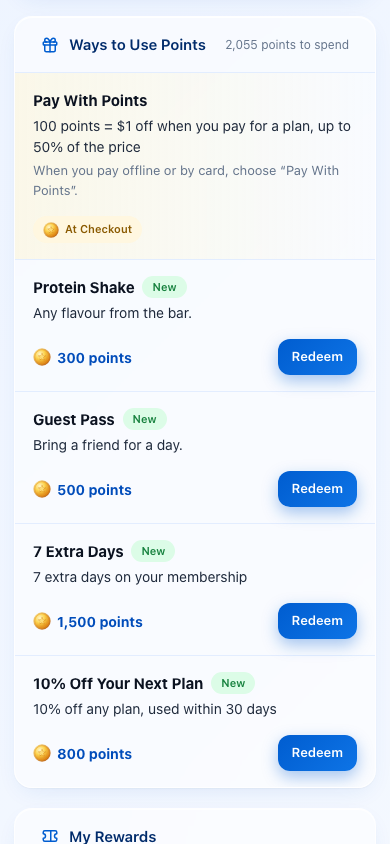
- Ways to Use Points — every reward with its price and Redeem, or how many more points it needs. New rewards are marked New. Pay With Points shows how much points are worth at checkout.
- My Rewards — what they redeemed, with the pickup code or their code and Copy Code.
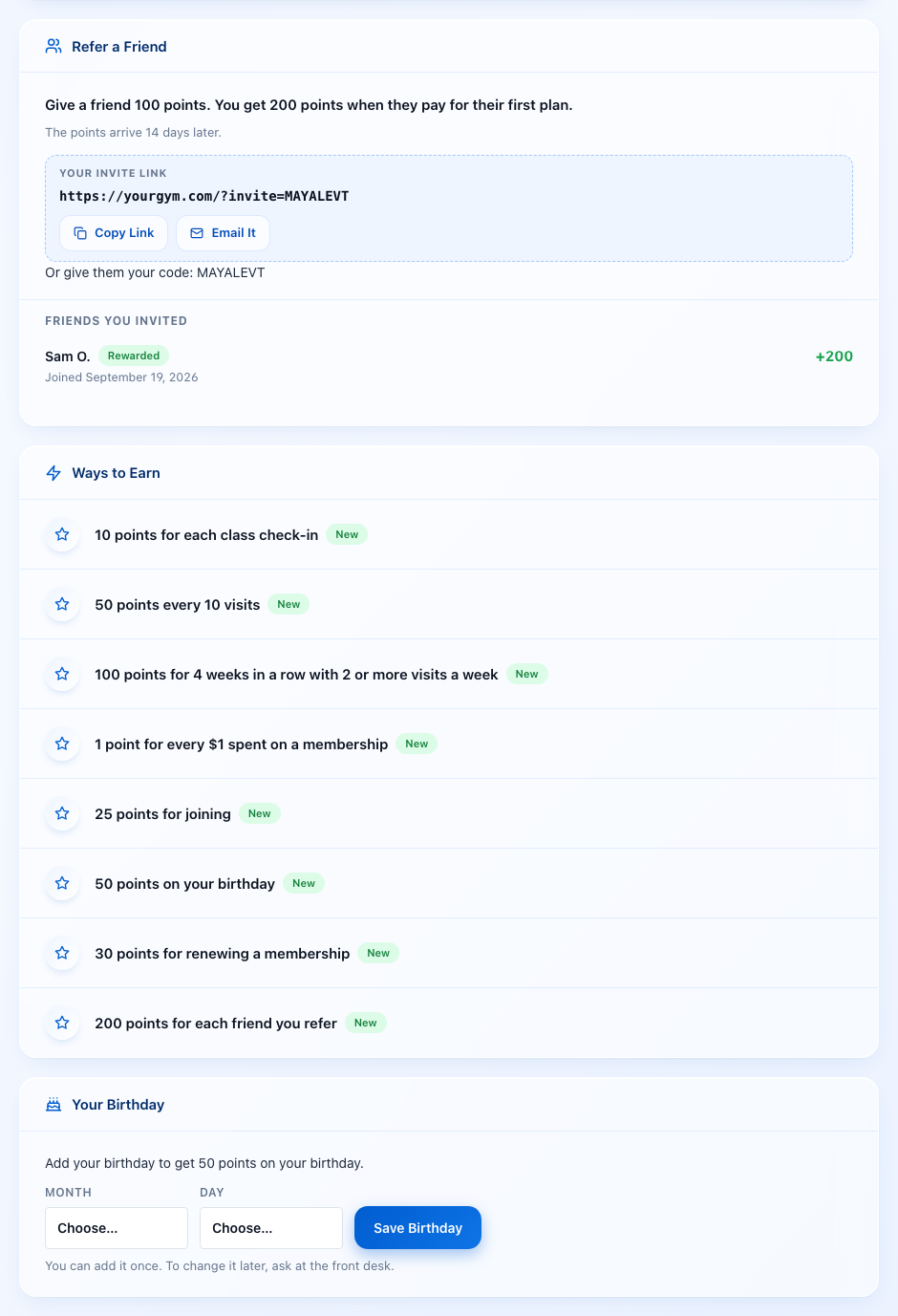
- Refer a Friend — what both get, their invite link and code, and the friends they invited. A new member can type a friend's code here.
- Ways to Earn — your rules that are on and shown to members.
- Your Birthday — added once; to change it later they ask at the front desk.
- History — their latest points changes, and See All History.
- Email Updates — Email me about my points: members can stop emails about points they earn, points about to expire, their birthday and friends they invite. Emails about rewards they redeem always come.
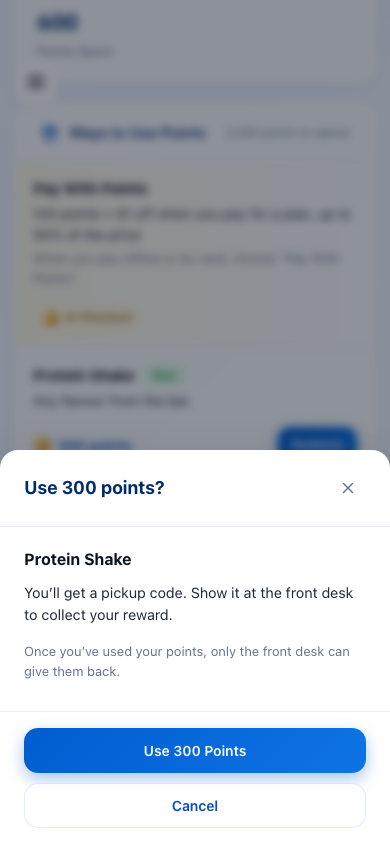
To redeem, a member taps Redeem and confirms. They are told that once points are used, only the front desk can give them back.
The member's Overview tab also gets a Your Points card with a View Rewards › link.
Paying with points at checkout
When a Pay With Points reward is on, a signed-in member with enough points sees a Pay With Points box when they buy a plan. Use … Points uses the most allowed; Use fewer lets them choose. Once chosen, the price drops and they can Change or Remove the points.
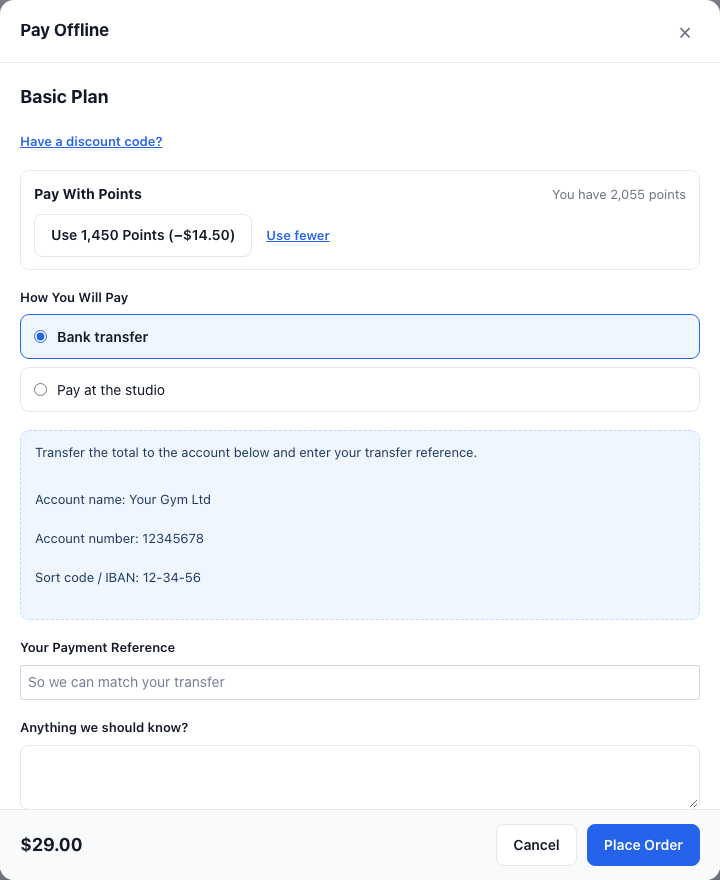
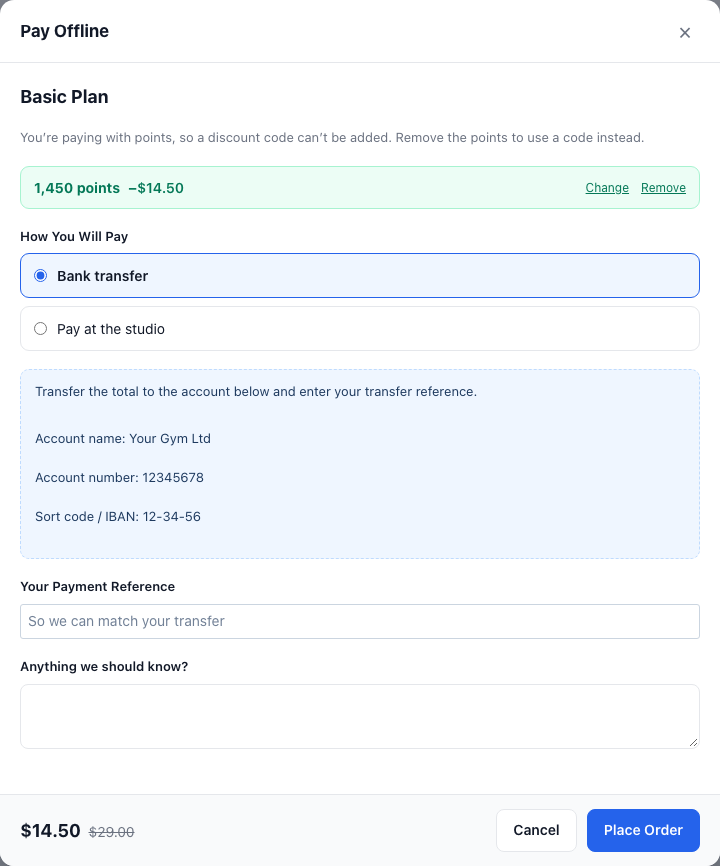
- Offline Payments — in the Pay Offline window. The points are held while the order waits, used when you approve it, and freed if you reject it or it runs out. Staff recording a payment can use the member's points too, after ticking that the member asked.
- Stripe Payments — in the card checkout window. On a plan that renews, the points come off the first payment. A plan that starts with a free trial has nothing to pay with points.
- The shop — on the WooCommerce checkout, for members who are logged in. Staff can use a member's points on an order that isn't paid yet, from the order's page.
- Discount codes — with Only One per Order, a member uses points or a code, not both. A card payment through Stripe always takes one or the other.
- Refunds — a card or shop refund gives back the points used on that order, in the same share.
Emails
| Email (setting) | Subject | When |
|---|---|---|
| Points Earned | You earned 50 points yesterday | One a day at most, listing the points earned the day before. |
| Points Expiring Soon | 200 points expire on [date] | Warn Members days before; once for each date points expire on. |
| Code Expiring Soon | Your code for “[reward]” works until [date] | Three days before an unused discount code or shop coupon runs out. |
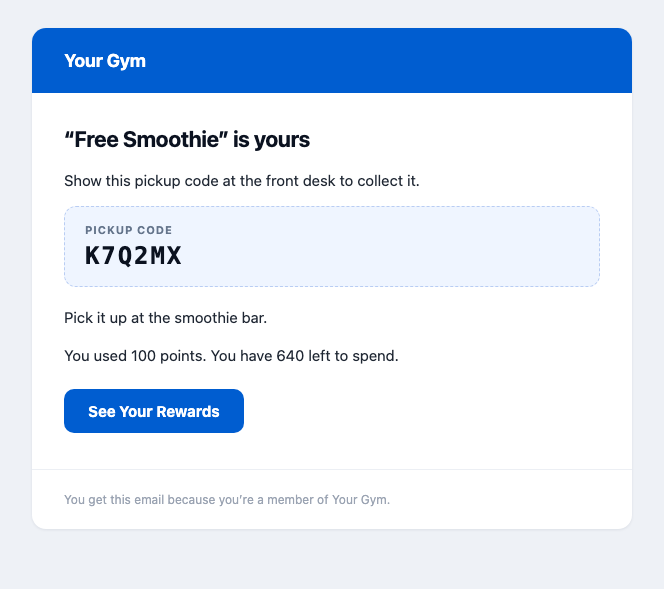
| Reward Redeemed | You redeemed “[reward]” | Right away, with the code or what to do next. |
| Reward Handed Out | Enjoy your “[reward]” | When you mark it handed out. |
| Reward Cancelled | “[reward]” was cancelled | When you cancel it and the points go back. |
| Referral Points | [friend] counted. Thanks for inviting them! — and to the friend: Welcome! You have points from your friend’s invite | To both members when a referred friend counts. |
| Birthday Points | Happy birthday, [name]! | On the member's birthday, with their points. |
| Reward to Hand Out (To You) | [member] redeemed “[reward]” | To the site's administration email address when a member redeems a reward you hand out. |
Points Earned, Points Expiring Soon, Code Expiring Soon and Birthday Points go out around 9 in the morning; the others right away. Every email uses your Gym Builder sender name and main colour. Members can stop Points Earned, Points Expiring Soon, Birthday Points and Referral Points from a link in each one; emails about their rewards always go.
Members' data
- Export and erase — a member's points account is included in WordPress's Tools → Export Personal Data and Tools → Erase Personal Data, found by their email address. Erasing closes the points account and clears what identifies the person.
- Deleting the plugin — keeps everything unless Delete Everything When the Plugin Is Deleted is on.
Questions
Do members who were already here get Welcome Points?
No. Joins the Gym is for members who join after you started points. Tick Members You Import Too in the rule to include members you import later.
How much is a point worth?
You decide, in the Pay With Points reward: for example 100 points for $1 off. The Overview shows what all members' points are worth at checkout.
Can points go below zero?
No. When a refund takes back points a member has already spent, they owe the rest, and it comes off the next points they earn. The Members Who Owe Points figure and the Owing Points list show who.
A member was refunded for an offline order. Are the points taken back?
Not by themselves: an approved offline order can't be undone, so take the points back by hand with Take Back on the line in their history, or Add or Take Points. Card refunds through Stripe and shop refunds take their points back automatically.
What happens if I switch off Give and Take Points?
Earning and spending pause. Members keep the points they have. Switch it on again to carry on.
Can a member get points back after redeeming?
Only through the front desk: cancel the reward on Rewards to Hand Out or the member's page, and the points go back. If their points had already passed their expiry date, they last Points Given Back Last more days.
A member doesn't want to take part. What do I do?
Click Stop Collecting on their page. They earn nothing more but can spend what they have. Members can stop the points emails themselves from their Rewards tab or a link in the email.
Can I run a double-points month?
Yes. Add a second rule for the same thing with the extra points, and set When the Rule Runs in its More Options to that month's dates.
If something goes wrong
- Needs You says "The daily points task hasn’t run on time" — your site's scheduled tasks may be switched off. Click Open Site Health. WordPress runs scheduled tasks when someone visits your site, so on a very quiet site they can run late; your host can set them to run on time.
- "The daily points task isn’t scheduled" — switch GB Loyalty & Rewards off and on again in Plugins; that schedules it.
- No points for a check-in — is Attendance on, and is the rule switched on? Check the rule's Classes and Checked In At, whether it is for Only members whose membership is active, and whether the member is collecting points.
- No points for a card payment, or a refund didn't take points back — check Payment Updates from Stripe (Webhook) in the Stripe Payments settings, and add the charge.refunded event for refunds.
- Points show as On Their Way — they are in the waiting period. The member sees the day they arrive.
- A reward is missing on the member's Rewards tab, or has no Redeem button — they need more points (the tab says how many), their membership isn't active, they reached its Limit per Member, none are left, or today is outside its From and Until dates. Also check the reward's switch.
- Needs You says a reward "is switched on, but members can’t use it" — the reason follows, for example the add-on it needs is off, or its plans were removed. Open Ways to Use Points and edit it.
- No Pay With Points box at checkout — is the Pay With Points reward on, with that checkout ticked in At These Checkouts and the plan in For These Plans? Does the member have at least the Smallest Number of Points? With Only One per Order, remove the discount code first.
- Referral points haven't arrived — has the friend counted (paid or come to classes)? Look on Needs Review, and remember the Points for Referrals waiting period.
- Needs You says a member's points "don’t add up with their history" — please contact support with that message.
- No emails arrive — check the email's switch in the settings, and that the member didn't stop them. Some emails go around 9 in the morning. Send Me Samples shows whether your site's emails arrive at all; an email (SMTP) plugin helps.