Quick Start
From a fresh install to your first trainer, class, plan and member — and a timetable people can register from — in about 20 minutes. Everything here is in the free Gym Builder plugin.
The plan
- Install Gym Builder
- Run the setup wizard
- Add a trainer
- Add a class with its times
- Add a membership plan
- Add a member
- Put the timetable on a page
- Choose what to add next
The setup wizard can do steps 3 to 7 for you with sample content. The steps after it show how to add your own, or how to do everything by hand if you skip the wizard. The Gym Builder guide explains every screen in full.
1. Install Gym Builder
- In WordPress, go to Plugins → Add Plugin and search for Gym Builder.
- Click Install Now, then Activate.
- Go to Settings → Permalinks, choose Post name and click Save Changes, so class, trainer and plan pages open. (The setup wizard offers to do this for you.)
Gym Builder emails members and trainers their login details. If your host does not send WordPress email reliably, install an email (SMTP) plugin such as WP Mail SMTP or FluentSMTP now.
2. Run the setup wizard
On a new site the wizard opens as soon as you activate Gym Builder. (If you switched on several plugins at once, click Start Setup on the Plugins screen.)
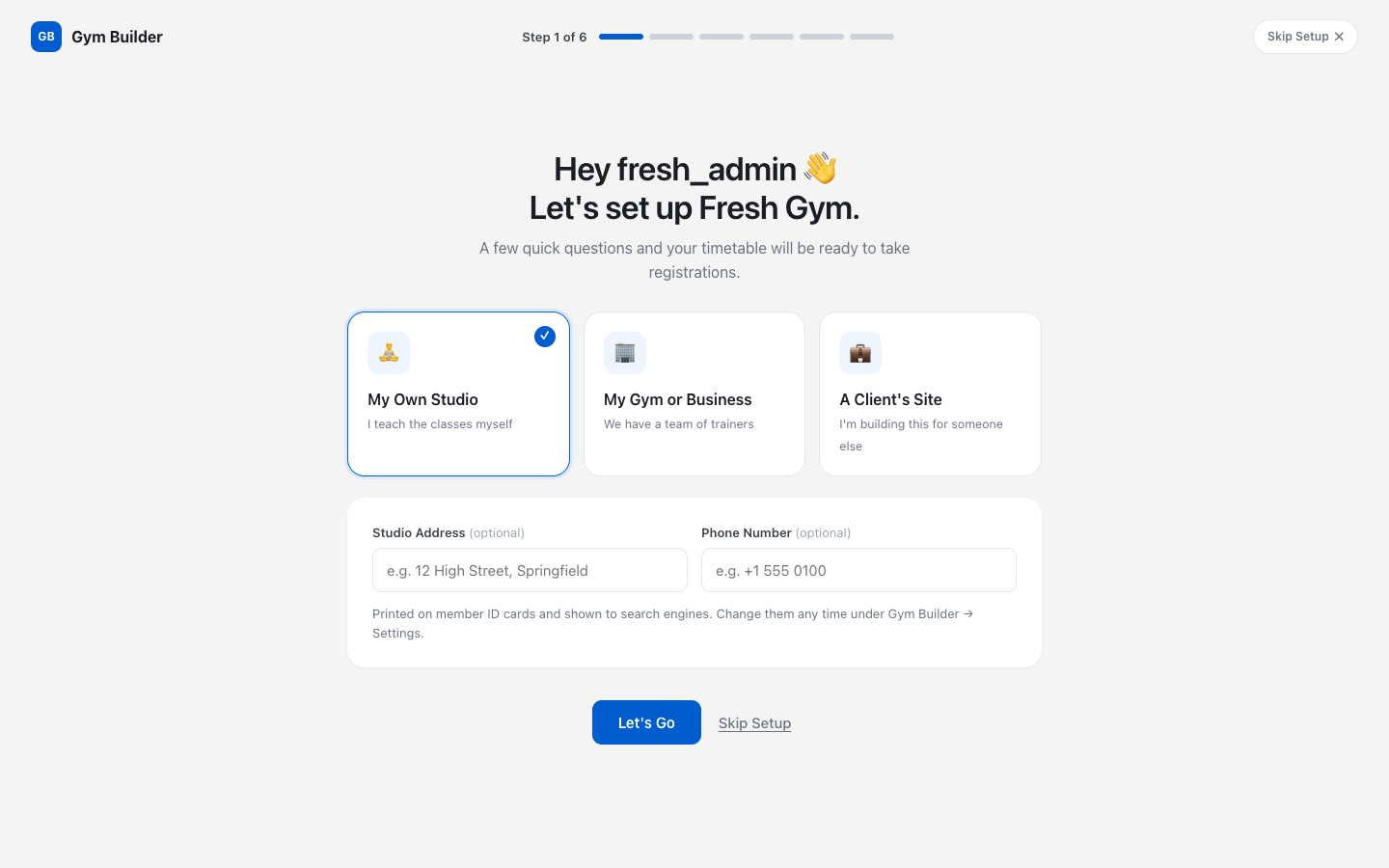
- Pick who you are — My Own Studio, My Gym or Business or A Client's Site — add your address and phone if you like, and click Let's Go.
- Choose what you teach, then click Next.
- Choose Start with 2 Sample Classes to see everything working first, or Add My Own Classes to type your real classes and their times.
- Check your classes, then choose Use the 2 Sample Plans or Add My Own Plans.
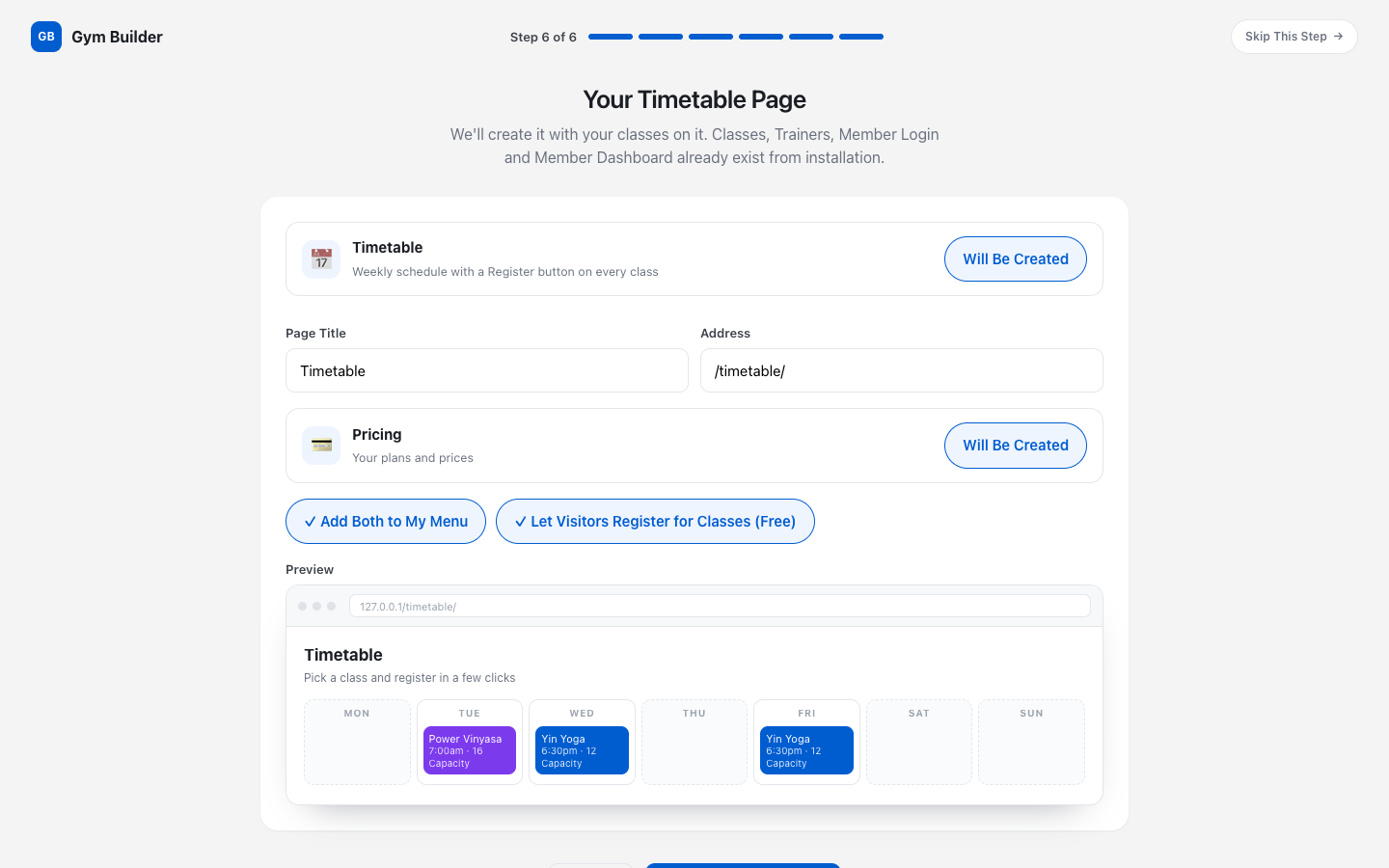
- On Your Timetable Page, keep Add Both to My Menu and Let Visitors Register for Classes (Free) on, and click Create My Timetable.
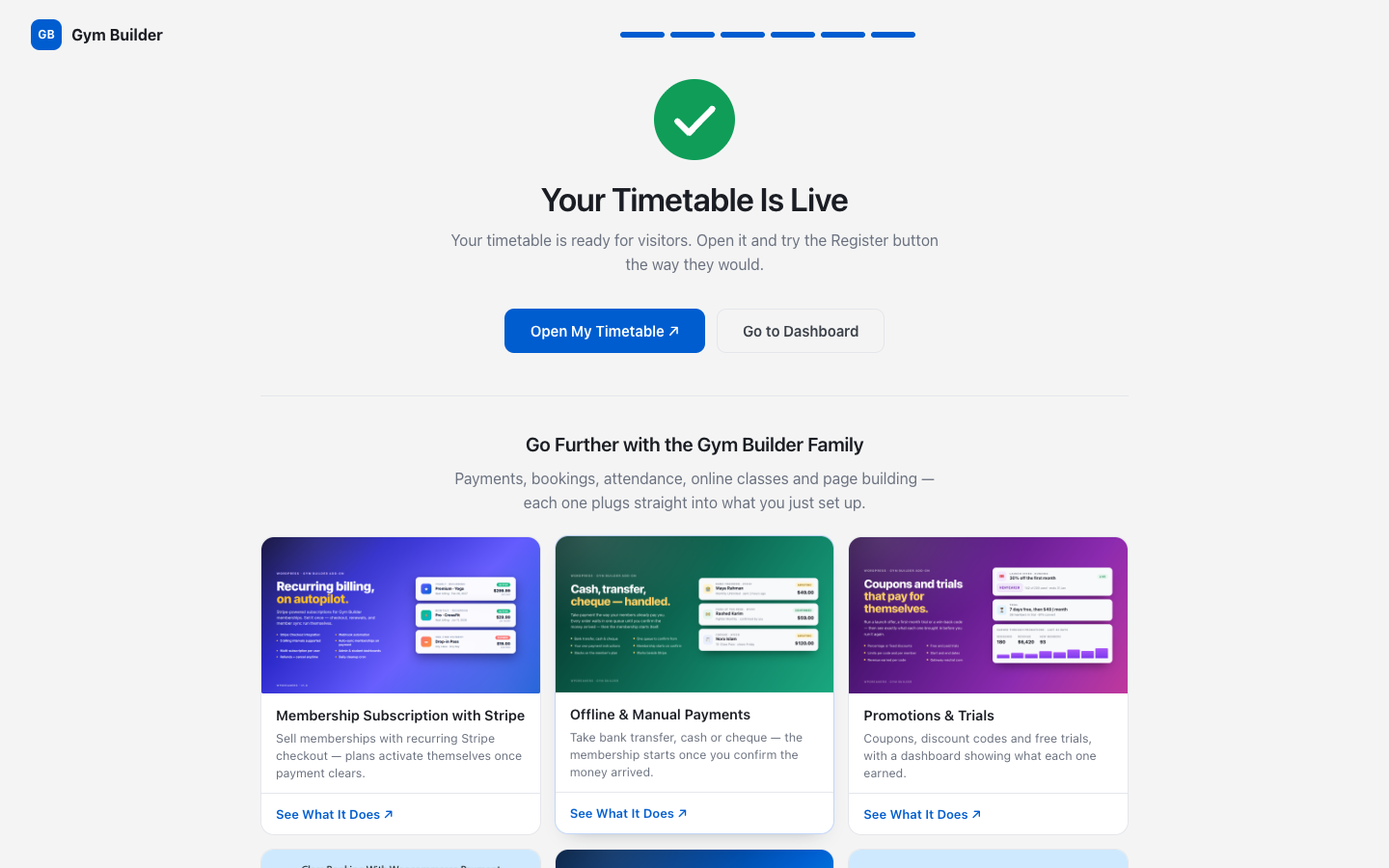
When you see Your Timetable Is Live, click Open My Timetable ↗ to look at it, or Go to Dashboard.
No problem. Follow steps 3 to 7 below and you end up in the same place. From now on everything is in Gym Builder → Dashboard, and its Finish Setting Up card shows what is left to do (and can open the setup wizard again).

3. Add a trainer
- In the Dashboard menu, click Trainer Accounts, then Add Trainer.
- Type the trainer's name as the title and a short bio in the text box.
- Set their photo with Set featured image on the right.
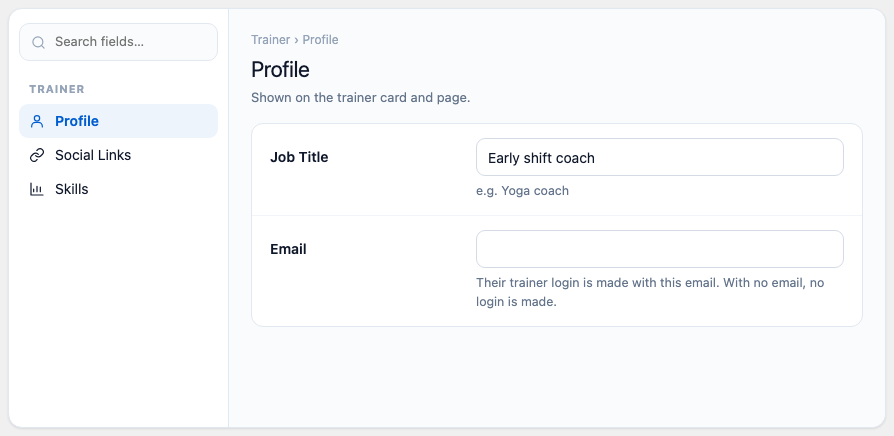
- In Profile, fill in the Job Title and their Email. Their trainer login is made with this email and sent to them.
- Add Social Links and Skills if you like, then click Publish.
4. Add a class with its times
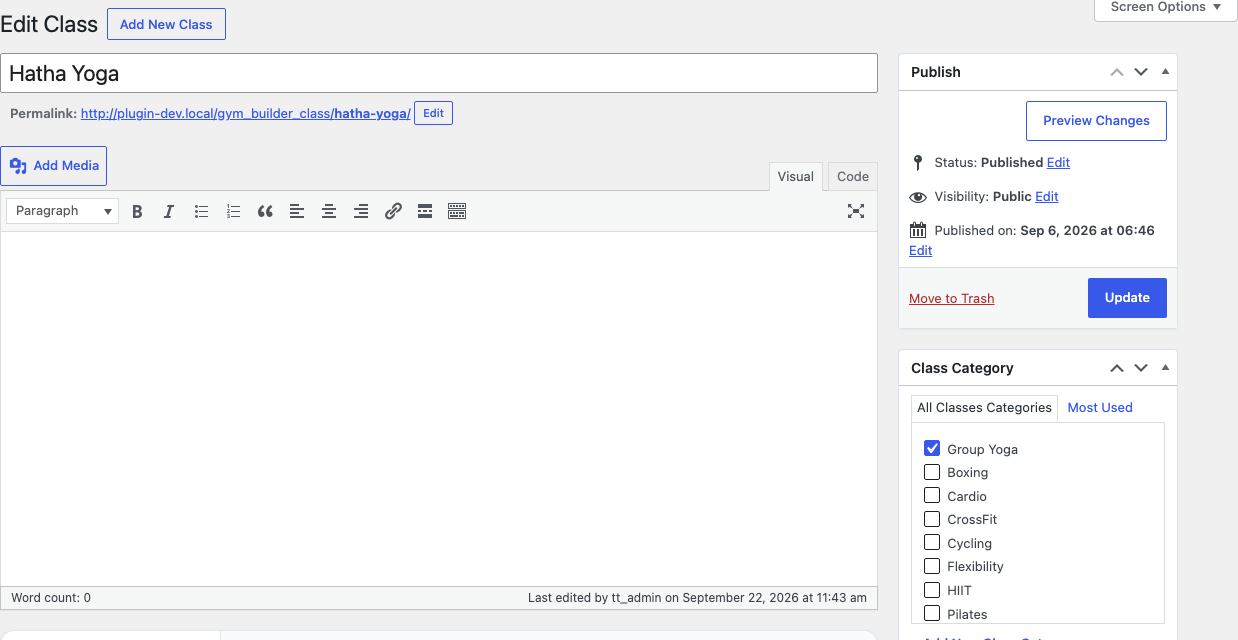
- In the Dashboard menu, click Timetable, then Add Class.
- Type the class name, a description for the class page, tick a Class Category and set a Featured image.
- In Details, fill in Length of One Class, for example "60 min / session".
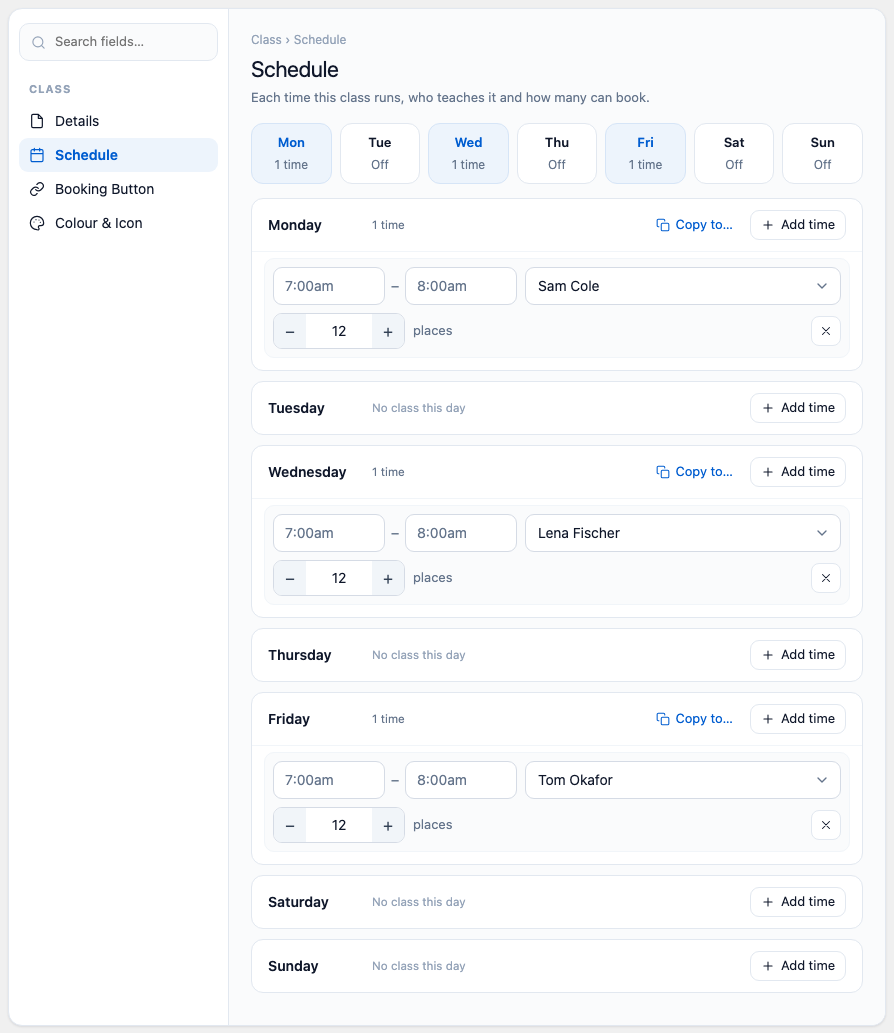
- Open Schedule. Next to the first day the class runs, click Add Time.
- Enter the start and end time (like 7:00am and 8:00am), pick the trainer and set the number of places.
- Add the other days the same way, or click Copy to…, tick the days and click Copy.
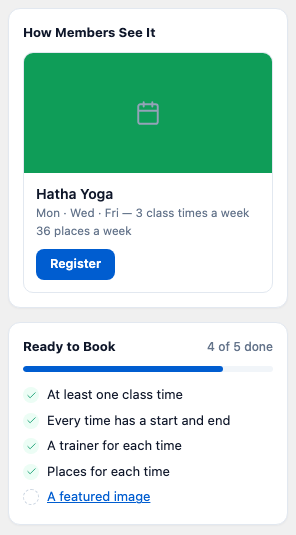
- Check the Ready to Book list on the right, then click Publish.
5. Add a membership plan
Members book classes through a plan, so every class should be in at least one.
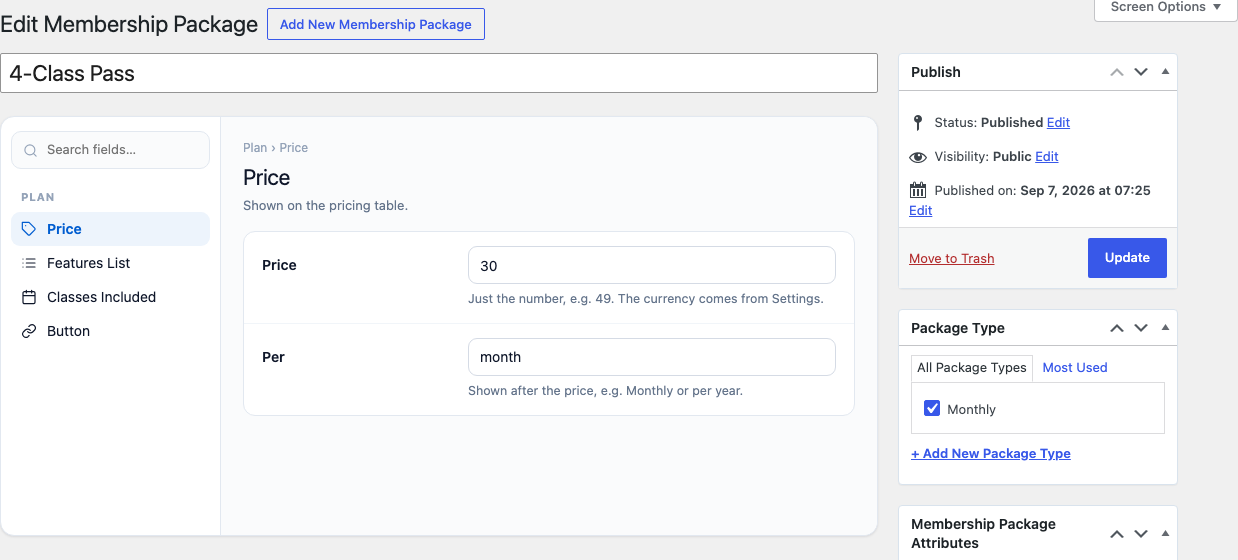
- In the Dashboard menu, click Manage → Membership Plans, then Add New Membership Package.
- Type the plan name, for example "Monthly Unlimited", and tick a Package Type on the right (for example Monthly; add one with + Add New Package Type).
- In Price, enter the Price (just the number) and Per (for example "month").
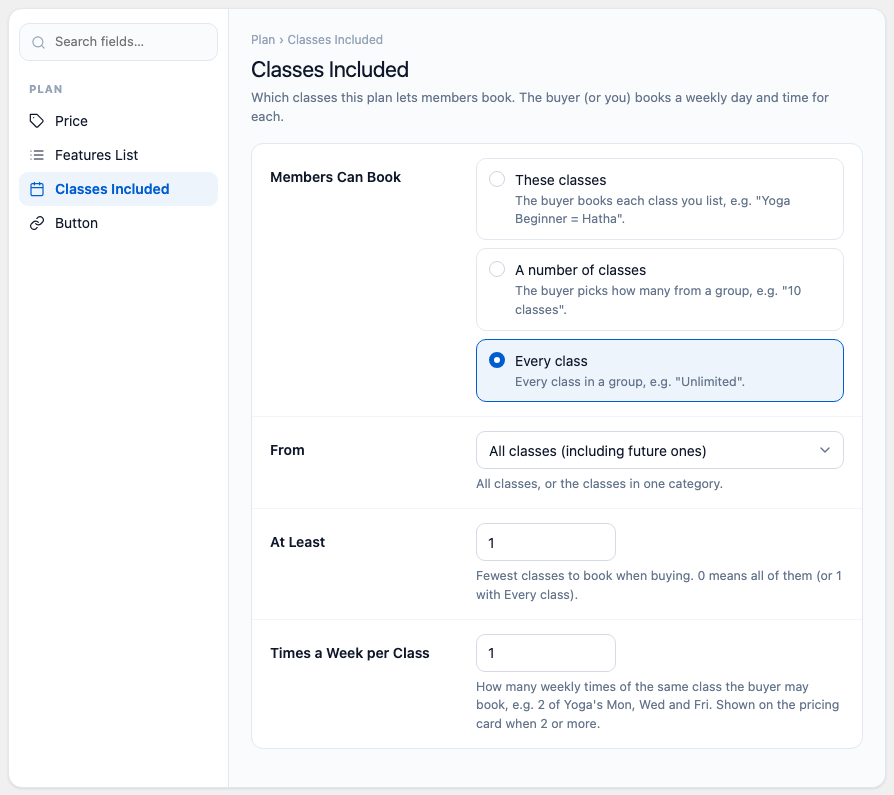
- In Classes Included, choose what Members Can Book: These classes, A number of classes or Every class, and fill in the fields that appear.
- Add a few lines in Features List and a Button if you like, then click Publish.
6. Add a member
- In the Dashboard, click Add Member.
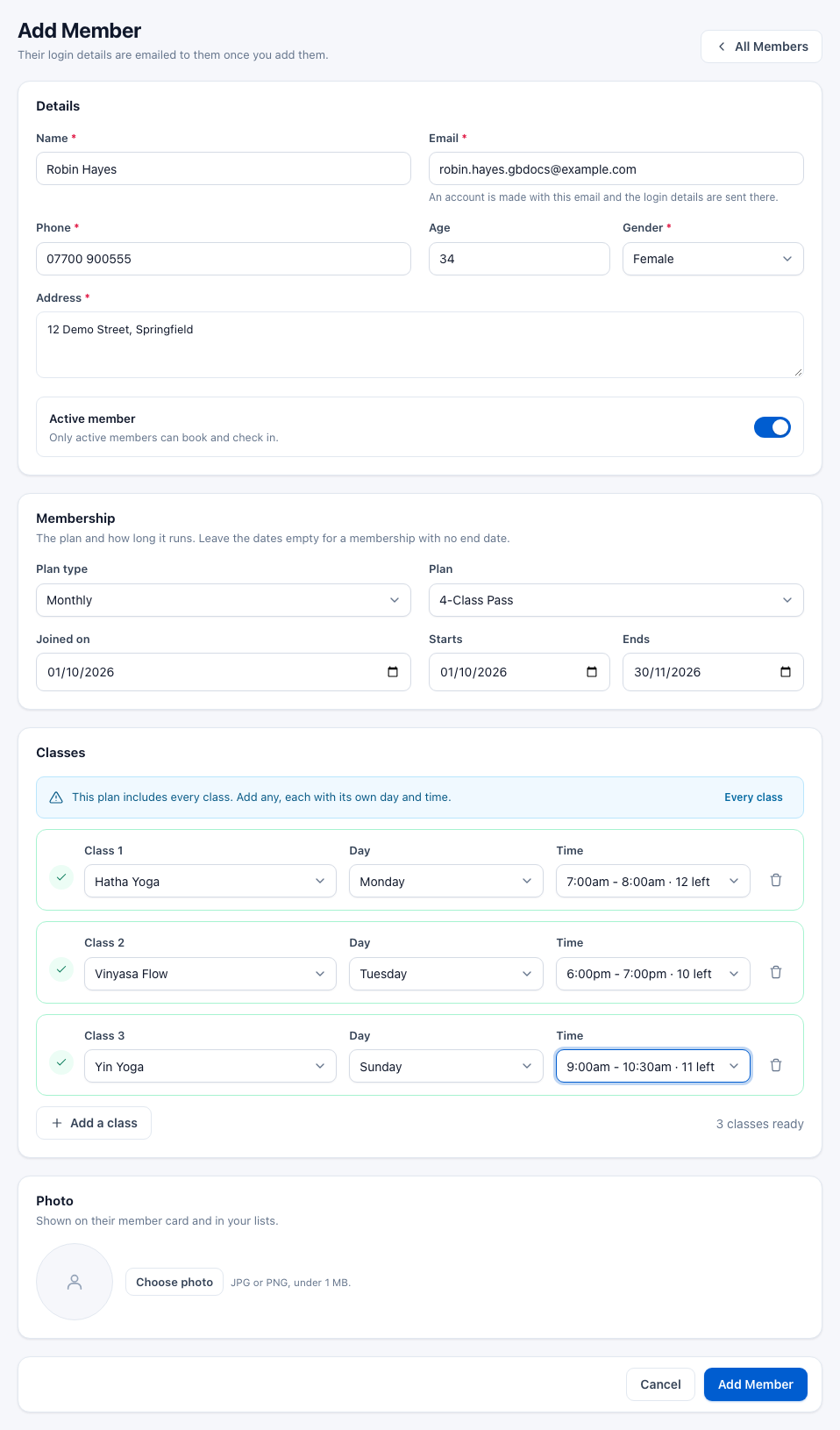
- Fill in Name, Email, Phone, Gender and Address, and switch on Active member.
- Under Membership, pick the Plan and set Starts and Ends (leave both empty for no end date).
- Under Classes, choose a class, its Day and Time. Use Add a class for more.
- Click Add Member. They get an email with their login details for the member dashboard.
7. Put the timetable on a page
If the setup wizard made your Timetable page, it is already there — skip to the check below. Otherwise:
- In the Dashboard menu, click Manage → Class Shortcodes, then Add New Class Shortcode.
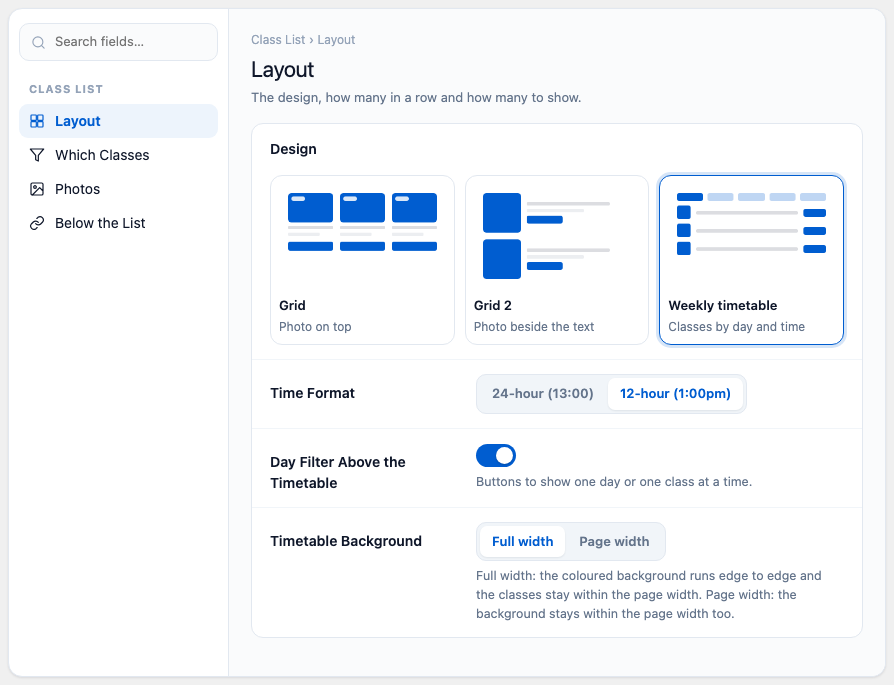
- Give it a name, for example "Timetable". In Layout, choose the Weekly timetable design.
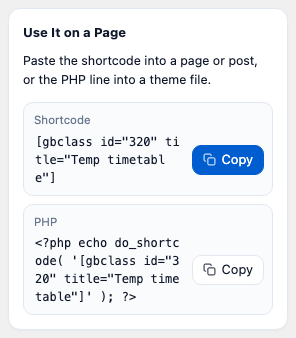
- Click Publish. In Use It on a Page on the right, click Copy next to the shortcode.
- Go to Pages → Add Page, call it "Timetable", add a Shortcode block, paste the shortcode and click Publish.
- For a prices page, do the same with
[membership_package_shortcode].
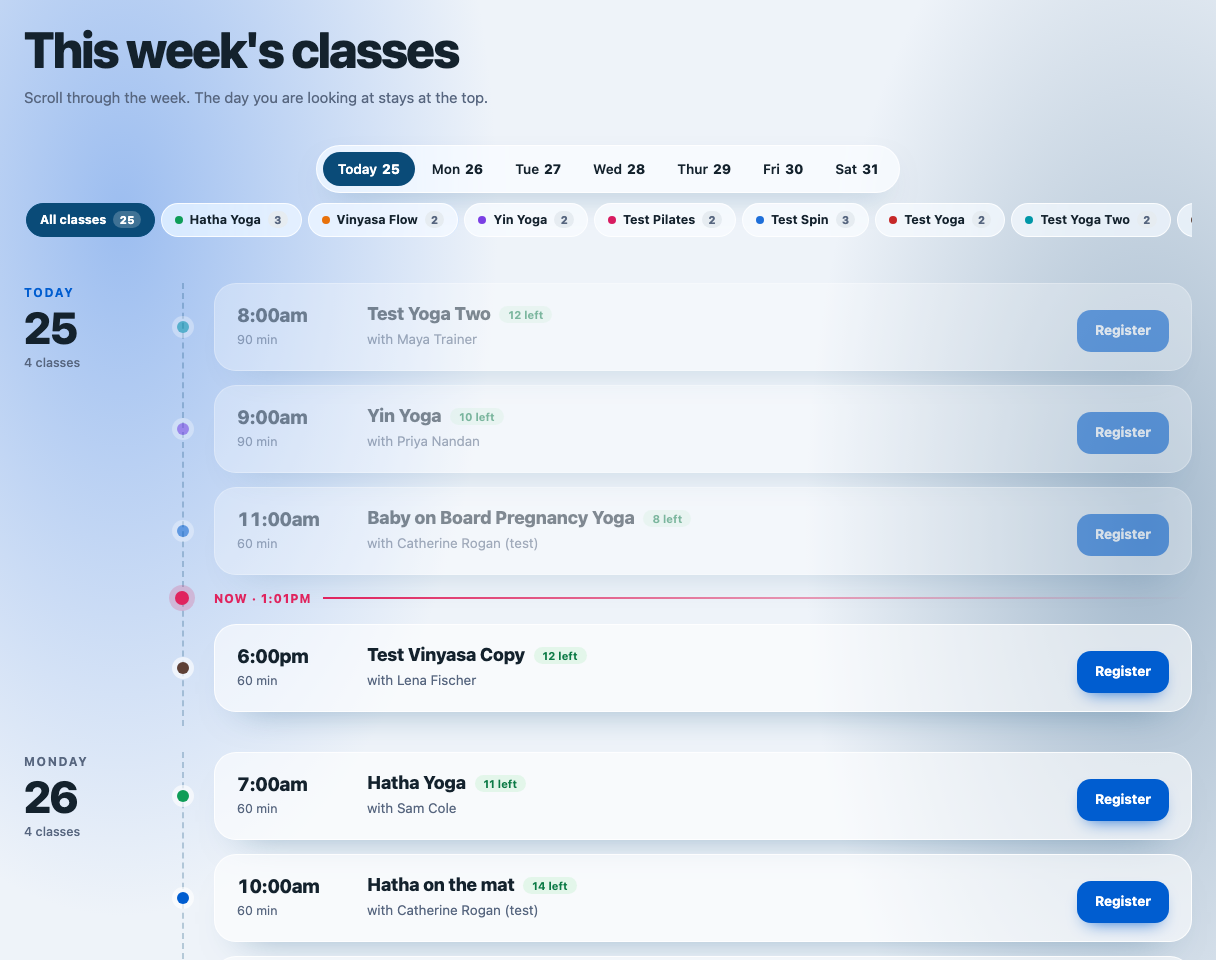
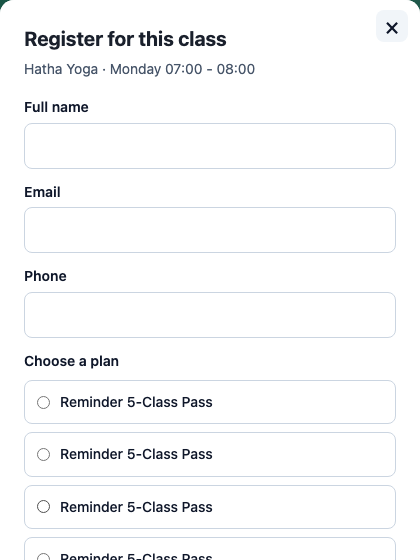
Check it as a visitor. Open the page in a private browser window. Each class time has a Register button (if not, switch on Register Button on the Timetable in Settings → Classes). Register for a class: you appear in Members as a pending member, ready to be made active.
8. What to add next
Gym Builder is complete on its own. When you need more, each add-on plugs into the same Dashboard:
- Take payments — Stripe Payments (card payments, one-off or recurring), Offline Payments (bank transfer or at the desk) or Class Booking & Payment (single class places through WooCommerce).
- Bring people in — Promotions & Trials for coupons and free trials, and Registration Popup for a sign-up form with class and plan choice.
- Run your classes — Attendance to check members in, Zoom Integration for online classes, Personal Session for one-to-one sessions and Fitness Tracking for workouts and progress.
- Run the business — Business Manager for money, stock, staff and payroll, and AI Assistant to ask for reports in plain words.
- Design your pages — Block Tools for the block editor, or Elementor Widgets and Pre-built Templates for Elementor.
And when you want the details of any screen, the Gym Builder guide covers the Dashboard, members, settings, emails and your website page by page.