Business Manager
The back office of your studio in one screen: every payment and every bill with real profit and loss, your equipment and stock, your staff's attendance and leave, and monthly payroll with payslips.
What it does
Gym Builder and its payment add-ons keep records of what members pay. Business Manager puts those payments next to what the studio spends, keeps track of what you own, and runs the staff side: who came to work, who is on leave and what everyone is paid. It has four parts, called modules. You can switch off any you do not need.
- Finance — every payment from Stripe Payments, Offline Payments and Personal Session in one list, income you type in yourself, expenses and recurring bills, profit and loss for any month or year, CSV and PDF exports.
- Inventory — equipment, consumables and things you sell at the desk, with photos, stock counts, average cost, repairs, service dates, waste and a daily email when something runs low.
- Staff — your trainers and everyone else who works at the gym, clock-ins by front-desk kiosk, trainer dashboard, a private records page or fingerprint machine, a month view of attendance, leave requests with allowances, and holidays.
- Payroll — monthly pay worked out from attendance, leave, classes taught and personal sessions, payslips you can check and correct, advances, and a pay run that goes into your expenses when you mark it paid.
Nothing is copied from the payment add-ons: their own records are read live, so a late approval or a refund shows up in your reports straight away.
Before you start
- Gym Builder 2.5.0 or newer, active. Without it, Business Manager stays off and shows a notice with an Install, Activate or Update link.
- Payment add-ons are optional. Business Manager reads Stripe Payments, Offline Payments and Personal Session if their records are on the site. With none of them, only income you enter by hand counts as revenue.
- Your currency comes from Gym Builder's own settings. Amounts in another currency are listed separately and never added to your totals.
- Emails that arrive. Leave requests, records links and alerts go out by email. If your site's emails tend to go missing, set up an email (SMTP) plugin.
Install and switch on
- Go to Plugins → Add Plugin and click Upload Plugin.
- Choose the add-on's zip file, click Install Now, then Activate Plugin. Enter your license key if you are asked for it.
- Open Gym Builder → Business Manager in the WordPress menu on the left.
Where to find it
Business Manager has its own screen. It is not inside the Gym Builder Dashboard: open it from the WordPress menu at Gym Builder → Business Manager. The screen has its own menu on the left: Dashboard, Revenue, Expenses, Reports, Inventory, Staff, Payroll and Settings. A module you switch off disappears from that menu.
Most pages have a date range at the top (This month, Last month, Last 30 days, This quarter, This year, Last year or Custom range) and, for charts, a Group by choice (Auto, Daily, Weekly, Monthly, Yearly). The range stays the same when you move between Dashboard, Revenue and Reports, and the address in your browser keeps it, so a bookmark or a copied link opens the same view.
Who can use it
- Administrators see every page, including Settings.
- Gym Manager — a user role the add-on creates. Give it to someone at Users → (the person) → Role. A Gym Manager can run the books, stock, staff and payroll without being able to change the rest of the website. For them, Business Manager is a menu item of its own in the WordPress menu. Only administrators see the Business Manager Settings page.
Behind the scenes the add-on has separate permissions for finance, view-only reports, inventory, staff and payroll, so that running attendance does not mean seeing salaries. The Gym Manager role has all of them; a site developer can hand out single ones with a role-editor plugin.
Dashboard
The Dashboard shows how the studio is doing for the chosen dates: money in, money out and what is left.
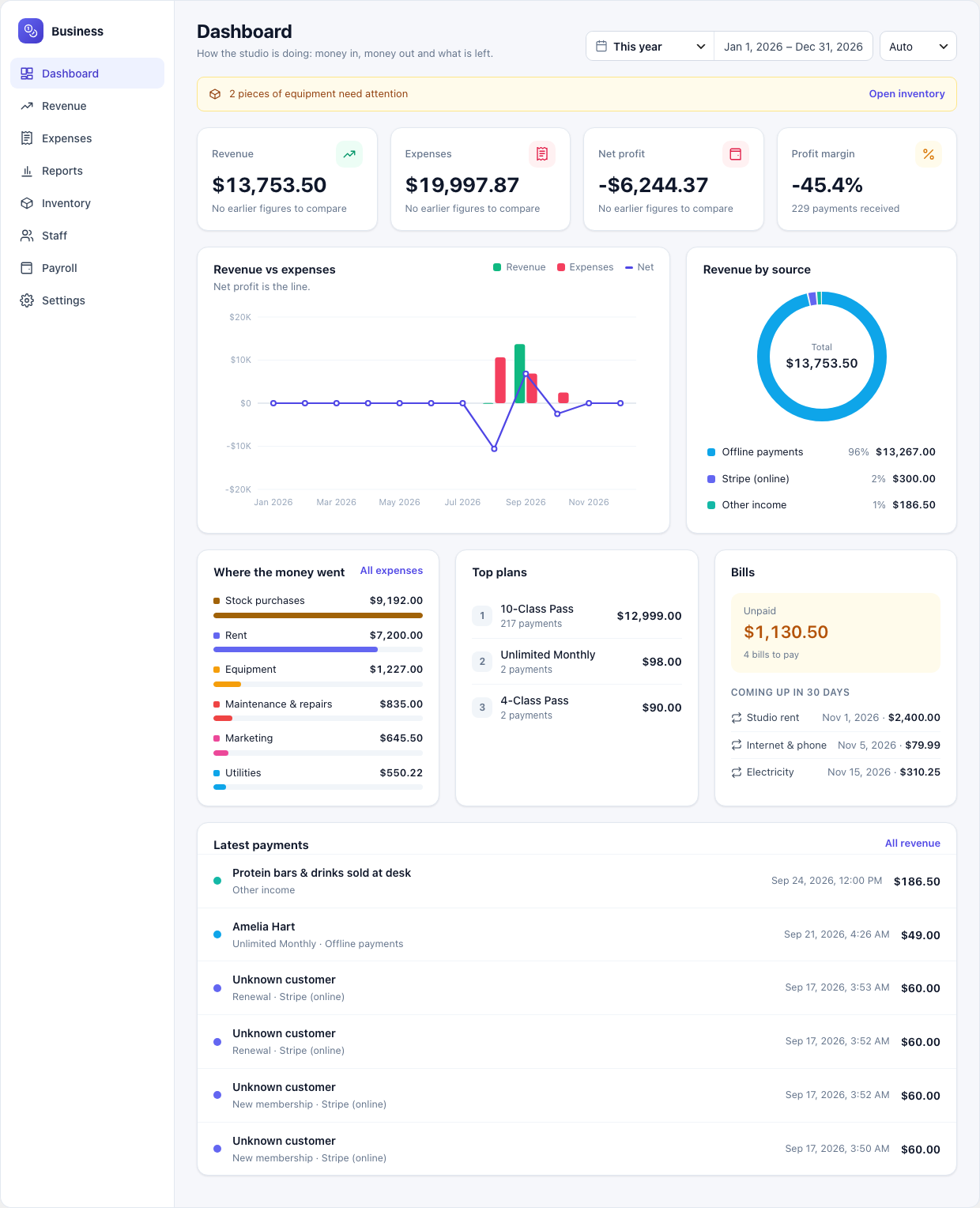
- Revenue, Expenses, Net profit and Profit margin — each compared with the period before (for example "63.9% vs previous period"). With nothing to compare to, the card says "No earlier figures to compare".
- Revenue vs expenses — bars for money in and out, with net profit as the line.
- Revenue by source — how much came from Offline payments, Stripe (online), personal sessions, other income and retail sales.
- Where the money went — paid expenses by category. All expenses opens the Expenses page.
- Top plans — the membership plans that brought in the most.
- Bills — what is still Unpaid, and recurring bills Coming up in 30 days.
- Latest payments — the newest payments. All revenue opens the Revenue page.
When Inventory is on, a yellow bar at the top warns you when items need reordering or equipment needs attention, with an Open inventory link.
Finance
Revenue
Every payment from every payment add-on, in one place. Go to Business Manager → Revenue.
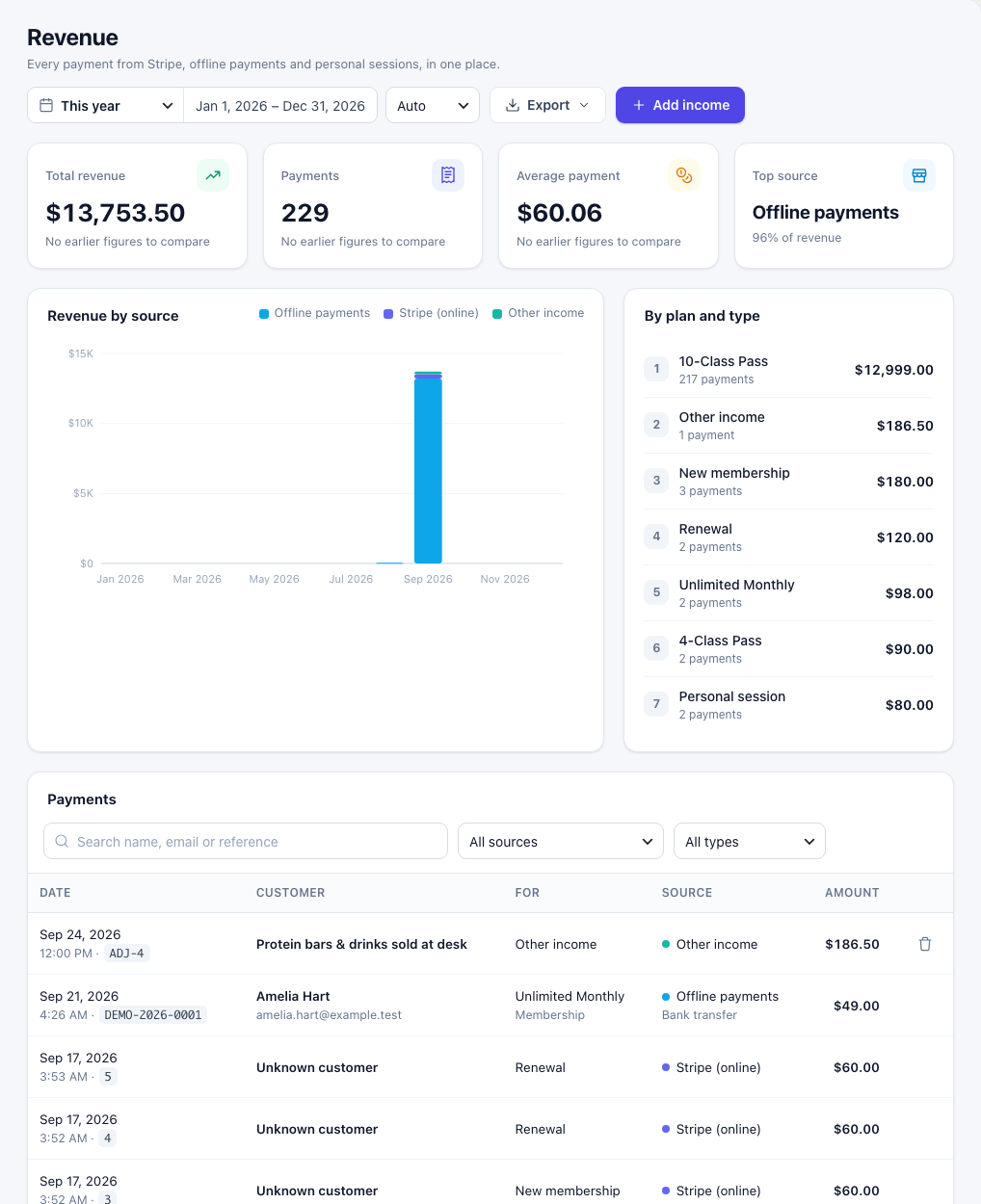
- Total revenue, Payments, Average payment and Top source for the chosen dates.
- Revenue by source over time, and By plan and type — which plans and which kinds of payment (new membership, renewal, personal session, registration, other income) brought the money in.
- Payments — search by name, email or reference, and filter by source and type. Each row shows the date and reference, the customer, what it was for, the source and the amount. Refunds show as negative amounts.
| Source | Where it comes from |
|---|---|
| Stripe (online) | Card payments for memberships, first payments and renewals, from Stripe Payments. Only payments in the Stripe mode you use (Test or Live) count, so test payments drop out once you go live. Refunds made in your Stripe dashboard are taken off (see Stripe Refunds). |
| Offline payments | Bank transfers and cash from Offline Payments, once you approve them. |
| Personal sessions (online) | Paid one-to-one sessions from Personal Session. |
| Other income | Money you add by hand (below). |
| Retail sales | Sales you record in Inventory. |
Add income or a refund by hand
For money no payment add-on records — drinks sold at the desk, a cash drop-in, or a refund you gave in cash.
- On the Revenue page, click Add income.
- Choose Income or Refund given.
- Fill in Description, Amount and Date, and Notes if you like.
- Click Save. The entry appears in the list as Other income.
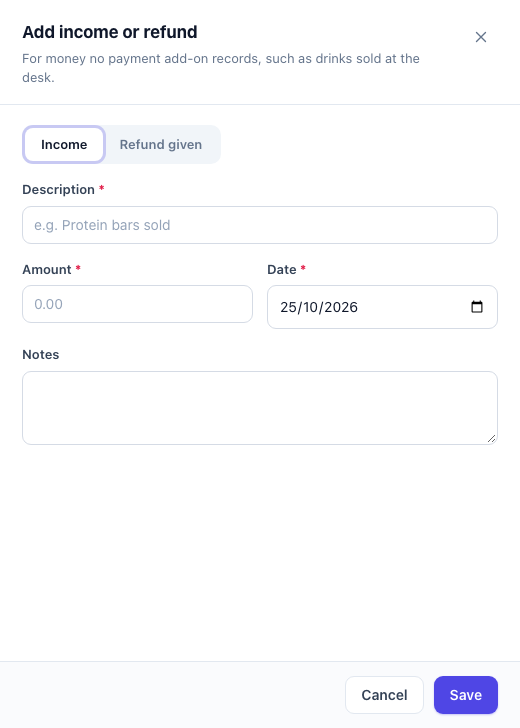
Only entries you added by hand can be deleted (the bin icon on their row). Payments from the add-ons are changed in those add-ons.
Expenses
Rent, utilities, equipment and every other cost. Go to Business Manager → Expenses. The Expenses tab lists the bills in the chosen dates, with Paid and Unpaid totals at the top.

- Click Add expense.
- Fill in What was it for?, Amount, Date and Category.
- Choose a Vendor if you like, the Status (Paid, Unpaid or Void) and Paid by (Cash, Bank transfer, Card, Cheque, Mobile payment or Other).
- Optional: Tax included (part of the amount), a Reference such as the invoice number, a Receipt from your media library and Notes.
- Click Save expense.

- Unpaid bills count as money still owed. Click Mark paid when you pay them.
- To keep a record of a cancelled bill without counting it, set its status to Void instead of deleting it.
- A small repeat icon marks bills posted from a recurring bill. A box icon marks costs recorded in Inventory — change or undo those in Inventory.
- Reports use the cash basis: an expense counts on the day it is paid.
Recurring bills
Bills that repeat — rent, electricity, internet, software — are recorded automatically on their due date, so they never go missing from your profit.
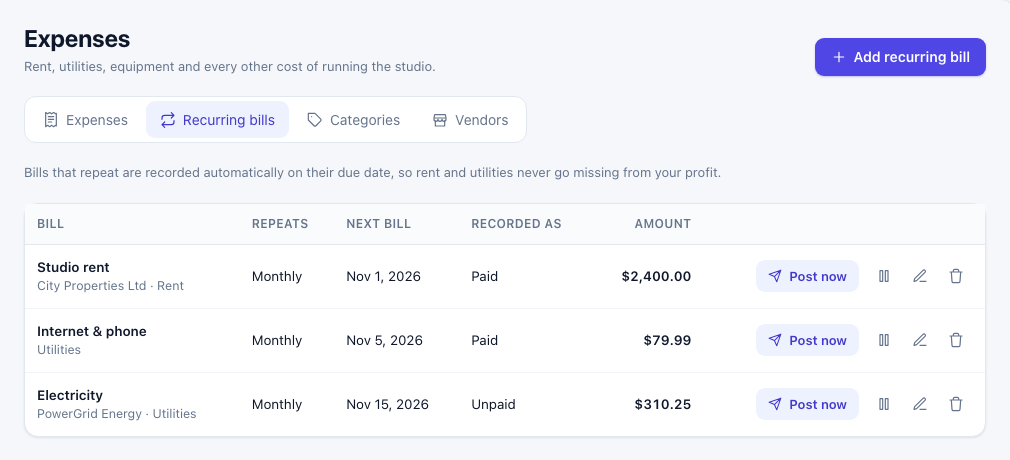
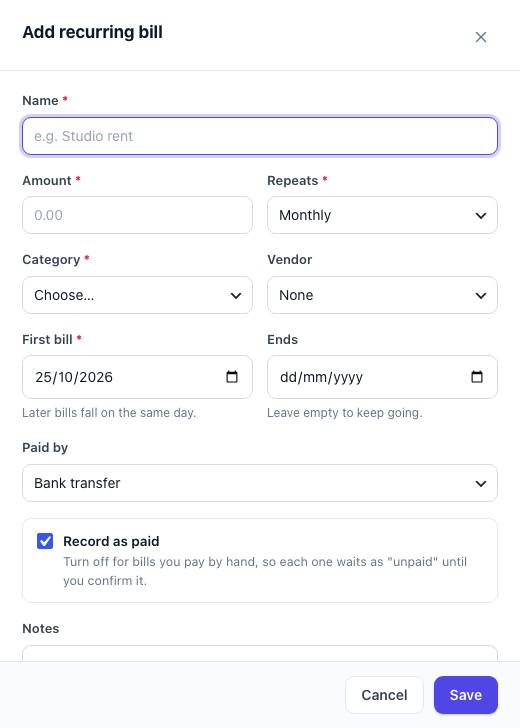
- On the Recurring bills tab, click Add recurring bill.
- Fill in Name, Amount, Repeats (Weekly, Monthly, Every 3 months or Yearly), Category and, if you like, Vendor.
- Set the First bill date. Later bills fall on the same day. Leave Ends empty to keep going.
- Choose Paid by. Leave Record as paid ticked for bills that are paid automatically; untick it for bills you pay by hand, so each one waits as "unpaid" until you confirm it.
- If the first bill is in the past, tick Also record past bills to record every bill from that date until today. Otherwise recording starts with the next due date.
- Click Save.
On each row: Post now records the next bill straight away, the pause button stops the bill until you resume it, and you can edit or delete it. Deleting a recurring bill keeps the bills it already recorded. A bill on the 31st falls on the last day of shorter months.
Categories and vendors
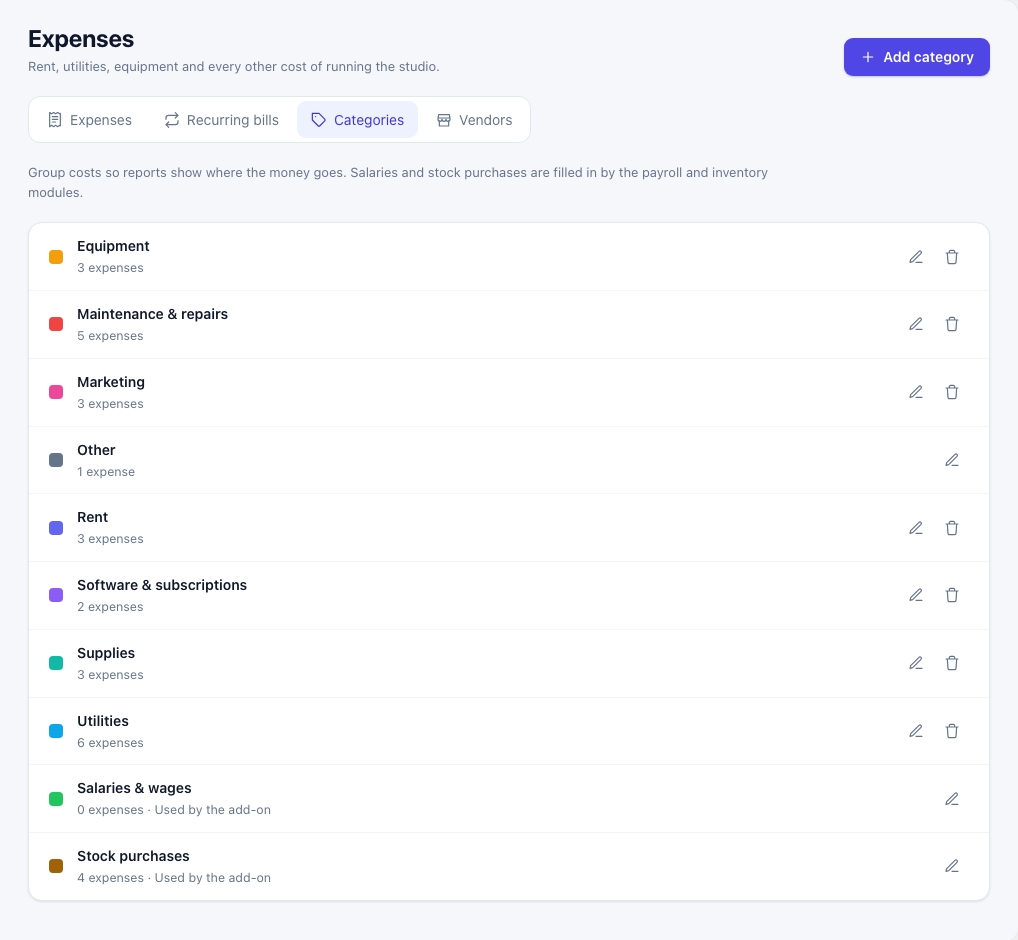
Categories group your costs so reports show where the money goes. Each has a colour used in the charts. Salaries & wages and Stock purchases are filled in by Payroll and Inventory, and Other is where expenses go when you delete their category — these three cannot be deleted.
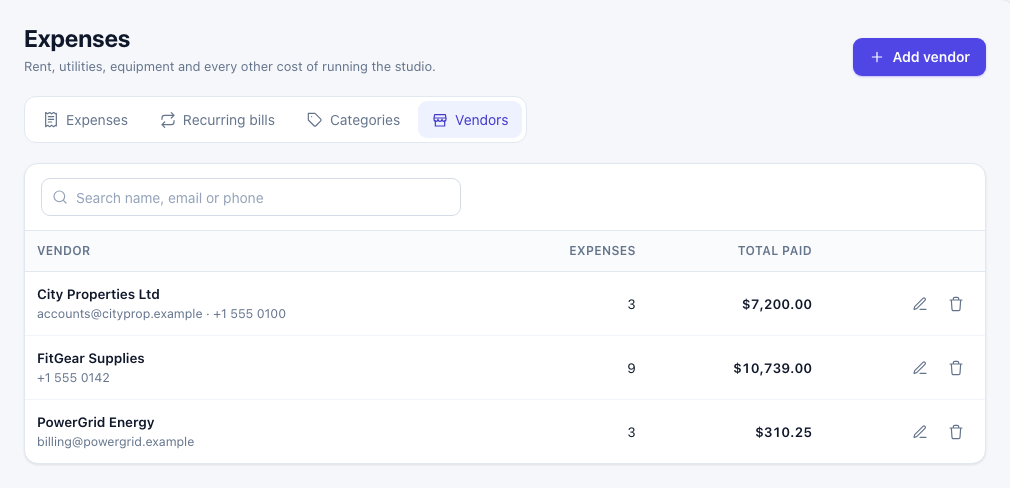
On the Vendors tab, add your landlord, utility companies and suppliers with Name, Email, Phone and Notes. The list shows how many expenses and how much you have paid each of them. Deleting a vendor keeps their expenses, without the vendor name.
Reports: profit and loss
Go to Business Manager → Reports for profit and loss over any range.
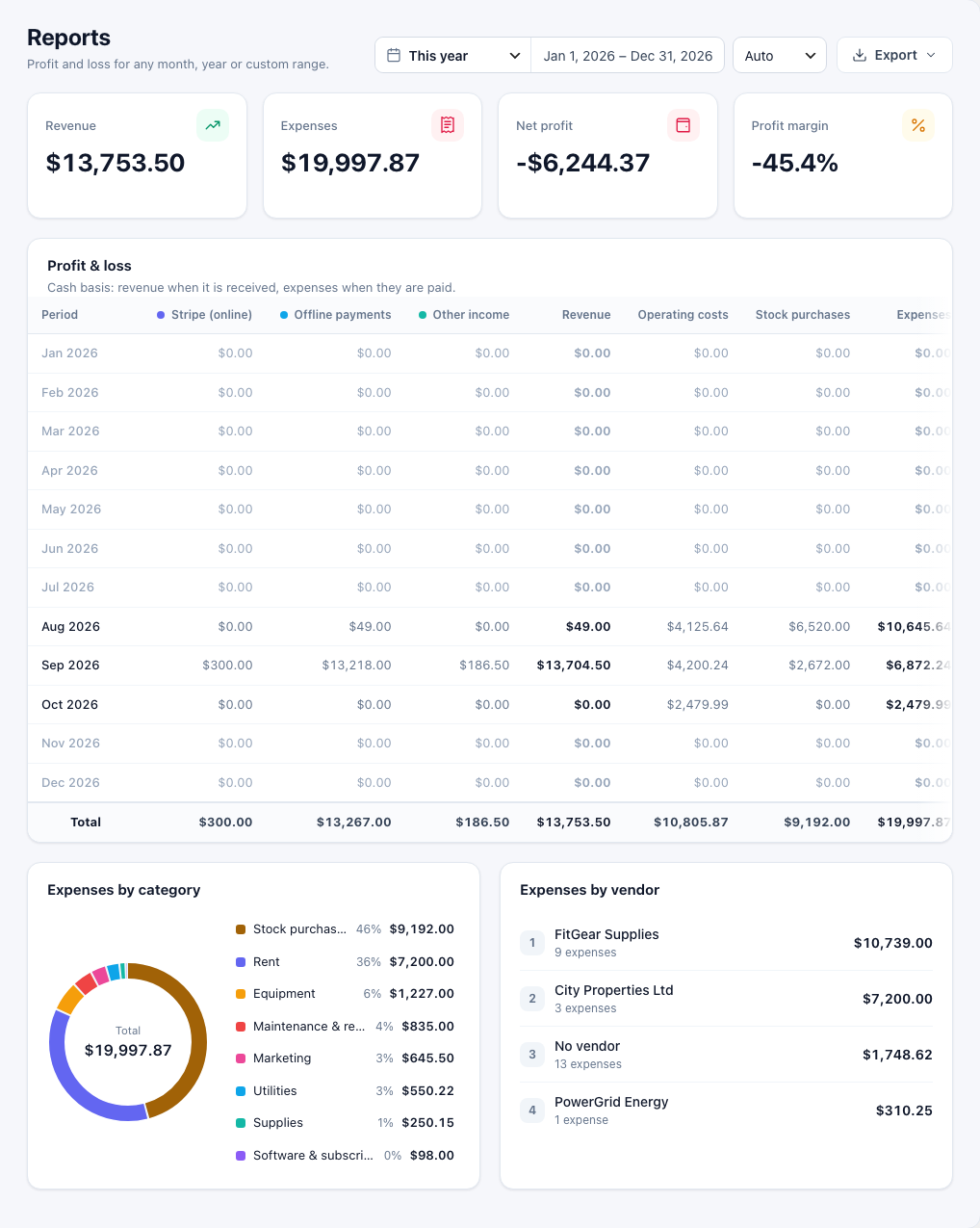
- Profit & loss — one row per day, week, month or year (your Group by choice), with revenue per source, costs per kind (operating costs, payroll, stock purchases, other costs), and the net for each row. Cash basis: revenue when it is received, expenses when they are paid.
- Expenses by category and Expenses by vendor for the same dates.
Exports
The Export button downloads what you see for the chosen dates.
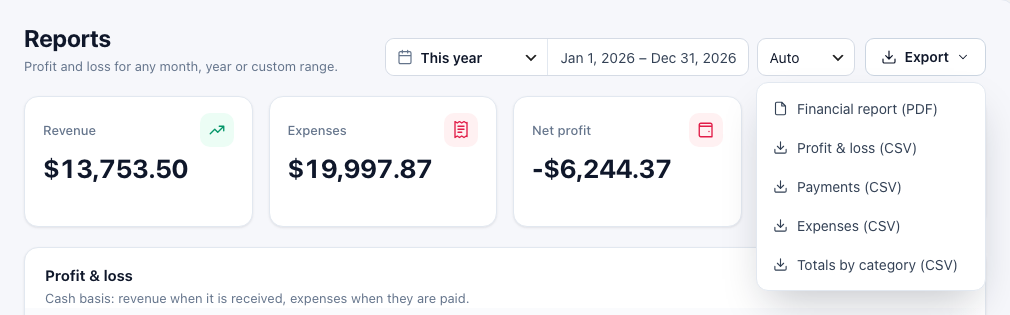
| Export | Where |
|---|---|
| Financial report (PDF) | Reports, Revenue |
| Profit & loss (CSV) | Reports |
| Payments (CSV) | Reports, Revenue |
| Expenses (CSV) | Reports, Expenses |
| Totals by category (CSV) | Reports, Expenses |
| Items and stock value (CSV) | Inventory |
| Stock activity in range (CSV) | Inventory |
| This month (CSV) | Staff → Attendance (the month on screen) |
| Payslips PDF, CSV | Payroll → a pay run |
Inventory
Your gym equipment and stock: how many, what it cost, what was lost or damaged, and what needs repair or reordering. Go to Business Manager → Inventory.
Items
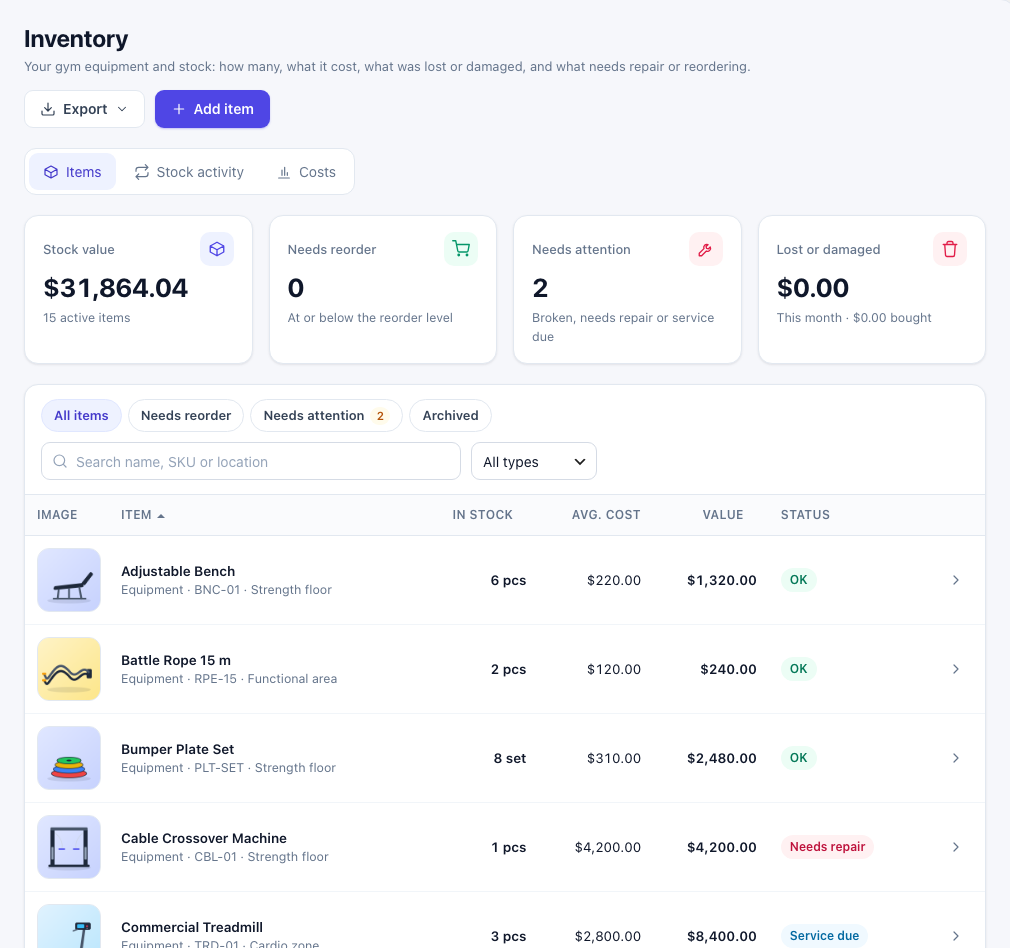
- Stock value — what everything in stock is worth at its average cost.
- Needs reorder — consumables and retail items at or below their reorder level.
- Needs attention — equipment that is broken, needs repair or is due a service.
- Lost or damaged — this month, next to what you bought.
- Filter with All items, Needs reorder, Needs attention and Archived, search by name, SKU or location, or pick a type.
Add an item
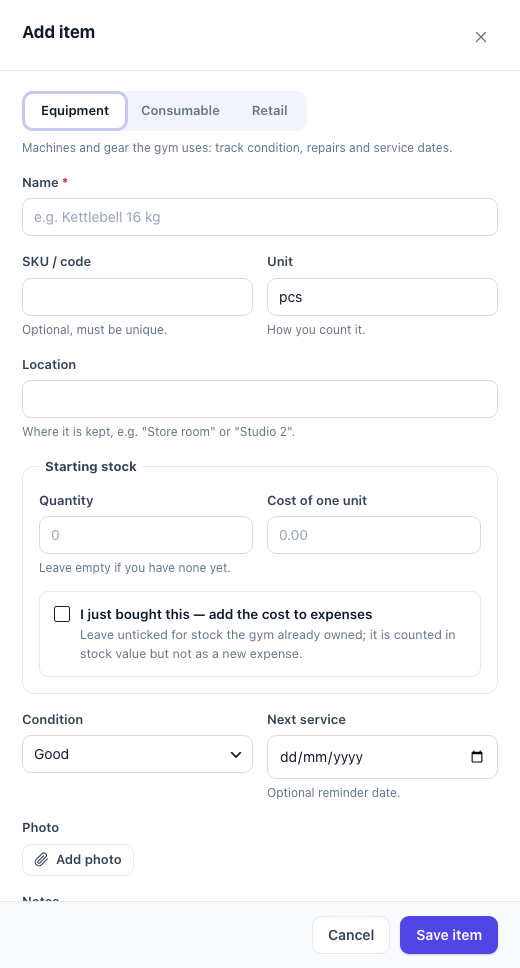
- Click Add item.
- Choose the kind: Equipment (machines and gear the gym uses), Consumable (things used up, such as cleaning supplies or towels) or Retail (things you sell at the desk).
- Fill in Name, and if you like SKU / code, Unit (how you count it, such as "pcs") and Location.
- Under Starting stock, enter the Quantity and Cost of one unit. Tick I just bought this — add the cost to expenses for a new purchase; leave it unticked for stock you already owned, so it counts in stock value but not as a new expense.
- For equipment, set the Condition and, if you like, a Next service date. For consumables and retail, set Reorder when stock reaches; for retail, a Selling price.
- Add a Photo and Notes if you like, then click Save item.
Item details and stock changes
Click an item to open its details: stock, average cost, stock value, next service, its condition and its full history.
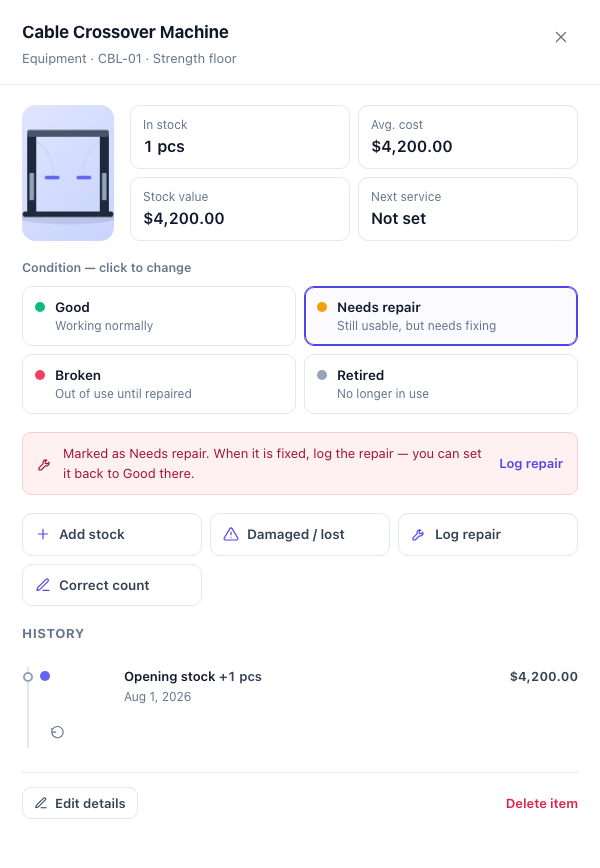
Use the buttons to record what happened. Which buttons you see depends on the kind of item.
| Button | What it does |
|---|---|
| Add stock | A purchase. The cost is added to expenses (category Stock purchases) and the average cost is updated. |
| Record sale | Consumables and retail. The amount is added to revenue as a retail sale; leave the amount empty to use the selling price. |
| Record use | Consumables and retail. Takes stock away. No new cost: it was counted when bought. |
| Record waste | Consumables and retail. Takes stock away and records what it was worth as a loss. |
| Damaged / lost | Equipment. Takes it out of stock and records its value as a loss. |
| Log repair | Equipment. The repair cost is added to expenses (category Maintenance & repairs); set the condition after the repair and the next service date. |
| Correct count | After a stock count: a positive number adds, a negative number removes. No money is recorded. |
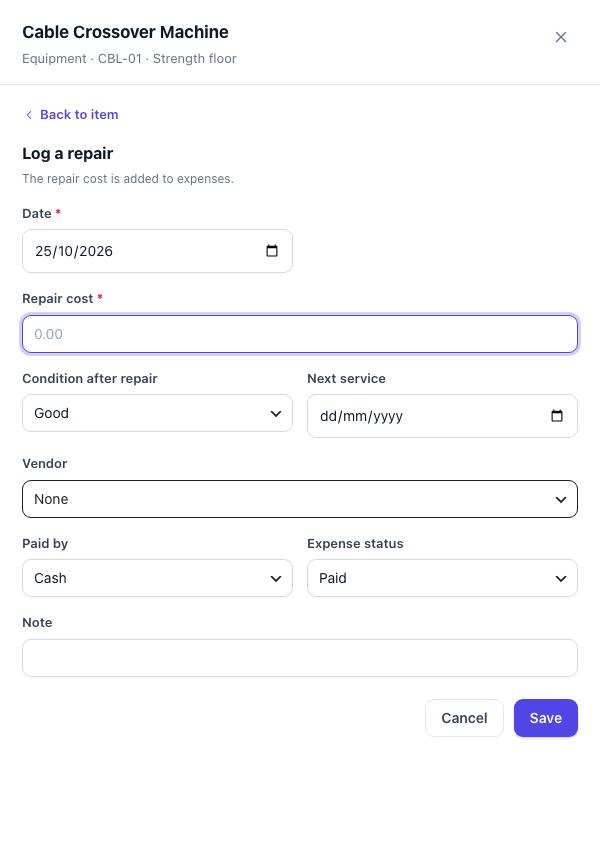
- Condition — click Good, Needs repair, Broken or Retired to change it at once. When something is fixed, log the repair and set it back to Good there.
- Services — when a service is due, the item shows "Service due" and a Log service button. Log it when it is done and set the next date.
- Undo — every change in the history can be undone. Undoing also removes the expense or revenue entry it created.
- Archive or delete — Edit details lets you set the status to Archived: hidden from lists and alerts, history kept. An item that has purchases or sales in your books cannot be deleted, only archived.
Stock activity and costs
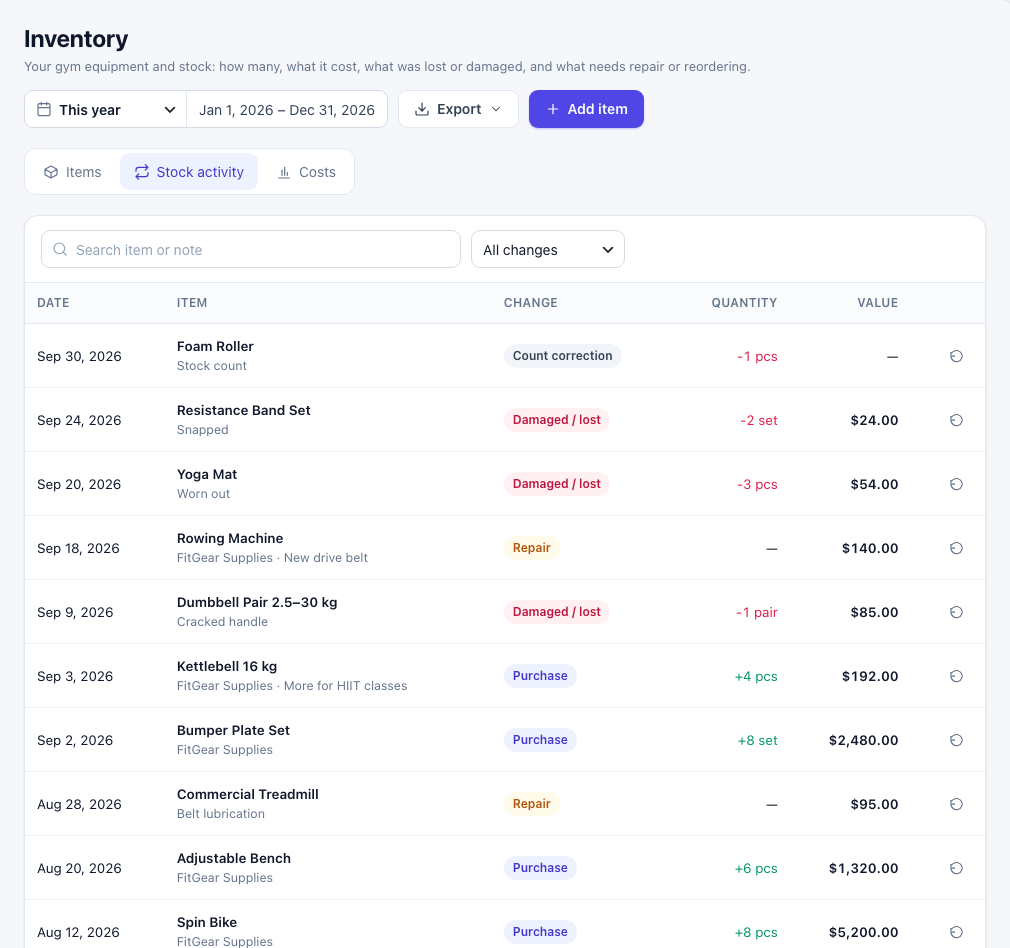
The Stock activity tab lists every stock change in the chosen dates — purchases, use, sales, waste, damage, repairs and count corrections — with an undo button on each row.
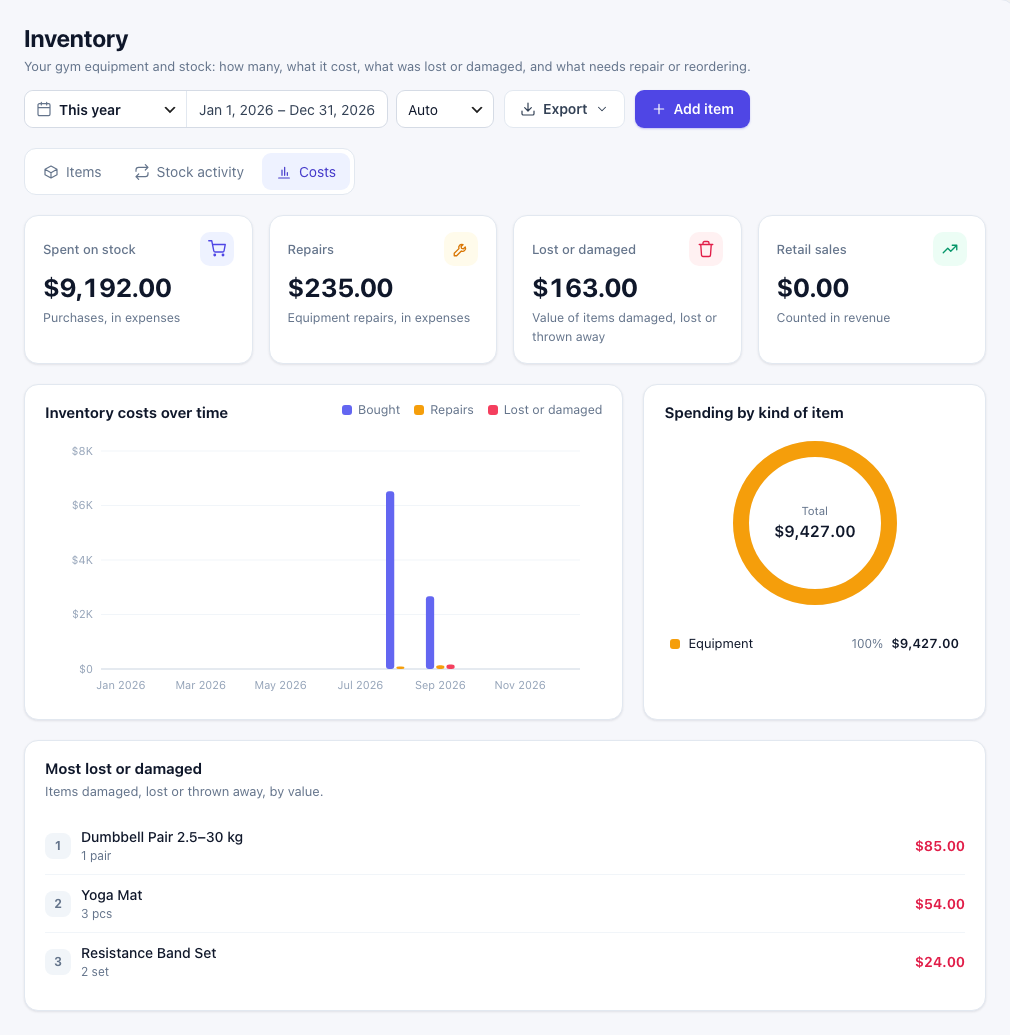
The Costs tab shows what inventory cost you over time: Spent on stock, Repairs, Lost or damaged and Retail sales, a chart, spending by kind of item, and the items most often lost or damaged.
For the daily email about low stock and services, see Inventory Alerts in Settings.
Staff
Go to Business Manager → Staff. The page has five tabs: Team, Today, Attendance, Leave and Fingerprint devices.
Team
Everyone who works at the gym. The list shows each person's role, contact details, shift, today's status and how they clock in: Dashboard (Gym Builder trainers), PIN (kiosk and records page), Fingerprint or Admin only. A warning sign next to Dashboard means the trainer has no trainer account yet, so they cannot use their dashboard.

Add someone
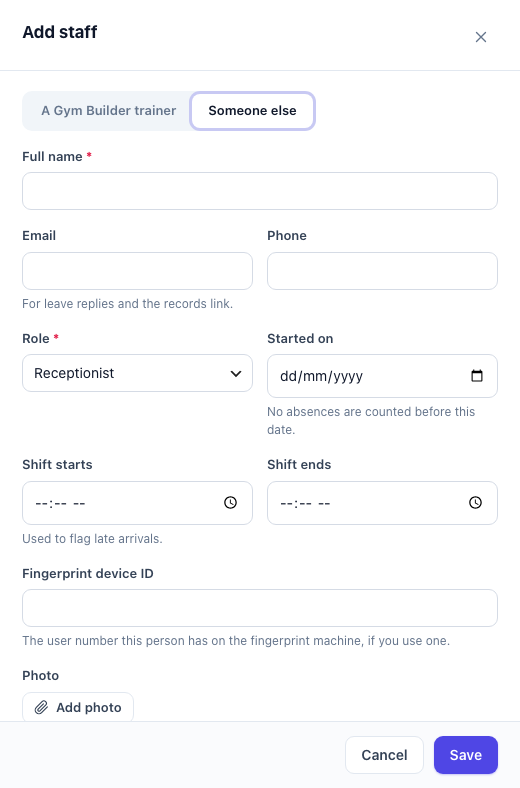
- Click Add staff.
- Choose who you are adding:
- A Gym Builder trainer — pick them from the list. Their name, email and photo come from their trainer profile.
- Someone else — reception, cleaning, management. Enter their Full name, and Email and Phone if you like. The email is used for leave replies and the records link.
- Choose the Role (the job titles come from Settings) and the Started on date — no absences are counted before it.
- Set Shift starts and Shift ends. The start time is used to flag late arrivals.
- If you use a fingerprint machine, enter the Fingerprint device ID this person has on the machine.
- Add a Photo and Notes if you like, then click Save.
When someone stops working at the gym, open them, click Edit and set Status to Has left with the Left on date. People who left keep their history but cannot clock in; find them under Left on the Team tab. Remove from staff is only for someone added by mistake, with no attendance or leave.
A person's profile
Click a person to open their profile: this month's Days present, Absent, On leave, Late and Hours worked, today's clock-ins, a calendar of the month and their leave requests. Use the arrows to move between months. The Clock In / Clock Out button lets you clock them in or out yourself.

Further down are the cards that differ between trainers and other staff, the person's Pay (when Payroll is on) and their leave allowances for the year. Change an Allowance there to give just this person more or fewer days.
PIN and private records link (staff without a trainer account)
Staff who are not Gym Builder trainers have a Clock-in & access card:
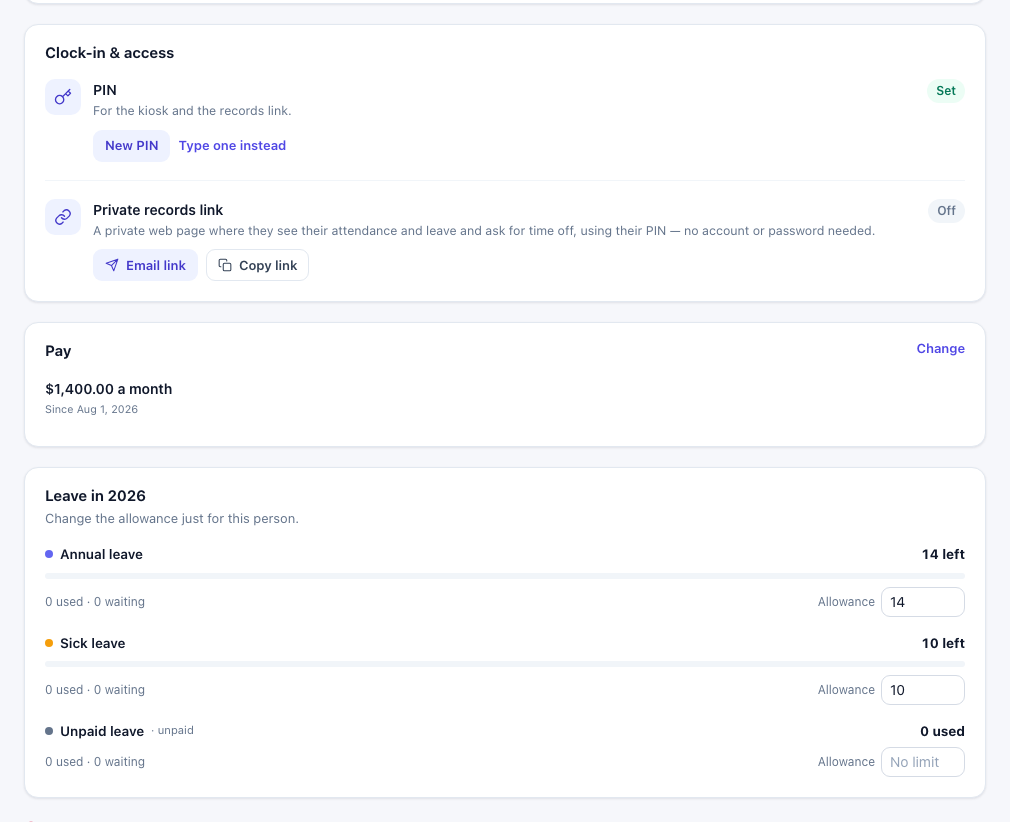
- PIN — for the kiosk and the records page. New PIN makes one for you and shows it only once, so tell the person straight away. Type one instead lets you choose it.
- Private records link — a private web page where they see their attendance and leave and ask for time off, using their PIN. No account or password needed. Email link sends it to their email address; Copy link copies it so you can paste it into a message. Create a PIN first — the link asks for it.
- The link works for the number of days set in Settings (90 by default). Send new link replaces the old one, and Turn off stops it at once. After five wrong PINs the link locks for 15 minutes and you get an email.
Gym Builder trainers have a How they clock in card instead. They use the My Work tab on their trainer dashboard and do not need a PIN or a records link.

Without an account (a username and password) a trainer cannot open their trainer dashboard to clock in. Create one in Gym Builder → Dashboard → Trainer Accounts; administrators can click Open Trainer Accounts on the card to go straight there (a Gym Manager does not see this button). The trainer gets an email with their username and password. Until then they can use the fingerprint machine, or you mark them in and out on the Today tab.
Today
Who is in today: In now, Absent (working today, no clock-in), Late (after shift start plus the grace minutes) and On leave, then one row per person with their status, clock-in and clock-out times and hours worked. Use the arrows or the date box to look at another day, and Back to today to return.

- Use the Clock In / Clock Out button on a row to clock someone in or out yourself.
- Mark everyone present marks everyone working that day with nothing recorded as present for their shift times (09:00 when no shift is set). People on leave, already clocked in or set by hand are left alone.
- A Holiday bar shows on days the gym is closed.
Fix a day
Click the pencil on a row (or a day on the profile or the month grid) to open that person's day.
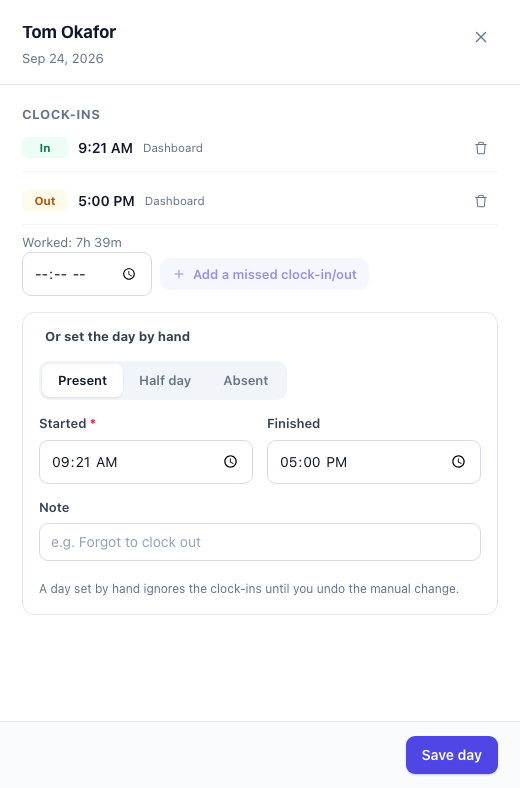
- Clock-ins — each clock-in and clock-out with where it came from (Kiosk, Dashboard, Admin, Fingerprint or Records page). Remove a wrong one with the bin icon.
- Add a missed clock-in/out — type the time and add it, for example when someone forgot to clock out.
- Or set the day by hand — Present, Half day or Absent, with Started, Finished and a Note. A day set by hand ignores the clock-ins until you click Undo manual change.
- Click Save day.
Attendance for the month
The Attendance tab is a month grid: one row per person with Present, Absent, Leave, Late and Hours, and a letter per day — P present, A absent, L leave, H holiday. A small dot marks a late day; another marks a day set by hand. Click a day to fix it. Export → This month (CSV) downloads the grid.
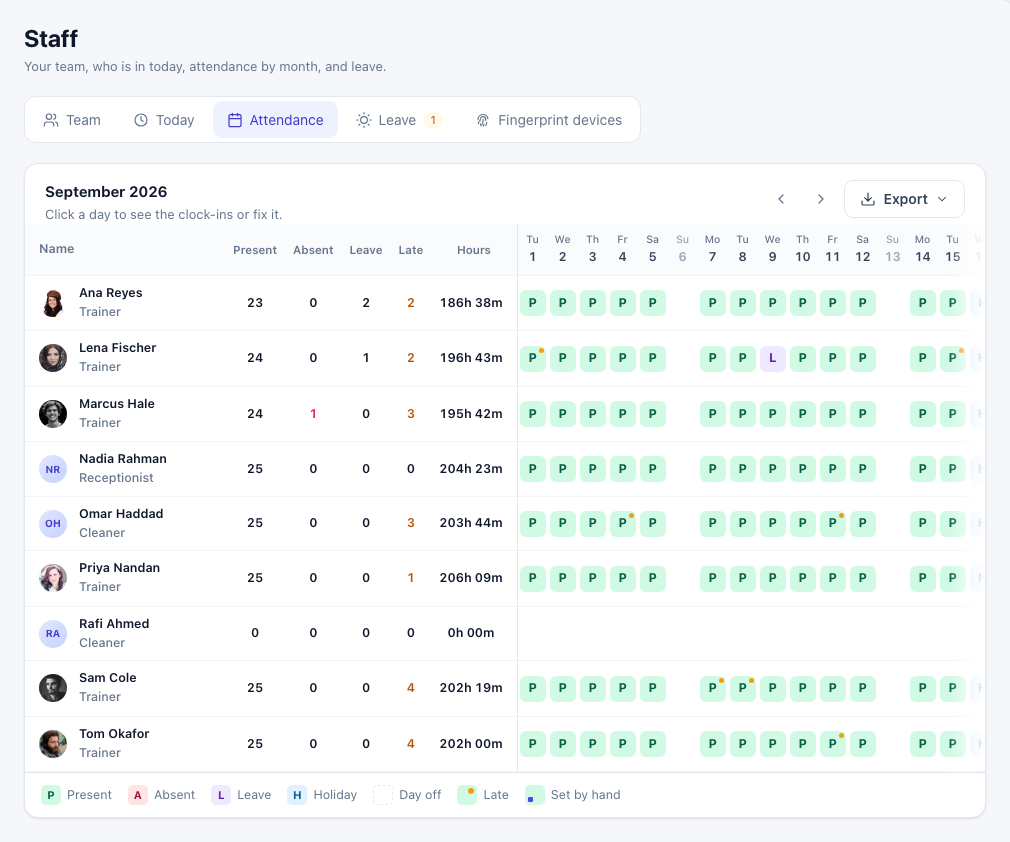
A working day with no clock-in, leave or holiday counts as absent. Days before a person's start date, and after the day they left, are not counted.
Leave requests
Staff ask for time off from their trainer dashboard or records page; you get an email for each request. The Leave tab shows them, with the number waiting on the tab itself.
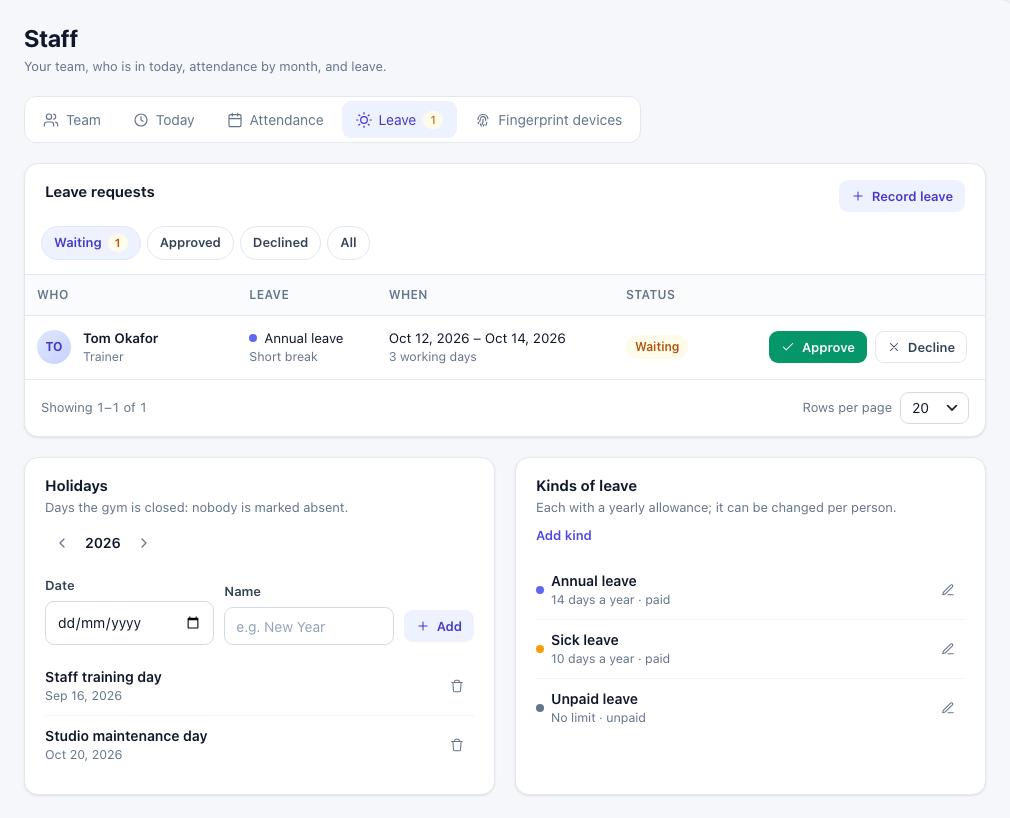
- Under Leave requests, choose Waiting, Approved, Declined or All.
- Click Approve or Decline on a request. Add a Note to them (optional) — it is included in the email they receive.
- To take back leave you already approved, click Cancel: the days go back into their balance and count as normal working days again.
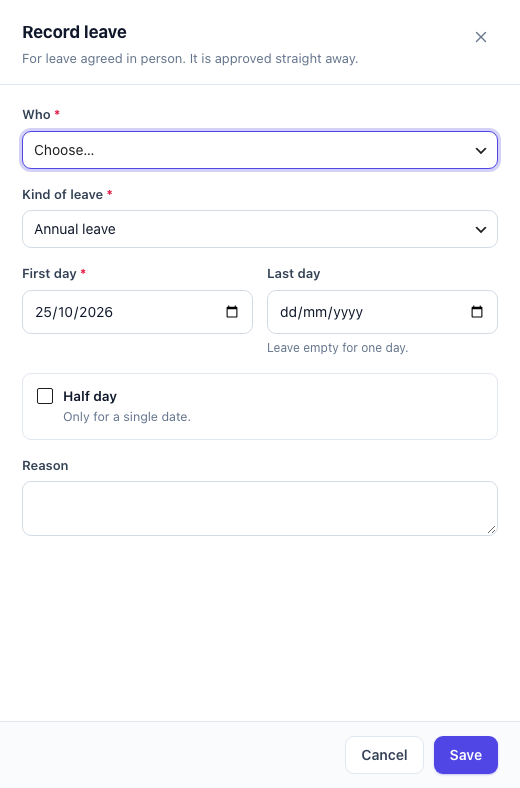
For leave agreed in person, click Record leave, choose Who, the Kind of leave, the First day and Last day (leave empty for one day), tick Half day for a single half day, add a Reason and click Save. It is approved straight away.
Holidays and kinds of leave
- Holidays — days the gym is closed: nobody is marked absent. Pick the year with the arrows, enter a Date and Name, and click Add.
- Kinds of leave — each with a yearly allowance, which you can change per person on their profile. Click Add kind or the pencil to set the Name, Days per year (empty for no limit), Paid leave (unpaid leave reduces salary once payroll is set up), Staff can ask for it and a Colour.
How staff clock in
There are four ways to clock in, and each one is optional. Whatever the way, the clock-in lands in the same attendance. By default each person gets one clock-in and one clock-out a day: after clocking out they cannot clock in again that day (you can still fix the day). Turn that off in Settings for split shifts.
| Way | For | Where |
|---|---|---|
| Front-desk kiosk | Everyone with a PIN | A tablet at reception showing the kiosk page. |
| Trainer dashboard | Gym Builder trainers with a trainer account | The My Work tab on their trainer dashboard. |
| Records page | Staff without a trainer account | Their private records link, on the gym's Wi-Fi only. |
| Fingerprint machine | Anyone with a machine ID | A ZKTeco-type or Hikvision machine, or a USB file from any machine. |
You can also clock anyone in or out yourself on the Today tab or their profile.
Front-desk kiosk
A tablet or computer at reception where staff type their PIN.
- In Business Manager → Settings, make sure Use a Front-Desk Kiosk is ticked.
- Create a page (for example "Staff clock-in") with the shortcode
[gbbm_kiosk]and publish it. - On the tablet, sign in to the website with your admin account and open that page. You see "This device is not set up as a kiosk yet".
- Type a Name for This Device (for example "Front desk") and click Set Up This Device as a Kiosk. You only do this once on each device.
- You can sign out now — the kiosk keeps working on this device.

From then on the page shows a PIN pad with the gym's logo (or its name when there is no logo) and the gym's own time. Staff type their PIN and press the green tick. The kiosk greets them ("Welcome, … — clocked in at …") or says goodbye with the hours worked that day.
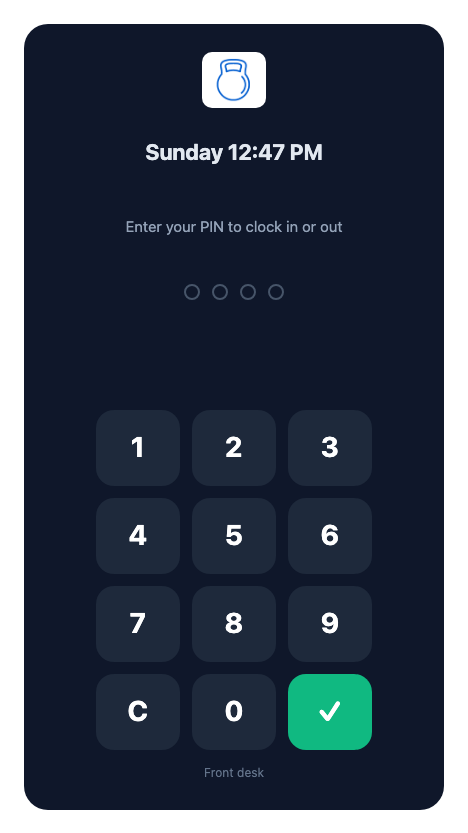
- Only devices set up this way work as a kiosk. On any other device the page says "This device is not set up as a kiosk yet" and asks the person to ask their manager.
- After five wrong PINs the kiosk asks them to wait 5 minutes.
- The kiosks you set up are listed in the Kiosk card in Settings, where you can remove one.
Trainers: the My work tab
Gym Builder trainers who are on the staff list and have a trainer account get a My Work tab on their trainer dashboard. There they:
- clock in and out with the Clock In / Clock Out button (when Trainers Can Clock In from Their Dashboard is on in Settings);
- see their month — present, absent, on leave, late and hours, with a calendar;
- see their leave left this year and use Ask for Time Off;
- download their Payslips as PDF once a pay run is marked paid.

If you list gym networks in Settings, trainers can only clock in from the dashboard while connected to one of them. With no network listed, they can clock in from their dashboard anywhere.
Other staff: the private records page
Staff without a trainer account open the private link you sent them and type their PIN.
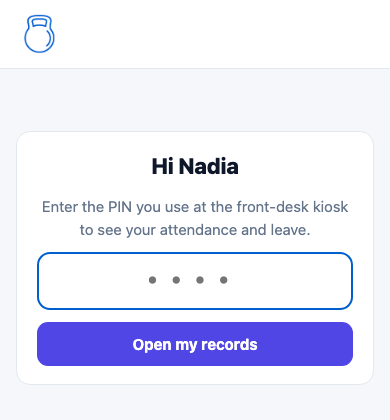
They then see their own records: a Clock In button (only on the gym's networks, see below), the month's attendance, their leave left this year, Ask for Time Off, their requests (which they can cancel while waiting) and, once paid, their payslips. Sign Out is at the top.

Gym Wi-Fi networks
Clocking in from a phone is limited to the gym's own internet connection, so nobody clocks in from home.
- Be at the gym, connected to its Wi-Fi.
- Open Business Manager → Settings and find Gym Networks (Wi-Fi) Where Clocking In from a Phone Is Allowed.
- Click Add the Network I Am on Now, then Save Settings. You can add several networks or a range, one per line.
Until at least one gym network is listed, staff do not see the Clock in button on their records page at all. Trainers, on the other hand, can clock in from their dashboard anywhere while the list is empty.
Fingerprint and face machines
On the Fingerprint devices tab you connect machines whose punches go straight into attendance. Each person is matched by the user ID they have on the machine — the Fingerprint device ID on their staff profile.

- Switch on Receive punches from machines. Leave New machines need my approval on (recommended).
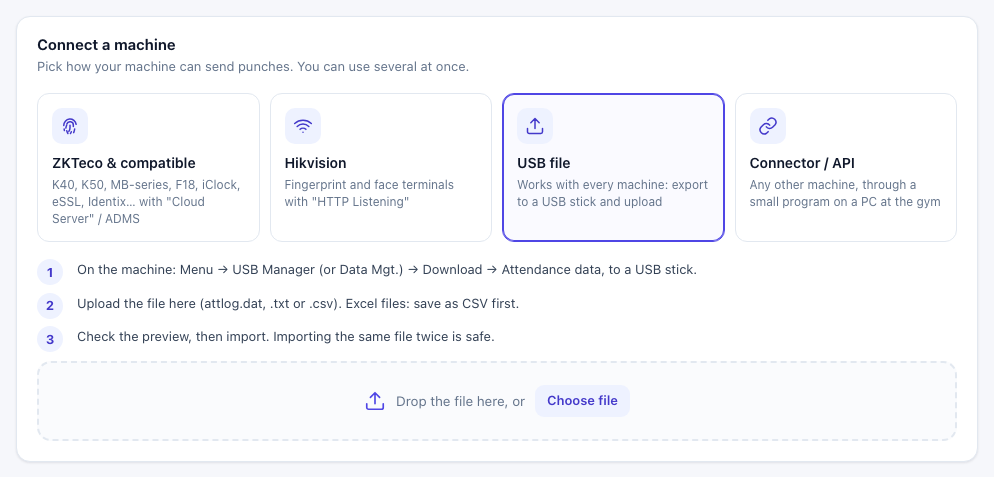
- Under Connect a machine, pick how your machine sends punches:
- ZKTeco & compatible — K40, K50, MB-series, F18, iClock, eSSL, Identix… with "Cloud Server" / ADMS in the machine's menu. The screen shows the Server address and Server port to type into the machine, and a Test connection button.
- Hikvision — terminals with "HTTP Listening". Name the machine, click Create its link and enter the values shown into the terminal.
- USB file — works with every machine: export the attendance data to a USB stick and upload the file (attlog.dat, .txt or .csv). You see a preview before you import. Importing the same file twice is safe.
- Connector / API — any other machine, through a small program on a PC at the gym that sends punches to a link you create here.
- Enrol each person on the machine with a user ID, and type the same ID into their staff profile.
- When a new machine contacts the site you get an email, and it appears under Machines as Waiting for approval. Click Approve — its punches, including older ones in its memory, are then counted. Block refuses it.
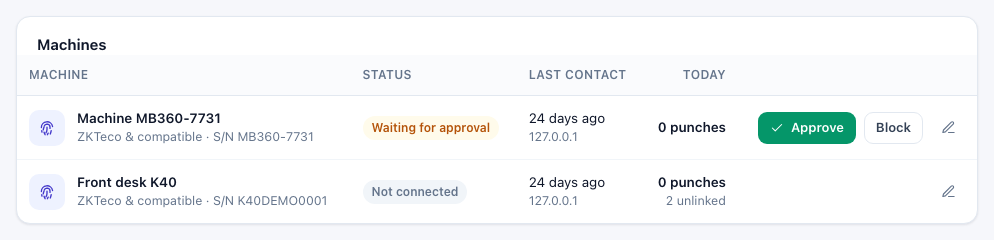
Further down, People on the machines lists every user ID the machines have sent. An ID with no staff member yet keeps its punches until you link it with Who is this? and Link. Recent punches from machines shows each punch and what happened to it (counted, already recorded, machine not approved, no staff with this ID, not counted). The pencil on a machine lets you rename it, set a Clock correction (minutes) if its clock is wrong, make a new link or remove it.
Payroll
Monthly pay worked out from attendance, leave, sessions and classes. Go to Business Manager → Payroll. Payroll needs the Staff module.
1. Set each person's pay
First choose the kinds of pay your gym uses in Settings → Payroll. Then open the Pay setup tab.
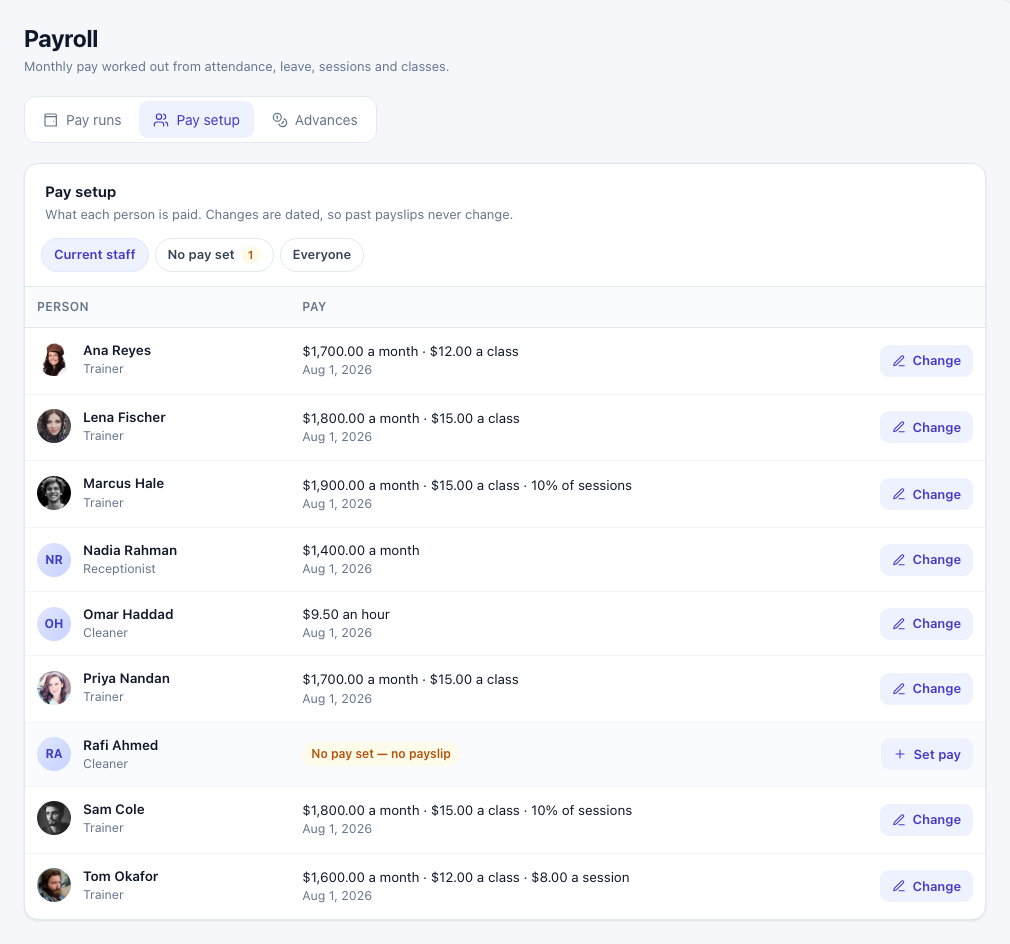
- Click Set pay (or Change) next to a person.
- Set Pay From — the date this pay starts. Each month uses the pay in force on its last day, so a later raise never changes payslips already worked out.
- Fill in what applies: Monthly Salary, Hourly Rate (paid for the hours clocked in), and for Gym Builder trainers Per Class Taught (counted from the class timetable, skipping holidays and days off) and Personal Session Commission (% of the session price or a Fixed amount per session).
- Add a Note (Optional) such as "Yearly raise" and click Save Pay.

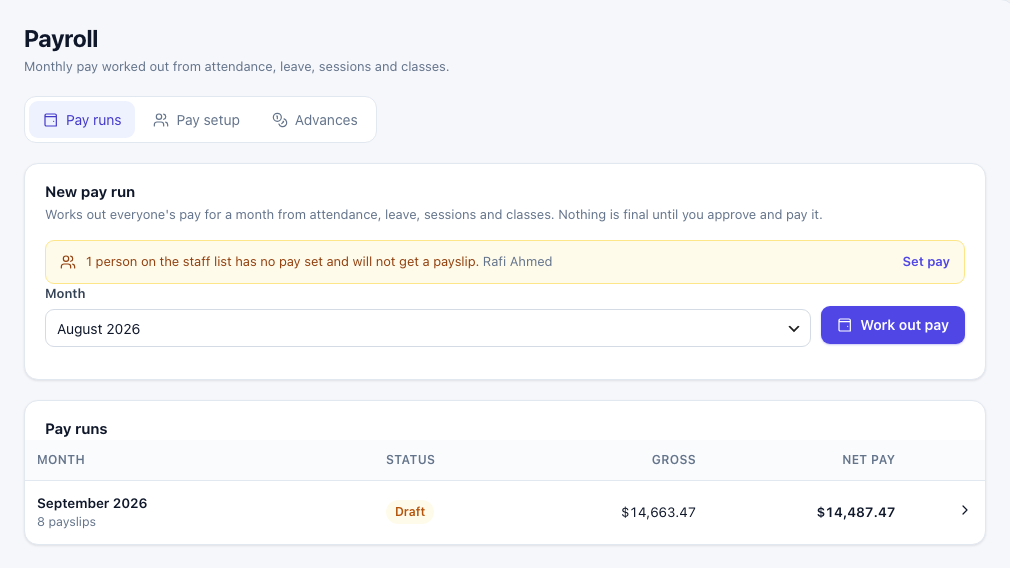
Someone with no pay set gets no payslip. The No pay set filter and a notice on the Pay runs tab show who is missing.
2. Work out a month's pay
- On the Pay runs tab, under New pay run, choose the Month and click Work out pay.
- The pay run opens as a Draft. Nothing is final until you approve and pay it.
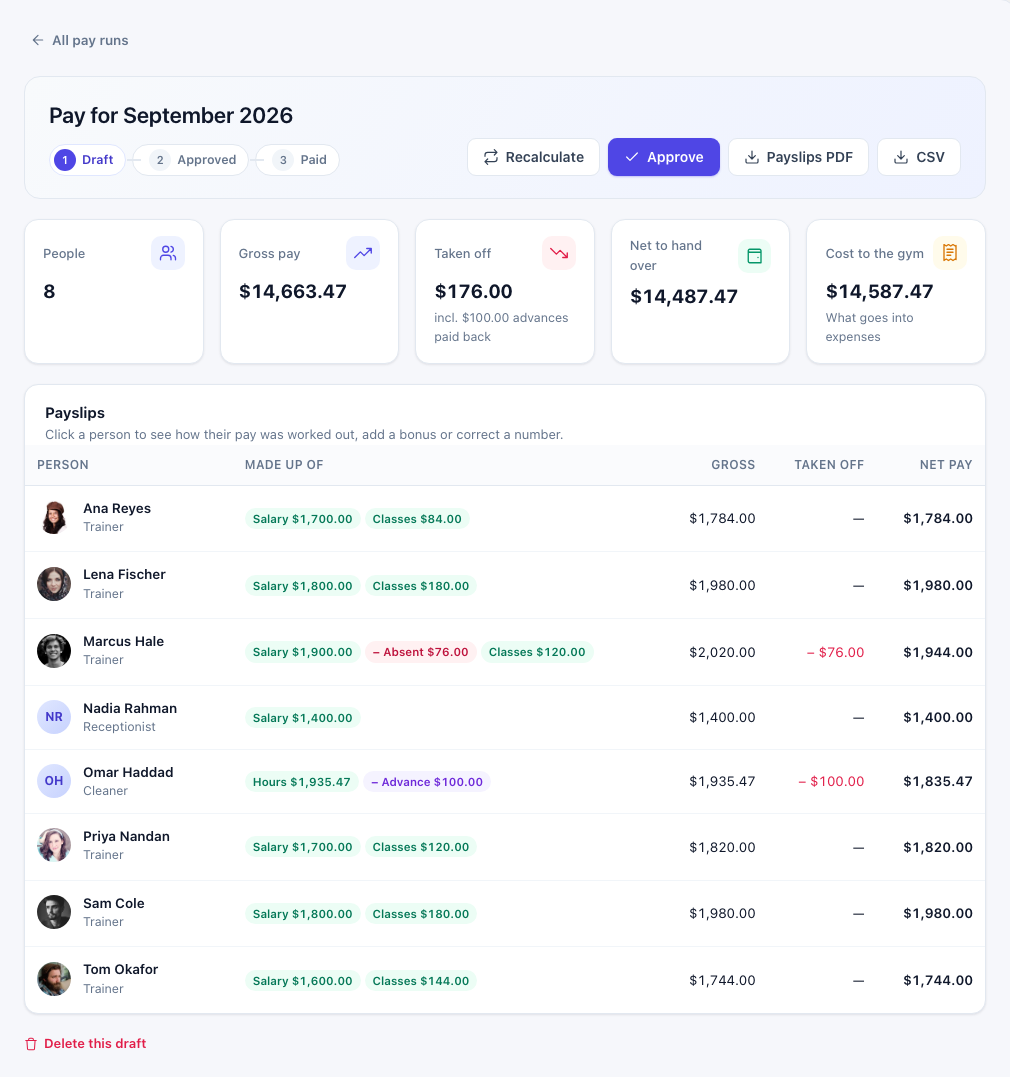
The cards show People, Gross pay, Taken off (absences, unpaid leave, fines and advances paid back), Net to hand over and Cost to the gym — what goes into expenses. How pay is worked out:
- Salary — the monthly amount, shared out by working days for someone who joins or leaves during the month. Absent days (a half day counts as half) and unpaid leave are taken off, if those options are on in Settings.
- Hours — hours clocked in × the hourly rate. Paid leave is paid at the person's shift length.
- Classes — each timetable class the trainer leads, on every date it fell in the month, except holidays and days they were absent or on leave.
- Sessions — personal sessions they gave that were paid, as set in Sessions That Earn Commission.
- Late fines (if you set one), and advances taken back by their monthly amount.
If the month is not over yet, days after today are not counted: click Recalculate after the last day. Recalculate also picks up attendance you fixed since.
3. Check and correct payslips
Click a person to open their payslip. Every line shows its working, for example "203.73 hours × $9.50".
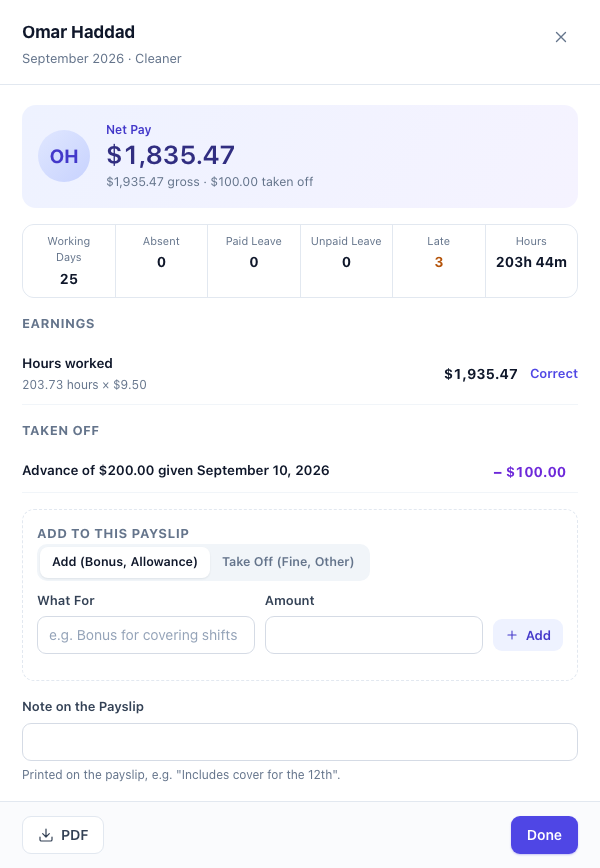
- Correct — change a number that was worked out (hours, classes, absent days…). Your correction is kept when you recalculate; Undo goes back to the worked-out number.
- Add to This Payslip — Add (Bonus, Allowance) or Take Off (Fine, Other), with What For and Amount, then Add.
- Note on the Payslip — printed on the payslip.
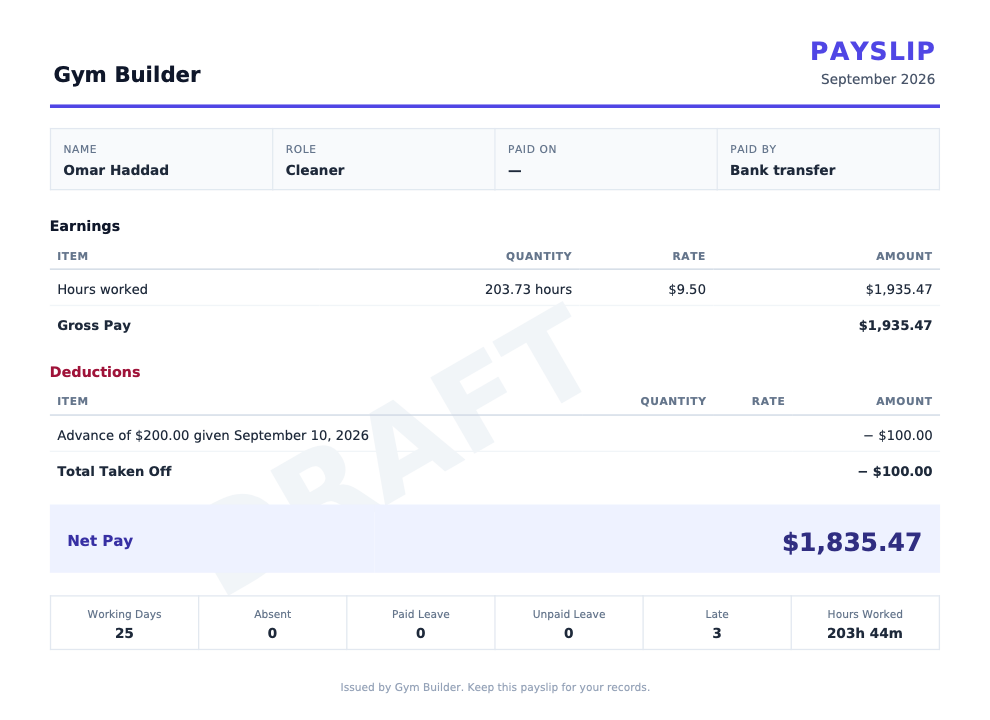
- PDF downloads this payslip.
4. Approve and mark paid
- Click Approve. Payslips are locked, and so are that month's attendance and leave, so the figures cannot drift. You can still Reopen it as a draft until it is marked paid.
- Once the money is handed over, click Mark paid, set Paid on and Paid by, and confirm.
- The run's cost goes into your expenses as one expense in Salaries & wages, and staff can download their payslips on their dashboard or records page.
Made a mistake? Undo payment removes the payroll expense and hides the payslips from staff again; the run goes back to approved. A draft can be deleted with Delete this draft and worked out again. Payslips PDF and CSV download the whole run.
Advances paid back lower what you hand over, not the cost: the advance was already money out when you gave it.
Advances
Money given to someone ahead of payday. Each payslip takes back the monthly amount until it is paid back.
- On the Advances tab, click Give an advance.
- Choose Who, enter the Amount given, the amount Paid back per month (empty: all from the next payslip), the Given on date and a Note.
- Click Save.
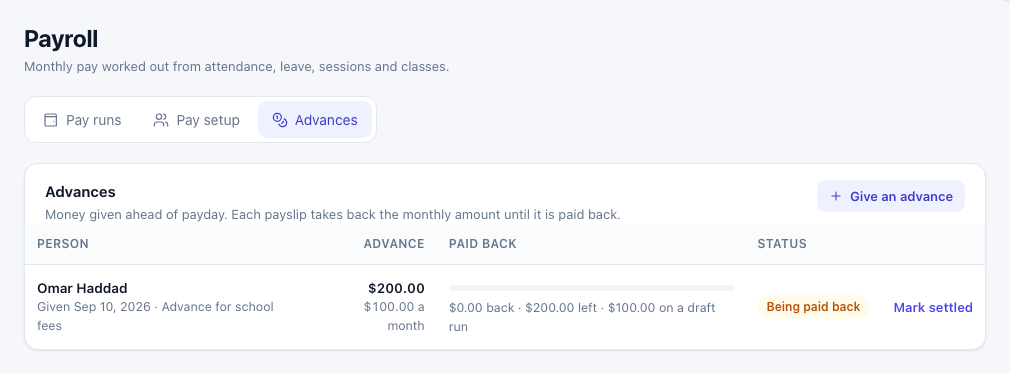
Mark settled stops taking money back; Reopen starts again. An advance can be deleted only while nothing has been paid back from it. An advance is not an expense: the cost is counted when the pay it comes out of is paid.
Settings
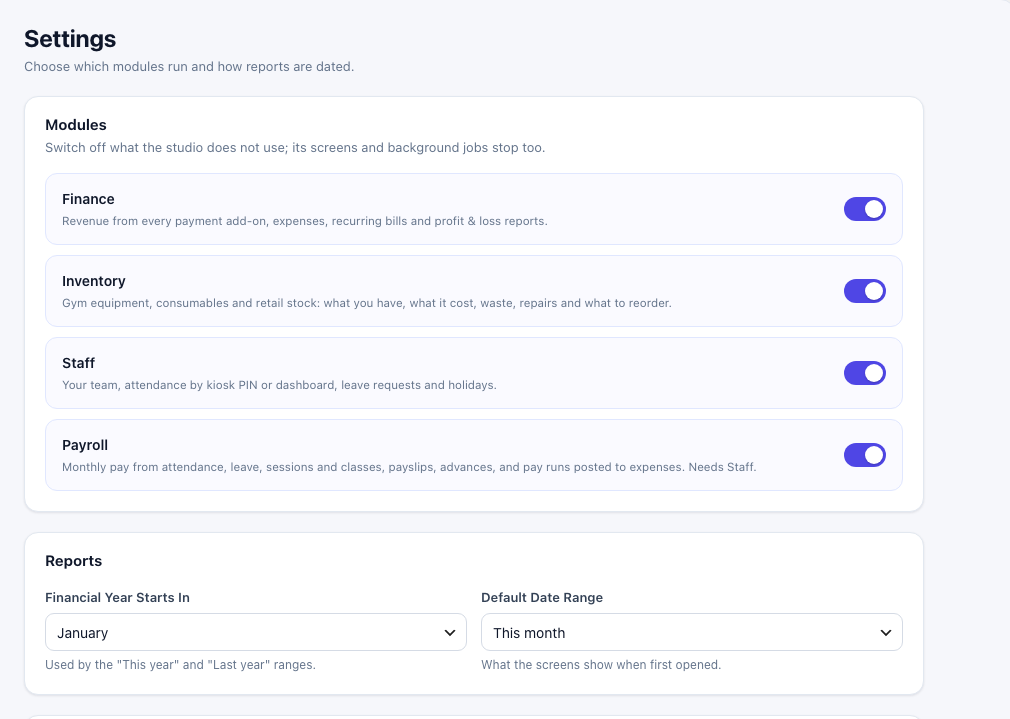
Go to Business Manager → Settings (administrators only). Change what you need and click Save Settings in the bar at the bottom. Reload the page after switching a module on or off.
Modules and Reports
| Setting | What it does |
|---|---|
| Modules | Switch Finance, Inventory, Staff and Payroll on or off. A module that is off disappears from the menu and its background jobs stop. Payroll needs Staff. Your data stays when a module is off. |
| Financial Year Starts In | The month your financial year starts. Used by the "This year" and "Last year" ranges. |
| Default Date Range | The range the pages show when first opened. |
Inventory Alerts
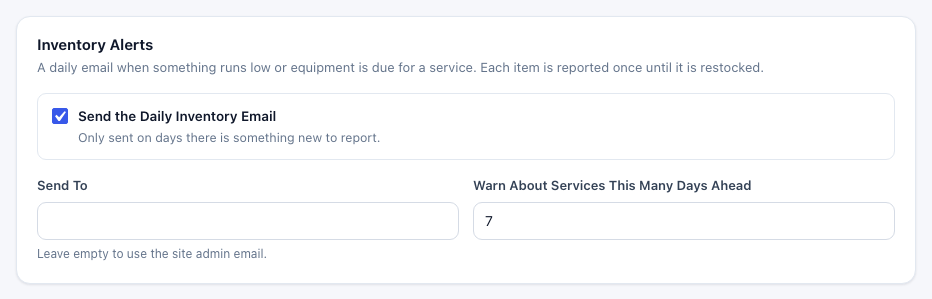
| Setting | What it does |
|---|---|
| Send the Daily Inventory Email | A daily email listing items that are running low and equipment due for a service. Only sent on days there is something new to report; each item is reported once until it is restocked. |
| Send To | Who gets it. Leave empty to use the site admin email. |
| Warn About Services This Many Days Ahead | How early equipment counts as "service due". Default 7. |
Staff & Attendance
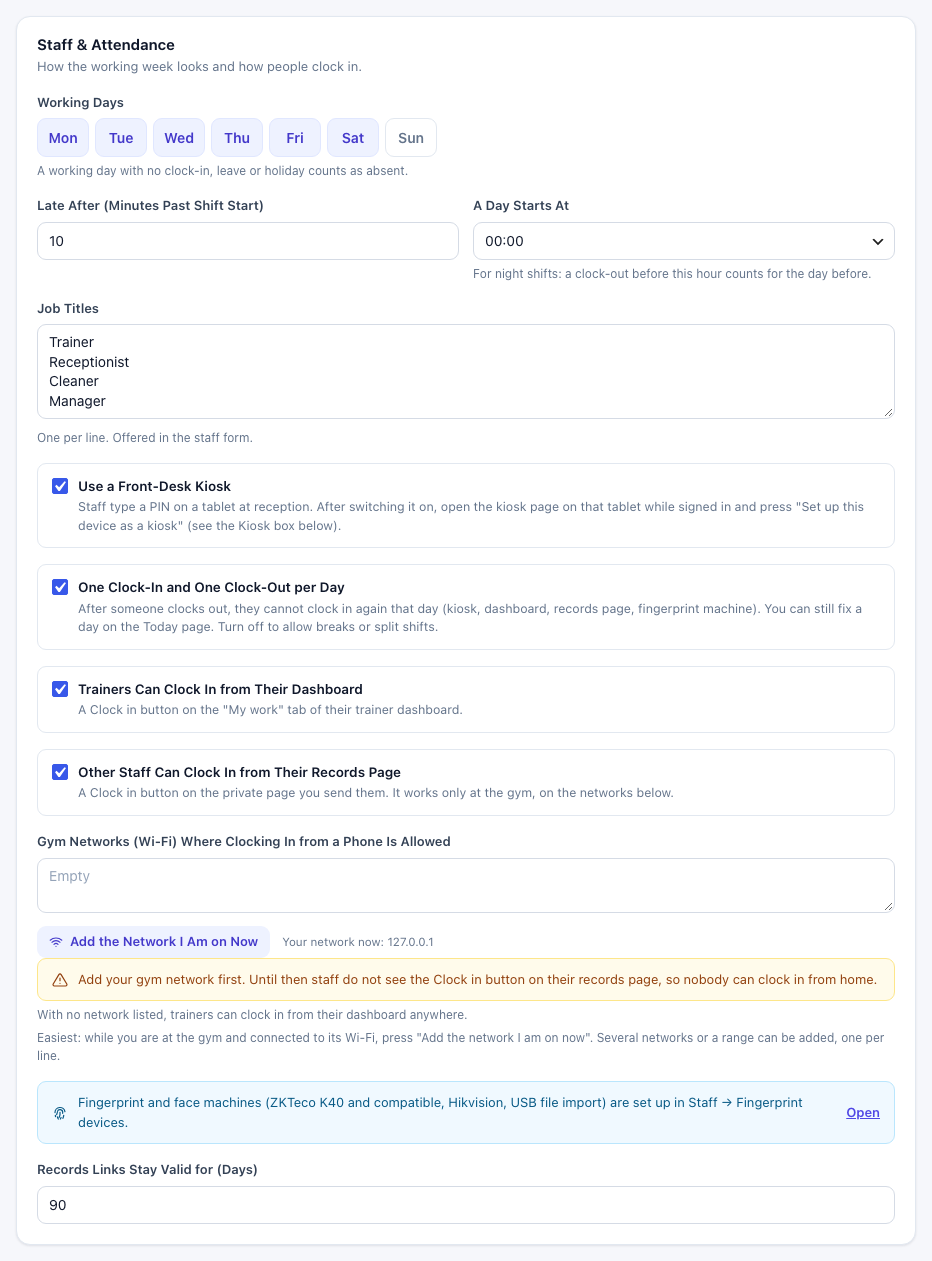
| Setting | What it does |
|---|---|
| Working Days | The days the gym works (Monday to Saturday by default). A working day with no clock-in, leave or holiday counts as absent. |
| Late After (Minutes Past Shift Start) | The grace period before someone counts as late. Default 10. |
| A Day Starts At | For night shifts: a clock-out before this hour counts for the day before. Default 00:00. |
| Job Titles | One per line. Offered in the staff form. |
| Use a Front-Desk Kiosk | Switches the kiosk on. See Front-desk kiosk. |
| One Clock-In and One Clock-Out per Day | After someone clocks out, they cannot clock in again that day (kiosk, dashboard, records page, fingerprint machine). Turn off to allow breaks or split shifts. |
| Trainers Can Clock In from Their Dashboard | A Clock in button on the "My work" tab of their trainer dashboard. |
| Other Staff Can Clock In from Their Records Page | A Clock in button on their private records page, which works only on the networks below. |
| Gym Networks (Wi-Fi) Where Clocking In from a Phone Is Allowed | See Gym Wi-Fi networks. Shows "Your network now" and the Add the Network I Am on Now button. |
| Records Links Stay Valid for (Days) | How long a records link works. Default 90. |
Kiosk
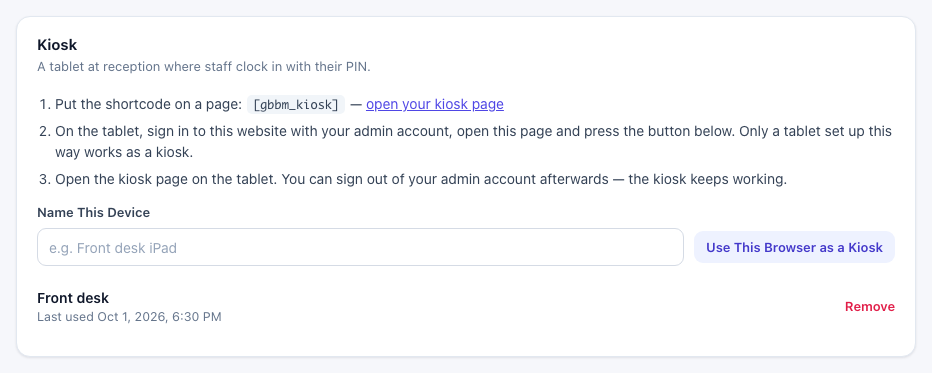
Shown while the kiosk is on. It repeats the set-up steps, links to your kiosk page (the published page with [gbbm_kiosk]) and lists every device set up as a kiosk, with when it was last used and a Remove link. On the tablet itself you can also give it a name under Name This Device and click Use This Browser as a Kiosk.
Payroll
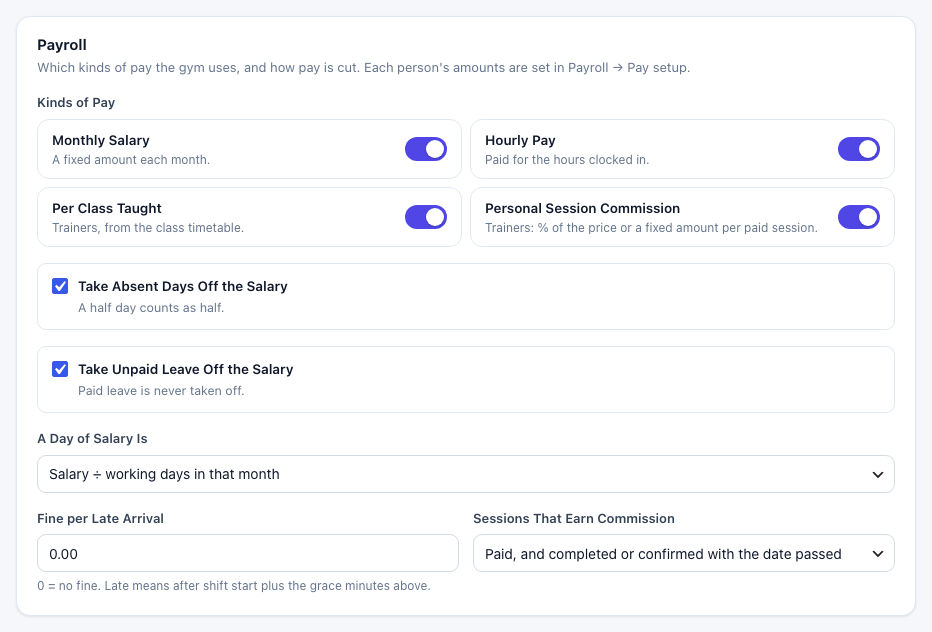
| Setting | What it does |
|---|---|
| Kinds of Pay | Monthly Salary, Hourly Pay, Per Class Taught (trainers, from the class timetable) and Personal Session Commission (trainers: % of the price or a fixed amount per paid session). Only the kinds you switch on appear in the pay form. |
| Take Absent Days Off the Salary | A half day counts as half. |
| Take Unpaid Leave Off the Salary | Paid leave is never taken off. |
| A Day of Salary Is | Salary ÷ working days in that month or Salary ÷ 30. |
| Fine per Late Arrival | 0 = no fine. Late means after shift start plus the grace minutes. |
| Sessions That Earn Commission | Paid, and completed or confirmed with the date passed, or Paid and marked completed only. |
Stripe Refunds and Data

- Stripe Refunds — refunds made in your Stripe dashboard are taken off revenue automatically when your Stripe webhook sends the "charge.refunded" event. Add that event to the webhook in Stripe → Developers → Webhooks. Only refunds in the Stripe mode you use (Test or Live) are recorded.
- Data — tick Delete All Business Manager Data When the Plugin Is Deleted only if you want expenses, recurring bills, vendors and settings removed for good when you delete the plugin. Payment records kept by other add-ons are never touched. Unticked (the default), your data stays.
Emails it sends
| Goes to | When | |
|---|---|---|
| Leave request from … | The site admin email | A staff member asks for time off. It has a link to approve or decline. |
| Your leave is approved / was declined | The staff member | You approve or decline, with your note. |
| Your work records at … | The staff member | You click Email link on their profile. |
| A staff records link was locked | The site admin email | Five wrong PINs on a records link. |
| Inventory: items to reorder or service | Send To in Inventory Alerts, or the site admin email | Daily, when something new runs low or is due a service. |
| A fingerprint machine is waiting for approval | The site admin email | A new machine contacts the site. |
Shortcode
| Shortcode | What it shows |
|---|---|
[gbbm_kiosk] | The front-desk kiosk PIN pad, on devices you set up as a kiosk. It has no options. |
Questions
Do I lose revenue history if I switch off a payment add-on?
No. Payments already received stay on record and keep showing in your reports.
Are amounts in other currencies added together?
No. Totals use the currency set in Gym Builder. Anything recorded in another currency is listed separately under the totals.
Why is revenue zero for this month?
Revenue counts money on the day it is received. If nothing came in yet this month, choose a longer range such as This year. If no payment add-on is active, only income you enter by hand counts, and the Dashboard says so.
Do trainers need a PIN?
No. Gym Builder trainers clock in on the My work tab of their trainer dashboard, so they get no kiosk PIN or records link. Make sure each has a trainer account.
Someone forgot to clock out. What do I do?
Open their day from the Today tab, their profile or the month grid, and use Add a missed clock-in/out, or set the day by hand.
Can I change a payslip after approving?
Click Reopen to turn the run back into a draft, make your changes and approve again. Once it is marked paid, first use Undo payment.
What happens to my data if I delete the plugin?
It is kept, unless you ticked Delete All Business Manager Data When the Plugin Is Deleted in Settings.
If something goes wrong
| Problem | What to check |
|---|---|
| A page is missing from the menu | Its module is off in Settings → Modules, or your user role does not include it. Payroll also needs Staff. |
| Stripe refunds still count as revenue | Add the "charge.refunded" event to your Stripe webhook. |
| The kiosk page says "This device is not set up as a kiosk yet" | Open the page on that device while signed in as an admin and click Set Up This Device as a Kiosk. |
| The kiosk page says "The kiosk is switched off" | Tick Use a Front-Desk Kiosk in Settings → Staff & Attendance. |
| Staff see no Clock in button on their records page | Add your gym network in Settings, and make sure Other Staff Can Clock In from Their Records Page is ticked. |
| "You can only clock in from the gym's own network" | The person is not on a listed gym network. Add the network while connected to it at the gym. |
| Someone cannot clock in a second time today | One Clock-In and One Clock-Out per Day is on. Fix the day yourself, or turn the setting off for split shifts. |
| A trainer has no My work tab | They need a trainer account and must be on the staff list as a Gym Builder trainer. |
| Someone has no payslip | They have no pay set. Set it in Payroll → Pay setup, then click Recalculate on the draft run. |
| Fingerprint punches do not arrive | Receive punches from machines is on, the machine is approved, and its user ID is linked to a staff member. Use Test connection. A machine with no "Cloud Server" or ADMS in its menu can only be used through a USB file or a connector program. |
| No leave or inventory emails | Check the site admin email under Settings → General and set up an email (SMTP) plugin. |