Personal Session
Sell one-to-one sessions with your trainers. You set the sessions and the times each trainer is free; clients pick a time on your website, pay by card if the session is paid, and get a confirmation email. You, the client and the trainer all see the booking.
What it does
A session is something a trainer offers one person at a time, such as "Personal Training with Sam Rivera, 60 minutes, $45". You give each session the dates and times people can book. Every time can be booked by one client.
- Sessions and times — create sessions for any trainer, free or paid, and add bookable times one day at a time or for many days at once.
- A booking form on your site — it appears by itself on the trainer's page (and the class page, if you link a class), and you can put it on any page with a shortcode.
- Card payments — paid sessions are paid through the Stripe Payments add-on before the booking is made.
- Bookings page — every booking in one list, with buttons to confirm, mark as done, cancel, refund or send a reminder, and a CSV download.
- Emails — confirmation, cancellation and "session completed" emails to the client, the same news to the trainer, and an automatic reminder before the session.
- Reviews — clients give their trainer 1 to 5 stars and a few words; you choose which reviews appear on the trainer's page.
- Google Calendar — confirmed bookings can be added to a Google calendar, with a Google Meet link for online sessions.
- Dashboards — members see their sessions on their Member Dashboard; trainers see theirs on their own dashboard.
Before you start
- Gym Builder 3.0.0 or newer. With an older Gym Builder the add-on stays switched off and shows a notice.
- Your trainers in Gym Builder. Every session belongs to a trainer. Give each trainer an email address on their trainer profile, so they receive the booking emails and can log in to their own dashboard.
- For paid sessions: the Stripe Payments add-on, switched on, with your Stripe keys and webhook set up (see the Stripe Payments guide). Personal Session uses those same keys; there is nothing to enter twice. Free sessions need no payment add-on.
- A Member Dashboard page (set in Gym Builder → Settings → Pages), so members and trainers can see their sessions.
- For Google Calendar only: a Google account and a project in Google Cloud Console. See Google Calendar.
Install and switch on
- Go to Plugins → Add Plugin and click Upload Plugin.
- Choose the add-on's zip file, click Install Now, then Activate Plugin.
- Enter your license key when asked. If you skip it, the Gym Builder Dashboard shows Personal Sessions → License Key in its menu until the license is active.
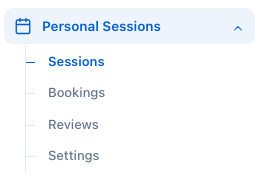
Once it is on, the Gym Builder Dashboard gets a Personal Sessions group in its menu with Sessions, Bookings, Reviews and Settings. A small number next to the group tells you how many bookings and reviews are waiting for you.
Create sessions and times
Create a session
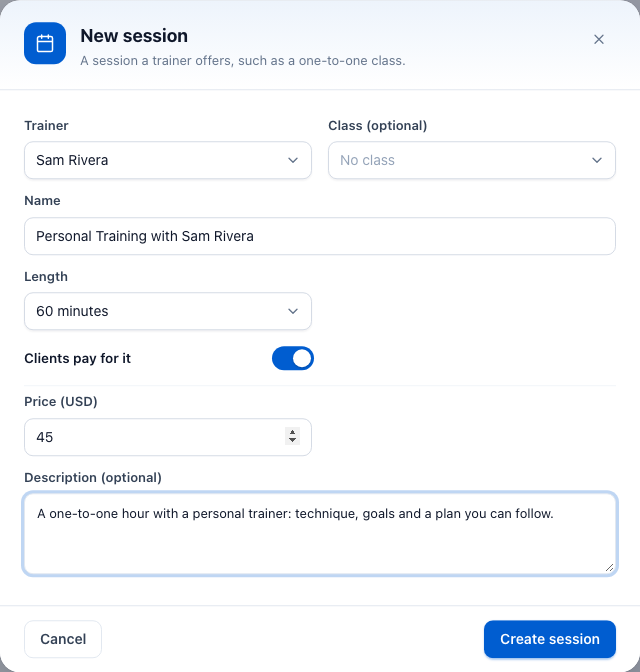
- Go to Gym Builder → Personal Sessions → Sessions and click New session.
- Choose the Trainer. If the trainer teaches classes, you can also pick one under Class (optional); the booking form then also appears on that class's page.
- Check the Name. It is filled in for you ("Personal session with …"); change it to what clients should see.
- Choose the Length: 30, 45, 60, 90 or 120 minutes.
- For a paid session, switch on Clients pay for it and enter the Price. The currency is the one in Settings → General.
- Add a Description (optional) and click Create session.
If you switch on Clients pay for it while Stripe Payments is not set up, the window says so. Until it is, nobody can book that session: when they try, the booking form shows a message asking them to contact you.
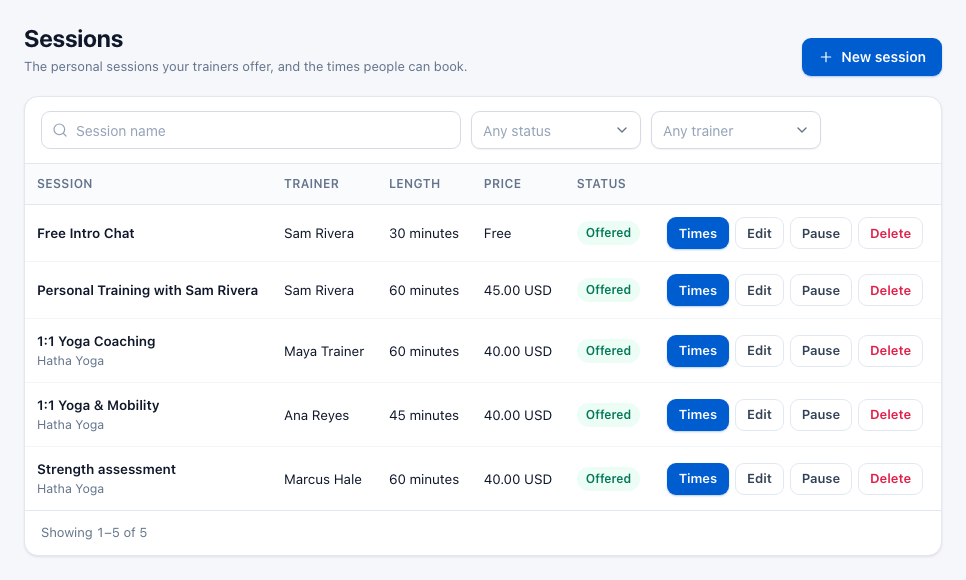
The Sessions page lists every session with its trainer, length, price and status: Offered or Paused. Use the search box and the Any status and Any trainer filters to find one. On each line:
- Times — the dates and times people can book (below).
- Edit — change the session's trainer, class, name, length, price or description.
- Pause — stops people booking the session, for example while the trainer is away. It stays on the list with a Paused badge, and keeps its times and the bookings already made. Click Resume to offer it again.
- Delete — asks you to confirm with Yes, delete. A session with bookings that are still coming up cannot be deleted; cancel or finish those bookings first. Deleting a session also deletes its times.
Add the times people can book
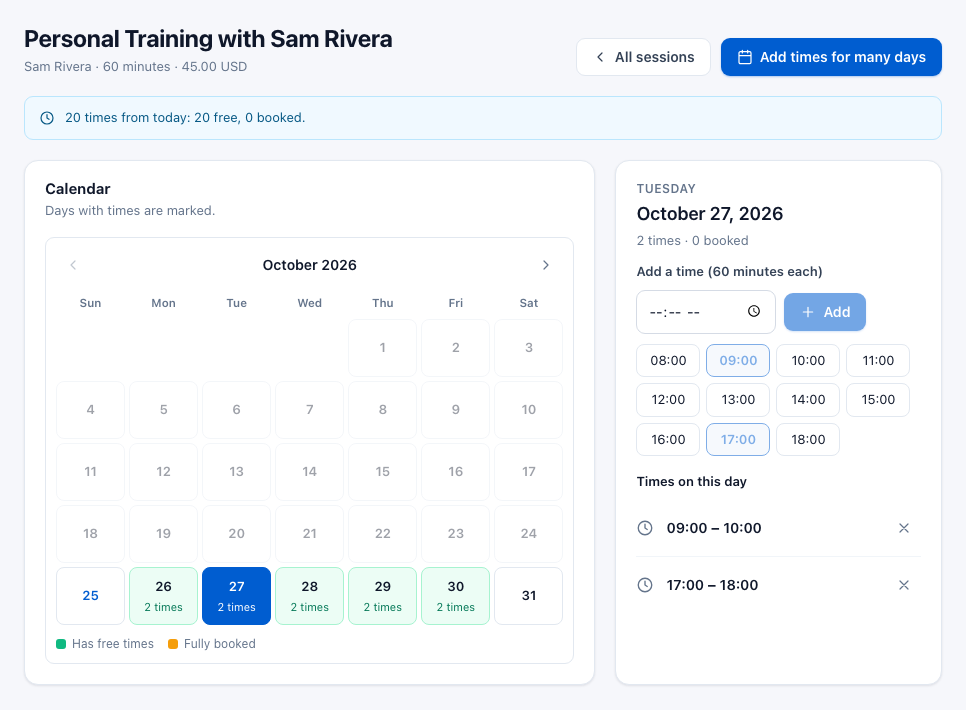
- On the Sessions page, click Times next to the session.
- Click a day on the Calendar. Days before today cannot be chosen.
- Click one of the ready-made times (08:00 to 18:00), or type a time under Add a time and click Add. Each time lasts as long as the session.
- Repeat for other days. Days with times are marked green; a day where every time is booked turns orange.
The day panel lists the times on that day. Click the × next to a time to remove it. A booked time shows Booked and cannot be removed; cancel the booking first. The box above the calendar counts the times from today on, and how many are free and booked.
Add times for many days at once
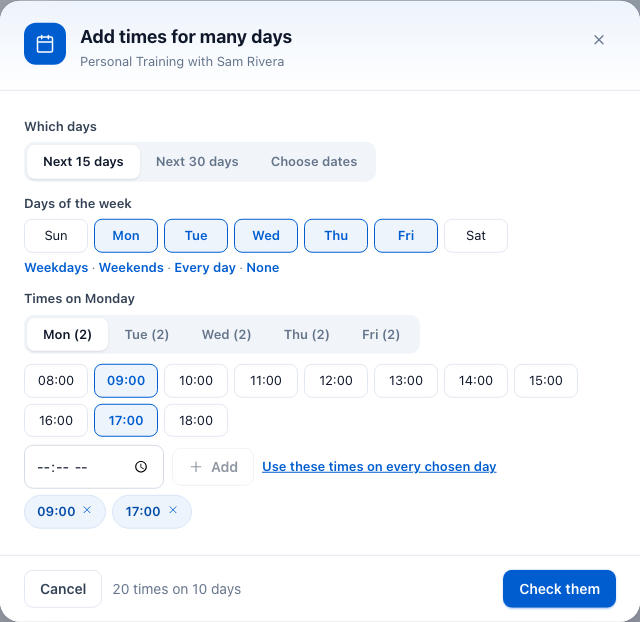
- On the session's Times page, click Add times for many days.
- Under Which days, choose Next 15 days, Next 30 days or Choose dates (a from and to date).
- Under Days of the week, click the days to include, or use the shortcuts Weekdays, Weekends, Every day or None.
- Pick a day on the Times on … row and click its times. Click Use these times on every chosen day to copy them to the other days.
- Click Check them to see every date and time in a list, then click Add … times. When it says how many days are done, click Done.
Times are only shown to clients up to the number of days set in People Can Book Up To (30 by default, see Booking). Times further ahead wait until they come into range.
Settings
Go to Gym Builder → Personal Sessions → Settings. Change what you need and click Save Settings at the bottom of the page.
Booking
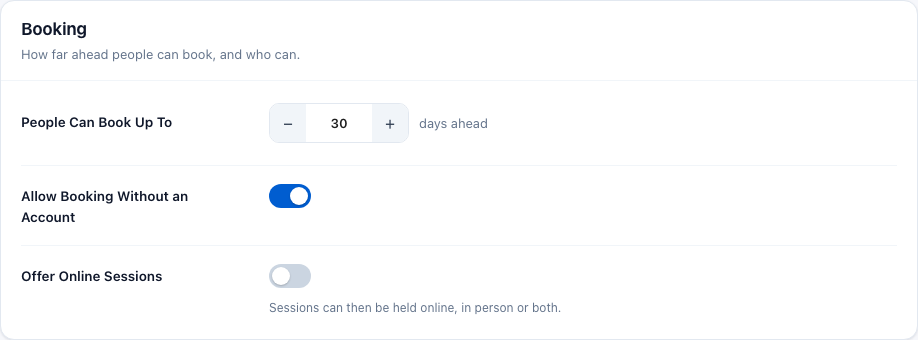
- People Can Book Up To — how many days ahead the booking form shows times (1 to 365, default 30).
- Allow Booking Without an Account — on: visitors can book with just their name and email. Off: they must log in first.
- Offer Online Sessions — adds a Where choice to each session (In person, Online or Both), with a separate online price for sessions offered both ways. For a "both" session you can also set each time to Online only or In person only, and clients choose In-person or Online at the top of the booking form.
After Paying by Card
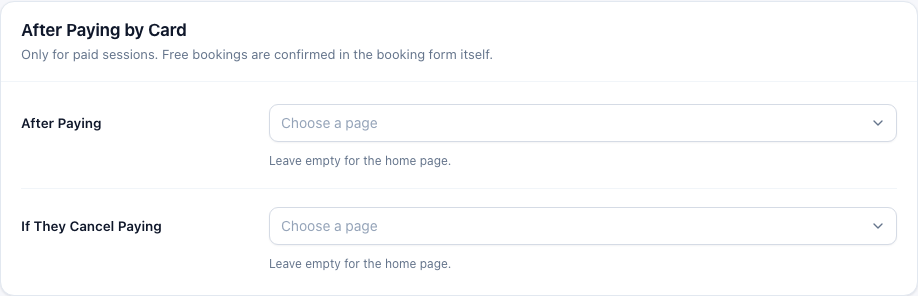
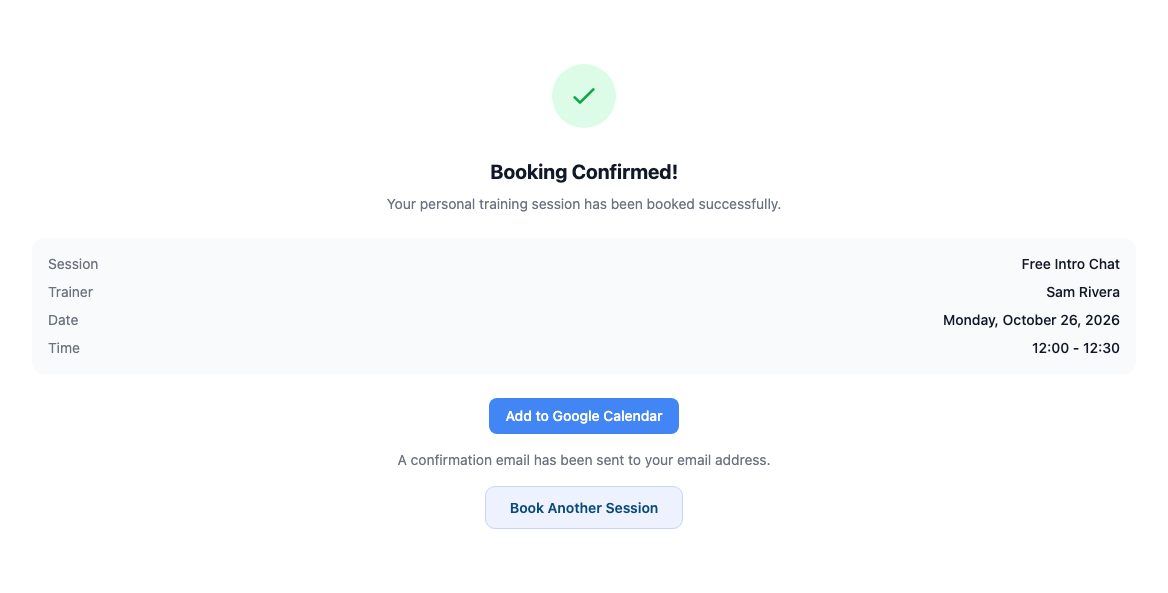
- After Paying — the page clients return to after paying. Once Stripe has confirmed the payment, that page shows a "Booking Confirmed!" box with the session details in place of its own text. Leave it empty for the home page.
- If They Cancel Paying — the page clients return to if they leave the payment page without paying. Leave it empty for the home page.
Free bookings never leave the booking form, so these pages are only used for paid sessions.
Emails
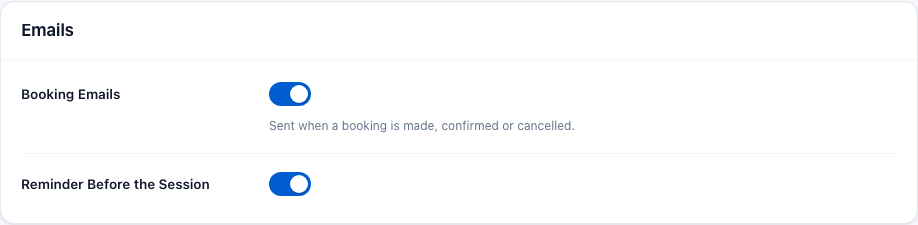
- Booking Emails — the emails sent when a booking is made, confirmed, cancelled or marked as done. See Emails for the full list.
- Reminder Before the Session — an automatic reminder to the client and the trainer for confirmed sessions taking place today or tomorrow. Each booking is reminded once.
Refunds
This card appears once Stripe Payments is set up with its keys.
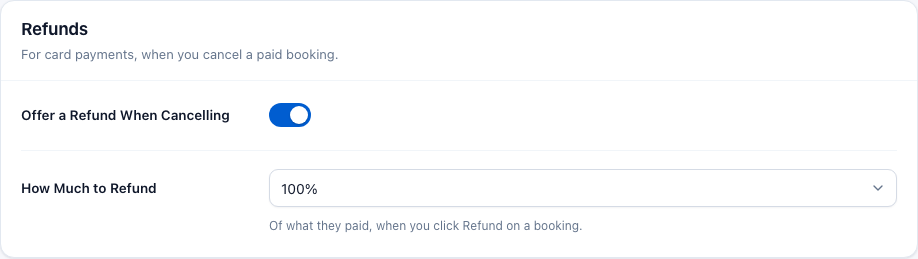
- Offer a Refund When Cancelling — adds a Refund button to cancelled bookings that were paid by card.
- How Much to Refund — 10% to 100% of what the client paid (default 100%). The same share is used every time you click Refund.
Reviews
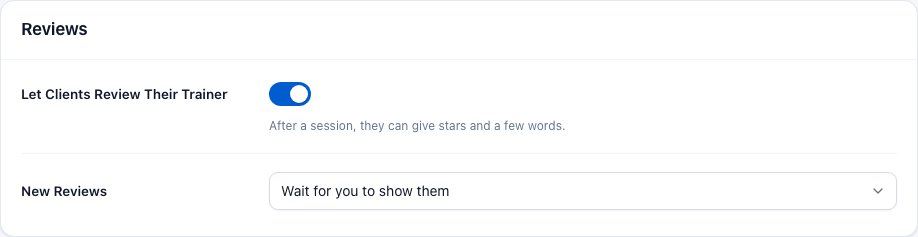
- Let Clients Review Their Trainer — on by default. Clients can give stars and a few words after a session. Turning it off also removes the Reviews page from the menu, once no reviews are waiting.
- New Reviews — Wait for you to show them (default): a new review stays hidden until you click Show. Show them straight away: it appears on the trainer's page at once.
Google Calendar
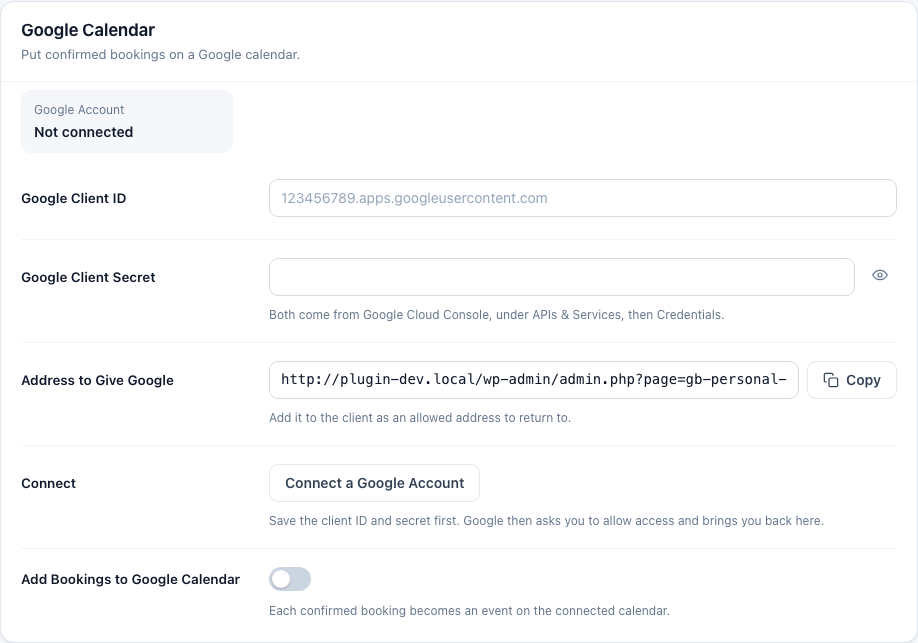
When connected, each confirmed booking becomes an event on the connected Google account's calendar, with the client and the trainer invited. If the booking is cancelled, the event is removed. One Google account is connected for the whole site.
- In Google Cloud Console, create an OAuth client. Under APIs & Services → Credentials you find its client ID and secret.
- Copy the Address to Give Google (click Copy) and add it to the client as an allowed address to return to.
- Paste the Google Client ID and Google Client Secret, and click Save Settings.
- Click Connect a Google Account. Google asks you to allow access and brings you back to this page, which then shows Connected as and the account's email.
- Switch on Add Bookings to Google Calendar and save. With online sessions on, you can also switch on Add a Google Meet Link to Online Sessions.
Once connected, the card offers Add a Test Event (adds an event and removes it again), lists the last few calendar updates with Worked or Failed, and has Disconnect Google Calendar. After disconnecting, new bookings stop going to the calendar; events already there stay.
Booking Form on a Page
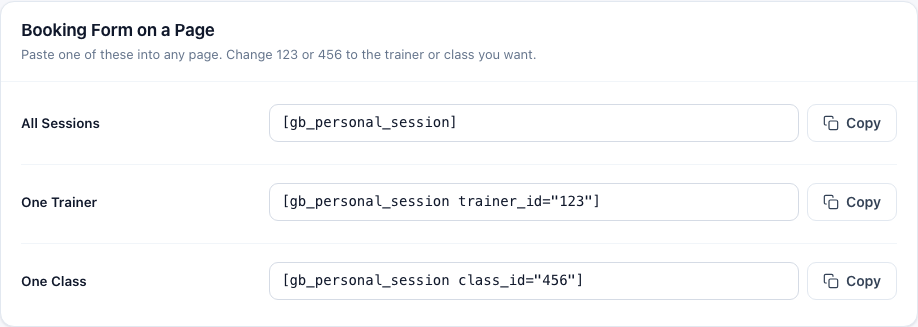
The three shortcodes you can paste into a page, each with a Copy button. See The booking form on a page.
The booking form on your site
Where the form appears
- On each trainer's page, by itself, as soon as the trainer has a session. The trainer's star rating and their shown reviews appear on the same page.
- On a class page, by itself, when a session is linked to that class.
- On any page you choose, with the shortcode (below).
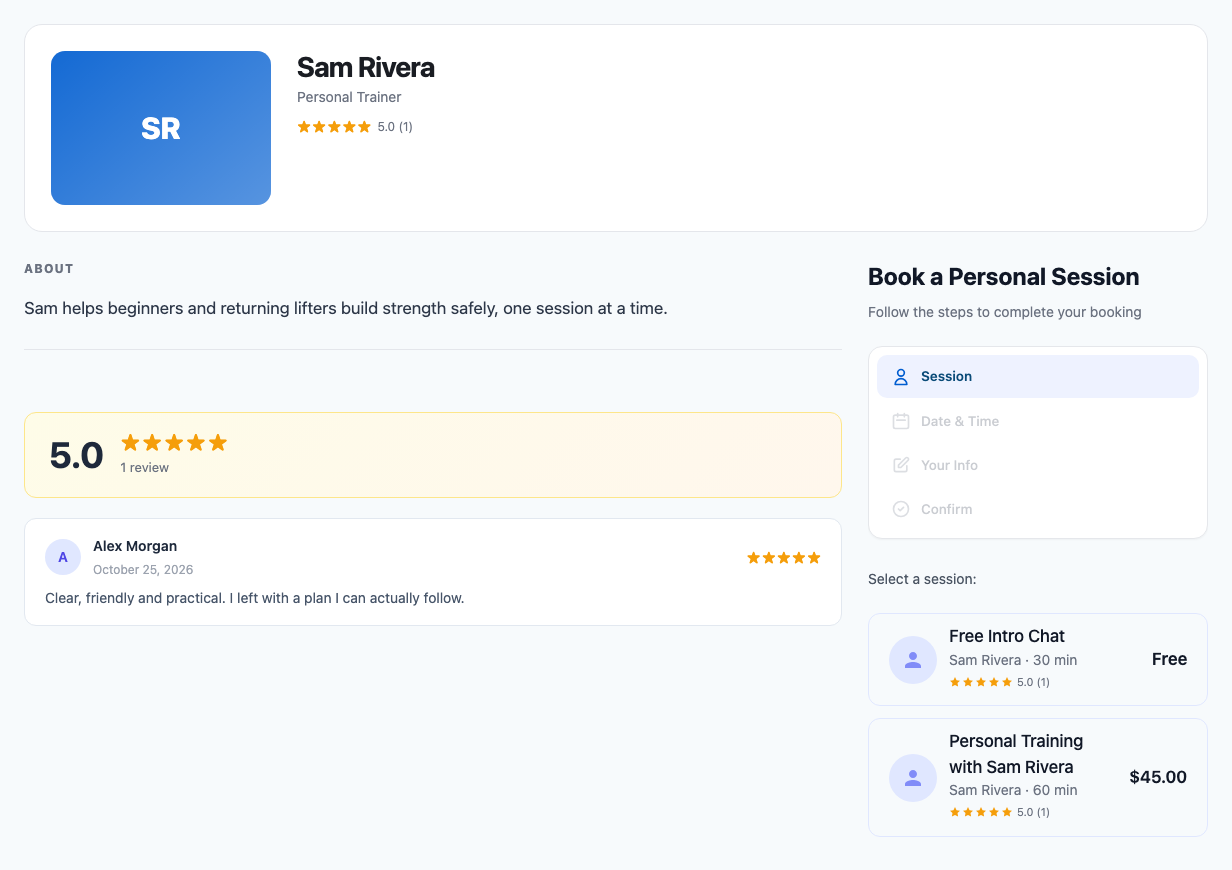
The booking form on a page
[gb_personal_session]— every session of every trainer. Clients pick the trainer first.[gb_personal_session trainer_id="123"]— only that trainer's sessions.[gb_personal_session class_id="456"]— only the sessions linked to that class.
Change 123 or 456 to the trainer's or class's number. You find it in the address bar when you edit the trainer or class (post=123).
How a client books
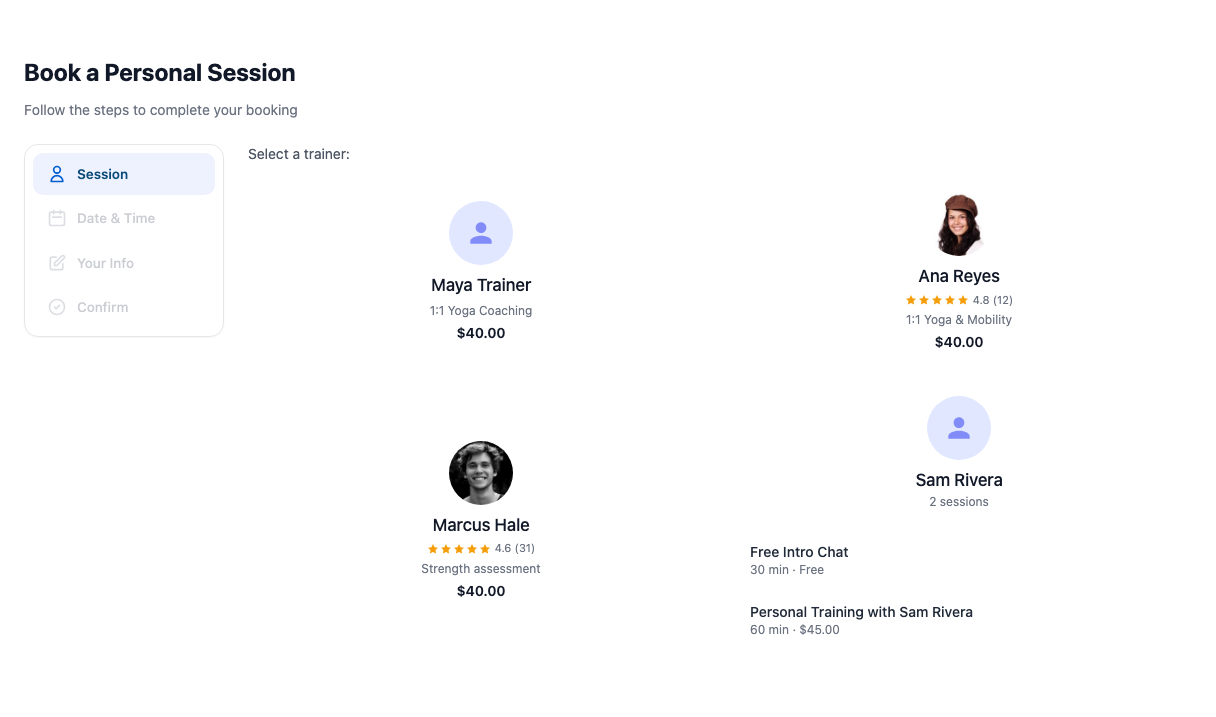
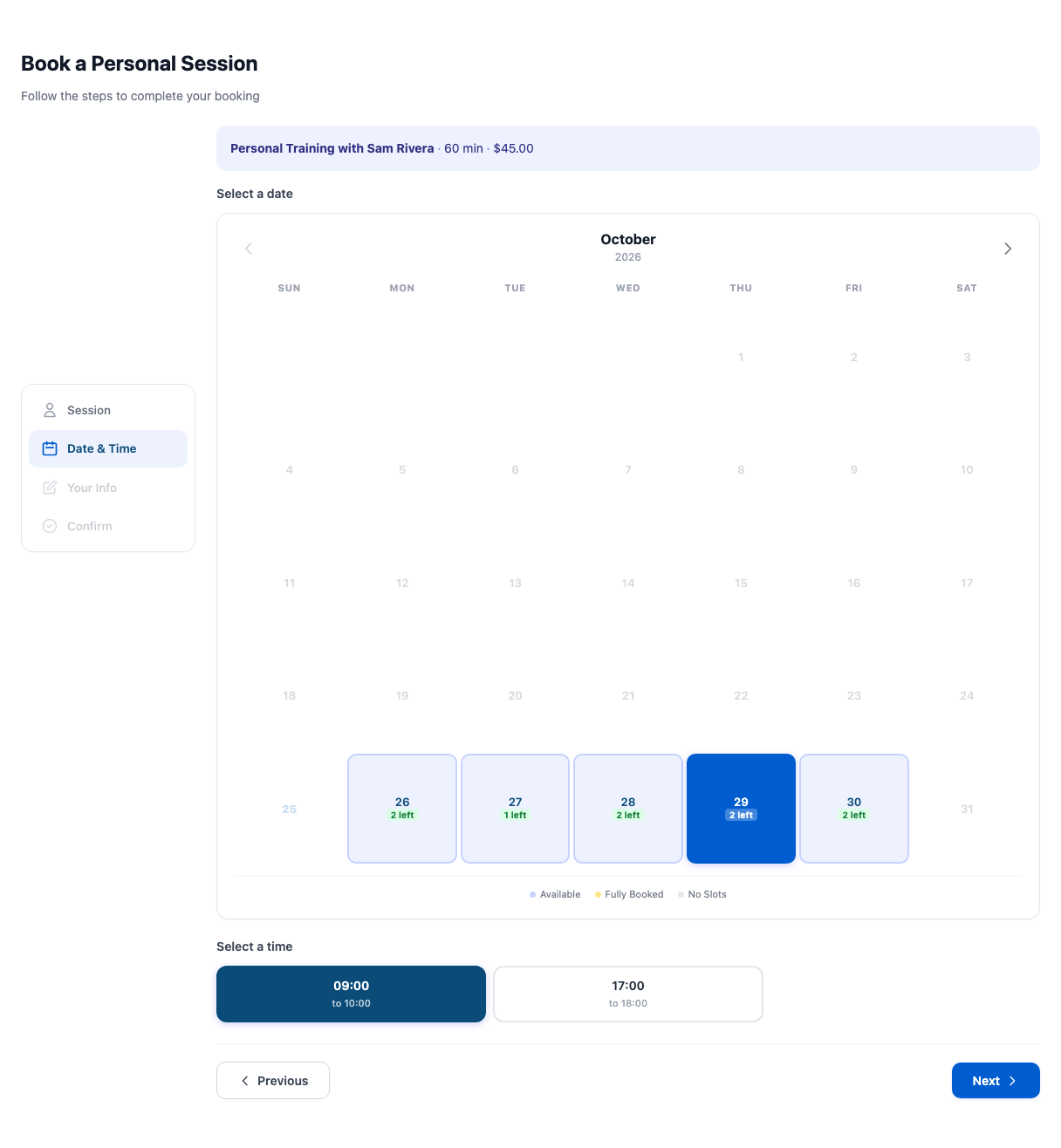
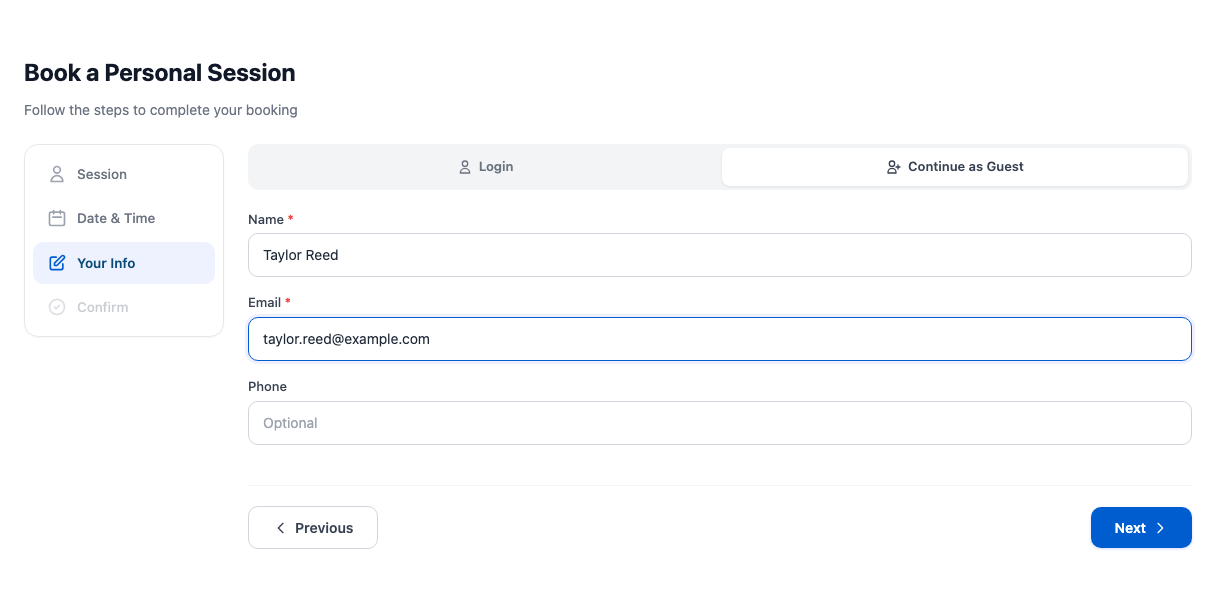
The form has four steps, listed on its left: Session, Date & Time, Your Info and Confirm. Clients can click back to an earlier step at any time.
- Session — they click a trainer, then one of the trainer's sessions. Each shows its length and price ("Free" for a free session).
- Date & Time — days with free times are marked with how many are left; full days are marked Full. They click a day, then a time, then Next.
- Your Info — members who are logged in see "Logged in as …" and click Next. Others can log in here (Login & Continue) or, if you allow it, click Continue as Guest and enter their name, email and phone (optional).
- Confirm — a summary of the booking. For a free session they click Confirm Booking; for a paid one, Proceed to Payment.

A free booking is confirmed straight away: the form shows "Booking Confirmed!", an Add to Google Calendar button and Book Another Session, and the confirmation email is sent.
How payment works
Personal Session does not take card payments itself. Paid sessions are paid through the Stripe Payments add-on, using the Stripe keys you entered there. You do not enter them again here.
- The client clicks Proceed to Payment. The time they chose is held for them for 30 minutes, so nobody else can take it.
- They pay on Stripe's secure payment page.
- When Stripe tells your site the payment went through, the booking is made and confirmed, and the emails go out. The client lands on your After Paying page.
- If they leave without paying, no booking is made and the time becomes free again when the 30 minutes are up.
Your site learns about the payment from Stripe's webhook, which you set up in the Stripe Payments add-on. Without it, clients pay but no booking appears.
If you also use the Offline Payments add-on with session payments switched on, paid sessions are paid offline instead (bank transfer or at the desk): the time is held while you wait for the money, and the booking is made when you approve the payment.
Everyday use
The Bookings page
Go to Gym Builder → Personal Sessions → Bookings. At the top: how many bookings are Coming up, how many are Today, how many were Done this month, and how much was Paid this month: every session paid by card or offline whose payment was confirmed this month, with any refunds taken off. Below is every booking, the most recently made first. Search by name or email, filter by status, or set a From and To date.
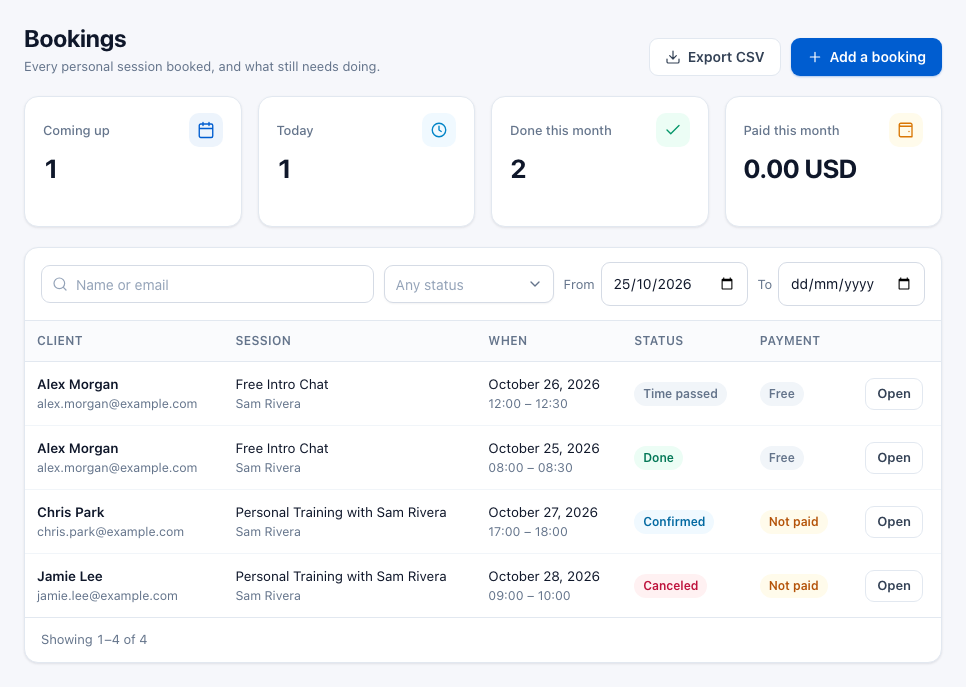
What the badges mean:
| Badge | Meaning |
|---|---|
| Waiting to confirm | The booking needs you to click Confirm. The button on its line reads Review. |
| Confirmed | Booked and coming up. Free bookings, paid bookings and bookings you add are confirmed straight away. |
| Done | The session took place: you or the trainer marked it as done. |
| Canceled | Cancelled by you or the client. The time is free again. |
| Did not come | The client did not turn up. You set it with Did not come when you open a confirmed booking. |
| Time passed | A confirmed booking whose time is over but that nobody marked as done. |
The Payment column shows Free (a free session), Not paid yet, Not paid (a paid session you added yourself, so no payment was taken), Paid or Refunded.
Open a booking
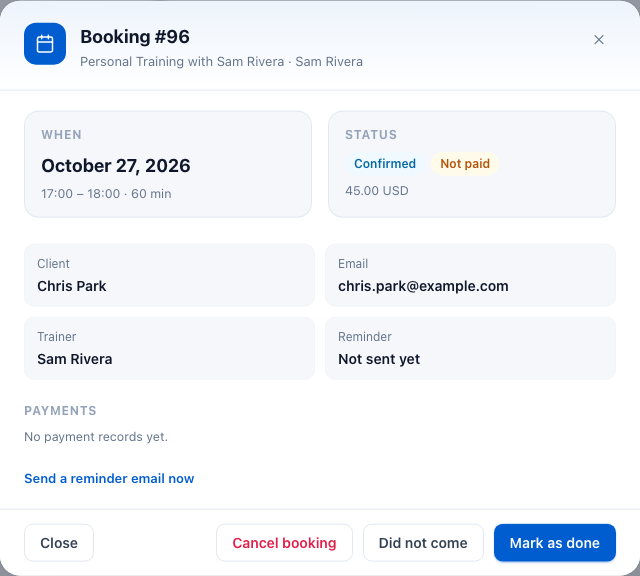
Click Open on a line. The window shows when it is, its status and payment, the client's name, email and phone, the trainer, whether the reminder has been sent and, for a paid session, its card payments. At the bottom are the buttons for what can be done next:
- Confirm — for a booking waiting to be confirmed. The client and the trainer get the confirmation emails.
- Mark as done — after the session. The client gets the "session completed" email, and can now review the trainer.
- Did not come — on a confirmed booking, when the client did not turn up. The booking shows Did not come; no email is sent.
- Cancel booking — asks "Cancel this booking?"; click Yes, cancel it. The time becomes free again, the client and trainer are emailed, and the Google Calendar event (if any) is removed.
- Refund — on a cancelled booking that was paid by card, when refunds are on. Click Yes, refund and the share set in Refunds goes back to the client's card through Stripe. The payment then shows Refunded.
- Send a reminder email now — a link under the details, for bookings still coming up. Click Yes, send it and the client and trainer get a reminder.
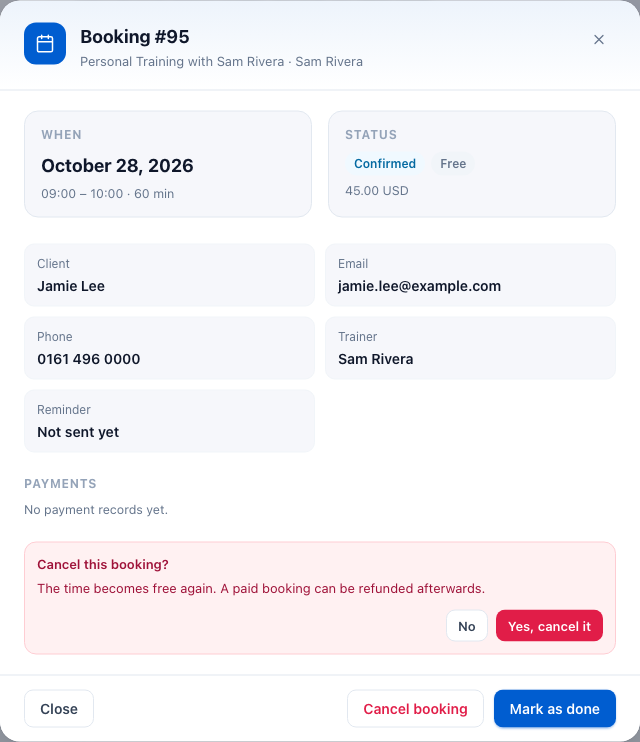
The Refund button only appears once a paid booking is cancelled. Cancelling never refunds by itself, and neither does a client cancelling from their dashboard.
Add a booking yourself
For a booking made by phone or at the desk:
- On the Bookings page, click Add a booking.
- Choose the Session, click a Day, then one of the free times under Time, such as 09:00 – 10:00.
- Under Client, choose New client and enter their name and email (phone is optional), or choose Member with an account and enter the member's account number. That is the "ID" shown on the member's line in Users.
- Click Book it. The booking is confirmed and the client and trainer are emailed.

A booking you add is not charged. For a paid session its payment shows Not paid; take the money your usual way.
Download bookings
Click Export CSV on the Bookings page. You get a spreadsheet of the bookings that match the search, status and dates you have set (up to 10,000), with the client, phone, trainer, session, date, time, length, amount, status and payment status.
Show or hide reviews
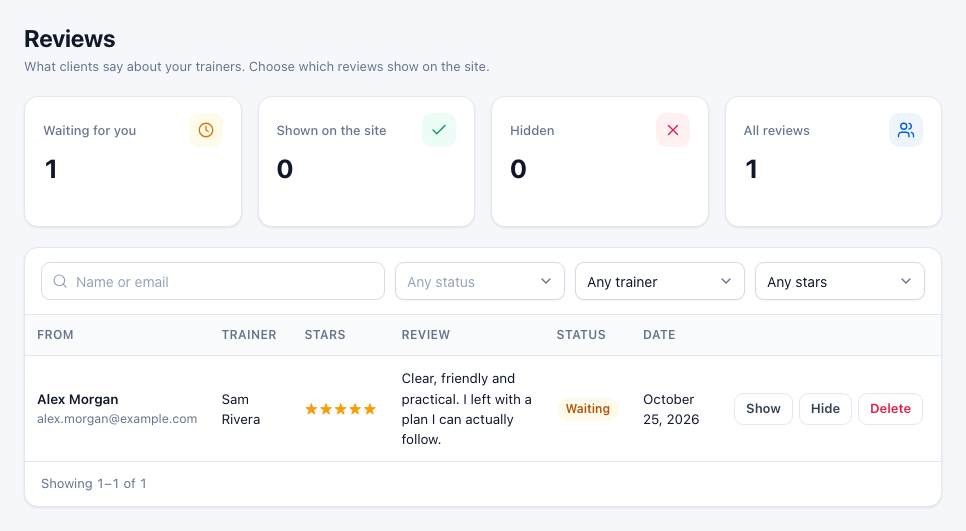
Go to Gym Builder → Personal Sessions → Reviews. The counters show how many reviews are Waiting for you, Shown on the site and Hidden. Filter by status, trainer or number of stars. On each review:
- Show — the review appears on the trainer's page and counts in their star rating.
- Hide — the review stays here but is not shown.
- Delete — removes it for good, after Yes, delete.
On the member's page
When you open a member in Gym Builder → Members, a Personal Sessions card shows how many sessions they booked and completed, what they spent, and their next session.

What members see
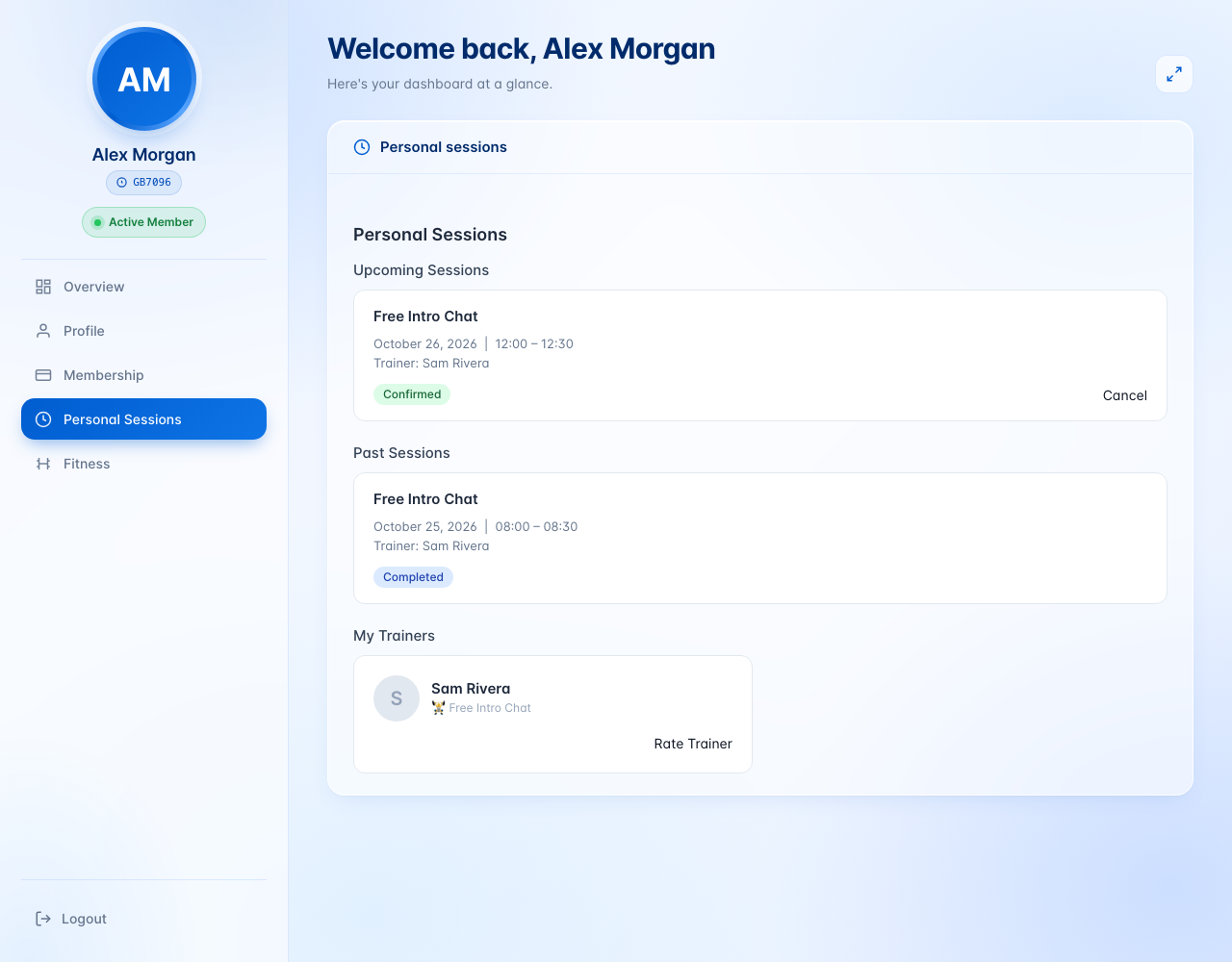
Logged-in members get a Personal Sessions tab on their Member Dashboard:
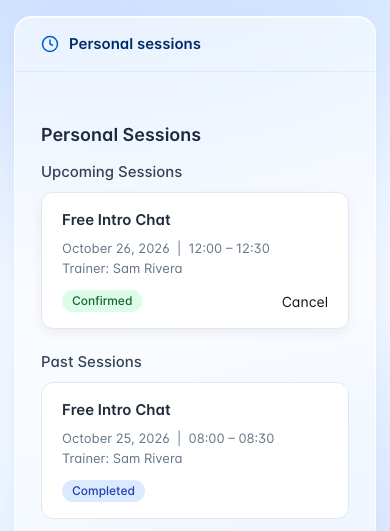
- Upcoming Sessions — each with its date, time and trainer, a Join Google Meet link for online sessions that have one, and a Cancel button. Members can cancel until the end of the day of the session. Cancelling sends the cancellation emails but does not refund a paid session; you do that from the Bookings page.
- Past Sessions — finished and cancelled sessions with their status.
- My Trainers (when reviews are on) — the trainers they had a completed session with, or who teach their classes, with a Rate Trainer button. In the window that opens over the page they click 1 to 5 stars, write a few words if they like, and click Submit Review. Each member reviews each trainer once; until you show it, it reads Review Pending.
When reviews are on, the "session completed" email has a Rate Your Trainer button. For members it opens their Member Dashboard on the Personal Sessions tab. Guests who booked without an account get a short review form on your site.
What trainers see
Trainers who log in see a Personal Sessions tab on their own dashboard, with their Upcoming Sessions and Past Sessions: the session, date, time, client and status. A Mark as Done button on each confirmed session lets them record that it took place.
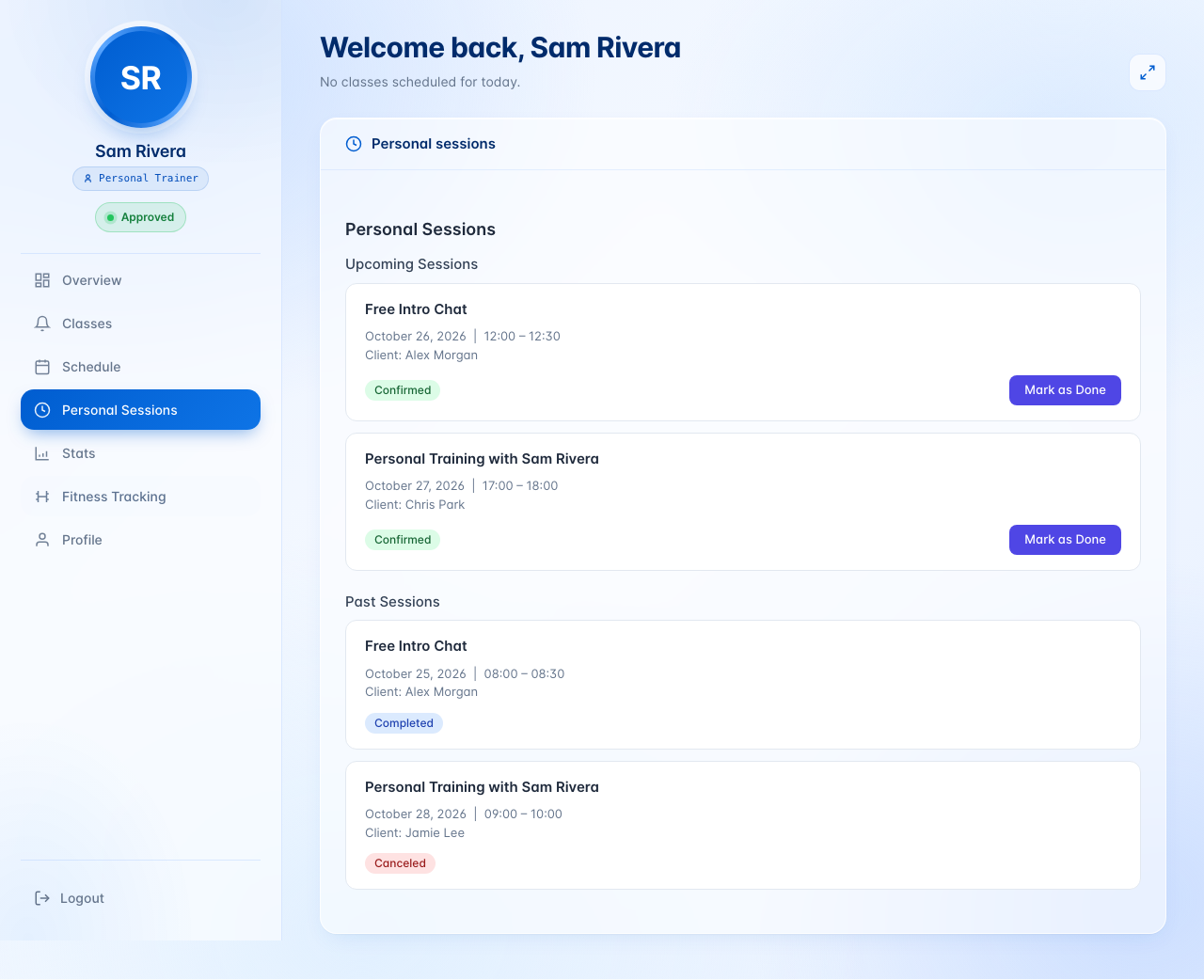
When a trainer clicks Mark as Done, the client gets the same "session completed" email, with the review link, as when you click Mark as done on the Bookings page.
Emails
All emails are sent from your site's name and admin email address. The trainer's copies go to the email on their trainer profile, or to their login's email.
| When, and to whom | |
|---|---|
| Booking Confirmed | To the client when a booking is confirmed (booked free, paid, confirmed or added by you). Has an Add to Google Calendar button, and a Join Google Meet button when there is a Meet link. |
| New Booking | To the trainer at the same moment. |
| Booking Canceled | To the client and the trainer when a booking is cancelled, by you or by the member. |
| Session Completed | To the client when you or the trainer mark the session as done, with a Rate Your Trainer button when reviews are on. |
| Reminder | To the client and the trainer: automatically for confirmed sessions today or tomorrow, or when you click Send a reminder email now. |
The first four follow the Booking Emails switch; the automatic reminder follows Reminder Before the Session. Subjects name the session, for example "Booking Confirmed — Personal Training with Sam Rivera".
Questions
Can more than one person book the same time?
No. Every time is for one client. For training in a group, use a class.
Can a client move their booking to another time?
Not by themselves. Cancel the booking and book the new time, either together with them on the booking form or with Add a booking.
Do members need an account to book?
Not if Allow Booking Without an Account is on. Guests enter their name and email. Members who are logged in book with their account, and their sessions then show on their Member Dashboard.
Can I sell a pack of sessions, such as 10 sessions for one price?
No. Each booking is one session, paid on its own.
What happens if a client cancels a paid session?
The time becomes free and the client and trainer are emailed, but no money goes back by itself. If you want to refund them, open the booking on the Bookings page and click Refund (refunds must be switched on).
Two people tried to pay for the same time. What happens?
The first person to click Proceed to Payment holds the time for 30 minutes, so the other cannot pick it. In the rare case the time is lost while the payment is being confirmed, the client's payment is refunded in full automatically.
Which time zone and time format are used?
"Today" is today in your WordPress time zone, so past days and times are never offered. Session times follow the Time Format in Settings → Classes → Timetable & Registration (12-hour or 24-hour).
Can trainers create their own sessions or times?
No. Sessions and times are made by a site administrator in the Gym Builder Dashboard. Trainers see their bookings and can mark sessions as done.
What happens if I delete the add-on?
Switching it off hides the pages and the booking form; everything is there again when you switch it back on. Deleting it from the Plugins page deletes all sessions, times, bookings, reviews and its settings.
If something goes wrong
- The booking form says no sessions are available — create a session, or click Resume if it shows Paused. For the form on a trainer or class page, check the session belongs to that trainer or is linked to that class.
- A day shows no times — add times to the session, and check the day is within People Can Book Up To. Days that have passed are never shown.
- "This is a paid session but payment processing is not configured" — switch on Stripe Payments and save your Stripe keys there. The Gym Builder Dashboard also warns about this.
- A client paid but there is no booking — check the Stripe webhook in the Stripe Payments add-on. Your admin email also gets a message with the payment details if a paid booking could not be saved; use them to add the booking yourself.
- The trainer gets no emails — give the trainer an email address on their trainer profile, and check Booking Emails is on.
- No reminders go out — check Reminder Before the Session is on. Reminders run with WordPress's scheduled tasks, which need visits to your site; the Gym Builder Dashboard warns if the reminder task is not scheduled.
- The Refund button is missing — the booking must be cancelled, paid by card, and Offer a Refund When Cancelling must be on.
- Google Calendar shows Failed — click Add a Test Event. If it fails, disconnect and connect the Google account again, and check the address you gave Google matches Address to Give Google.