Block Tools
Build your studio's pages in the WordPress block editor. Drop in a live timetable, your classes or your trainers, add banners, offers and countdowns, or start from one of six ready-made page designs.
What it does
Gym Builder already shows your classes, trainers and timetable with shortcodes. Block Tools gives you the same information as blocks you place and style by eye in the WordPress block editor, plus the design blocks a studio home page needs. Everything that comes from Gym Builder stays live: change a class time, a trainer or a class's capacity and every page that shows it is up to date.
- Class Routine — your weekly timetable in five designs, with a details popup and a booking button on every class time.
- Classes and Trainers — cards for your classes and your trainers, in several designs, with a Load More button.
- Design blocks — Slider, Countdown, Info Box, Call to Action, Advanced Heading and Wrapper for the rest of the page.
- Coupon Showcase — your public offers, when the Promotions & Trials add-on is on.
- GB Templates — six complete page designs (yoga, fitness, gym, boxing, karate, swimming) you import as a draft page and then edit.
- Your look — every block has a Styles tab for colors, fonts, spacing, corners and shadows, with separate values for desktop, tablet and phone where it matters.
Before you start
- Gym Builder switched on. Without it, Block Tools adds no blocks and shows a notice with an Activate Gym Builder (or Install Gym Builder) link.
- WordPress 6.7 or newer, and pages edited in the block editor. If you build pages with Elementor, use the Elementor Widgets and Pre-built Templates add-ons instead.
- Classes and trainers with their details filled in. The Classes, Class Routine and Trainers blocks show what you entered in Gym Builder: class times, colors, trainer photos and so on (see the Gym Builder guide).
- Promotions & Trials (another add-on) only if you want the Coupon Showcase block.
Install and switch on
- Go to Plugins → Add Plugin and click Upload Plugin.
- Choose the add-on's zip file, click Install Now, then Activate Plugin.
- Enter your license key when asked.
Once it is on, the block editor has a Gym Builder Blocks group, and the WordPress menu on the left has Gym Builder → GB Templates. Block Tools has no settings page of its own: each block keeps its settings.
Add a block to a page
- Open the page in the block editor (Pages → Add Page, or edit an existing page).
- Click the + button at the top left to open the list of blocks. Gym Builder Blocks is the first group. You can also type a block's name, such as "Class Routine", in the search box.
- Click a block to add it. It shows your real classes or trainers straight away.
- With the block selected, use the settings panel on the right. Every Gym Builder block has two tabs: General (what to show) and Styles (how it looks).
- Click Save draft or Publish as for any page.
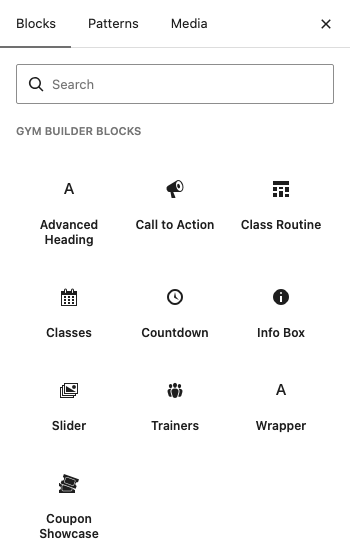
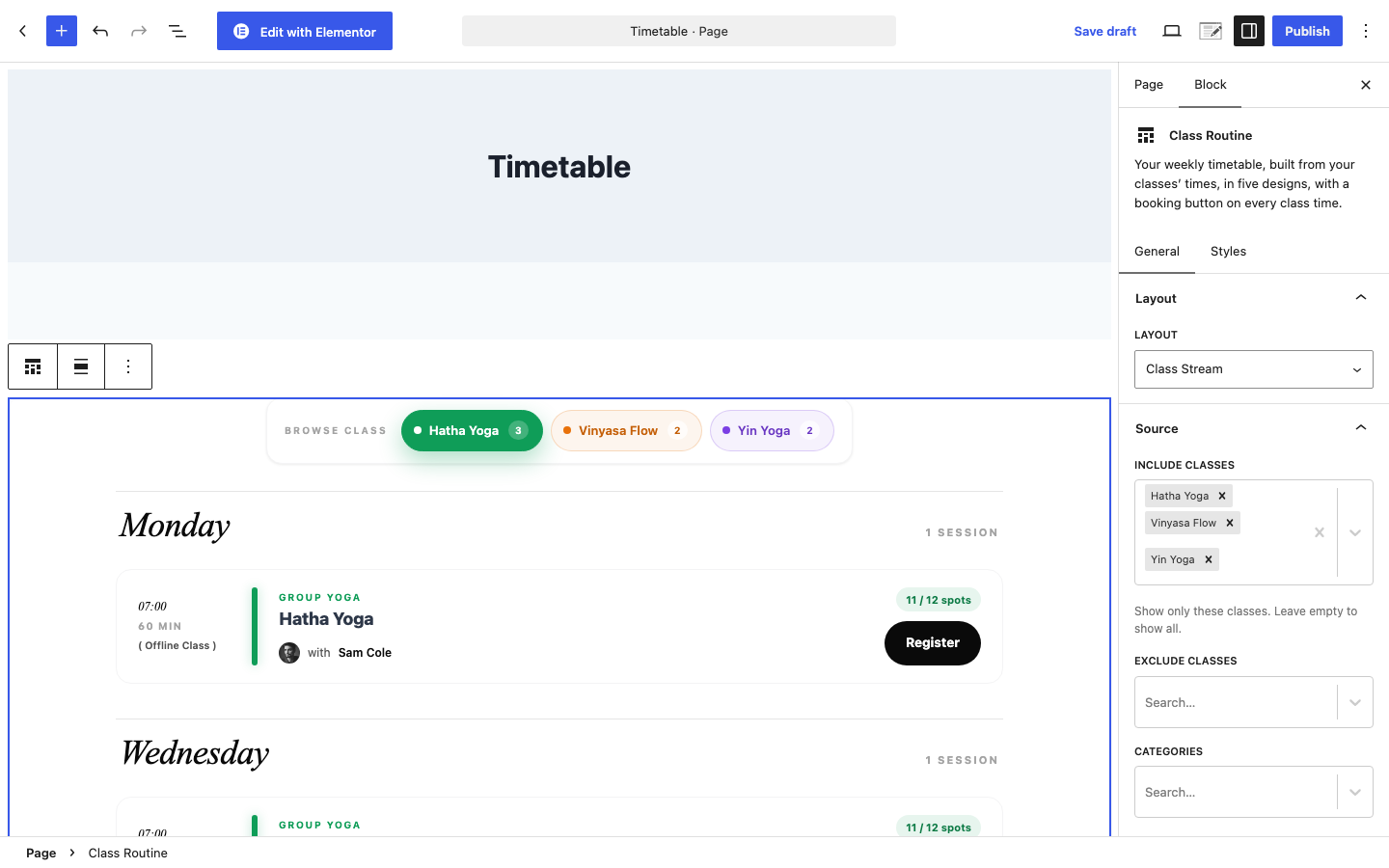
The preview in the editor uses your real data. A few things only work on the page itself: the class-time popup, switching days and the "now" line on the timeline. To try them, click the screen icon at the top of the editor and choose Preview in new tab.
The Styles tab
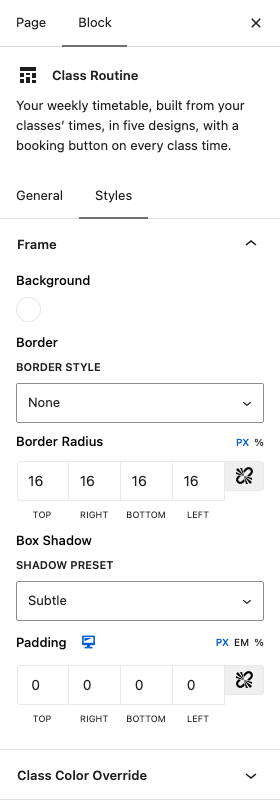
The Styles tab is split into boxes, one per part of the block (for example Frame, Title, Category Chip, Booking Button). Inside you find the same kinds of controls on every block:
- Color and Background — text and background colors, some with a separate hover color.
- Typography — font, size, weight and line height.
- Margin, Padding and Border Radius — spacing and rounded corners, in px, em or %. The screen icon next to a label lets you set a different value for desktop, tablet and phone.
- Border and Box Shadow — a border style and a ready-made shadow (Subtle, Medium, Strong) or your own.
The blocks at a glance
| Block | What it shows | Main options |
|---|---|---|
| Class Routine | Your weekly timetable, built from your classes' times. | 5 layouts, which classes, what each class time shows, time format, first day of the week, a title above it. |
| Classes | A grid of class cards with times, trainers and places left. | 5 layouts, which classes, number shown, a Load More button, what each card shows. |
| Trainers | A grid of trainer cards with photo, role, short bio and social links. | 4 layouts, which trainers, number shown, a Load More button, what each card shows. |
| Slider | Large rotating banners with a title, text and a button. | Full-picture or split layout, slides, motion, arrows and dots. |
| Countdown | A timer counting down to a date, then a message. | End date and time, which units show, their labels, the message after the end. |
| Info Box | A box with an icon or picture, a title, text and a button. | Icon or image, its position, texts, button link. |
| Call to Action | A banner with a small line above the title, a description and up to two buttons. | Texts, two buttons with links, background. |
| Advanced Heading | A section heading: a small line, a title, a paragraph and a button. | Show or hide each part, its text and style, the button's link. |
| Wrapper | A section that holds other blocks, with its own background and spacing. | Full width or a maximum width, background, margin, padding. |
| Coupon Showcase | Your public coupons, ready to copy. Only with Promotions & Trials. | Heading, grid, list or one featured coupon, columns, how many, expiry date. |
Class Routine
The Class Routine block draws your week from the class times you set on each class: every class time appears on its day, in the class's own color, with its trainer. It is the block most studios put on their "Timetable" or "Schedule" page.
The five layouts
Choose one under General → Layout → Layout.
| Layout | What visitors see |
|---|---|
| Timetable | A week grid: days across the top, start times down the side, one card per class time with the trainer's initials. Today's day is underlined. |
| Class Stream | One class at a time: visitors pick a class at the top (Browse Class), then see its times day by day with length, trainer, places left and a booking button. |
| Minimal Rails | One slim row per day with the class times as small labels. Today's row is marked Today. |
| Pro Timeline | A calendar week drawn to scale on an hour grid, so long and short classes look long and short. A red line shows the time now in today's column. |
| Daily Spotlight | A strip of days with the number of classes on each. Visitors pick a day and see its classes in detail, with a ring showing how many places are still free and a booking button. Today is picked first. |
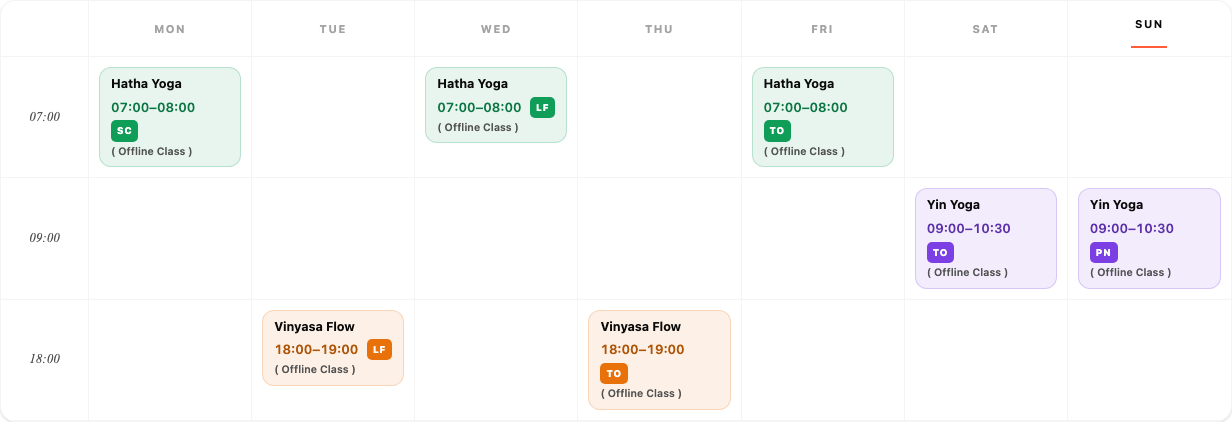
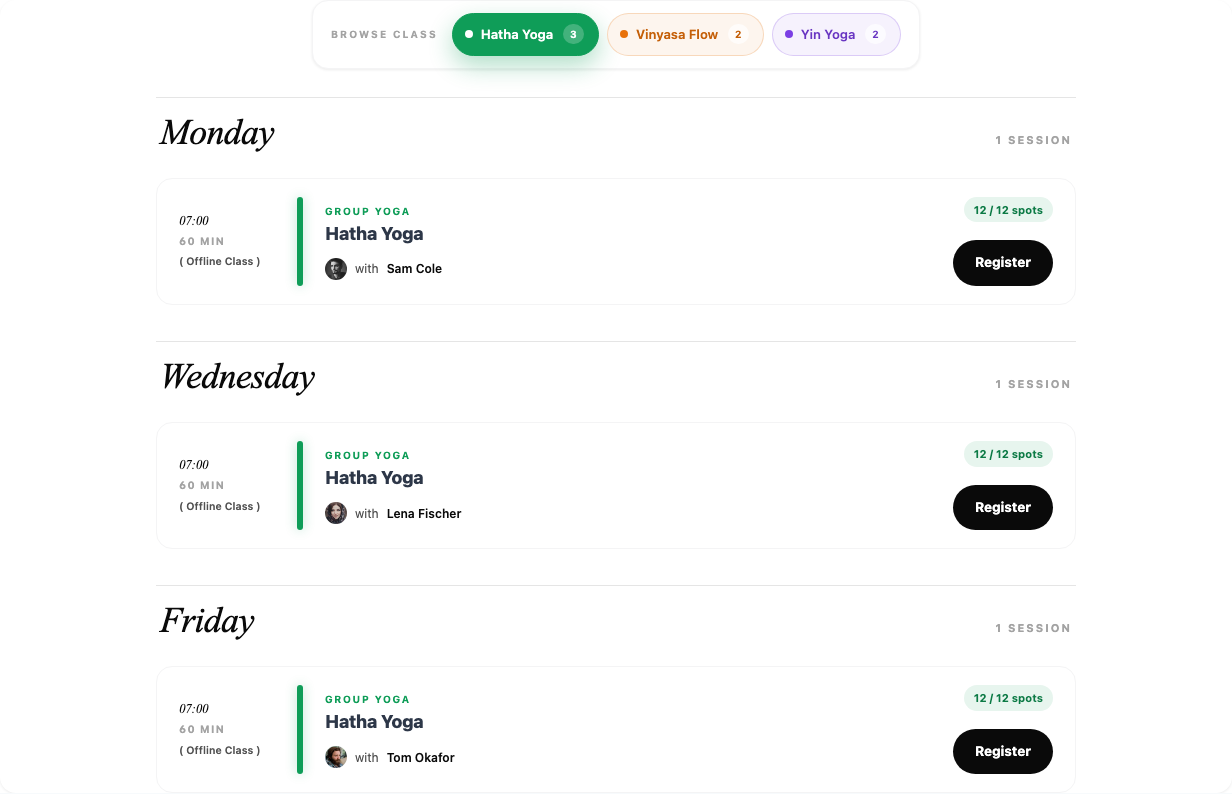
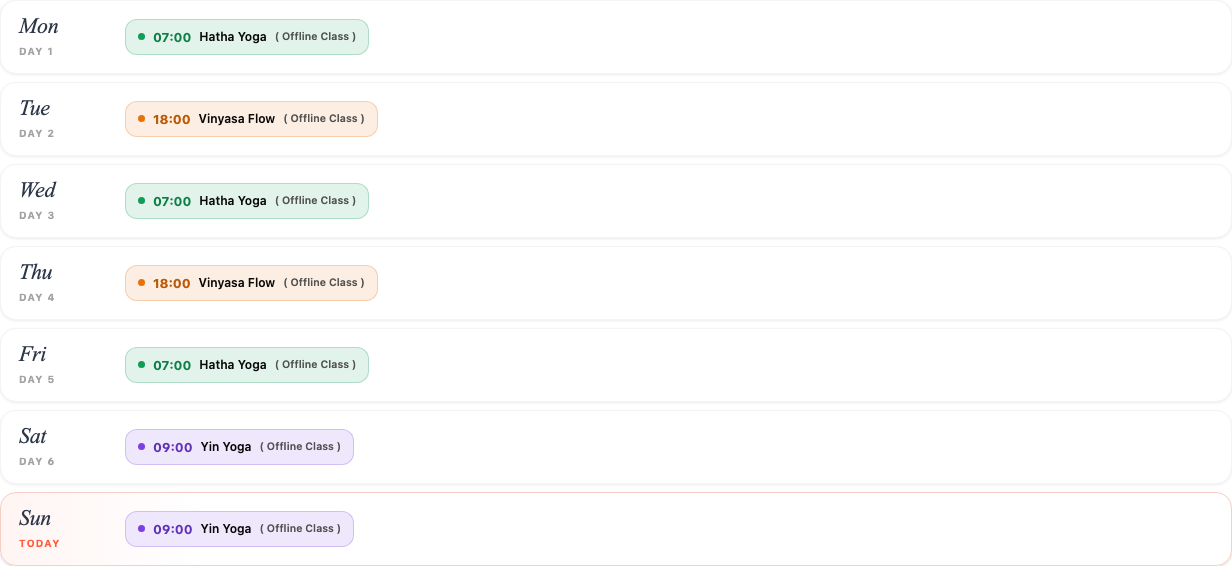
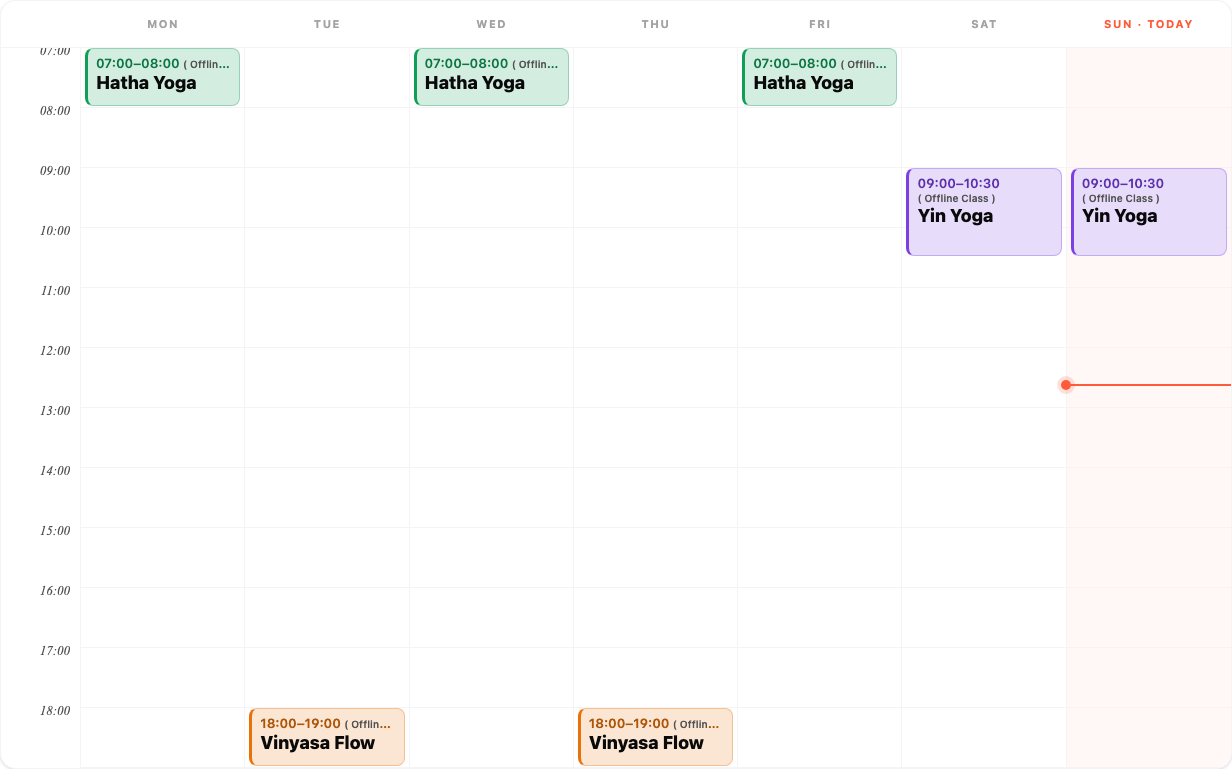
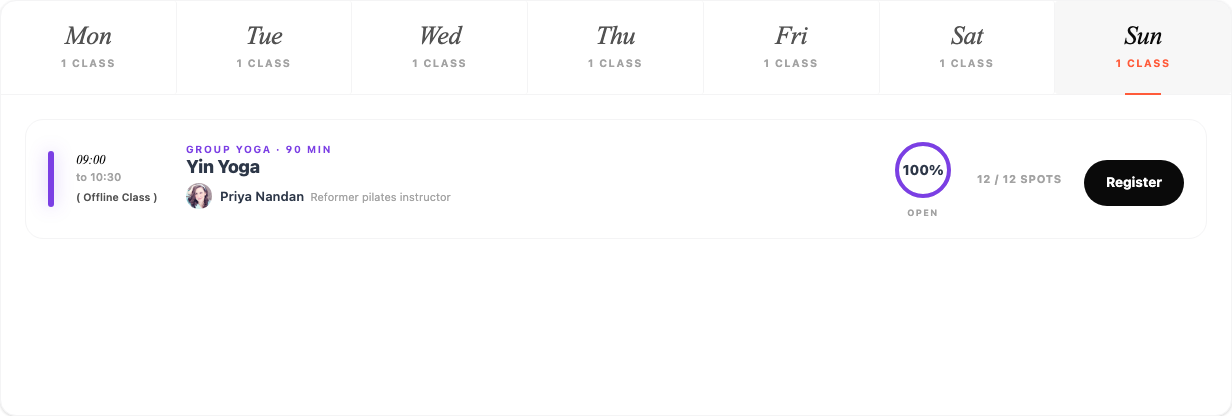
The "( Offline Class )" and "Offline Class" labels in these pictures come from the Zoom Integration add-on, which marks each class time as online or in person. Without that add-on they are not shown.
The class-time popup and the booking button
When Day Popup on Click is on, a visitor who clicks a class time gets a small card with the day, time and length, places left, the trainer and the booking button.
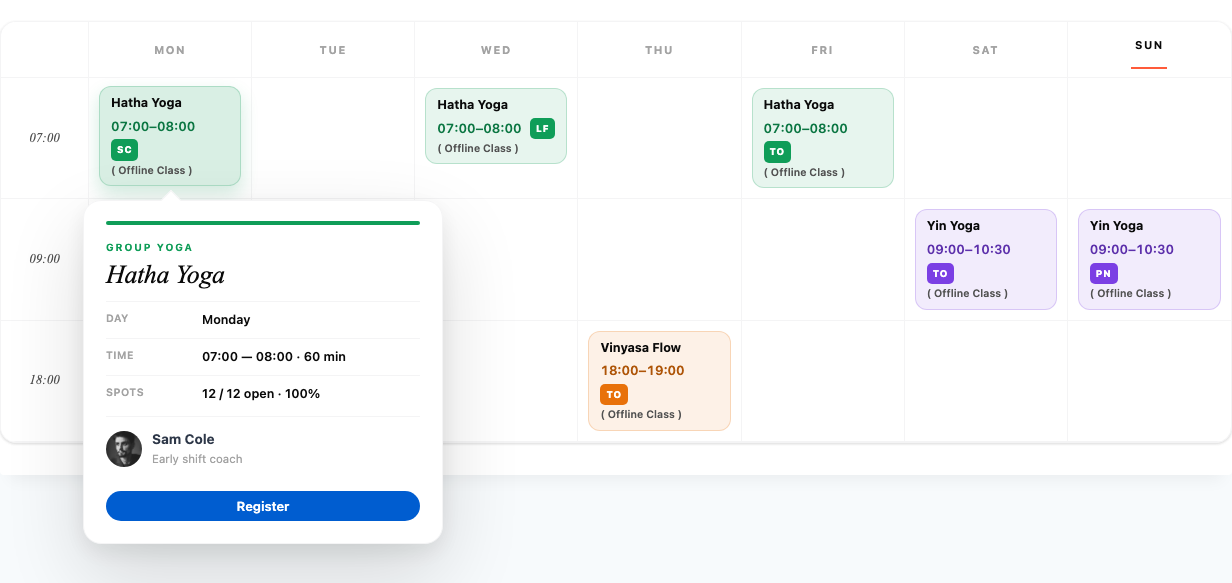
The booking button is the one your site already uses for that class, so the block never needs its own setup:
- A class sold through Class Booking & Payment shows that add-on's own button.
- With Stripe Payments or Offline Payments, the class shows the buttons to buy a plan that includes it. When several plans include it, the visitor picks one.
- Otherwise the Registration Popup form, if that add-on is on, or Gym Builder's own Register button.
Class Routine settings
| Setting | What it does |
|---|---|
| Layout | Timetable, Class Stream, Minimal Rails, Pro Timeline or Daily Spotlight. |
| Source → Include Classes | Show only these classes. Leave empty to show all. |
| Source → Exclude Classes | Leave these classes out. |
| Source → Categories | Show only classes in these class categories. Leave empty to show all. With two or more, Category Match chooses Any (OR) or All (AND). |
| Source → Order By, Order | The order of the classes — in Class Stream the order of the class buttons, elsewhere which class comes first when two start at the same time: by Date, Title, Menu Order or Random, ASC or DESC. |
| Display | Switch parts on or off: Category Chip, Trainer Avatar, Spots Left, Booking Button, Day Popup on Click. With Pro Timeline also "Now" Line on Today's Column. |
| Time → Time Format | Use Global Setting (Class Settings) follows the time format in Gym Builder's class settings. Or force 12-Hour (8:00am) or 24-Hour (08:00). |
| Time → Week Starts On | The first day shown, Monday to Sunday. |
| Header → Section Title, Section Subtitle | An optional title and line of text above the timetable. |
| Styles | Frame, Class Color Override (one color for every class time instead of each class's own Color), Title, Category Chip, Schedule (Time Text), Day Pills and Booking Button. |
On a phone
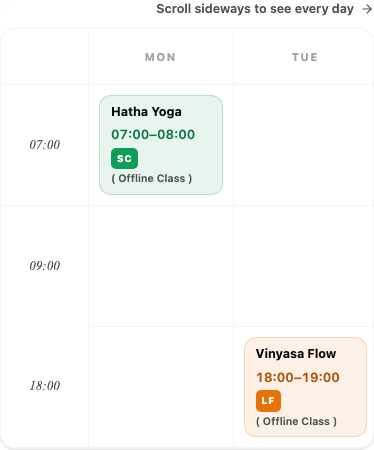
Every layout fits a phone screen. The wide ones (Timetable and Pro Timeline) scroll sideways, with a Scroll sideways to see every day hint; Daily Spotlight's day strip scrolls the same way.
Classes
The Classes block shows a card for each class: its picture, category, the days and times it runs, its trainers and the places left. Visitors click a card's picture or title to open the class page.
Layouts
| Layout | What each card shows |
|---|---|
| Card | Picture with the title on it, then a list of the class times (day, time, trainer, places left) and the trainers. |
| Member | Picture, title, trainers and a row of the seven days with the class's days lit up. Clicking a lit day shows that day's times. |
| Capacity | Picture with a ring showing how many places are still free, the number of sessions per week and the trainers. |
| Editorial | A wide magazine-style card that takes the whole row: picture on one side; category, title, coaching team, days, times and places on the other. |
| Tile | A tall picture tile with the title, trainers, the class's days and the places left. Clicking a lit day shows that day's times. |
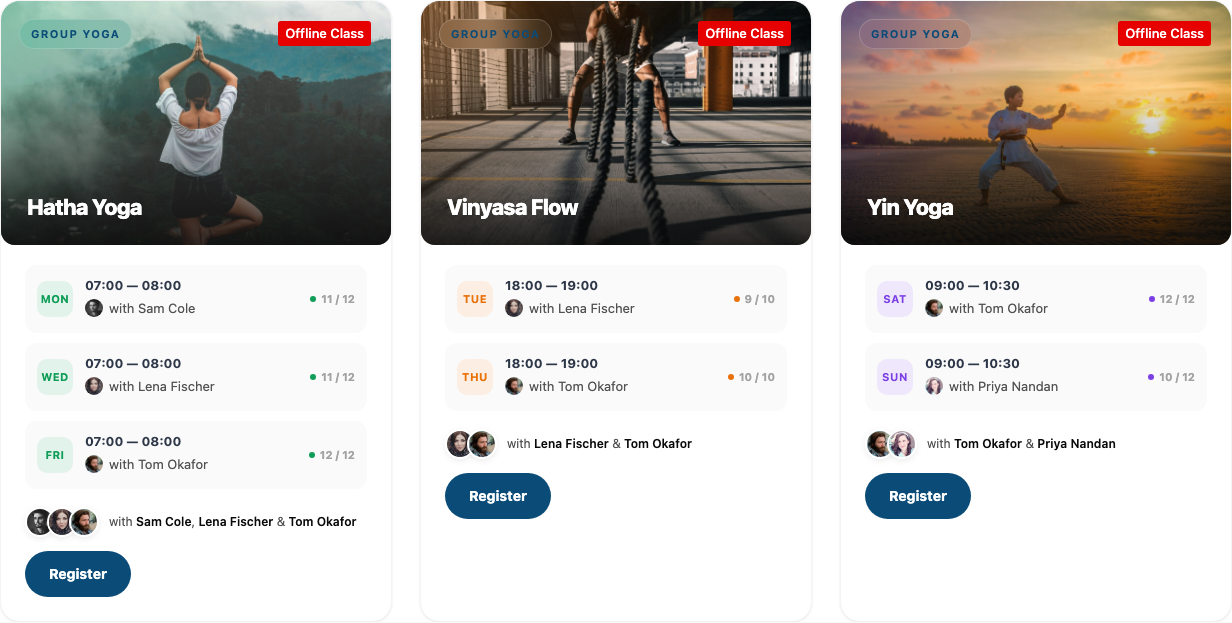
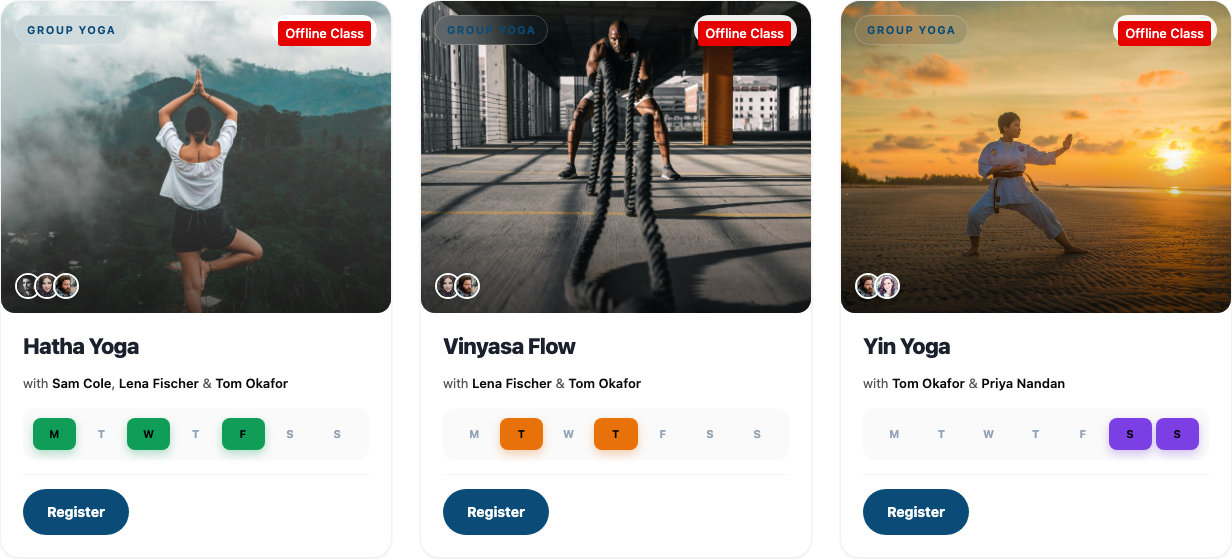
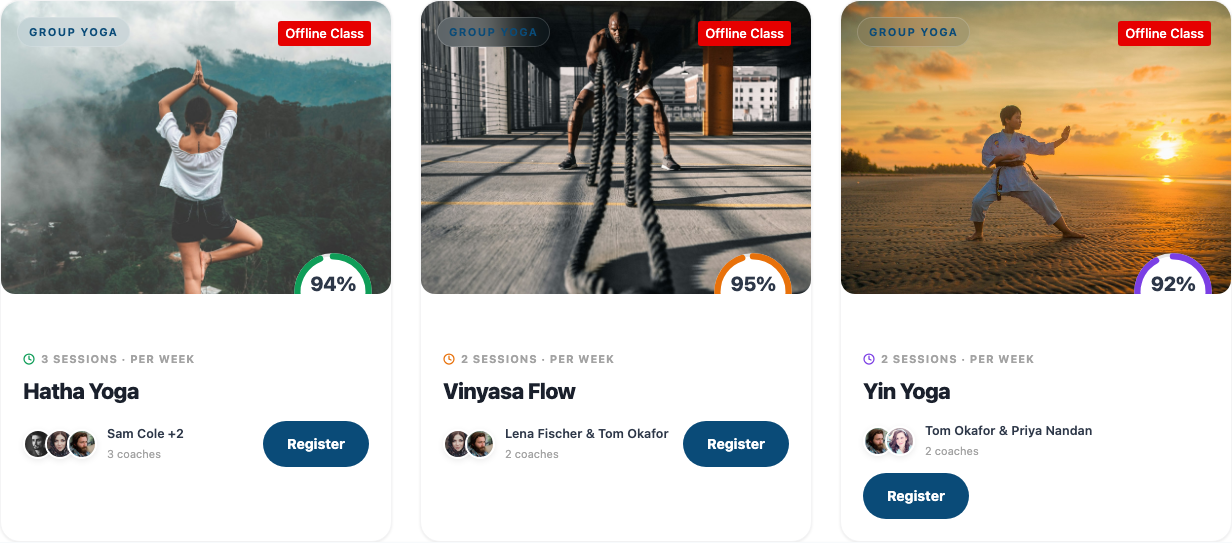
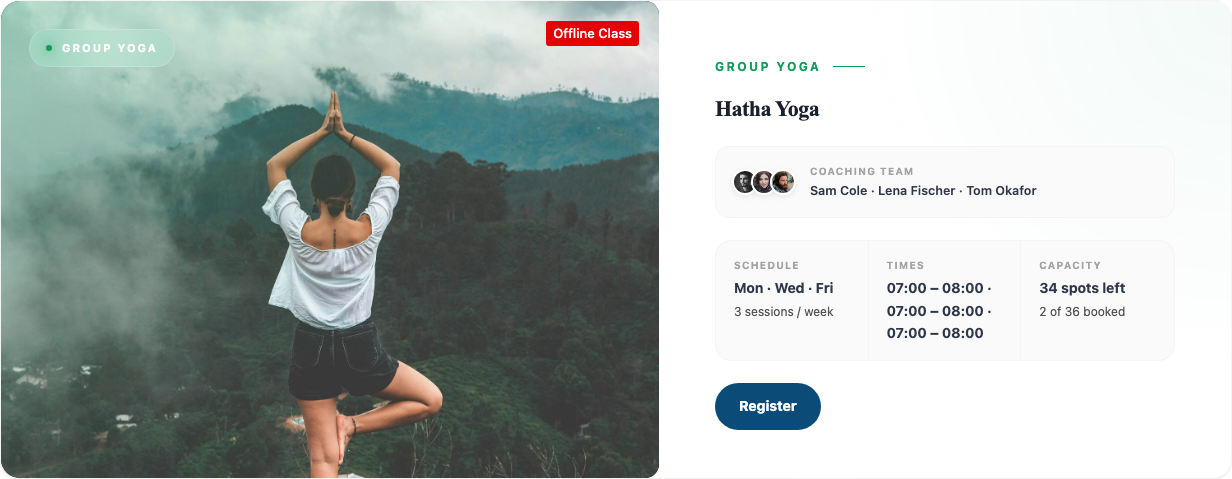
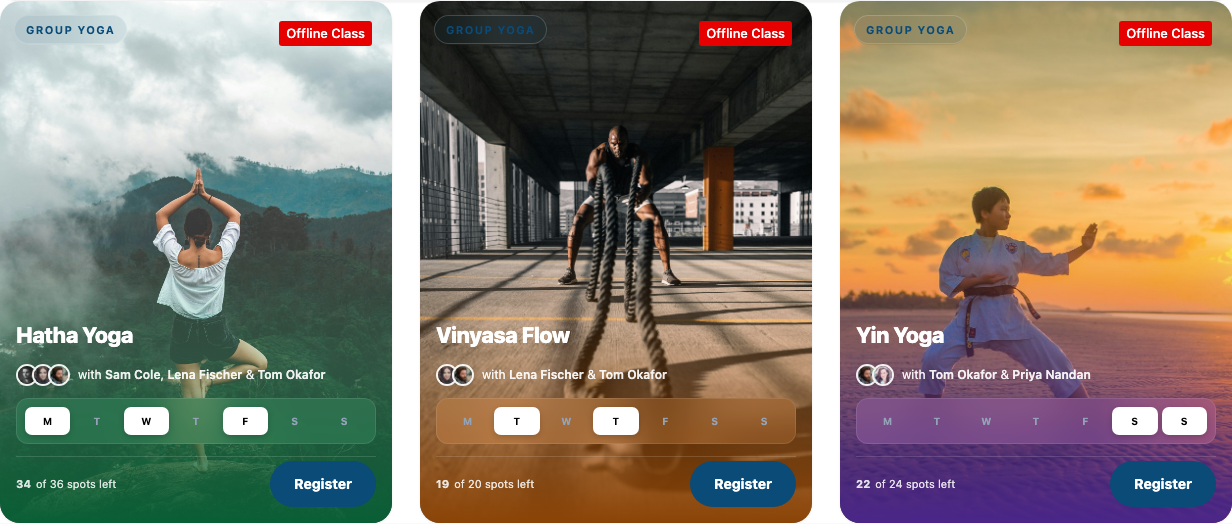
Editorial is a wide card, so each card takes the whole row on every screen size. Styles → Grid has no Columns settings for it, only Gap.
Classes settings
| Setting | What it does |
|---|---|
| Layout | Card, Member, Capacity, Editorial or Tile. |
| Source | Include Classes, Exclude Classes, Categories (with Category Match), Order By and Order, as on Class Routine. Posts per Page is how many cards show at first (6 to start with). |
| Load More | Show Load More Button adds a button under the grid. Button Text (default "Load more"), Loading Text and Posts per Click (how many more classes each click adds). |
| Display | Switch parts on or off: Image, Category, Title, Description (not on Tile), Schedule / Day Pills, Trainers, Duration, Booking Button. With Capacity also Capacity Ring; with Member and Tile also Day Popup on Click. |
| Description | Source (Excerpt or Content of the class) and Word Limit. |
| Schedule | Max Session Rows Shown (how many class times each Card, Capacity and Editorial card lists; 0 lists them all), Show "spots left" and Time Format. |
| Styles | Grid (Columns (Desktop), Columns (Tablet ≤1024px), Columns (Mobile ≤767px) — not for Editorial — and Gap), Image, Card, Class Color Override, Title, Description, Category Chip, Schedule, Day Pills, Booking Button, Load More Button. |
The booking button on a class card follows the same rule as on Class Routine: a payment add-on's buy button when the class can be bought there. Otherwise it is the class's own button, with the Button Text and Button URL you set on the class. A class with no Button Text still gets a button: Register when people can register on the class page (or the class has a Button URL), otherwise View Class. Without a Button URL it opens the class page. To hide it, switch off Booking Button under Display.
Trainers
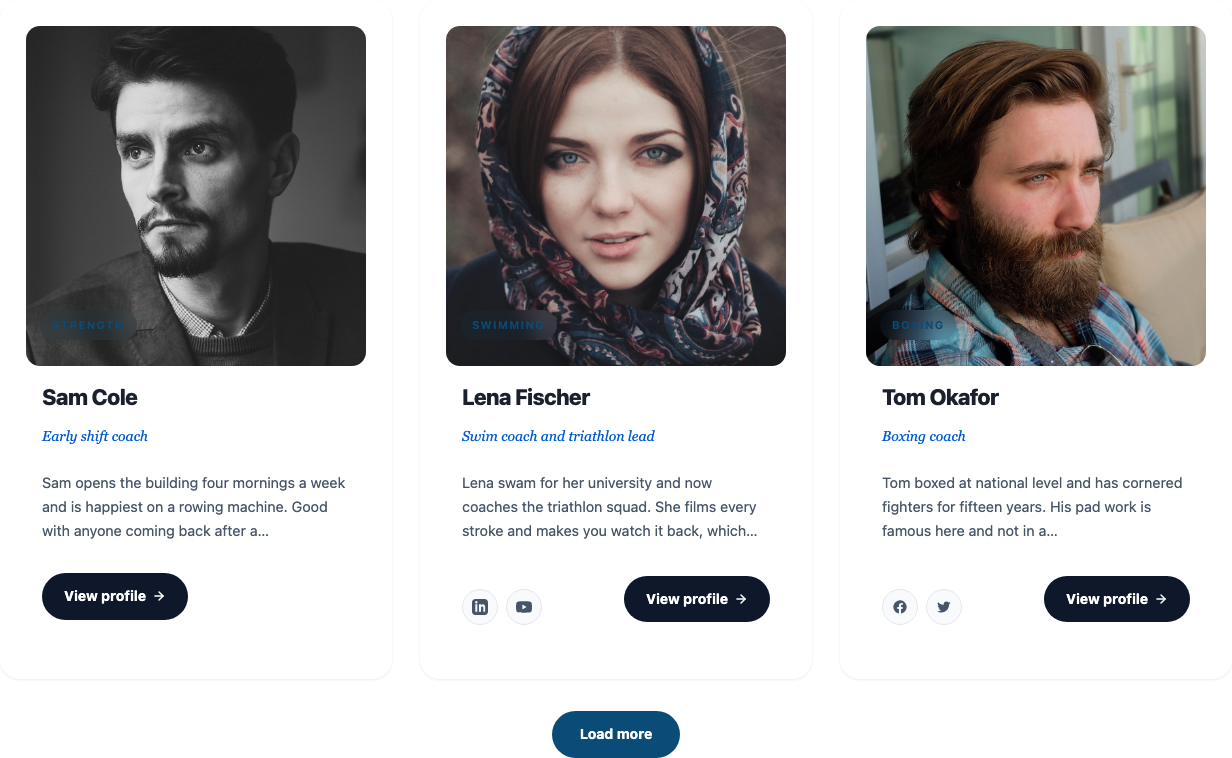
The Trainers block shows your trainers with their photo, category, role (Designation), a short bio and social links, and links each card to the trainer's page.
| Layout | What each card shows |
|---|---|
| Card | Photo, name, role, bio, social icons and View Profile. |
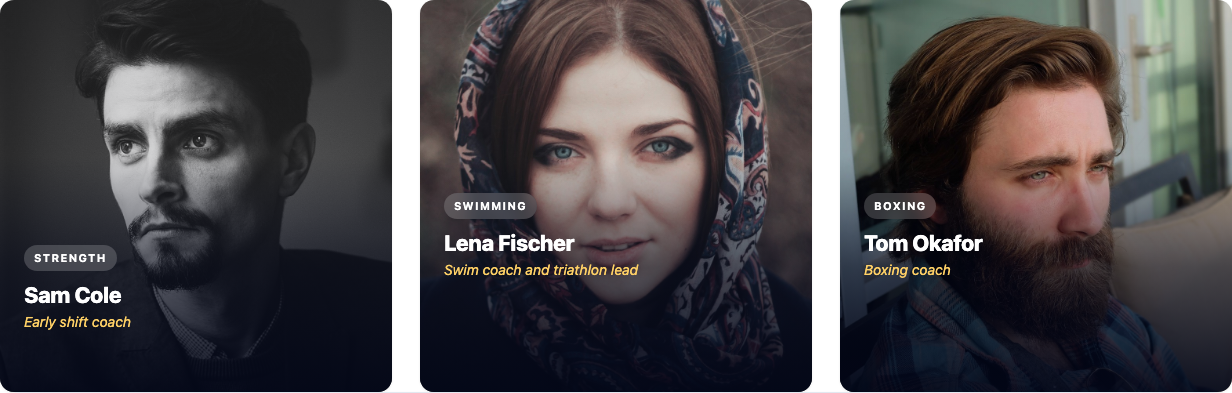
| Hover | A square photo with the name, role and category on it, in white. The bio and social icons appear when the pointer is over the card. |
| Skills | A larger card with a View Profile button. Switch on Skills to add the trainer's skill bars. |
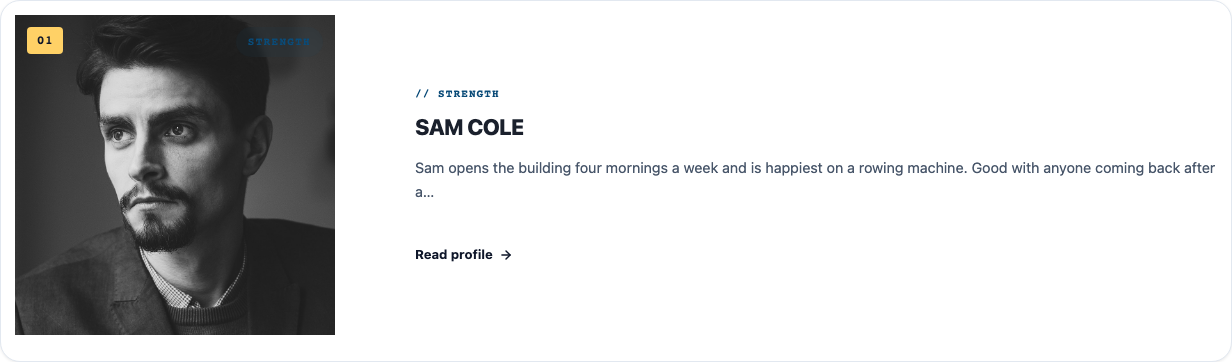
| Minimal | A numbered, wide row: photo on the left; category, name, bio and Read Profile on the right. Each card takes the whole row. |

| Setting | What it does |
|---|---|
| Layout | Card, Hover, Skills or Minimal. |
| Source | Include Trainers, Exclude Trainers, Categories (trainer categories, with Category Match), Order By, Order and Posts per Page. |
| Load More | As on the Classes block. |
| Display | Image, Category, Name, Designation, Bio / Excerpt, Email, Social Icons, and depending on the layout Skills and "View Profile" Link. Under Social Icons you pick which networks show (Facebook, Twitter, LinkedIn, YouTube, Pinterest, Skype). |
| Bio Settings | Source (Excerpt or Content) and Word Limit. |
| Styles | Grid (no Columns for Minimal), Image, Card, Name, Designation, Bio, Category Chip, Socials, Skills, Load More Button. |
Design blocks
These blocks do not read Gym Builder data. You type the words, pick pictures and links, and style them.
Slider
Large banners that change by themselves, each with its own picture, small line, title, text and button.
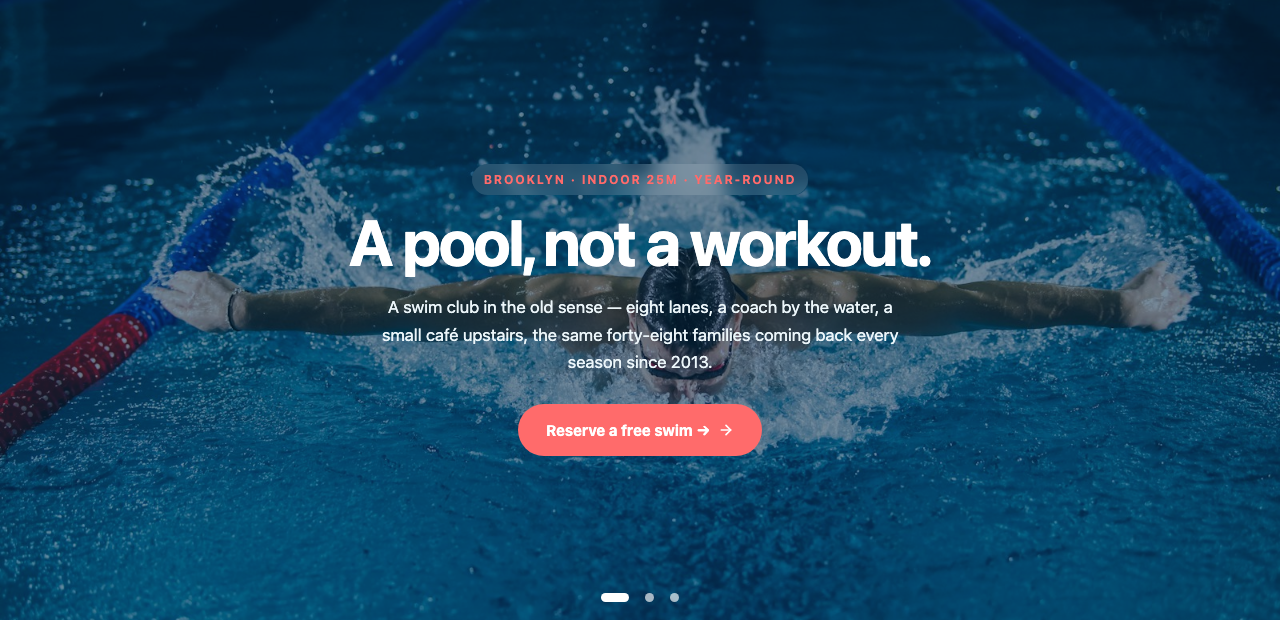
- Layout — Layout Type: Hero Overlay (text over a full picture; place it with Content Horizontal and Content Vertical) or Split Card (picture on one side; Image Side and Split Ratio 50/50, 60/40 or 40/60).
- Slides — click Add slide; for each slide set Slide Image, Subtitle, Title, Description, Button Text and Button URL (with Open in New Tab and Add Nofollow).
- Display Toggles — show or hide the subtitle, title, description and button on all slides.
- Slider Options — Transition Effect (Slide or Fade), Transition Speed (ms), Loop, Autoplay and Autoplay Delay (ms), Pause on Hover, Show Navigation Arrows, Show Pagination with its Pagination Type (Bullets, Progress Bar or Fraction), Keyboard Control, Mousewheel Control, Slides per View and Space Between Slides (px).
Countdown
A timer to a date: an offer that ends, a challenge that starts, an event. When the time is up, the timer is replaced by your message.
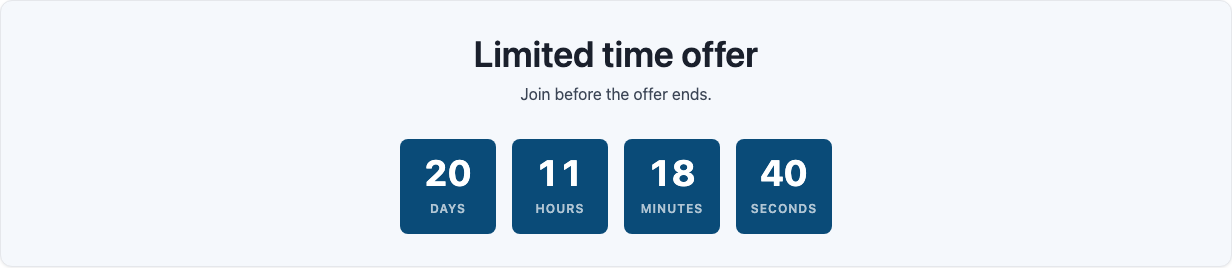
- Layout — Default (Stacked) or Split (Text · Segments) (text on the left, timer on the right), Content Alignment.
- End Date — Countdown Ends At: pick the date and time. It is read in your site's time zone (Settings → General). Clear date removes it.
- Title and Description — the words above the timer (the title starts as "Limited time offer").
- Segments — show or hide Days, Hours, Minutes, Seconds, and change each label.
- Expired State — Expired Message, shown instead of the timer once it reaches zero (starts as "This offer has ended.").
Info Box
A box with an icon or a picture, a title, a short text and a button. Studios use a row of three for "why train with us" points.
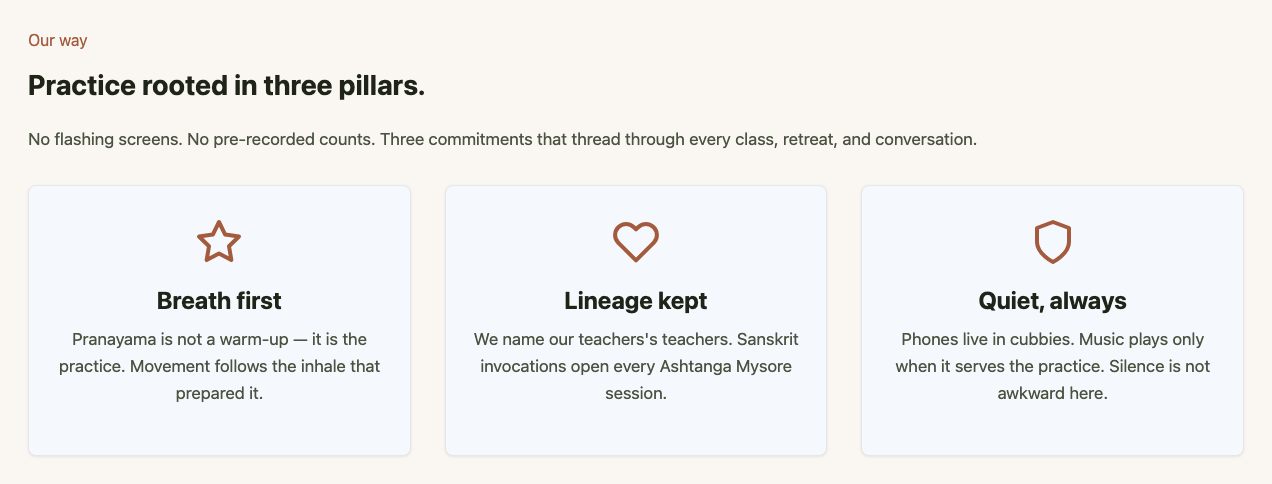
- Layout — Icon Position (Top or Left) and Content Alignment.
- Icon — Icon Source: an Icon from the built-in set (star, heart, dumbbell, calendar, clock and more) or your own Image.
- Title, Description — your words; each can be hidden.
- Button — Button Text, Button URL, Open in New Tab, Add Nofollow.
Advanced Heading
A ready-styled section heading: a small line above (Subtitle), the Title, a paragraph (Content) and a button. Each part has its own box (Title Settings, Subtitle Settings, Content Settings, Button Settings) where you type it or hide it, and its own colors and spacing on the Styles tab.
- Button Settings — Display Button, Button Text, Button URL (where the button goes), Open in New Tab and Add Nofollow, as on the Info Box and Call to Action blocks. Without a Button URL the button does not take visitors anywhere.
Call to Action
A banner that asks visitors to act: a small line above the title (Eyebrow), the title, a description and one or two buttons.
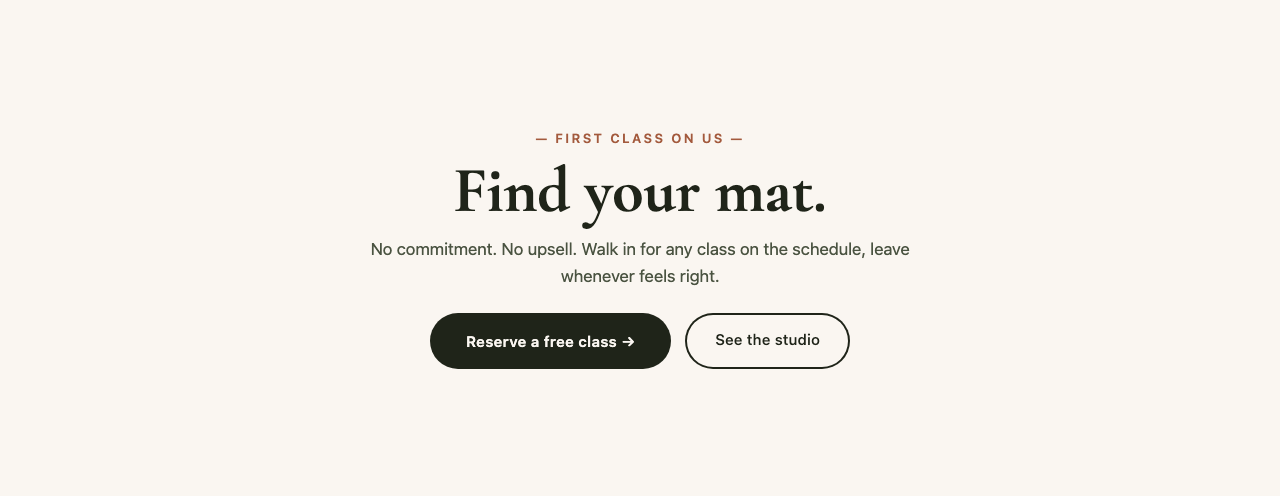
- Eyebrow, Title, Description — your words; each can be hidden. Title HTML Tag sets the heading level.
- Primary Button and Secondary Button — Button Text, Button URL, Open in New Tab, Add Nofollow. The second button is off until you switch on Display Secondary Button.
- Styles — Wrapper (background, spacing, corners) and a box for each part and each button.
Wrapper
A section that holds other blocks. Put a heading, a row of Info Boxes or a Classes block inside it to give that part of the page its own background and spacing.
- Wrapper Settings — Content Width: Full Width, or Custom with a Max Width for the content inside.
- Wrapper Styles — Background (color, gradient or picture), Margin and Padding.
- Click the + inside the Wrapper to add the first block into it.
Coupon Showcase
Shows your public coupons so visitors can copy a code or use it straight away. The block only appears when the Promotions & Trials add-on is on, and it lists the coupons you set to Show it on the site there. With none, it shows "No public offers right now."
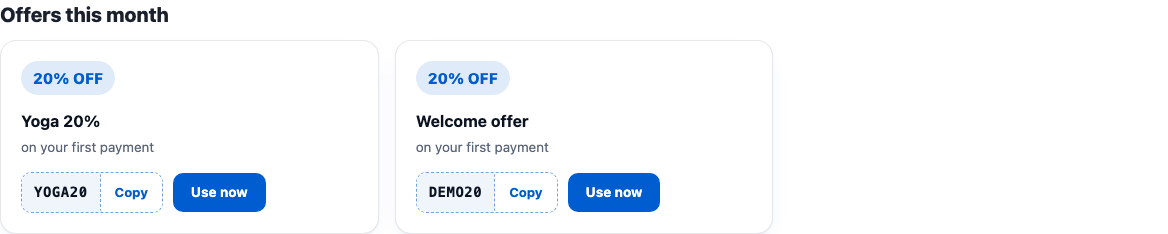
- Heading (Optional) — a title above the coupons.
- Layout — Grid, List or Single (Featured).
- Columns (2 to 4, Grid only) and Max Coupons (1 to 24).
- Show Expiry Date — adds each coupon's end date.
Page templates (GB Templates)
Block Tools comes with six complete home-page designs, one for each kind of studio. Importing one creates a draft page built from these blocks. Its Classes, Class Routine and Trainers sections show your own classes and trainers; the other sections come with sample words and pictures for you to replace.
See the templates
- In the WordPress menu on the left, go to Gym Builder → GB Templates.
- Each card shows the design, its kind of studio, a short description and its colors.
- Click Live preview to open the finished demo of that design on the WpDreamers demo site, in a new tab.

| Template | Kind of studio | Page it creates |
|---|---|---|
| Bloom Yoga · Boutique Studio | Yoga | Bloom Yoga |
| IgniteStudio · Boutique Fitness | Fitness | IgniteStudio |
| FORGE Athletic · Strength & Conditioning | Gym | FORGE Athletic |
| Rounds Club · Boutique Boxing | Boxing | Rounds Club |
| Hakkō Dojo · Traditional Karate | Karate | Hakkō Dojo |
| Lane Five · Coastal Swim Club | Swimming | Lane Five |
Import a template
- On the template's card, click Import template.
- In the window that opens, decide on Download hero & info-box images into the media library (slower). Off, the page uses the template's pictures where they are; on, they are copied into your Media Library first.
- Click Start import (or Cancel). Keep the tab open while the five steps run: Validating template, Loading block markup, Processing images, Creating draft page, Finalising.
- When you see Template imported, click Edit in block editor to change the words and pictures, or Preview page to look at it first.
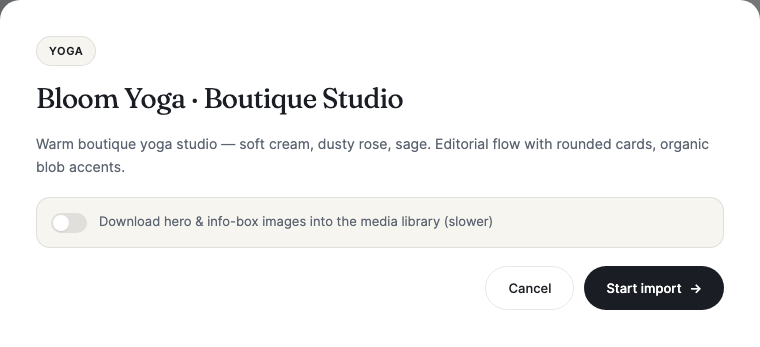
The new page is a draft named after the studio in the design (for example "Bloom Yoga"), so nothing changes on your live site until you publish it. Each import makes a new page. On Astra, GeneratePress, Kadence and OceanWP the page is set to full width with no sidebar and no theme title; for some themes the success window adds a Tip, such as which page template to pick for a full-width top section.
Each template has a Countdown block. The import sets it to end a few weeks after the day you import (between 8 and 82 days later, depending on the template), in your site's time zone. Once that date has passed it shows its expired message instead of the timer, so select the Countdown and set End Date → Countdown Ends At to your own date, or delete the block.
Headings, texts, button links and the top pictures are samples (a Brooklyn yoga studio, a swim club and so on). Change them to your studio's words and links before you publish.
Questions
Do the blocks update when I change a class or a trainer?
Yes. Class Routine, Classes and Trainers read your classes and trainers each time the page is shown, so new class times, a new trainer or the places left are always current. You don't need to edit the page.
Can I show only some classes, for example only yoga?
Yes. Use Include Classes to pick classes by name, or Categories to pick class categories. Exclude Classes leaves single classes out.
Which button does a class card show?
A payment add-on's buy button when the class can be bought there. Otherwise the class's own Button Text and Button URL; with no Button Text, Register or View Class, opening the class page. If a card has no button at all, check that Booking Button is on under Display.
Which button does a class time in Class Routine show?
The one your site uses to sell or book that class: Class Booking & Payment's button, the Stripe or Offline Payments buy buttons, the Registration Popup form, or Gym Builder's own Register button, in that order.
Can I use these blocks with Elementor?
No, they are for the WordPress block editor. For Elementor pages use the Elementor Widgets add-on, which has matching widgets.
Does importing a template change my site?
It only adds one draft page (and, if you chose it, the template's pictures in your Media Library). Your classes, trainers, menus and other pages stay as they are. Importing the same template again makes another draft page.
Where do the fonts come from?
When you pick a font under Typography, the page loads it from Google Fonts. Leave the font empty to use your theme's font.
Can the timetable show 12-hour times?
Yes. Set General → Time → Time Format to 12-Hour (8:00am), or leave Use Global Setting (Class Settings) to follow Gym Builder's own setting.
If something goes wrong
| What you see | What to check |
|---|---|
| No Gym Builder Blocks group in the editor | Gym Builder must be switched on (look for the Block Tools notice on the Plugins page), and the page must be open in the block editor, not in Elementor or the classic editor. |
| No Coupon Showcase block | Switch on the Promotions & Trials add-on. |
| A notice says files are missing | "Gym Builder Block Tools can’t start because some of its files are missing." The add-on's files are incomplete. Upload it again from the zip file you downloaded: Plugins → Add Plugin, Upload Plugin, then choose Replace current with uploaded. Until then the blocks are not available, but the rest of your site keeps working. |
| "No classes match these filters." in Class Routine | Check Include Classes, Exclude Classes and Categories, and that the classes have class times. |
| Trainer names are hard to read on the Hover layout | They are white unless a color was picked. Clear Styles → Name → Color (and the Category Chip colors), or pick a light color. |
| The Countdown shows its message straight away | The end date has passed or is empty. Set End Date → Countdown Ends At to a future date. |
| Times show in the wrong format | General → Time → Time Format on the block, or Gym Builder's class time format when the block uses the global setting. |
| The import stops with "Something went wrong" | Click Retry. It carries on from the step that stopped, so it does not make a second draft page. If more than five minutes passed since the last step ("Import session expired or not found."), Retry starts a new import, or finishes at once when the page was already made. If it keeps failing, try again without the image download. |
| An imported page shows a sidebar or a narrow top section | Follow the Tip from the success window, or pick your theme's full-width page template for that page. |