Gym Builder
The free plugin at the heart of your gym, fitness or yoga website. It holds your classes, trainers, membership plans and members, shows them on your site with a timetable people can register from, and gives members and trainers their own dashboards — all run from one Gym Builder Dashboard.
What it does
- Classes with a weekly schedule — each class has its own days and times, a trainer and a number of places for every class time.
- Trainers — profiles with a photo, job title, skills and social links. A trainer with an email gets a login for the trainer dashboard.
- Membership plans — a price, a features list and the classes the plan lets members book.
- Members — add members yourself or let people register from your timetable. Every member has a page with their plans, classes, a private note and a printable member card.
- Timetable — every class time of the week in one view, with how many places are booked.
- Your website — class and trainer pages, a weekly timetable with a Register button, a plans list, four fitness calculators, a sign-in page and dashboards for members and trainers.
- Emails — login details, registration confirmations and a reminder before a membership ends.
- Room to grow — every add-on (payments, attendance, personal sessions and more) adds its pages and settings to the same Dashboard.
Before you start
- WordPress 5.5 or newer and PHP 7.4 or newer. Gym Builder 3.0.0 is tested up to WordPress 7.1.
- Web addresses set to "Post name" in Settings → Permalinks. Without it, class, trainer and plan pages do not open. The setup wizard offers to change it for you.
- Working email. Members and trainers get their login details by email. Many hosts do not send WordPress email reliably, so install an email (SMTP) plugin such as WP Mail SMTP or FluentSMTP. Gym Builder shows a reminder when it can tell email is not set up.
Install and switch on
- Go to Plugins → Add Plugin and search for Gym Builder.
- Click Install Now, then Activate.
- On a new site the setup wizard opens straight away. If you switched on several plugins at once, the Plugins screen shows Gym Builder is active. with a Start Setup button instead.
Gym Builder also creates four pages for you: Classes, Trainers, Member Login and Member Dashboard. You can change which pages are used later in Settings → Pages.
Your classes, trainers, plans and members stay as they are. Two things may ask for your attention once: a notice Gym Builder: multi-class memberships are ready with Preview and Migrate Now (it copies each member's class into the new system so a plan can cover several classes; nothing is deleted), and, if older members have no login yet, a Member Accounts page under Tools in the Dashboard menu.
The setup wizard
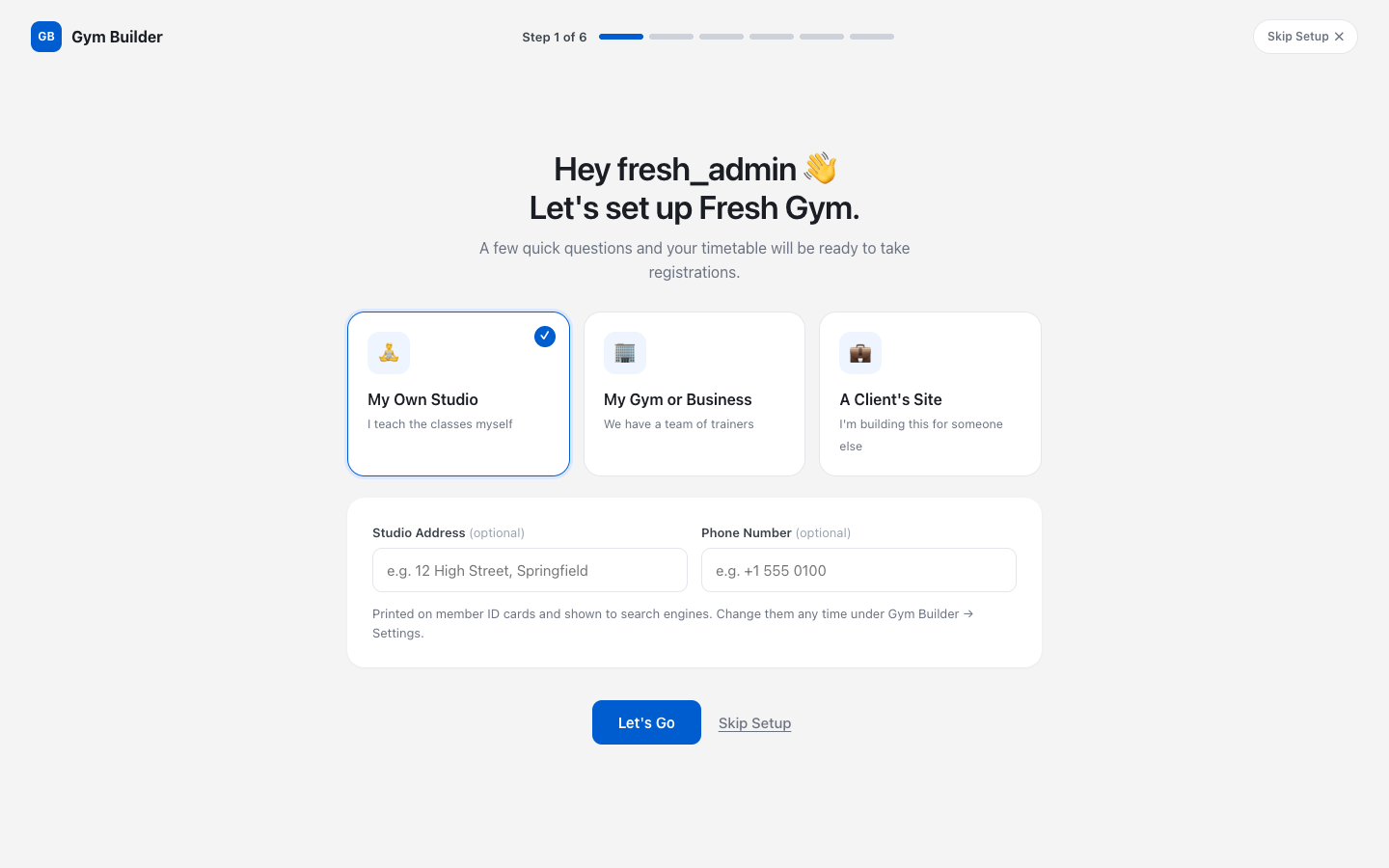
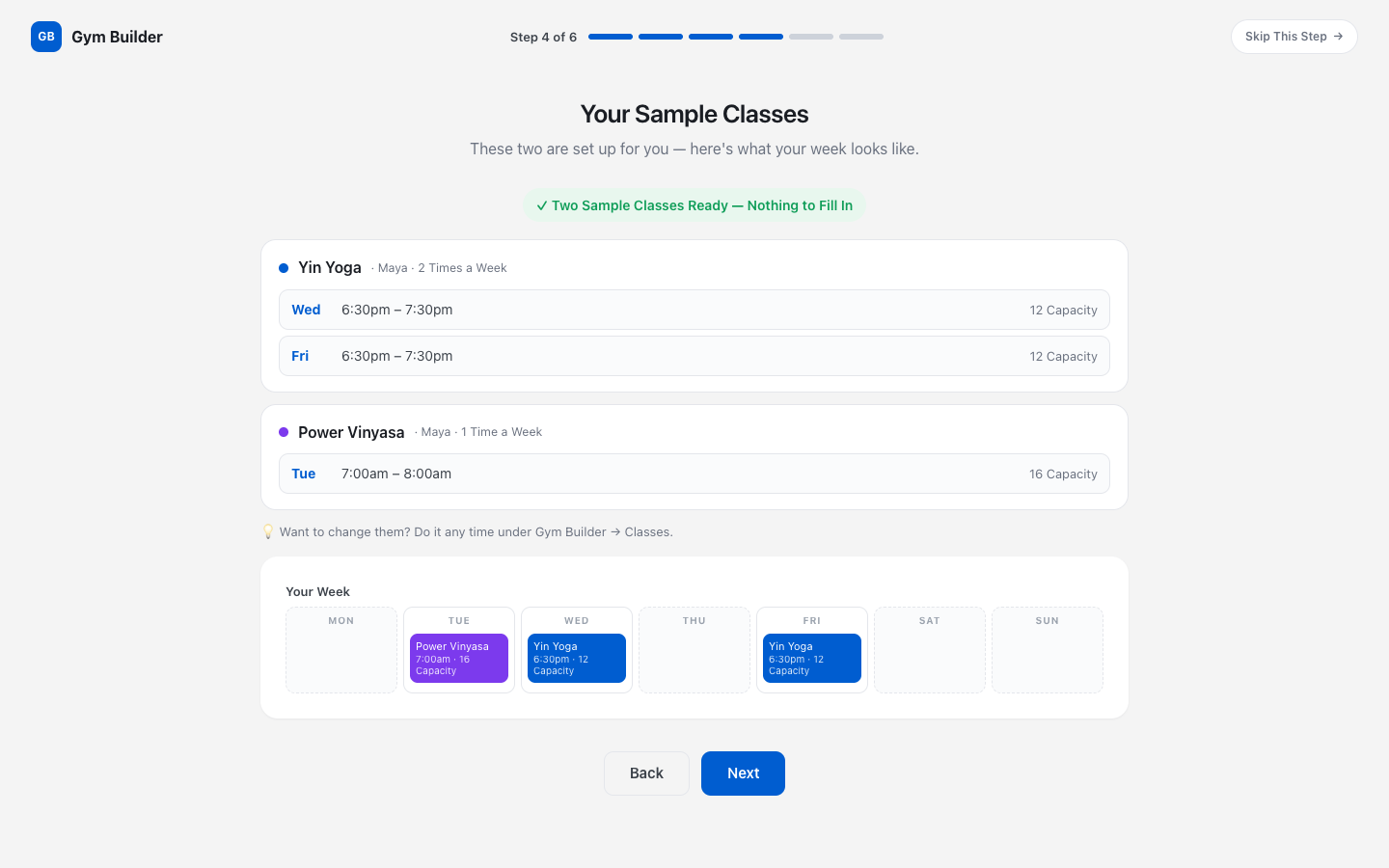
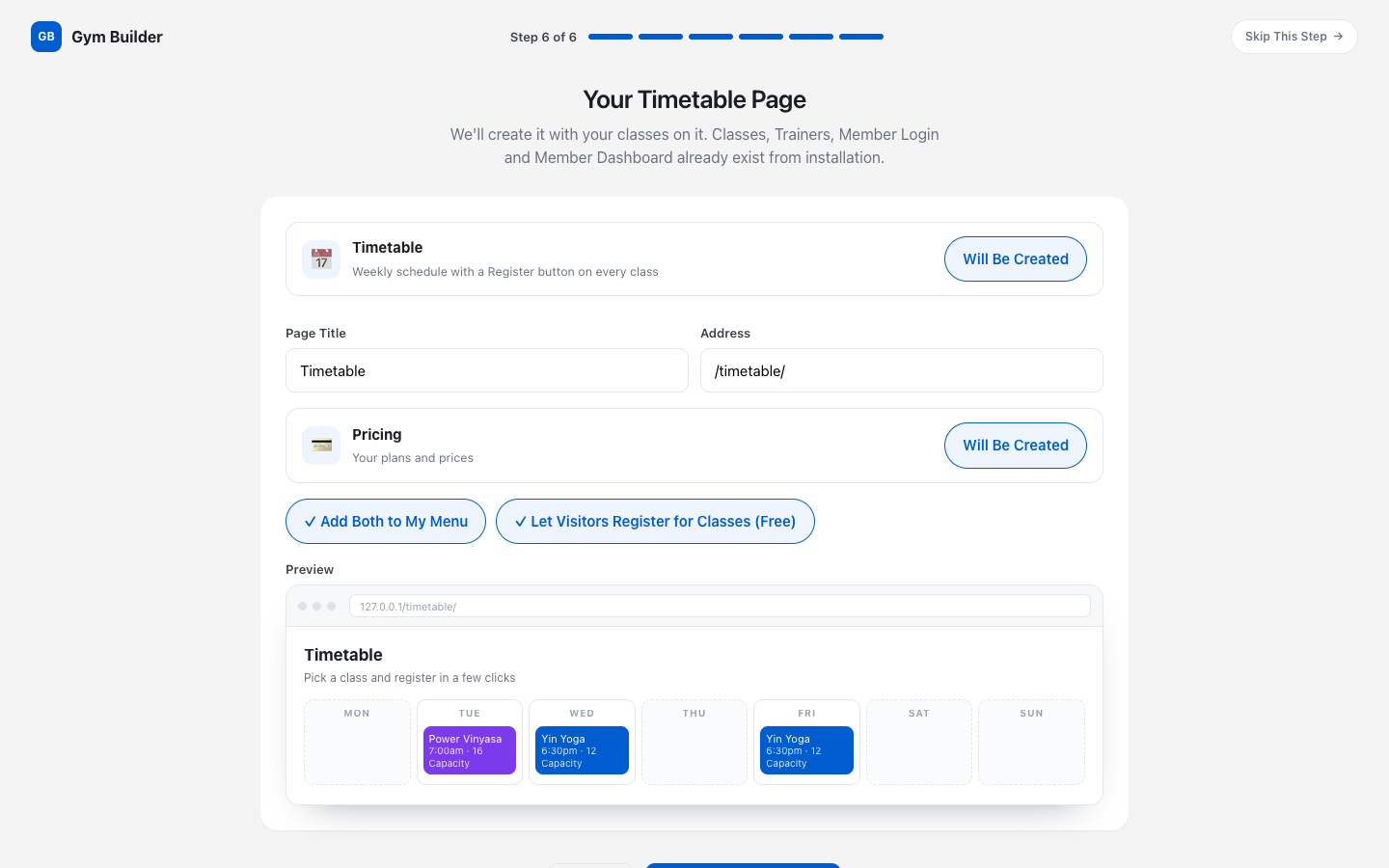
The wizard asks a few questions, one per screen, and then builds a working timetable for you: classes with their weekly times, plans, a Timetable page and a Pricing page. Every screen has Skip This Step, and Skip Setup closes the wizard (it asks first). Nothing is created until you click Create My Timetable.
- Who you are. Pick My Own Studio, My Gym or Business or A Client's Site. Add your Studio Address and Phone Number if you like — they are printed on member cards. Click Let's Go.
- What Do You Teach? Choose one or more: Yoga, Gym & Fitness, Boxing & MMA, Pilates, Dance, Swimming, Martial Arts or Something Else. The sample classes and wording follow your first choice.
- How Do You Want to Start? Start with 2 Sample Classes fills everything in for you; Add My Own Classes lets you type your real classes and every time they run.
- Your Classes. Check the classes and their week. With your own classes, use Add Another Class for each one.
- What Do You Charge? Use the 2 Sample Plans (a monthly plan and a class pass) or Add My Own Plans with your prices and currency.
- Your Timetable Page. Set the page title and address. Add Both to My Menu puts the Timetable and Pricing pages in your site menu; Let Visitors Register for Classes (Free) switches on the Register button. Click Create My Timetable.
- If your web addresses are not set to "Post name", Next first takes you to one more screen, Set Up Your Page Links, where Save Permalinks fixes them straight away. Create My Timetable is on that screen.

The wizard then shows each task as it runs and ends on Your Timetable Is Live, with Open My Timetable ↗ and Go to Dashboard. If one task fails you can Try Again, Go Back and Change It or Skip This Step — everything before it is already saved.
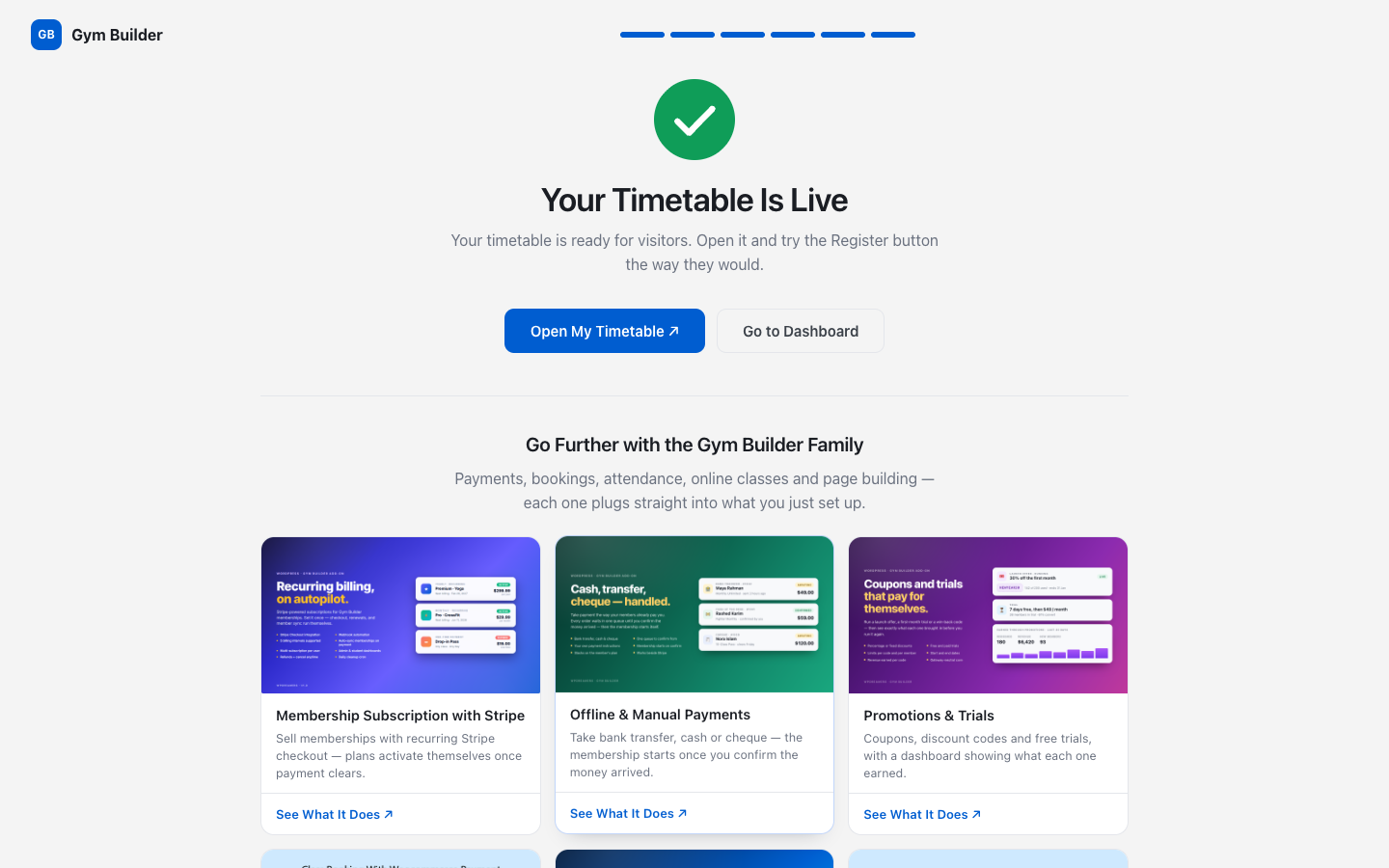
After the wizard, open your timetable in a private browser window and register for a class the way a visitor would. You will see the whole journey, and your first pending member appears in the Dashboard.
The Gym Builder Dashboard
Everything in Gym Builder is run from one place. Go to Gym Builder → Dashboard in the WordPress menu. The Dashboard has its own menu on the left, a search box, and the page you are on at the top.

The home page
- Four figures — Active members (and all members), New this month (and last month), Ending soon (memberships about to end, using the days you set in Settings → General) and Inactive members (pending or ended).
- Today's Classes — every class time today, with how many places are booked. Click one to open its class time window (see Timetable).
- Your Studio — how many classes and trainers you have, with Open buttons for classes, trainers and Membership Plans.
- Needs you — things only you can finish, such as trainers without an email. Add-ons add their own here. Each line has a button that takes you to the fix. When all is well it says Setup looks healthy.
- Finish Setting Up — a checklist of eight steps (studio details, classes with weekly times, a plan, Timetable and Pricing pages, class registration, your own classes, a trainer photo and bio, your first member). Each open step has a button. Until you have finished or skipped the setup wizard, Run the Setup Wizard at the bottom opens it. The card disappears when everything is done.
- Timetable and Add Member buttons at the top.
The menu
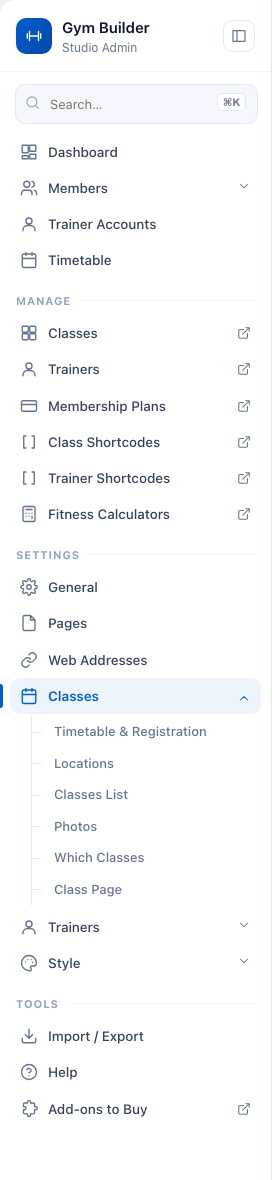
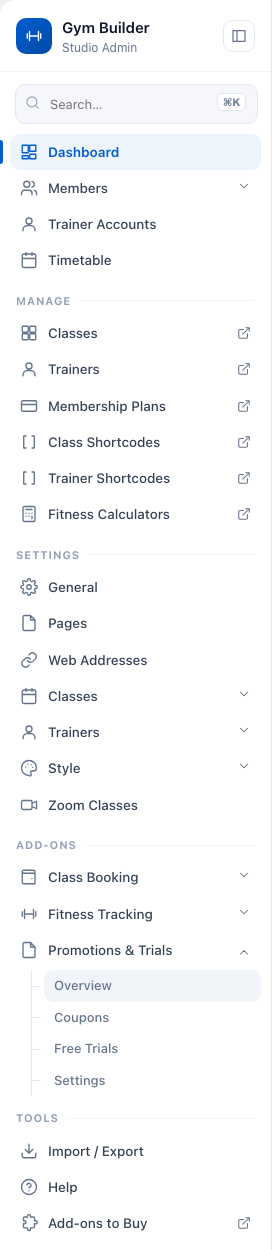
The menu on the left is grouped:
- Top — Dashboard, Members (All Members and Add Member), Trainer Accounts (a number shows trainers waiting for approval) and Timetable.
- Manage — Classes, Trainers, Membership Plans, Class Shortcodes, Trainer Shortcodes and Fitness Calculators. These open the WordPress lists where you add and edit each one (the small arrow icon shows you leave the Dashboard).
- Settings — General, Pages, Web Addresses, Classes, Trainers and Style. Zoom Classes and Attendance join them when those add-ons are installed. Sections with several cards open a list of their cards so you can jump to one.
- Add-ons — one group per add-on you have installed, with its own pages and settings. This group only shows when an add-on is active.
- Tools — Import / Export, Help and Add-ons to Buy.
The button next to the Gym Builder name folds the menu away to give the page more room. On a phone or a small window the menu slides in from the menu button at the top left.
Search the menu
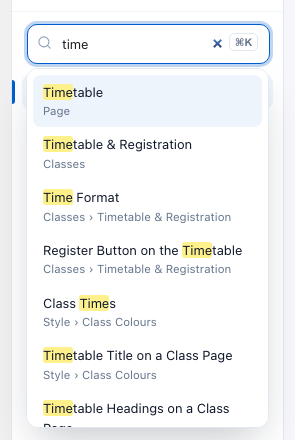
Type in the Search… box at the top of the menu, or press ⌘K on a Mac (Ctrl K on Windows). It finds pages, settings sections and every single setting by name. Use the arrow keys and Enter, or click a result.
The buttons at the top right of every page open these guides (?) and your website in a new tab.
Members
Go to Gym Builder → Dashboard → Members. A member is anyone who trains with you: people you add yourself, people who register from your timetable, and people who buy a plan through a payment add-on.
The members list

- Search — type at least 2 letters of a name or email in Name or email.
- All, Expiring soon, Expired — show everyone, only memberships that end within your reminder days, or only memberships whose end date has passed.
- Newest first / Oldest first — the order of the list.
- Membership — how long is left: "36 days left", "Ends in 6 days", "Ends today", "Ended 12 days ago" or "No end date", with the end date below.
- Status — Active or Inactive. Only active members can book (and check in, with the Attendance add-on).
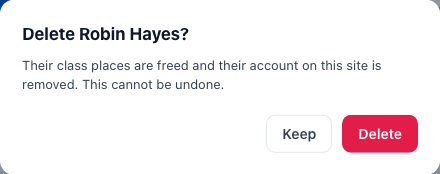
- View, Edit and Delete on each row. Delete asks once more (Keep / Yes, delete).
- Rows per page and the page numbers are at the bottom.
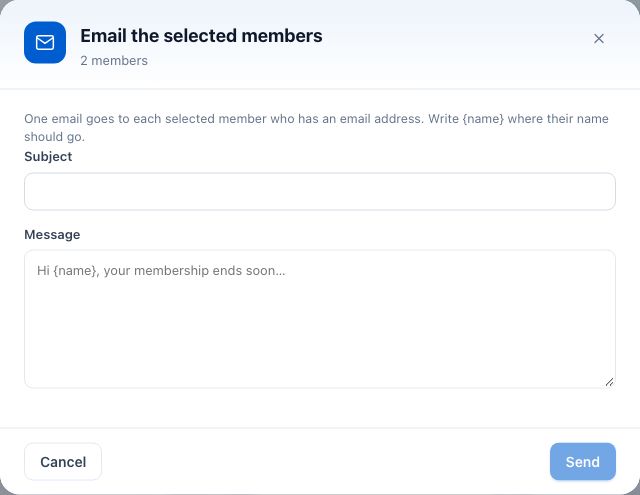
Work on several members at once: tick the boxes (the box in the header ticks the whole page). A bar appears with Email, Extra days, Make Active, Make Inactive and Delete. Your selection is kept when you move between pages.
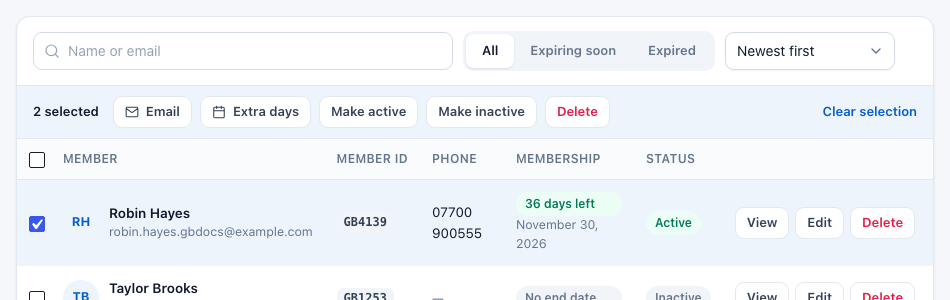
- Email — one email to each selected member who has an email address. Fill in the Subject and Message, and write
{name}where their name should go. - Extra days — Give extra days: pick a number (or 7, 14, 30, 60, 90 days) and click Add 30 days. If a membership has already ended, the days are counted from today and the membership is made active again.

Add a member
- Click Add Member (on the Dashboard home page, the Members list, or in the menu under Members).
- Details: fill in Name, Email, Phone, Gender and Address (all required), and Age if you like. Switch on Active member when they may book straight away.
- Membership: pick a Plan type to narrow the list, then the Plan. Add Joined on, and the Starts and Ends dates — or leave both dates empty for a membership with no end date.
- Classes: choose each class the member comes to, with its Day and Time. The note at the top tells you what the plan allows (for example "This plan includes every class"). Use Add a class for more. Times show how many places are left; a full time cannot be picked.
- Photo (optional): Choose Photo — JPG or PNG, under 1 MB. It is shown on their member card.
- Click Add Member.

Gym Builder makes a login for the member with their email and emails them their username and password. They use it on your Member Login page. If the login cannot be made for some other reason, the message says Member added, but their login could not be made, so no login details were sent.
Every member needs an email that no other account on your site uses (an admin, a trainer, another member). If the email is taken, the form says This email address already has an account on this site. Enter a different email address for this member. and nothing is saved. Enter a different email and click Add Member again.
A member's page
Click a member's name or View. On the left: their photo, status, member ID, Member Card, Send Email, Delete Member, and their phone, email, join date and end date. On the right, tabs:
- Overview — Profile (member ID, gender, age, address), Membership (plan, type, start and end, days left and how much of the period is used) and a Private Note. Only staff see the note; click Save Note.
- Plans — every plan the member holds (see below).
- Classes — the class times they are booked into each week.
- Activity — appears when add-ons have something to show, such as attendance, sessions or payments.
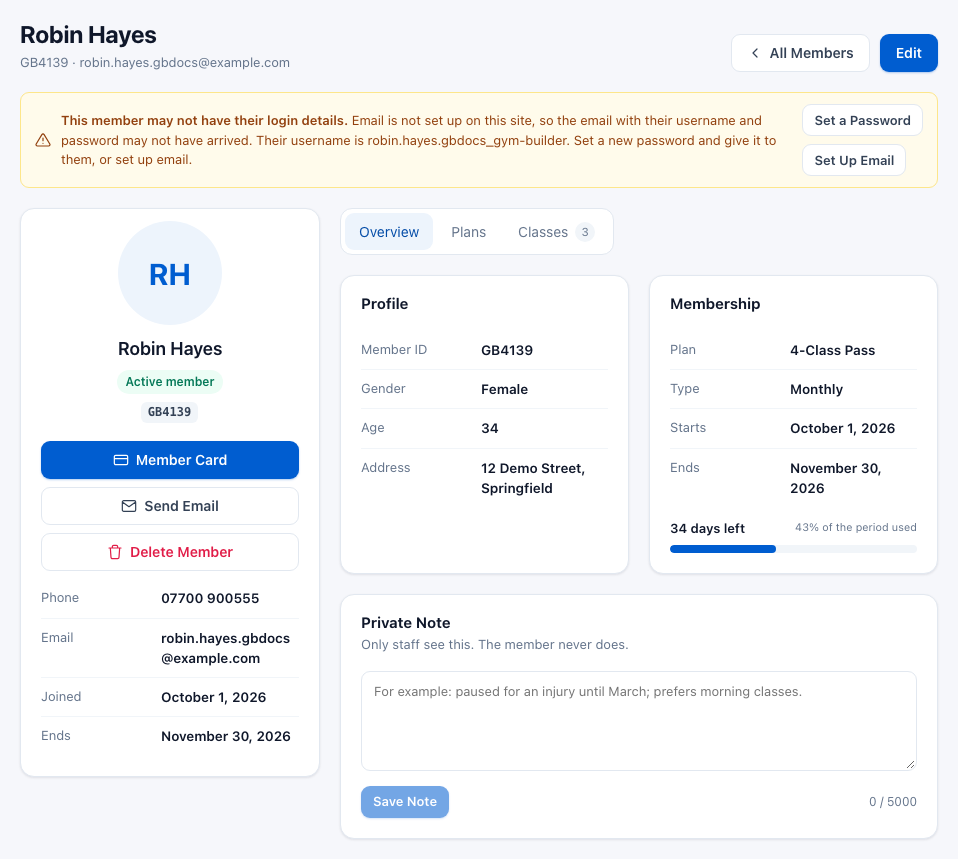
If email is not set up on your site, the page warns This member may not have their login details. and shows their username, with Set a Password and Set Up Email.
Send Email opens Email This Member: write a Message, attach a PDF if you like (Attach a PDF) and click Send.

Plans a member holds
The Plans tab lists every plan the member holds, the one ending last first — a plan you gave them, a plan they bought online, or one they asked for. Each line shows where it came from (for example "Assigned by the gym"), the plan type and dates, and Active or Renews.
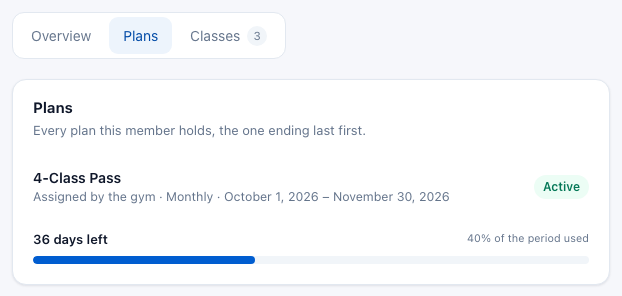
- Plan requests — when a member registers from the timetable on a plan they do not hold yet, their place is kept and the plan waits here. Click Approve to give them the plan, or Dismiss.
- Remove — shown on plans you gave them, to take a plan away again.

Print a member card
- On the member's page, click Member Card.
- Check the front (name, member ID, plan, member since, valid until) and the back (a barcode of the member ID).
- Click Print Card. Print at 100% size (turn off "fit to page") and cut along the dashed lines.
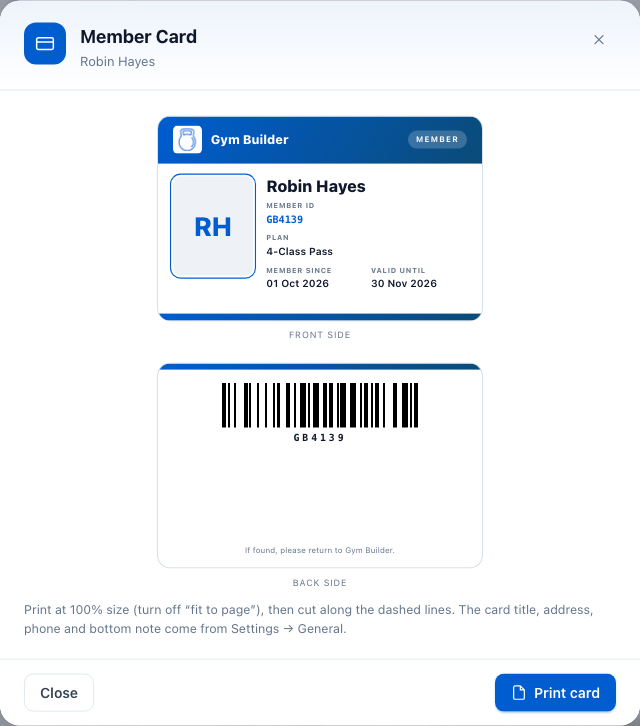
The studio name, address, phone and the note on the back come from Settings → General → Studio Details. If nothing opens when you print, allow pop-ups for your site in your browser.
Edit a member
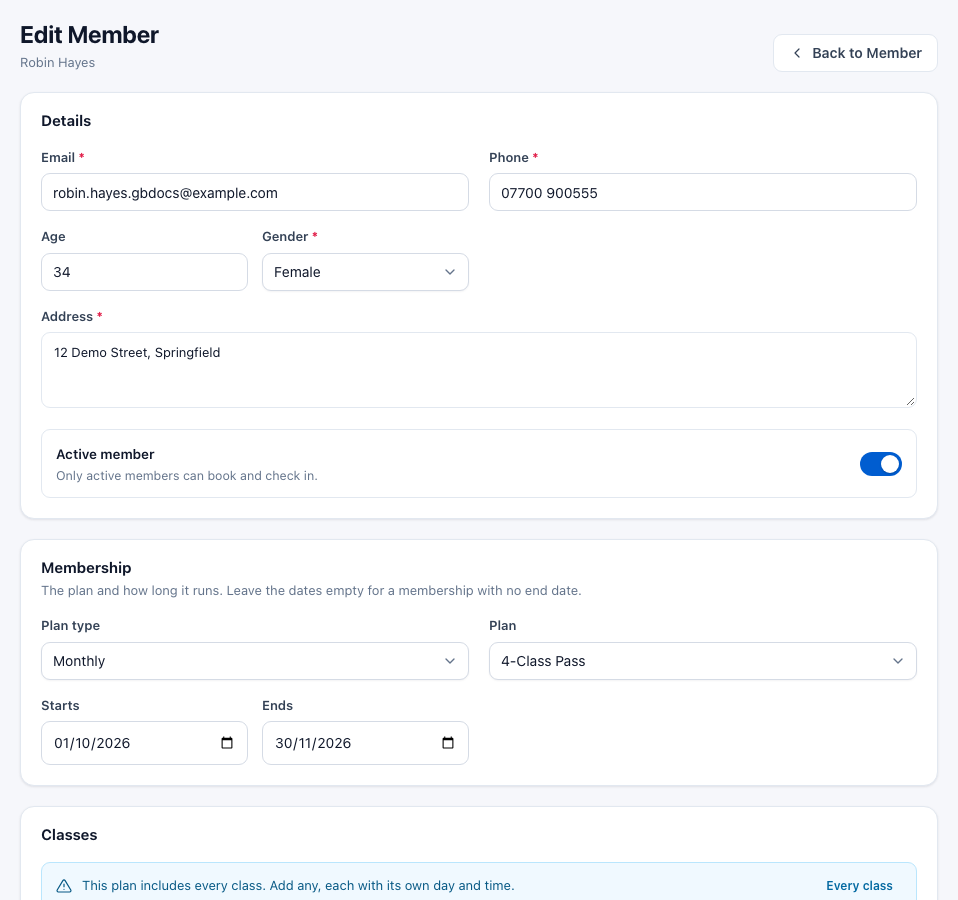
Click Edit on the member's page or in the list. The form is the same as Add Member, without the name and join date. Change their details, plan, dates or classes and click Save Changes. As on Add Member, an email that another account on your site already uses is refused and nothing is saved. If a booked time is no longer on the class's schedule, it is marked "(not on the timetable now)" so you can pick another or keep it.
Delete a member
Click Delete Member on their page (or Delete in the list) and confirm. Their class places are freed and their login on your site is removed. This cannot be undone.
Timetable
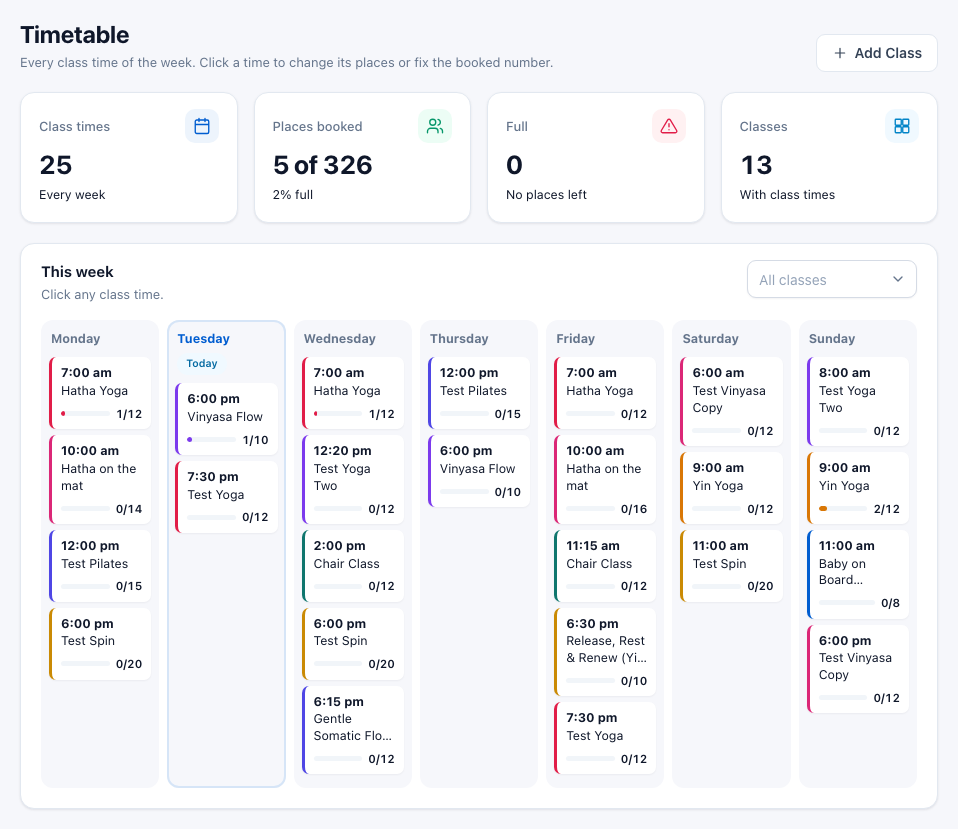
Go to Gym Builder → Dashboard → Timetable to see every class time of the week, with how many places are booked. At the top: Class times, Places booked (and how full you are), Full class times and Classes. Use All classes to show one class only, and Add Class to create a new one. Today's column is marked Today.
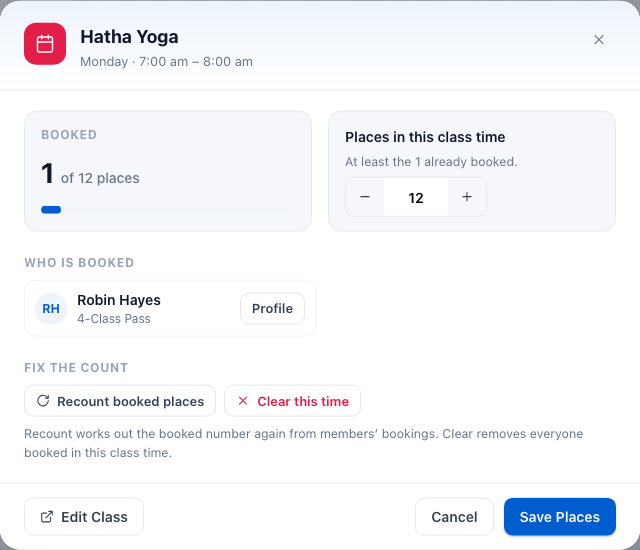
Click any class time to open it:
- Booked — how many are booked out of how many places.
- Places in this class time — change the number with − and +; 0 means no limit. You cannot go below the number already booked. Click Save Places.
- Who is booked — each member with a Profile button.
- Fix the Count — Recount Booked Places works the booked number out again from members' bookings; Clear This Time removes everyone booked in this class time (their memberships stay). On a site that still uses the older one-class-per-member system you see Reset to 0 instead.
- Edit Class opens the class.
Trainer Accounts
Go to Gym Builder → Dashboard → Trainer Accounts to see who can log in to the trainer dashboard and what the others need. The figures show Can log in, Waiting for approval, No email and Login problems. Below them, one card for each thing to do (each card only appears when someone needs it), then All Trainers with All, Can log in and Needs you. At the top, All Trainers opens your trainers list and Add Trainer adds one.

- Waiting for approval — people who signed up as a trainer on your site. Click Review.
- Login could not be made — their email is already used by another account. Open the trainer, give a different email and press Update.
- Needs an Email — without an email a trainer cannot log in. Click Add Email, add it and press Update; they are emailed their login details.
- No login yet — they have an email but no login. Open the trainer and press Update to make one.
Approve or decline a trainer
- Click Review next to the trainer. The panel shows their job title, email, username, sign-up date, skills and social links.
- Click Approve, then Approve again to confirm (Not Now keeps them waiting). Their profile goes live on your site and they get an email with their login details.
- Or click Decline and confirm. They get an email saying they were not approved, and their sign-up and its login are deleted.


If the approval or decline email could not be sent, a yellow notice stays on the page so you can tell the trainer yourself.
Import / Export
Go to Gym Builder → Dashboard → Import / Export to move classes, trainers and plans between sites, or to add demo content. There are three tabs.
- Export — Export All Data downloads classes, trainers and packages (plans) in one go, or use the card for each, choosing JSON or CSV. Switch on Include Images to take photos along.
- Import — drop a .json or .csv file exported from Gym Builder (up to 10 MB). Items are added next to what you have; nothing is replaced, and items with the same title as an existing one are skipped.
- Demo Data — Import All Demo Data adds sample Membership Packages, Trainers and Classes (with their schedules linked to the demo trainers), or import each kind on its own.

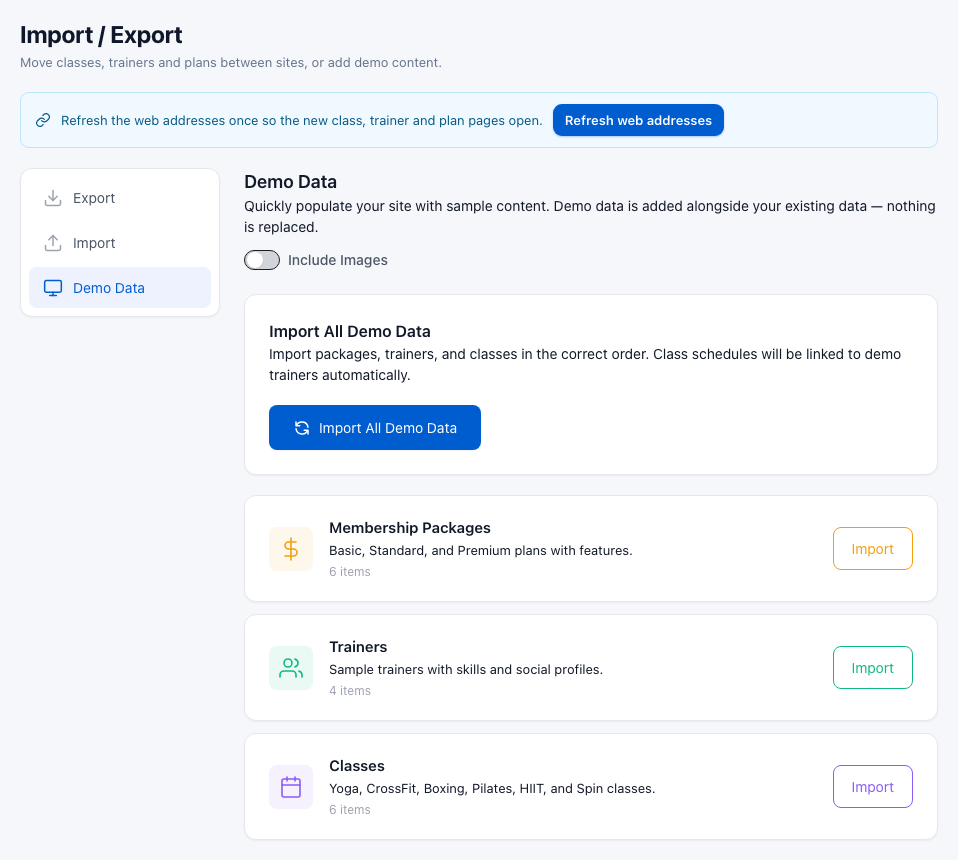
After an import, a notice asks you to click Refresh Web Addresses once so the new pages open. If your web addresses are not set to "Post name", it sends you to Settings → Permalinks instead.
Help
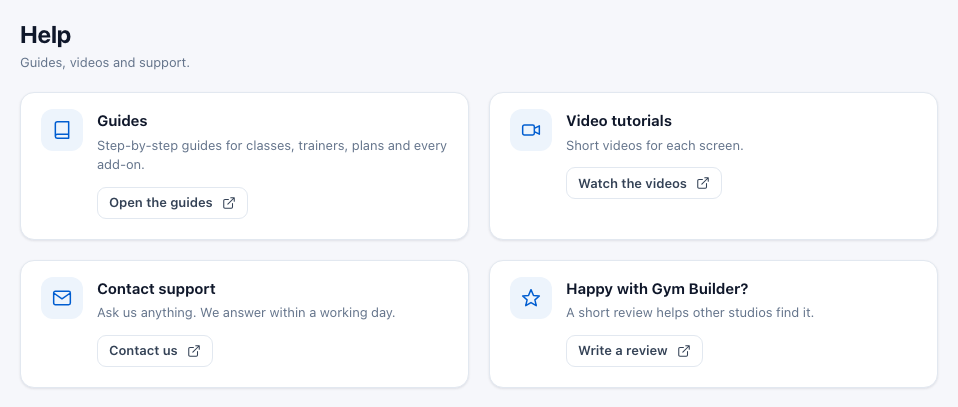
Tools → Help in the Dashboard menu links to these guides, video tutorials, support and the review page.
Settings
Settings are under Settings in the Dashboard menu. Each section is a page of cards. When you change something, a bar at the bottom says You have unsaved changes. Click Save Settings, or Undo Changes to go back. You can move between Gym Builder's own sections before saving; leaving for another page asks Leave without saving?
General
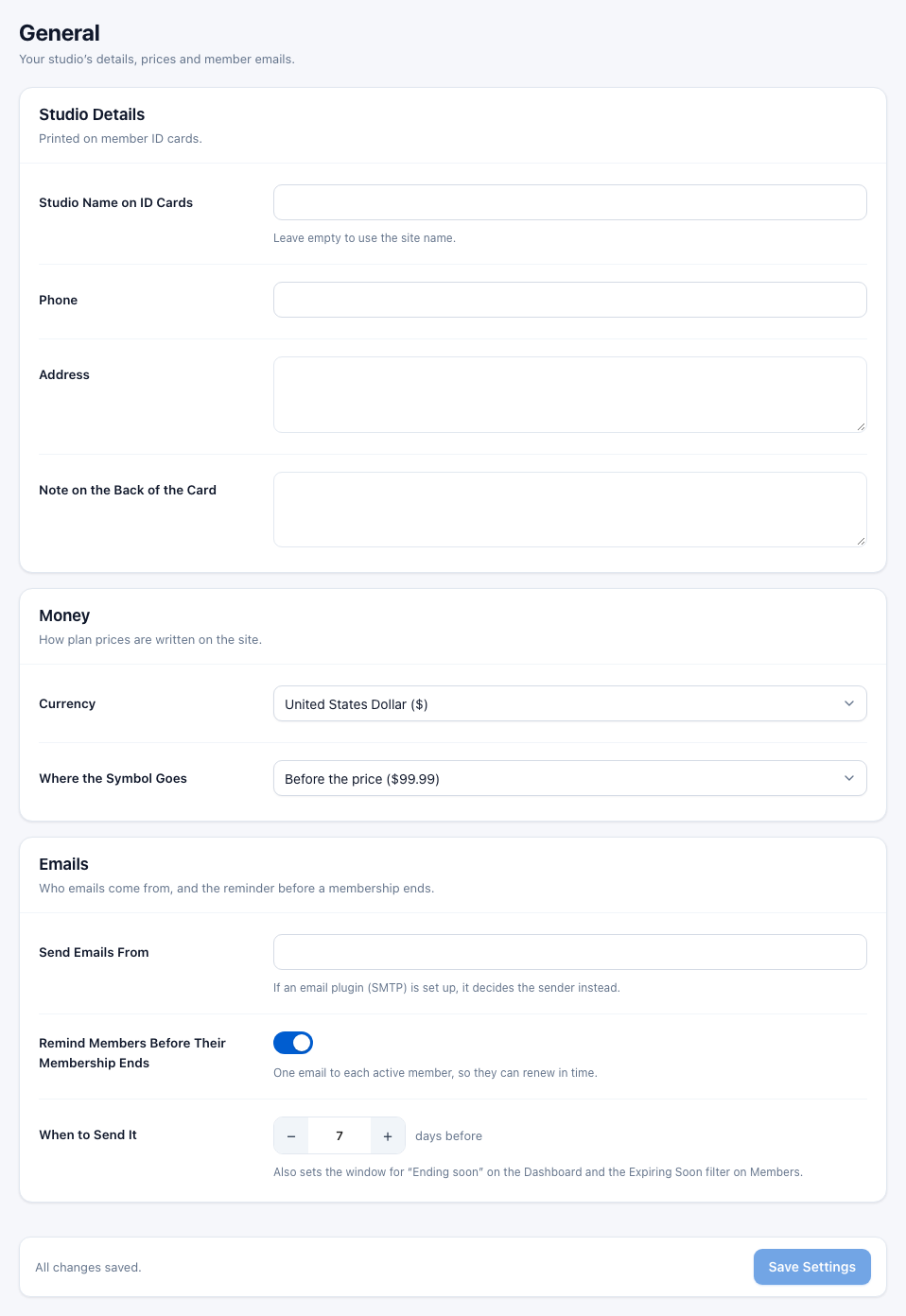
| Setting | What it does |
|---|---|
| Studio Details — printed on member ID cards | |
| Studio Name on ID Cards | The name at the top of the card. Leave empty to use the site name. |
| Phone | Your phone number on the card. |
| Address | Your address on the card. |
| Note on the Back of the Card | A line on the back, such as "If found, please return to…". |
| Money — how plan prices are written on the site | |
| Currency | The currency of your prices. |
| Where the Symbol Goes | Before the price ($99.99), after it (99.99$), or either with a space. |
| Emails — who emails come from, and the reminder before a membership ends | |
| Send Emails From | The address member emails come from. If an email (SMTP) plugin is set up, it decides the sender instead. |
| Remind Members Before Their Membership Ends | On by default. One email to each active member, so they can renew in time. |
| When to Send It | How many days before the end date (1–90, standard 7). This also sets the window for Ending soon on the Dashboard and the Expiring soon view on Members. |
Pages
Which pages of your site show the class and trainer lists and the member pages. Pick a page for each from the list.

- Classes Page — shows all your classes.
- Trainers Page — shows all your trainers.
- Member Sign-In Page — where members and trainers sign in or create an account.
- Member Dashboard Page — where members and trainers land after signing in.
Gym Builder fills these pages itself, so they can stay empty in the editor.
Web Addresses
The word in the address of each class and trainer page. Leave a box empty to keep the standard word. Under each box you see an example of the address it makes.

For example, change Class Pages to class and a class page's address becomes yoursite.com/class/hatha-yoga/. Do not use the same word as one of your pages.
Classes
How classes and the timetable look and work on your site.
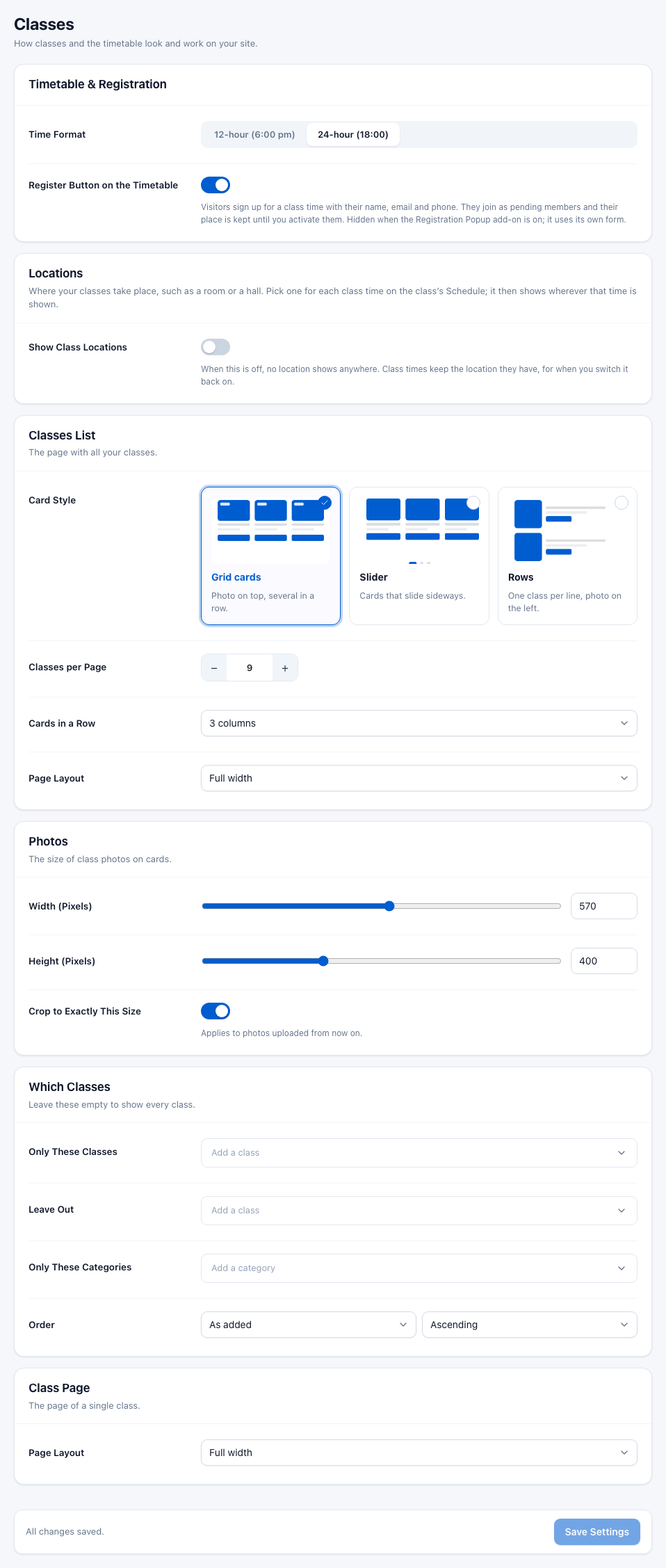
| Setting | What it does |
|---|---|
| Timetable & Registration | |
| Time Format | 12-hour (6:00 pm) or 24-hour (18:00) for class times on your site. |
| Register Button on the Timetable | On by default. Visitors sign up for a class time with their name, email and phone. They join as pending members and their place is kept until you activate them. Hidden when the Registration Popup add-on is on; it uses its own form. |
| Locations — see Class locations | |
| Show Class Locations | Switch locations on or off everywhere. |
| Your Locations | The rooms or halls your classes use (shown while locations are on). |
| Classes List — the page with all your classes | |
| Card Style | Grid cards (photo on top, several in a row), Slider (cards that slide sideways) or Rows (one class per line, photo on the left). |
| Classes per Page | How many classes before the page numbers. |
| Cards in a Row | 1 to 6 columns. |
| Page Layout | Full width, or with your theme's sidebar on the left or right. |
| Slider — only shown when the card style is Slider | |
| Slide by Itself | The slider moves on its own. |
| Start Again After the Last Card | Loops back to the first card. |
| Centre the Current Card | Keeps the current card in the middle. |
| Cards Shown at Once | 1 to 6, on a computer screen. |
| Photos — the size of class photos on cards | |
| Width (Pixels) / Height (Pixels) | 100 to 1000 pixels. |
| Crop to Exactly This Size | Cuts photos to exactly this size. Applies to photos uploaded from now on. |
| Which Classes — leave these empty to show every class | |
| Only These Classes | Show only the classes you add here. |
| Leave Out | Hide these classes from the list. |
| Only These Categories | Show only classes in these categories. |
| Order | As added, Name A to Z, Date added, Post ID, Address name, Page order or Random — Ascending or Descending. |
| Class Page — the page of a single class | |
| Page Layout | Full width, or with a sidebar on the left or right. |
Class locations
Locations say where a class time takes place, such as a room or a hall. Once you pick one for a class time, it shows wherever that time is shown: the timetable, class pages, the member's bookings and the class time window in the Dashboard.
- Go to Settings → Classes and find the Locations card.
- Switch on Show Class Locations.
- Click Add a Location. Fill in the Location Name (a location without a name is not saved) and, if you like, Details (Optional) — a floor, a door or an address, shown with the name.
- Add more, reorder them with the arrows, then click Save Settings.
- Open a class, go to Schedule and pick a location for each class time.
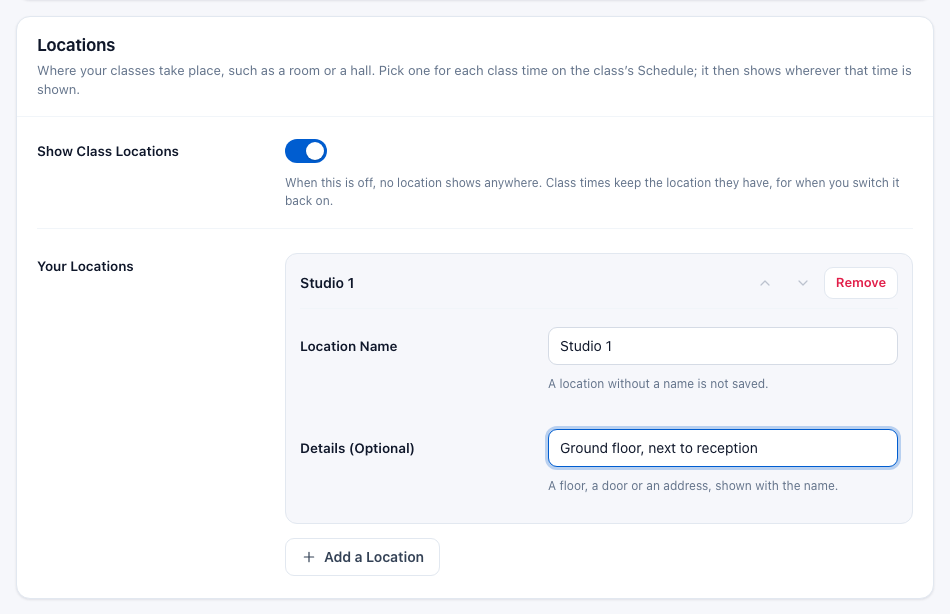
Switching Show Class Locations off hides locations everywhere, but class times keep the location they have for when you switch it back on.
Trainers
How trainers look on your site.
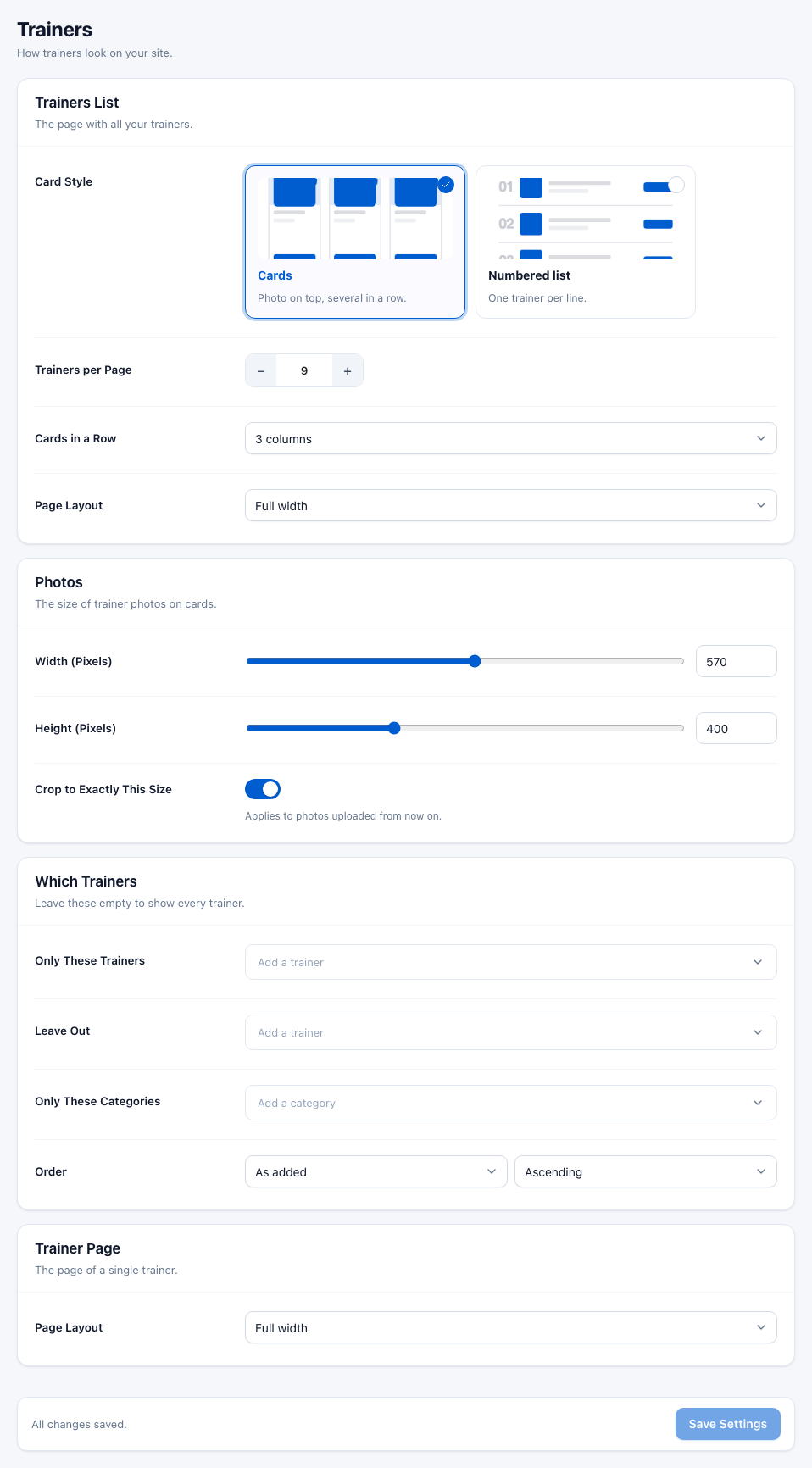
- Trainers List — Card Style (Cards: photo on top, several in a row; Numbered list: one trainer per line), Trainers per Page, Cards in a Row and Page Layout.
- Photos — Width (Pixels), Height (Pixels) and Crop to Exactly This Size (for photos uploaded from now on).
- Which Trainers — Only These Trainers, Leave Out, Only These Categories and Order. Leave them empty to show every trainer.
- Trainer Page — Page Layout of a single trainer's page.
Style
Colours on your class, trainer and plan pages. Leave a colour empty to keep your theme's.
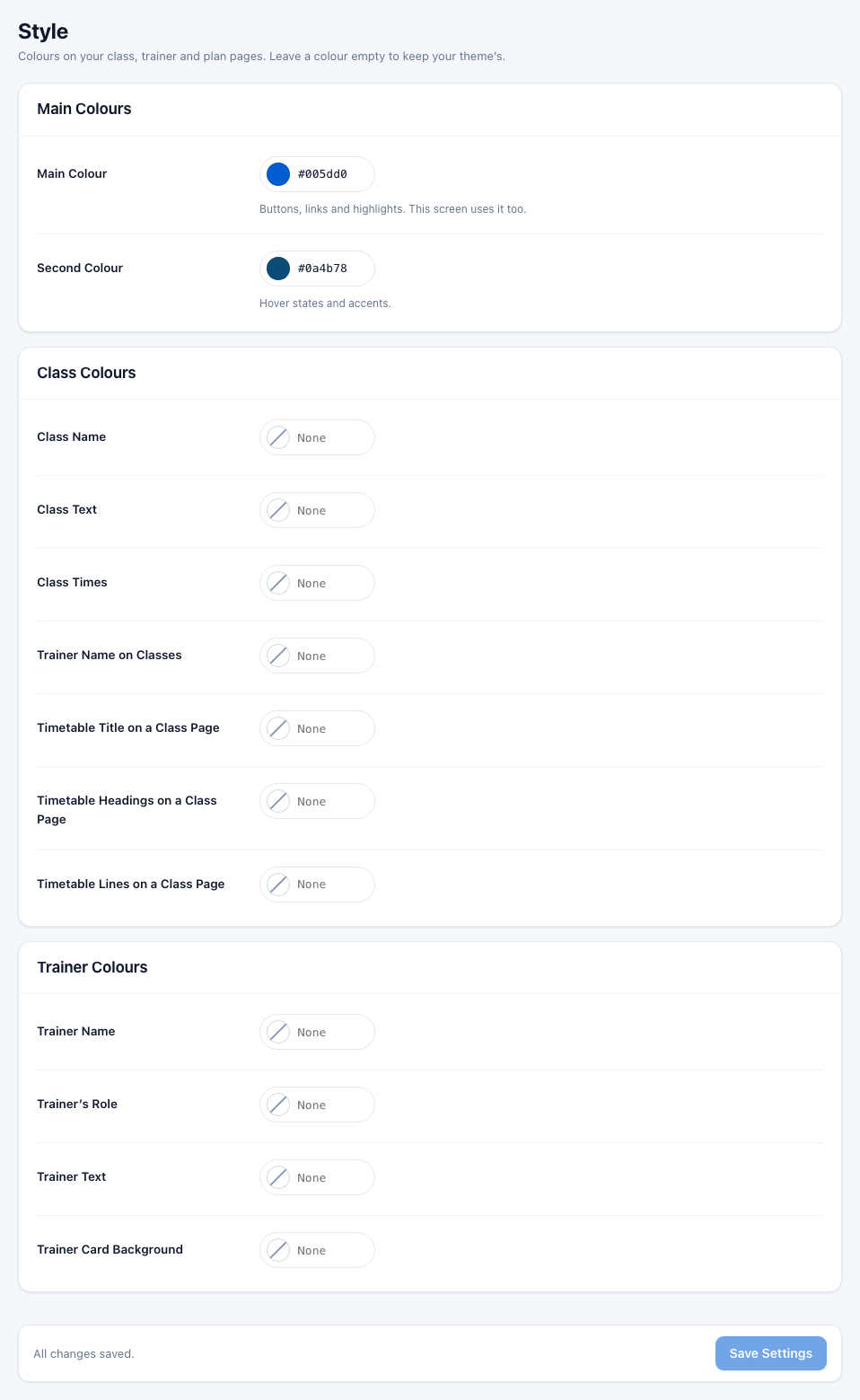
- Main Colours — Main Colour (buttons, links and highlights; the Dashboard uses it too) and Second Colour (hover states and accents).
- Class Colours — Class Name, Class Text, Class Times, Trainer Name on Classes, and the Timetable Title, Headings and Lines on a Class Page.
- Trainer Colours — Trainer Name, Trainer's Role, Trainer Text and Trainer Card Background.
Click the colour dot to pick a colour, or type a colour code. The small × clears a colour.
Zoom Classes
This section appears when the Zoom Integration add-on is active.
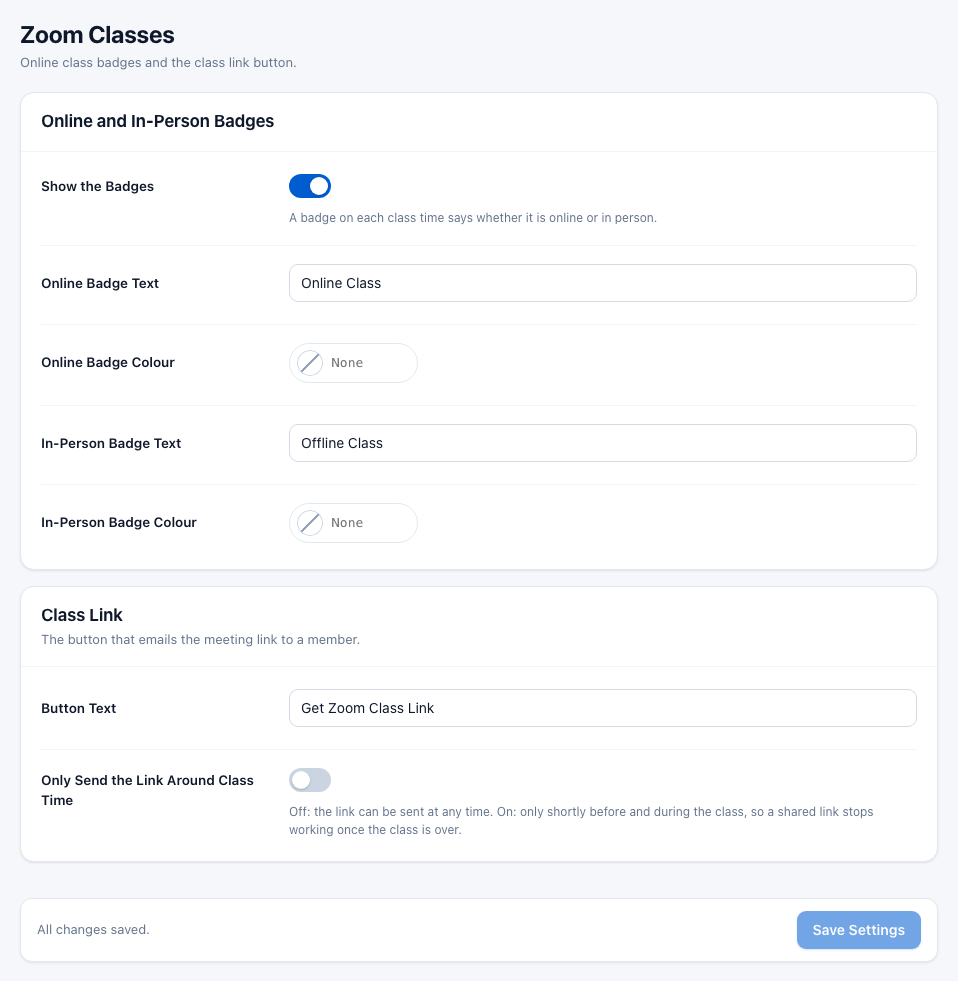
- Online and In-Person Badges — Show the Badges (a badge on each class time says whether it is online or in person), the badge texts and colours.
- Class Link — the Button Text of the button that emails the meeting link, and Only Send the Link Around Class Time. When that is on, Open the Link sets how many minutes before the class the link can be sent; it stays open until the class ends.
See the Zoom Integration guide for the rest.
Attendance
This section appears when the Attendance add-on is active.

- Check-In Reminders — Remind Members Before Their Plan Period Ends, Send It When (check-ins left), Also Remind Members with a Repeating Plan, Renew Page and Send Me a Copy.
- Online Classes — Only Members with a Booking Get the Link and Count Sending the Link as a Check-In. Both are about the Zoom meeting link, so this card only shows when the Zoom Integration add-on is active too.
See the Attendance guide for details.
Classes
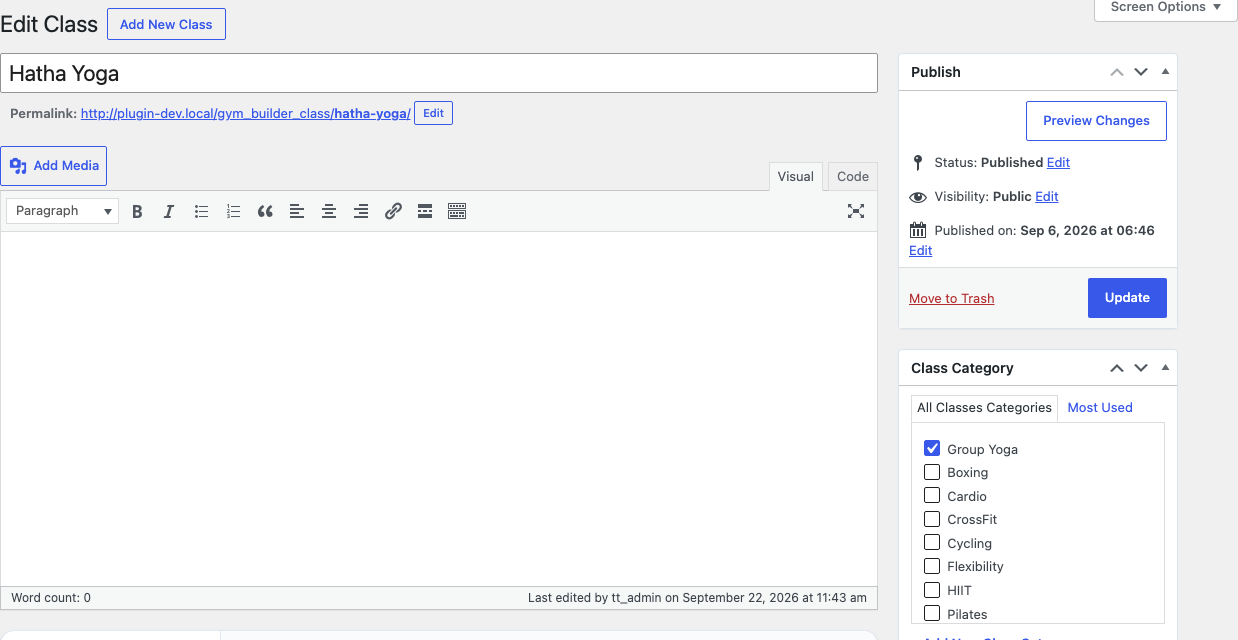
Go to Gym Builder → Dashboard → Manage → Classes (or Classes in the WordPress menu) and click Add New Class, or open a class to edit it. The Add Class button on the Timetable page opens the same screen. Click Publish (or Update) to save.
The top of the screen is WordPress's own: the class name, the description that members read on the class page, and on the right the Class Category box and Featured image (the class photo).
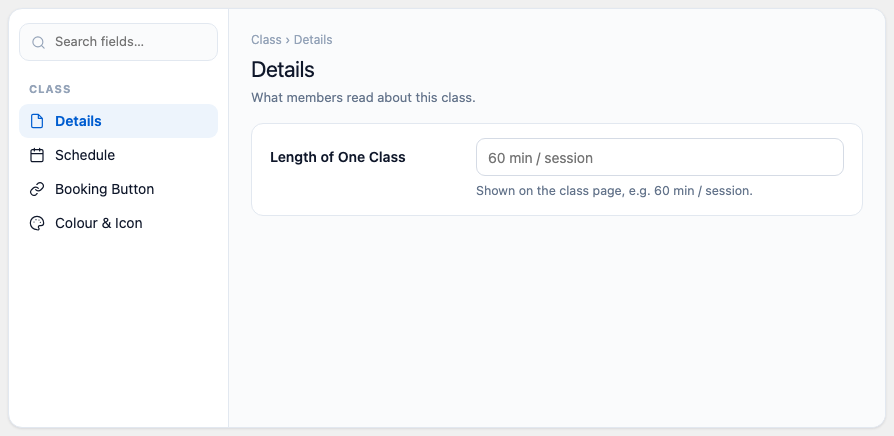
Below it is the Gym Builder card, with a list of sections on the left. Search fields… finds any field by name.
Details
Length of One Class — shown on the class page, for example "60 min / session".
Schedule (class times)
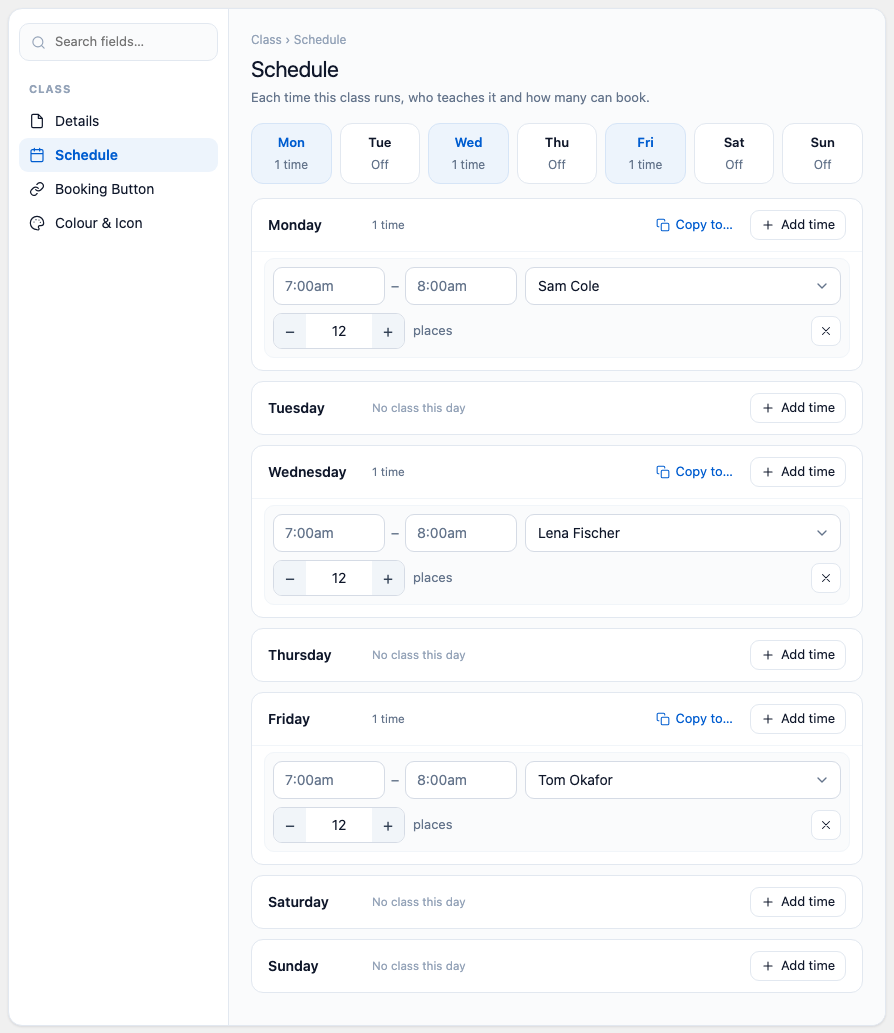
Each time this class runs, who teaches it and how many can book. The row of days at the top shows how many times run on each day — click a day to jump to it.
- Next to a day, click Add Time.
- Enter the start and end time, like 7:00am – 8:00am.
- Pick the trainer (or No trainer).
- Set the places — how many members can book this time.
- When locations are on, pick the location under the time (or follow Add your locations if you have none yet).
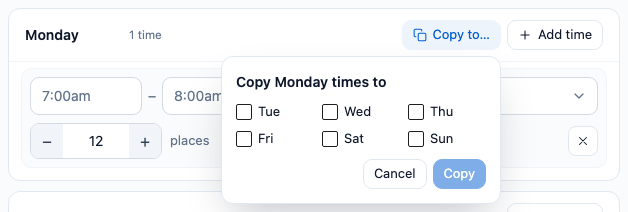
- To repeat a day's times on other days, click Copy to…, tick the days and click Copy.
A time that needs fixing is marked: "Add a start and an end time", "Write the time like 7:00am" or "The class ends before it starts". A time without a day is not shown on the timetable.
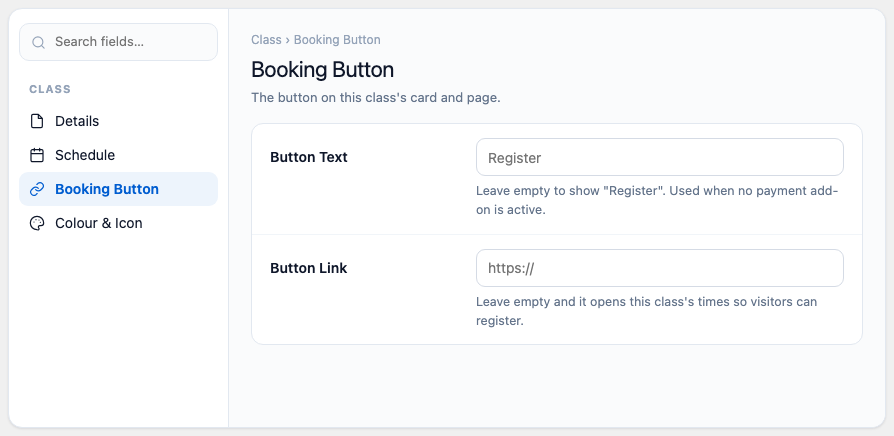
Booking Button
- Button Text — the button on this class's card and page. Leave empty to show "Register". Used when no payment add-on is active.
- Button Link — leave empty and the button opens this class's times so visitors can register.
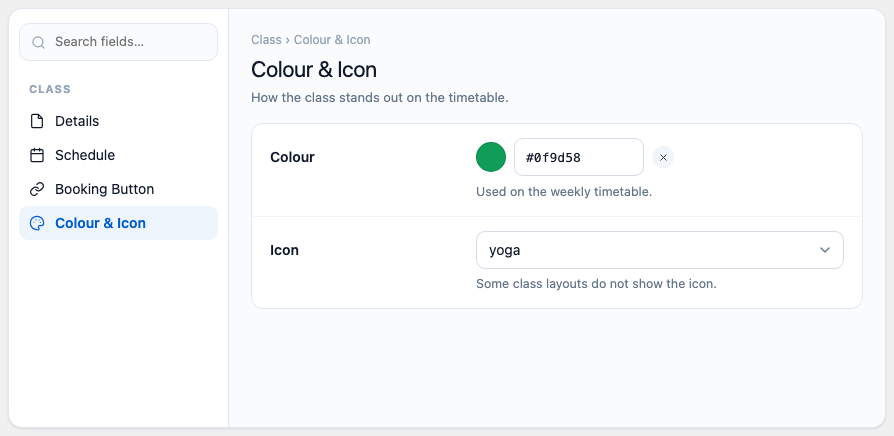
Colour & Icon
- Colour — used on the weekly timetable and on the class card when there is no photo.
- Icon — some class layouts do not show the icon.
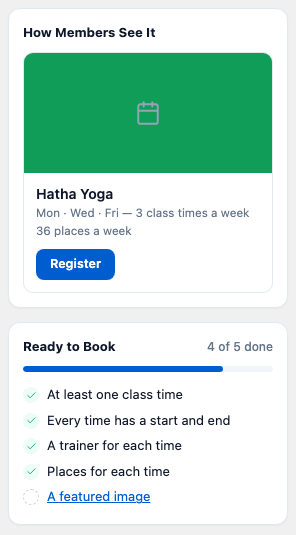
The cards on the right
- How Members See It — a preview of the class card with its days, class times a week and places.
- Ready to Book — a checklist: at least one class time, every time has a start and end, a trainer for each time, places for each time, and a featured image. Click an open item to go to it.
- Plans That Include It — the plans members can book this class with, and Add a plan. Members can only book a class through a plan.
Add-ons that work with classes (for example Zoom Integration) add their own sections under an Add-ons heading in the section list.
Trainers
Go to Manage → Trainers in the Dashboard menu (or Trainer in the WordPress menu) and click Add New Trainer, or open a trainer. Add Trainer on the Trainer Accounts page opens the same screen. Their name is the title, their bio is the main text, their photo is the Featured image, and the Trainer Category box groups them.
- Profile — Job Title (for example "Yoga coach") and Email. Their trainer login is made with this email; with no email, no login is made.
- Social Links — Facebook, X (Twitter), LinkedIn, Skype, YouTube, Pinterest, Instagram and TikTok. Leave any empty to hide it.
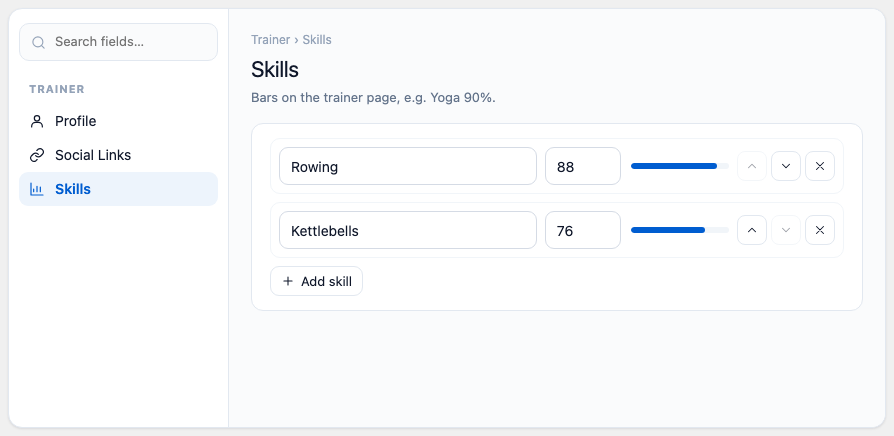
- Skills — bars on the trainer page, for example Yoga 90%. Click Add skill, type the skill and a percent; reorder or remove with the buttons on each line.

On the right, How Members See It previews the trainer card and the Profile checklist shows what is missing: job title, email for their login, a social link, skills and a photo.
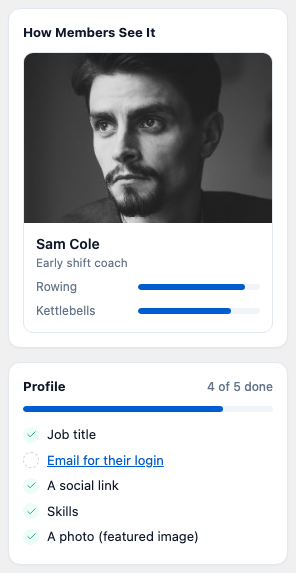
When you publish or update a trainer with an email for the first time, Gym Builder makes their login and emails it to them. Check Trainer Accounts to see who can log in.
Membership plans
Go to Manage → Membership Plans in the Dashboard menu and click Add New Membership Package, or open a plan. On WordPress's own part of the screen the plan is called a Membership Package: the name is the title, and the Package Type box on the right (for example Monthly) groups plans into tabs on your plans list.
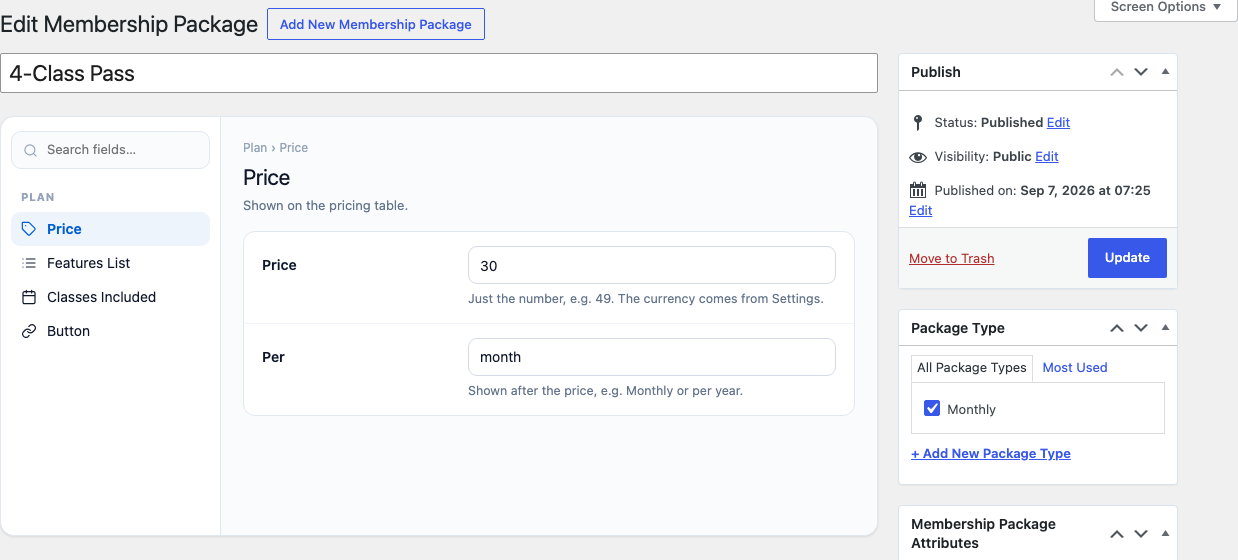
| Section and field | What it does |
|---|---|
| Price — shown on the pricing table | |
| Price | Just the number, for example 49. The currency comes from Settings → General. |
| Per | Shown after the price, for example Monthly or per year. |
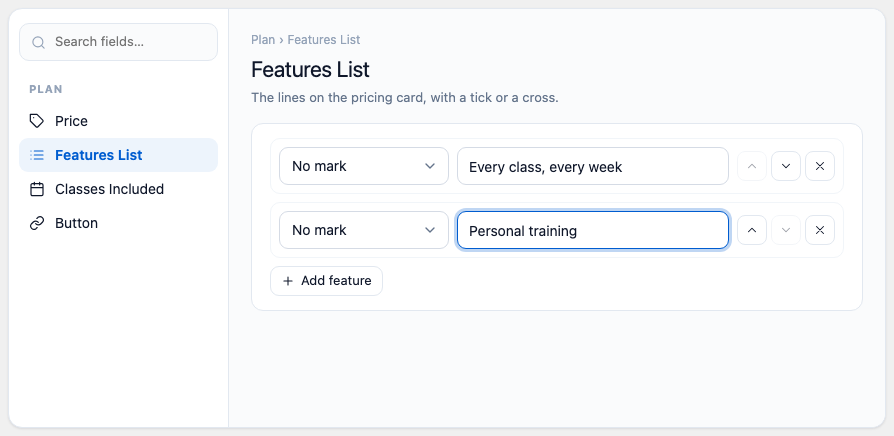
| Features List — the lines on the pricing card | |
| Mark and Feature | Each line gets No mark, ✓ Tick or ✕ Cross and its text, for example "Unlimited classes". Use Add feature for more. |
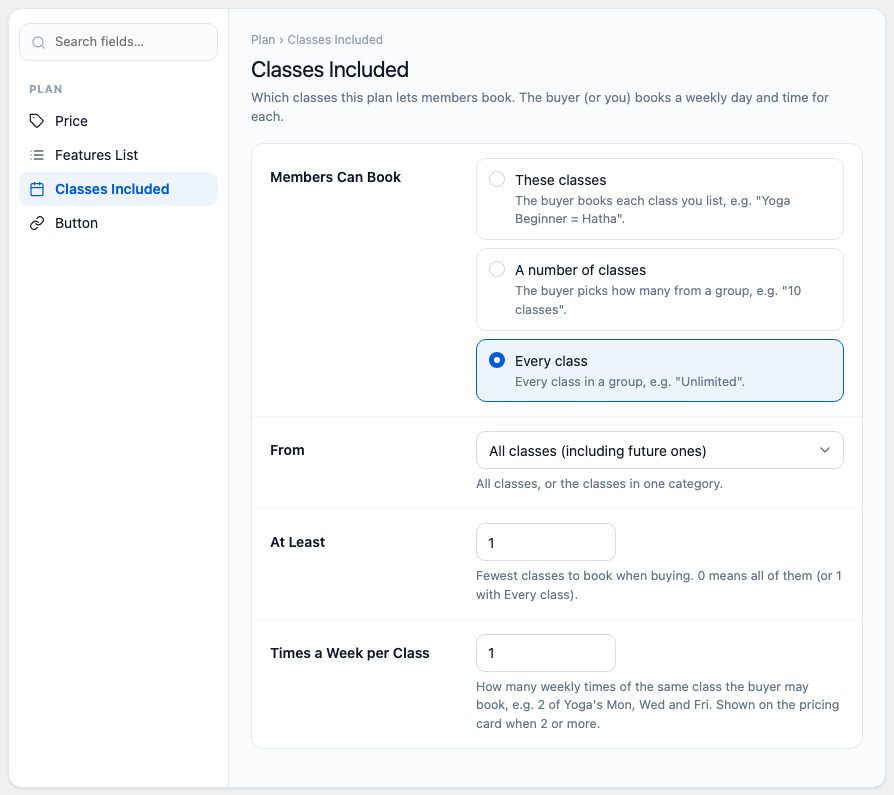
| Classes Included — which classes this plan lets members book; the buyer (or you) books a weekly day and time for each | |
| Members Can Book | These classes — the exact classes you list. A number of classes — the buyer picks how many from a group, for example "10 classes". Every class — every class in a group, for example "Unlimited". |
| Classes | With These classes: the exact classes this plan covers. |
| How Many Classes | With A number of classes: how many the buyer may pick. 0 means no limit. |
| From | All classes (including future ones), or the classes in one category. |
| At Least | The fewest classes to book when buying. 0 means all of them (or 1 with Every class). |
| Times a Week per Class | How many weekly times of the same class the buyer may book, for example 2 of Yoga's Monday, Wednesday and Friday. Shown on the pricing card when 2 or more. |
| Button — the button on the pricing card | |
| Button Text | For example "Buy Now!". With no text and no payment add-on, the card has no button. |
| Button Link | Where the button goes. A payment add-on may replace it with its own checkout. |
On the right, On the Pricing Table previews the card (with no Button Text it shows no button, as on your site), and Show Plans on a Page gives you [membership_package_shortcode] with a Copy button.
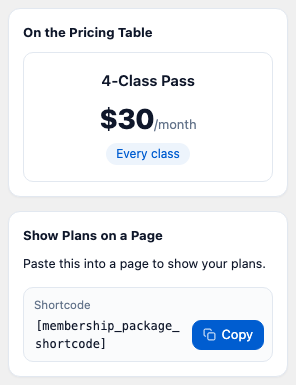
Payment add-ons such as Stripe Payments and Offline Payments add their own sections to this screen.
Shortcode builders
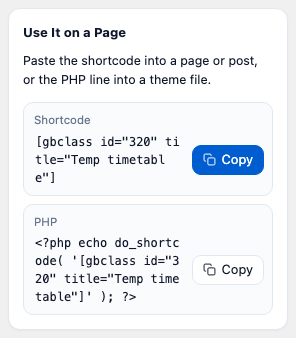
A shortcode builder saves a design — which items, how many, what they look like — and gives you a short code to paste into any page. Each builder has a live Preview under its settings and, on the right, Use It on a Page with the shortcode and a PHP line for theme files, each with a Copy button. Save the builder first; then paste the shortcode into a page or post.
Class list and weekly timetable
Go to Manage → Class Shortcodes and click Add New Class Shortcode. Give it a name, set it up and click Publish.
- Layout — Design: Grid (photo on top), Grid 2 (photo beside the text) or Weekly timetable (classes by day and time). Then Cards in a Row and How Many to Show (empty shows them all). For the weekly timetable: Time Format, Day Filter Above the Timetable (buttons to show one day or one class at a time) and Timetable Background (Full width or Page width).
- Which Classes — Only These Categories, Only These Classes, Never These Classes, Sort By and Order. Leave them empty to list all.
- Photos — Width, Height and Crop (crop to exactly this size, or keep the photo's shape).
- Below the List — Show a Button after the list with its Button Text and Button Link, for example to your Classes page. The weekly timetable has no button below it.
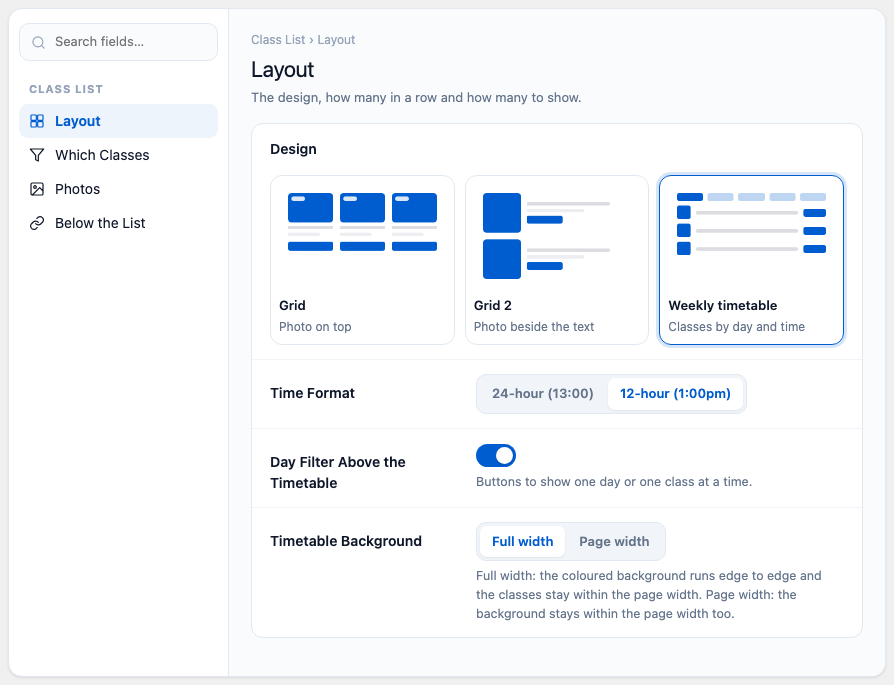
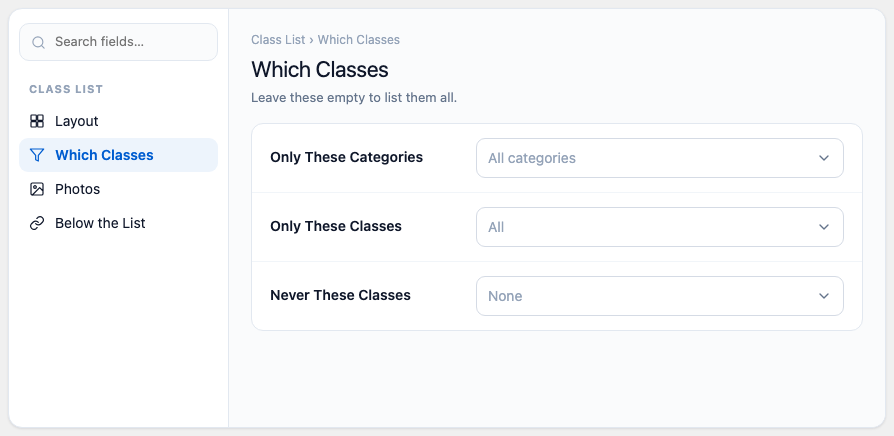
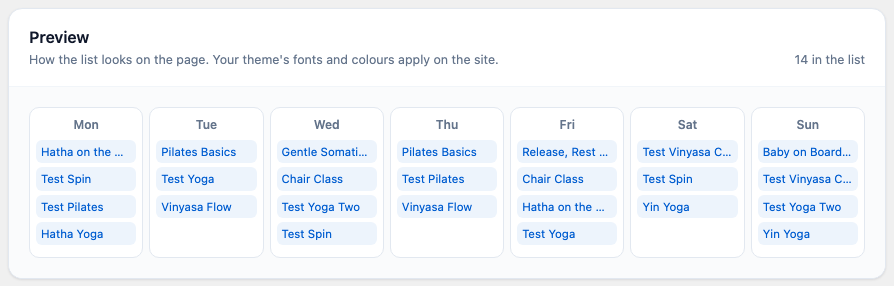
Trainer list
Go to Manage → Trainer Shortcodes and click Add New Trainer Shortcode. It works like the class list: Layout (Card 1: photo on top; Card 2: photo with details over it; cards in a row; how many), Which Trainers, Photos and Below the List.
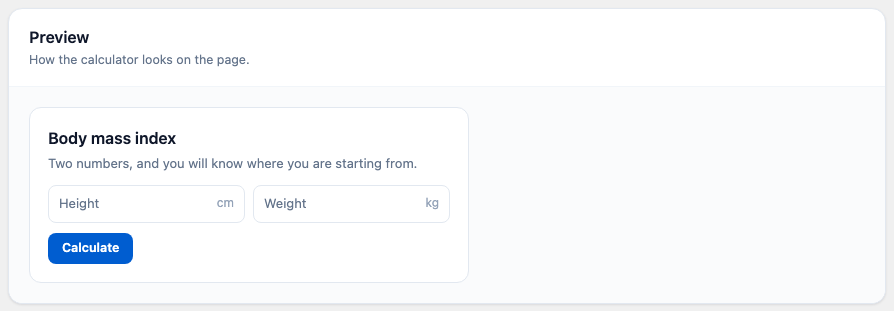
Fitness calculator
Go to Manage → Fitness Calculators and click Add New Fitness Calculator Shortcode. Make one per calculator you want to show.
- Calculator — BMI, Body fat, Protein or Water; the BMI Layout; and Units: Metric (cm, kg) or Imperial (in, lb). Visitors can switch units on the page.
- Heading & Text — the Heading, Text and Button Text.

What visitors and members see
Gym Builder works with any theme. The screenshots below use the free Kadence theme.
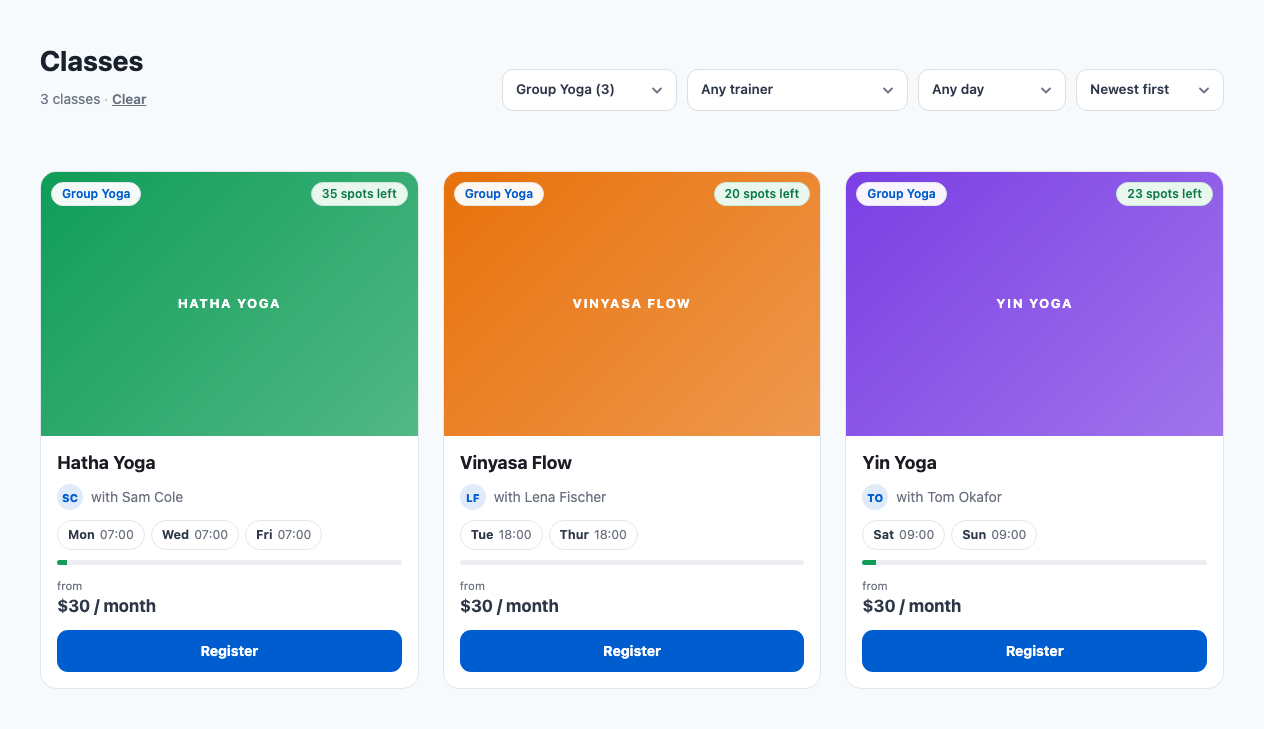
Classes list
Your Classes page shows every class as a card with its trainer, days and times, places left, the lowest plan price and a Register button. Visitors can filter by category, trainer and day, and sort by Newest first, A – Z or Most sessions.
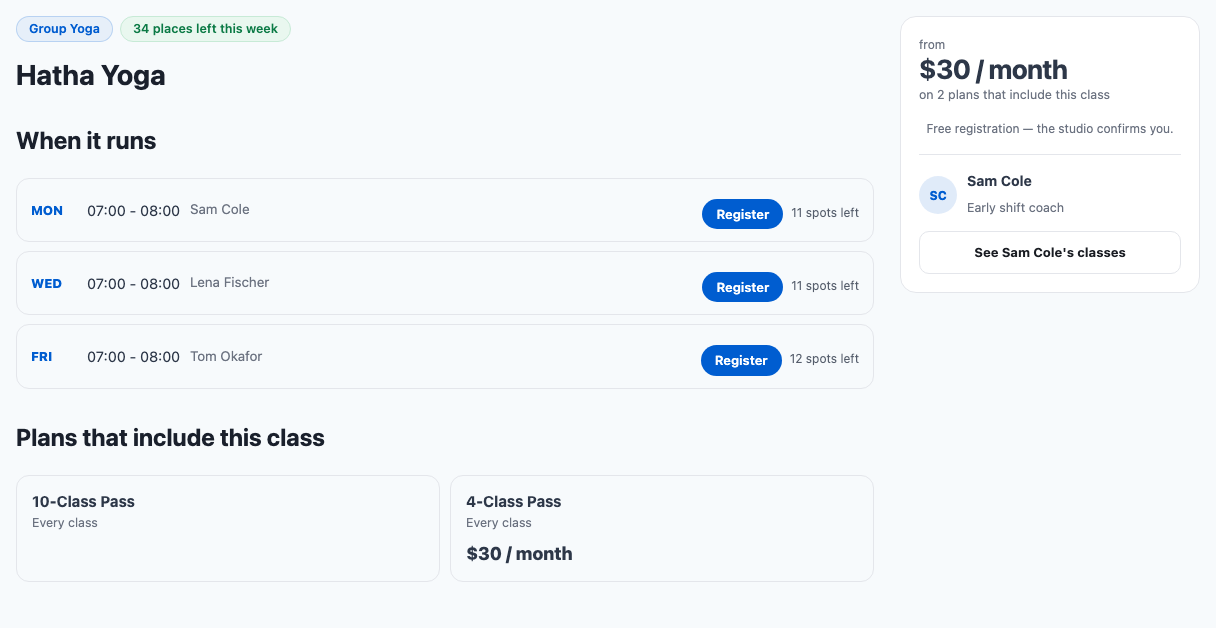
A class page
A class page shows the category, places left this week, the description, When It Runs (every class time with its trainer, a Register button and spots left), Plans That Include This Class, and a side card with the lowest price and the trainer. The plans list shows every plan that includes the class — the same plans the Register window offers; a plan with no price shows its name only.

Registering for a class
With Register Button on the Timetable on (Settings → Classes), every class time has a Register button. A full class time shows Class full instead.
- The visitor clicks Register. Register for This Class opens with the class, day and time.
- They fill in Full name, Email and Phone, and under Choose a plan pick one of the plans that include this class.
- They click Register. Their place is held, they become a pending (inactive) member, and they get an email with their login details. You get an email too.
- You open the member in Members and make them active.
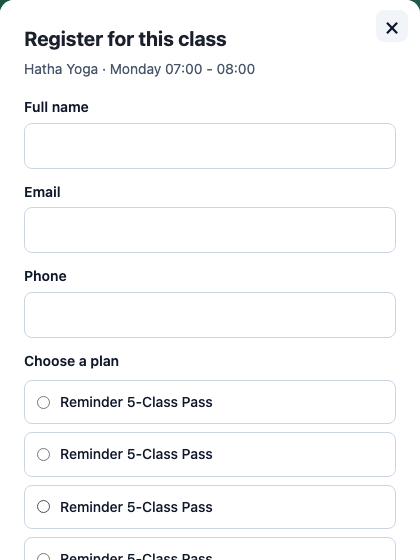
A member who is signed in sees Registering as … instead of the name fields. If they pick a plan they already hold, the class is added straight away (within what their plan allows). If they pick a plan they do not hold yet, their place is held and a plan request waits on their Plans tab for you to approve.
With Stripe Payments or Offline Payments, people pay first and the registration finishes when the payment is confirmed. The Registration Popup add-on replaces this form with its own, and Class Booking & Payment sells single class places instead.
Weekly timetable
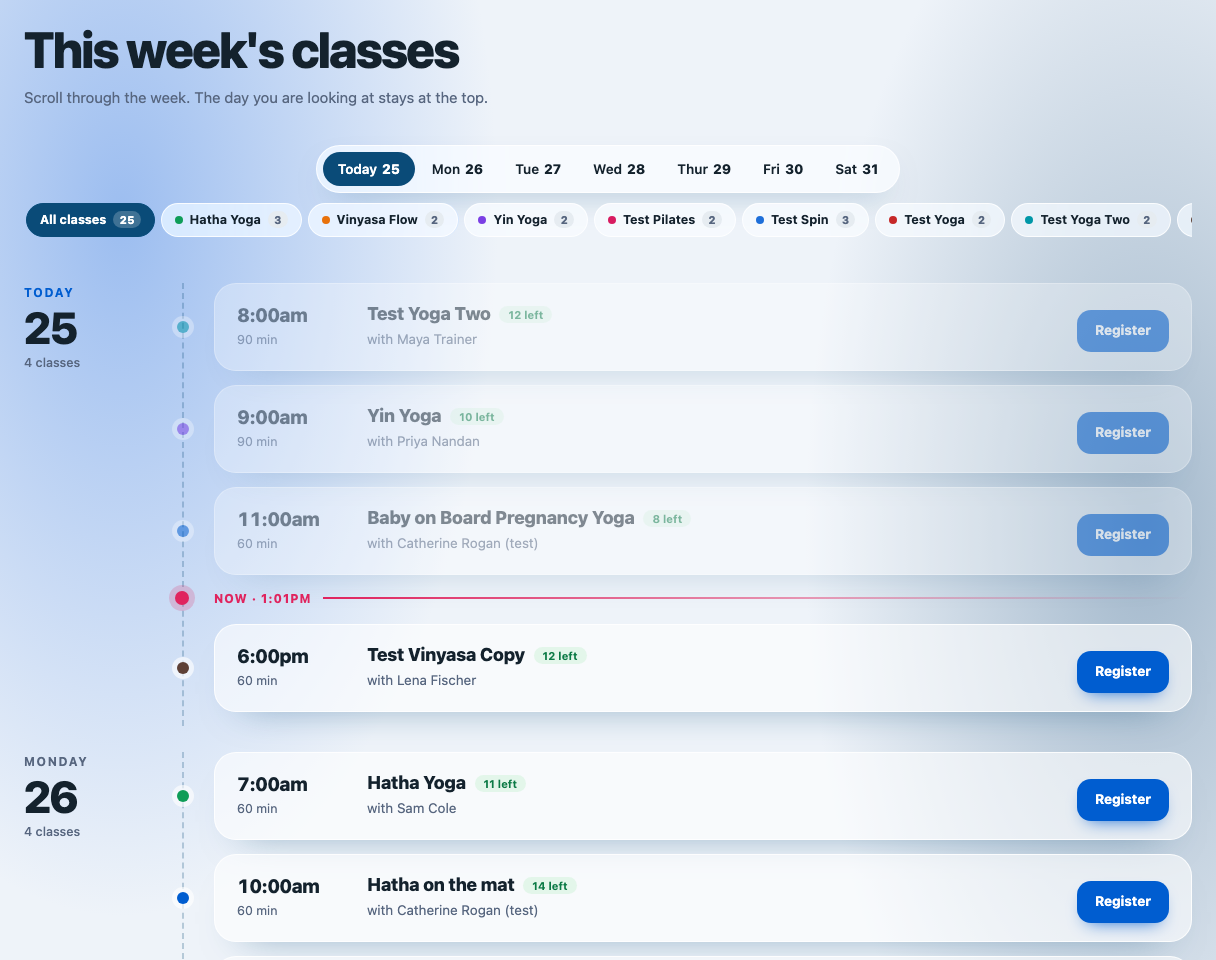
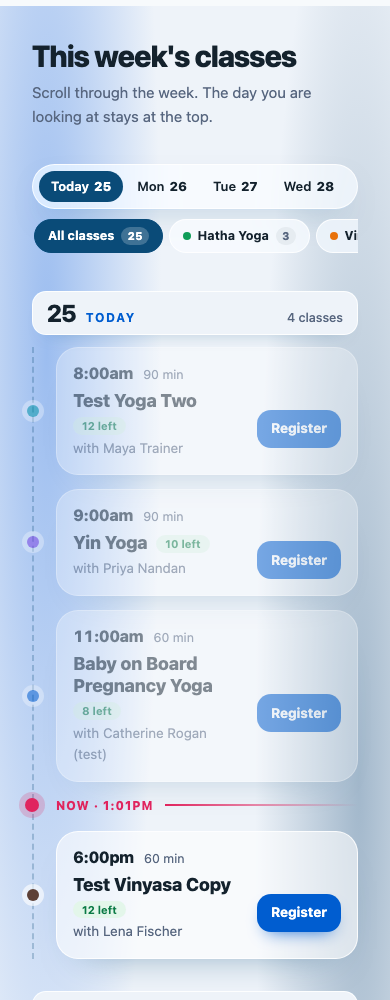
A class shortcode with the Weekly timetable design (the setup wizard makes one for your Timetable page) lists the whole week by day: time, length, class, trainer, places left and Register. Visitors jump to a day or show one class with the buttons at the top. Class times that are already over today are dimmed, and a line marks the time now.
Trainers and trainer pages
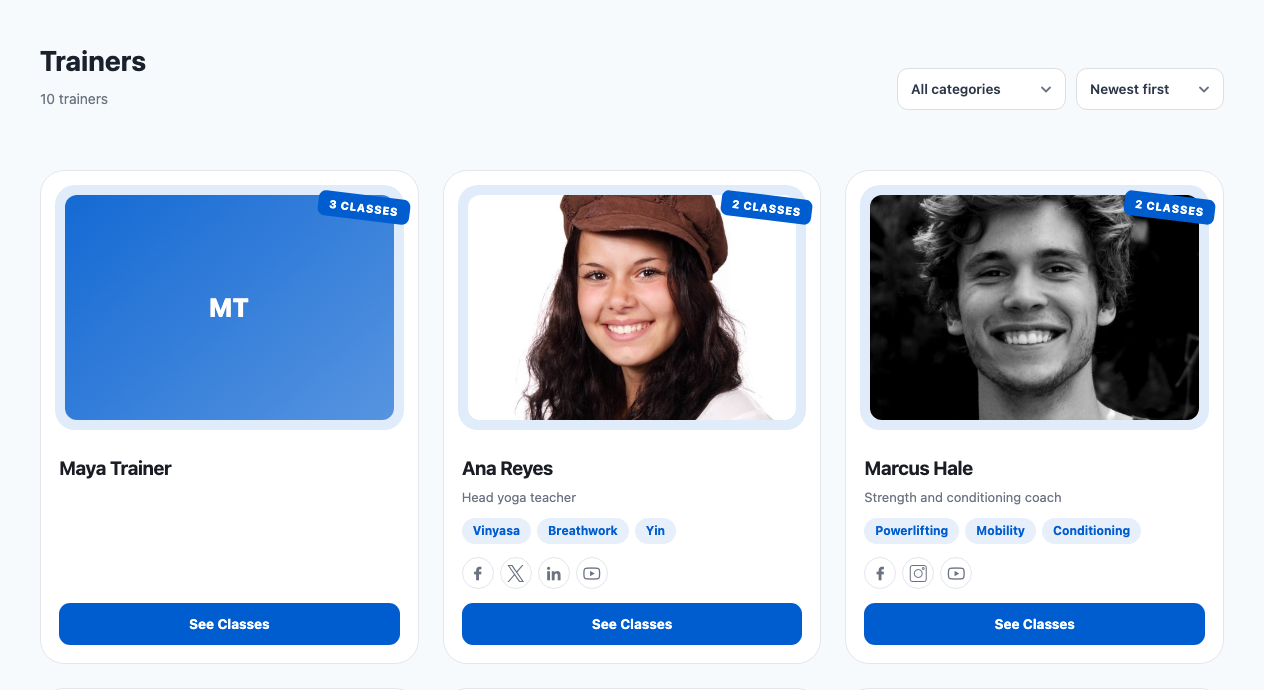
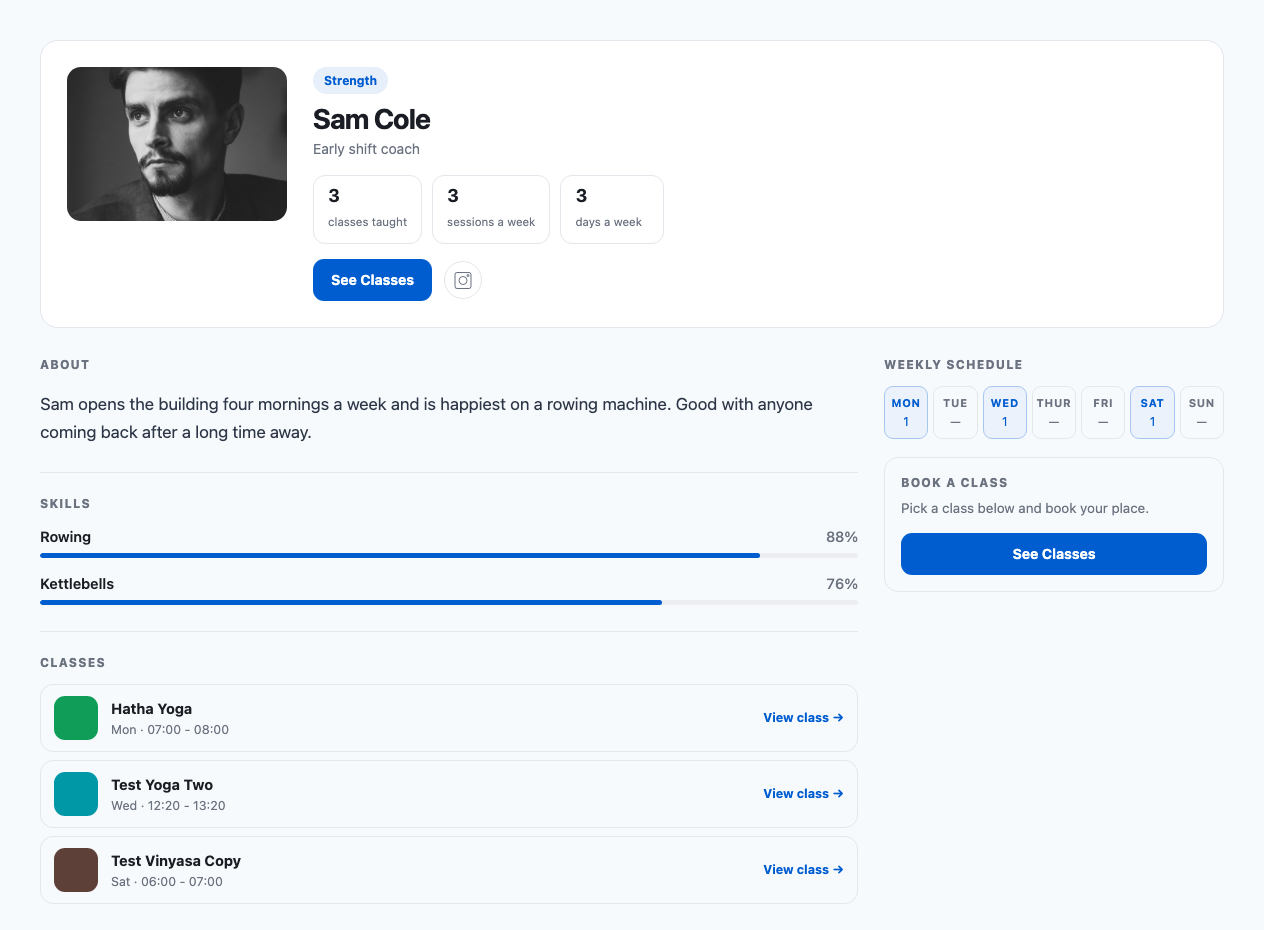
Your Trainers page shows each trainer's photo, job title, skills, social links, how many classes they teach and a See Classes button. A trainer page adds their bio, skill bars, the classes they teach and their weekly schedule.
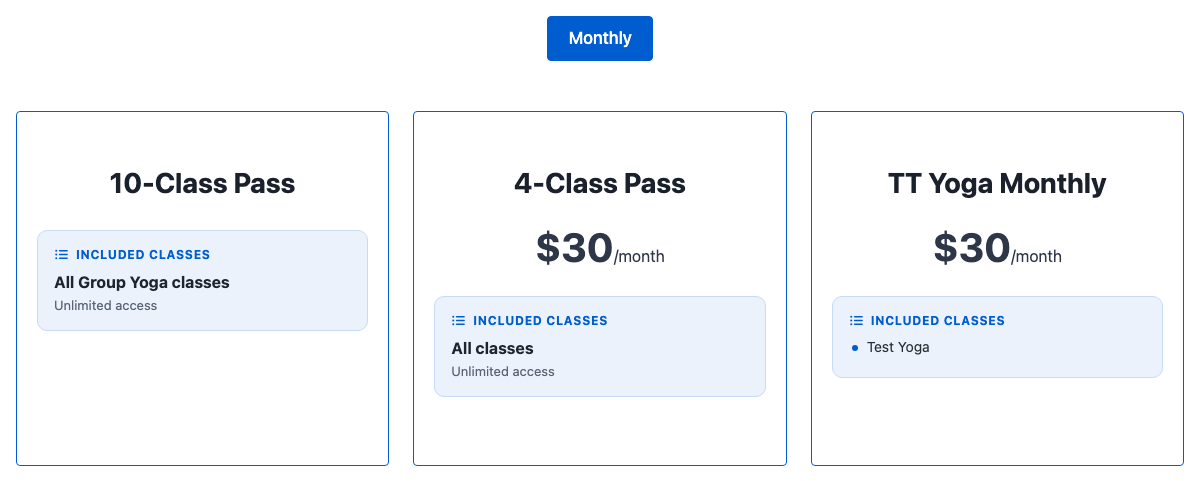
Membership plans list
Put [membership_package_shortcode] on a page (the setup wizard's Pricing page has it). Each plan shows its name, price, the classes it includes and its features. When plans have a Package Type, a button per type sits above them and shows that type's plans.
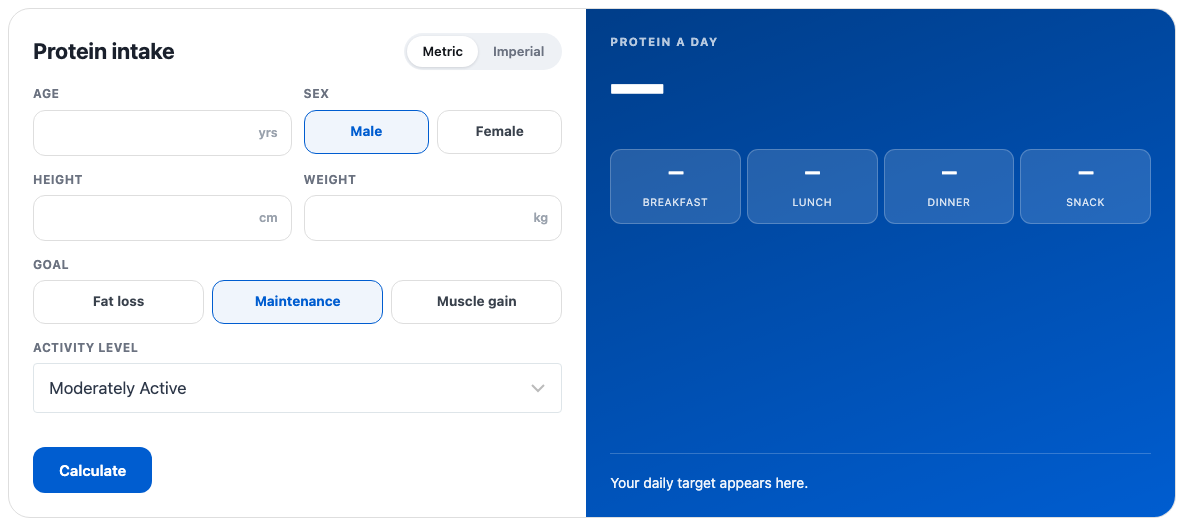
Fitness calculators
Paste a fitness calculator shortcode into a page. Visitors enter their numbers and click Calculate; the result appears beside the form.

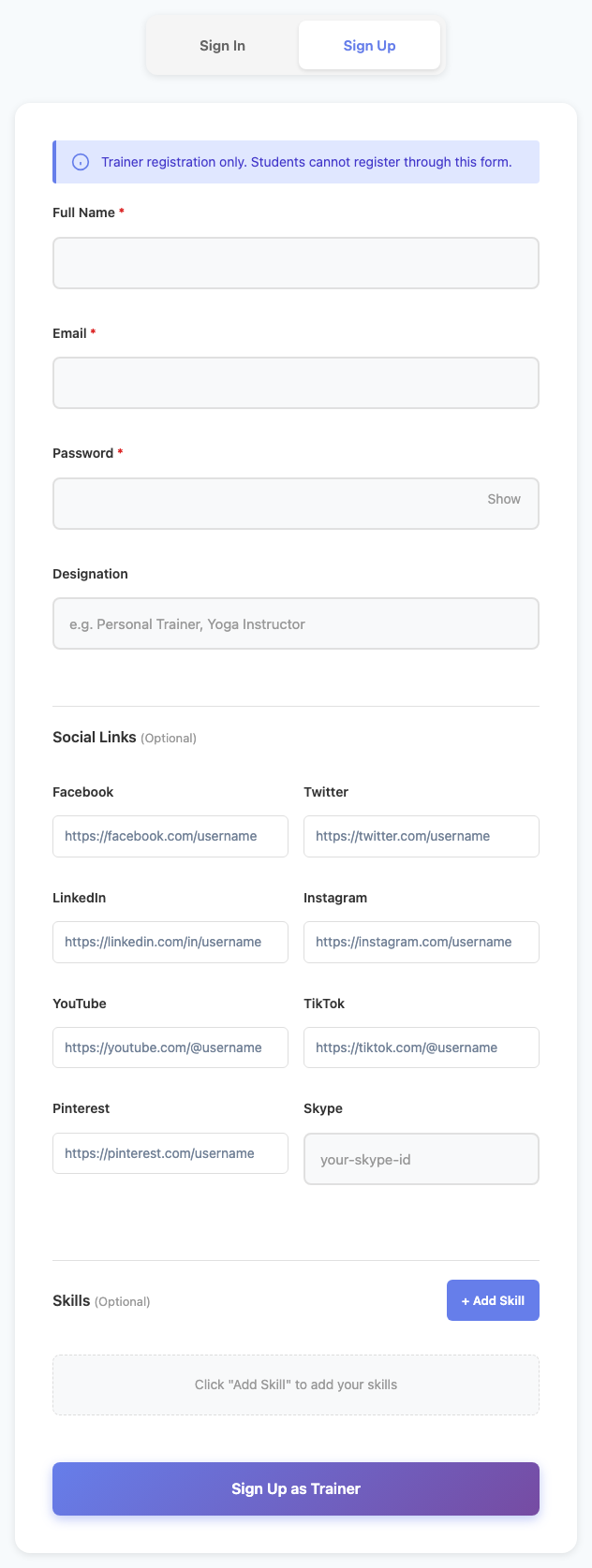
Member login and trainer sign-up
The Member Sign-In Page has two tabs:
- Sign In — choose Trainer or Student (members), enter Email and Password, and click Sign In. They land on the Member Dashboard page.
- Sign Up — for trainers only ("Trainer registration only. Students cannot register through this form."): Full Name, Email, Password (at least 8 characters), Designation, optional social links and skills, then Sign Up as Trainer. They wait for your approval in Trainer Accounts.

Members do not sign up here: they get a login when you add them, when they register from the timetable, or when they buy a plan through a payment add-on.
The member dashboard
After signing in, a member sees their name, member ID, status and days remaining, with four tabs (add-ons add more):
- Overview — when the membership ends, the plan type, their classes and their next class.
- Profile — their personal details.
- Membership — their current plan (or plans): type, name, join date, duration, when it ends or renews, and how much is used.
- Classes — every class they are enrolled in, with day, time and when it is next: Today, Tomorrow, or "In 6 days" with the date in your site's date format. A class that has already started today shows next week's date.
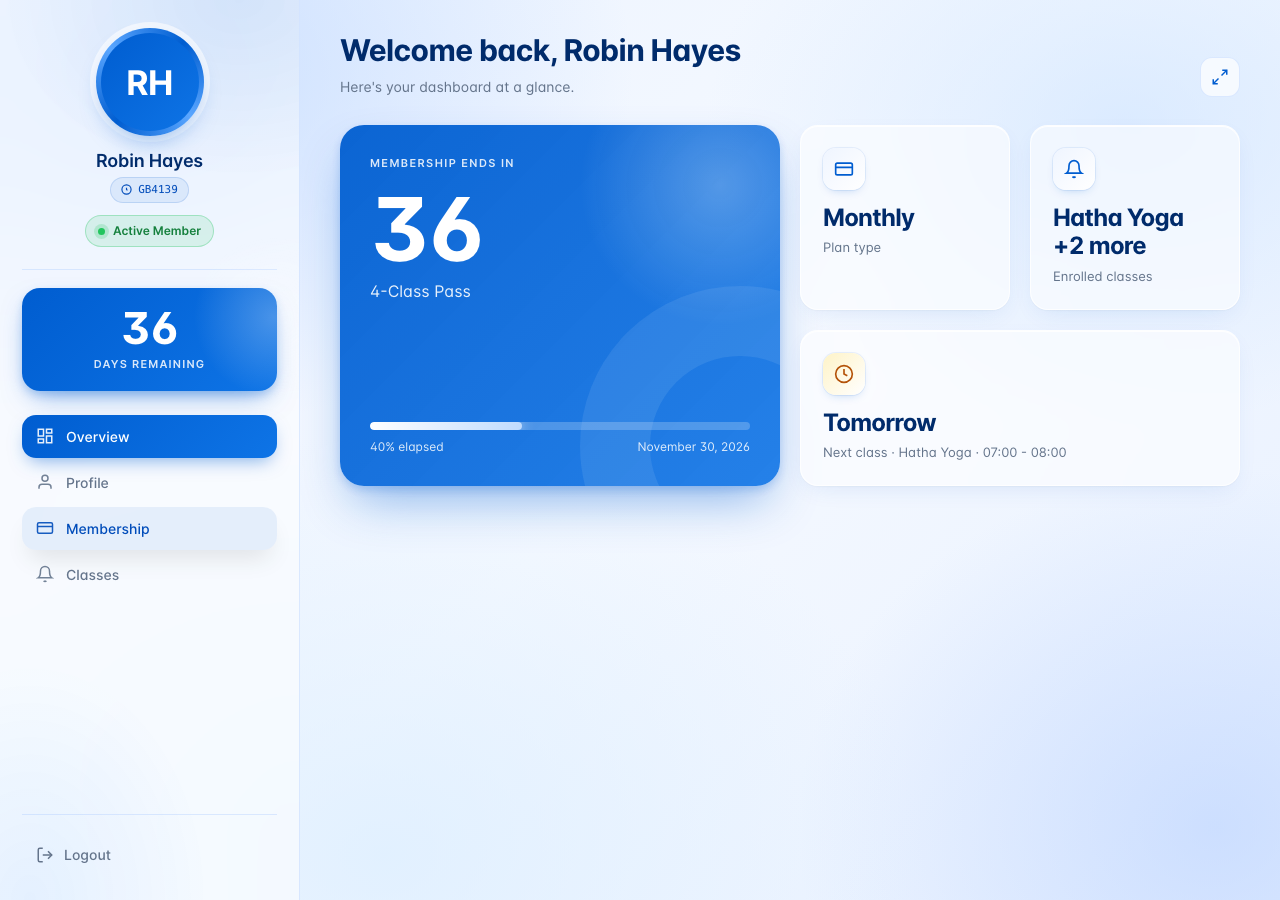

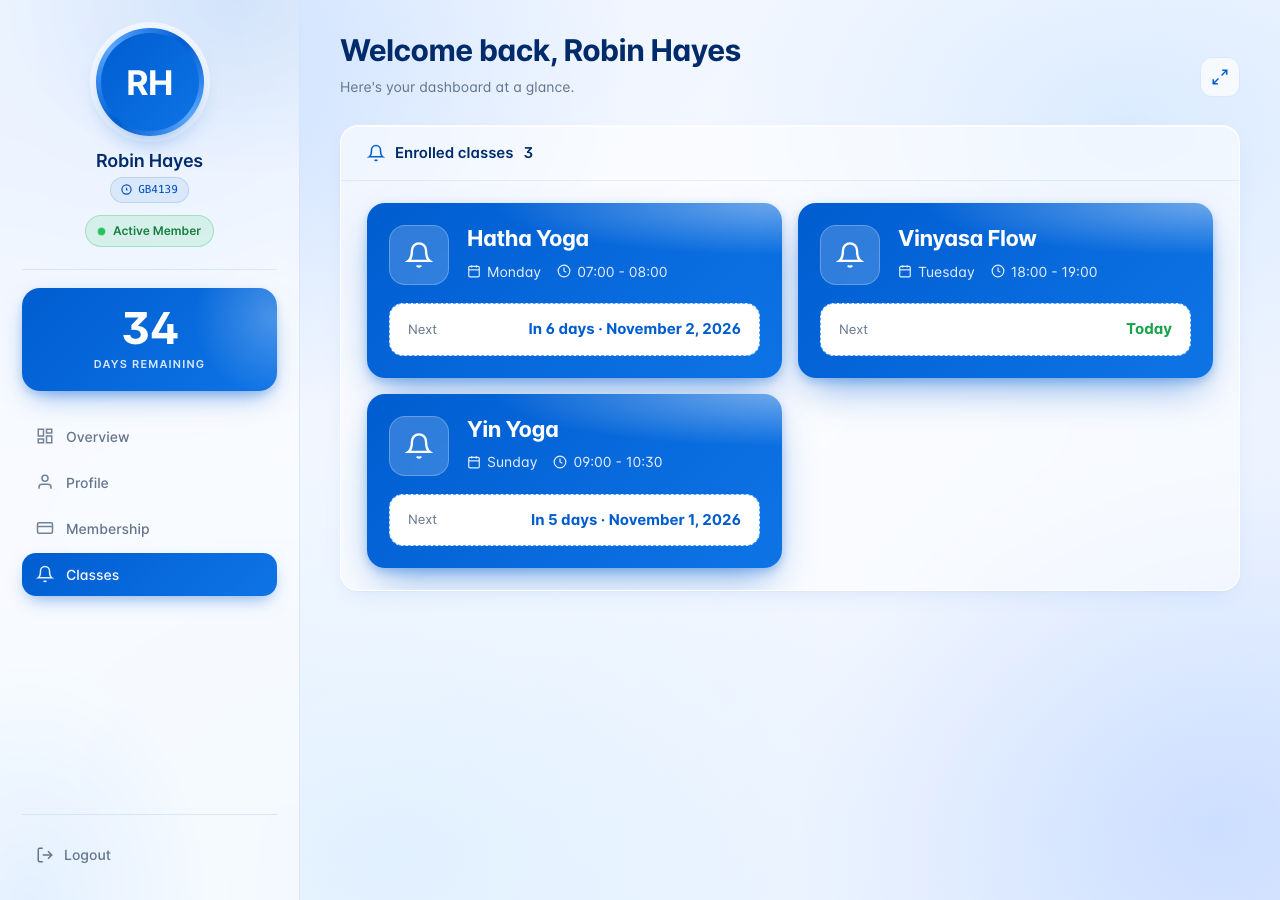
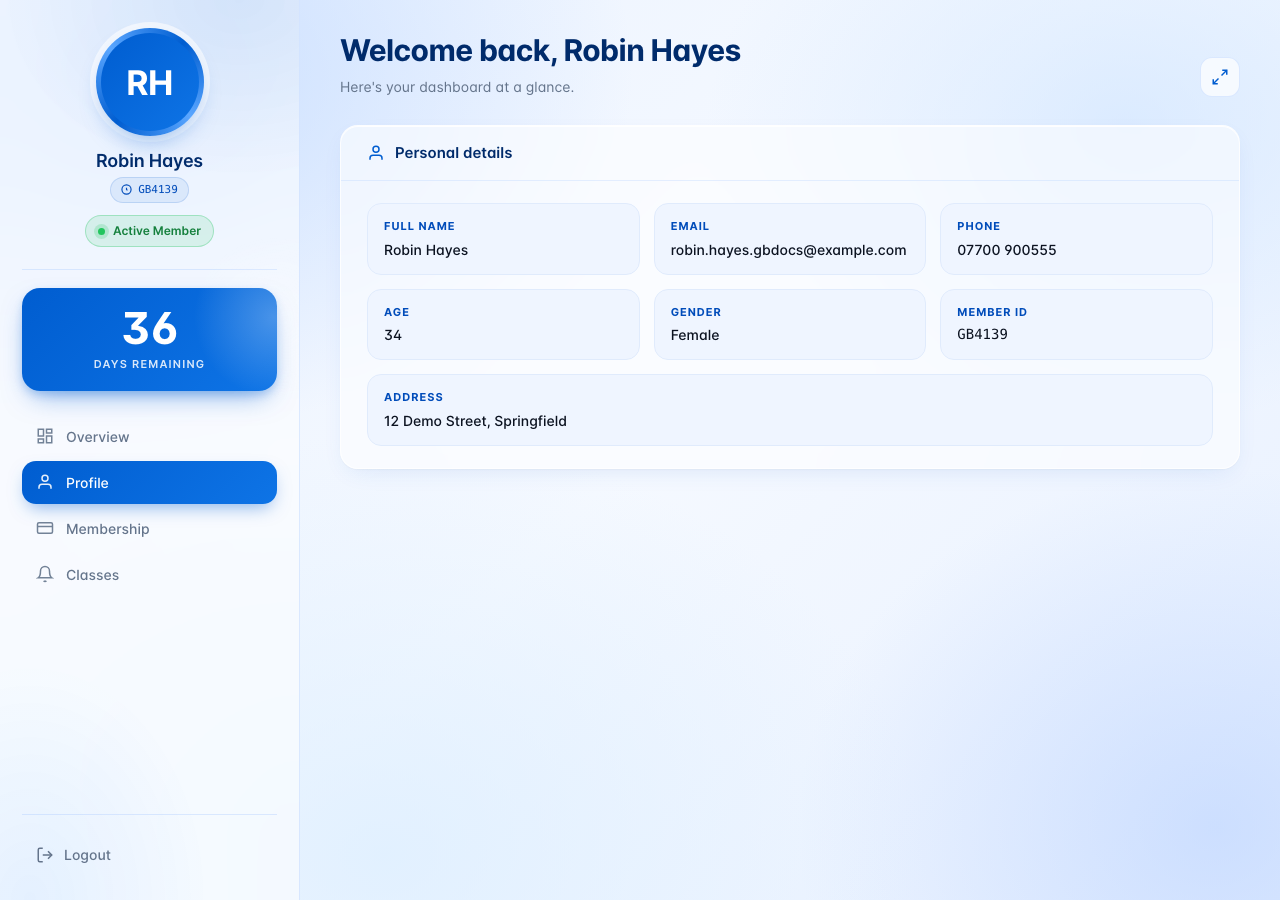
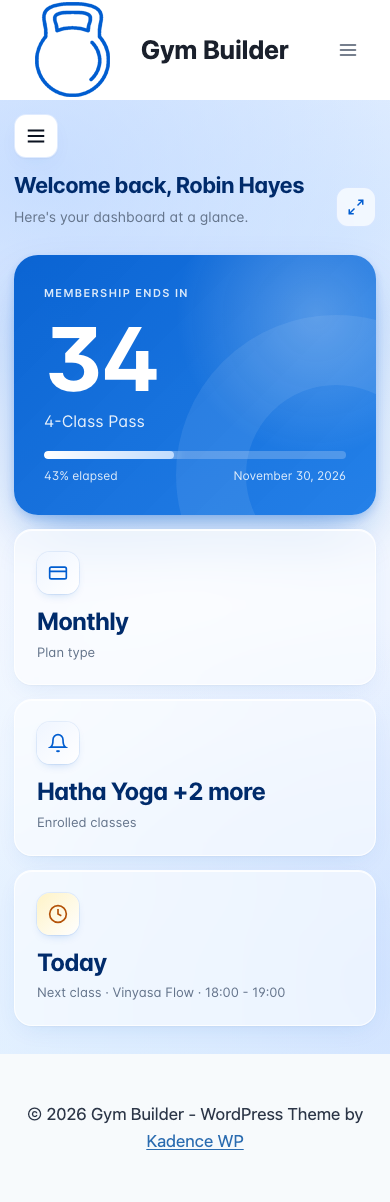
The button at the top right switches the dashboard to full screen. Sign Out is at the bottom of the menu.
The trainer dashboard
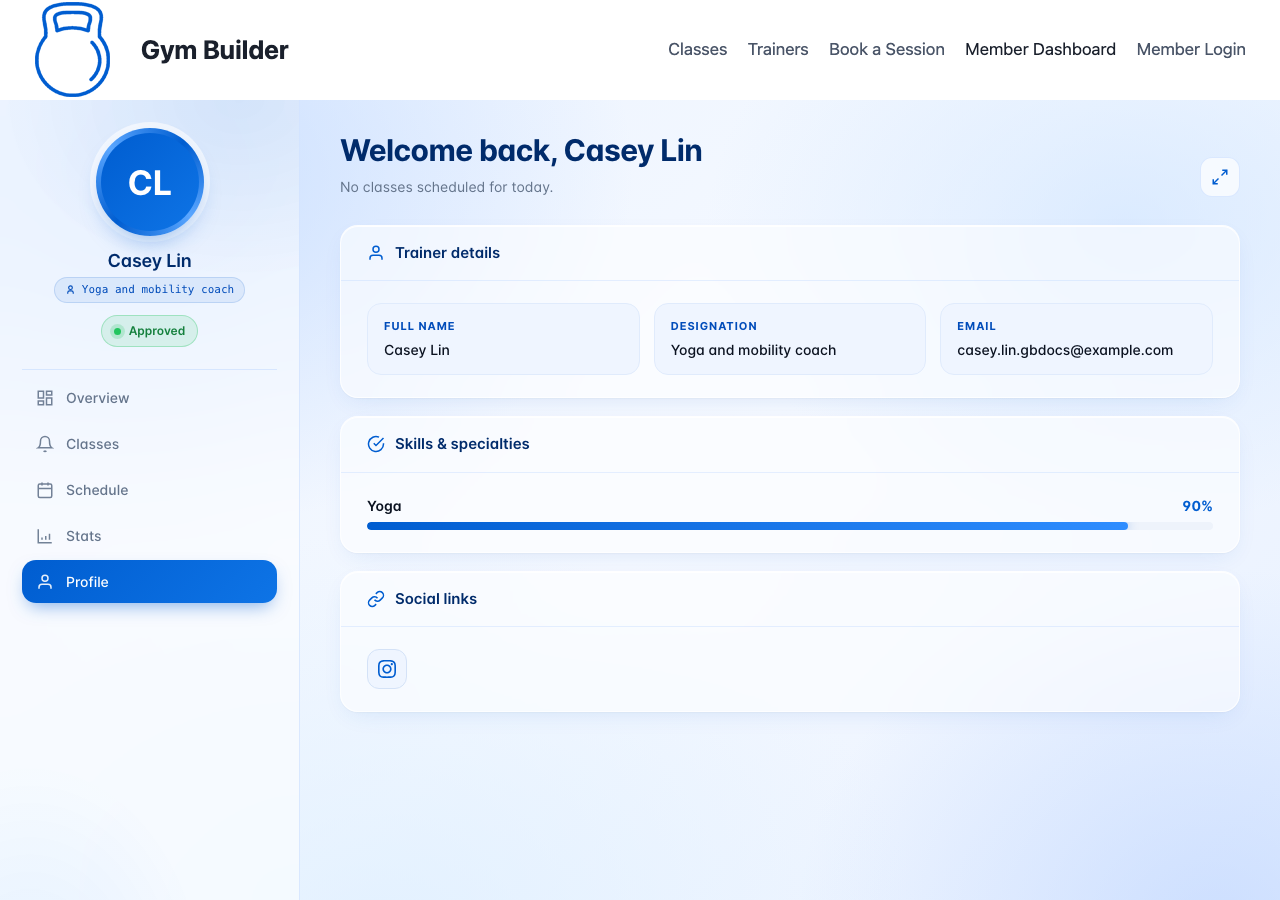
A trainer who signs in sees Overview (today's classes, sessions this week and a weekly load chart), Classes (the classes they teach), Schedule (today and the week), Stats and Profile (their details, skills and social links). Their classes come from the class times that name them as trainer. A trainer who signed up and is not approved yet sees "Your trainer profile is not approved yet."

Shortcodes
| Shortcode | What it shows | Options |
|---|---|---|
[gbclass id="12"] | A class list or weekly timetable, as designed in Class Shortcodes. | id — the builder's number (copy it from the builder). The title it adds is only a label. |
[gbtrainer id="15"] | A trainer list, as designed in Trainer Shortcodes. | id |
[gbfitness_calculator id="18"] | One fitness calculator, as set in Fitness Calculators. | id |
[membership_package_shortcode] | Your membership plans, with a button per Package Type. | limit="3" — how many plans (all by default).include_package="55,58" — only these plans (their numbers, comma separated).hide_package_type="1" — show all plans without the type buttons.order_by="title" — menu_order (standard), title, date or rand.order="DESC" — ASC (standard) or DESC. |
The member sign-in and member dashboard need no shortcode: choose their pages in Settings → Pages and Gym Builder shows them there. The same goes for the Classes and Trainers pages.
Emails Gym Builder sends
| Who gets it, and when | |
|---|---|
| Your Gym Student Account Login Credentials | A new member, with their username, password and the login page — when you add them, when you add an email to a member who had none, or when they register from the timetable. |
| Your Gym Trainer Account Login Credentials | A trainer, with their login details — when their profile with an email is published for the first time, or when you approve their sign-up. |
| Your trainer sign-up at (your site) | A trainer whose sign-up you declined. |
| Your class registration | The person who registered for a class from your timetable. |
| New class registration / Class added by / Plan request from | You (the site admin email), when someone registers from the timetable, a member adds a class, or a member asks for a plan they do not hold. |
| Your (plan) is ending soon | Active members, once per membership period, the number of days you set before their end date (Settings → General → Emails). |
| Emails you write | From a member's page (Send Email, with an optional PDF) or to selected members from the list (Email). |
Once a day Gym Builder also makes memberships whose end date has passed inactive — unless the member still has another plan running.
Translations
Gym Builder comes in English and is translated into 7 languages: German, Spanish (Spain), Spanish (Mexico), French, Italian, Dutch and Polish. It follows your site language in Settings → General → Site Language — the Dashboard, the edit screens, emails and your website change with it. Each admin can also pick their own language in their WordPress profile. Dates and times follow your WordPress date and time settings.
Questions
Can I run the setup wizard later?
Yes, from the Finish Setting Up card on the Dashboard home page, on any site — also one updated from an older Gym Builder. Until you have finished or skipped the wizard, the card has Run the Setup Wizard; while the studio details or the Timetable and Pricing pages are not done, Open Setup and Create Them open it too. On a new install the Plugins screen also shows Start Setup. You can always add classes, plans and pages yourself — everything the wizard does is described in this guide.
Why can't a member book a class?
Members book through a plan. Check that the member is Active, that their membership has not ended, and that their plan includes the class (Plan → Classes Included). Also check the class time has places left.
What does "0 places" mean?
In the Dashboard's class time window, 0 means no limit. For the class card and the Ready to Book checklist it is best to give every class time a number of places.
Can a member hold more than one plan?
Yes. Every plan they hold is listed on their Plans tab, and their classes follow all of them. The one ending last is shown first.
How do I give a member a few more days?
In Members, tick the member and click Extra days. Or edit the member and change the Ends date.
Can I change a member's name?
Not from Edit Member: the form keeps the name the member was added with. Check the name before you click Add Member.
A member forgot their password. What do I do?
The Member Login page has no reset link. Give them a new password from Users in the WordPress menu (find them by email, edit, and set a new password).
Does Gym Builder take payments?
Not on its own: plans have a price and a button link. To sell plans online add Stripe Payments or Offline Payments; to sell single class places, Class Booking & Payment.
If something goes wrong
- A class, trainer or plan page shows "not found" — set Settings → Permalinks to "Post name" and click Save Changes. After an import, click Refresh Web Addresses on the Import / Export page.
- Members or trainers did not get their login details — install an email (SMTP) plugin. Meanwhile, the member's page shows their username and a Set a Password button so you can give them a password yourself.
- A trainer cannot log in — open Trainer Accounts; it tells you whether they need approval, an email, a different email or a login.
- "This account is not registered as a trainer" (or student) — on the sign-in form, pick the other choice: Trainer or Student.
- No Register button on the timetable — check Register Button on the Timetable in Settings → Classes. It is also hidden when the Registration Popup add-on is on, and on class pages when Stripe Payments or Offline Payments is on (they add their own buttons).
- The booked number looks wrong — open the class time in the Timetable and click Recount Booked Places.
- Nothing happens when printing a member card — allow pop-ups for your site in the browser.
- A Dashboard page says "This page could not load." — reload the page; if it stays, update Gym Builder and its add-ons to versions made for 3.0.0.