Class Waitlist
When a class time is full, people join a line for it instead of going away. When a place opens, it is held for the first person in line and offered to them by email. If they do not claim it in time, it goes to the next person — without you lifting a finger.
What it does
Every class time has a number of places. Once they are all taken, the class time shows Class full and a Join the Waitlist button instead of Register. The people who join wait in line, in the order they joined.
- Anyone can join — visitors with their name, email and phone, members with one click.
- Places go in turn — when a place opens (someone leaves the class time, a membership ends, you add a place), it is held for the first person in line for the hours you choose, and they get an email with a Claim Your Place button.
- Nobody else can take a held place — the class time stays full for everyone else until the person claims it, says no, or runs out of time. Then the place goes to the next person.
- Members can move or add a class time — a member whose plan has room adds the place as an extra class. A member whose plan is full asks to swap one of their class times for it, and you approve or decline.
- Places of ended memberships (if you switch it on) — a member whose membership ended keeps their place for a few days. If they do not renew, it goes to the people waiting.
- A Waitlist page in the Dashboard — who is waiting, places held right now, swap requests to answer, and buttons to offer a place, move someone in line, remove them or add someone by hand.
- Members see their lines — a Waitlists tab on the member dashboard, and a banner when a place is held for them.
- Works with the add-ons — the payment add-ons, Class Booking & Payment, the Registration Popup, the Class Routine block and widget, Attendance and the AI Assistant (see With the add-ons).
Before you start
- Multi-class memberships. The waitlist needs memberships that can hold several classes, each with its own day and time. A new site has them from the start. A site that used Gym Builder before shows the message "Gym Builder: multi-class memberships are ready" on the Plugins page: click Migrate Now. Your members keep working as they are. Until then, the Waitlist settings card says so and the switch is not shown.
- Class times with a number of places. Only a class time with a limit can be full. A class time set to 0 places (no limit) never gets a waitlist. Set the places on each class's Schedule, or in the class time window on the Timetable.
- Working email. Places are offered by email. If emails from your site go missing, install an email (SMTP) plugin such as WP Mail SMTP or FluentSMTP.
- A Member Dashboard page in Gym Builder → Settings → Pages, so members can see their Waitlists tab.
Turn it on and set it up
- Go to Gym Builder → Settings → Classes and find the Waitlist card (it is also in the menu under Classes).
- Switch on Turn On the Waitlist and choose the other settings below.
- Click Save Settings. The Dashboard reloads, and Waitlist appears in its menu, under Timetable.
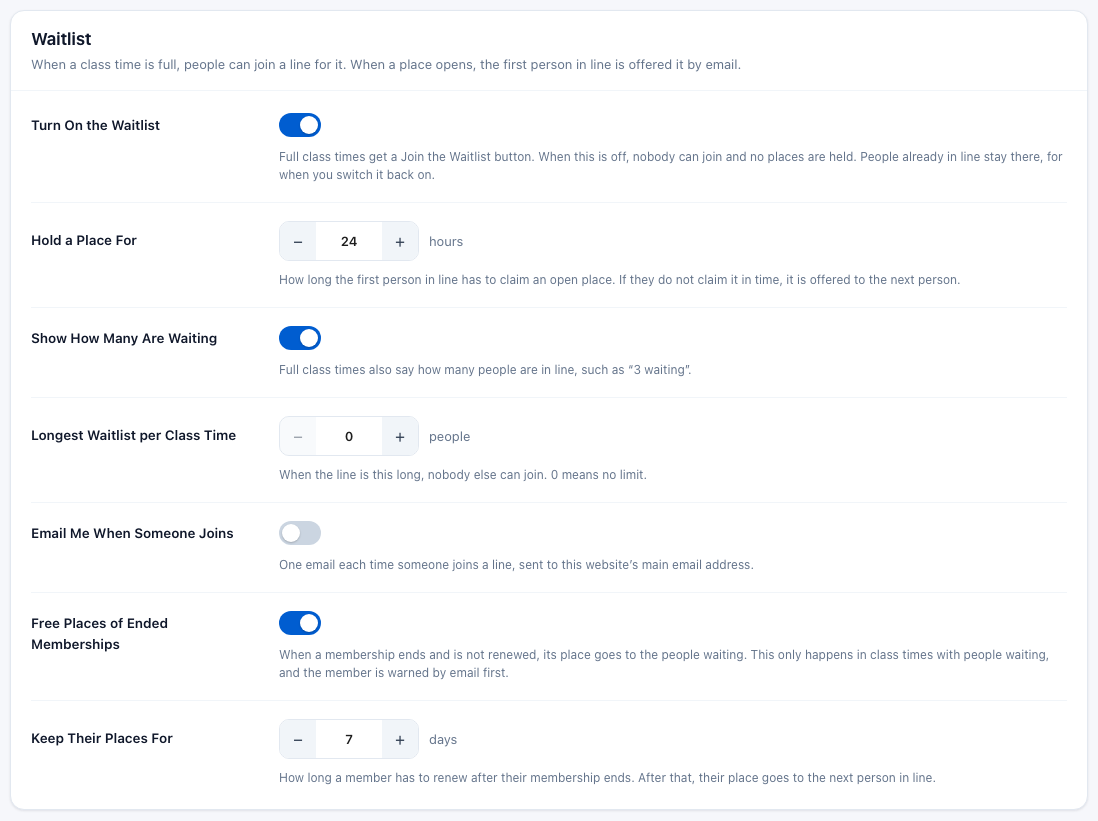
| Setting | What it does |
|---|---|
| Turn On the Waitlist | Off to start with. When it is on, full class times get a Join the Waitlist button. When it is off, nobody can join, no places are held and the Waitlist page leaves the menu. People already in line stay there, for when you switch it back on. |
| Hold a Place For | How many hours the first person in line has to claim a place that opened: 1 to 168 (one week). The standard is 24. If they do not claim it in time, it is offered to the next person. |
| Show How Many Are Waiting | On to start with. Full class times also say how many people are in line, such as "3 waiting". |
| Longest Waitlist per Class Time | When a line is this long, nobody else can join it ("The waitlist for this class time is full."). From 0 to 500 people; 0 (the standard) means no limit. It counts people waiting, not places held, and it also applies to people you add yourself. |
| Email Me When Someone Joins | Off to start with. One email each time someone joins a line, sent to your website's main email address (Settings → General → Administration Email Address in WordPress). Not sent for people you add yourself. |
| Free Places of Ended Memberships | Off to start with. When a membership ends and is not renewed, its place goes to the people waiting — only in class times with people waiting, and only after the member is warned by email. See Places of ended memberships. |
| Keep Their Places For | Shown while Free Places of Ended Memberships is on. How many days a member has to renew once they are warned: 1 to 60. The standard is 7. |
The Waitlist Settings button at the top of the Waitlist page opens this card too.
How it works for people
In short:
- A class time is full. Someone clicks Join the Waitlist and gets an email with their place in line.
- A place opens. Gym Builder holds it for the first person in line and emails them. For everyone else the class time is still full.
- They click Claim Your Place in the email (or on their member dashboard) and the place is theirs, every week.
- If they click No Thanks, leave the line, or do not claim it within the hours you set, the place goes to the next person straight away.
Joining the line
The Join the Waitlist button shows wherever a class time is full: on the class's own page, on Gym Builder's weekly timetable, and on the forms of the add-ons (see With the add-ons). With Show How Many Are Waiting on, it also says how many are in line.
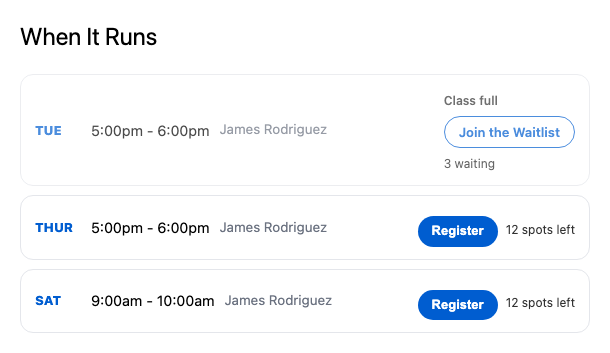
When every class time of a class is full, its card on the Classes list shows Join the Waitlist (unless a payment add-on or a link you set on the class puts its own button there); the window then asks which class time to wait for. The class page adds a note: "Every class time is full. Join the waitlist for the time you want below."
Visitors fill in Full Name, Email and Phone (all three are needed) and click Join the Waitlist. If you ask people to agree to your terms (Sign-Up Terms), the tick box is there too. Already a member? Log In takes members to the sign-in page and back.
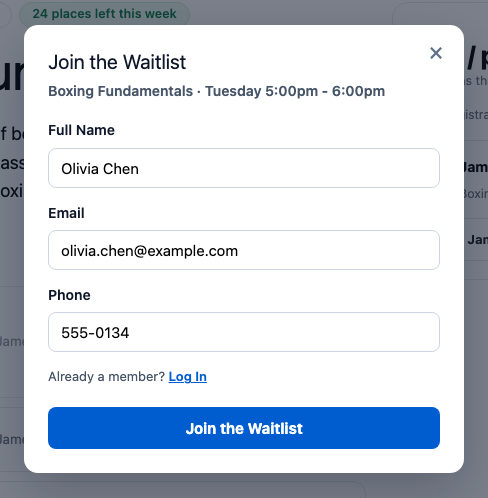
The visitor then sees "Thank you! You're on the waitlist. We've emailed you your place in line and what happens next." They see the same words whatever happened, so the form never tells anyone who is booked or waiting. Someone who already has a place in that class time gets an email saying so instead, and nothing changes.
Members who are signed in see "Joining as" and their name, and click the button. They are told their place at once: "You're number 2 on the waitlist for Morning Yoga · Monday 7:00am - 8:00am. We'll email you when a place opens; it's then held for you for 24 hours."
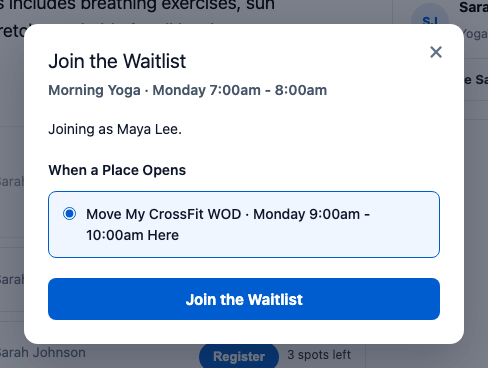
A member may also see When a Place Opens, with a choice of what to do with the place — see Moving or adding a class time. Afterwards, the class time on the class page tells them where they stand.

- Up to 5 class times at once. One person can wait for up to 5 class times. After that, a member is told "You are already waiting for as many class times as we allow. Leave one to join another." A visitor is simply not added. (People you add yourself are not limited.)
- Not for a class time they already have — a member is told "You already have a place in this class time."
- Staff accounts — someone signed in with a staff or admin account is asked to log out to join as a member. To put someone in line yourself, use Add Someone.
- A place is free after all — if a place opened while the window was open, it says "A place is free in this class time. Register instead." with a Register button.
When a place opens
A place opens when someone leaves the class time (you edit or delete a member, a membership ends or is refunded, an unpaid order is dropped), when you add places to the class time, or when the person a place was held for says no or runs out of time. Gym Builder then:
- Holds the place for the first person in line, for the hours in Hold a Place For. The class time stays full for everyone else, so nobody can book the place from under them.
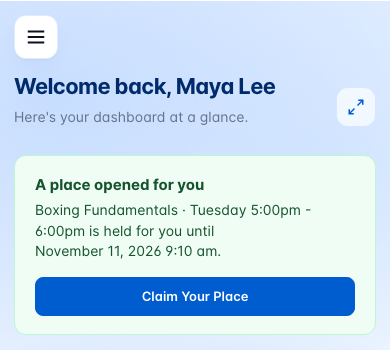
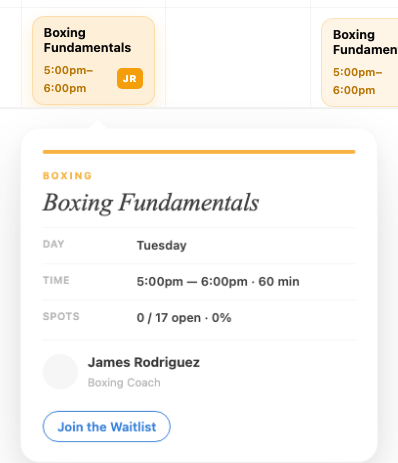
- Emails them "A place opened in Boxing Fundamentals · Tuesday 5:00pm - 6:00pm. Claim it by November 11, 2026 9:10 am", with a Claim Your Place button.
- If several places open, it does the same for the next people in line, one place each.
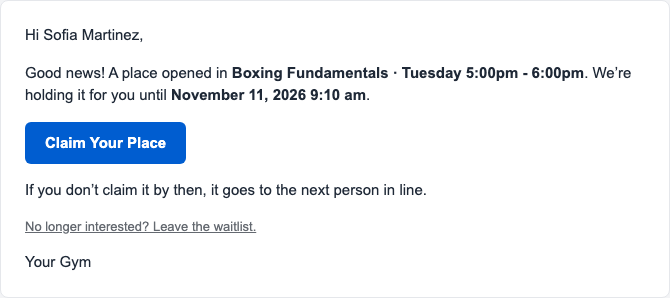
Places are offered as soon as they open. Every hour Gym Builder also looks again, as a safety net: it passes on places whose time ran out and offers places that are free. A member whose membership is paused is skipped while the pause lasts; they keep their place in line.
Links in the emails change nothing when they are opened: they open a window on your site, and nothing happens until the person clicks a button there. (Some email programs open links to check them.)
Claiming the place
The Claim Your Place button in the email (or on the member dashboard) opens the class page with a window for the place. What it asks depends on who is claiming:
- A member whose plan has room for the class — Add It as an Extra Class is chosen. They click Confirm: "Done! Morning Yoga · Monday 7:00am - 8:00am is now one of your classes." They can also swap one of their class times for it instead (see Moving or adding a class time).
- A member whose plan is full — they can only swap one of their class times for it, which you approve first.
- A visitor, or a member without a plan for this class — the registration window opens, headed Claim Your Place, with their details filled in.
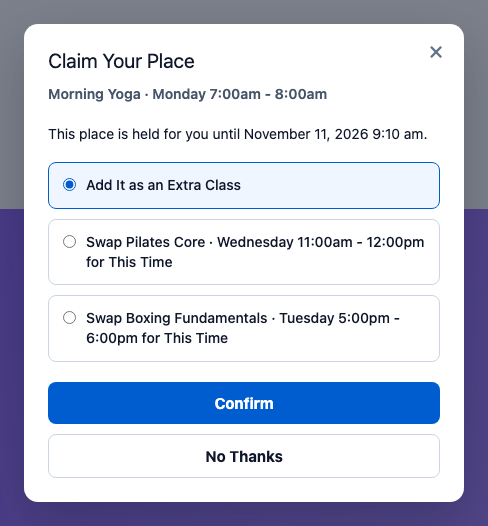
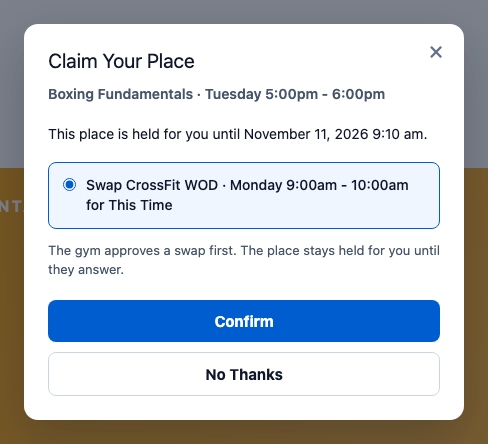
In the registration window, the email cannot be changed: "Please use the email address the offer was sent to." The person chooses a plan that includes the class. For a plan that needs more than one class, Your Other Classes asks for the rest ("Choose 1 more class for this plan."). They click Claim Your Place, and from there it works like registering from your timetable: with Stripe Payments or Offline Payments they pay first, otherwise they become a pending member until you activate them (see Registering for a class). If the email already belongs to a member, the place is booked on that member. Already a member? Log in to add it to your plan. lets a member sign in first.
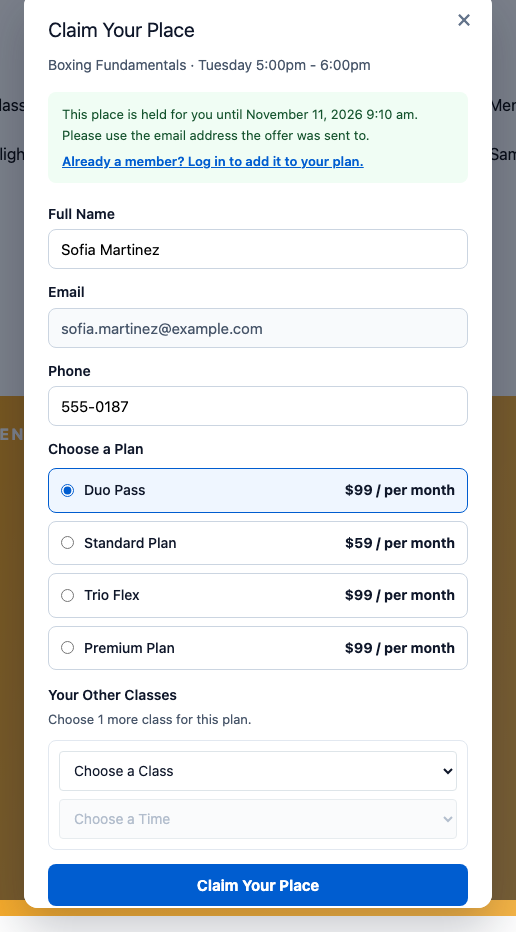
While someone pays, the place stays theirs, even if their hours run out meanwhile. With Offline Payments that is until you approve or reject the order, or the order's own hold runs out. In the Dashboard they show as Paying Now, and on their member dashboard as Waiting for your payment. If they leave the payment page without paying, or you reject the order, the place is held for them again until their hours end — or, if those have already passed, it goes to the next person.
Saying no, and leaving the line
- No Thanks in the claim window gives the place to the next person at once: "Thank you for letting us know. The place goes to the next person in line."
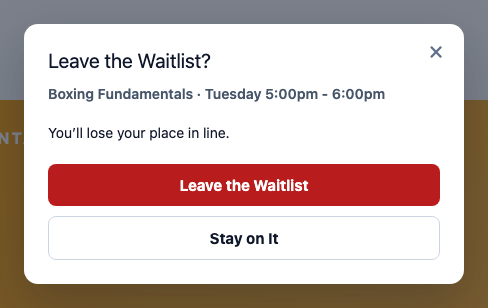
- Leave the Waitlist — the link in every waitlist email, or Leave on the member dashboard. A window asks "Leave the Waitlist?"; they click Leave the Waitlist or Stay on It. If a place was held for them, it goes to the next person.
When the time runs out
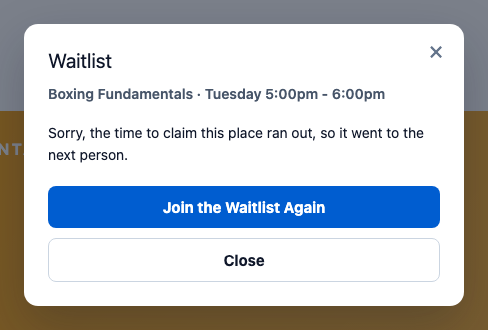
If the place is not claimed within the hours you set, it goes to the next person in line. The person who missed it is emailed "Your held place in … has gone to the next person" and is no longer in that line. If they open their old link, they see "Sorry, the time to claim this place ran out, so it went to the next person." While the class time is still full, a Join the Waitlist Again button lets them join again, at the end of the line.
On the member dashboard
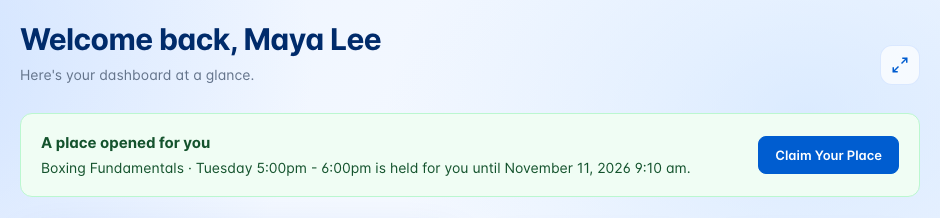
While a place is held for a member, a banner at the top of their dashboard says A place opened for you, with the class time, the deadline and a Claim Your Place button.
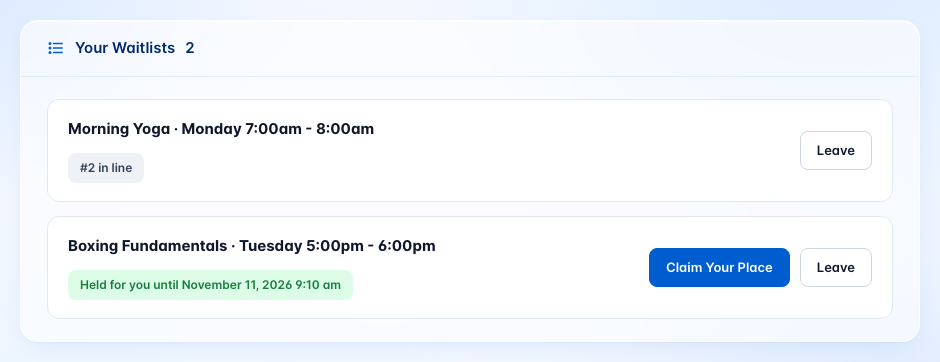
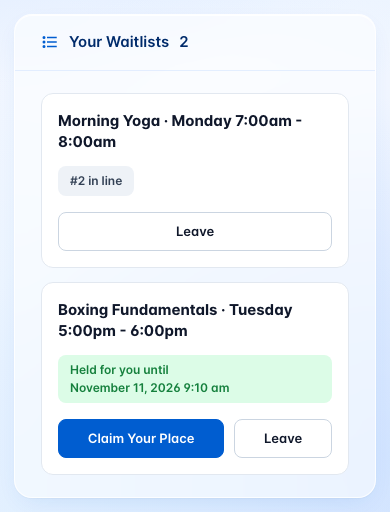
A Waitlists tab appears while the member is in a line, has a place held, or has a place at risk after their membership ended. Your Waitlists lists each class time with where they stand:
- #2 in line — waiting.
- Held for you until (date and time) — with Claim Your Place.
- Waiting for your payment — they started paying for the place.
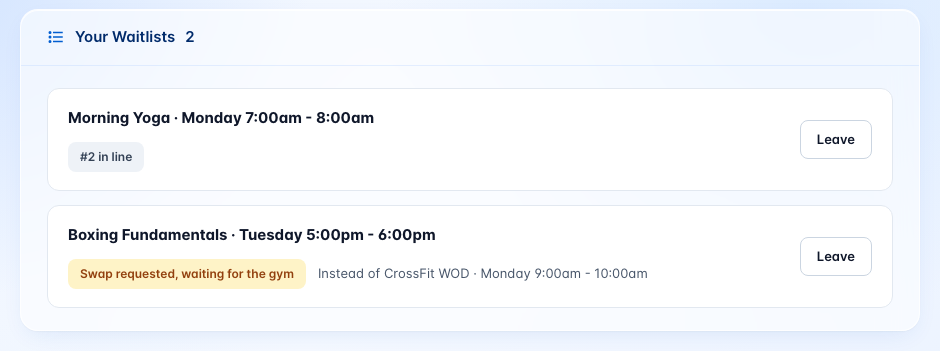
- Swap requested, waiting for the gym — with "Instead of" and the class time they give up.
- Renew by (date) to keep this place, and Given up when your membership ended — see Places of ended memberships.
Every line they are in has a Leave button.
On the class page, a class time held for the member says A place is held for you, with Claim Your Place; after asking for a swap it says Swap requested.

Moving or adding a class time
A member often wants a full class time instead of one they already have, or as well as their classes. The waitlist lets them say which.
When they join
The join window shows When a Place Opens when the member already has a time of this class, or when their plan has no room for another class:
- Add It as an Extra Class — shown when their plan has room for one more class.
- Move My (class time) Here — one choice for each class time they have.
What they choose is shown to you as What They Asked For in their details, and is chosen for them in the claim window later.
When the place is theirs to claim
- Add It as an Extra Class — the class time is added to the plan they hold straight away. It is only offered when the plan includes the class and has a class (and a session of that class each week) still free.
- Swap (class time) for This Time — this asks you to approve a swap: "The gym approves a swap first. The place stays held for you until they answer." After Confirm, the place stays held for them with no time limit until you answer, and you get an email "Swap request: (name)".
Answer a swap request
- Go to Gym Builder → Dashboard → Waitlist. Swap requests are in the Swap Requests card at the top. The number next to Waitlist in the menu counts them.
- Click Approve: the member gives up the old class time and takes the held place, in one step. Its own waitlist then gets the place they gave up. Or click Decline: they keep the class time they have, and the held place goes to the next person in line.
- Confirm in the window. Either way the member gets an email.
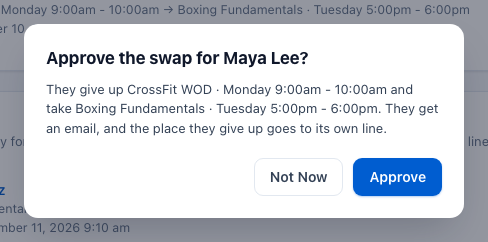
If the member no longer has the class time they wanted to give up, Approve says so: offer them the place instead, or decline. A swap that waits more than 3 days for an answer gets its own line in the Dashboard's Needs You card, with an Answer Now button.
Places of ended memberships
When a membership ends, the member keeps their weekly class times, so they can renew and carry on. That can block a full class time that people are waiting for. With Free Places of Ended Memberships on, Gym Builder gives such places to the people waiting — fairly, and with a warning first.
- The warning. Once a day Gym Builder looks for members whose membership has ended and who hold a class time that people are waiting for. If more of them hold the same class time than there are people waiting, only that many are warned, starting with the membership that ended first. Each gets an email: "Renew by (date) to keep your place in (class time)", with a Renew Your Plan button to the page in Renew Button Opens (Settings → General); with no page set, it asks them to get in touch. They have the number of days in Keep Their Places For, counting the day of the email.
- Renewed in time — nothing changes; the warning is dropped.
- Not renewed in time — the class time is taken off the member and goes to the first person in line, in the usual way. The member is emailed "Your place in … has gone to the next person", and you get one email listing every place freed that day.
- Renewing later — Gym Builder checks every hour. If the place is free and nobody is waiting for it (and their plan has room), it books them straight back in: "You're booked back into …". Otherwise it puts them at the end of the line and tells them their place.
- Only where people wait. A class time nobody is waiting for is never touched, and no more places are freed in a class time than there are people waiting.
- Left alone: paused members, members whose plan renews by itself, members who still hold another running plan, and members you switched to inactive yourself.
- On the member dashboard the class time shows Renew by (date) to keep this place during the warning, and Given up when your membership ended afterwards.
- With the setting off (the standard), ended memberships keep their class times as before.
The Waitlist page
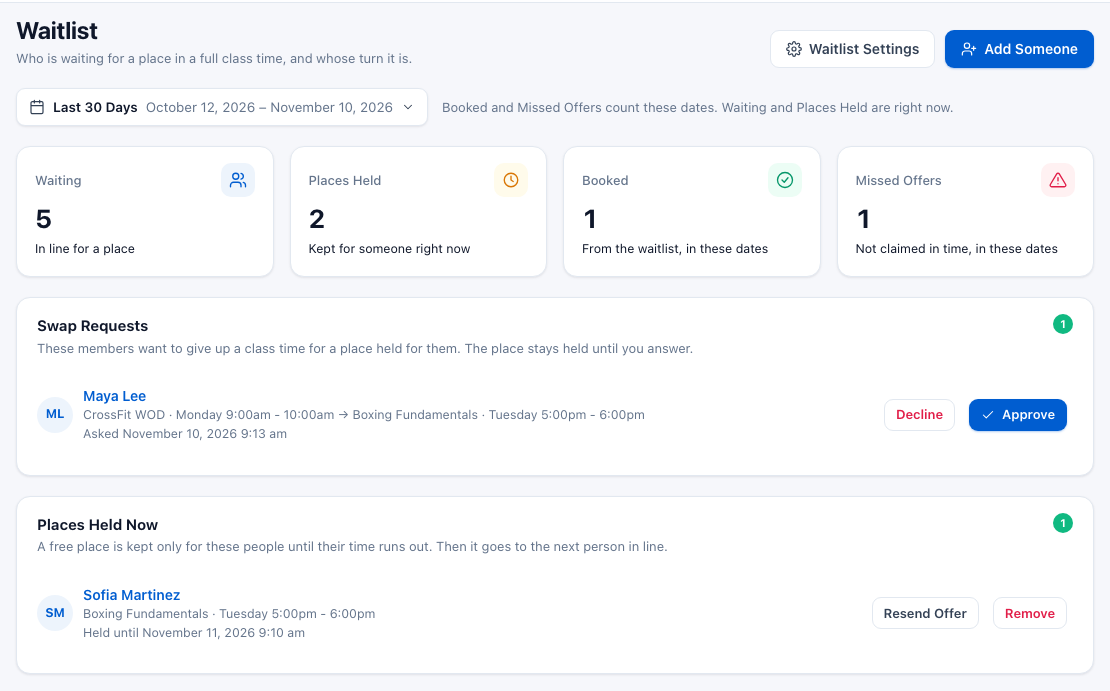
Go to Gym Builder → Dashboard → Waitlist (in the Dashboard menu, under Timetable). The page is there while the waitlist is on. At the top, Waitlist Settings opens the settings card and Add Someone puts someone in line by hand.
Figures and dates
Choose dates with the date picker (the last 30 days to start with; up to two years). As the note beside it says: "Booked and Missed Offers count these dates. Waiting and Places Held are right now."
- Waiting — people in line for a place, right now.
- Places Held — places kept for someone right now: offered, being paid for, or waiting for your answer to a swap.
- Booked — people who got a place from the waitlist in those dates.
- Missed Offers — places not claimed in time in those dates (or not paid for in time).
Swap Requests
"These members want to give up a class time for a place held for them. The place stays held until you answer." Each line shows the class time they give up, an arrow, the class time they want, and when they asked. See Answer a swap request. The card only shows when there is a request.
Places Held Now
"A free place is kept only for these people until their time runs out. Then it goes to the next person in line." The one that runs out first is at the top, with "Held until" and the date and time, or "Paying now, until" while they pay. Resend Offer and Remove work as in the list below. If the offer email could not be sent, the line says Email Not Sent: check your site's email, then click Resend Offer, or call them.
The list
Below the cards is everyone, grouped by class time (by class, day and start time), with how many are waiting in each. In each class time: places held first, then the line in order, then the people who are finished.
- Views — Waiting (the standard), Places Held, Booked, Ended and All. Booked and Ended follow the dates at the top of the page.
- Search — a name or email (type at least 2 letters).
- All Classes and All Days — show one class or one day only.
- Columns — Person (click the name for their details), Place in Line and Status, with when they joined, until when a place is held, or when they finished.
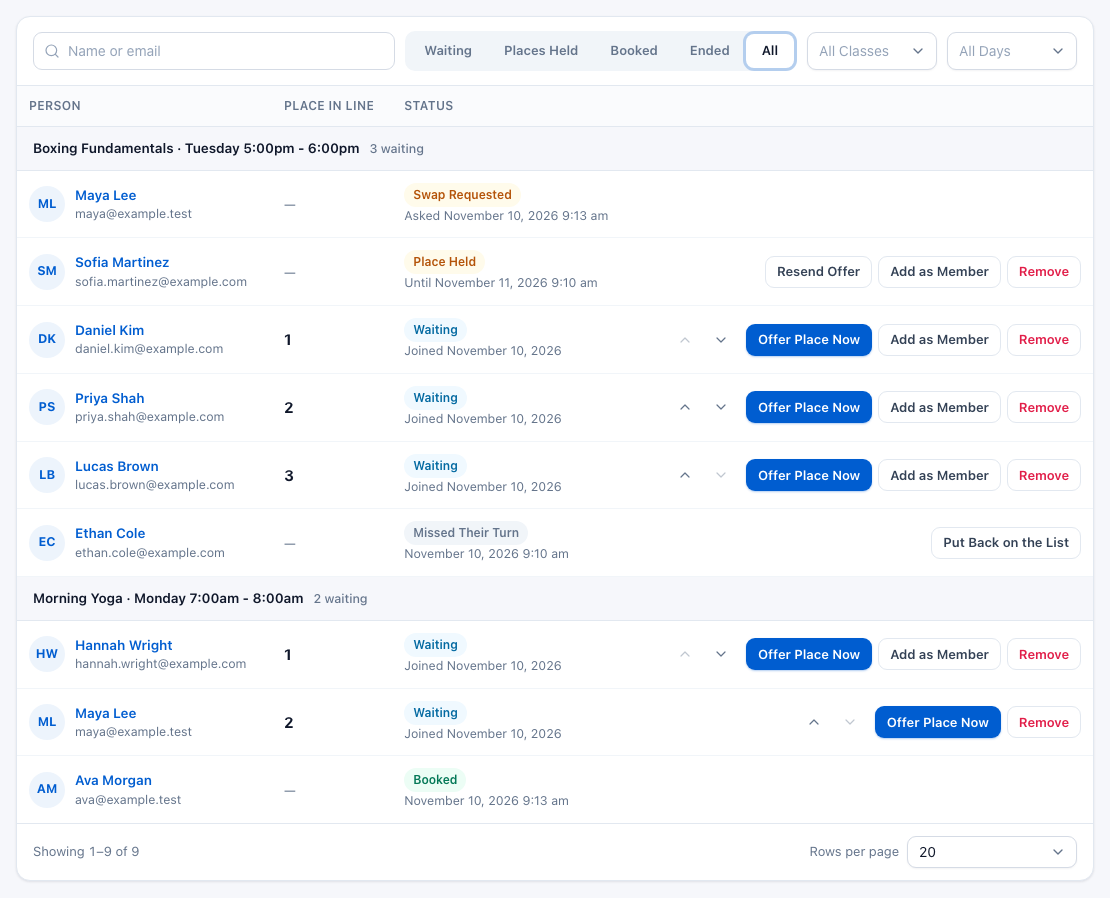
The statuses are Waiting, Place Held, Paying Now, Swap Requested, Booked, Missed Their Turn, Left the Line, Removed, Swap Declined and Place Given Up (from an ended membership).
What each button does
| Button | Shown for | What it does |
|---|---|---|
| ↑ / ↓ (Move Up, Move Down) | Waiting | Moves the person one place up or down the line. |
| Offer Place Now | Waiting | Gives a free place in the class time to this person, out of turn, and emails them the offer. It needs a free place: when there is none it says "There is no free place in this class time right now." — add a place in the class time window on the Timetable first. |
| Resend Offer | Place Held | Sends the offer email again, with a new link. The deadline stays the same. |
| Add as Member | Someone who is not a member yet, while in line or holding a place | Opens Add Member for them. If a place is held for them, it is added to the form: choose their plan to finish. If they are still waiting, you can give them another class time now, and they stay in line for this one. |
| Remove | Waiting, Place Held | Asks "Take (name) off the waitlist?", then takes them off the line and emails them. A place held for them goes to the next person. |
| Put Back on the List | Missed Their Turn, Left the Line, Removed, Swap Declined | Puts them back at the end of the line. If a place is free, it goes to the line straight away. |
| Approve / Decline | Swap Requested (in the Swap Requests card) | Answers the swap. See Answer a swap request. |
A person's details
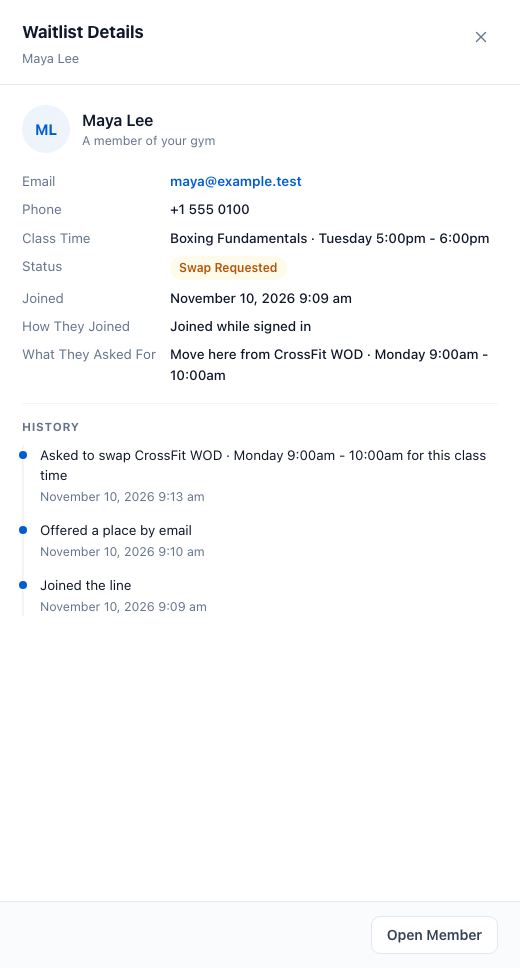
Click a name anywhere on the page to open Waitlist Details at the side: whether they are a member, Email, Phone, Class Time, Status, Place in Line (for example 2 / 3), Held Until, Joined, How They Joined (on the website, while signed in, added by staff, or after their membership ended) and What They Asked For. History lists everything that happened, newest first. At the bottom, Open Member opens their member page, or Add as Member for someone who is not a member yet.
Add someone by hand
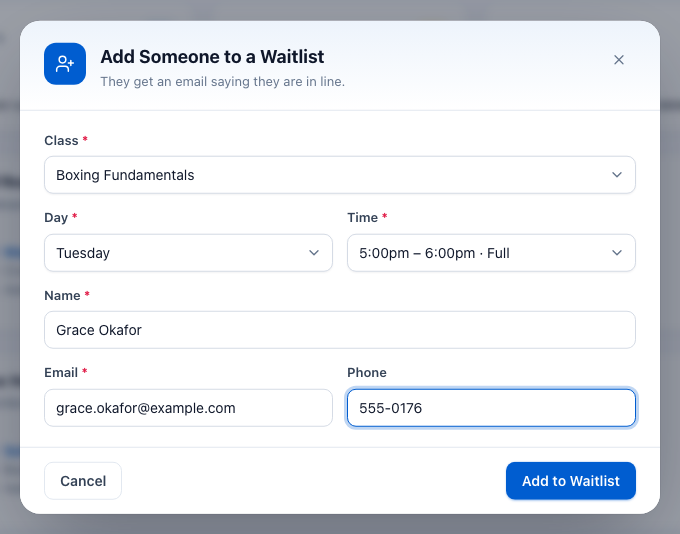
For someone who phoned or asked at the desk:
- Click Add Someone at the top of the Waitlist page.
- Choose the Class, Day and Time. The times say which are full and how many places are left in the others.
- Fill in Name and Email (needed) and Phone (optional), and click Add to Waitlist.
- They join at the end of the line and get the "You're on the waitlist" email.
- If the email belongs to a member, they are linked to that member.
- You can add someone to a class time that is not full. Then the place is offered to the first person in line straight away (which may be them).
- The 5-class-time limit does not apply, but Longest Waitlist per Class Time does.
Where else the waitlist shows in the Dashboard
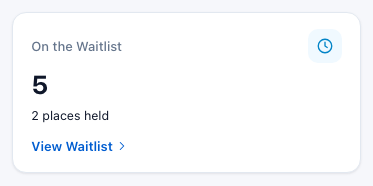
- Dashboard home: On the Waitlist — how many people are waiting right now, and how many places are held ("2 places held", or "No places held right now"). Click it to open the Waitlist page. In Today's Classes, a full class time with a line shows "3 waiting".
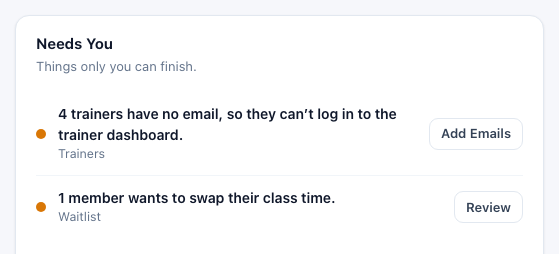
- Dashboard home: Needs You — lines from the waitlist, each with a button to the Waitlist page:
- "1 member wants to swap their class time." (Review)
- "1 member has waited more than 3 days for an answer about their swap." (Answer Now)
- "An offer email could not be sent to 1 person, so they don't know a place is held for them." (Open Waitlist)
- "1 class time has a free place and people waiting for it." (Open Waitlist)
- "Your website's automatic tasks have stopped, so places that run out are not passed to the next person. Ask whoever hosts your website to check them."
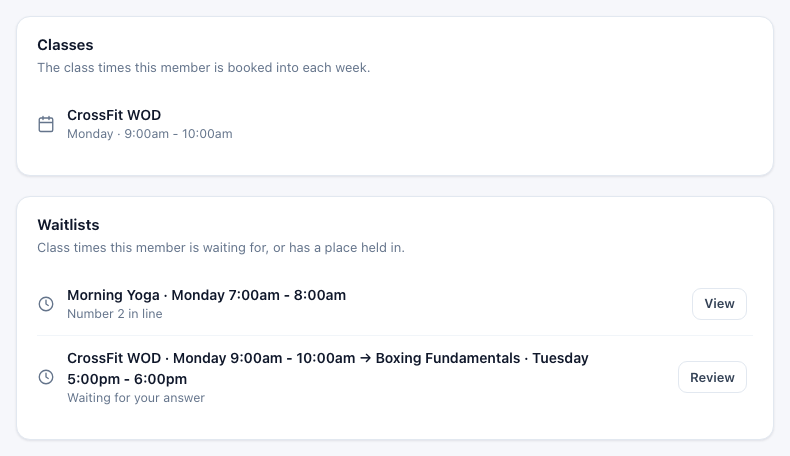
- A member's page — on the Classes tab, a Waitlists card lists the class times they wait for or have a place held in, with "Number 2 in line", "Held until …", "Paying now, until …" or "Waiting for your answer". View opens their details on the Waitlist page; Review opens the swap requests.
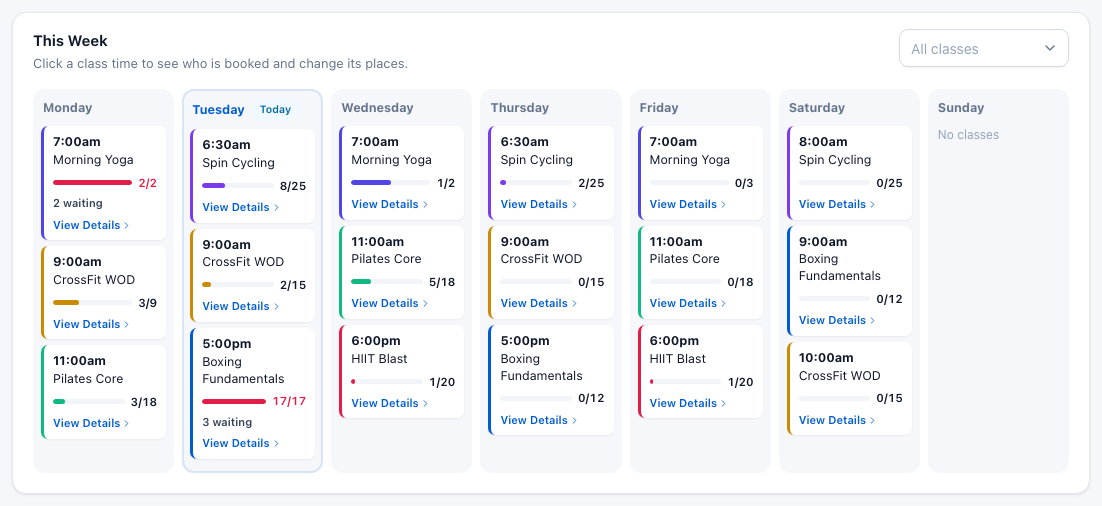
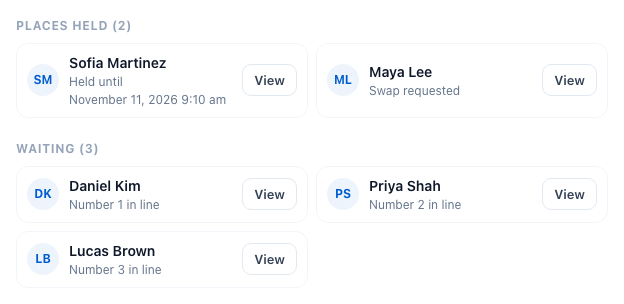
- Timetable — a full class time with a line says "3 waiting". Its class time window shows "Includes 2 places held from the waitlist." under Booked, and lists Places Held and Waiting, each person with a View button.
Emails
Waitlist emails go out in your studio's name (Studio Name on ID Cards) from the Send Emails From address in Gym Builder → Settings → General, in your brand color. Emails for you go to your website's main email address. In the subjects below, "(class time)" reads like "Boxing Fundamentals · Tuesday 5:00pm - 6:00pm".
| Who gets it, and when | |
|---|---|
| You're on the waitlist for (class time) | The person, when they join a line or you add them. It gives their place in line and how long a place will be held, with a Leave the Waitlist link. |
| New on the waitlist: (class time) | You, each time someone joins, while Email Me When Someone Joins is on (not for people you add). Name, place in line, email and phone, with Open the Waitlist. |
| You already have a place in (class time) | A visitor who tried to join a class time they already have. Nothing changes. |
| A place opened in (class time). Claim it by (date and time) | The person a place is held for — also after Offer Place Now and Resend Offer. With Claim Your Place and a link to leave. |
| Your held place in (class time) has gone to the next person | The person, when their time to claim ran out. With See the Class, to join again. |
| Waitlist place claimed: (name) | You, when someone claims a place without paying online. They get the usual registration emails. |
| You're booked into (class time) | The person, when a place was held for them and they got it another way — for example you added the class time to them. |
| Swap request: (name) | You, when a member asks to swap one of their class times for a held place. With Review the Swap. |
| Your swap is done: you're booked into (class time) | The member, when you approve their swap. |
| Your swap for (class time) was not made | The member, when you decline their swap. |
| You're no longer on the waitlist for (class time) | The person, when you remove them. |
| The waitlist for (class time) has closed | Everyone in a line, when its class time is taken off the timetable or its class is deleted. |
| Renew by (date) to keep your place in (class time) | A member whose membership ended, while people wait for their place. With Renew Your Plan. |
| Your place in (class time) has gone to the next person | The member, when they did not renew in time. |
| 1 place freed from an ended membership | You, on a day places of ended memberships were freed ("3 places freed from ended memberships" for more). The list, with Open the Waitlist. |
| You're booked back into (class time) | The member, when they renewed later and the place was free. |
| You're on the waitlist for (class time) | The member, when they renewed later and the place was taken: "Welcome back!", their place in line, and Choose Another Time. |
With the add-ons
Each add-on below shows the waitlist in its own forms while the waitlist is on. The window that opens is always Gym Builder's own, so it works and reads the same everywhere.
- Stripe Payments — in the checkout, when a class and day are chosen, the day's full times are listed under the class row with a Join the Waitlist button. A time held for the buyer can be bought right there. If the classes a plan needs are all full, the checkout says why ("Boxing Fundamentals is full right now." and, for a plan of several classes, "This plan needs 2 classes, and only 1 has a place right now."), offers Join the Waitlist and keeps the pay button off. While someone pays for a held place, it stays theirs.
- Offline Payments — the same in its order window: full times listed under a class with the join button, and the message (with Place Order kept off) when a plan's classes are full. An order for a held place keeps the place until you approve the order or its own hold runs out. If you reject it, the place is held again until the offer ends.
- Class Booking & Payment — in the booking card on the class page, each full time has the join button ("Join the waitlist and we'll email you when a place opens."). A place held for the visitor says "Held for you until …" and can be chosen. Claim Your Place opens the class page with that time picked, and they pay through the WooCommerce checkout like any booking. While the order waits for payment the place is theirs; a failed or cancelled order gives it back to their offer until it ends. A member who asked to swap still asks you, in Gym Builder's window.
- Registration Popup — in the form's class rows, once a class and day are chosen, each full time of that day is listed under the row with the join button (or where the visitor stands in line). Only when the form asks for Class Choice.
- Block Tools and Elementor Widgets — the Class Routine block and widget show Join the Waitlist (or "You're #2 on the waitlist", or Claim Your Place) on a full class time, where the buy or Register button would be. The routine shows the free places itself, so there is no "Class full" line or count.
- Attendance — when a member moves to a class time or adds one partway through their plan, check-ins for it count from the day it was booked. Visits to a class time they gave up still count in their figures.
- AI Assistant — ask for waitlist reports, act on people in line, and change the waitlist settings in plain words (see its guide).
Questions
Does the person have to be a member to join?
No. Visitors join with their name, email and phone. When they claim a place they register like anyone else, and choose a plan. A visitor who becomes a member later is linked to their member record automatically.
How long is a place held?
For the hours in Hold a Place For (24 to start with, up to 168). While someone is paying, or while you have not answered their swap request, it stays held for them for longer.
Can I give a place to someone who is not first in line?
Yes. Move them up with the arrows, or click Offer Place Now on their row when a place is free.
The Timetable says 17 of 17 booked, but fewer members are listed. Why?
Places held for people on the waitlist count as booked, so nobody else can take them first. The class time window says so under Booked ("Includes 2 places held from the waitlist.") and lists those people under Places Held.
Can people see who else is waiting?
No. Visitors only see how many are waiting (if Show How Many Are Waiting is on). Members see their own place in line.
What happens to the lines if I switch the waitlist off?
Nobody can join, no places are held, and the Waitlist page leaves the menu. The people in line stay there. Switch it back on and the lines carry on.
What if I delete a class or take a time off its schedule?
Its line closes within the hour and everyone in it gets "The waitlist for … has closed".
What happens to someone's lines when I delete the member?
They are taken off every line straight away, without an email. A place held for them goes to the next person in line. Their finished entries stay in the Booked and Ended views, no longer linked to a member.
Someone asked for a copy of their data, or to be erased. What do I do?
Use WordPress's own tools: Tools → Export Personal Data and Tools → Erase Personal Data. Enter their email. The waitlist is found by the email they joined with, any other email a payment recorded for them, and their member record.
- Export adds a Class Waitlist part with every class time they waited for: status, place in line, dates, the details they gave, and what happened, step by step.
- Erase takes them off every line without an email (a place held for them goes to the next person) and clears their name, email, phone and history. The class time, status and dates stay, so your figures do not change. On the Waitlist page these entries read Personal Details Erased.
- Entries about an ended membership (the warning to renew, and a place given up) come from the member record, so they are kept while the member exists. The erase screen says so. Delete the member under Members first, then erase again.
A suggested text for your privacy policy is in Settings → Privacy → Policy Guide, under Gym Builder Class Waitlist.
How long are finished entries kept?
People who got a place, missed their turn, left or were removed stay in the Booked and Ended views for two years. Then they are removed.
Does a paused member lose their turn?
No. While their membership is paused they are skipped, and places go to the next person. They keep their place in line for when the pause ends.
Is the waitlist translated?
Yes, into the same 7 languages as Gym Builder. Dates follow your WordPress date format, and times follow Gym Builder's 12-hour or 24-hour setting (Time Format in Settings → Classes).
If something goes wrong
- There is no Waitlist card switch, only a note about multi-class memberships — your site has not moved to multi-class memberships yet. On the Plugins page, find "Gym Builder: multi-class memberships are ready" and click Migrate Now.
- A full class time has no Join the Waitlist button — check that Turn On the Waitlist is on and that the class time has a number of places (0 means no limit, so it is never full). A member who already has that class time sees no button, and someone already in its line sees their place instead.
- "The waitlist for this class time is full." — the line has reached Longest Waitlist per Class Time. Raise the number, or set 0 for no limit.
- "Too many attempts. Please try again in an hour." — the same email or internet connection tried to join too many times in an hour. Wait an hour, or add the person yourself with Add Someone.
- "Email Not Sent" or "An offer email could not be sent…" — your site could not send the email. Set up an email (SMTP) plugin, then click Resend Offer.
- "There is no free place in this class time right now." on Offer Place Now — every place is booked or held. Add a place in the class time window on the Timetable, or wait for one to open.
- "Your website's automatic tasks have stopped…" in Needs You, or places that ran out are not passed on — the hourly check runs when people visit your site. Ask your host to check that your site's scheduled tasks (WP-Cron) run, or to set up a real one.
- A member is told "Your plan has no class left to add this one. Swap one of your class times for it instead." — their plan is full. They can choose a Swap option in the claim window, or you can change their plan.
- "This place is held for someone else. Log out to claim it." — the claim link was opened while signed in as another member or as staff. Log out and open the link again.
- "Please use the email address the offer was sent to." — a visitor claiming a place must register with the email the offer went to.
- "The member no longer has the class time they wanted to swap…" on Approve — their class times changed since they asked. Offer them the place instead, or decline.
- Members whose membership ended keep their places — check that Free Places of Ended Memberships is on. Places are only freed in class times with people waiting, never for paused members, plans that renew by themselves, members with another running plan, or members you switched to inactive yourself.