Offline Payments
Let people buy a membership and pay by bank transfer, at the desk or by cheque. Their class place is held while you wait for the money; when you approve the order, the membership starts.
What it does
Not everyone wants to pay by card. Offline Payments adds a Pay Offline button to your membership plans and classes. The member picks the plan, their class times and how they will pay, and gets your payment instructions and an order reference. The order then waits in your Dashboard until you have seen the money.
- Your own ways to pay — bank transfer, pay at the studio, cheque or anything else, each with its own instructions.
- Places are held — an unpaid order keeps the member's class places for the number of days you choose, then lets them go.
- One click to start the membership — approving an order makes the member record if needed, books the class places and sets the plan's start and end dates.
- Receipts — members can attach a photo or PDF of their transfer, so you can check it without leaving the order.
- Record a payment — enter money taken at the desk or over the phone yourself.
- Emails — payment instructions, a reminder before the place is freed, a confirmation, a rejection notice, and a "new order" email to you.
- Exports — download your orders as a CSV file for your bookkeeping.
Before you start
- Gym Builder 3.0.0 or newer. With an older version the add-on stays off and shows a notice asking you to update Gym Builder.
- Membership plans with a price. The price members pay comes from the plan (see Where the prices come from). A plan with no price is not offered offline.
- Not together with Class Booking & Payment. Only one of the two can be on. If one is already on, switching on the other stops with the message "Only one payment method can run at a time". Stripe Payments is fine: both can run side by side.
- Optional: Promotions & Trials if you want members to enter a discount code.
Install and switch on
- Go to Plugins → Add Plugin and click Upload Plugin.
- Choose the add-on's zip file, click Install Now, then Activate Plugin. In your plugin list it is called GB Offline & Manual Payments.
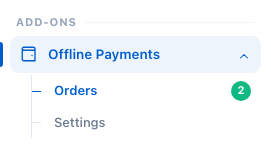
- Open Gym Builder. The Dashboard menu now has an Offline Payments group under Add-ons, with Orders and Settings. The number next to Orders is how many orders are waiting for you.
It starts with two ways to pay, Bank transfer and Pay at the studio, a place held for 3 days, and every email switched on. Before you take orders, put your bank details into the bank transfer instructions (next section).
Set it up
Go to Gym Builder → Offline Payments → Settings. The page has five cards. After a change, click Save Settings in the bar at the bottom (or Undo Changes to go back).
Ways to Pay
What people choose from at checkout, in the order shown here. Each way to pay is a box you can move up or down with the arrows, or delete with Remove. Click Add a Way to Pay for a new one.

- Name — what the member sees, for example "Bank transfer" or "Pay at the studio". A way to pay without a name is not saved.
- How to Pay — your instructions: account name and number, opening hours of the desk, who to make a cheque out to. Members see them when they choose this way to pay, again after ordering, on their Payments tab and in the emails.
- Ask for Their Payment Reference — on: the member must type the reference they used for the transfer before they can order. You see it on the order, which makes matching your bank statement easy. Useful for bank transfers.
- Offer It at Checkout — off hides this way to pay without deleting it.
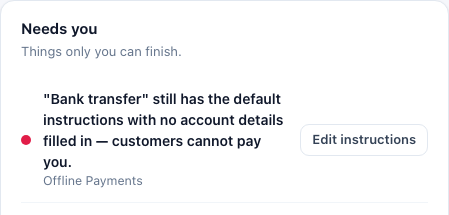
The ready-made Bank transfer instructions end with empty "Account name:", "Account number:" and "Sort code / IBAN:" lines. Until you fill them in, the Gym Builder Dashboard home page lists it under Needs you.
Taking Orders
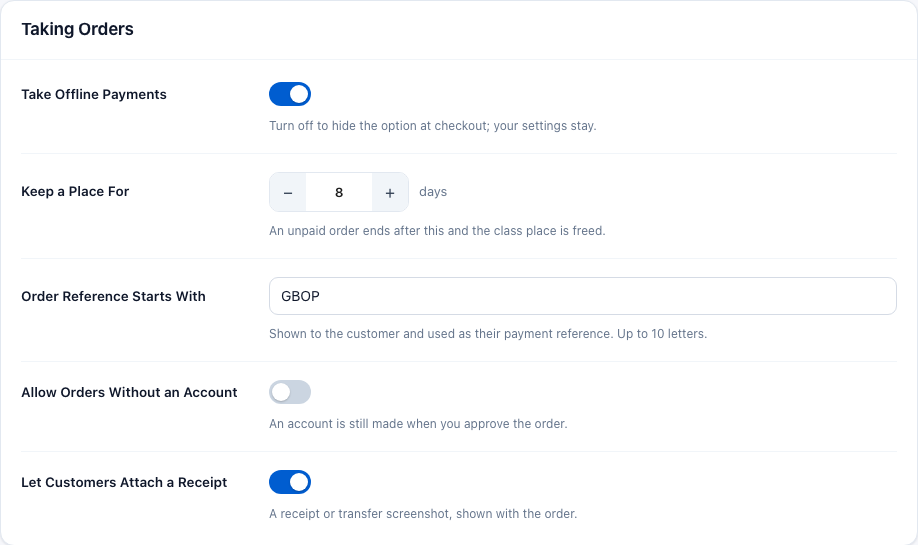
- Take Offline Payments — the main switch. Off hides the Pay Offline button everywhere; your settings and orders stay.
- Keep a Place For — 1 to 60 days. How long an unpaid order holds its class places. After that the order ends as Expired and the places are free again (see Held places).
- Order Reference Starts With — the start of every order reference. With GBOP, references look like
GBOP-2026-0001; the number starts again each year. Members quote it when they pay. - Allow Orders Without an Account — off (the default): people must log in before they can order. On: visitors type their name and email instead, and their account is made when you approve the order. They then get an email to set their own password.
- Let Customers Attach a Receipt — on: members can upload a photo or PDF (up to 8 MB) of their receipt or transfer, right after ordering or later from their Payments tab. You see it on the order.
One-Off Passes
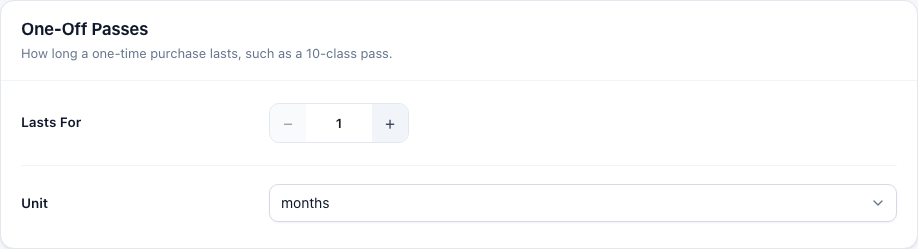
How long a one-time purchase lasts, for example a 10-class pass. Set a number in Lasts For and pick days, weeks, months or years in Unit. The default is 1 month. Monthly, quarterly and yearly purchases don't use this; they last for their own length.
Pages
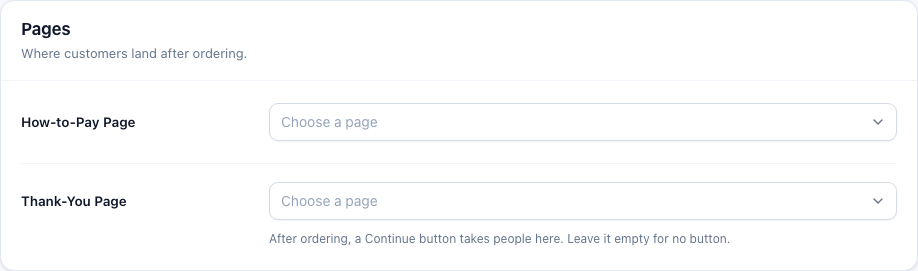
- How-to-Pay Page — used for personal sessions: when a member books a paid session with the Personal Session add-on, they are sent here after booking. Empty sends them to their member dashboard.
- Thank-You Page — after ordering, the order window shows a Continue button that takes people to this page (see After ordering). Leave it empty for no button: they close the window with Done and stay where they are.
Emails
One switch per email. They go out with the sender name and address from Gym Builder → Settings → General (Studio Name on ID Cards and Send Emails From) and in your Main Colour from Settings → Style. What each email says is in Emails below.
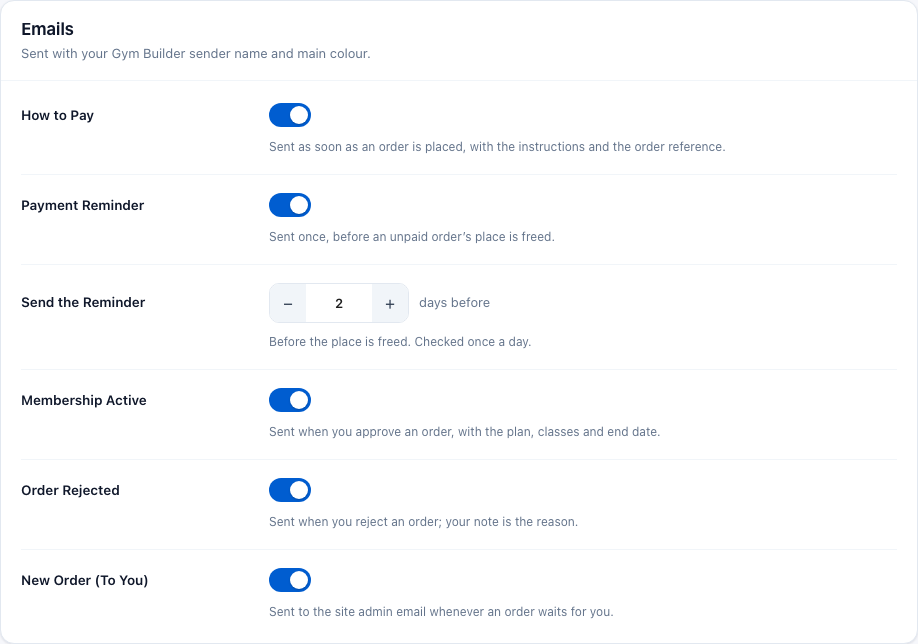
Send the Reminder (1 to 30 days before) only shows while Payment Reminder is on. Reminders are checked once a day.
Where the prices come from
The How Long choices members see, and the price of each, come from the membership plan:
- If the plan has Stripe prices (the Stripe card on the plan's edit screen, from Stripe Payments), members choose from the same intervals and prices: Monthly, Bi-monthly, Quarterly, Yearly, One-time.
- Otherwise there is one choice, One-time, at the plan's own price. It lasts as long as you set in One-Off Passes.
- A plan with no price at all — no Stripe prices and no price of its own — is not offered offline. It gets no Pay Offline button and is left out of Which Plan and Record a payment, so nobody can order it for nothing.
The classes a member can pick are the classes the plan includes, as set on the plan in Gym Builder.
What members see
The Pay offline button
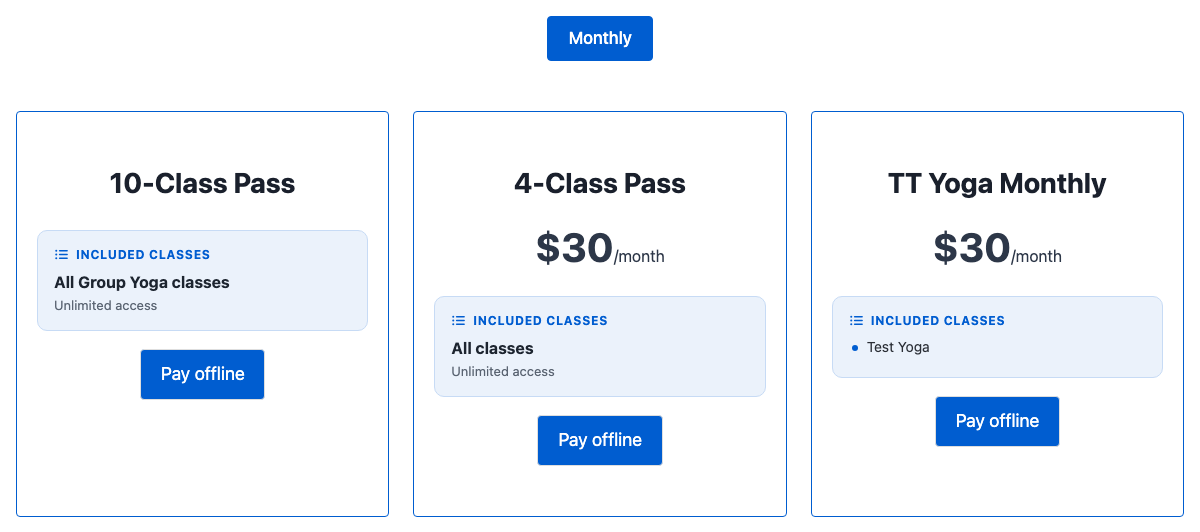
Every membership plan with a price on your pricing page gets a Pay Offline button. If Stripe Payments is on too, the card button comes first and Pay Offline sits under it.
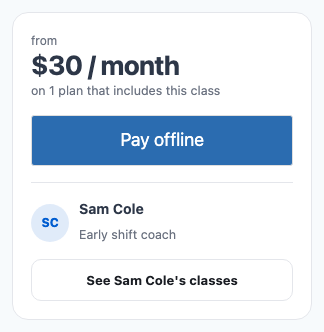
A class page gets one Pay Offline button for all the plans that include that class. The member picks the plan in the order window.
The order window
Clicking Pay Offline opens a Pay Offline window on the same page:
- Which Plan — only when the button sits on a class that several plans include.
- How Long — the billing choice and its price (only when there is more than one).
- Have a discount code? — when Promotions & Trials is on and the plan allows discount codes (Allow Discount Codes on the plan's Free Trial card). The member types the code and clicks Apply; the new total shows at the bottom with the old one crossed out. If the code can't be used, the window says why — for example "This code is for new customers only." or "Discount codes cannot be used on this plan."
- Choose your classes — the plan's class times with the places left, or Full. On a class page that class is marked This class. The counter on the right shows how many they have picked and how many the plan allows.
- How You Will Pay — your ways to pay, with the instructions of the chosen one underneath.
- Your Payment Reference — only for a way to pay with Ask for Their Payment Reference on.
- Anything we should know? — an optional note that you see on the order.
- Place Order.
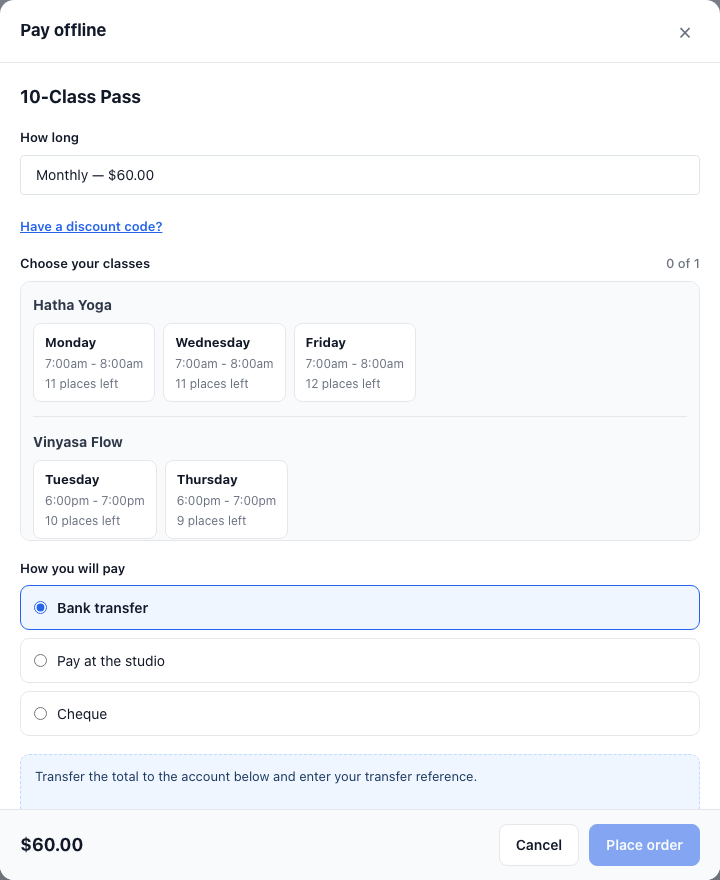
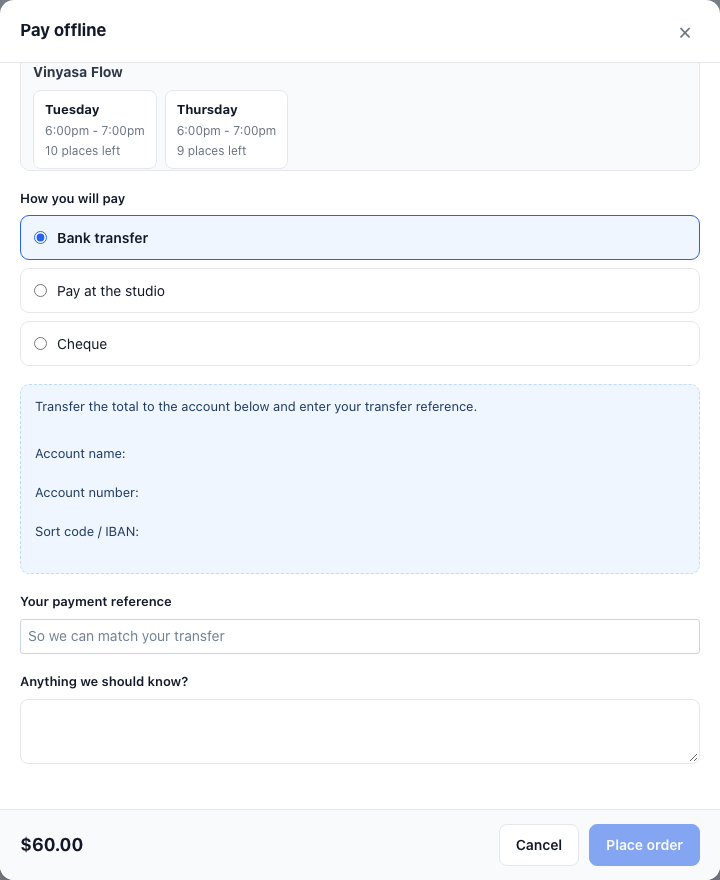
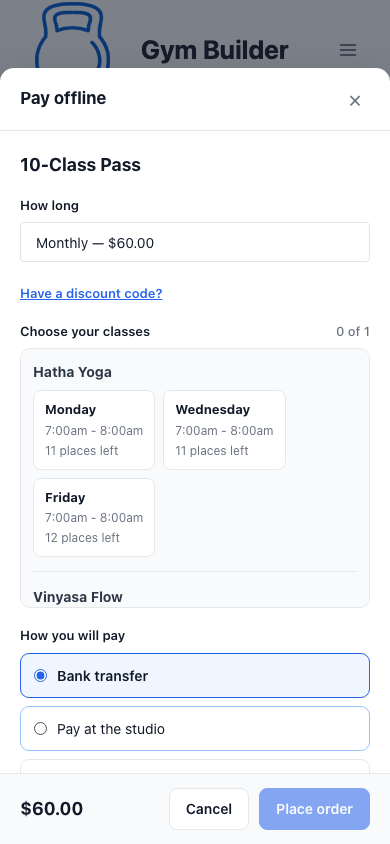
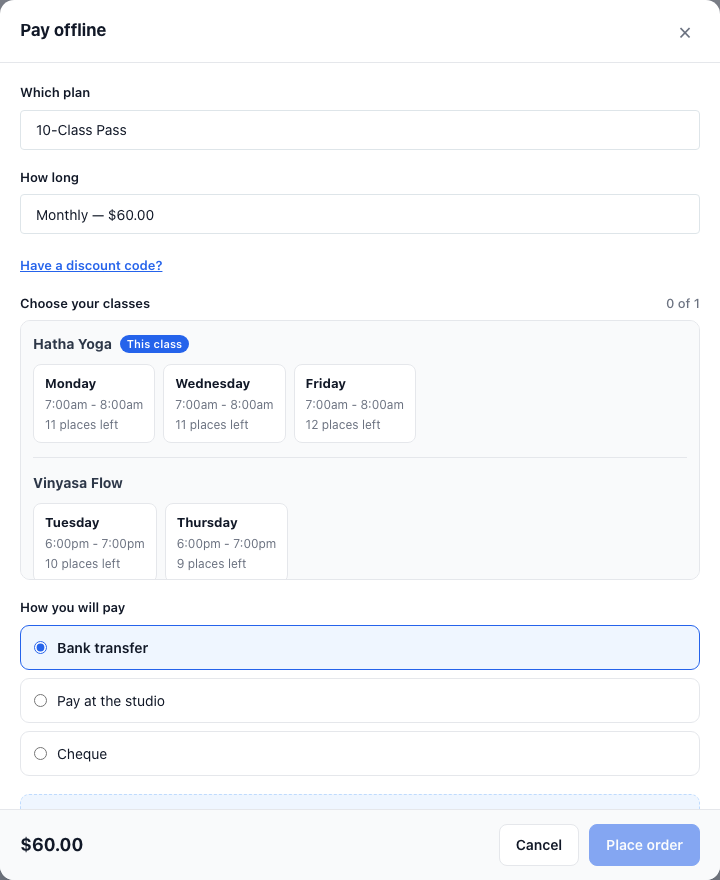
If a class time fills up while the window is open, placing the order stops with "Sorry, these just filled up: … Please pick another time."
After ordering
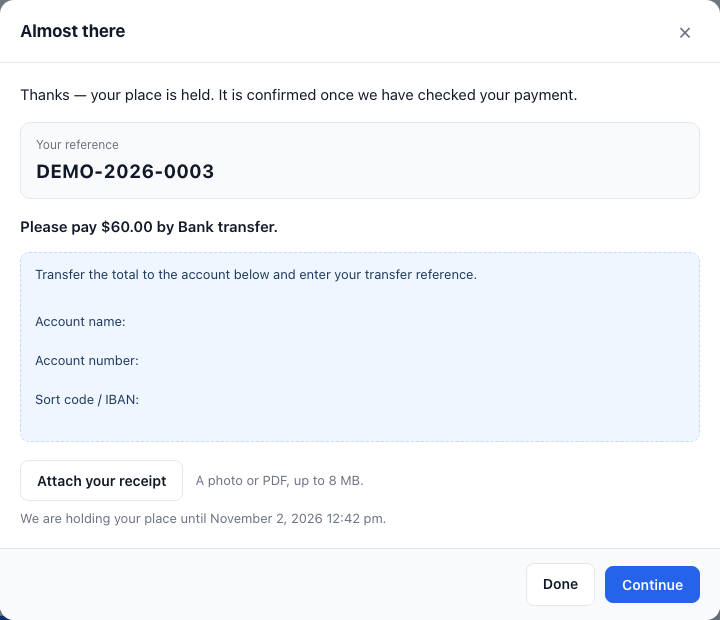
The window changes to Almost There and shows:
- "Thanks — your place is held. It is confirmed once we have checked your payment."
- Your Reference — the order reference to quote when paying.
- "Please pay $60.00 by Bank transfer." and your instructions again.
- Attach Your Receipt — when receipts are allowed.
- "We are holding your place until …" with the date the hold ends.
- Done closes the window. If you chose a Thank-You Page in Settings → Pages, a Continue button next to it takes them to that page.
At the same moment they get the How to Pay email and you get the New Order (To You) email.
Visitors who are not logged in
With Allow Orders Without an Account off, a visitor sees "Please log in to book with offline payment." and a Log in button that brings them back to the same page. With it on, the window asks for Your Name and Your Email instead.

The Payments tab on the member dashboard
Once a member has placed an offline order, their member dashboard gets a Payments tab. Members who never ordered offline don't see it.
- Waiting on Payment — each open order with its plan, reference, status, amount, way to pay and class times; How to Pay opens your instructions; Attach Your Receipt (or Replace It once one is sent); and the date the place is held until.
- Payment History — settled orders with Reference, For, Amount, Placed and Status.
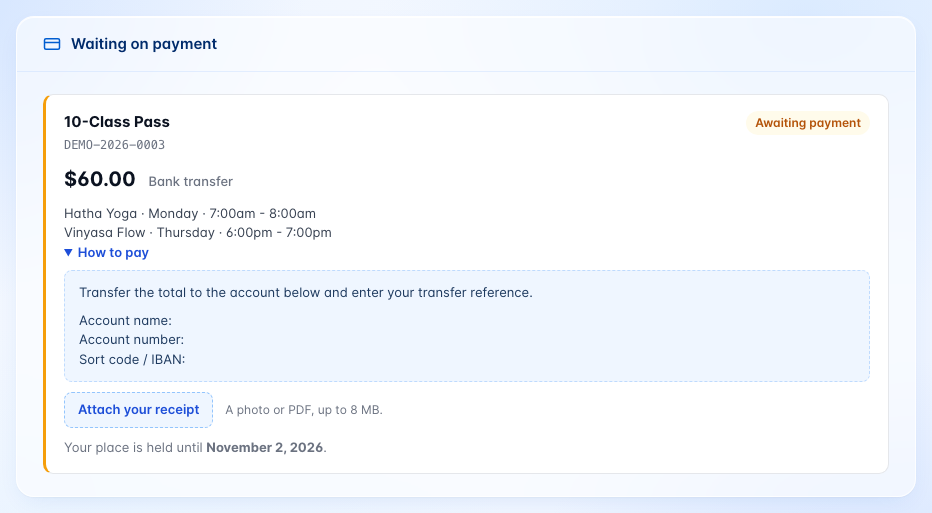

When a member attaches a receipt, the order's status changes from Awaiting payment to Ready to check, so you know it's worth a look.
Everyday use
The Orders page
Go to Gym Builder → Offline Payments → Orders.
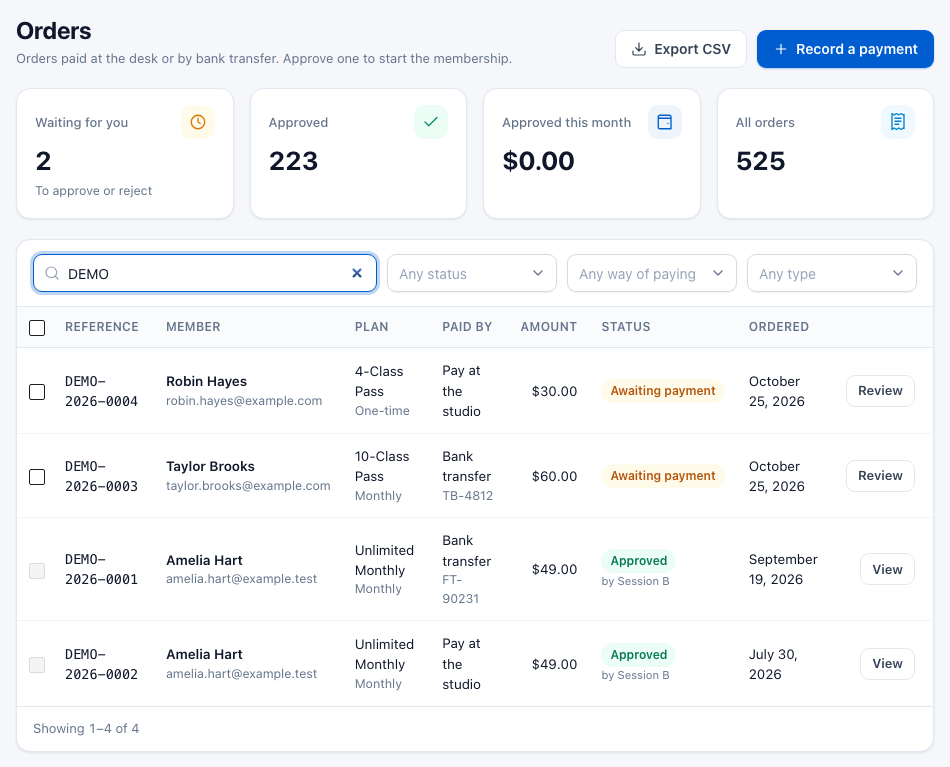
- The four numbers — Waiting for you (orders to approve or reject), Approved (all time), Approved this month (money approved since the 1st) and All orders.
- Search — by order reference, by the member's name or email (whether they ordered with an account or without one), or by the payment reference they gave.
- Filters — Any status, Any way of paying and Any type (Membership, Personal session, Registration).
- The list — newest first, 20 to a page. Under the plan you see how it is billed (for example Monthly or One-time), under the way to pay the member's reference, and a paperclip when a receipt is attached. If a discount code was used, the amount shows what it was before.
| Status | What it means |
|---|---|
| Awaiting payment | Ordered, nothing received yet. The class places are held. |
| Ready to check | The member attached a receipt. Places still held. |
| Approved | You confirmed the money; the membership is active. Shows who approved it. |
| Rejected | You rejected it. Nothing was started and the places are free. |
| Expired | No payment within Keep a Place For. The places are free. |
Approve an order
- Check that the money has arrived (your bank statement, the cash box, or the receipt on the order).
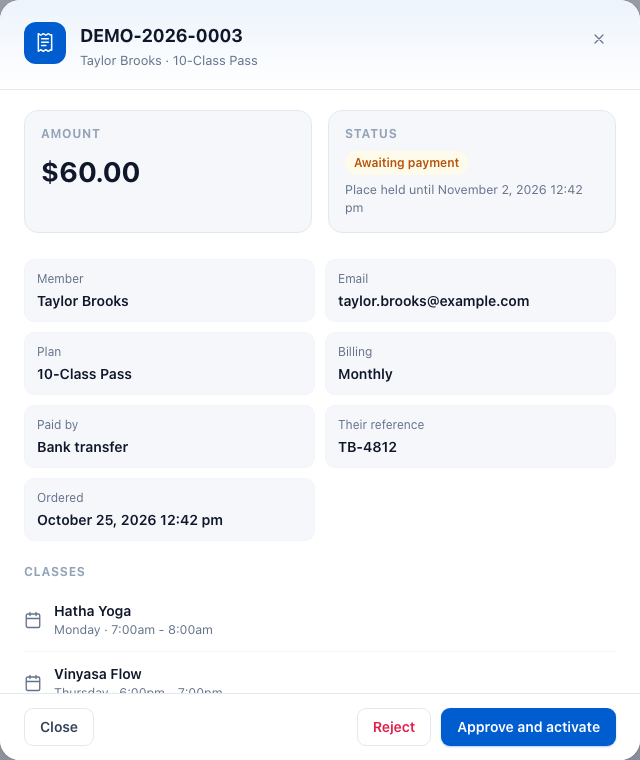
- On the Orders page, click Review on the order.
- Check the amount, the plan, their reference and the class times. If they attached a receipt it is shown under Their receipt.
- Optional: type a Note (saved with the order).
- Click Approve and activate.
When you approve, Offline Payments:
- makes the member's account if they ordered without one (they get an email to set a password), and their member record if they don't have one yet. A member you already added by hand is found by their email;
- books their class places for real;
- starts the plan today and sets its end date: 1, 2, 3 or 12 months later for Monthly, Bi-monthly, Quarterly and Yearly, or your One-Off Passes length for One-time. If they buy the same plan again while it is still running, the new period starts the day after the current one ends, so no paid time is lost;
- marks the member active with that plan, counts a discount code as used, and sends the Membership Active email.
A message then says what happened: "Membership activated." — or, when they renewed the same plan early, "Renewal approved. It starts on …, the day after the current period ends." Record a payment words an early renewal the same way. An order for a personal session is approved differently: see Works with other add-ons.
The plan then shows on the member's page in the Dashboard (their Plans list marks it "Paid offline"), and the Attendance add-on counts it like any other plan.
The approval stops and nothing is started: "Not approved — these classes filled up while the order was waiting: …". Free a place in that class time and approve again, or reject the order and use Record a payment with a time that has room.
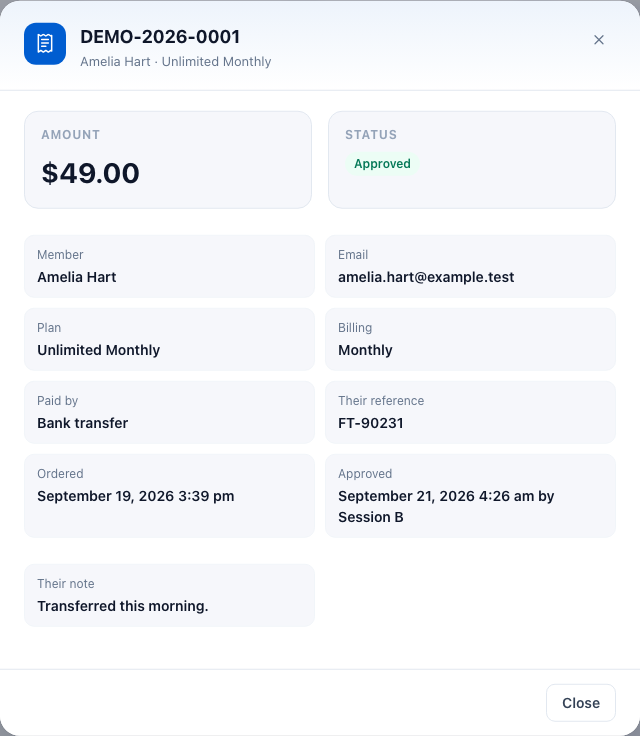
Reject an order
Use this when you can't match a payment, or the member tells you they won't pay.
- Click Review on the order.
- Type the reason in Note (saved with the order). It is sent to the member.
- Click Reject, then Yes, reject (or Keep it to change your mind).
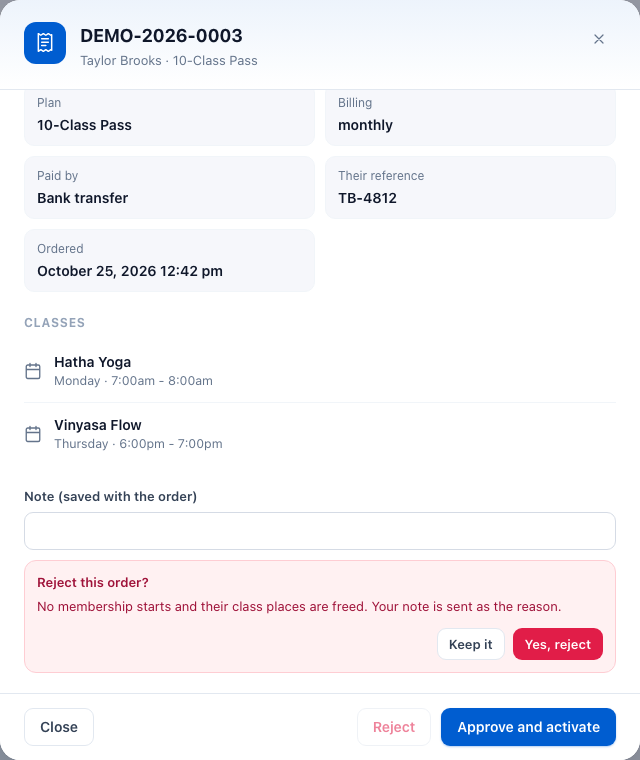
No membership starts, the places are freed and the member gets the Order Rejected email. An approved order can't be rejected afterwards.
Approve or reject several at once
- Tick the orders on the left (the box in the header ticks every open order on the page). Only open orders can be ticked.
- Click Approve and activate or Reject in the blue bar.
- Confirm with Yes, do it.
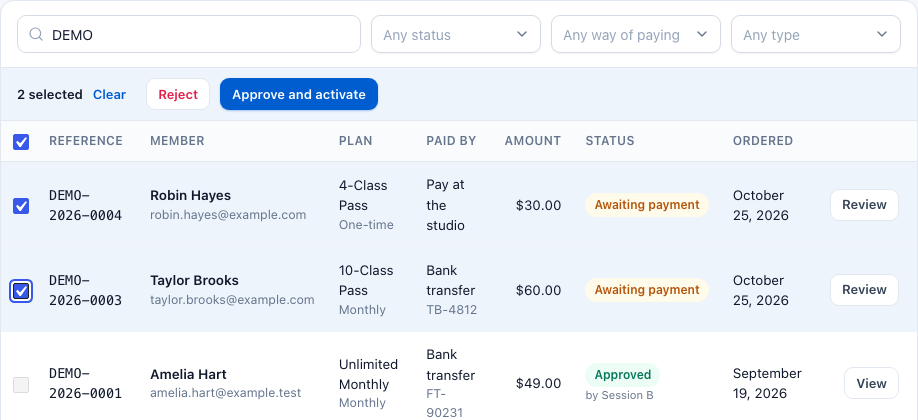
Each order is handled on its own and the message counts what was done, for example "1 membership activated. 1 session booked." When personal-session orders are among the ticked ones, the button says Approve. If one can't be approved (for example its class is full), the others still go through, the problem ones are listed with the reason, and they stay ticked so you can try again.
Record a payment
For money taken outside the website: cash at the desk, a member who signed up by phone, a transfer you already see on your statement.
- On the Orders page, click Record a payment.
- Member — search by name or email and pick them. If nobody matches, type their full name and email address: an account is made for them and they get an email to set their own password.
- Choose the Plan and Billing, and how they Paid by.
- Amount — filled in with the plan's price. Change it if they paid something else; 0 gives a free membership.
- Classes — pick their class times. Each shows how many places are left.
- Optional: Their reference (a receipt number, for example) and Your note.
- Leave The money is already in hand on and click Record and activate.
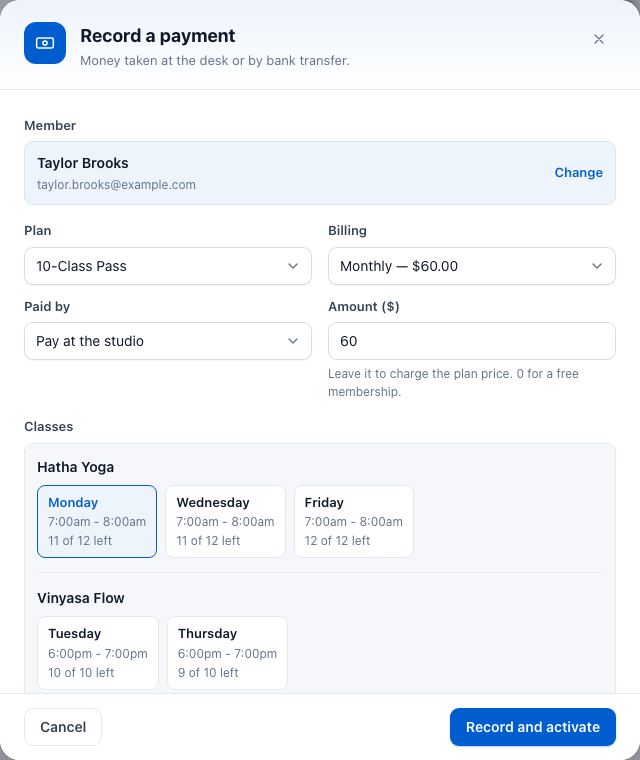
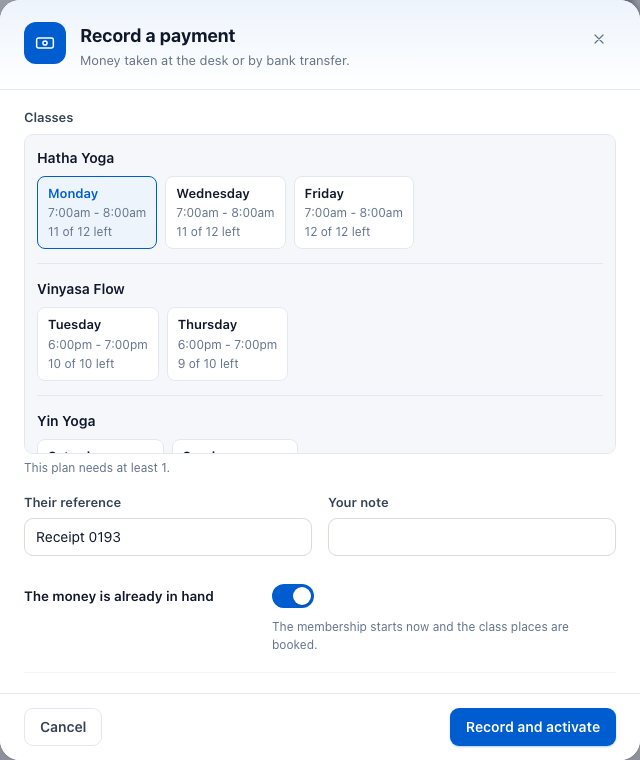
With the switch on, the membership starts straight away, exactly as if you had approved an order. With it off, the button says Add to the list: the order waits on the Orders page like one the member placed, holds the places, and the member gets the How to Pay email.
Export to a spreadsheet
Set the search and filters you want (or none for everything) and click Export CSV. The file, named like offline-orders-2026-10-25.csv, has one row per order: reference, date placed, customer, email, type, plan, billing, way to pay, their reference, original amount, discount, coupon, amount, currency, status, approval date and who approved it.
On the member's page
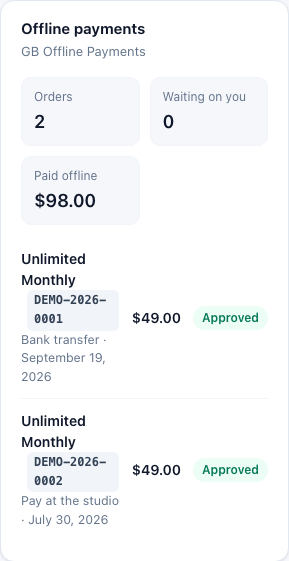
Open a member in Gym Builder → Members. If they have offline orders, an Offline payments card shows how many orders they placed, how many are waiting on you, how much they paid offline, and their latest orders with status.
Held places
An order that is waiting for payment holds the class places the member picked, for the number of days in Keep a Place For. While it is held, that place counts as taken everywhere: in other members' order windows, for card payments, in the registration forms and in Record a payment. Nobody else is told "1 place left" for a place that is already promised.
- You approve — the held place becomes a real booking.
- You reject — the place is free at once.
- Time runs out — the place stops counting as soon as the hold ends. Once a day the order is marked Expired with the note "[hold lapsed — no payment received]". No email is sent when an order expires.
If someone pays by card at the exact moment their booking is being made, a held place does not stop them: money already paid comes first. In that rare case the offline order's approval reports the class as full.
Emails
Each email has its own switch in Settings → Emails. They are sent to the member's account email, or to the email they typed if they ordered without an account. For a personal-session order, each email names the session with its date and time instead of a plan.
- How to Pay — to the member, as soon as the order is placed (also when you add one with Record a payment and the money is not yet in hand). Subject "How to pay for your membership (reference)", with the plan, amount, classes, the reference to quote, your instructions and the date the place is held until.
- Payment Reminder — to the member, once, the number of days you set before the hold ends, if the order is still waiting. Subject "Your place is still held (reference)", with the amount, the reference, your instructions and how many days are left.
- Membership Active — to the member, when you approve (or record a payment with the money in hand). Subject "Your (plan) is active", with the plan, classes and end date and a Go to your dashboard button. For an early renewal the subject is "Your (plan) renewal is confirmed" and it gives the date the renewal starts.
- Order Rejected — to the member, when you reject. Subject "About your order (reference)": the payment could not be confirmed, your note under "What we noted", and how to reach you.
- New Order (To You) — to the site's admin email address, whenever an order starts waiting for you. Subject "New offline order from (name) (reference)", with the customer, email, plan, amount, way to pay, their reference and note, the classes, and an Open the orders queue button.
Works with other add-ons
- Stripe Payments — both run together: members choose card or offline on the same plan. Offline orders use the plan's Stripe prices for the How Long choices.
- Promotions & Trials — adds Have a discount code? to the order window, on plans that allow discount codes. The coupon's rules are checked when the code is applied, including New customers only (a member who has paid you before is told "This code is for new customers only."). The discount is saved on the order and the code counts as used only when you approve. Free trials are for card payments; offline orders don't start a trial.
- Registration — when a visitor sends the Register form on your timetable, or a Registration Popup form, for a paid plan, the Pay Offline window opens with their plan and classes filled in ("Registering as …"). Nothing is registered yet. When you approve the order, their login and member record are made and they get the form's welcome emails; if you reject it or it expires, the registration is dropped. These orders have the type Registration.
- Personal Session — paid one-to-one sessions can be paid offline too, using your first way to pay. The session time is held for 24 hours and the member is sent to your How-to-Pay Page. These orders have the type Personal session, and their window shows the Session, Trainer and When.
- Approve and book books the session and nothing else: no account or member record is made and the member's plan is not touched — someone who ordered without an account stays a guest. The message says "Payment confirmed and the session is booked."
- If the time was taken or removed while the order waited, the approval stops with the reason and the order stays open. Reject it, or add the booking at another time in Personal Sessions.
- Rejecting the order, or letting it expire, frees the session time.
- Attendance — plans paid offline count for check-ins like any other plan.
Questions
Can I offer card payments and offline payments at the same time?
Yes. With Stripe Payments on, each plan shows the card button first and Pay Offline under it. Offline Payments can't run with Class Booking & Payment.
What happens if the member never pays?
They get one reminder before the hold ends (if Payment Reminder is on). When Keep a Place For runs out, the places are freed and the order is marked Expired. No membership is started. If they come back later, they place a new order, or you record the payment.
A member renews early. Do they lose the days they already paid for?
No. If they buy the same plan while it is still running, the new period starts the day after the current one ends. Buying a different plan starts it today.
Can someone order without making an account?
Yes, if you switch on Allow Orders Without an Account. They type their name and email; when you approve, their account is made and they get an email to set their password.
Can I approve part of a payment, or take a deposit?
No. An order is approved for its full amount. If a member pays a different amount, reject the order and use Record a payment with the amount they paid.
I approved the wrong order. Can I undo it?
No, an approved order stays approved. Change or end the membership on the member's page in Gym Builder → Members. Offline Payments doesn't send money back; refunds are up to you.
Can members cancel an order themselves?
No. Ask them to tell you, then reject the order with a short note, or let it expire.
How do I hide one way to pay for a while?
Switch off Offer It at Checkout on that way to pay and click Save Settings. To stop offline payment altogether, switch off Take Offline Payments. Your settings and orders stay.
What happens to my orders if I delete the add-on?
Switching it off keeps everything. Deleting it from your plugin list removes its orders and settings for good, so export your orders first.
If something goes wrong
- No Pay offline button on a plan — check that Take Offline Payments is on, at least one way to pay has Offer It at Checkout on, and the plan has a price. If no way to pay is offered, the Dashboard home page says so under Needs you; its Add a method button opens Offline Payments → Settings → Ways to Pay.
- "Bank transfer" still has the default instructions — the Dashboard home page shows this under Needs you until you fill in the account lines in Offline Payments → Settings → Ways to Pay. Its Edit instructions button opens that settings card.
- "The daily task is not scheduled, so holds will not expire and reminders will not send." — switch the add-on off and on again on your plugin list; that schedules the daily task again.
- No "Have a discount code?" link — Promotions & Trials must be on, and the plan's Allow Discount Codes switch (on its Free Trial card) must be on.
- Members see "Please log in to book with offline payment." — orders need an account. Ask them to log in, or switch on Allow Orders Without an Account.
- "Not approved — these classes filled up while the order was waiting" — see Approve an order.
- Emails don't arrive — check the switches in Settings → Emails and the sender in Settings → General. If none of your site's emails arrive, set up an email (SMTP) plugin.
- A member can't find the Payments tab — it appears only after their first offline order, and only when they are logged in with the account that placed it.