AI Assistant
Run your gym by chatting. Ask in plain words for a report, a new class or member, an email to members whose membership is ending, or help finding a setting — the assistant does the work in Gym Builder and asks before anything risky.
What it does
Instead of clicking through screens, you type what you want: "How many active members do I have?", "Add a Power Yoga class on Monday at 9am", "Which memberships expire this month?". The assistant answers from your live gym data and, when you ask it to, makes the change for you.
- Reports — today's classes, member counts, expiring memberships, and with the right add-ons revenue, overdue payments, attendance, personal sessions and workout engagement. Any report can be downloaded as PDF, Word or Excel.
- Members and classes — add and update members, book them into class times, create trainers, classes with a weekly schedule, and membership plans.
- Day-to-day tasks — email a group of members, set up Stripe, build or import a page, translate the Gym Builder plugins into another language.
- Help — "how do I…" questions are answered from the Gym Builder documentation, with the menu path to follow.
- Safe by default — anything that removes or sends something is shown to you first and only runs when you click Approve. Every action is written to an activity log.
- Weekly digest — an email each week with your key numbers.
It replies in the language you write in.
Before you start
- WordPress 7.0 or newer. The assistant is built on the AI tools that come with WordPress 7.0. On an older WordPress it stays off and shows a notice.
- An AI provider. WordPress does not come with one. You connect Anthropic (Claude), Google (Gemini) or OpenAI (GPT) with an API key from that company — see Connect an AI provider. The provider charges you for what the assistant uses, under your own account with them.
- Gym Builder 2.5.0 or newer, active.
- Add-ons are optional. Stripe Payments, Personal Session, Attendance, Fitness Tracking, Elementor Widgets and Block Tools each unlock more things the assistant can do. Without them, those tasks are simply not offered.
- Administrators only. Only users who can manage the whole site see the AI Assistant.
Install and switch on
- Go to Plugins → Add Plugin and click Upload Plugin.
- Choose the add-on's zip file, click Install Now, then Activate Plugin. Enter your license key if you are asked for it.
- Connect an AI provider (next section).
- Open Gym Builder → AI Assistant in the WordPress menu on the left and start chatting.
Connect an AI provider
Your API key is stored by WordPress, not by the assistant, and other plugins can use the same connection.
- Get an API key from the company you want to use: Anthropic, Google or OpenAI.
- Go to Settings → Connectors.
- Click Install next to that provider, and follow the steps on the page to add your API key.
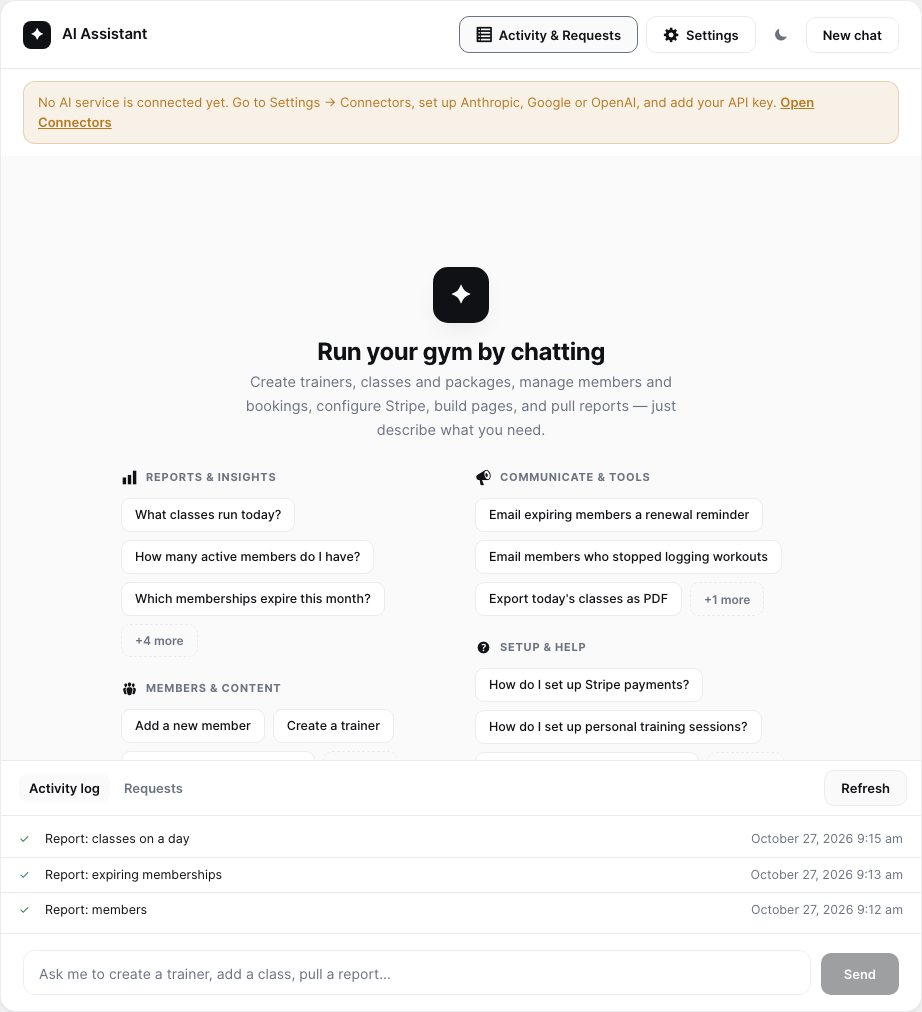
- Open Gym Builder → AI Assistant. When the connection works, the orange "No AI service is connected yet" bar is gone. (Until then, its Open Connectors link takes you straight to Settings → Connectors.)

The same page offers WordPress's own AI plugin. You do not need it: the assistant works without it, and its settings are on the AI Assistant screen (next section). Your API key always goes on Settings → Connectors, with or without the AI plugin.
Settings
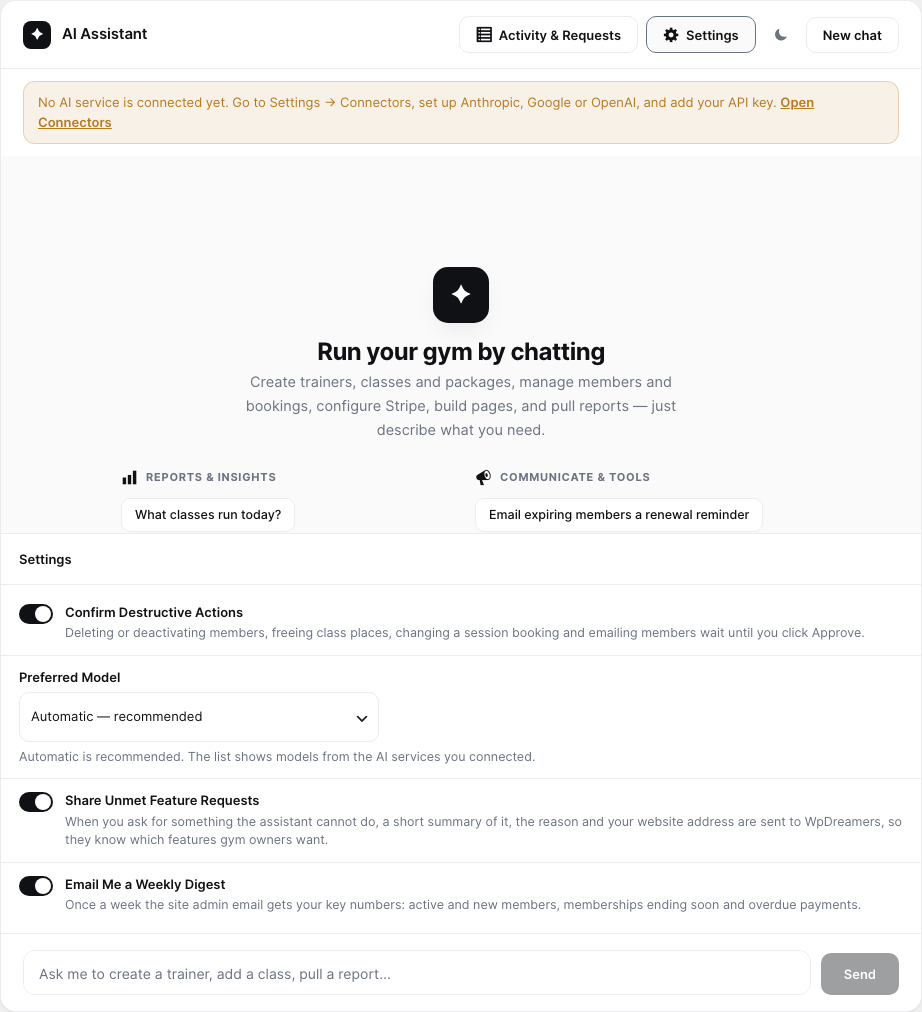
Open Gym Builder → AI Assistant and click Settings at the top, next to Activity & Requests. The settings open above the message box. Each change is saved straight away, and the panel says "Saved.". Click Settings again to close it.
| Setting | Default | What it does |
|---|---|---|
| Confirm Destructive Actions | On | Actions that delete, deactivate, free class places, change a session booking's status or send email are shown to you first and wait for Approve. Turned off, they run straight away. See Confirmation before changes. |
| Preferred Model | Automatic — recommended | Which AI model to use. Automatic uses your provider's default model (for Google, Gemini 2.0 Flash). The list shows the models of the providers you connected (all of them while none is connected): OpenAI GPT-4.1, GPT-4.1 mini, GPT-4o, GPT-4o mini; Anthropic Claude Opus 4.8, Claude Sonnet 4.6, Claude Haiku 4.5; Google Gemini 2.0 Flash and Gemini 2.0 Flash-Lite. The ones marked "fast & cheap" cost less per question. |
| Share Unmet Feature Requests | On | When you ask for something the assistant cannot do, a short summary of it, the reason and your website address are sent to WpDreamers, so they know which features gym owners want. See Requests it could not do. |
| Email Me a Weekly Digest | On | Once a week the site admin email gets your key numbers. See Weekly digest. |
If WordPress's AI plugin is active, the same four settings also show in a GB AI Agent section on its Settings → AI page. Both places change the same settings, so use whichever you like.
The AI Assistant screen
Go to Gym Builder → AI Assistant.
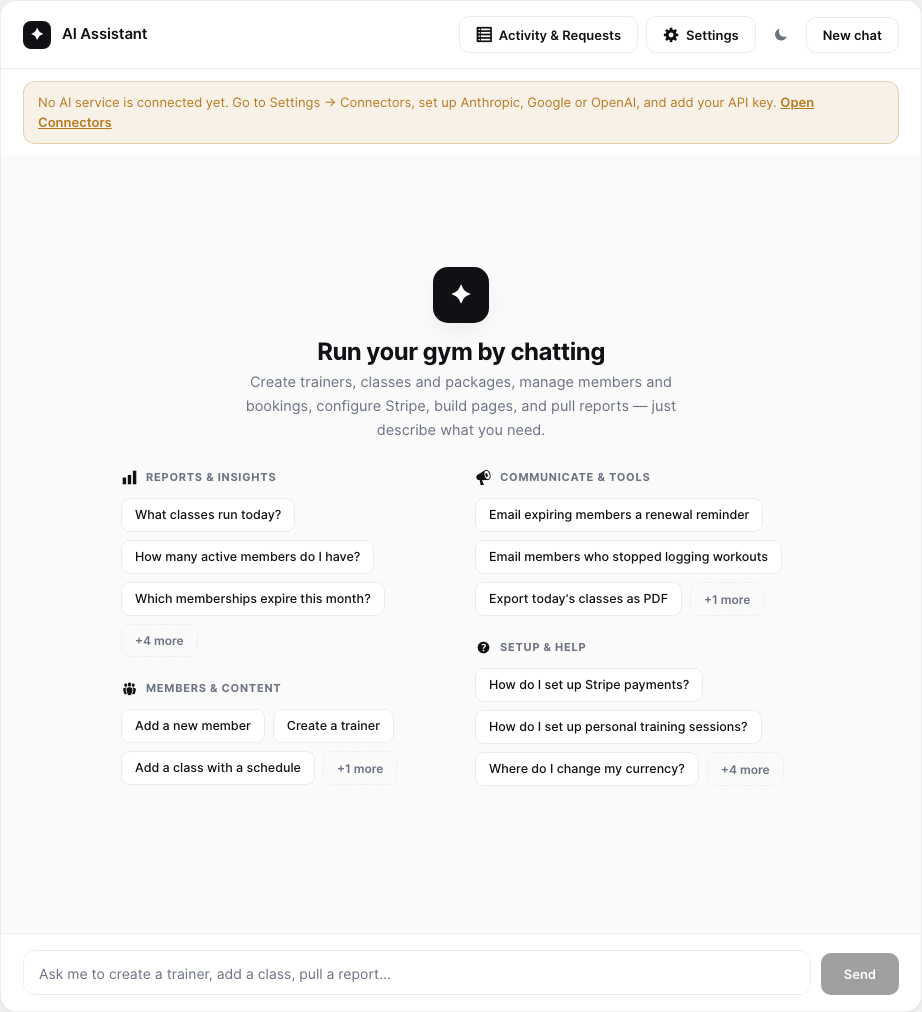
- Message box — type your request and press Enter or click Send. Shift + Enter starts a new line.
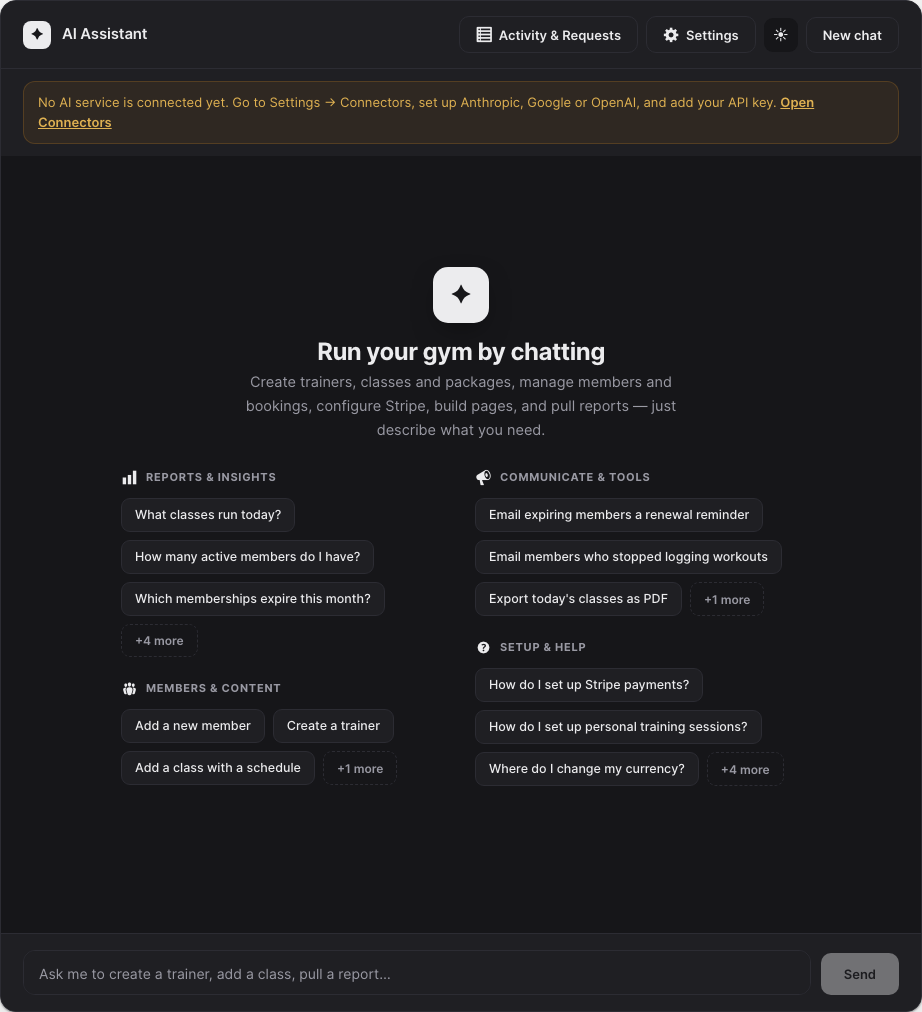
- Suggestions — on an empty chat, click a suggestion to send it as your message. +4 more shows the rest of a group.
- Activity & Requests — opens the activity log and the list of requests it could not do. A number on the button counts those requests.
- Settings — opens the assistant's settings (see Settings).
- The moon / sun button switches between light and dark mode. Your choice is remembered in this browser.
- New chat — clears the conversation and starts again.
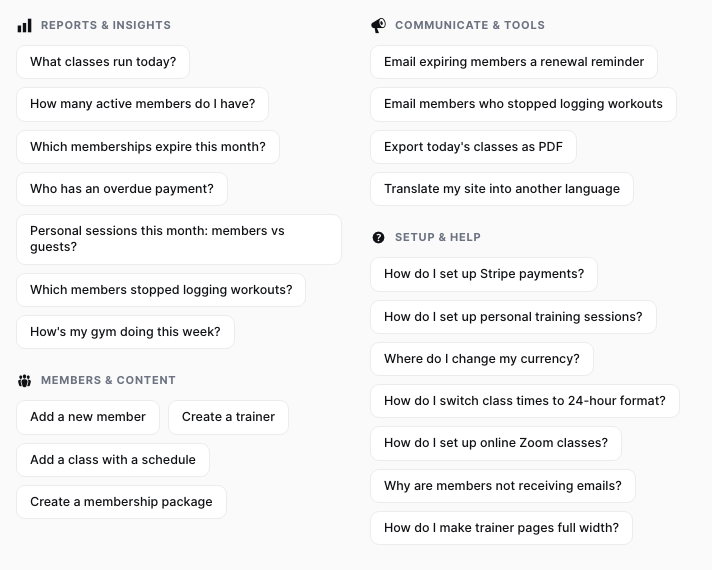
The conversation lives in the open page only. Reloading the page, leaving it or clicking New chat starts a fresh chat. What the assistant did stays in the activity log.
What it can do
Ask in your own words; you do not need to use these exact names. The assistant only offers what your site can do: a task that needs an add-on you do not have is not available.
Reports and questions
| Ask about | What you get | Needs |
|---|---|---|
| Classes on a day | The classes on today (or another weekday) with their times and booked and free places. | — |
| Members | Total, active and inactive members, who joined this month, and memberships ending within 7 days. | — |
| Expiring memberships | Members whose membership ends this month, next month, within a number of days, or has already ended — with name, email, phone, plan and end date, for renewal follow-ups. | — |
| Weekly digest | "How's my gym doing this week?" — active and new members, memberships ending this month and next, overdue payments. | — |
| Revenue | Active Stripe subscriptions and their monthly amount, new subscriptions this month, plus personal-session revenue when available. Only Stripe payments in the mode you use (Test or Live) count. | Stripe Payments |
| Overdue payments | Members with an overdue Stripe payment: contact details, plan, amount owed and days overdue, plus the total due. Only Stripe subscriptions in the mode you use count. | Stripe Payments |
| Attendance | Check-ins for a date (today by default) and this month, or for one member. | Attendance |
| Personal sessions | Bookings by status, upcoming, today and completed, revenue this month, and how many sessions members and guests took this week and month. | Personal Session |
| Workout engagement | Who is logging workouts and who has gone quiet, with last log, adherence and streak. | Fitness Tracking |
| One member's fitness | Latest weight, BMI and body fat, training trend, adherence, streak, goals and current workout plan. | Fitness Tracking |
Download a report — ask for any report as a file ("Export today's classes as PDF"). The assistant asks which format you want — PDF, Word (.doc) or Excel (.csv) — and gives you a download link.
Members, classes, trainers and plans
- Members — add a member (optionally with a login account, which emails them their login details, and with class places), update a member, list or search members, look up one member and their classes.
- Class places — book a member into one or more class times (a full class time is refused), or remove them from class times to free the places.
- Deactivate or delete a member — deactivating sets the member to inactive and can be undone. Deleting removes the member, frees their class places and deletes their login account for good.
- Trainers — create or update a trainer profile (name, title, bio, social links, skills, category).
- Classes — create or update a class (title, description, duration, category) with a weekly schedule of days, times and places. Changing a schedule keeps the places already booked.
- Membership plans — create or update a plan: price, billing period, features and which classes it gives access to.
Personal sessions and Stripe
- Personal sessions (needs Personal Session) — create a one-to-one session for a trainer, add bookable dates and times, list sessions and bookings, and set a booking to pending, confirmed, completed, canceled or no-show.
- Stripe (needs Stripe Payments) — save the Stripe settings (mode, API keys, webhook secret, success and cancel pages, button text), switch Stripe on for a plan with the billing periods and prices to offer, and send the plan to Stripe. Keys you give it are never repeated back or written to the log.
Email members
"Email expiring members a renewal reminder" — the assistant writes a subject and message and sends it to a group: members whose membership ends this month or next month, has ended, with an overdue payment, all active members, or (with Fitness Tracking) members who stopped logging workouts. It can also email members you name. Each email is personal: {name}, {package}, {expiry} and {amount} are filled in per member. Up to 500 members per request. This sends real email, so it always asks for your approval first while confirmation is on.
Pages
- Build a page (needs Elementor and Elementor Widgets) — a draft page made of sections: hero, heading, classes, trainers, pricing and a call to action.
- Import a template (needs Block Tools) — a ready-made landing page for yoga, fitness, gym, boxing, karate or swimming, as a draft page.
Both are saved as drafts, so nothing appears on your site until you publish them.
Help and translation
- Help — "How do I set up Stripe payments?", "Where do I change my currency?". The assistant looks in the Gym Builder documentation and answers with the menu path and steps, and tells you if the add-on needed is not active.
- Translate — "Translate my site into another language". It asks which language, then translates Gym Builder and your installed add-ons with your AI provider and saves the language files on your site. Then choose that language under Settings → General → Site Language to see it.
Confirmation before changes
While Confirm Destructive Actions is on (the default), these actions never run on their own: deactivating or deleting a member, freeing class places, changing a personal-session booking's status, and emailing members.
- The assistant replies with a box headed Confirm before continuing: "The assistant wants to run the action(s) below. Nothing has changed yet."
- The box lists each action with what it will be done to. Read it.
- Click Approve to run them ("Approved."), or Cancel ("Cancelled. No changes were made.").
If you type a new message instead, the waiting actions are cancelled. Everything else — reports, creating and updating — runs as soon as you ask.
A deleted member and a sent email cannot be taken back. Approve only when the list shows exactly the members and the message you expect.
Activity log
Click Activity & Requests to open the drawer above the message box. The Activity log tab lists the last actions the assistant ran, newest first, each with a tick (done) or a warning sign (failed) and the time. Actions are shown by plain names, for example "Report: classes on a day" or "Create class". Passwords, API keys and other secrets are hidden in the log. Click Refresh to update it. Before the assistant has done anything, the tab says "No actions yet. Anything the assistant does will appear here."
Requests it could not do
When you ask for something the assistant has no way to do, it tells you so and notes the request. The Requests tab lists them, with the add-on it would need when there is one. Clear empties the list.

While Share Unmet Feature Requests is on, each of these requests is also sent to WpDreamers: the one-line summary, why it could not be done, the add-on it needs (if any), the date and your website's address.
Weekly digest
While Email Me a Weekly Digest is on, the site admin email (Settings → General → Administration Email Address) gets an email about once a week, "Weekly gym digest — (your site name)". It lists:
- Active members, and new members this month
- Memberships expiring this month and next month
- Overdue payments and the amount (with Stripe Payments)
It ends with an Open the AI Assistant link and a link to turn the email off in Gym Builder → AI Assistant → Settings (it opens the assistant with its Settings showing). The digest is put together from your own data, so it does not use your AI provider. You can also ask for it any time in the chat: "How's my gym doing this week?".
Privacy
- What goes to the AI provider — what you type, and the gym data the assistant looks up to answer you (for example the names, emails and phone numbers in a report), are sent to the provider you connected, under your agreement with them.
- Your API key — stored by WordPress in Settings → Connectors. The assistant never stores it.
- Chats — not saved on your site. The activity log keeps each action that ran, what it was given and its result, with secrets hidden.
- Sent to WpDreamers — only unmet requests, as described above, and only while that setting is on.
- Deleting the plugin removes its activity log, settings, the list of unmet requests and any report files it created.
Questions
Does it work without an API key?
No. Chatting needs an AI provider. Until one is connected, the screen shows the orange "No AI service is connected yet" bar. The weekly digest email still works, because it does not use the provider.
Will it delete things without asking?
No, not while Confirm Destructive Actions is on. It shows what it wants to do and waits for you to click Approve.
Which model does it use?
Your provider's default model, unless you choose one under Preferred Model in the assistant's Settings.
Can my staff use it?
Only administrators can open the AI Assistant.
Can it make pages for my website?
Yes, with the add-ons listed under Pages: it builds or imports a page as a draft, which you then check and publish yourself.
Why does it say it cannot do something?
Each task it can do is built in. If a request needs an add-on you have not installed or is not supported yet, it says so and notes the request on the Requests tab.
If something goes wrong
| Problem | What to check |
|---|---|
| "No AI service is connected yet" | Click Open Connectors in the bar (or go to Settings → Connectors), set up Anthropic, Google or OpenAI and add its API key. |
| There is no AI Assistant in the menu | You need to be an administrator, on WordPress 7.0 or newer, with Gym Builder active. |
| "Something went wrong. Please try again." | Try again or rephrase. Check that your API key is still valid and your provider account has credit. |
| It cannot do a Stripe, session, attendance or fitness task | The add-on for that task is not active. |
| Members did not get an email or the digest did not arrive | Check the admin email under Settings → General and set up an email (SMTP) plugin. |
| A translation does not show | Choose the language under Settings → General → Site Language. |