Zoom Integration
Run some of your class times online. Mark each class time as online or in person, add its Zoom meeting, and members get the link by email or on their Member Dashboard — never on the public page.
What it does
Many studios teach the same class in the room on some days and online on others. Zoom Integration lets you say, for every class time, how it is held. Visitors see it at a glance, and members who have a place in the class get the meeting details without you sending them by hand.
- Online or in person, per class time — a Monday class can be online while the same class on Wednesday is in the room.
- Badges — "Online Class" and "Offline Class" badges on class cards, on the class page and in timetables. You choose the words and colors.
- Get Zoom Class Link button — on the class page, a member types their member ID and the meeting details are emailed to the address on their member record.
- Online Classes on the Member Dashboard — a member who is logged in sees the meeting ID, passcode and a Join Now button for their online classes.
- Online Classes for trainers — trainers see the online classes they teach, with the link to host them, on their own dashboard.
- Only around class time — if you like, the link is only handed out shortly before and during the class.
- Only these members — limit one class time's meeting to the members you pick.
Before you start
- Gym Builder 3.0.0 or newer. With an older Gym Builder the add-on stays switched off and shows a notice with an Update Gym Builder link.
- A Zoom account. You create the meetings in Zoom yourself. The add-on does not connect to Zoom: you copy each meeting's ID, link and passcode into Gym Builder.
- Classes with class times. Add the times on each class's Schedule first (see the Gym Builder guide).
- Emails that arrive. The link is sent by email. If your site's emails tend to land in spam or not at all, set up an email (SMTP) plugin.
Install and switch on
- Go to Plugins → Add Plugin and click Upload Plugin.
- Choose the add-on's zip file, click Install Now, then Activate Plugin.
- Enter your license key when asked. If you skip it, the Gym Builder Dashboard shows Zoom Integration → License Key in its menu until the license is active.
Once it is on, a Zoom Classes page appears under Settings in the Gym Builder Dashboard, and an Online Classes card appears on every class's edit screen.
Set it up
Make a class time online
Every class time starts as In person. Change the ones you teach online.
- In Zoom, create the meeting for that class time and keep its meeting ID, link and passcode at hand.
- Go to Gym Builder → Classes and open the class.
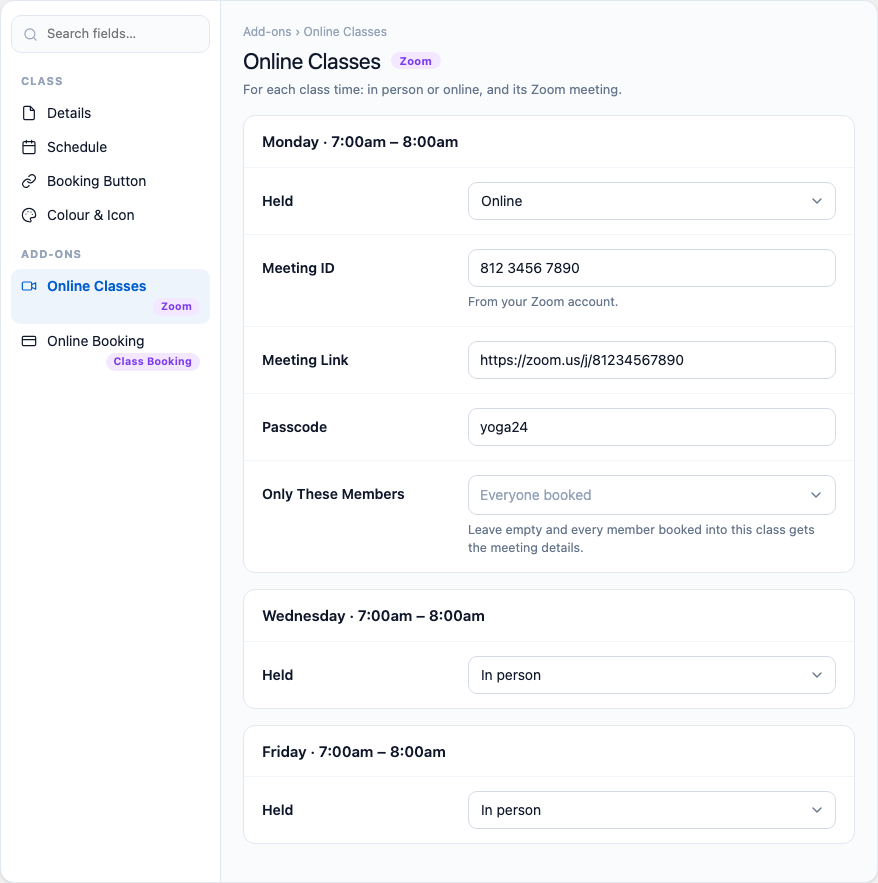
- In the class's settings box, under Add-ons, click Online Classes. You see one card per class time, such as Monday · 7:00am – 8:00am.
- On the class time you teach online, set Held to Online. More fields appear.
- Fill in Meeting ID, Meeting Link and, if the meeting has one, Passcode.
- Leave Only These Members empty to give the details to every member booked into the class, or pick the members who should get them.
- Click Update to save the class.
| Field | What it does |
|---|---|
| Held | In person or Online. The meeting fields below only show for an online time. |
| Meeting ID | The meeting ID from your Zoom account. It is sent to members and shown on their dashboard. |
| Meeting Link | The link members click to join, for example https://zoom.us/j/…. |
| Passcode | The meeting passcode, if your meeting has one. |
| Only These Members | Empty (Everyone booked): every member with a place in this class gets the details. Pick members to give the details to them only. |
With Show the Badges on, an online class time is marked "( Online Class )" even before you add its meeting details. The Get Zoom Class Link button shows as soon as it has a Meeting ID or a Meeting Link, and the email sends whichever you filled in. Fill in the link too if members should join with one click: the Join Now button on the Member Dashboard needs it.
Each class time keeps its meeting details every week until you change them. Use a Zoom meeting that repeats every week, or update the details before each class.
Badges and the link button
Go to Gym Builder → Settings → Zoom Classes. The page has two cards. Change what you need and click Save Settings.
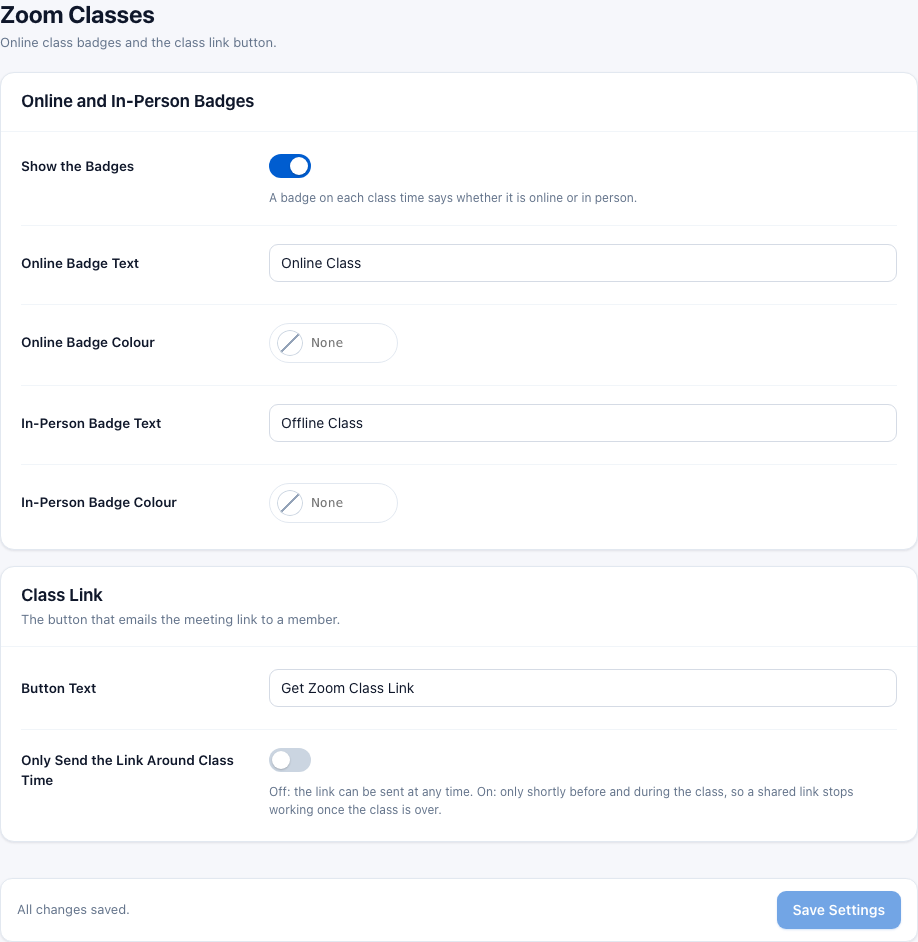
Online and In-Person Badges
- Show the Badges — on (the starting value): badges show on class cards and at the top of the class page, and the class page's When It Runs list and timetables say "( Online Class )" or "( Offline Class )" on each class time. Off: all of these are hidden; online class times keep their Get Zoom Class Link button.
- Online Badge Text — the word for online class times. Starts as "Online Class".
- Online Badge Colour — the background color of the online badge, and the color of the "( Online Class )" word on class times. None keeps the standard color.
- In-Person Badge Text — the word for class times held in the room. Starts as "Offline Class".
- In-Person Badge Colour — the background color of the in-person badge, and the color of the "( Offline Class )" word on class times.
Class Link — the button that emails the meeting link to a member.
- Button Text — the text of the button on the class page. Starts as "Get Zoom Class Link".
- Only Send the Link Around Class Time — off (the starting value): the link can be sent at any time. On: only shortly before and during the class, so a link that is passed on stops working once the class is over.
- Open the Link — shows when the switch above is on: how many minutes before the class the link becomes available (0 to 1440, starts at 30). It stays open until the class ends.
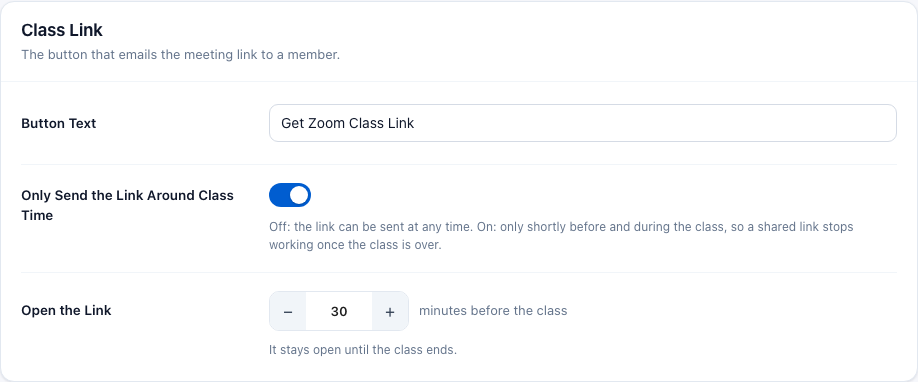
Leave the three texts as they are: "Online Class", "Offline Class" and "Get Zoom Class Link" then show in your site's language. Anything you type yourself shows exactly as you typed it.
The time window applies everywhere: to the emailed link and to the Join Now button on the Member Dashboard. The trainer of the class can open the link 15 minutes earlier than members.
With the Attendance add-on
If you also use Attendance, its settings page (Gym Builder → Settings → Attendance) has an Online Classes card with two more switches:
- Only Members with a Booking Get the Link — the link goes only to a member booked into that class on that weekday, with check-ins left in a current plan period.
- Count Sending the Link as a Check-In — when the link is emailed to a member on the day of the class, it counts as their check-in for that class. Off by default: asking for a link is not the same as turning up. Opening the link from the Member Dashboard does not count.
What members see
Badges on your classes
A class with at least one online time gets an "Online Class" badge; a class with at least one in-person time gets an "Offline Class" badge. A class with both shows both.
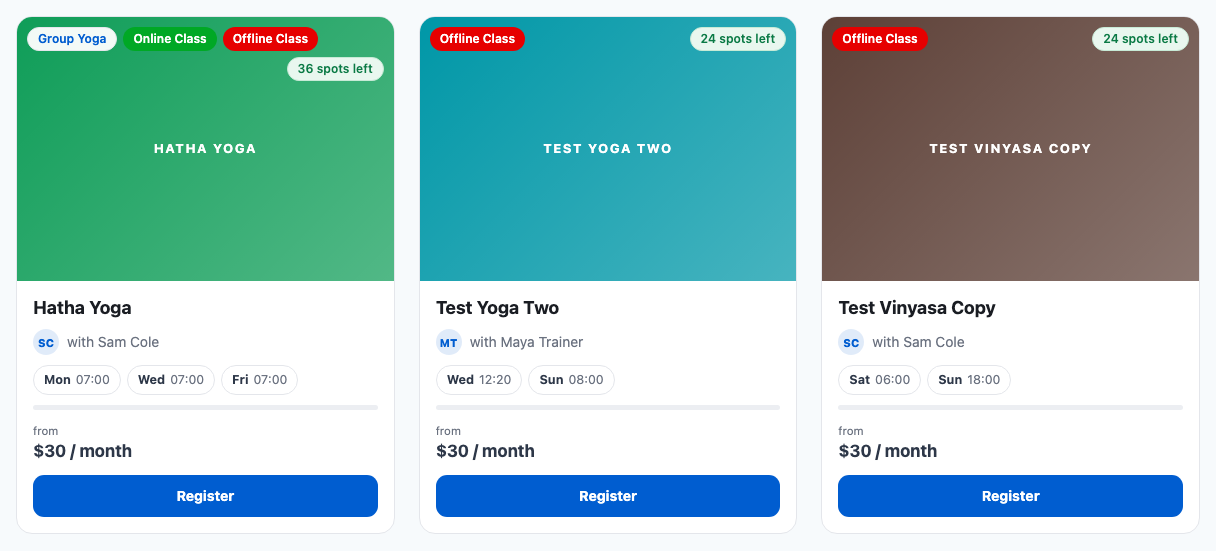
On the class page, the same badges sit above the class name, and the When It Runs list says how each class time is held. Online times have the Get Zoom Class Link button.
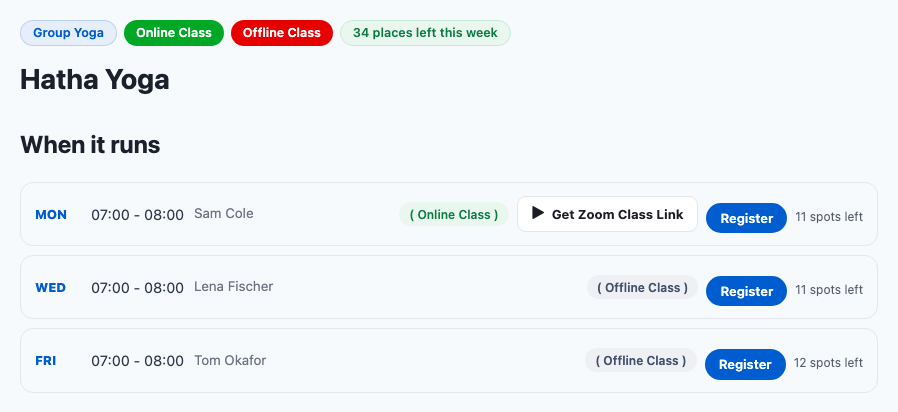
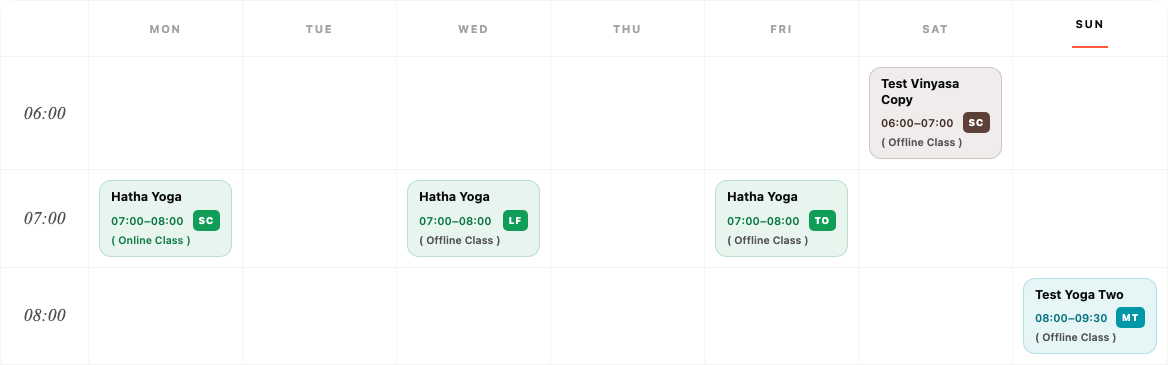
Timetables made with Block Tools or Elementor Widgets show the same word on every class time.
Getting the link from the class page
Members do not need a website login for this. They only need their member ID (for example GB8318; logged-in members see it under their name on the Member Dashboard).
- The member opens the class page and clicks Get Zoom Class Link on the online class time.
- A small form opens. They type their ID in Member User ID and click Submit.
- The page answers: "If that member id is registered for this class, we have emailed the Zoom details to the address on file."
- The meeting details arrive at the email address on their member record.
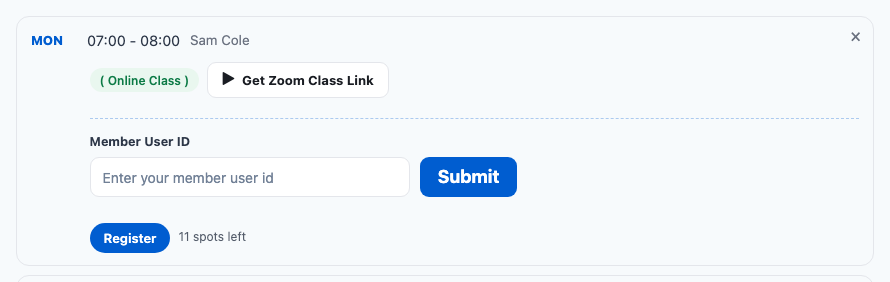
The link is never shown on the page, and the page gives the same answer whatever was typed. That way nobody can guess member IDs or find out who goes to which class: the details only ever go to the member's own email address.
The details are only sent when the member has a place in this class, is on the Only These Members list (if you used it), and asks inside the time window (if it is on). To stop the button being misused, the link can be asked for 3 times per member ID, and 10 times from one internet connection, in 15 minutes. After that the page says "Too many requests. Please wait a few minutes and try again."
The email
| Part | What it says |
|---|---|
| Subject | Your Zoom link for class name |
| Message | Here are the details for your class name class. Join the meeting: meeting link Meeting ID: meeting ID Passcode: passcode (only when there is one) |
| From | The name in Studio Name on ID Cards (or your site name) and the address in Send Emails From (or your site's admin email), both in Gym Builder → Settings → General. |
Online Classes on the Member Dashboard
A member who logs in and has a place in a class with an online time gets an Online Classes tab on their Member Dashboard. It lists each online class time with the day, time and class, and — when the link is open — the meeting ID, passcode and a Join Now button that opens the meeting.
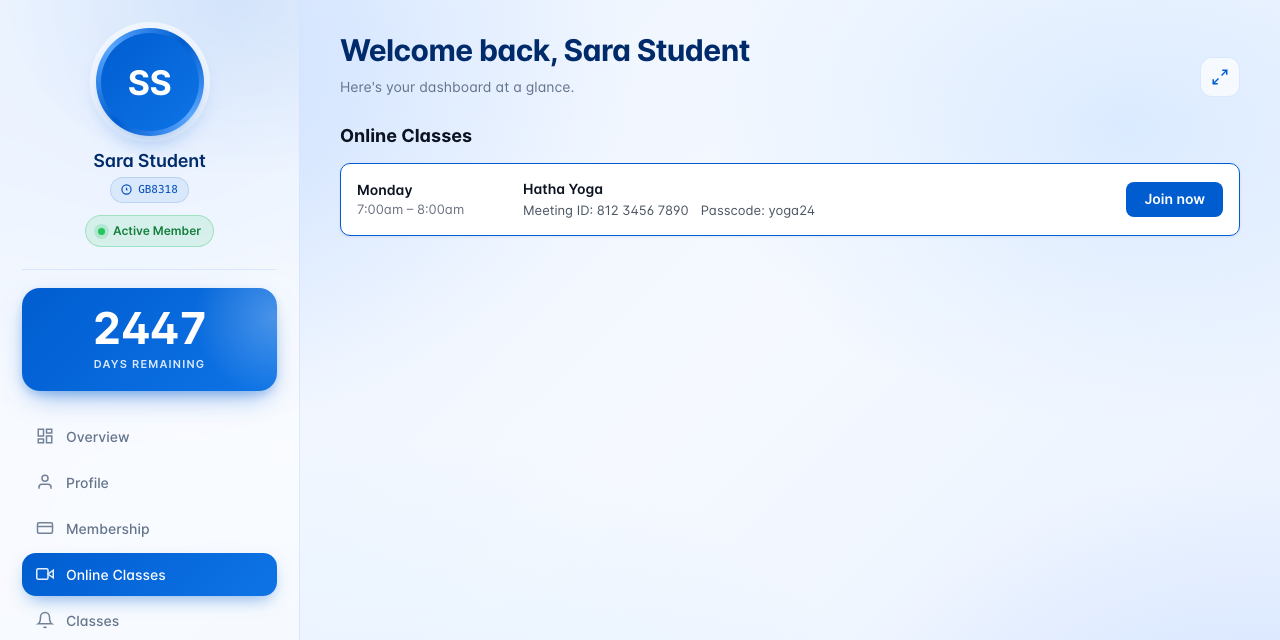

When the link is not open yet, the button is greyed out and a short line says why, for example "The link opens on the day of the class.", "The link opens at 6:30 am." or "This class has finished."

Members with no online classes do not see the tab at all.
Online Classes for trainers
Trainers who log in to their trainer dashboard get the same Online Classes tab, listing the online class times they are the trainer for, with how many members are booked into that class time (for example "8 of 12 booked"), the meeting ID, passcode and Join Now. The link opens for the trainer 15 minutes before it opens for members, so they can start the meeting first.
Questions
Does the add-on create the Zoom meetings for me?
No. You create the meetings in your Zoom account and copy the meeting ID, link and passcode into the class time. The add-on never connects to Zoom.
Can one class be online on some days and in person on others?
Yes. "Online" or "In person" is set per class time, on the class's Online Classes card. The class then shows both badges.
Do members need a website account to get the link?
No. On the class page they only type their member ID, and the details go to the email address on their member record. Members who do log in can also see the link on their Member Dashboard.
Can someone get the link by typing another member's ID?
No. The details are only ever emailed to the address on that member's record, never shown on the page, and the page gives the same answer for every ID.
How do I give the link to only some members?
Pick them in Only These Members on that class time. With the Attendance add-on you can also switch on Only Members with a Booking Get the Link.
Can I change "Online Class", "Offline Class" or the button text?
Yes, in Gym Builder → Settings → Zoom Classes. Click Save Settings afterwards.
Can I hide the badges?
Switch off Show the Badges. The badges on class cards and at the top of the class page, and the "( Online Class )" / "( Offline Class )" words on class times — on the class page and in timetables — disappear. Online class times on the class page keep the Get Zoom Class Link button.
If something goes wrong
- No Zoom Classes page under Settings, or no Online Classes card on the class — is the add-on active, and is Gym Builder 3.0.0 or newer? Look for a notice on the Plugins page.
- The Get Zoom Class Link button does not show on an online class time — is Held set to Online, is a Meeting ID or a Meeting Link filled in, and did you click Update?
- No badges anywhere — is Show the Badges on in Settings → Zoom Classes?
- A member says the email never came — check the member ID they typed, that they have a place in this class, that they are on Only These Members (if you used it), the time window (if it is on), the Attendance switch Only Members with a Booking Get the Link (if you use Attendance), the email address on their member record, and that emails from your site arrive at all (spam folder, email plugin).
- "Too many requests. Please wait a few minutes and try again." — the link was asked for too often. Wait 15 minutes and try once.
- "Please enter your member user id" — the Member User ID field was empty.
- No Online Classes tab on a member's dashboard — the tab only shows for members with a place in a class that has at least one online class time.
- Join now is greyed out — read the line next to it: the link is not open yet, the class has finished, the class is not part of their membership, or no meeting details have been added. With a Meeting ID but no Meeting Link, members see the ID to type into Zoom, and Join now stays greyed out.