Elementor Widgets
Build your class, trainer and pricing pages in Elementor. Drag in a timetable, class cards, trainer profiles, plans, a sign-in form and more — all filled from what you already keep in Gym Builder.
What it does
Elementor Widgets adds a Gym Builder group to the Elementor widget panel. Each widget shows something from Gym Builder — your classes, the weekly timetable, trainers, membership plans — or adds a ready-styled page section such as a hero banner or a call-to-action band. When you change a class or a trainer in Gym Builder, every page that shows it updates by itself.
- Classes and the timetable — class cards in six designs, the weekly timetable in five layouts, and a single-class block.
- Trainers — trainer cards in four designs, a full trainer profile and a star rating.
- Plans and offers — pricing cards with the buy button of your payment add-on, and your public coupons.
- Members — a sign-in and sign-up form for members and trainers, the personal-session booking form and fitness calculators.
- Page sections — hero, section heading, info boxes, call-to-action band, testimonials, countdown and a scrolling text ticker.
Before you start
- Gym Builder must be installed and switched on. For class locations on the timetable and cards you need Gym Builder 3.0.0 or newer.
- Elementor (the free plugin is enough), version 3.18.0 or newer.
- Optional add-ons some widgets use: Personal Session for GB Personal Session Booking and GB Trainer Reviews; Promotions & Trials for GB Coupon Showcase; Stripe Payments or Offline Payments for the buy button on GB Pricing Plan and the Book button on class widgets; Registration Popup for the "I'm not a robot" check on GB Member Login's sign-up form.
If Elementor or Gym Builder is missing, switched off or too old, you see a notice at the top of your admin pages with a button to fix it (for example Activate Elementor or Update Elementor). The widgets appear once both are ready.
Install and switch on
- Go to Plugins → Add Plugin and click Upload Plugin.
- Choose the
gb-elementor-widgetszip file from your purchase, click Install Now, then Activate Plugin. - When WordPress asks for your license key, paste the key from your purchase email and click Activate License.
There are no settings to fill in. The widgets are ready in the Elementor editor straight away.
Add a widget to a page
- Open the page in Elementor: go to Pages, hover the page and click Edit with Elementor.
- In the widget panel on the left, find the Gym Builder group. It is placed first in the list. You can also type
GBin the search box — every widget's name starts with "GB". - Drag the widget onto the page.
- Choose what it shows on the Content tab, and change colors, fonts and spacing on the Style tab.
- Click Publish (or Update) in Elementor.
Choosing which classes or trainers show
GB Class Card, GB Class Routine and GB Trainer Card start with the same section, Classes Query or Trainers Query:
| Option | What it does |
|---|---|
| Source | Query (latest) shows your classes or trainers automatically. Manual selection lets you pick them one by one. |
| Select posts | With Manual selection: pick one or more classes or trainers. They show in the order you pick them. |
| Filter by category | With Query: only show these categories. Leave it empty to include all. |
| Posts per page | With Query: how many to show (6 to start with, up to 50). |
| Order by / Order | With Query: sort by Date, Title, Menu order or Random, Descending or Ascending. |
Single-item widgets (GB Class Detail, GB Trainer Profile, GB Trainer Reviews) have one drop-down instead. Leave it on "Current class" or "Current trainer" when you use the widget in a template for single class or trainer pages; it then shows whichever class or trainer the visitor opened.
The Style tab
Every widget has a Style tab with the same kind of controls: Typography & Colors for each piece of text, and a box section (for example Card, Image & Button) for background, border, corner rounding, shadow and padding. Buttons have Normal and Hover colors. You only need these to match your brand — the widgets look finished without them.
Classes and the timetable
GB Class Card
A grid of class cards. Each card can show the class image, category, title, a short description, its weekly times with the trainer of each time, how many places are free, the trainers and a Book button.
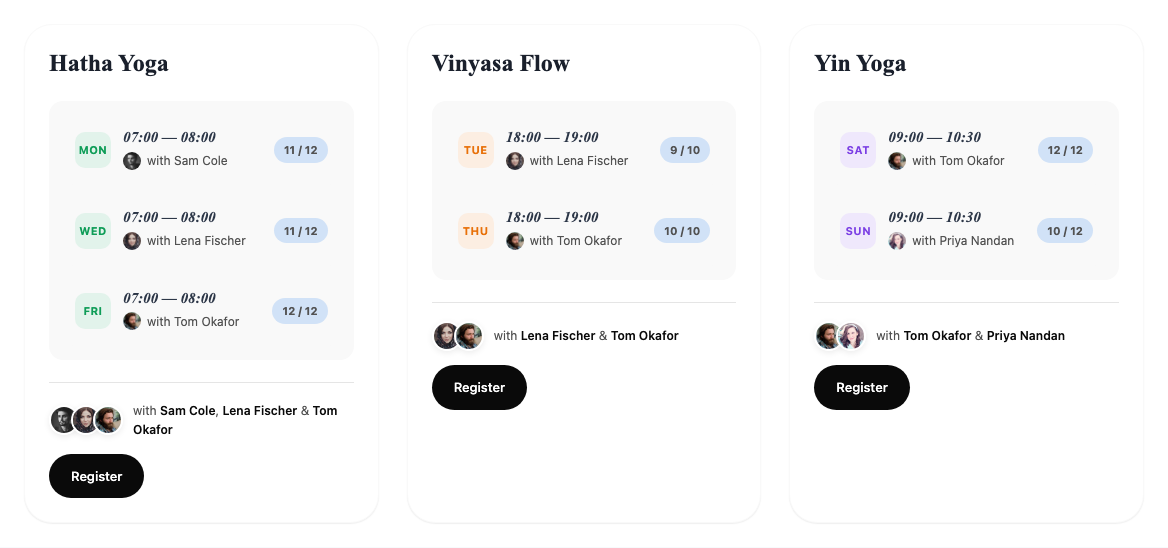
- Layout — Card, Bloom (title under the image), Membership (compact, with the week as day letters), Capacity (with a ring that fills as places are taken), Editorial (large split card that always takes the whole row) or Tile (narrow).
- Columns, Gap (px) and Image Aspect Ratio — set them for computer, tablet and phone separately. Editorial has no Columns setting: it is one card per row.
- Display — switch each part on or off: Image, Category chip, Title, Description, Schedule, Trainers, Duration badge, Book button and more. Some switches only appear for the layouts that use them.
- Description source and Description word limit — use the class's excerpt or the start of its content.
- Schedule — max rows — how many class times each card lists (4 to start with).
- Time format — Use Gym Builder global setting, 12-hour or 24-hour.
- Per-class color override — one color for every card. Leave it empty to use each class's own color.

The Book button is the button of your payment add-on when one sells the class. Otherwise it is the class's own button, with the Button Text and Button URL from the class's edit screen. A class with no Button Text still gets a button: Register when people can register on the class page (or the class has a Button URL), otherwise View Class; without a Button URL it opens the class page.
GB Class Routine
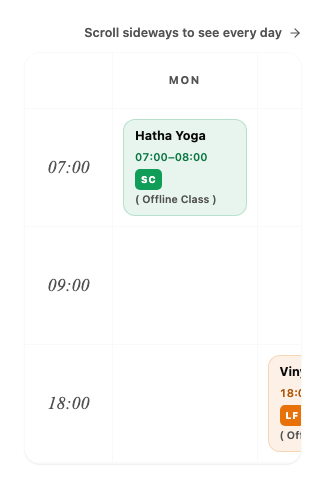
Your weekly timetable, built from the class times in Gym Builder.
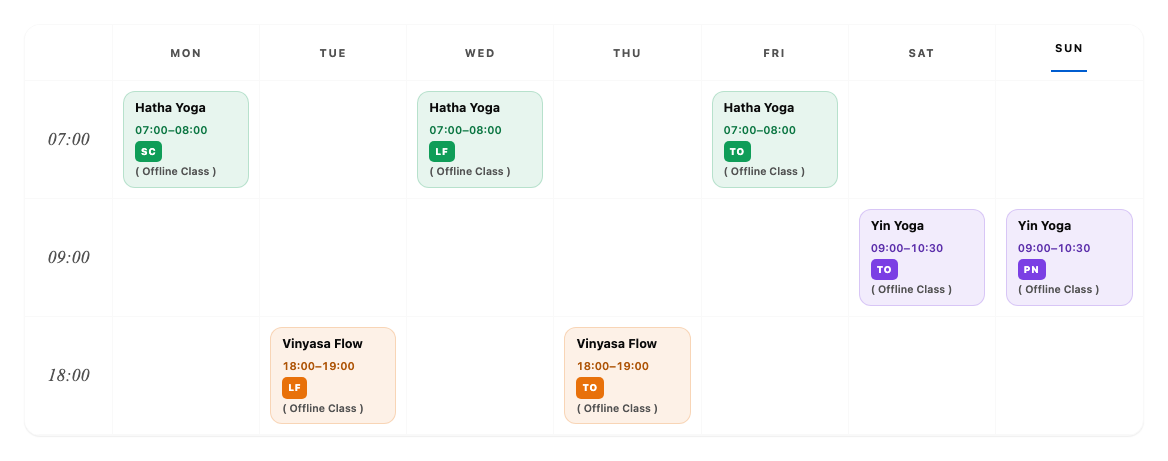
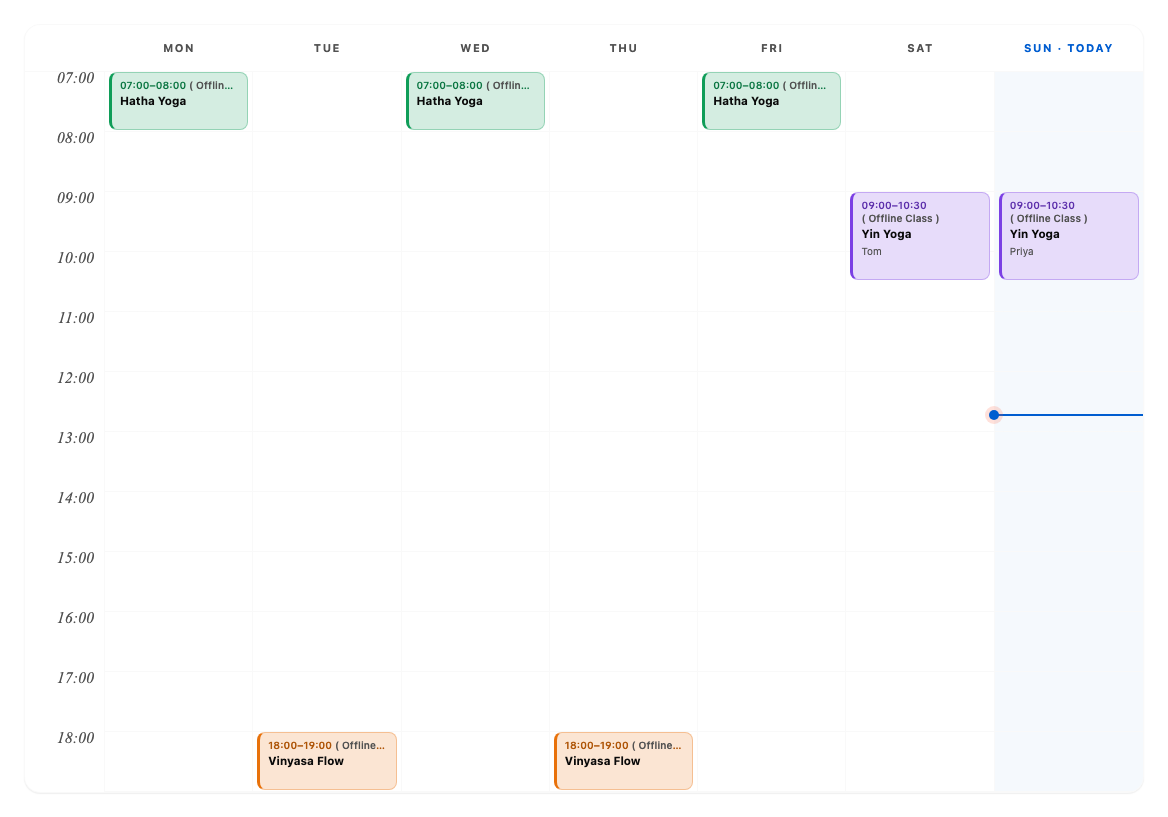
- Layout — Timetable (weekly grid), Stream (filtered by class tabs), Rails (one row of times per day), Timeline (classes placed on a time scale with a line for "now") or Spotlight (day tabs with progress rings).
- Week starts on — Monday, Sunday or Saturday.
- Time format — Use Gym Builder global setting, 12-hour or 24-hour.
- Display — Category chip, Trainer name, Trainer avatar, Spots-left badge, Book button, the now-line (Timeline layout) and Click-to-detail popup.
- Per-class color override — one color for every class time, or leave empty to use each class's color.
With Click-to-detail popup on, visitors click a class time to see its day, time, length, free places and trainer, with the button to book or register.
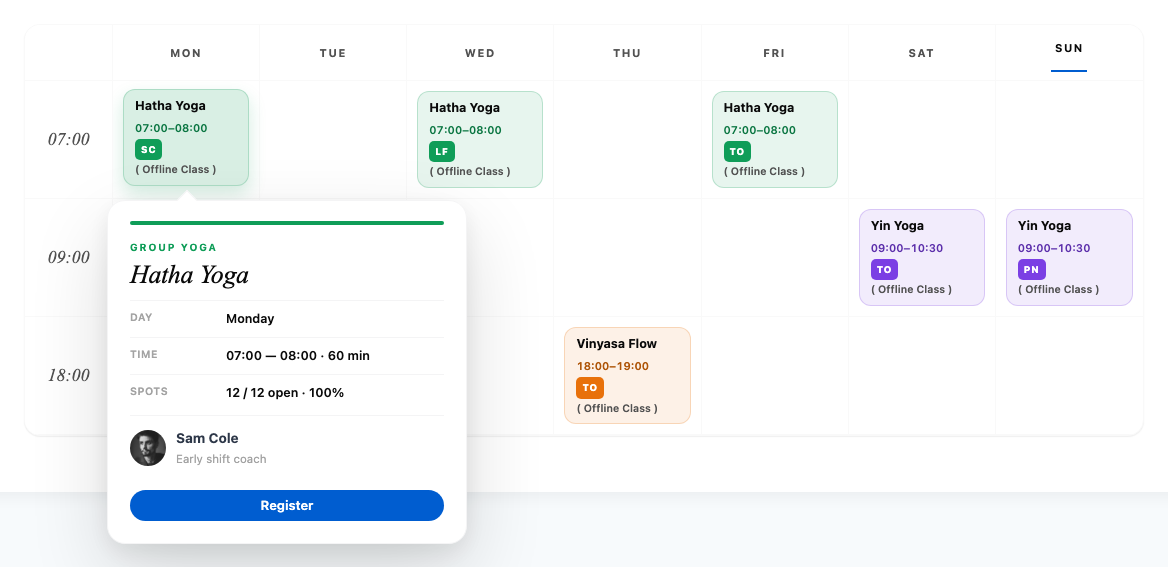
The button of your payment add-on if one sells the class. If not, the Register button — from the Registration Popup add-on when it is on, or Gym Builder's own (Gym Builder → Settings → Classes, Register Button on the Timetable). Otherwise the class's own Button Text and Button URL.
GB Class Detail
One class: its image, title, excerpt, its class times with the number of places, and a Book button. Days show in Gym Builder's short day names (in your site's language) and times follow Gym Builder's 12- or 24-hour setting. When no payment add-on sells the class, the button is the class's own one (as on GB Class Card: its Button Text, or Register / View Class) in this widget's button style.
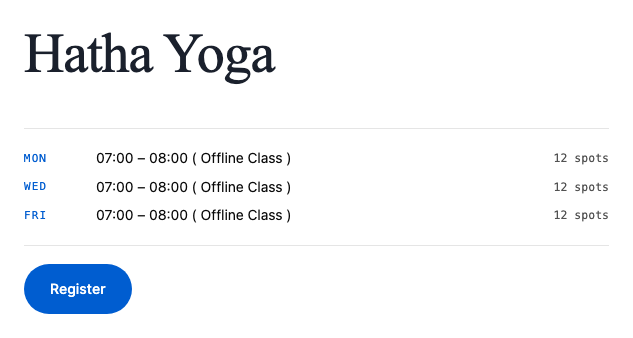
- Class — pick a class, or leave on "Current class" in a single-class template.
- Switches for Image, Title, Excerpt, Schedule rows and the Book button, plus Schedule — max rows.
Trainers
GB Trainer Card
A grid of trainer cards with photo, category, name, job title, a short bio, social links and a link to the trainer's page.
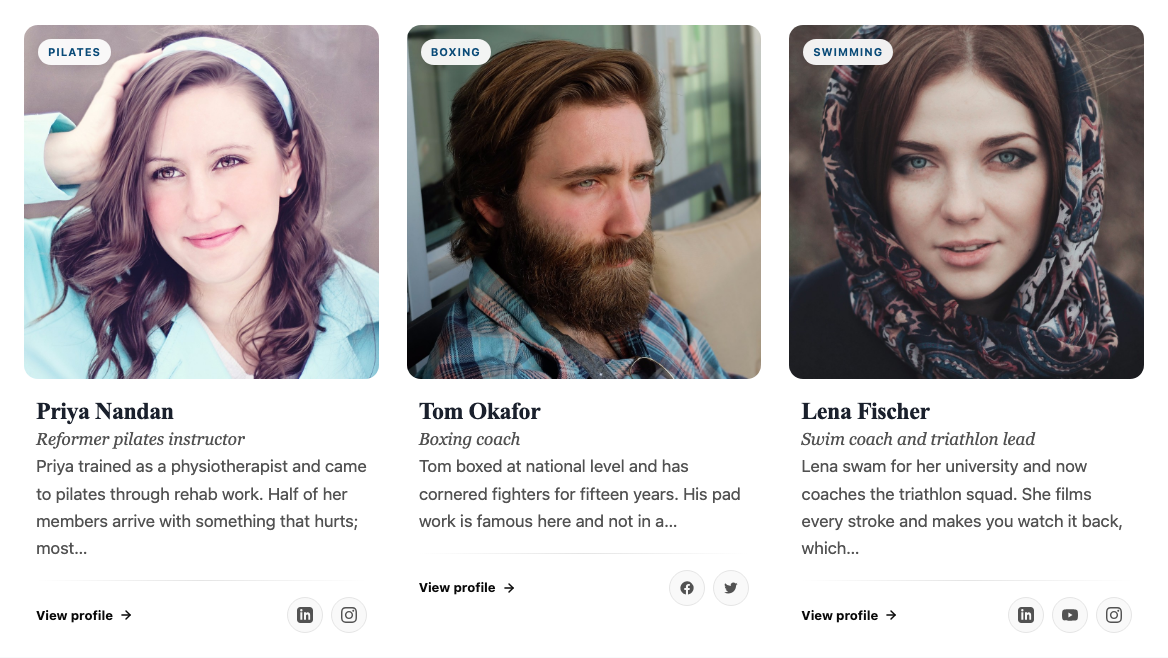
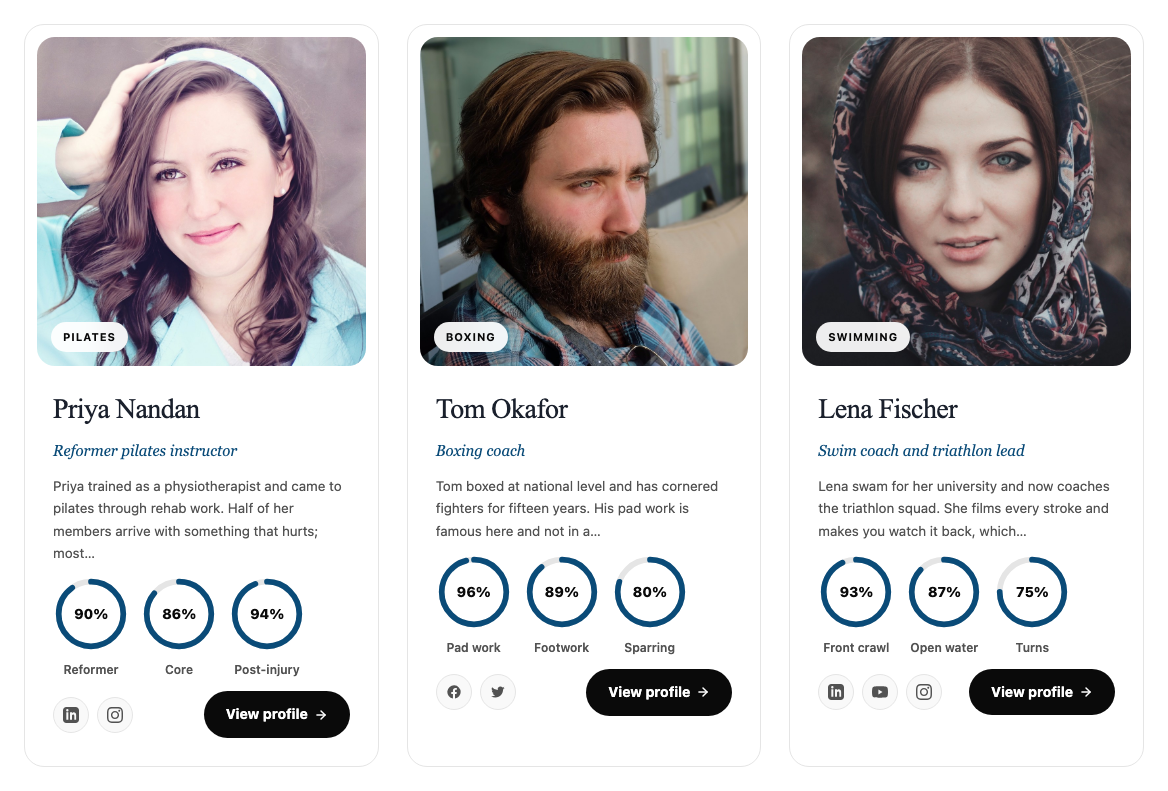
- Layout — Card, Hover Reveal (bio over the photo on hover), Skill Showcase (with skill rings) or Editorial (full-width, alternating sides).
- Columns, Gap (px), Image Aspect Ratio.
- Display — Image, Category chip, Name, Designation, Bio, Skills, Email, Social links, Profile link. Skills and Email start switched off.
- Bio source and Bio word limit.
- Social Networks — choose which networks show: Facebook, Twitter / X, LinkedIn, YouTube, Pinterest, Skype, Instagram, TikTok. A network shows only when the trainer has a link for it.
GB Trainer Profile
One trainer in full: large photo, name, job title, full bio, skill bars and social links (shown as the networks' icons, the same as on the trainer cards).
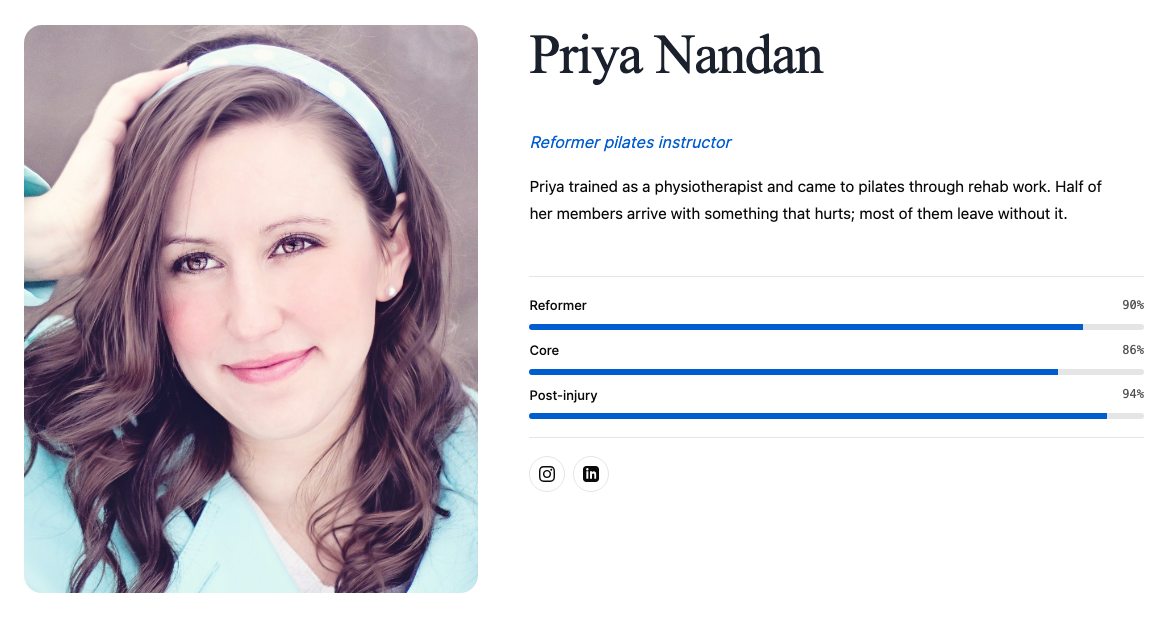
- Trainer — pick a trainer, or leave on "Current trainer" in a single-trainer template.
- Switches for Image, Name, Designation, Bio, Skills (with bars) and Social links.
GB Trainer Reviews
A trainer's star rating from Personal Session reviews. Needs the Personal Session add-on.

- Trainer — pick one, or leave on "Current trainer".
- Display — Stars only, Stars + count, or Numeric (4.7 / 5).
- Empty state text — shown while a trainer has no reviews (default "No reviews yet.").
Plans and offers
GB Pricing Plan
Pricing cards for your membership plans: name, price and period, the plan's features, the classes it includes and a buy button.
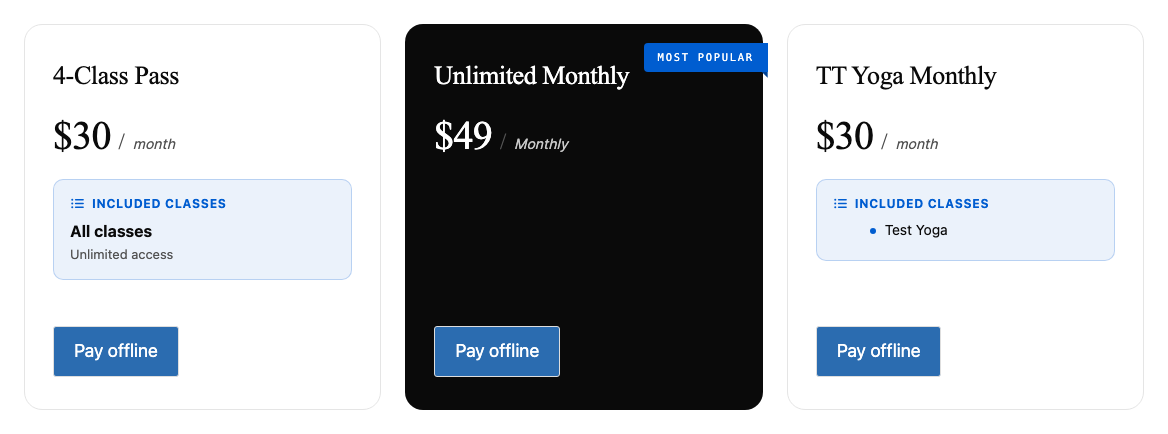
- Source — Manual list: add plans one by one under Plans, and switch on Featured with a Featured label (default "Most Popular") for the one to highlight. Query: show all plans, or only some categories with Filter by plan category; Plans to show limits the number, and Mark Nth plan as featured highlights one (for example 2 for the middle of three).
- Layout — Card (grid), Minimal (no frame), Spotlight (one wide card) or Compact (table-like).
- Tone — Dark, Paper, Navy or Industrial: the look of the cards and the featured card.
- Columns and Gap (px).
- Display — Features list, Included classes box (off to start with; shows which classes the plan covers), CTA button, Feature icon and Price + period format.
- Package Type Tabs — Show package-type tabs adds a row of tabs, one per plan category, so visitors can filter the plans. You can add an "All" tab and choose which tab is open first.
The button is the buy button of Stripe Payments or Offline Payments when one of them is on. Without a payment add-on it uses the plan's own Button Text and Button URL.
GB Coupon Showcase
Your current offers, with a Copy button for the code. Needs the Promotions & Trials add-on; the widget only appears in the panel while that add-on is on.
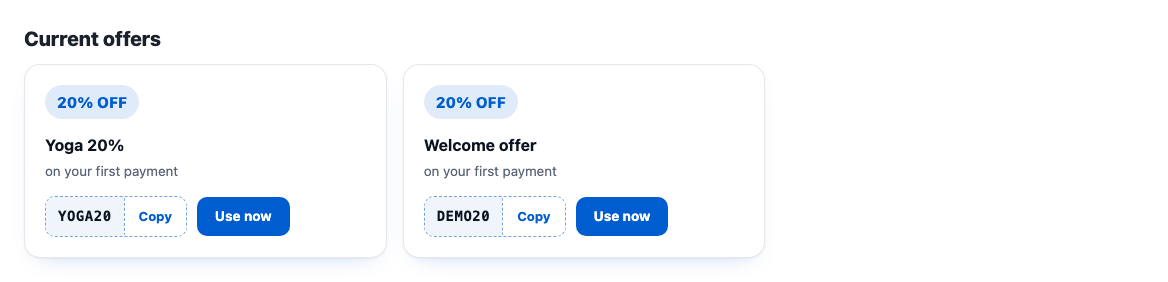
- Heading, Layout (Grid, List or Single (featured)), Columns, Max coupons and Show expiry date.
- Only coupons with Show it on the site switched on in Promotions & Trials are listed.
Sign-in, booking and calculators
GB Member Login
A sign-in form for members and trainers, with an optional Sign Up tab for new accounts. After signing in, people go to their member dashboard.
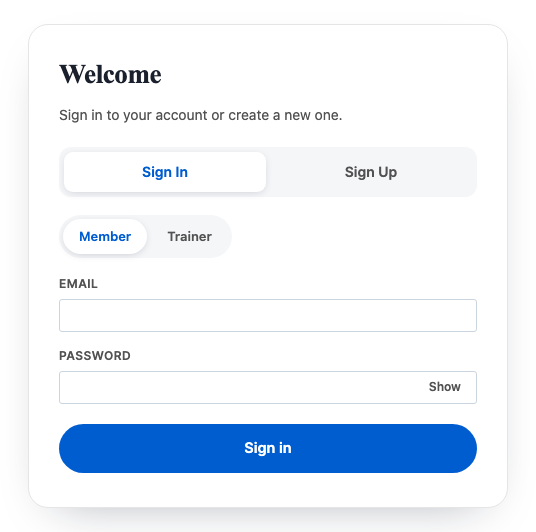
- Render — Member + Trainer (both), Member only or Trainer only. With both, Default selected sets which one is chosen first.
- Enable registration (Sign Up) — adds the Sign Up tab.
- Title and Subtitle (default "Welcome" and "Sign in to your account or create a new one.").
- Member sign-up: ask gender / age / address — adds those three fields to the member sign-up form.
- Labels — change every word on the form: tab names, field names, button text and the Trainer note.

What happens when someone signs up:
- A member gets an account straight away and is added to Gym Builder → Members without a plan. The form says "Account created! Please sign in below." Passwords need at least 8 characters.
- A trainer account waits for your approval under Gym Builder → Trainer Accounts. The Trainer note tells them so (default "Trainer accounts require admin approval before full access.").
- To stop abuse, one connection can create at most five member accounts in 15 minutes.
Spam protection (reCAPTCHA)
The member sign-up form asks Google's "I'm not a robot" question whenever it is switched on in the Registration Popup add-on, with both keys filled in. There is no switch for it in the widget.
- Make sure the Registration Popup add-on is on.
- Go to Gym Builder → Settings → Registration Popup, card Spam Protection (reCAPTCHA).
- Switch on Ask “I’m Not a Robot”, fill in the Site Key and Secret Key from Google, and save.
From then on, every GB Member Login widget with the Sign Up tab shows the check on the member sign-up form. Switch the setting off there to remove it again.
GB Personal Session Booking
The booking form for one-to-one sessions. Needs the Personal Session add-on.
- Layout — Booking widget only shows Personal Session's own step-by-step form. Letter + booking panel (2 columns) adds your own text on the left: Eyebrow, Heading, Letter paragraphs and Outcomes (2-col list), with a compact form on the right (Form title, Form badge, Submit button text, Note under form).
- Filters — Trainer and Class: show only one trainer's or one class's sessions, or leave on "Any trainer" / "Any class".
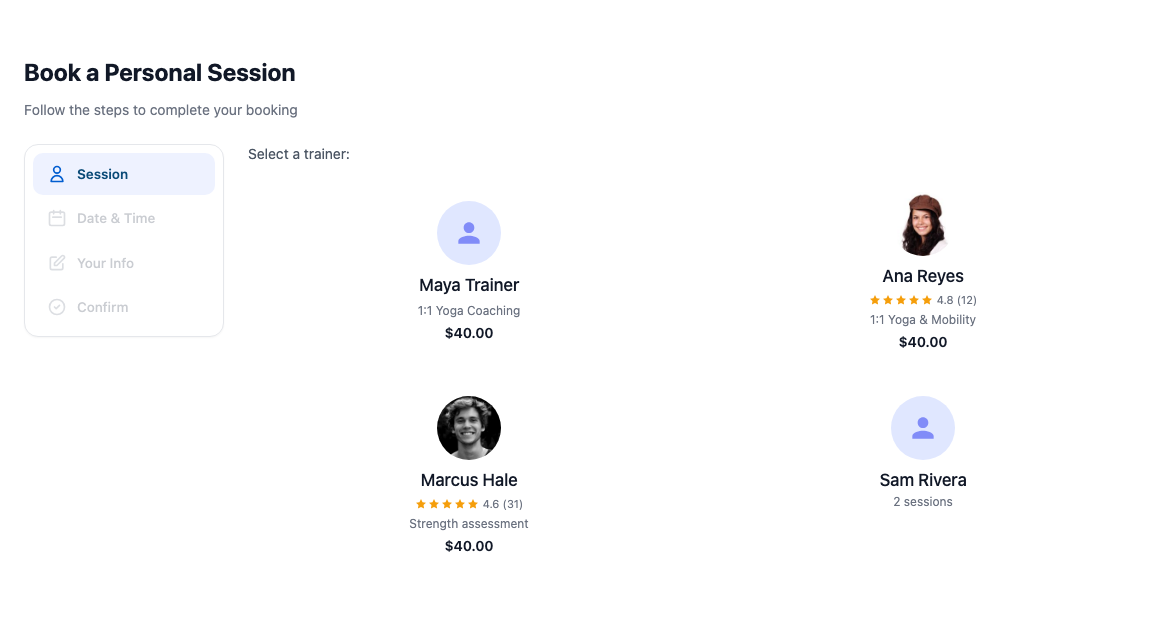

In the Elementor editor the Booking widget only layout shows a preview; the live form appears on the published page.
Without the add-on there is nothing to book. Booking widget only then shows nothing to visitors. The Letter + booking panel layout shows visitors your letter on its own, without the booking panel; people who can edit the page see a note in the panel's place saying the add-on is switched off.
GB Fitness Calculator
A calculator visitors can use on the page.

- Display style — Standard (Gym Builder form) uses Gym Builder's calculators. Bento (ready-styled) is a bold design with its own result panel, for BMI, Body Fat % or Water Intake (with Protein Intake it shows the BMI one). For BMI it has sliders, a result band and your own text for each result.
- Calculator type — BMI (Body Mass Index), Body Fat %, Protein Intake or Water Intake.
- Heading, Description, Submit button text, Unit system (Metric or Imperial) and Calculator layout (Layout 1 (Gym Builder’s own) or Layout 2 (styled card)) for the Standard style.
- For Bento: Eyebrow, Title, Subtitle, Result small print and one recommendation for each BMI result (underweight, healthy, overweight, obese).

Page sections
These widgets don't read Gym Builder data. They give you ready-styled sections that match the other widgets. Words wrapped in <em>…</em> in a heading show in the accent color.
GB Hero
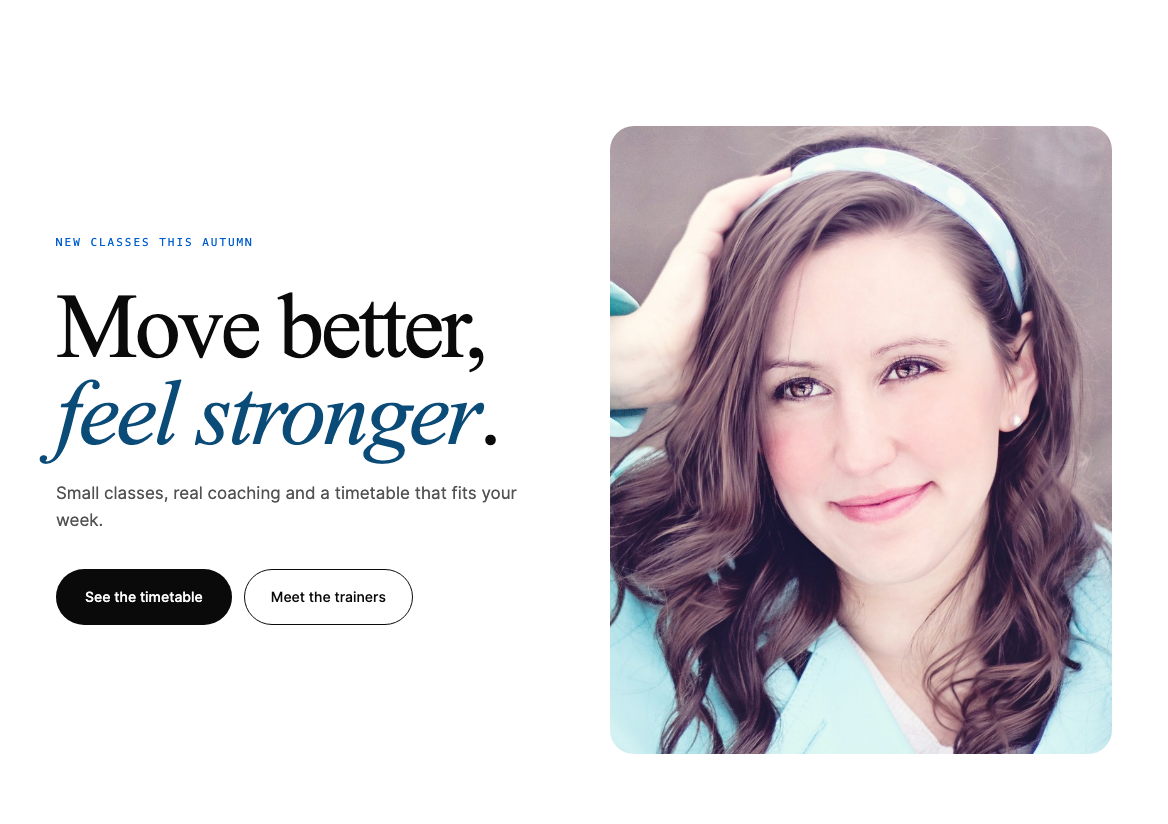
- Layout — Split (text + image), Bento, Editorial, Minimal, Full-bleed (background image) or Centered (text only).
- Eyebrow, Heading, Heading note, Subheading, two buttons (Primary CTA text/URL, Secondary CTA text/URL) and an Image.
- Extras: Eyebrow style, Meta style with Meta items (small facts under the buttons), a Corner tag and a floating name card on the image, and a second image or stat card in the Bento layout.
GB Section Heading

- Subtitle, Title, Content, Title HTML tag.
- Style preset — Editorial, Bold, Industrial, Dojo or Wave. Plus Alignment, Subtitle hairlines and On dark background.
GB Info Box
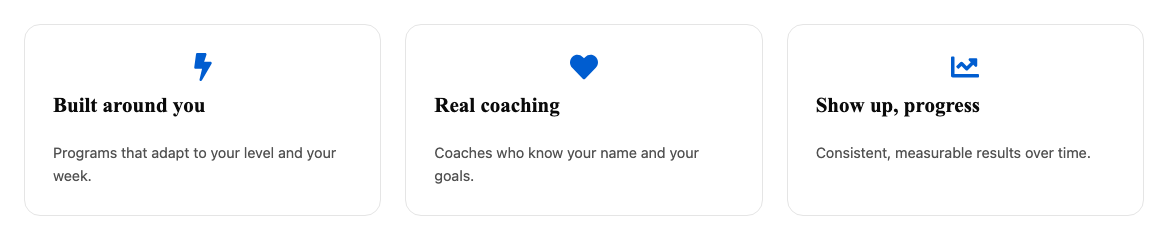
- Layout — Card (icon top), Numbered, Circle icon or Minimal (no frame).
- Items — each with Icon, Numeral / glyph, Accent color, Eyebrow, Title, Description, Link text and Link.
- Grid — Columns and Gap (px).
GB CTA Band

- Layout — Banner (centered), Split (text left, buttons right) or Boxed (contained card).
- Tone — Dark, Paper or Accent. Accent style — Plain or Bold.
- Eyebrow, Heading, Description, primary and secondary button text and URL, and Text alignment (banner).
GB Testimonial
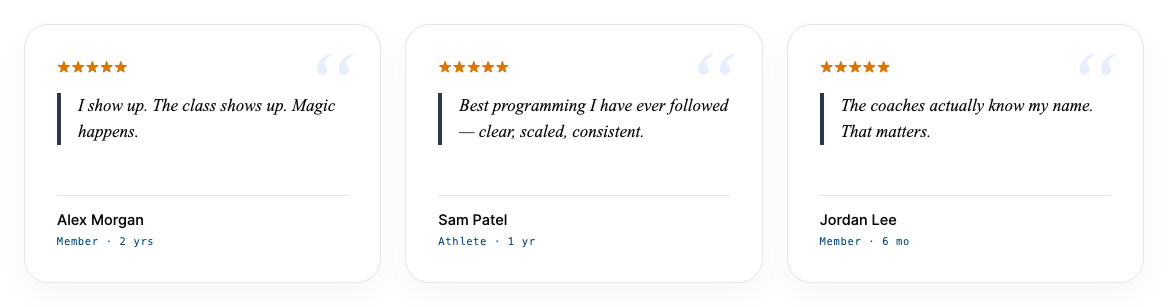
- Items — each with Quote, Author, Role / company, Avatar, Avatar badge and Rating.
- Card style — Plain, Asymmetric or Industrial. Divider rule above adds a thin line over the cards.
- Layout — Single, Grid or Carousel, with Columns (grid), Slides to show (carousel), Autoplay (carousel) and Autoplay speed (ms).
GB Countdown
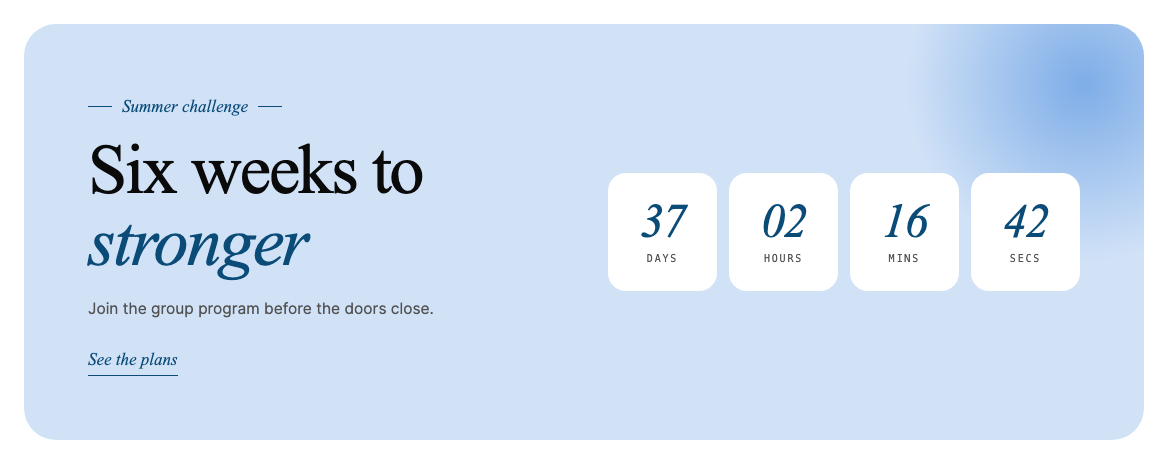
- Layout — Timer only, or Feature panel (copy + timer) with Panel tone, Eyebrow, Heading, Description and a link.
- Target date + time — read in your site's time zone (Settings → General → Timezone). A new widget starts 30 days ahead.
- Switch Days, Hours, Minutes and Seconds on or off and rename them (Label — Days and so on).
- When expired — Hide the countdown, Show message (default "The wait is over.") or Redirect to URL.
GB Meter Ticker

- Items — the short phrases that scroll by.
- Separator (dot, slash, dash, asterisk, diamond or none), Direction, Animation speed (seconds for one loop) — lower is faster — and Pause on hover.
All widgets at a glance
| Widget | What it shows | Needs |
|---|---|---|
| GB Class Card | Class cards with times, trainers, places and a Book button | — |
| GB Class Routine | The weekly timetable, five layouts | — |
| GB Class Detail | One class with its times | — |
| GB Trainer Card | Trainer cards with bio, skills and social links | — |
| GB Trainer Profile | One trainer in full | — |
| GB Trainer Reviews | A trainer's star rating | Personal Session |
| GB Pricing Plan | Plan cards with price, features, included classes and buy button | A payment add-on for the buy button |
| GB Coupon Showcase | Public coupons with a Copy button | Promotions & Trials |
| GB Member Login | Sign in and sign up for members and trainers | Registration Popup for the "I'm not a robot" check (optional) |
| GB Personal Session Booking | The one-to-one booking form | Personal Session |
| GB Fitness Calculator | BMI, body fat, protein or water calculator | — |
| GB Hero | Top-of-page banner | — |
| GB Section Heading | Subtitle and title for a section | — |
| GB Info Box | A grid of feature boxes | — |
| GB CTA Band | Call-to-action band with buttons | — |
| GB Testimonial | Quotes from members | — |
| GB Countdown | Countdown to a date | — |
| GB Meter Ticker | Scrolling strip of short phrases | — |
Questions
Do I need Elementor Pro?
No. The widgets work with the free Elementor plugin, version 3.18.0 or newer.
Do I need the Block Tools add-on too?
No. Elementor Widgets works on its own. If Block Tools is also installed, both share the same card and timetable designs, so your Elementor and block-editor pages match.
I changed a class time. Do I need to edit the page?
No. The widgets read Gym Builder each time the page loads, so new times, trainers and places show straight away.
Why don't I see GB Coupon Showcase in the panel?
It only appears while the Promotions & Trials add-on is switched on.
Can I use the class and trainer widgets on single class or trainer pages?
Yes. In an Elementor template for single class or trainer pages, leave GB Class Detail, GB Trainer Profile or GB Trainer Reviews on "Current class" or "Current trainer"; each page then shows its own class or trainer.
Where do the times on the timetable come from?
From the class times on each class's Schedule in Gym Builder. Choose 12-hour or 24-hour under Gym Builder → Settings → Classes, Time Format, or set Time format in the widget.
If something goes wrong
- There is no Gym Builder group in the widget panel — check the notice at the top of your admin pages: Elementor or Gym Builder is missing, switched off or older than 3.18.0. Use the button in the notice.
- "No classes found." or "No trainers found." — the Query finds nothing. Clear Filter by category, or check that the classes or trainers are published.
- "Enter at least one class ID to render this widget." — Source is Manual selection but nothing is picked in Select posts.
- GB Pricing Plan says "No plans to show. Pick plans under Plans in this widget, or add one in Gym Builder → Membership Plans." — the widget has no plans. Add plans under Plans, or switch Source to Query. Only people who can edit the page see this note; visitors see nothing there.
- No buy button on a plan — no payment add-on sells that plan, and its Button Text is empty. Fill in Button Text and Button URL on the plan, or switch on a payment add-on. (GB Class Card and GB Class Detail always show a button while their Book button is switched on.)
- "Install + activate GB Personal Session to use this widget." in the editor — switch on the Personal Session add-on (or Promotions & Trials for the coupon widget).
- Members can't finish signing up: "Please complete the reCAPTCHA verification." — the "I'm not a robot" box was not ticked, or Google could not check it. Ask the person to tick it and try again, and check the Site Key and Secret Key under Gym Builder → Settings → Registration Popup.
- "Too many attempts. Please try again in a few minutes." — five sign-ups came from the same connection within 15 minutes. Wait 15 minutes.