Attendance
Check members in at the front desk, or let them check themselves in from their Member Dashboard. Every check-in counts against the class times they booked, so you and your members always know how much of their plan is left.
What it does
A member books a weekly class time when they buy a plan — for example Yin Yoga, Sunday 9:00am. Attendance turns those bookings into check-ins: each time they come, someone at the desk checks them in (or they do it themselves), and Gym Builder counts how many of their booked class times they have used in the current plan period.
- Check In page — find a member, see today's class for them, click Check In.
- Self check-in — members check in to today's class from the Attendance tab of their Member Dashboard.
- Used and left, per class — "3 of 4" for each class, a total for the whole plan, and the plan dates it counts under.
- Attendance Report — every member's check-ins, and each member's full history, which you can print or clear.
- Reminder email — once per plan period, members hear when only a few check-ins are left before their plan ends.
- Online classes — with the Zoom Integration add-on, only members with a booking get the meeting link, and sending the link can count as a check-in.
Before you start
- Gym Builder 3.0.0 or newer. With an older Gym Builder the add-on stays switched off and shows a notice with an Update Gym Builder link.
- Members with booked class times. Check-ins are made against the weekly class times a member booked. These are picked when someone buys a plan (with Stripe Payments or Offline Payments), or by you when you add or edit a member in Gym Builder → Members. A member with nothing booked cannot be checked in.
- Plans with dates. The member's plan start and end dates are the "plan period" that check-ins are counted in. A plan with no end date has no limit.
- A Member Dashboard page (Member Dashboard Page in Settings → Pages), if you want members to check themselves in.
Install and switch on
- Go to Plugins → Add Plugin and click Upload Plugin.
- Choose the add-on's zip file, click Install Now, then Activate Plugin.
- Enter your license key when asked. If you skip it, the Gym Builder Dashboard shows Attendance → License Key in its menu until the license is active.
Once it is on, the Gym Builder Dashboard gets an Attendance group in its menu with two pages, Check In and Report, and an Attendance page under Settings. Members get an Attendance tab on their Member Dashboard.
How check-ins are counted
There is no "10 visits a month" number to type in. What a member may attend comes from two things you already set: the class times they booked, and the dates of their plan.
- A booked class time is one class on one weekday at one time, for example Hatha Yoga, Wednesday 7:00am - 8:00am.
- Each booked class time allows one check-in on every date it falls on inside the plan period. October 2026 has four Sundays, so a member with a Sunday class time and a plan from October 1 to October 31 may check in to it 4 times.
- The plan's total is the sum of its class times. Two class times a week in October make 8 check-ins.
- Every new period starts from zero. When the plan is renewed or bought again, the new dates are a new period and nothing carries over.
Set how much a plan allows
You choose how many classes, and how many times a week, on the plan itself. Go to Gym Builder → Membership Plans, open a plan and click Classes Included.
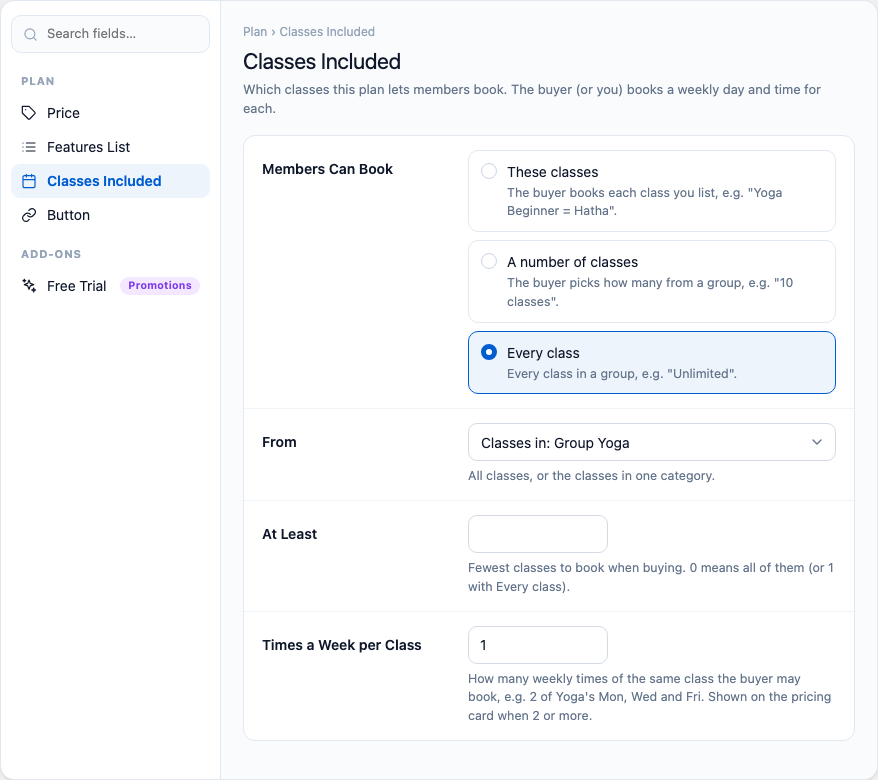
- Members Can Book — These classes, A number of classes (picked from a group) or Every class in a group.
- At Least — the fewest classes a buyer must book.
- Times a Week per Class — how many weekly times of the same class a buyer may book. Set 2 to let someone come to Yoga on Monday and Wednesday; each booked time then counts on its own.
A plan that allows one class time a week gives about 4 check-ins a month; two a week give about 8. To offer a smaller plan, allow fewer classes or fewer times a week.
The rules, in plain words
- Only booked class times. A member is checked in to a class time they booked, on its weekday.
- Once per class time per day. Yoga at 7am and Boxing at 6pm on the same day are two check-ins; Yoga at 7am twice is not.
- Only inside the plan period. Before the plan starts or after it ends, check-ins are refused.
- Two plans cover the same class? The class counts under the plan that ends last. The screens show which plan and dates it counts under.
- Your time zone. "Today" and every check-in time follow the time zone in your WordPress Settings → General.
Set it up
Go to Gym Builder → Settings → Attendance. The page has the Check-In Reminders card, and an Online Classes card when the Zoom Integration add-on is active too. Change what you need and click Save Settings at the bottom.
Check-In Reminders
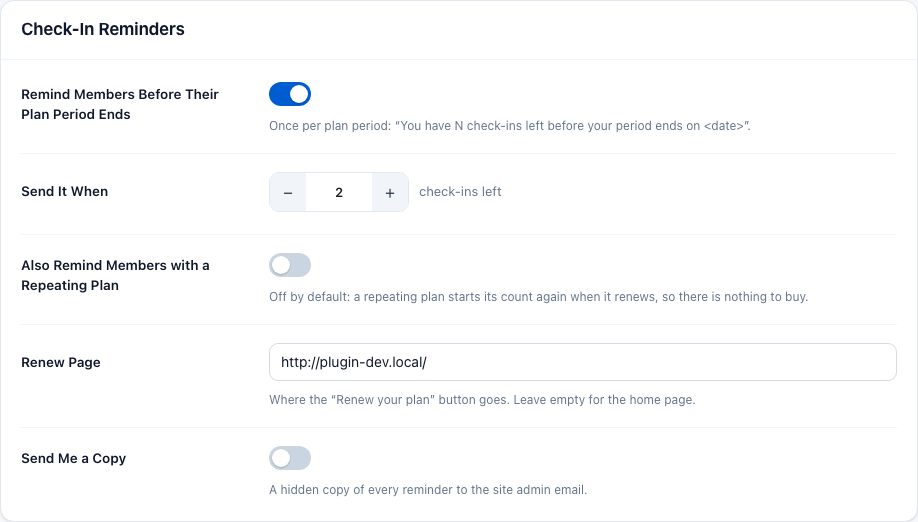
- Remind Members Before Their Plan Period Ends — sends the reminder email (see The reminder email). On by default.
- Send It When — how many check-ins are left when the email goes out, from 1 to 50. Default 2.
- Also Remind Members with a Repeating Plan — off by default: a plan that renews by itself starts its count again, so there is nothing to buy. Switch it on if you want those members told too.
- Renew Page — where the email's Renew your plan button goes, for example your pricing page. Leave it empty for your home page.
- Send Me a Copy — sends you a hidden copy of every reminder, at the site's admin email address.
Online Classes
This card only shows when the Zoom Integration add-on is active too: both settings are about Zoom's meeting link.

- Only Members with a Booking Get the Link — on by default. The Zoom meeting link goes only to a member who booked that class on that weekday and still has check-ins left in a current plan period.
- Count Sending the Link as a Check-In — off by default. When on, emailing a member the link for today's online class also checks them in to it.
Everyday use
Check a member in
- Go to Gym Builder → Attendance → Check In.
- Type the member's name, email, member ID or phone number in the search box (at least 2 letters), or pick their class in All classes.
- In the Check In column you see the class time they booked for today. If they have more than one today, choose the right one in Choose the session.
- Click Check In.
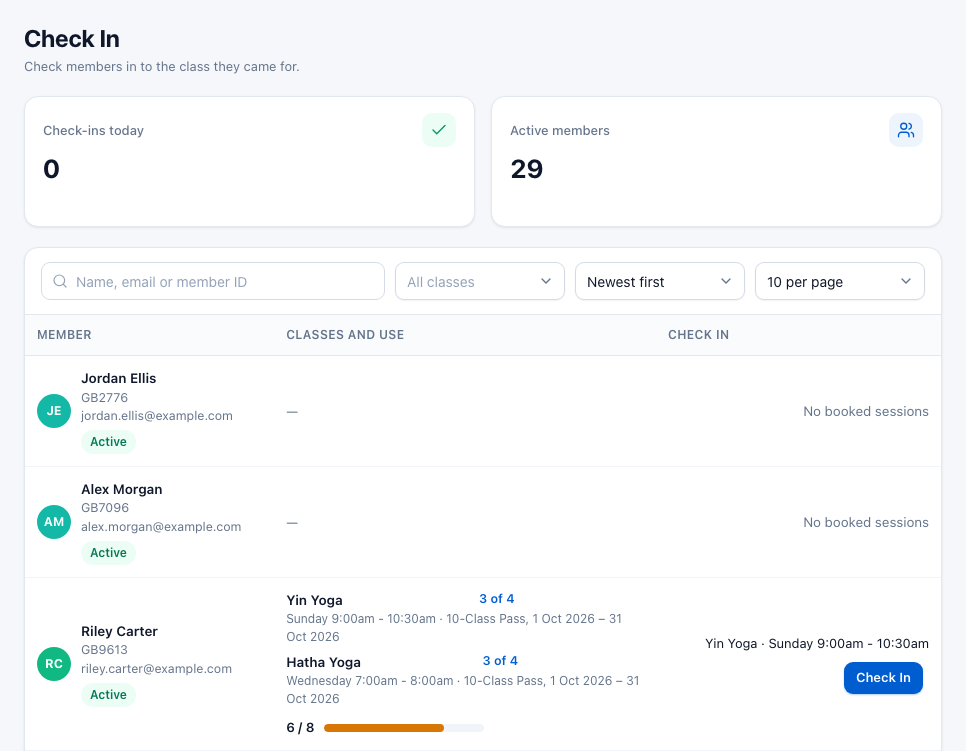
A message at the bottom of the screen confirms the check-in with the class and time, the counts in the row go up by one, and the button changes to Checked in.
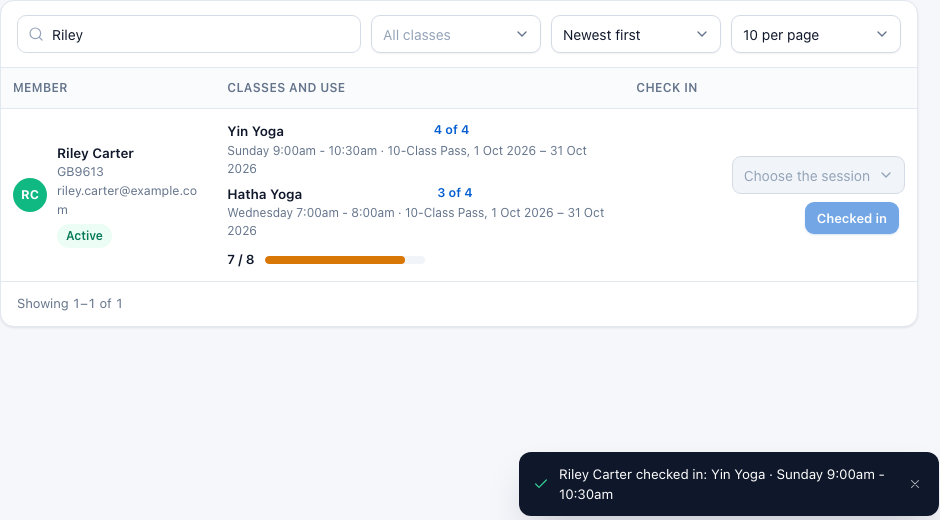
What the Check In page shows
- Check-ins today — every check-in recorded today, by anyone.
- Active members — members marked Active.
- The filters — search, one class, Newest first or Oldest first (by when the member was added), and 10, 20, 50 or 100 per page.
- Member — name, member ID, email and Active or Inactive.
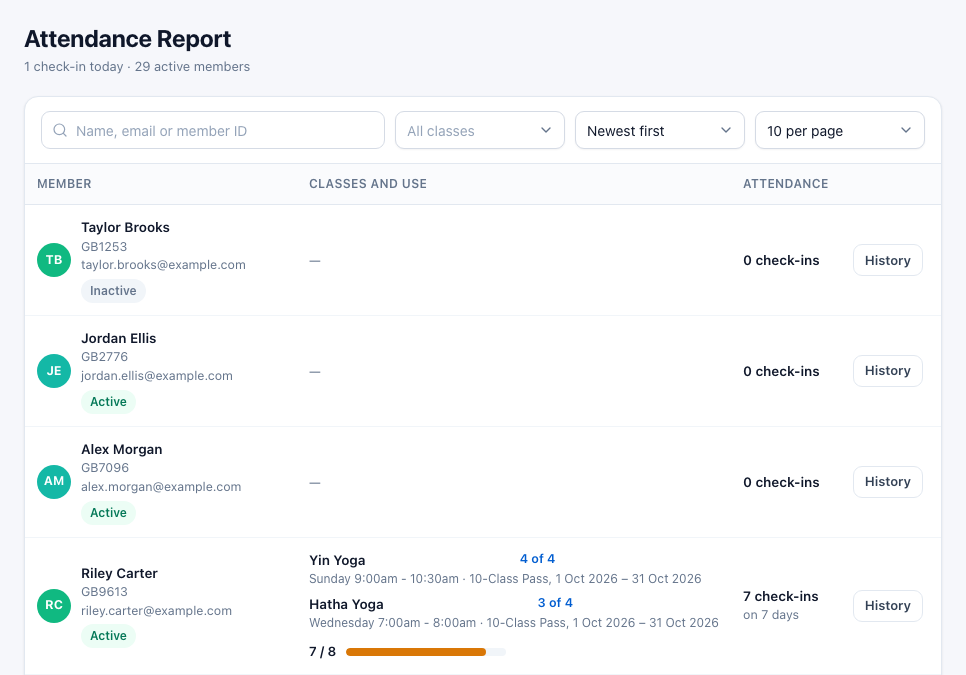
- Classes and use — one line per booked class: check-ins used of those allowed ("3 of 4"), the weekday and time, and the plan with its dates. Under them, the plan total ("6 / 8") with a bar that turns orange once three quarters are used.
- Check In — today's class time and the button.

What you may see instead of the button:
| On screen | What it means |
|---|---|
| No booked sessions | The member has no booked class times. Edit the member in Gym Builder → Members and give them a day and time for their class. |
| No session today | None of their booked class times is on today's weekday, or their plan is not running today. |
| Inactive | The member is marked Inactive. The button cannot be pressed. |
| Checked in | They are already checked in to every class time they have today. |
| Plan ended | The plan this class counts under has ended. A new purchase or new plan dates start a new period. |
| … used · no end date | The plan has no end date, so there is no limit; you only see how many times they came. |
At the desk on a phone or tablet
The Check In page works on a small screen: the filters stack and each member becomes a card with the Check In button at the bottom. Searching by name is the quickest way to find someone.

When a check-in is refused
The server checks every check-in again. If it cannot be saved, the message says why:
- This is not one of the booked class sessions. — book the class time for the member first (edit the member in Members).
- This session runs on Monday. — they booked that class on another weekday. Check-ins are only for today's class times.
- Already checked in to this session today. — nothing to do: it is already counted.
- The membership for this class has ended. — their plan's end date has passed. They need a new or renewed plan.
- The membership for this class is not active on this day. — their plan has not started yet.
See who has been coming
Go to Gym Builder → Attendance → Report. The Attendance Report has the same search and filters as the Check In page. Next to each member's classes and use, the Attendance column shows all their check-ins ever, and on how many different days ("7 check-ins on 7 days"). This total never starts again; only Clear attendance sets it back to zero.
One member's history
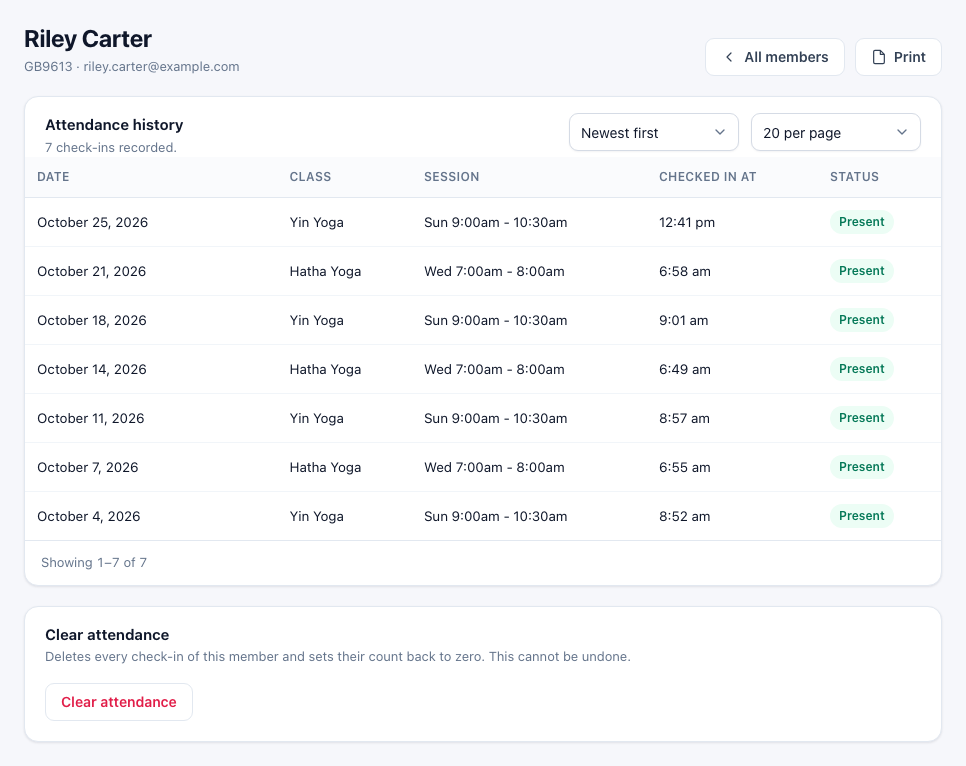
- In the Attendance Report, click History next to the member.
- The Attendance history lists every check-in with Date, Class, Session, Checked In At and Status. Sort it Newest first or Oldest first and show 10, 20, 50 or 100 per page.
- Click All members to go back to the list.
Print a member's history
On a member's history, click Print. A printable page opens with the member's whole history — every check-in, not only the page on screen — in the order you chose (Newest first or Oldest first), and your browser's print window. Choose your printer, or save it as a PDF.
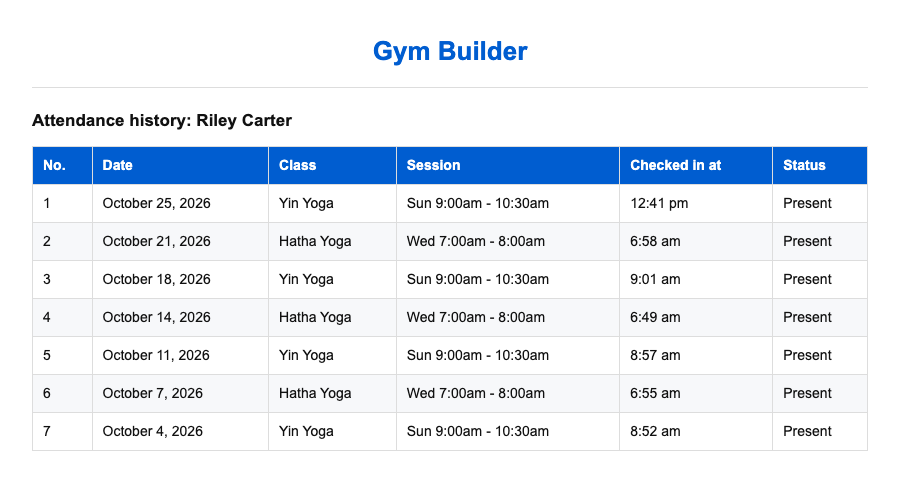
The top of the printed page shows your studio name (your site name when Studio Name on ID Cards is empty), address and phone, and the bottom shows your card note. They come from Settings → General → Studio Details.
There is no spreadsheet (CSV) download of attendance; printing, or saving as PDF, is the way to take a history out.
Clear a member's attendance
The Clear attendance card under a member's history deletes every check-in of that member and sets their count back to zero — for example for a test member, or a member who starts over.
- Open the member's history and click Clear attendance.
- Click Yes, delete them to confirm, or Keep them to stop.

The check-ins are deleted for good, including their all-time total. Because the member is back at zero, the reminder email can be sent to them again in the same period.
On the member's page
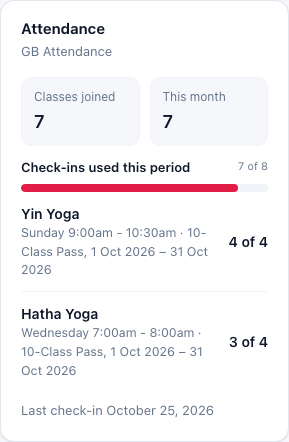
When you open a member in Gym Builder → Members, an Attendance card shows Classes joined (all time), This month, Check-ins used this period with a bar, one line per class, and the date of the last check-in.
What members see
The Attendance tab
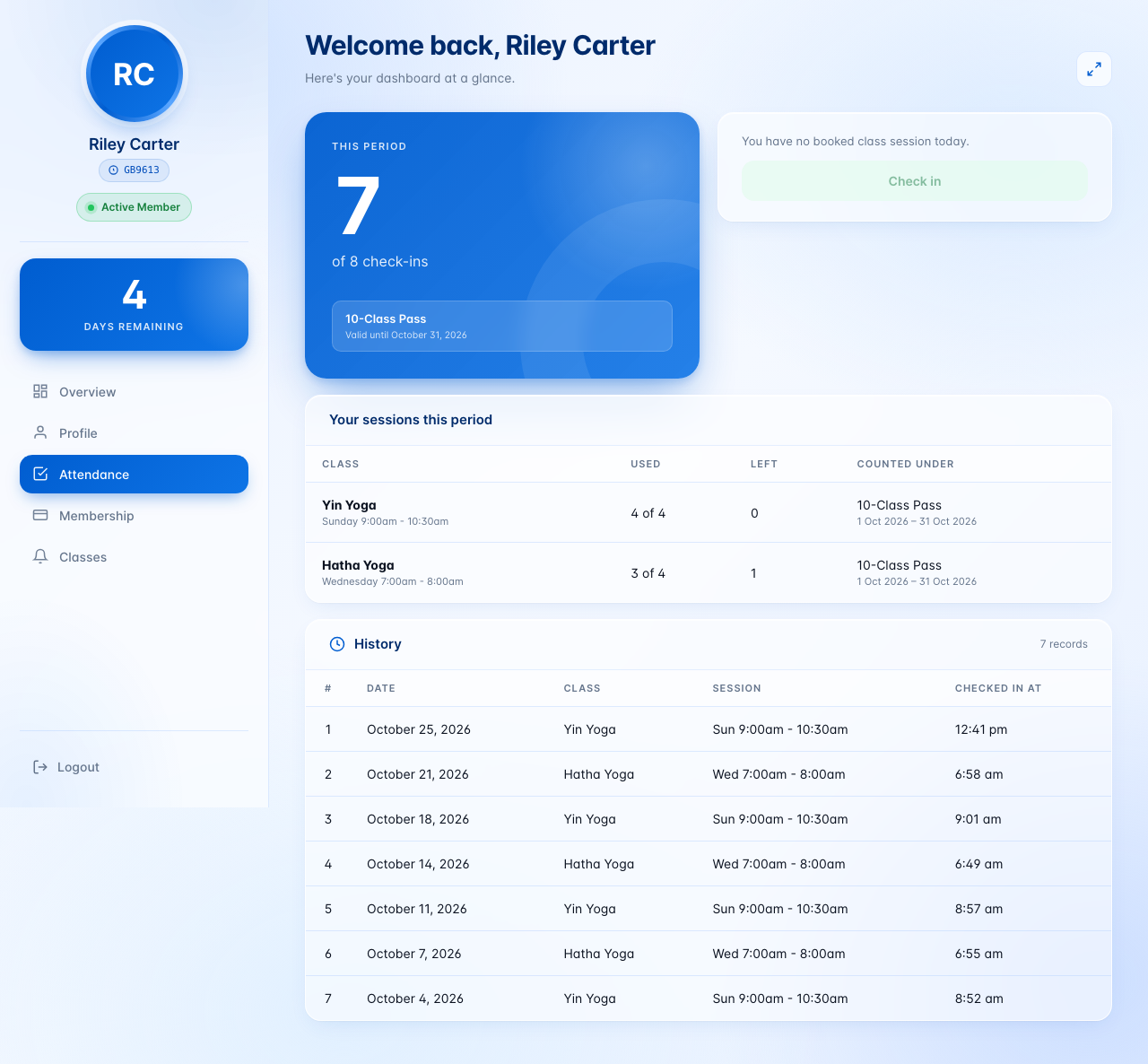
When a member logs in to their Member Dashboard, they find an Attendance tab with:
- This Period — check-ins so far "of 8 check-ins", and each plan with Valid until its end date (or Renews on for a plan that renews by itself).
- Check In — today's booked class times and the button to check in (see below).
- Your Sessions This Period — one row per class with Used, Left and Counted Under (the plan and its dates).
- History — every check-in with Date, Class, Session and Checked In At (in your site's time format, for example "6:58 am"). The 10 newest show first; Show all opens the rest. On a phone, the tables scroll sideways.
Checking themselves in
- The member opens the Attendance tab on the day of their class.
- They choose the class time they are attending in the list (when there is only one, it is already chosen).
- They tap Check In. The button shows Checked in ✓ and the tab reloads with the new counts.
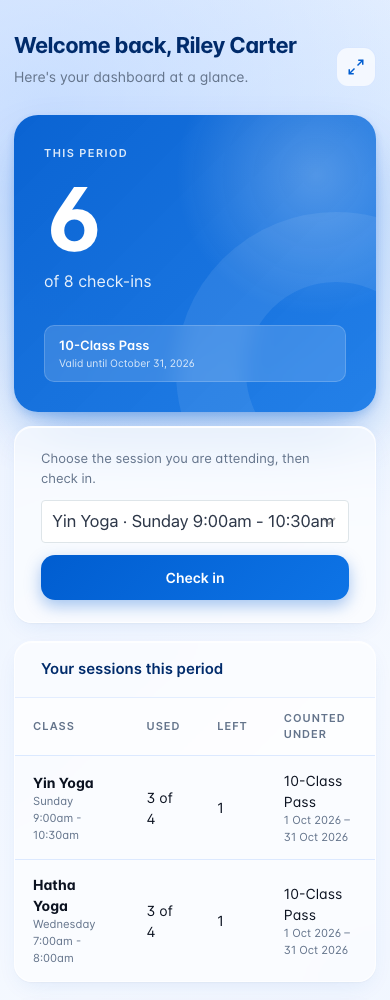
The same rules apply as at the desk. Instead of the button, the member may see:
- "You have no booked class session today." — none of their class times is today.
- "You've checked in to all of today's sessions." — they are done for today.
- "Your membership is inactive — check-in is disabled." with a Membership inactive button — the member is marked Inactive.
Self check-in works from anywhere, at any time on the day of the class. If you need people to be in the building, check them in at the desk instead.
The reminder email
When a member is down to the number of check-ins you set (2 by default) before their plan ends, they get one email for that plan period: "You have 1 check-in left before your period ends on October 31, 2026". It lists the class times that still have dates left, how many times they have checked in, and — for a plan that does not renew by itself — a Renew your plan button to your Renew Page. For a plan that renews, it says the count starts again and there is nothing to do.
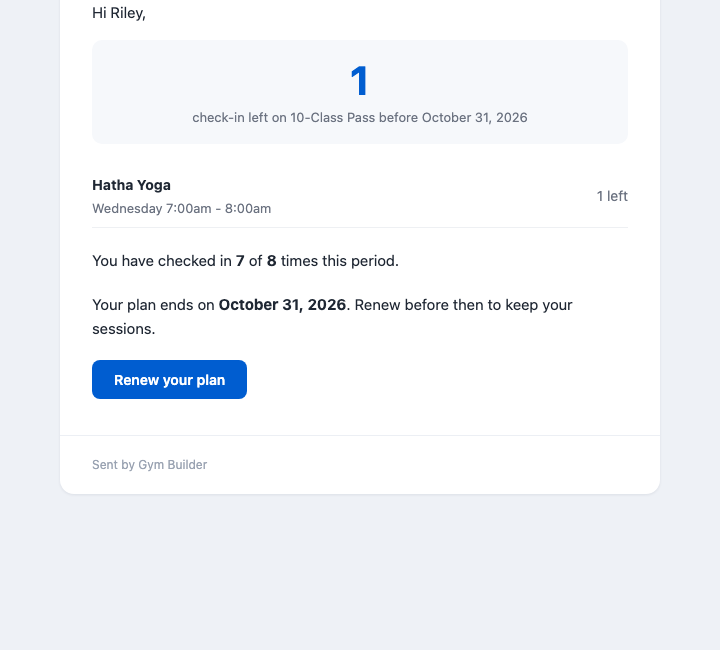
- "Left" runs down with the calendar. It counts the member's booked dates still ahead in the period, so the email can go out even on a day nobody checks in. Gym Builder looks once a day, and again after every check-in.
- Once per plan period. A renewal, a new purchase or clearing the member's attendance allows a new one.
- Not sent for plans with no end date, for plans whose whole period had no more check-ins than the number you set, for members marked Inactive, and for members with no email address (they get it once you add one).
- The email is sent in your studio's name, from the Send Emails From address in Settings → General.
Questions
Is there a "10 visits a month" setting?
No. What a member may attend comes from the class times they booked and their plan dates: one check-in for every date a booked class time falls on in the period. To sell less, let the plan include fewer classes or fewer times a week (see Set how much a plan allows).
Do check-ins start again when a plan renews?
Yes. Each renewal or new purchase is a new period that starts at zero; nothing carries over. The all-time total in the Attendance Report keeps counting.
Can I check someone in for a class they did not book?
No. Add the class time to the member first: open them in Gym Builder → Members, click Edit and give them a day and time for that class (within what their plan allows). Then check them in.
Can I check someone in for yesterday?
No. A check-in is always for today's class times, in your site's time zone.
Can trainers or reception staff check members in?
The Check In page and the Attendance Report are for site administrators. Members can check themselves in from their Member Dashboard.
Can I download attendance as a spreadsheet?
No. You can print a member's history, or save it as a PDF from the print window.
Does joining an online class count?
Only if you use Zoom Integration and switch on Count Sending the Link as a Check-In. Then emailing a member the link for today's class checks them in to it. Clicking Join Now on the Member Dashboard does not count.
What happens if I switch the add-on off?
The Attendance pages, the member tab and the reminders go away, and selling plans keeps working. Switch it back on and everything is there again. Deleting the add-on from the Plugins page, however, deletes all check-ins and its settings.
Some check-ins in a history have no class or session.
Those were saved by an older version, before check-ins recorded the class time. They stay in the history, and they still count toward their class when they fall on a day the member could have come. The member's Attendance tab says "Includes 1 earlier check-in" when that happens.
If something goes wrong
- A member shows "No booked sessions" — they have no class time booked. Edit the member and pick a day and time for each class.
- A member shows "No session today" but is here — look at their booked class times: is one of them today? Is today inside their plan dates? The page uses the time zone in WordPress Settings → General.
- A count looks too low or too high — check the member's plan start and end dates in Members. The allowance is the number of times each booked weekday falls between those dates.
- The member has no Attendance tab — the add-on must be on, the member must be logged in with their member account, and the Member Dashboard page must be set in Settings → Pages.
- Reminder emails never arrive — check that Remind Members Before Their Plan Period Ends is on, that the plan has an end date, and that the member has an email address. If other site emails also go missing, set up an email (SMTP) plugin.
- The Dashboard's "Needs you" card says "The daily task is not scheduled" — the daily reminder check is not running. Switch the add-on off and on again in Plugins.
- The "Needs you" card says "The attendance table is missing" — check-ins cannot be saved. Switch the add-on off and on again to rebuild it.
- The printed page shows your site name, not your studio name — fill in Studio Name on ID Cards in Settings → General → Studio Details.