Fitness Tracking
Trainers give members a weekly workout, members log their sets, body measurements and daily habits on their dashboard, and both sides see the progress in charts and talk to each other in a simple chat.
What it does
Fitness Tracking adds a Fitness tab to the member dashboard and a Fitness Tracking tab to the trainer dashboard. You, the studio owner, keep a shared exercise library and ready-made workout plans; your trainers use them to give each of their members a weekly workout.
- Workouts from trainers — a trainer picks a workout plan (or builds one on the spot), chooses the days, sets, reps and weight, and gives it to a member.
- Set logging — each day the member sees that day's exercises and logs every set: reps, weight and how hard it felt.
- Body measurements — weight, body fat, waist, chest and hips, with BMI worked out for them.
- Quick daily log — water, calories, sleep and steps, one tap each.
- Charts and a PDF report — weight trend, weekly training volume, daily habits and how many days they trained.
- Coach notes and chat — trainers send short notes to a member's Coach Feed and chat with them one-to-one.
- Trainer overview — who trained this week, who is on a streak and who needs a nudge.
- Emails — a daily reminder, a weekly summary, and a short email for each new note or chat message.
Before you start
- Gym Builder 3.0.0 or newer. The add-on's pages live in the Gym Builder Dashboard.
- Members need a member login. The Fitness tab appears on the member dashboard of anyone who has a member account.
- Trainers need a trainer login linked to their trainer profile, and the profile must be approved (published). You set these up under Gym Builder → Trainer Accounts.
- Which members a trainer sees. A trainer's list holds the members booked into a class the trainer teaches on your timetable. If you also use the Personal Session add-on, people who booked a one-to-one session with the trainer are added too.
Install and switch on
- In WordPress, go to Plugins → Add Plugin and click Upload Plugin.
- Choose the Fitness Tracking zip file you downloaded, click Install Now, then Activate Plugin.
- Enter your license key when asked. Until you do, the Dashboard menu shows a License Key item under Fitness Tracking.
The first time you switch it on, the add-on fills the exercise library with 10 common exercises (Back Squat, Bench Press, Deadlift, Push-Up, Plank and more) and adds two workout plans, Full Body — Beginner and Upper / Lower — Intermediate, so your trainers can start straight away.
Where to find it
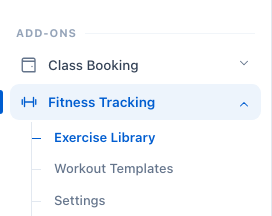
Open Gym Builder in the WordPress menu. In the Dashboard's own menu, under Add-ons, you'll find Fitness Tracking with three pages: Exercise Library, Workout Templates and Settings.
Set it up
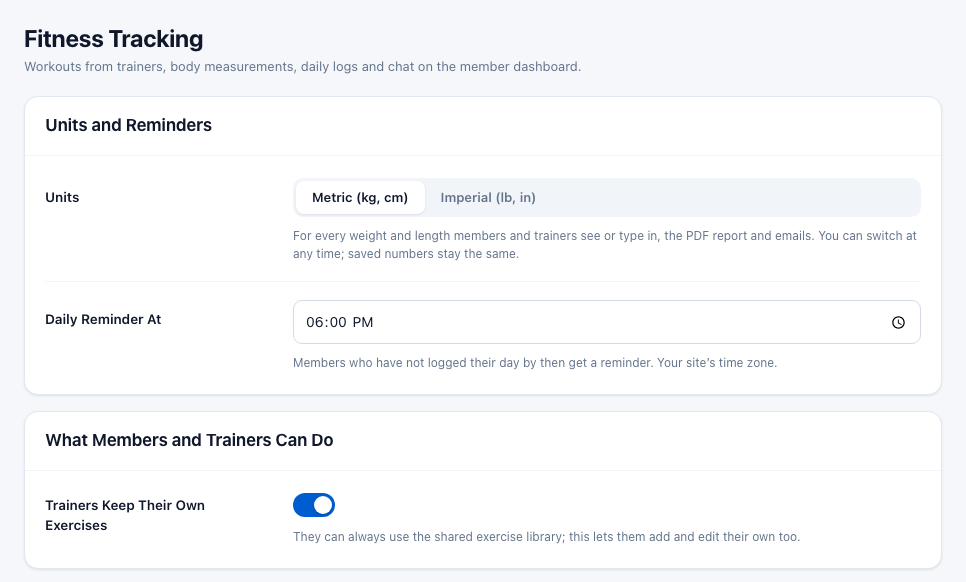
Go to Gym Builder → Fitness Tracking → Settings. The page has four cards. When you change something, click Save Settings at the bottom of the page.
Units and Reminders
| Setting | What it does |
|---|---|
| Units | Metric (kg, cm) or Imperial (lb, in). Starts on Metric. With Imperial, every form on the member and trainer dashboards (and the workout template editor) asks for pounds and inches, and charts, the PDF report, the Fitness progress card on a member's profile and the weekly email show pounds. You can switch at any time; numbers already saved stay the same. |
| Daily Reminder At | The time of day the reminder email goes out, in your site's time zone. Starts at 6:00 PM. |
What Members and Trainers Can Do
- Trainers Keep Their Own Exercises — on: trainers can add their own exercises next to the shared library, from their dashboard. Off: they can only use the shared library. Either way they can still build their own workout plans.
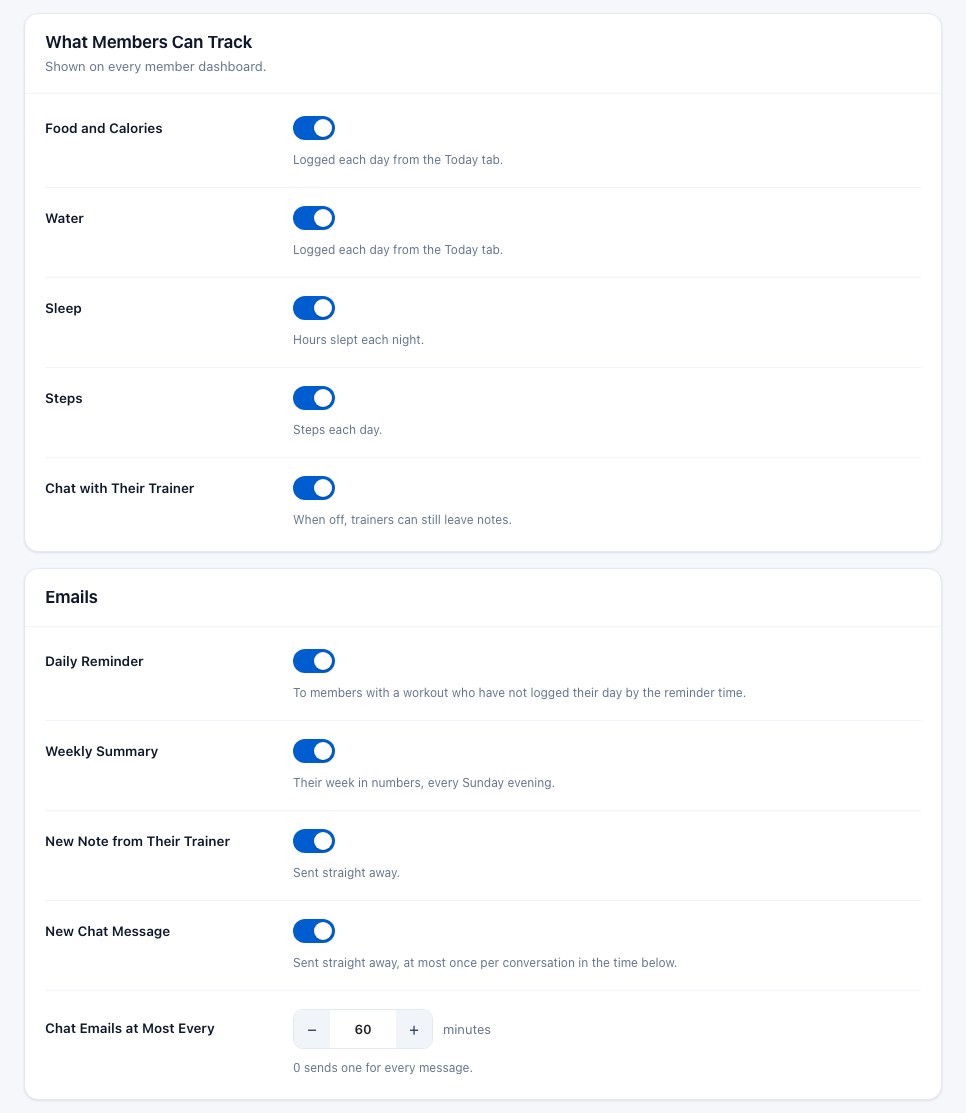
What Members Can Track
| Setting | What it does |
|---|---|
| Food and Calories | Shows the Calories tile in the member's Quick log, and calories in their charts, report and the trainer's view. |
| Water | Shows the Water (ml) tile and water in charts and reports. |
| Sleep | Shows the Sleep (h) tile — hours slept each night. |
| Steps | Shows the Steps tile — steps each day. |
| Chat with Their Trainer | Shows the Messages tab, to members and to trainers, so they can chat. When off, neither side sees Messages (trainers also lose the Message button), but trainers can still send notes to the Coach Feed. |
All five start switched on. A switched-off item disappears from the member's Today tab, Charts and PDF report, and from the trainer's daily habits.
Emails
| Setting | What it does |
|---|---|
| Daily Reminder | Sends the daily reminder at the time set above. |
| Weekly Summary | Sends each member who trained that week a short summary every Sunday evening. |
| New Note from Their Trainer | Emails the member straight away when a trainer sends them a note. |
| New Chat Message | Emails the other person when a chat message arrives. |
| Chat Emails at Most Every | Minutes to wait before another chat email in the same conversation, so a busy chat doesn't fill an inbox. Starts at 60. 0 sends one for every message. |
All emails start switched on. See Emails below for who gets each one and when.
Exercise Library
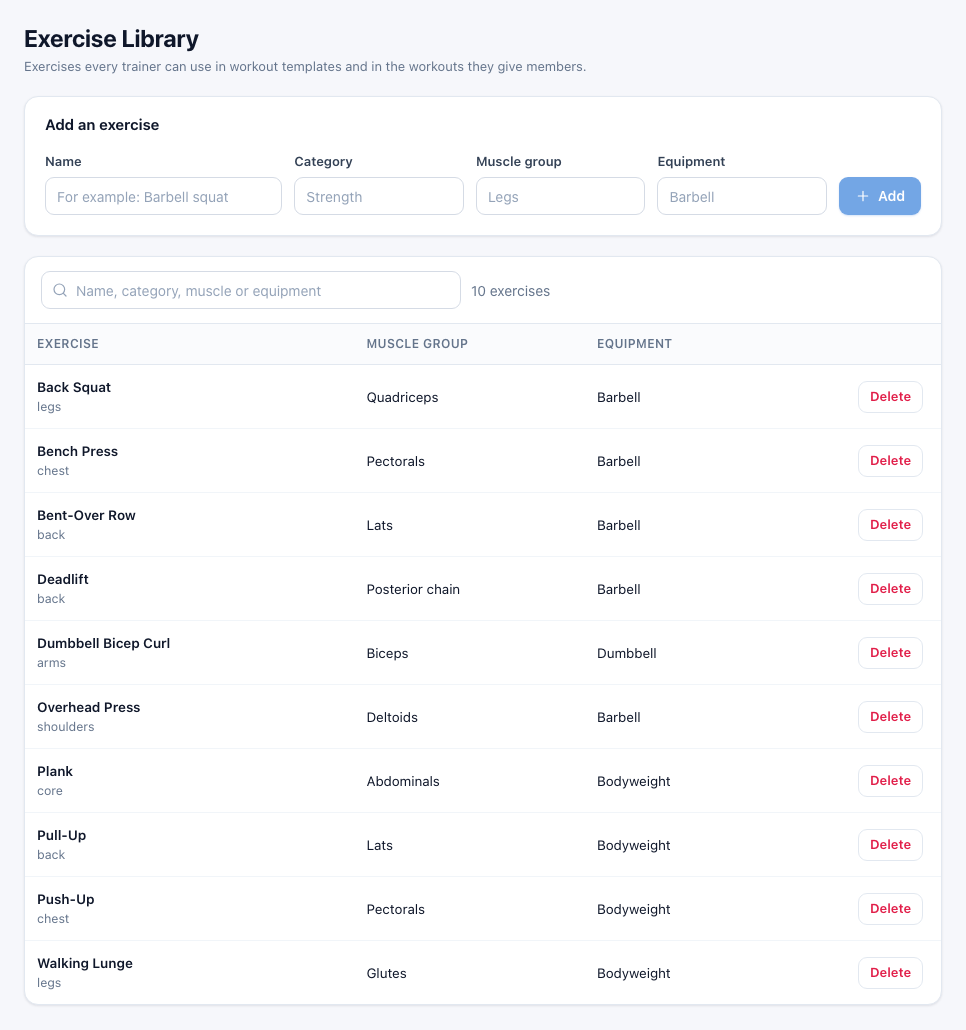
The shared list of exercises every trainer can use in workout plans and in the workouts they give members. Go to Gym Builder → Fitness Tracking → Exercise Library.
Add an exercise
- In Add an exercise, type the Name (for example "Barbell squat").
- Fill in Category, Muscle group and Equipment if you like — they help you and your trainers find it later.
- Click Add. The exercise appears in the table and every trainer can use it.
Use the search box above the table to find an exercise by name, category, muscle or equipment.
Remove an exercise
- Click Delete on its row.
- Click Yes, delete to confirm, or Keep to leave it.
The exercise leaves the library, so nobody can add it to new workouts. Workouts members already have keep it.
Exercises a trainer adds on their own dashboard are theirs only. They don't appear on this page, and other trainers don't see them.
Workout Templates
Ready-made workout plans every trainer can give to members and then adjust for each one. Go to Gym Builder → Fitness Tracking → Workout Templates.

Make a workout template
- Click New Template.
- Give it a Name, for example "Beginner full body". Add a Category (optional), the Length in weeks and the Level (Beginner, Intermediate or Advanced).
- Under Exercises, choose an exercise and the Day of the week it's done on, then the Sets, Reps, Weight (kg) (Weight (lb) with Imperial units) and Rest (sec).
- Click Add an exercise for each further exercise. The bin icon removes one.
- Click Save Template.
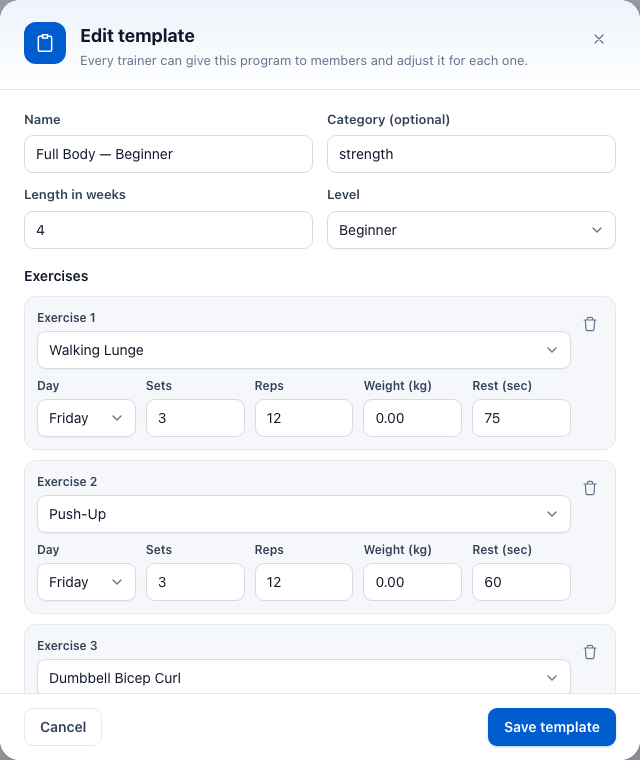
To change a template, click Edit on its row. To remove one, click Delete and then Yes, delete.
A template is one week of training: each exercise sits on a day of the week, and the same week repeats until the trainer ends the workout. Length in weeks and Level are labels that help trainers choose. When a trainer gives a template to a member, the member gets their own copy — changing or deleting the template later doesn't change workouts already given.
For trainers
Trainers do their part on the trainer dashboard, the same page where they see their classes. They open Fitness Tracking in its menu. The number next to it counts chat messages they haven't read.
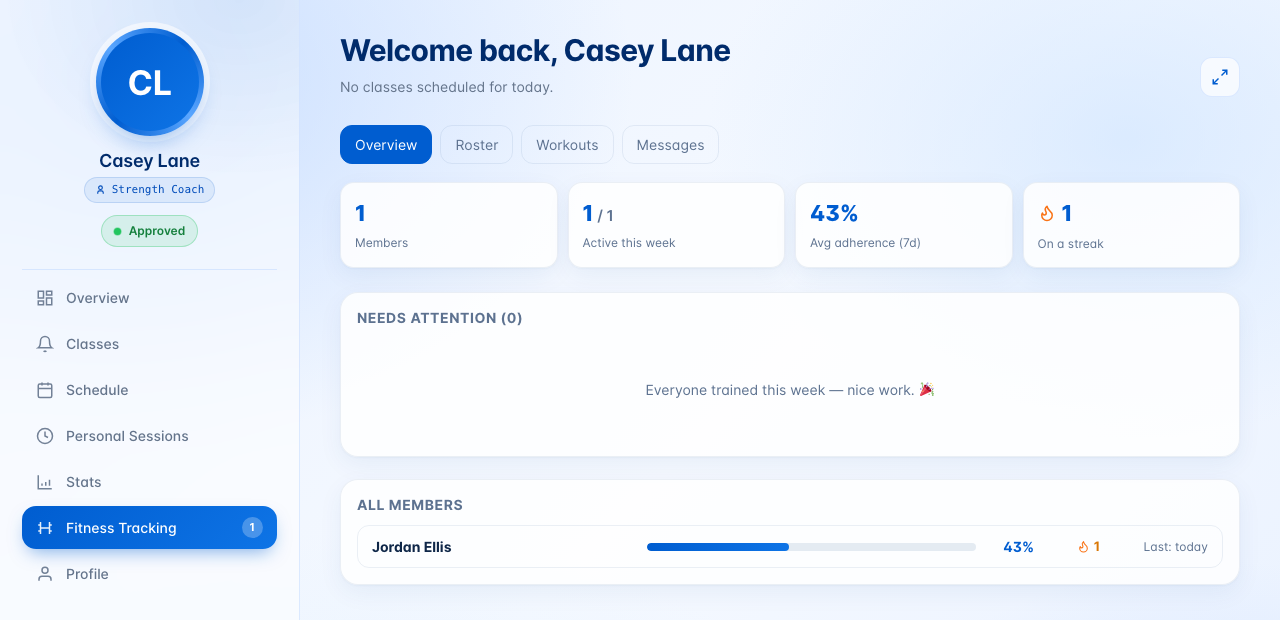
The tab has four parts: Overview, Roster, Workouts and Messages.
Overview

- Members — how many members are on the trainer's list.
- Active This Week — how many logged at least one workout in the last 7 days.
- Avg Adherence (7d) — on average, the share of the last 7 days members logged a workout.
- On a Streak — members who logged a workout today or yesterday, so their run of days in a row is still going.
- Needs attention — members who logged nothing in the last 7 days, those who never logged first.
- All members — everyone, with their 7-day score, streak and when they last logged. Click a name to open that member.
Roster
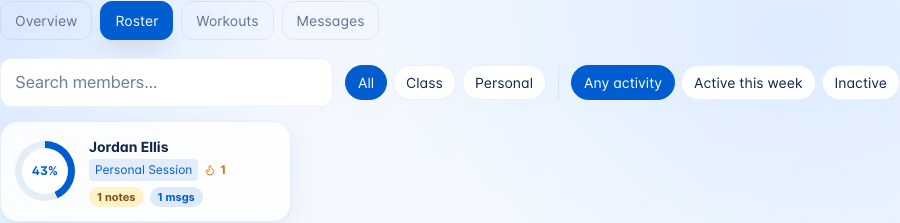
Every member on the trainer's list as a card. Search by name, or filter by where they come from (All, Class, Personal) and by activity (Any Activity, Active This Week, Inactive). Each card shows the 7-day score in a ring, where the member comes from (Class, Personal Session or Class + Personal), their streak, and small badges such as No workouts yet, notes the member hasn't read yet, or chat messages from them the trainer hasn't read. A card marked No dashboard account is someone who booked without a member login; they can't be given workouts.
Give a member a workout
- In Roster (or Overview), click the member.
- Click + Assign Workout.
- Choose Use a Template and pick one from Pick a Template, or choose Build Custom and add exercise rows: Exercise, Day, Sets, Reps, Kg (Lb with Imperial units) and Rest (seconds). Click + Add Exercise for more rows.
- With Build Custom, tick Also save this as a reusable template if you want to use it again.
- Give it an Assignment Name (a template's name is used if you leave it empty), and set the Start date and, if you like, an End date.
- Click Assign Workout.
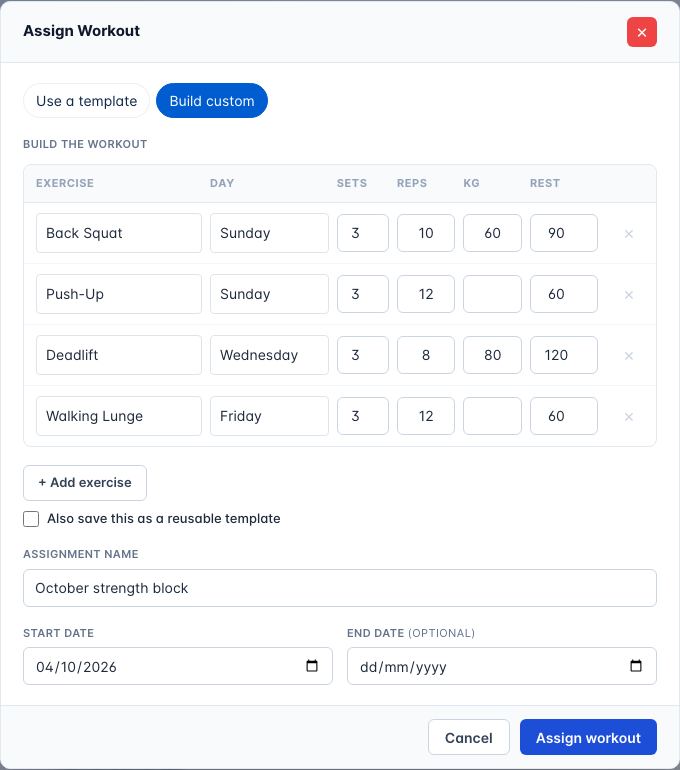
From the start date, the member sees that day's exercises on their Today tab every week, until the end date. With no end date the workout keeps going.
A member's progress
Clicking a member opens their page: their current weight, how often they trained in the last 7 and 30 days, their streak, and their current workouts.
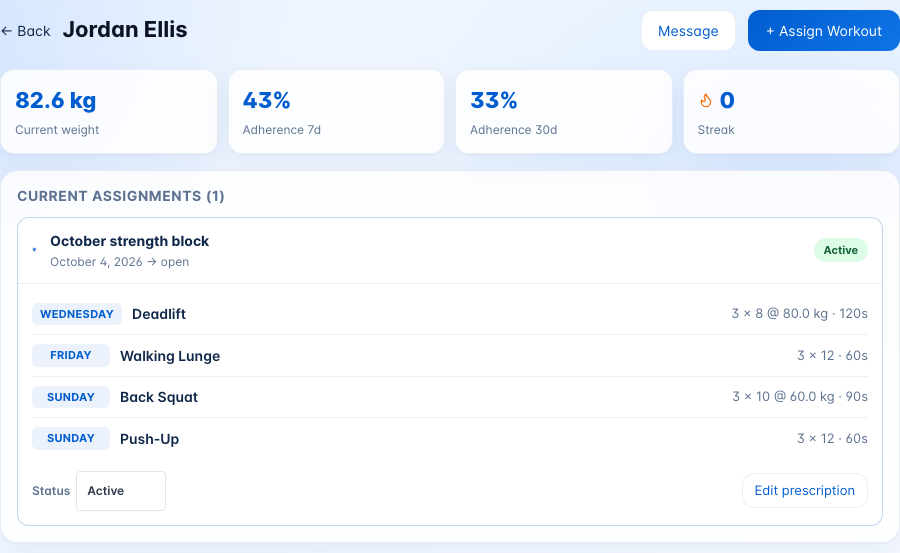
- Current assignments — the member's active and paused workouts. Click one to see its exercises by day.
- Edit Prescription — change the day, sets, reps, weight (Kg, or Lb with Imperial units) or rest of each exercise, then click Save changes. The sets the member already logged stay.
- Status — a workout is Active until you set it to Paused, Completed or Abandoned.
- Workout History — every exercise the member logged, by day, with sets, reps and the heaviest weight. Filter by Last Year, 90 Days, 30 Days or your own From / To dates.
- Measurements — the member's body measurements, with the same filters.

Only active workouts show on the member's Today tab. A Paused workout stays under Current assignments with a Paused badge; set it back to Active when the member is ready to carry on. Once you set a workout to Completed or Abandoned it leaves the list, and the trainer dashboard has no way to bring it back. To start again, give the member a new workout.
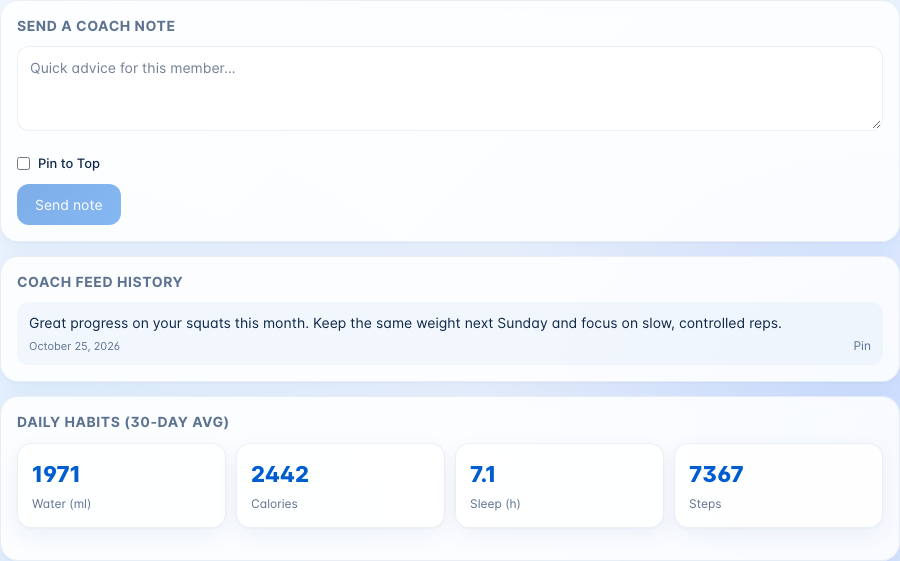
Send a coach note
- On the member's page, scroll to Send a Coach Note.
- Type a short piece of advice.
- Tick Pin to Top if the note should stay at the top of the member's Coach Feed.
- Click Send Note.
The note appears in the member's Coach Feed, and they get an email if New Note from Their Trainer is on. Notes already sent are listed under Coach Feed History, pinned notes first and marked "pinned". Click Pin or Unpin on a note to change that later. Below, Daily Habits (30-Day Avg) shows the member's average water, calories, sleep and steps.
Chat with a member
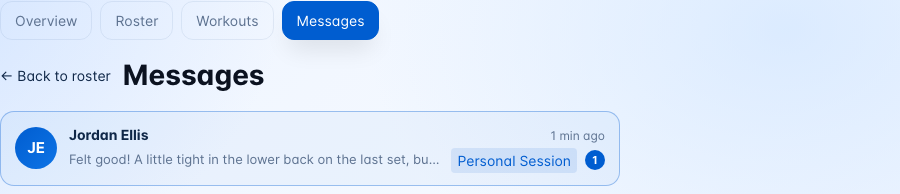
- On the member's page, click Message (shown while Chat with Their Trainer is on).
- Type in Type a message… and click Send (or press Enter).
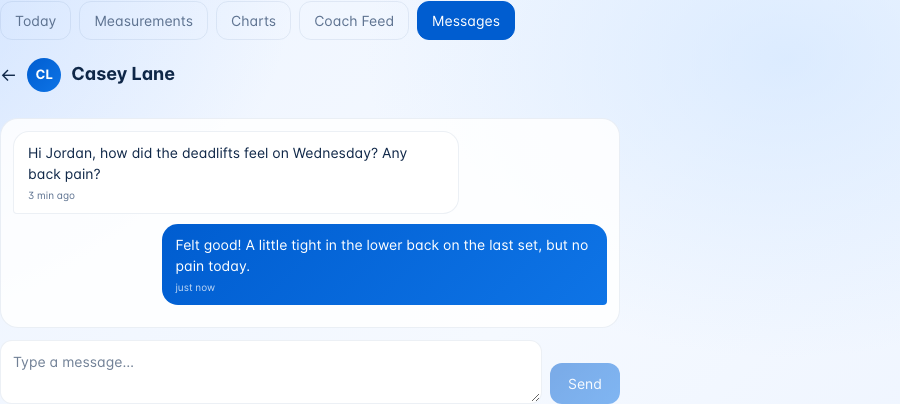
The trainer always starts a conversation; the member can then reply. All conversations are listed under Messages, newest first, with a count of unread replies.
Their own templates and exercises
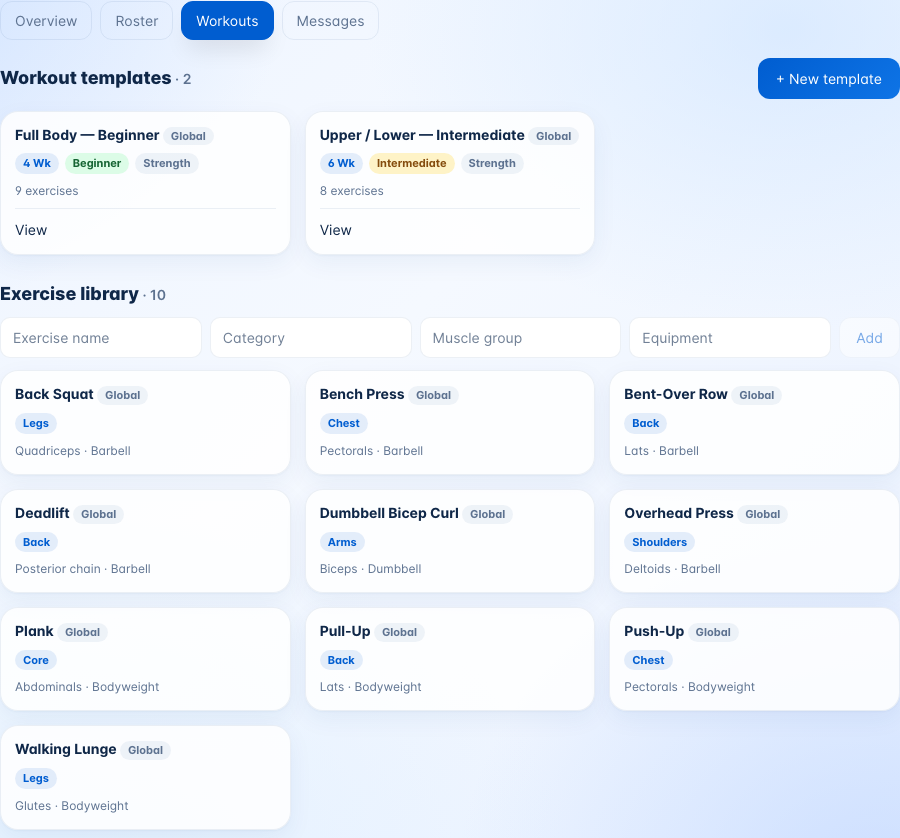
Under Workouts, trainers see the shared templates and exercises (marked Global) next to their own.
- + New Template — build their own workout plan: Template Name, Duration (weeks), Difficulty, Category and the exercises. Shared templates open with View and can't be changed.
- Exercise Library — add their own exercise with a name, category, muscle group and equipment, then Add. This needs Trainers Keep Their Own Exercises switched on.
What members see
Members open Fitness in their dashboard menu. The number next to it counts coach notes and chat messages they haven't read. The tab has five parts: Today, Measurements, Charts, Coach Feed and Messages (Messages only when chat is on).
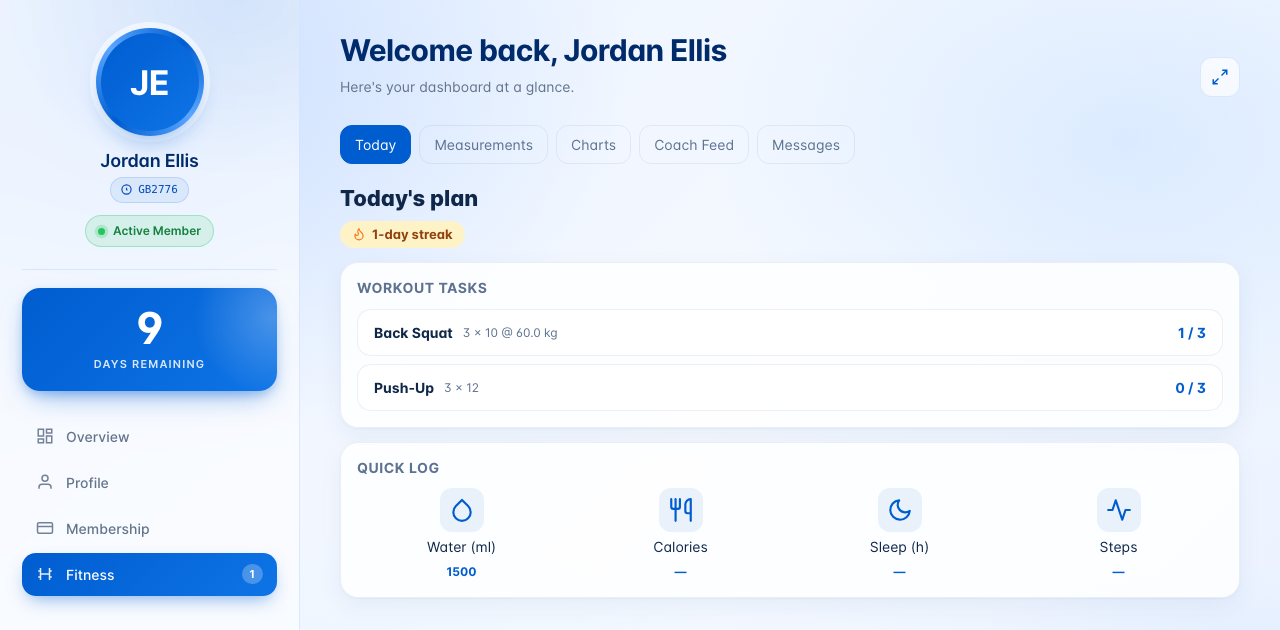
Today: log a workout
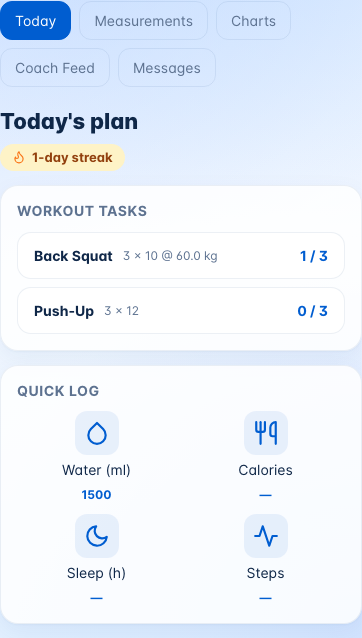
Today's Plan lists the exercises the trainer set for this day of the week. Each one shows the target, such as "3 × 10 @ 60.0 kg", and how many sets are done.
- Click the exercise.
- Enter the Reps and Weight (kg) they did (Weight (lb) with Imperial units), and RPE 1-10 — how hard the set felt, from 1 (very easy) to 10 (as hard as possible).
- Click Log set 1. Repeat for each set; the button counts up.

A small badge such as 1-day streak shows how many days in a row they have logged a workout. On a day with nothing planned, the tab says No exercises scheduled for today. Rest day!
Quick log: water, calories, sleep and steps
- Under Quick Log, tap a tile: Water (ml), Calories, Sleep (h) or Steps.
- A box such as Log Water (ml) opens. Type the total for today and click Save.

Saving again replaces today's number rather than adding to it, so members type the day's total. Only the items you switched on in What Members Can Track appear.
Measurements and BMI
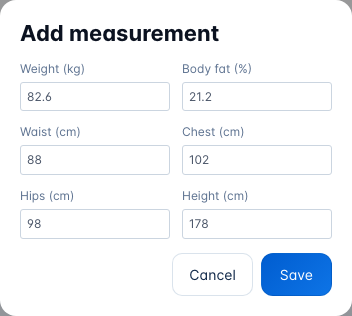
- Open Measurements and click + Add Measurement.
- Fill in any of Weight (kg), Body Fat (%), Waist (cm), Chest (cm), Hips (cm) and Height (cm). With Imperial units the boxes ask for lb and in.
- Click Save.
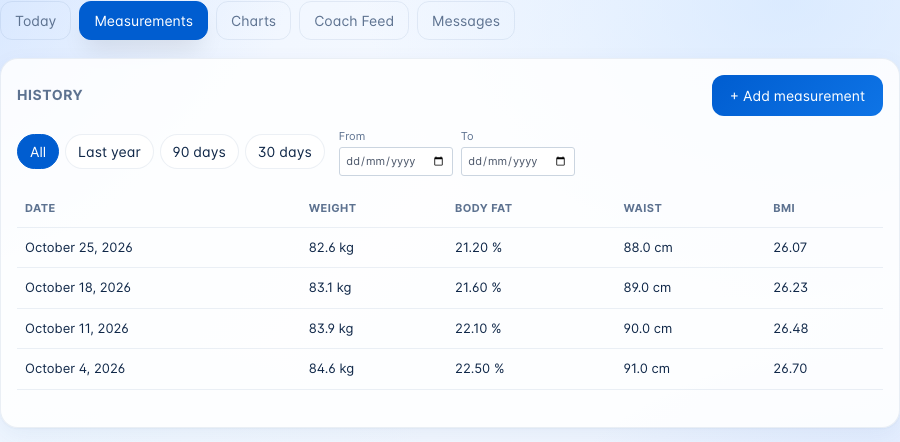
The History table lists each date (in your site's date format) with weight, body fat, waist and BMI. Filter it by Last Year, 90 Days, 30 Days or your own dates.
BMI is worked out when weight and height are entered together. Height isn't remembered between entries, so members should fill it in each time. There is one entry per day: saving again on the same day updates that day's entry.
Charts
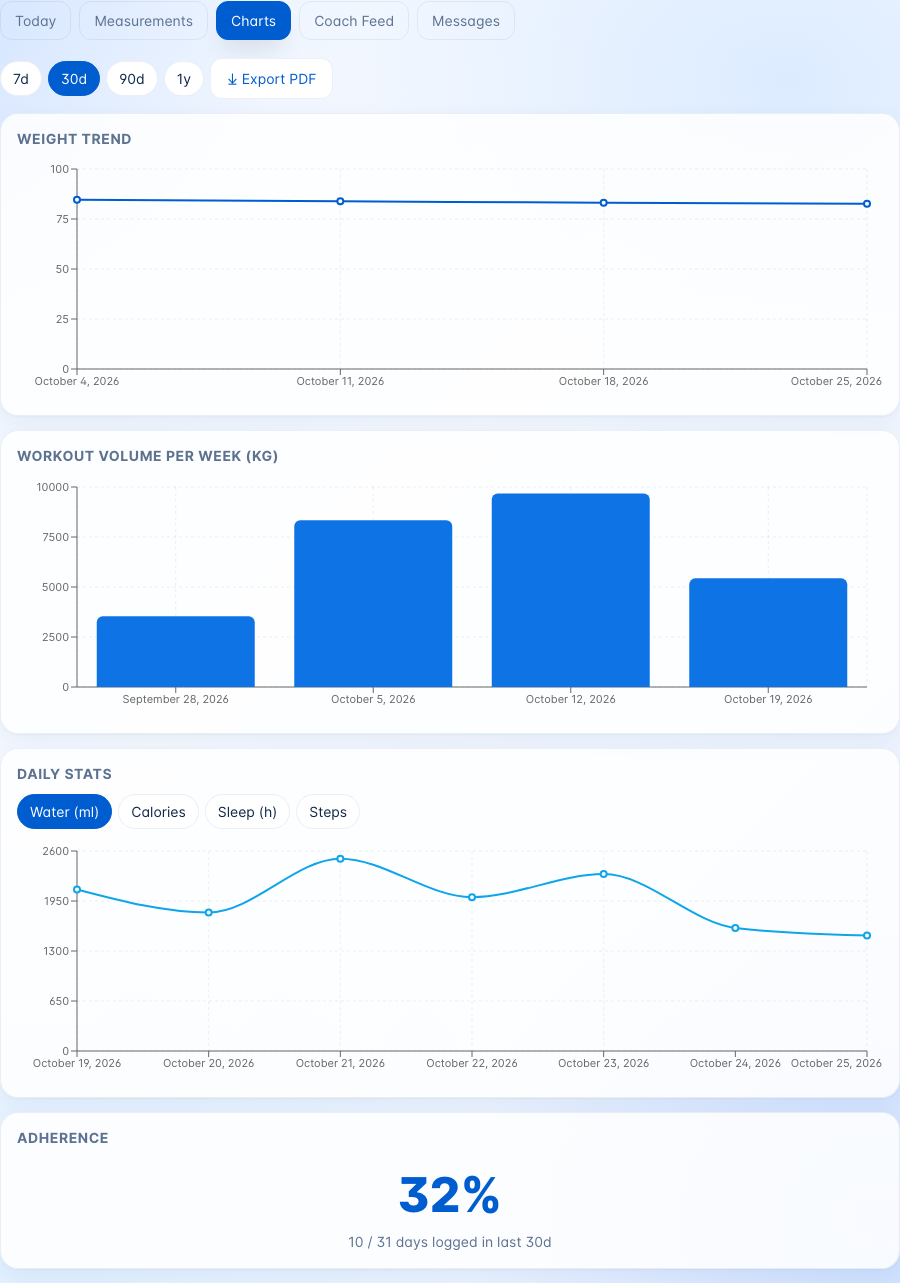
Choose a period at the top — 7d, 30d, 90d or 1y.
- Weight Trend — weight from each measurement.
- Workout Volume per Week (kg) — reps × weight for every logged set, added up per week (in lb with Imperial units). Exercises done with body weight count at the member's latest weight. Weeks start on the day set under Week Starts On in WordPress's Settings → General, and each bar is labelled with that day's date.
- Daily Stats — one line for water, calories, sleep or steps; tap a button to switch.
- Adherence — the share of days in the period with a logged workout.
PDF progress report
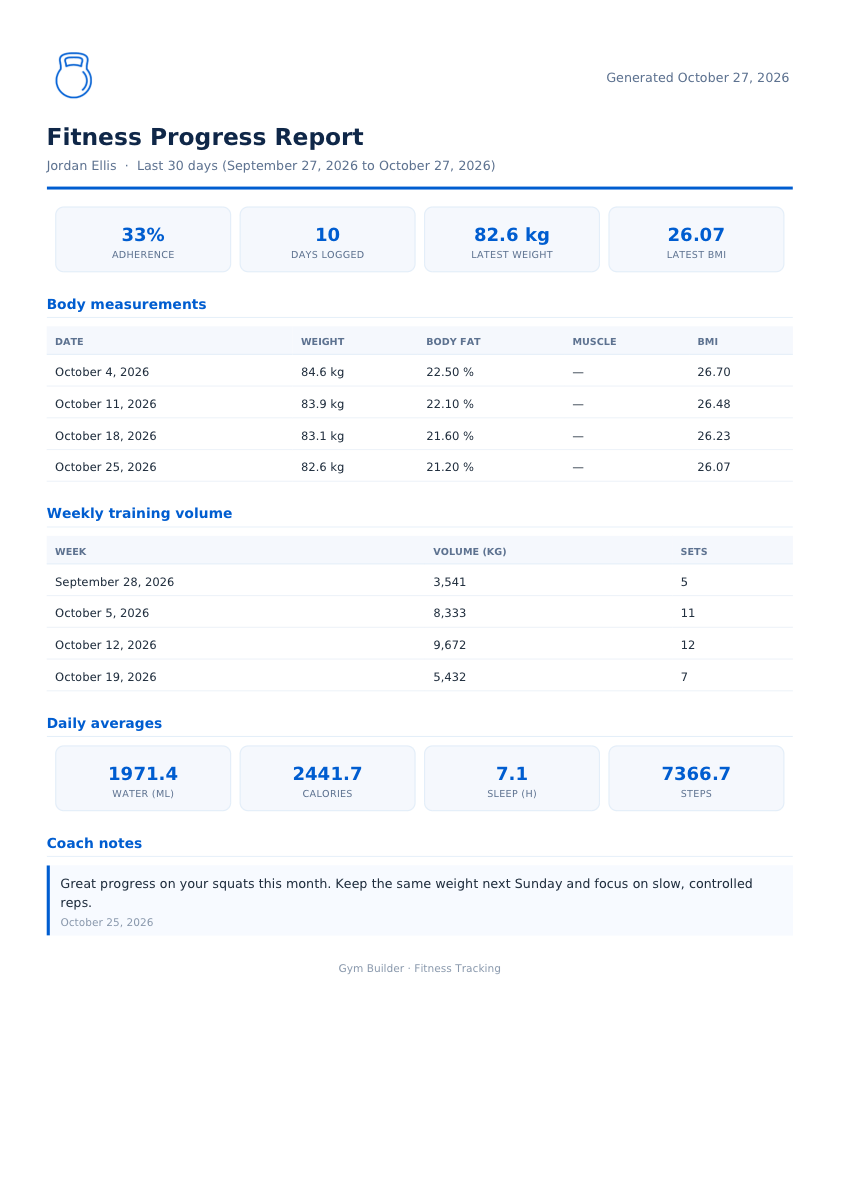
On the Charts tab, members click ⤓ Export PDF to download a Fitness Progress Report for the chosen period: adherence, days logged, latest weight and BMI, body measurements, weekly training volume, daily averages and their coach's notes. Dates follow your site's date format, and weights your Units. It carries your site logo when one is set.
Coach Feed
Notes from the trainer, newest first. Notes the trainer pinned stay on top, marked Pinned. A new note is marked unread until the member clicks it.

Messages
Conversations with their trainer. Members open one and reply with Send. New messages show up on their own within about 15 seconds while the page is open. Until a trainer writes first, the tab says No conversations yet. Your trainer can start one.
On a phone
On a phone, the tabs wrap onto two lines and the Quick log tiles sit two by two.
On the member's profile
In Gym Builder → Members, open a member to see a Fitness progress card on their Overview: their latest weight and the change since their first measurement (in kg or lb, following Units), BMI, how many of their workouts are marked completed, and the date they last measured. The card appears once the member has a measurement or a workout.
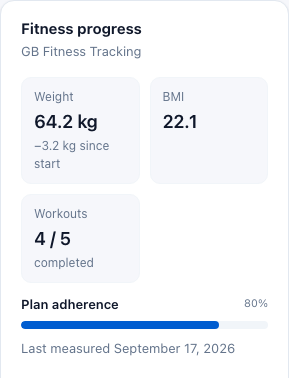
Plan adherence on this card is the share of the member's workouts set to completed, not how often they trained.
Emails
All emails are short and plain, and each can be switched off in Settings → Emails.
| Who gets it and when | |
|---|---|
| Daily reminder | Subject "Fitness reminder — log today's workout". Every day at the Daily Reminder At time, to members whose active workout has exercises that day (and has started and not ended) and who haven't logged a set that day. Nobody gets it on a rest day. The Quick log doesn't count. |
| Weekly summary | Subject "Your weekly fitness recap". Sunday at 8 PM (site time), to members who logged a workout in the past 7 days: sets, days trained and total volume (in kg or lb, following Units). |
| Coach note | Subject "New advice from your coach". Straight away, to the member, when a trainer sends a coach note. |
| Chat message | Subject "New fitness-tracking message". To the member when the trainer writes, or to the trainer when the member writes — at most once per conversation in the time you set. |
The trainer's email is the email on their trainer profile, or the email of the account that owns the profile.
Questions
Can I, as the admin, give a member a workout?
Workouts are given on the trainer dashboard, by the member's trainer. From the Gym Builder Dashboard you look after the shared Exercise Library and Workout Templates that trainers use.
Why can't a trainer see one of my members?
A trainer only sees members booked into a class the trainer teaches on your timetable, and — with Personal Session — people who booked a session with them. Book the member into one of the trainer's classes and they appear on the trainer's Roster.
Can a member start a chat with their trainer?
No. The trainer writes first; the member can then reply in Messages.
Does the workout change from week to week?
No. A workout is one week of exercises that repeats until its end date. For a new phase, the trainer gives the member a new workout or edits the prescription.
Can trainers add measurements for a member?
No. Members add their own measurements; trainers see them on the member's page.
Which day counts as "today"?
Your site's day, from the time zone in your WordPress settings — not the member's phone. The workout of the day, logs, streaks and charts all follow it.
Does Quick log count towards the streak?
No. Streaks, adherence and the daily reminder all look at logged workout sets.
If something goes wrong
- No Fitness tab on the member dashboard — the person needs a member account linked to their member record. Check they appear in Gym Builder → Members with a login.
- Trainer sees "Your trainer profile is not approved yet." — publish the trainer's profile; then they can open their dashboard.
- Trainer's Roster says "No members in your roster yet." — the trainer isn't on any class time with booked members. Check the timetable and the classes the trainer teaches.
- Today says "Rest day!" but a workout was given — check the workout's start date has passed, its end date hasn't, its status is Active (not Paused), and it has exercises on today's day of the week.
- No BMI in the measurements — weight and height must be entered in the same measurement.
- No Messages tab for members or trainers — chat is switched off. Turn on Chat with Their Trainer in Settings, or use coach notes instead.
- A trainer can't add exercises on their dashboard — switch on Trainers Keep Their Own Exercises, or add the exercise to the shared Exercise Library yourself.
- Emails don't arrive — check the switch in Settings → Emails and that your site can send email. Reminders and summaries run on a schedule, so your site needs visitors (or a server task) for them to go out on time.