Registration Popup
A sign-up form for new members: in a popup that opens by itself, behind a button, or right on a page. Visitors pick their classes and a membership plan, and can also book a class time straight from your timetable.
What it does
Gym Builder lets you add members yourself. Registration Popup lets people sign themselves up from your website. Each registration becomes a member in Gym Builder → Members, with a login for the member dashboard.
- Three ways to show the form — a popup that opens by itself after a short wait, a popup that opens from a button, or a form placed on a page.
- Three layouts — the form on its own, or the form beside a photo of your choice on a white or colored background.
- Classes and plans in one go — visitors choose a class, a day and a time (up to three classes), and a membership plan with its price.
- Booking from the timetable — every class time on your timetable gets a Register button that opens a short form for that class time.
- Paid sign-up — with Stripe Payments or Offline Payments, new members pay for their plan before they are signed up.
- Your choice of required fields, Google's "I'm not a robot" check, emails to you and to the new member, and your own colors.
Before you start
- Gym Builder 3.0.0 or newer. With an older Gym Builder the add-on stays switched off and shows a notice asking you to update.
- Classes with class times, and membership plans. The form lists your published classes and their class times, and your plans with their prices.
- To take payment at sign-up (optional): Stripe Payments or Offline Payments, set up. Without one, every registration is free and waits for you to activate it.
- For the "I'm not a robot" check (optional): a free reCAPTCHA v2 site key and secret key from Google.
Install and switch on
- Go to Plugins → Add Plugin, click Upload Plugin, choose the add-on's zip file and click Install Now.
- Click Activate.
- Enter your license key when asked. Until it is entered, the Dashboard menu shows License Key under Registration Popup.
When the add-on is on, it takes over the Register buttons on your timetable: they open this add-on's form instead of Gym Builder's own short form. Classes sold through Class Booking & Payment keep their Book button.
Set it up
All the settings are on one page of the Gym Builder Dashboard. Go to Gym Builder → Registration Popup → Settings (in the Dashboard menu, under Add-ons). The page has seven cards; the menu lists them so you can jump to one. Change what you need, then click Save Settings at the bottom of the page.
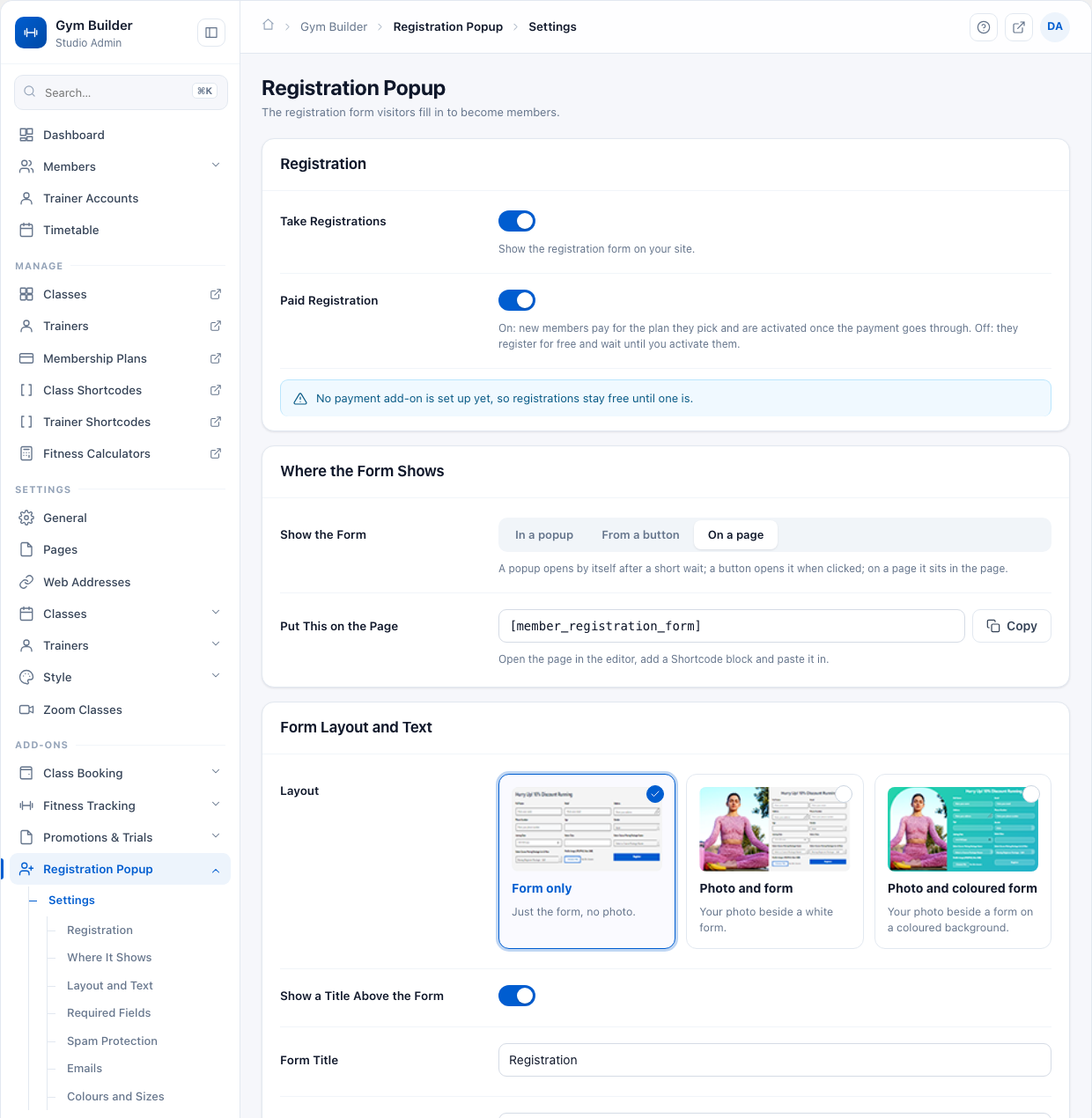
Registration

| Setting | What it does |
|---|---|
| Take Registrations | Shows the registration form on your site (the popup, the button's popup or the form on a page). Switch it off to close registration everywhere: the popup, the page form, the popup button and the Register buttons on your timetable all disappear, for visitors and logged-in members alike. A form someone still has open from before is turned away with "Registration is closed at the moment." |
| Paid Registration | On: new members pay for the plan they pick and are activated once the payment goes through. Off: they register for free and wait until you activate them. While no payment add-on is set up, registrations stay free whichever way this is set. |
Where the Form Shows
Choose one of three ways under Show the Form. The rows below it change with your choice.
- In a popup — the form opens by itself on every page of your site after the wait you set. Once a visitor closes it, it does not open by itself again for 5 minutes. Nothing else to do.
- From a button — the form opens in a popup when the visitor clicks your button. Put the button on a page with the shortcode shown in Put This Where the Button Goes:
[member_registration_form_popup_button]. - On a page — the form sits in the page, like any other content. Paste the shortcode shown in Put This on the Page into your page:
[member_registration_form].

For In a popup and From a button you also set:
- How the Popup Appears — the way it comes on screen: Fade in (the default), Fade out, Shake, Bounce, Flash, Slide up, Slide down, Pulse, Swing, Bounce in from the top, Bounce in from the bottom, Tada or Rubber band.
- Wait Before It Opens — in milliseconds; 1000 milliseconds is one second. The standard is 5000 (five seconds). This is the wait for the popup that opens by itself.
- Popup Width (Pixels) — from 600 to 1400. Leave it at 0 for the standard width.
- Darken the Page Behind the Popup — a dark layer over the page while the popup is open.
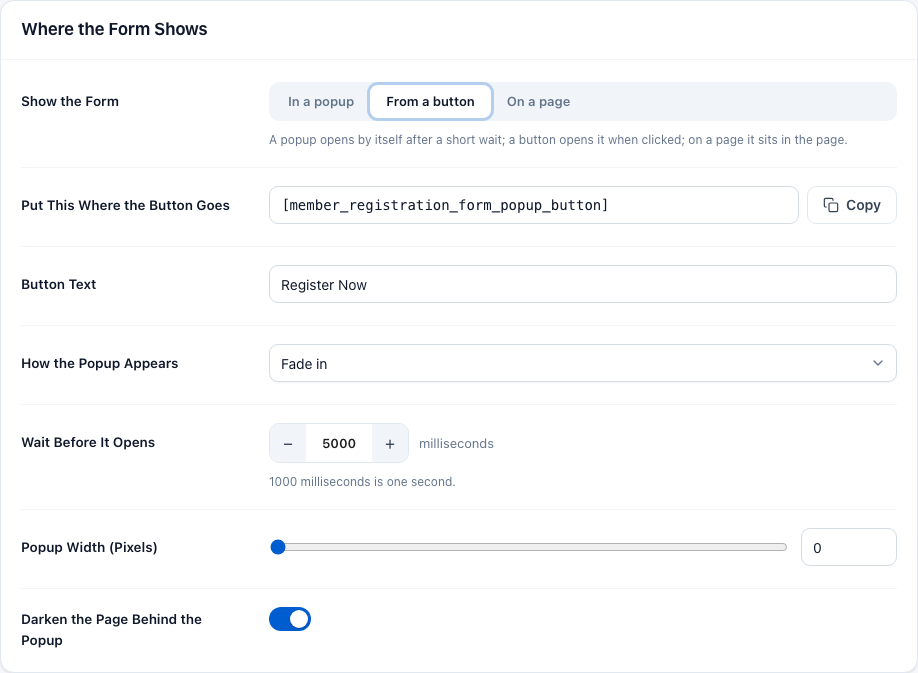
Button Text is the text on that button. The standard is "Register Now".
Form Layout and Text
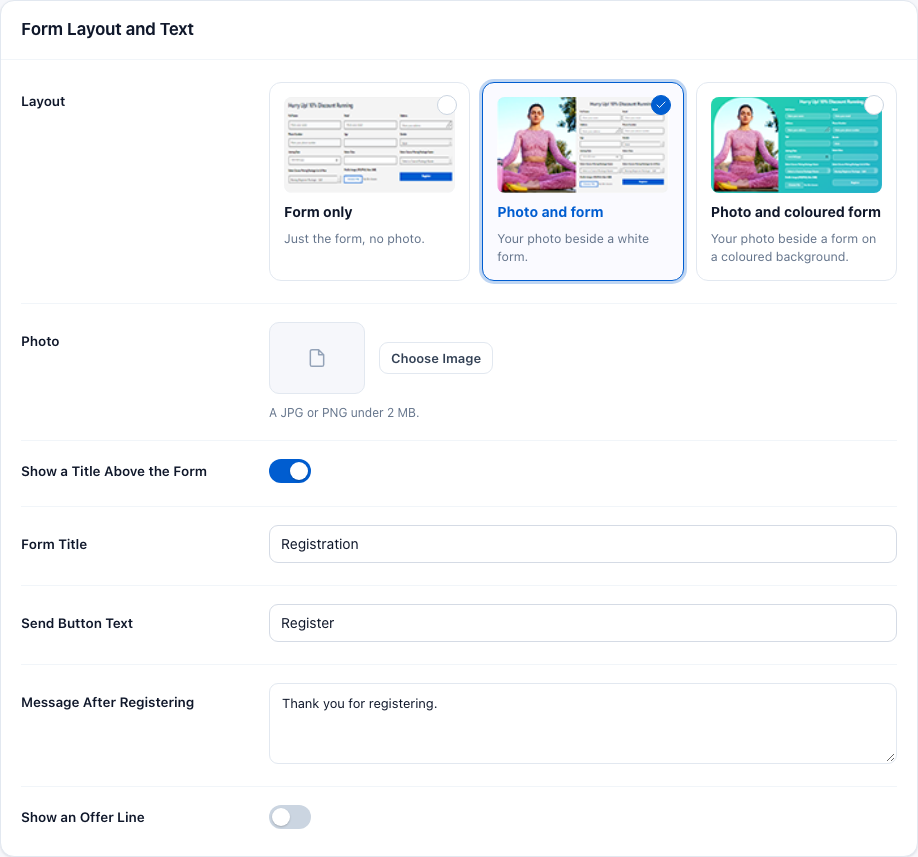
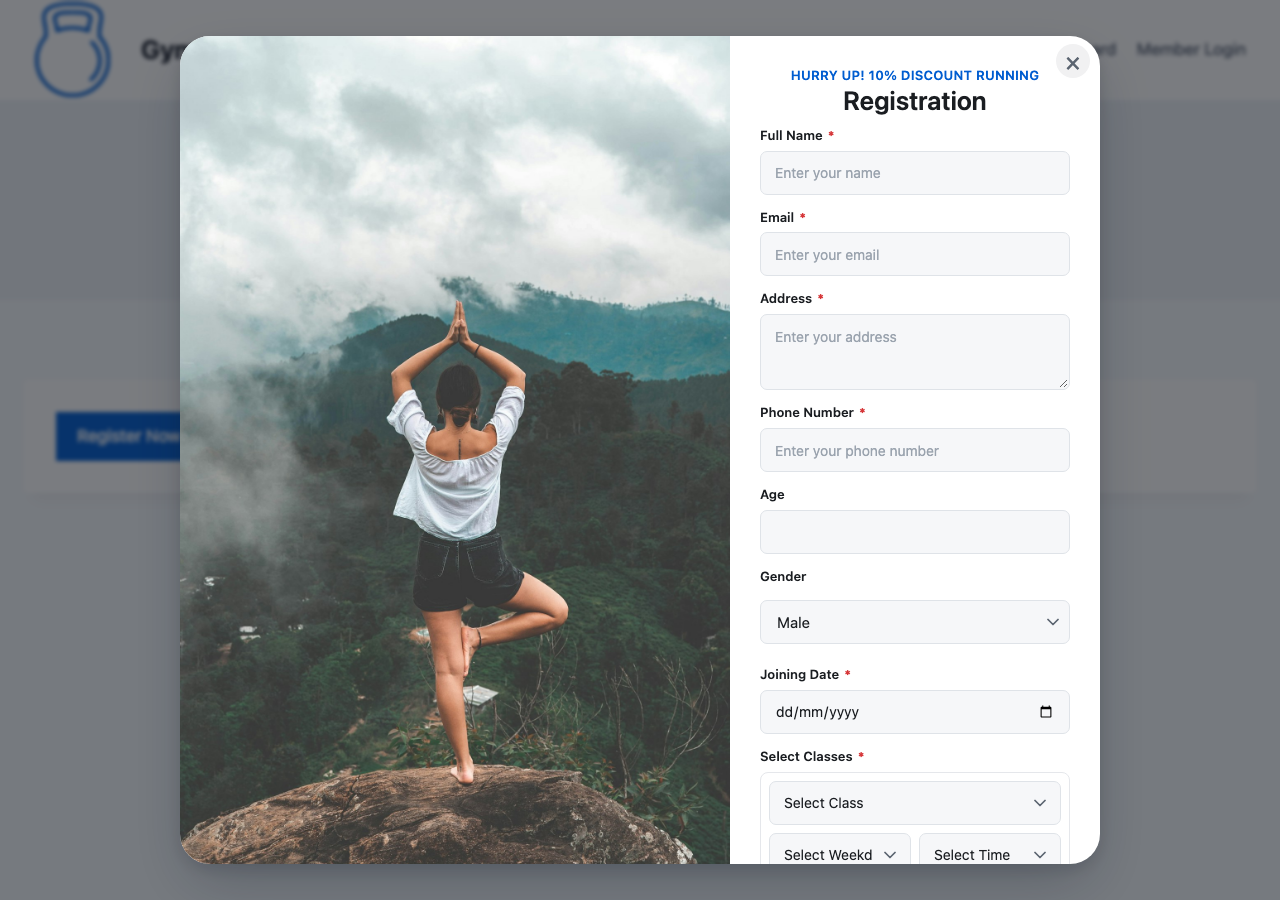
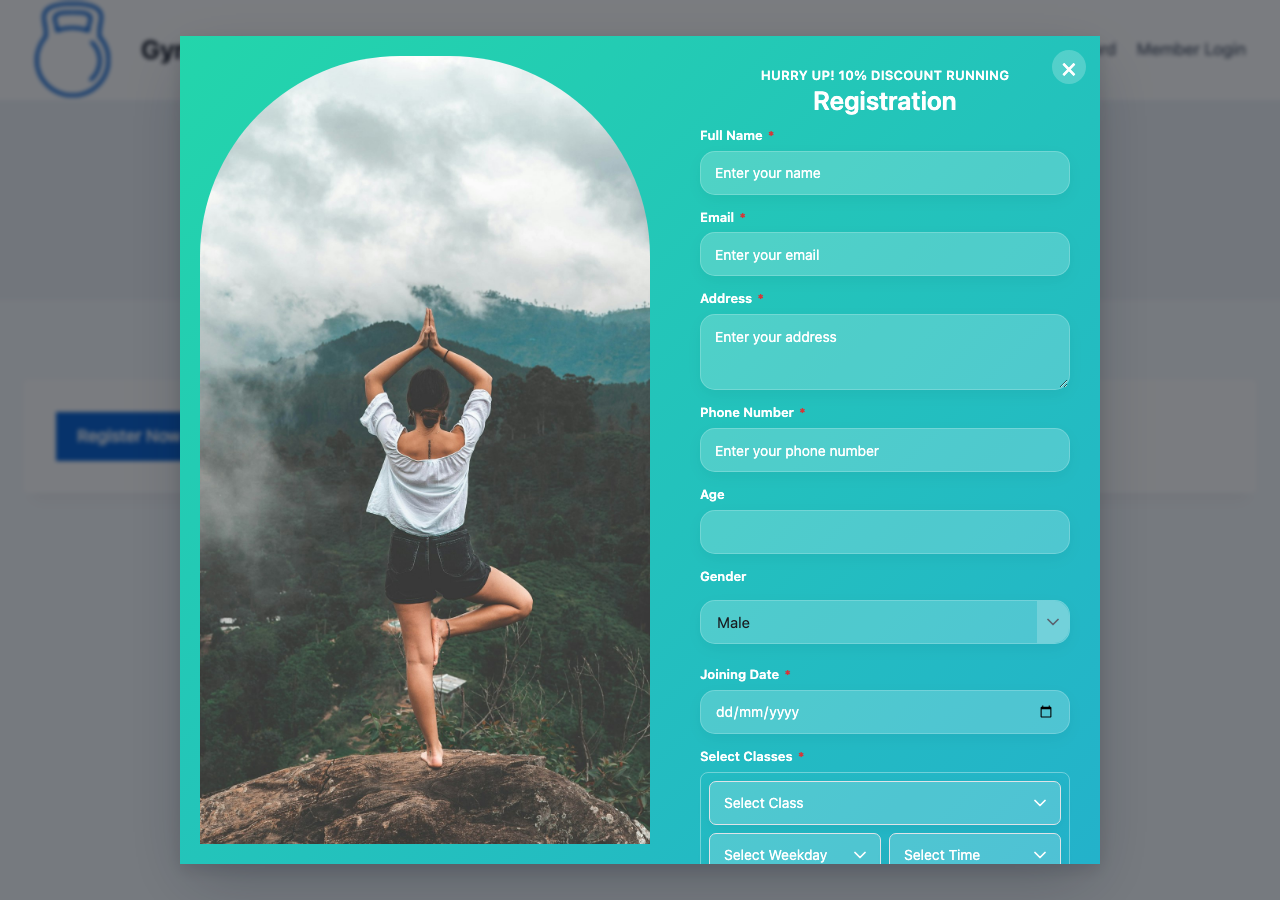
- Layout — Form only: just the form, no photo. Photo and form: your photo beside a white form. Photo and coloured form: your photo beside a form on a colored background. See them in The three layouts.
- Photo — the photo for the two photo layouts. Click Choose Image; use a JPG or PNG under 2 MB.
- Show a Title Above the Form — shows the Form Title at the top of the form.
- Form Title — the title text. The standard is "Registration".
- Send Button Text — the text on the button that sends the form. The standard is "Register". The same text is used on the timetable's Register buttons and in their form.
- Message After Registering — what the visitor sees once the form has gone through. It starts as "Thank you for registering."
- Show an Offer Line — shows a short line above the title, for example a discount. Type it in Offer Text.
Required Fields
Choose which fields must be filled in. A field that is not required still shows, and is saved when someone fills it in. Required fields get a red star on the form.
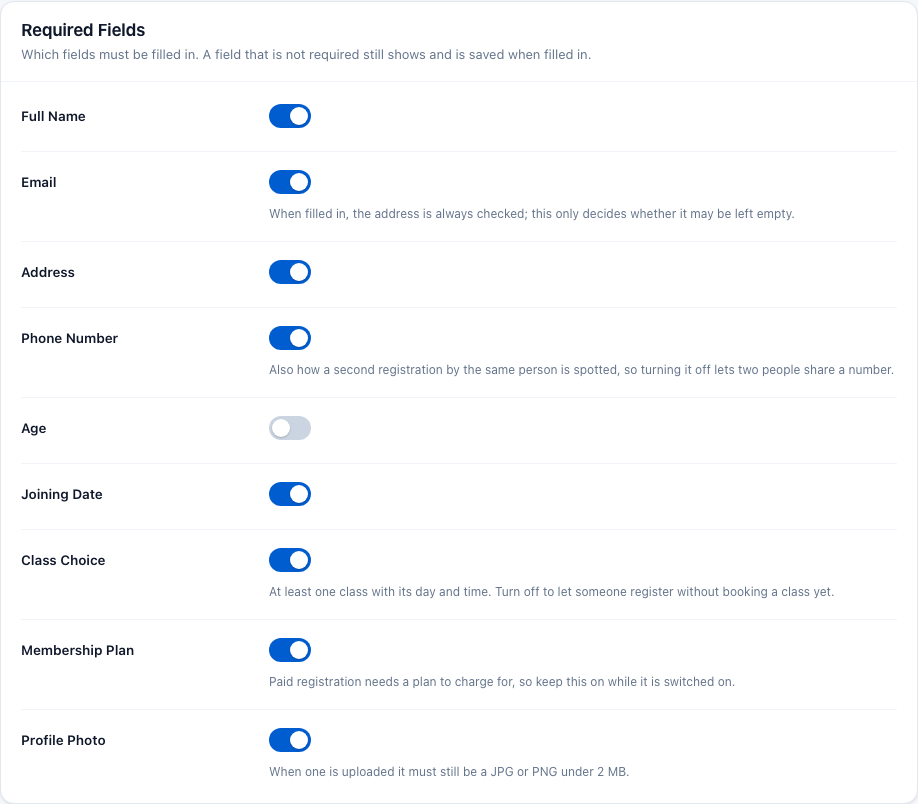
- Full Name, Address, Age, Joining Date — must not be left empty when required.
- Email — when filled in, the address is always checked; this only decides whether it may be left empty.
- Phone Number — also how a second registration by the same person is spotted, so turning it off lets two people share a number.
- Class Choice — at least one class with its day and time. Turn it off to let someone register without booking a class yet.
- Membership Plan — paid registration needs a plan to charge for, so keep this on while Paid Registration is on.
- Profile Photo — when one is uploaded it must still be a JPG or PNG under 2 MB.
Spam Protection (reCAPTCHA)
Adds Google's free "I'm not a robot" check (reCAPTCHA v2) to the forms. Get the two keys from google.com/recaptcha: register your site there, choose reCAPTCHA v2 with the "I'm not a robot" checkbox, and copy the keys.
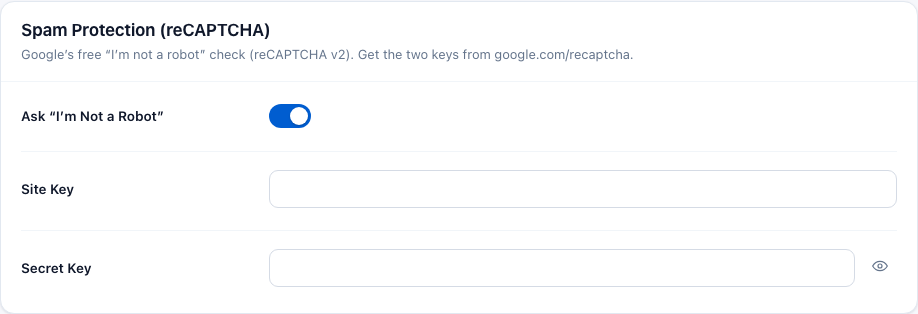
- Site Key — shows the check on the form.
- Secret Key — lets your site confirm the answer with Google. Without it the check shows but is not confirmed, so always fill in both.
Emails
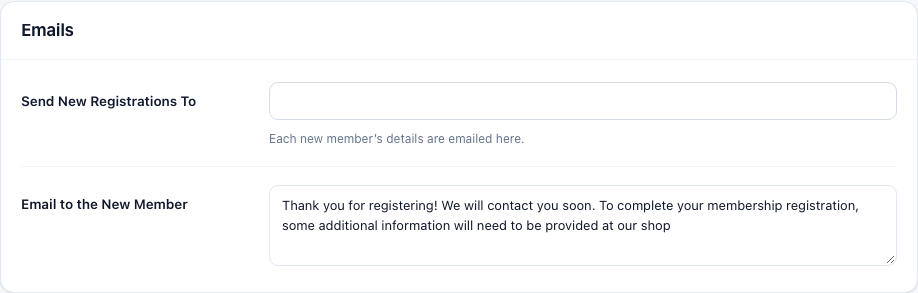
- Send New Registrations To — each new member's details are emailed here. Left empty, they go to the address in Gym Builder → Settings → General under Send Emails From, or else to your site's admin email.
- Email to the New Member — the text of the email the new member gets. Their member ID is added at the end.
The full list of emails is in Emails below.
Colours and Sizes
Match the form to your site. Leave a color empty to keep the standard one.
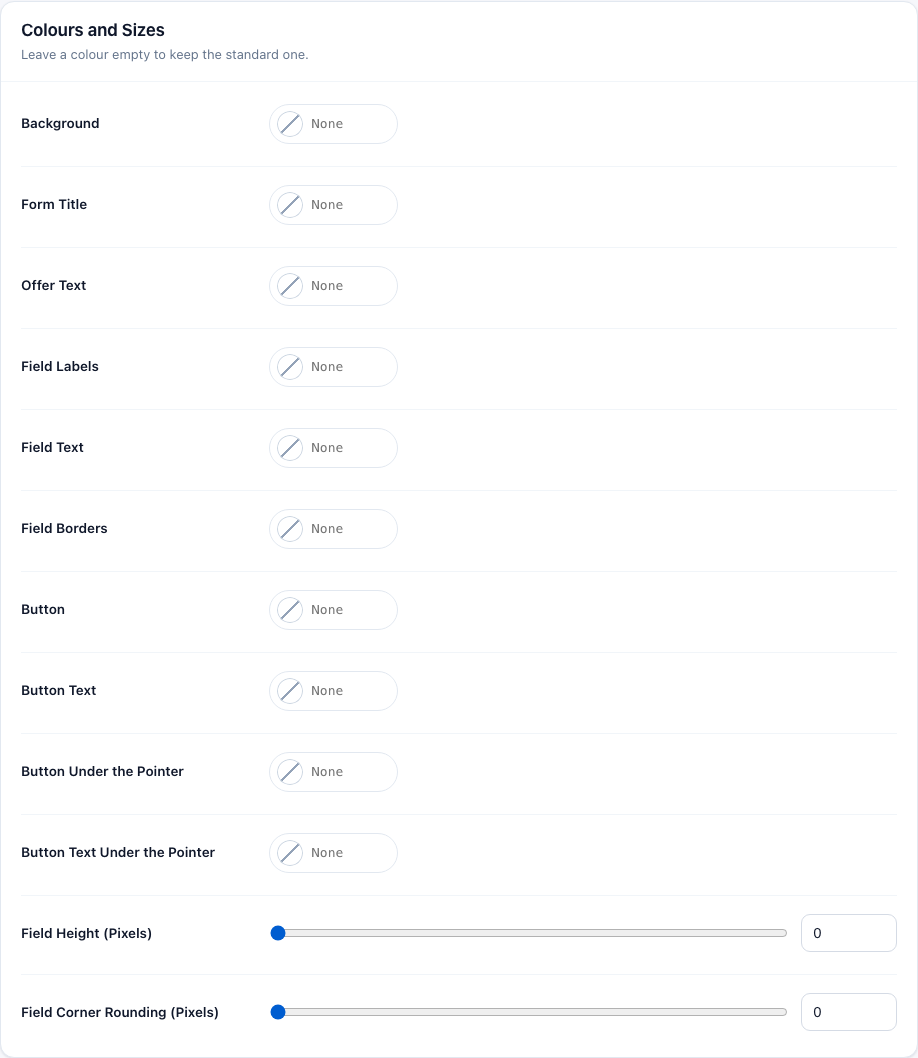
- Background, Form Title, Offer Text, Field Labels, Field Text, Field Borders — the colors of those parts of the form.
- Button, Button Text — the send button; Button Under the Pointer and Button Text Under the Pointer — the same button while the mouse is over it.
- Field Height (Pixels) (30–100) and Field Corner Rounding (Pixels) (0–100) — leave them at 0 for the standard look.
Everyday use
Put the form on a page
- Go to Gym Builder → Registration Popup → Settings.
- Under Where the Form Shows, choose On a page and click Save Settings.
- Click Copy next to
[member_registration_form]. - Open the page in the editor (for example a "Register Now" page), add a Shortcode block and paste it in.
- Publish or update the page. Visit it to see the form.
While Show the Form is set to In a popup or From a button, the page shortcode shows nothing. Choose one way at a time.
Open the form from a button
- Under Where the Form Shows, choose From a button, set the Button Text and click Save Settings.
- Click Copy next to
[member_registration_form_popup_button]. - Paste it into a Shortcode block wherever the button should be — on as many pages as you like.
Let the popup open by itself
- Under Where the Form Shows, choose In a popup.
- Set Wait Before It Opens (for example 8000 for eight seconds) and how it appears.
- Click Save Settings. The popup now opens on every page of your site after the wait. A visitor who closes it is left alone for 5 minutes.
Activate a member who registered for free
A free registration creates the member and their login, but the member stays Inactive until you activate them — only active members can book and check in.
- Go to Gym Builder → Members. New sign-ups show as Inactive.
- Click Edit on the member, check their plan and dates, and switch on Active member.
- Click Save changes.
Members who pay through Stripe Payments or Offline Payments are activated by that add-on when the payment is confirmed or approved — there is nothing to do.
What visitors and members see
The form
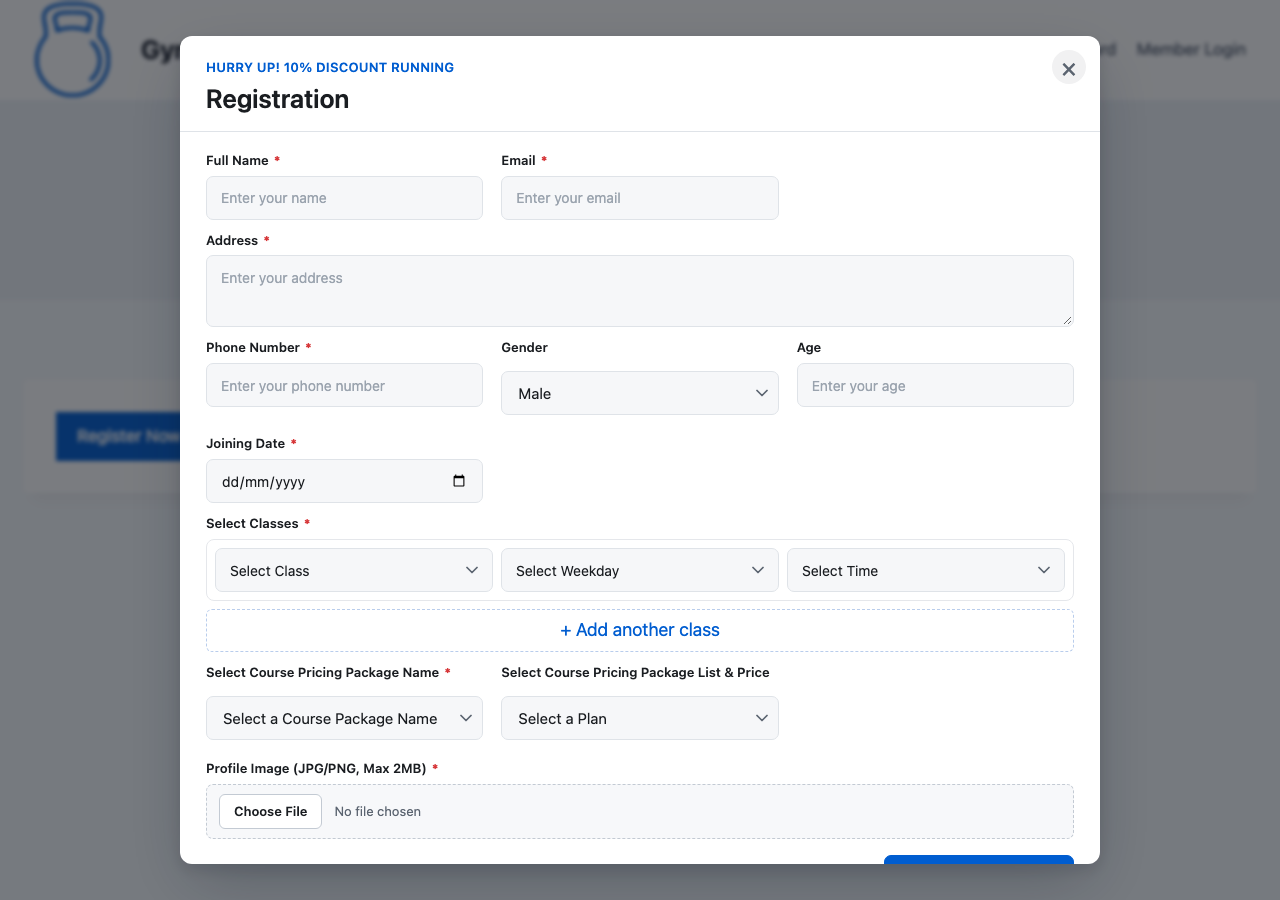
Here is the form on a page (Form only layout). Required fields have a red star.
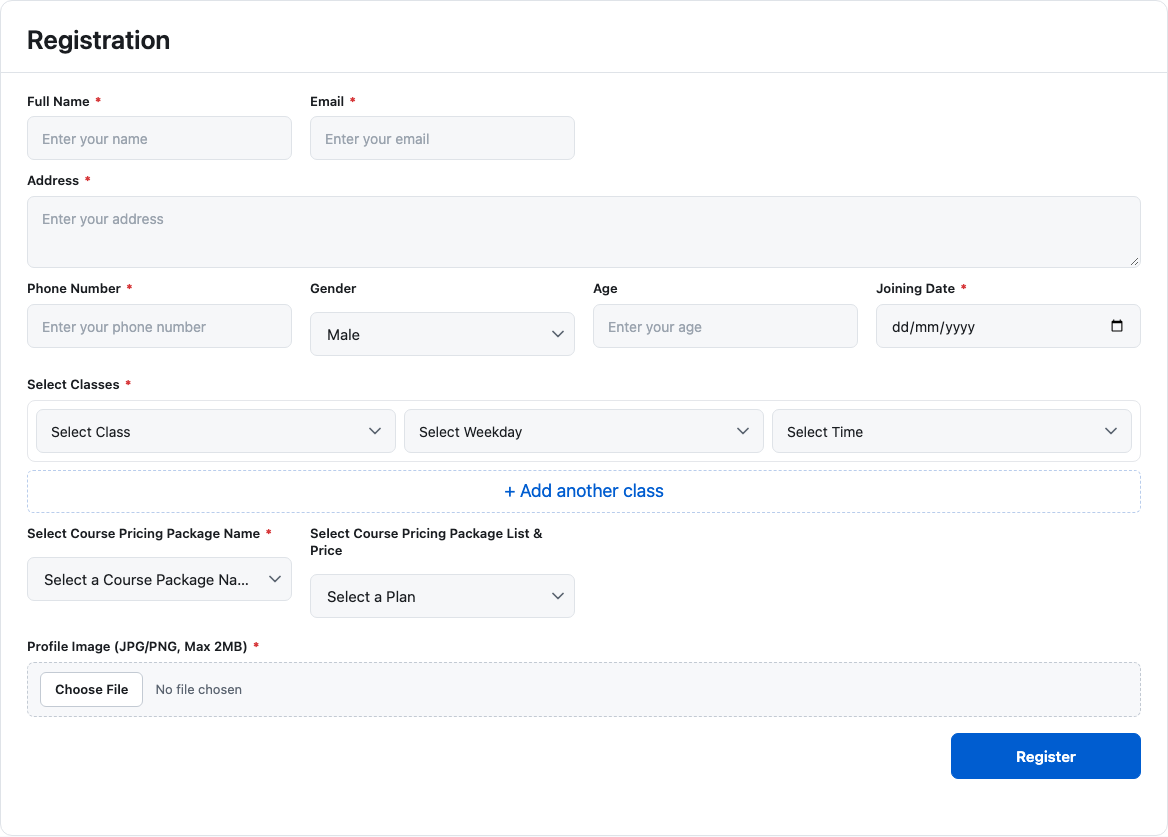
- Full Name, Email, Address, Phone Number, Gender, Age and Joining Date.
- Select Classes — a class, then a day, then a time. Each time shows how many places are left, or "Full". + Add another class adds a row, up to three classes. Two classes at the same day and time are not allowed, and a plan's limit on sessions of one class per week is checked as they choose.
- Select Course Pricing Package Name — one of your plans' Package Types; Select Course Pricing Package List & Price then lists the plans of that type with their prices. It starts on Select a Plan, so no plan is chosen until the visitor picks one.
- Profile Image (JPG/PNG, Max 2MB) — their photo for the member record.


When the form is sent, the visitor sees your Message After Registering (or is taken to pay — see Paid plans). If their phone number is already on a member, they are told they have already registered; if their email already has a login, they are asked to use a different email.
The three layouts
The popup with each layout, opened from a button, with the offer line switched on. All three have the same fields, including the class, day and time rows and + Add another class.
Booking a class time from the timetable
While Take Registrations is on, every class time on your timetable with places left gets a Register button (its text is your Send Button Text). A full class time shows "No Slot Available" instead.
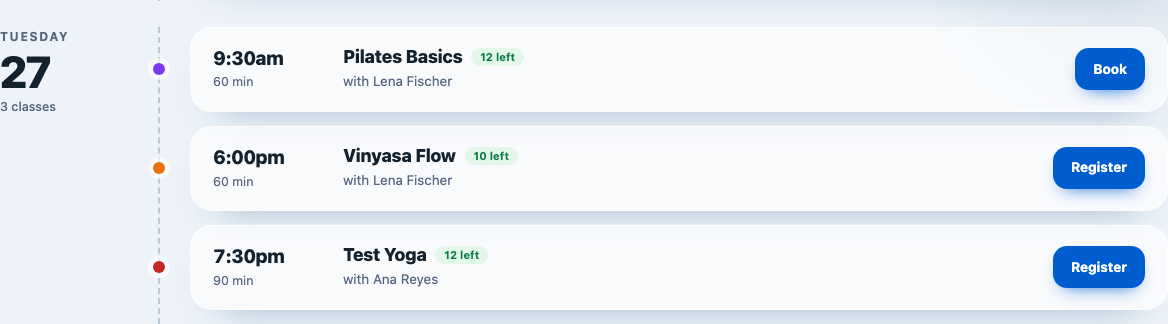
The button opens a form headed Register for This Class, with the class, day and time underneath (and the place, if you use class locations) — no class picker needed. Visitors fill in their details (required fields have a red star) and choose one of the plans that include this class, with prices.
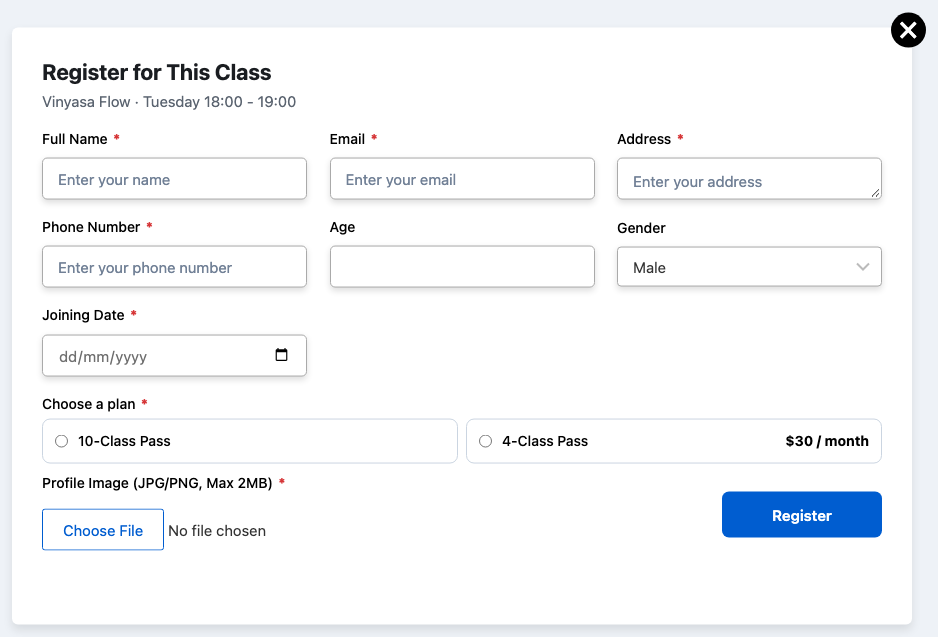
- Logged-in members see "Registering as" and their name instead of the details fields. The plans they already hold are marked Your plan. On a plan they hold, the class is booked straight away. On a plan they do not hold, they pay first when a payment add-on takes that plan; otherwise it becomes a request for you to approve.
- Staff (logged in with a staff account) are told to log out to register as a member.
Paid plans
With Paid Registration on and a payment add-on set up, nothing is created when the form is sent. The visitor pays first, and the member, their login and their class places are made once the payment is confirmed.
- Stripe Payments — the visitor goes straight to Stripe to pay. Their class place is held for 30 minutes while they pay. Stripe takes a plan when your Stripe keys are entered, the plan is sold through Stripe and it has a price. See Stripe Payments.
- Offline Payments — the Offline Payments dialog opens on the same page, filled in from the form. The visitor chooses how to pay and places the order. When you approve the payment, the member and their login are created; if you reject it or it lapses, nothing is left behind. Offline Payments steps in for plans Stripe does not take. See Offline Payments.
- A plan with no price, or no payment add-on — the registration is free and waits for you to activate it.
Emails
For a free registration the emails go out when the form is sent; for a paid one, when the payment is confirmed or approved.
- "Your Gym Student Account Login Credentials" — to the new member, from Gym Builder: their username, password and the link to the member login page.
- "Hello Admin" — to the Send New Registrations To address: "A new user is registered", with the member's name, member ID and phone number.
- "Hello" and the member's name — to the new member: your Email to the New Member text, followed by their member ID. It comes from your studio name (Studio Name on ID Cards in General settings, or else the site name).
Shortcodes
[member_registration_form]
The registration form, in the page. Works when Show the Form is On a page and Take Registrations is on.[member_registration_form_popup_button]
A button with your Button Text that opens the form in a popup. Works when Show the Form is From a button and Take Registrations is on.
Neither shortcode has options: the form's look and fields come from the settings page.
Questions
Can I have the popup and a page form at the same time?
No. Show the Form takes one choice at a time: in a popup, from a button, or on a page. The timetable's Register buttons work alongside whichever you choose.
The popup keeps opening for me while I test. How do I see it again after closing it?
After it is closed, the popup waits 5 minutes before it opens by itself again in that browser. Wait, or open the site in a private window.
How many classes can someone choose in one registration?
Up to three, with + Add another class. Each must be at a different day and time, and the plan's limit on sessions of one class per week applies.
Do new members get a login?
Yes. A login is made with their email address and the details are emailed to them, so they can use the member dashboard. For a paid plan this happens once the payment is confirmed.
Someone registered but cannot book or check in.
A free registration is Inactive until you activate it. Open the member in Gym Builder → Members, switch on Active member and save.
Can two people share a phone number?
Only if Phone Number is not required. The phone number is how a second registration by the same person is spotted, so while it is required the second sign-up is turned away.
Is the form translated?
Yes, into 7 languages. Texts you have not changed (the title, button and messages) show in your site's language. Texts you typed yourself show as you typed them.
If something goes wrong
- No form, popup or timetable Register buttons on the site — check that Take Registrations is on, and that Show the Form matches what you placed: the page shortcode needs On a page, the button needs From a button.
- The button does nothing when clicked — Show the Form must be From a button. With In a popup the popup opens by itself and the button is not used.
- "Please choose at least one class with its day & time." although a class is chosen — make sure a day and a time are chosen in the class row too, not only the class. To let people register without a class, switch off Class Choice under Required Fields.
- "Registration is closed at the moment." — Take Registrations is off. Switch it on to take registrations again.
- The time list says "No time slots found" or "No schedule found" — the class has no class times on that day. Add class times to the class in Gym Builder.
- Registrations are free although Paid Registration is on — if the settings page shows "No payment add-on is set up yet", set up Stripe Payments or Offline Payments. Also check that the chosen plan has a price.
- "reCAPTCHA verification error." — check that both keys are filled in, that they are reCAPTCHA v2 ("I'm not a robot") keys, and that your site's address is added to them at Google.
- No emails arrive — check the addresses in Send New Registrations To and Send Emails From. If emails from your site go missing in general, set up an email (SMTP) plugin.