Pre-built Templates
Six complete home pages for a gym or studio — Yoga, Fitness, Gym, Boxing, Karate and Swimming — built in Elementor. Import one, and you get a draft page that already shows your own classes, timetable, trainers and plans.
What it does
The plugin is called WpDreamers Template. It adds a template library to your WordPress admin with ready-made Elementor pages from WpDreamers. The Gym Builder tab holds six designs, one for each kind of studio.
- Browse and preview — see every design in the library, and open the live demo of any of them.
- Checks before it imports — it makes sure the plugins the design needs are switched on, and checks your server's limits.
- One click to a new page — the design arrives as a new draft page, with its pictures copied into your Media Library. Your existing pages are not touched.
- Your own content — the class cards, timetable, trainer cards and plan prices on the page come from Gym Builder, so they show your classes, trainers and plans.
The same six designs for the WordPress block editor come with Block Tools, under GB Templates. This guide covers the Elementor versions.
Before you start
- Elementor (version 3.0.0 or newer), installed and switched on. Without it, the plugin stays asleep and shows a notice with an Install Elementor or Activate Elementor button.
- Gym Builder and the Elementor Widgets add-on (shown as GB Elementor Widgets). The page is built from its widgets; the import does not start until both are active.
- For the Yoga, Boxing and Karate designs: the Personal Session add-on, which runs their one-to-one session booking section.
- An internet connection on your site. The library and the designs come from the WpDreamers template server (demo.wpdreamers.com).
- Some classes, trainers and plans in Gym Builder, so the imported page has something to show.
Install and switch on
- Go to Plugins → Add Plugin, click Upload Plugin, choose the wpdreamers-template zip file and click Install Now.
- Click Activate.
- Enter your license key when asked.
- A new WpDreamers Template item appears in the admin menu on the left.
The template library
Go to WpDreamers Template in the admin menu. The page lists the designs by product: open the Gym Builder tab (the number next to it is how many designs it holds).
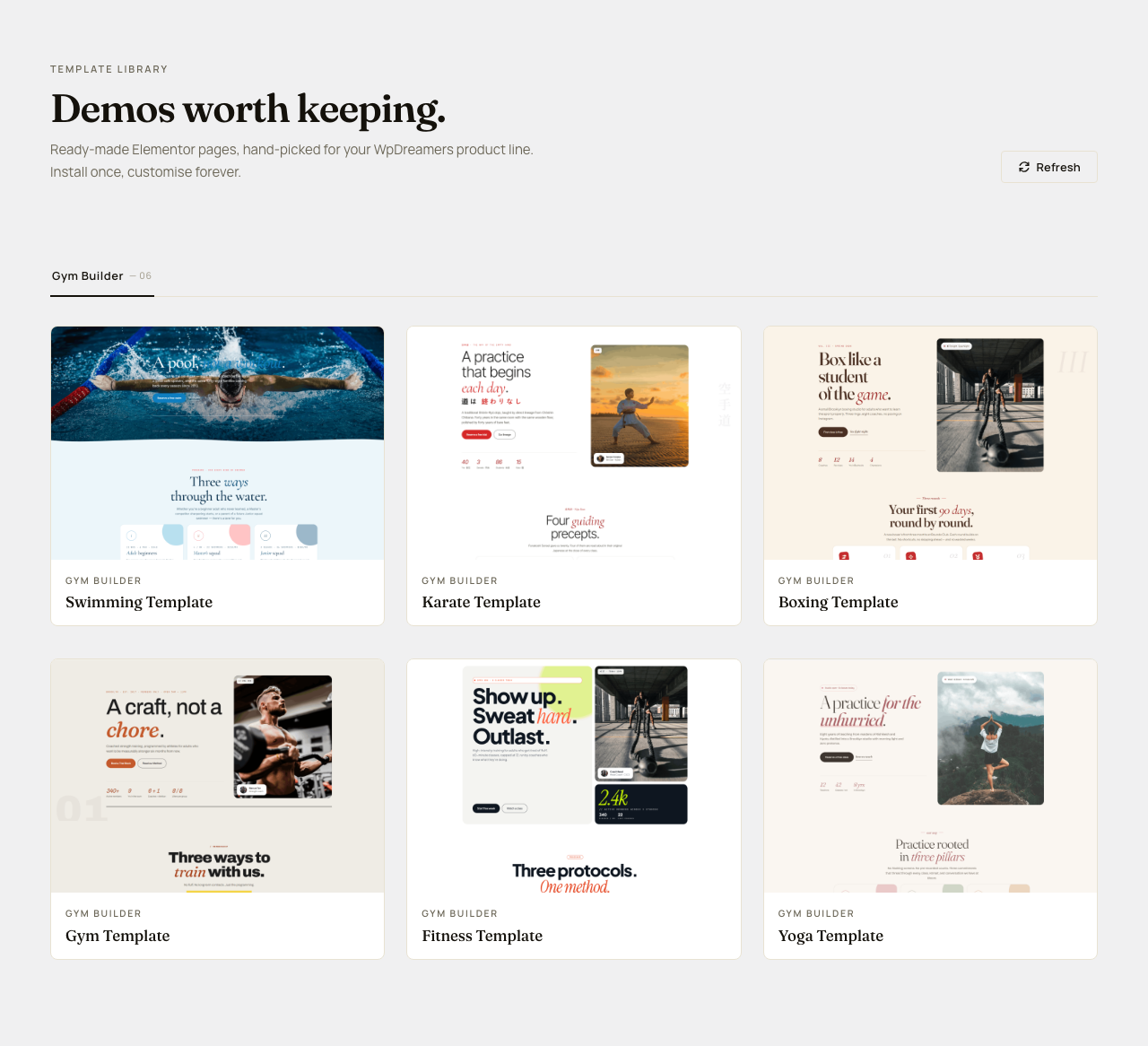
- Each card shows a picture of the whole page and its name.
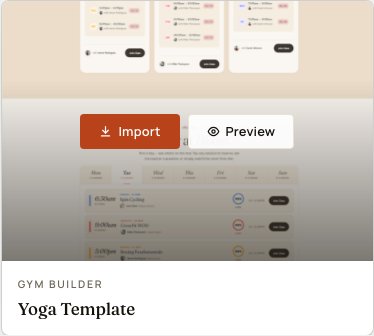
- Move the pointer over a card to see its two buttons: Import and Preview.
- Refresh (top right) loads the list again from the template server — use it if new designs should be there or the list did not load.
The six designs
All six are full home pages with the same building blocks: a large opening section, short introductions, class cards, the weekly timetable, a countdown, trainer cards, plans with prices, testimonials and a closing call to action. Each has its own colors, fonts and photos, and one extra section:
| Design | Extra section |
|---|---|
| Yoga Template | One-to-one session booking (needs Personal Session) |
| Fitness Template | Fitness calculator |
| Gym Template | Fitness calculator |
| Boxing Template | One-to-one session booking (needs Personal Session) |
| Karate Template | One-to-one session booking (needs Personal Session) |
| Swimming Template | Fitness calculator |
Preview a design
- Move the pointer over the design's card.
- Click Preview. The live demo opens in a new tab.

Import a design
Importing makes a new draft page. Nothing is published and none of your pages change.
- Move the pointer over the design's card and click Import. A window opens on the Required plugin step.
- Check that every plugin in the list says Active. If one is not, click the button next to it (for example Activate Gym Builder). Then click Continue.
- On the System check step, look at your server's limits next to the recommended ones, then click Start import.
- Wait while it imports: it fetches the design, creates the page and copies the pictures, with a progress bar. Keep the window open until it finishes.
- When it says Template imported., click Edit in Elementor to start changing the page, or View page to see it first.
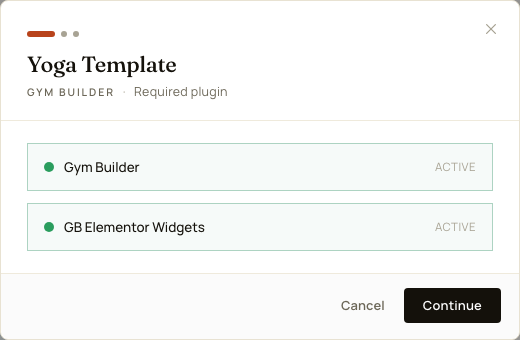
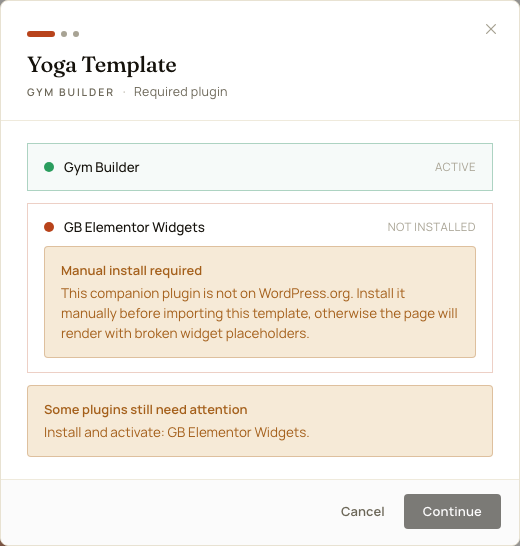
If a plugin is missing, the window tells you what to do and Continue stays grey until it is active. GB Elementor Widgets is not on WordPress.org, so it cannot be installed from here: upload it yourself under Plugins → Add Plugin, then open the window again.
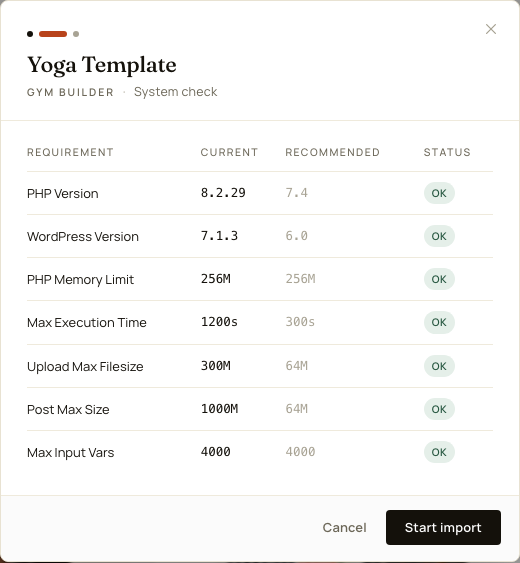
You can still import. Large pictures or a short time limit can make the import slow or stop it part-way, so ask your web host to raise the values shown as Low to the recommended ones. A limit your host has switched off shows as Unlimited and counts as OK.
After importing
You will find the new page under Pages as a draft with the design's name (for example "Yoga Template").
- Full width, with your theme's header and footer. The page uses Elementor's full-width page layout. With the Astra, GeneratePress, Kadence, OceanWP or Neve theme, the theme's sidebar and page title are also switched off for this page.
- Pictures in your Media Library. The design's photos are copied to your site and the page uses those copies. If a picture could not be copied, the last step lists it under Some image URLs could not be rewritten — replace those pictures before you publish.
- Your own content. The class cards, timetable, trainer cards and plans show what you have in Gym Builder.
Before you publish:
- Open the page with Edit in Elementor.
- Change the headings, texts and photos to your own. Every section is a normal Elementor widget — see Elementor Widgets for each widget's settings.
- Click the countdown and set its Target date + time to your own event. The import sets it to 30 days after the day you import (or the number of days the design comes with), in your site's time zone, so it is counting down when you first open the page; once that date passes it only shows "The wait is over."
- On Yoga, Boxing or Karate without the Personal Session add-on, delete the session booking section.
- Click Publish in Elementor.
To make it your home page, go to Settings → Reading, choose A static page and pick the new page as the homepage.
Questions
Will importing change my existing pages?
No. Each import creates one new draft page. Nothing else changes, and nothing is published until you publish it.
Can I import the same design twice?
Yes. Each import makes another new draft page, with its own copy of the pictures. Delete the drafts you do not need.
Is the imported page saved as an Elementor template?
No, it is a normal page. To reuse the layout elsewhere, save it as a template in Elementor yourself.
The page shows no classes, trainers or plans.
Those sections show what is in Gym Builder. Add and publish classes (with class times), trainers and membership plans, then reload the page.
Do I need Elementor Pro?
The plugin only checks for Elementor itself. The designs are built from the Gym Builder Elementor widgets and a little HTML.
Where are the block editor versions?
In the Block Tools add-on, under GB Templates. See Block Tools.
If something goes wrong
- No WpDreamers Template menu — Elementor must be installed and active (version 3.0.0 or newer). Look for the plugin's notice at the top of the admin pages.
- A notice says "WpDreamers Template can’t start because some of its files are missing." — the plugin's files are incomplete. Upload it again from the zip file you downloaded: Plugins → Add Plugin, Upload Plugin, then choose Replace current with uploaded. The rest of your site keeps working meanwhile.
- "Could not load templates" — your site could not reach the template server. Click Refresh after a minute. If it keeps failing, ask your host whether your site may connect to other websites.
- Continue stays grey — a plugin in the list is not active yet. Install or activate it, and upload GB Elementor Widgets yourself if it says Manual install required.
- "Import failed" — close the window and try again. If it fails again, raise the values the System check shows as Low. Look under Pages for a draft the failed try may have left, and delete it.
- The countdown only says "The wait is over." — its date has passed (an imported design counts down to 30 days after the import day). Set your own Target date + time on the countdown widget.
- The session booking section keeps loading, or shows "Something went wrong" — the Personal Session add-on is not active. Switch it on, or delete that section.
- Some photos still come from the demo site — they could not be copied during the import. Replace them in Elementor with pictures from your Media Library.