Stripe Payments
Sell your membership plans online by card. Members pick a plan, a class and a time, pay on Stripe's secure page, and their membership starts by itself — once or on a schedule that renews every month, two months, three months or year.
What it does
Stripe Payments puts a buy button on your membership plans and class pages. When someone buys, Stripe takes the card payment and tells your site, and Gym Builder makes them an active member and books their place in the class time they chose.
- Sells membership plans — the plans you already keep in Gym Builder. Each plan can be offered Monthly, Bi-Monthly, Quarterly, Yearly or One-Time, each with its own price.
- Members choose their class and time while buying, and see how many places are left.
- Renews by itself — Stripe charges the card again at the end of each period, and the membership end date moves on.
- Subscriptions page in the Dashboard — every card payment, with totals, filters, a CSV export, and buttons to cancel or give extra days.
- Billing tab on the member dashboard — members turn auto-renew off or on, update their card and buy again.
- Works with Promotions & Trials (discount codes and free trials), Offline Payments (a second way to pay on the same plan) and the Registration Popup (paid sign-up).
Before you start
- Gym Builder 3.0.0 or newer. With an older Gym Builder, Stripe Payments stays off and shows a notice asking you to update.
- A Stripe account — free to open at stripe.com. You can try everything in Stripe's test mode first, with test cards and no real money.
- Membership plans with classes. Members choose a class and a time when they buy, so each plan you sell needs at least one class with times on the timetable. See the Gym Builder guide.
- A website Stripe can reach. Stripe sends payment updates to your site over the internet, so payments only finish on a live website, not on a copy that runs only on your own computer.
Stripe Payments and Class Booking & Payment cannot be switched on at the same time. If one is on, WordPress stops the other from being activated and shows a message saying which one to switch off first.
Install and switch on
- Go to Plugins → Add Plugin and click Upload Plugin.
- Choose the
gb-stripe-paymentszip file from your purchase, click Install Now, then Activate Plugin. - If the Dashboard menu shows License Key under Stripe Payments, open it, paste the key from your purchase email and click Activate License.
The add-on adds a Stripe Payments group to the Gym Builder Dashboard menu, with two pages: Subscriptions and Settings.
Connect Stripe
Go to Gym Builder → Stripe Payments → Settings. The page has four cards. You copy two things from Stripe into the first two cards, then click Save Settings at the bottom of the page.
Stripe Account: your keys

- Under Mode, leave Test (no real money) chosen while you set things up. You switch to Live when you are ready to take real payments (see Going live).
- In another browser tab, sign in to Stripe and make sure it is showing test data (Stripe calls this test mode or a sandbox).
- In Stripe, open Developers → API keys.
- Copy the Publishable Key (it starts with
pk_test_) and paste it into Test Publishable Key. - Back in Stripe, click Reveal next to the Secret Key (it starts with
sk_test_), copy it and paste it into Test Secret Key. - Click Save Settings.
After saving, the secret key box shows empty with the note "A key is saved. Leave this empty to keep it, or type a new one." That is normal: the key is kept, it is just never shown again. Type a key there only to replace it.
Payment updates from Stripe (webhook)
Stripe has to tell your site when a payment goes through, renews or fails. You do this by giving Stripe one web address, and giving your site the code Stripe uses to sign its messages. Without this step, people can pay but their membership never starts.
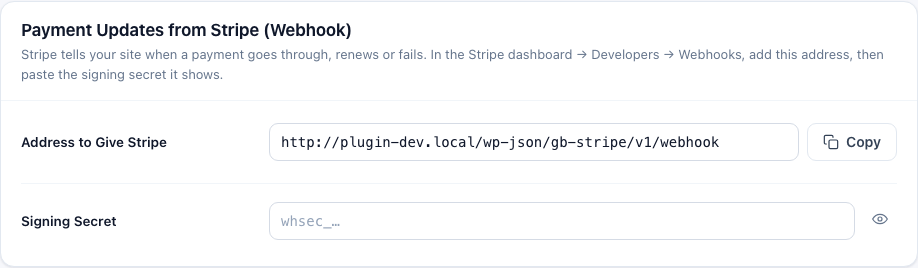
- Next to Address to Give Stripe, click Copy. It looks like
https://your-site.com/wp-json/gb-stripe/v1/webhook. - In Stripe, open Developers → Webhooks and add a new endpoint (newer Stripe accounts call it a destination).
- Paste the address as the Endpoint URL.
- Choose the events to send. Select these five:
checkout.session.completedinvoice.payment_succeededinvoice.payment_failedcustomer.subscription.updatedcustomer.subscription.deleted
- Save the endpoint in Stripe.
- On the endpoint's page in Stripe, find Signing Secret, click Reveal and copy it. It starts with
whsec_. - Back in Gym Builder, paste it into Signing Secret and click Save Settings.
What your site does with each event:
checkout.session.completed— the first payment went through: the subscription becomes Active, the class place is booked, the member is made active and the confirmation email is sent.invoice.payment_succeeded— a renewal was paid: the end date moves on by one billing period.invoice.payment_failed— a renewal could not be charged: the subscription shows Payment failed and the member gets an email.customer.subscription.updated— keeps the status in step with Stripe, including when auto-renew is turned off or on.customer.subscription.deleted— the subscription ended in Stripe: it shows Canceled, the class place is freed and the member is made inactive (unless they have another active plan).
Also select charge.refunded. Business Manager then takes refunds you make in Stripe off your revenue.
Checkout
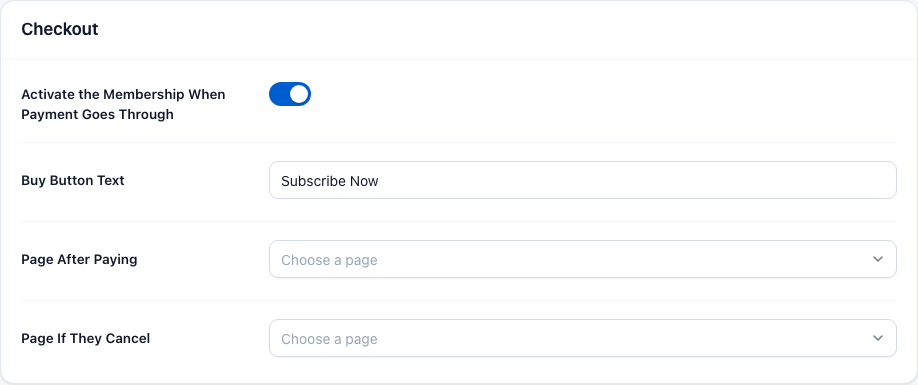
- Activate the Membership When Payment Goes Through — on (the default): when the first payment arrives, the buyer becomes an active Gym Builder member straight away; a member record is made for them if they don't have one yet. Turn it off if you want to check new buyers yourself: the payment still shows on the Subscriptions page and the class place is still booked, but you make the member active yourself in Members.
- Buy Button Text — the words on the buy button. The default is Subscribe Now.
- Page After Paying — where Stripe sends people after they pay. A "Payment Successful!" message is shown above that page's content. If you leave it empty, they go to your home page.
- Page If They Cancel — where people land if they leave Stripe's payment page without paying. A "Payment Canceled" message is shown. Empty means your home page.
Plans in Stripe

Sync Plans to Stripe copies every published plan that is sold by card, with its prices, to your Stripe account. Save your keys first. When it finishes it says how many plans were synced (for example "Synced 2 of 2 packages.") and lists any plan that could not be synced, with the reason.
Each plan is also sent to Stripe when you save it (see the next section), so you rarely need this button. Use it after changing your keys or your currency, or if a plan shows an empty Stripe price ID — and once after switching Mode. Test and Live are separate Stripe accounts, so each plan keeps its own Stripe IDs for each mode, and the buy button only works once the plan has been synced in the mode you use. Until then, members who click Proceed to Payment see "Invalid billing interval." Switching back to a mode the plans were already synced in needs no new sync.
Going live
When your test payments work, switch to real payments:
- In Stripe, leave test mode so you see your live account, and open Developers → API keys.
- In Gym Builder, set Mode to Live. The boxes change to Live Publishable Key and Live Secret Key; paste your live keys (they start with
pk_live_andsk_live_). - In Stripe's live account, add the webhook again — same address, same five events — and paste its new signing secret into Signing Secret. Test and live webhooks have different signing secrets, and there is one Signing Secret box, so it must belong to the mode you use.
- Click Save Settings.
- Click Sync Plans to Stripe and check that the message counts every plan as synced. This makes each plan's copy in your live Stripe account; until you do, the buy window says "Invalid billing interval."
- If you use Promotions & Trials, open each coupon on its Coupons page, click Edit, then Save. That gives the coupon its copy in your live Stripe account.
Your test keys and each plan's test prices are kept, so you can switch back to Test at any time without syncing again.
Once you are live, your site keeps to the live account:
- Only live subscriptions show — on the Subscriptions page, in its totals and CSV export, on a member's Card billing panel and in the member's Billing tab. Your test purchases are kept, and show again if you switch back to Test.
- Test purchases no longer give access. A member who only bought in test mode is not an active member on the live site. The other way round, switching back to Test for a while does not take access away from members who paid for real.
- Payment updates from the other mode are refused. Your site answers Stripe's test-mode messages with a refusal while it is live (and live ones while it is in Test). If Signing Secret still holds the test secret, live payments never reach your site and Stripe's webhook page shows those deliveries as failed — so paste the live secret in step 3.
Sell a plan by card
Each plan you want to sell gets its card prices on the plan's own edit screen.
- Go to Gym Builder → Membership Plans and open the plan.
- In the plan's menu, under Add-ons, click Card Payments.
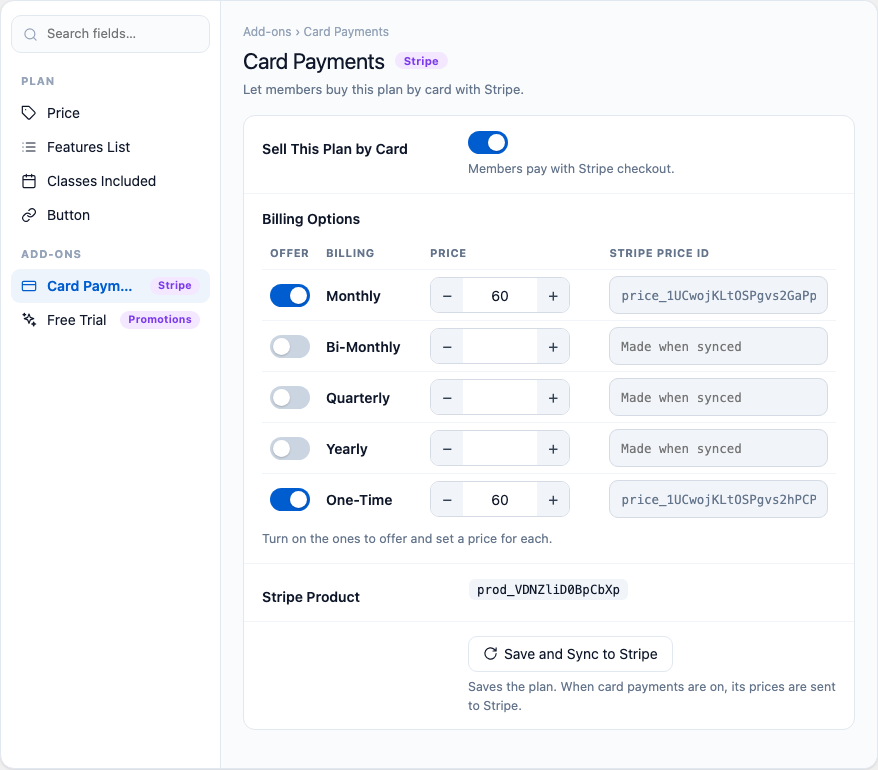
- Switch on Sell This Plan by Card.
- Under Billing Options, switch on each way of paying you want to offer and type its price (just the number).
- Click Save and Sync to Stripe (or Update). The plan is saved and its prices are sent to Stripe; the Stripe price ID boxes fill in.
The billing options
| Billing | What the member pays |
|---|---|
| Monthly | The price every month, until it is canceled. |
| Bi-Monthly | The price every two months. |
| Quarterly | The price every three months. |
| Yearly | The price every year. |
| One-Time | The price once. The membership lasts one year and then ends; it does not renew. |
- Prices are in your Gym Builder currency, set in Gym Builder → Settings → General (Money card). If you change the currency, save your plans again or click Sync Plans to Stripe so Stripe gets prices in the new currency.
- Changing a price makes a new price in Stripe and retires the old one. New buyers pay the new price; people who already subscribed keep the price they signed up at.
- Stripe Product shows the plan's ID in Stripe once it has been synced. In Stripe the product is named after the plan and its plan type, for example "10-Class Pass - Monthly".
- No keys yet? The card shows a note: "Add your Stripe keys in Stripe Payments → Settings first. Until then, prices are saved but not sent to Stripe."
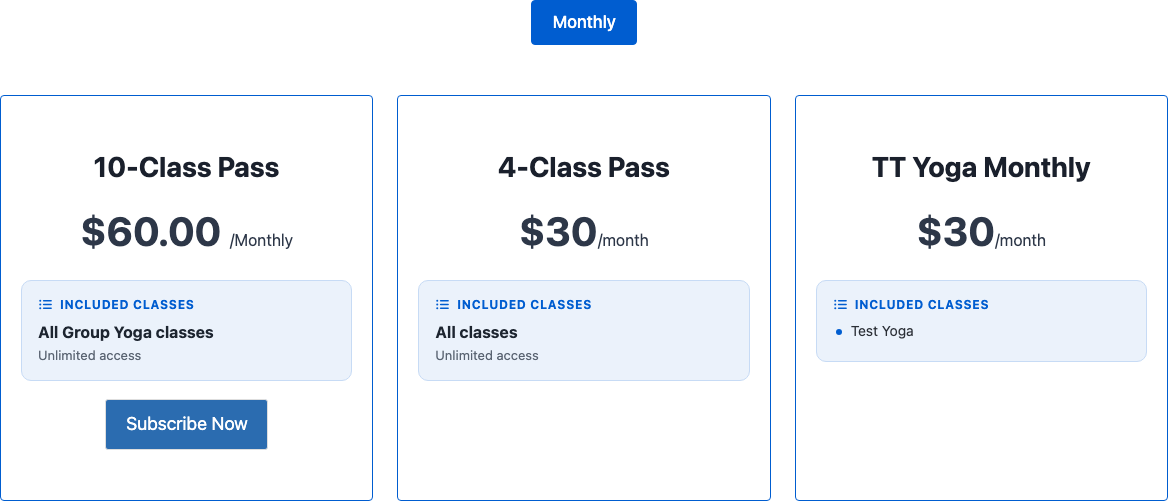
A plan with Stripe on shows the first card price you offer on your pricing table, and a buy button in place of the plan's own button.
How members buy
Where the buy button shows
- Your pricing table — the
[membership_package_shortcode]plans list. Each plan sold by card gets the button. - Class cards on your classes page, and the class page itself, when at least one plan sold by card includes that class.
People have to be logged in to buy, because the membership is tied to their account. A visitor who clicks the button gets a Login window first (username or email, and password). If your site lets anyone register (WordPress Settings → General → Anyone can register), the window also has a Register tab: username, email and a password of at least 8 characters. After logging in, the page reloads and the buy window opens.
The buy window
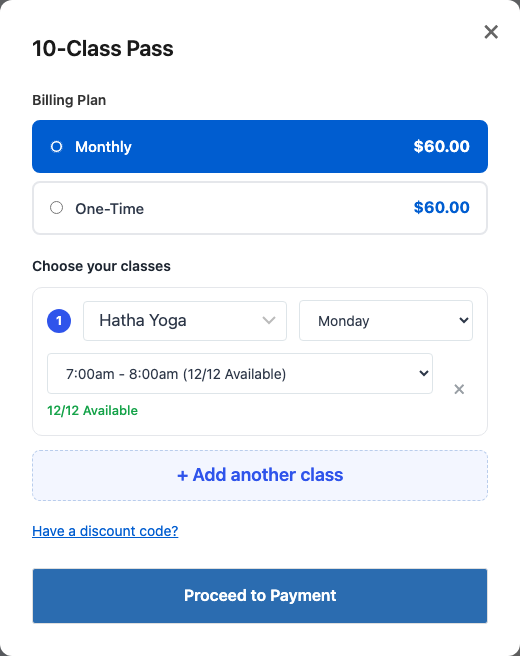
- Billing Plan — the member picks one of the options you offer, with its price.
- Class, day and time — the member picks a class the plan includes, then a day, then a time. Each time shows how many places are free, for example "12/12 Available". A full time is greyed out and can't be chosen.
- If the plan includes more than one class, they can click + Add another class for another class and time, up to what the plan allows. The window tells them how many to choose (for example "Choose your classes").
- If you use Promotions & Trials, a Have a discount code? link can show here. It opens a code box with an Apply button, and the code is checked before they pay.
- Proceed to Payment takes them to Stripe's secure payment page. The page stays open for 30 minutes.
Things the window checks before sending anyone to Stripe:
- A class, day and time are chosen ("Please select a class.", "Please select a schedule.").
- The time still has a free place ("This slot is fully booked. Please choose another time.").
- They don't already have an active subscription to the same plan ("You already have an active subscription for this package.").
On a class page: choosing the plan
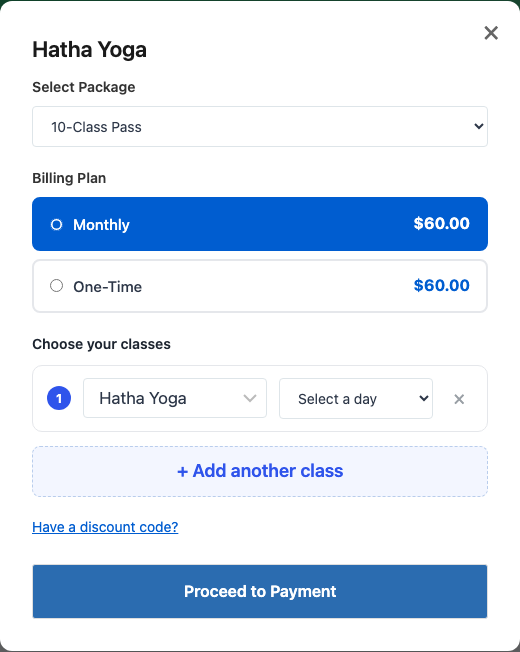
A class is often included in more than one plan. On class cards and the class page there is one button, and its window starts with Select Package: a list of every plan sold by card that includes this class. When the member picks a plan, its billing options appear, then the class rows with this class already chosen.
After paying
- Stripe sends them to your Page After Paying with the message Payment Successful! and the plan, class and time they bought.
- A moment later Stripe's update reaches your site: the subscription becomes Active, the place is booked, the member is made active and gets the confirmation email.
- If they leave Stripe's page without paying, they land on Page If They Cancel with Payment Canceled — "No charges were made."
The place is checked again when the payment arrives. If the last place went to someone else in the meantime, the purchase is canceled, the payment is refunded in full automatically, and the member gets an email asking them to choose another time. If that refund cannot be made, you get an email asking you to refund it from your Stripe dashboard.
Paid sign-up forms
Stripe Payments also takes the payment when someone signs up for a plan sold by card through a sign-up form — Gym Builder's own registration form or the Registration Popup. The visitor goes straight to Stripe's payment page, and their class place is held for 30 minutes while they pay. Their login and member record are made only once Stripe confirms the payment; an unpaid sign-up simply lapses and the place is freed. The form charges the plan's One-Time price if it has one, otherwise its first card price in this order: Monthly, Bi-Monthly, Quarterly, Yearly.
The Subscriptions page
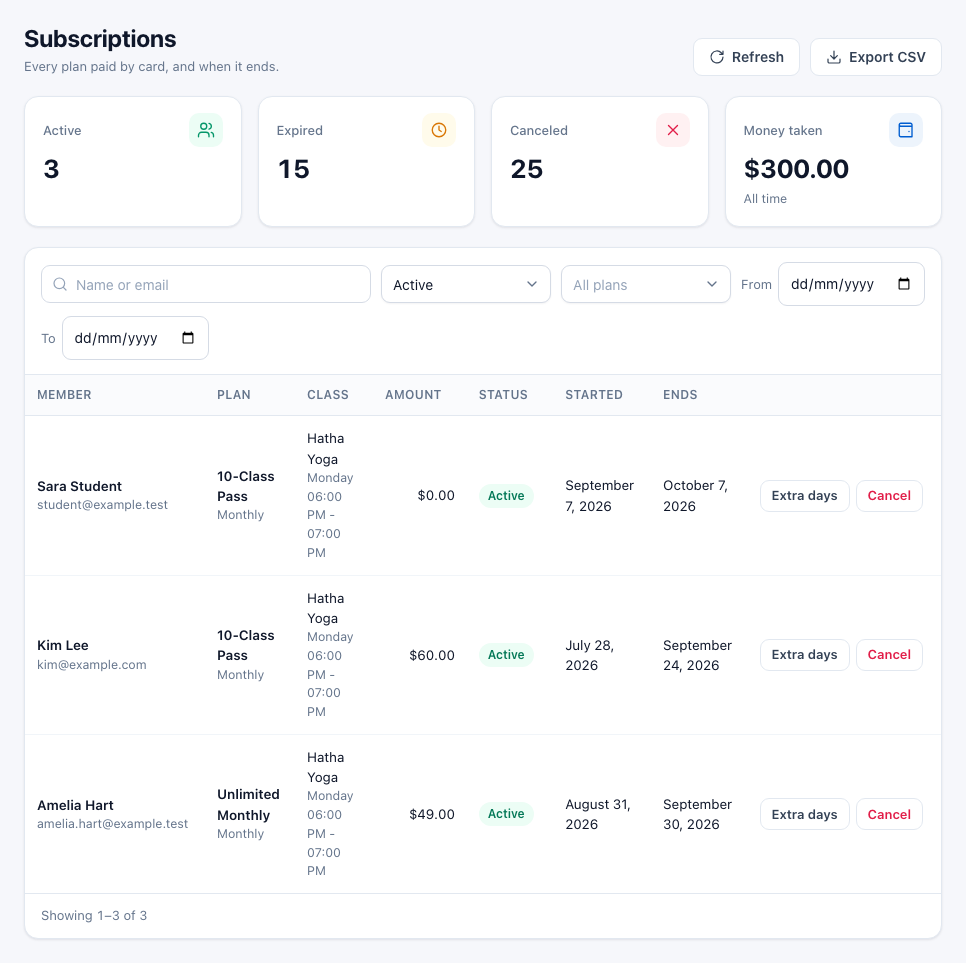
Go to Gym Builder → Stripe Payments → Subscriptions. Every card purchase is listed here. A number next to Subscriptions in the menu tells you how many payments have failed.
Totals, filters and statuses
- Active, Expired, Canceled — how many subscriptions have each status.
- Money taken — every card payment that went through, all time: first payments and renewals, at what Stripe actually charged (after any discount). A payment that was refunded because the class filled up first is left out, and so is a checkout nobody paid.
- Filters — search by name or email, a status, a plan, and a From / To start date. Click a column heading (Amount, Status, Started, Ends) to sort. Refresh loads the latest.
| Status | Means |
|---|---|
| Active | Paid and running. "Will not renew" underneath means auto-renew was turned off: it runs to its end date and stops. |
| Payment failed | A renewal could not be charged. Stripe tries the card again by its own retry rules. |
| Waiting for payment | The member went to Stripe's payment page and has not paid yet. |
| Expired | A One-Time plan reached its end date. A checkout left unpaid for more than an hour is also marked Expired by the daily clean-up. |
| Canceled | Ended by you, by the member, by Stripe, or the buyer left Stripe's payment page without paying. |
A row with no Started date is a checkout that was never paid.
Export to a spreadsheet
Click Export CSV. You get a file named like subscriptions-2026-10-25.csv with every subscription that matches your current filters (all pages, not only the one you see). Columns: ID, User, Email, Package, Class, Schedule, Interval, Amount, Currency, Status, Subscribed, Expires — and Location, when you use class locations.
Cancel a subscription
- Find the subscription and click Cancel (shown on Active and Payment failed rows).
- Check the member and plan in the window, then click Yes, cancel it — or Keep it to go back.
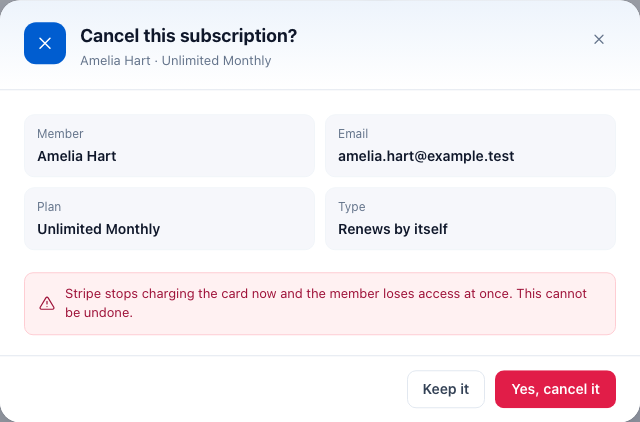
Canceling happens straight away: a renewing plan is canceled in Stripe too, so the card is not charged again; the class place is freed and the member loses access (unless they have another active plan). It cannot be undone, and it does not refund anything — make refunds in your Stripe dashboard.
Give extra days
- Click Extra days on the row.
- Type the number of days or pick 7, 14, 30, 60 or 90 days.
- Click Add 30 days (the button shows your number).
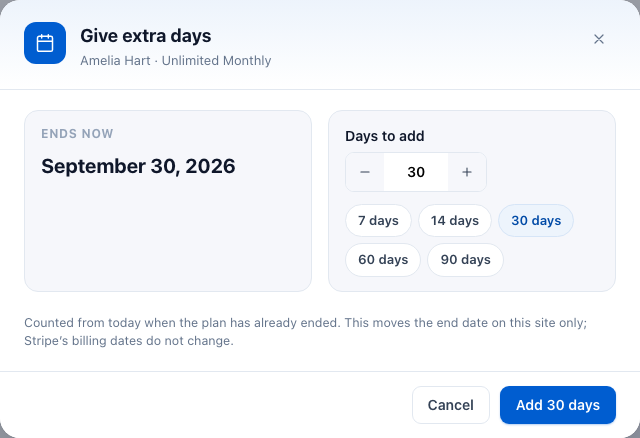
The days are added to the end date — counted from today if the plan has already ended. An Expired plan becomes Active again and its class place is booked again; if that place has been taken since, the window says so and nothing changes. This moves the end date on your site only: Stripe's billing dates do not change.
On a member's page
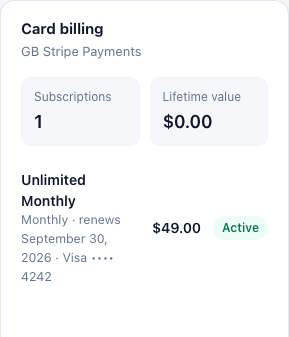
Open a member in Gym Builder → Members. The Card billing panel shows how many card subscriptions they have, their lifetime value (everything they have paid you by card, renewals included), and each plan with its billing, renewal date, card and status.
Renewals, cancellations and failed payments
- A renewal is paid — the end date moves on by one billing period and the member stays active. The site sends no email.
- A renewal fails — the status becomes Payment failed, the member gets the "Payment Failed" email and an Update Payment button in their Billing tab. Stripe tries the card again by its own retry rules; if a retry works, the subscription is Active again.
- Still failed after 30 days — a daily task cancels it on your site, frees the class place and makes the member inactive. This does not cancel it in Stripe, so check the subscription there too.
- The member turns auto-renew off — it stays Active until the end date ("Will not renew"), then Stripe ends it, and your site cancels it and frees the place.
- A One-Time plan reaches its end — the daily task marks it Expired, frees the class place and makes the member inactive.
- You cancel it in the Dashboard — it ends at once, in Stripe too (see Cancel a subscription).
- You cancel it in your Stripe dashboard — Stripe tells your site; the subscription shows Canceled and the place is freed.
"Makes the member inactive" only happens when they have no other active plan. A member who also holds another card plan, an approved offline payment or a plan you gave them stays active.
What members see
The Billing tab
Members find a Billing tab in their member dashboard (it shows once Stripe keys are saved, or when they have a subscription). It lists My Subscriptions: each plan with its status, class, day, time, price and billing, and the next billing date.

| Plan | What the member can do |
|---|---|
| Renewing and Active | Auto-Renew switch — off means the plan runs to its end date and stops ("Auto-renew off" and "Expires on" then show); on again means it keeps renewing. Manage Billing opens Stripe's billing page, where they can update their card. |
| One-Time and Active | Cancel — after "Are you sure you want to cancel this subscription?", it ends at once and the class place is freed. No refund. |
| Payment failed | Update Payment — opens Stripe's billing page to change the card. |
| Canceled or Expired | Resubscribe — goes straight to Stripe's payment page for the same plan, billing and class time. |
Stripe Payments also adds an Edit Profile button at the top of the member dashboard, next to the welcome message. Members can change their profile image (JPG or PNG, up to 2MB), phone, age, gender and address, then click Save Changes.
Emails
The emails are plain text and sent through your site's normal email. There are no switches for them.
- Subscription Confirmed - plan — to the member, when the first payment goes through. It lists the billing and the amount.
- Payment Failed - plan — to the member, when a renewal could not be charged. It asks them to update their payment method.
- Your booking could not be completed - plan — to the member, when they paid but the class filled up first. It says the payment was refunded in full.
- Refund needed - plan — to you (the site's admin email address), when that automatic refund did not work. Refund it from your Stripe dashboard.
The site sends no email when a plan renews or is canceled. Stripe can send its own payment receipts — turn them on in your Stripe account's email settings.
Discount codes and free trials
Discount codes and free trials come from the Promotions & Trials add-on. With it, the buy window can show Have a discount code?: the member types the code, clicks Apply and sees whether it works for that plan, and the discount is taken off on Stripe's payment page. A renewing plan can also start with a free trial; during the trial the subscription shows as Active. How to make codes and trials, and which plans accept them, is in the Promotions & Trials guide.
Want to take bank transfers or payments at the desk as well? Offline Payments adds its own button next to Subscribe Now on the same plans.
Questions
Can people buy without making an account?
No. The membership belongs to their account, so they log in first. If your site allows anyone to register, they can make an account in the same window.
Can a member buy the same plan twice?
Not while the first one is active — they see "You already have an active subscription for this package." They can buy a different plan, or the same plan again after the first one has ended.
Is a place held while someone is on Stripe's payment page?
From the buy window, no: the place is checked when they choose it and again when the payment arrives, and if it is gone by then they are refunded automatically. From a paid sign-up form, yes: the place is held for 30 minutes.
How do I refund a member?
In your Stripe dashboard. Stripe Payments has no refund button. A refund doesn't end the membership: to do that, also click Cancel on the Subscriptions page.
Can a member pause or switch plans?
There is no pause or plan switch. To move to another plan, cancel the current one and buy the new one. To give extra time, use Extra days.
What does One-Time mean for the member?
One payment, and the membership lasts one year. It does not renew. The member can cancel it from their Billing tab.
Does it add tax or make invoices?
No. Stripe Payments charges the price you set. Tax and invoices are handled in your Stripe account if you need them.
Can I offer card and offline payment on the same plan?
Yes. With Offline Payments on, a plan can show both buttons.
What happens to my data if I delete the add-on?
Deactivating it keeps everything. Deleting it from the Plugins page removes its subscription records, its settings and the plans' card prices from your site. Your customers and payments in Stripe are not touched.
If something goes wrong
- No Subscribe Now button on a plan — on the plan's Card Payments card, check that Sell This Plan by Card is on, at least one billing option is on with a price, and the plan is published. On a class page, the plan must also include that class.
- "Stripe is not configured." after clicking Proceed to Payment — the keys for the mode you chose are missing. Add both keys in Stripe Payments → Settings.
- "Invalid billing interval." — that billing option has no Stripe price yet in the mode you use, for example right after switching to Live. Click Sync Plans to Stripe, or open the plan and click Save and Sync to Stripe.
- "A payment error occurred. Please try again or contact support." — Stripe refused the request. Check your keys and the mode, then sync your plans and read the message it shows.
- A member paid but stays "Waiting for payment" and is not active — Stripe's update did not arrive. Check the webhook: the address is exactly the one under Address to Give Stripe, the five events are selected, and Signing Secret is the one for the mode you use (test or live). Stripe's webhook page lists each delivery and whether it failed. Your site must be reachable from the internet.
- Sync Plans to Stripe lists a plan with "No billing intervals enabled." — switch on at least one billing option on that plan.
- Manage billing or Update Payment shows an error — Stripe's billing page has to be set up in your Stripe account first: open Stripe's customer portal settings and save them once.
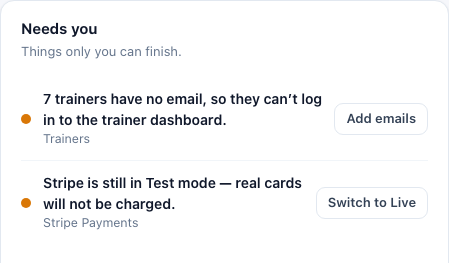
- The Dashboard's Needs you card mentions Stripe — "Stripe is still in Test mode — real cards will not be charged." means you have not switched to Live yet (see Going live). "Stripe is in test mode but its API keys are not both set" means a key is missing. "The daily Stripe task is not scheduled" means the daily clean-up (ending One-Time plans and long-failed payments) is not running; reload the Dashboard, and if the message stays, contact us.