Class Booking & Payment
Sell single places in your classes through WooCommerce. Visitors pick a class time, pay at checkout, and are booked in as soon as the order is paid — with an optional plan, a later season price and your own code for every class time.
What it does
Some people don't want a membership: they want one place in one class. Class Booking & Payment turns a class into something visitors can buy. They choose a time on the class page, pay through your WooCommerce checkout, and get their place when the order is paid. You keep track of money you take by hand on a Payments page in the Gym Builder Dashboard.
- A booking card beside the class — price, the class times with places left, when booking closes (with a countdown) and a Book Now button.
- Book buttons on class times — on the class page and on the timetable, each time of a class sold here shows Book instead of Register.
- Pay for one class or a plan — when a plan with a price includes the class, visitors can pay for that plan instead. Once paid, they hold the plan and are booked into the class time.
- A later price — a second price that starts on a date, for example a lower rate later in the season.
- Booking closes — on a date and time you choose, in your site's time zone.
- A code for each class time — your own reference (such as #002), shown on the cart, checkout, order, WooCommerce emails, the Payments page and receipts.
- Plans with a Buy Now button — plan cards with a price get Buy Now, which goes straight to checkout.
- Members made for you — a buyer who is not a member yet becomes one when the order is paid, with a login for the member dashboard.
- Payments page — record payments taken at the desk or by bank transfer, see who is due or overdue, print receipts and send reminders.
Before you start
- Gym Builder 3.0.0 or newer. With an older Gym Builder the add-on stays switched off and shows a notice with an Update Gym Builder link.
- WooCommerce, switched on. Without it the add-on shows a notice with an Install WooCommerce or Activate WooCommerce button and does nothing else.
- A way to pay in WooCommerce. Set up at least one payment method in WooCommerce → Settings → Payments. Without one, checkout says "There are no payment methods available."
- Your shop open to visitors. While WooCommerce is in "Coming soon" mode, visitors who press Book Now see a "coming soon" page instead of checkout. Switch the shop to live in WooCommerce's site visibility settings when you are ready.
- Classes with class times. Visitors book a class time, so each class you sell needs at least one time on its Schedule, with the number of places (see the Gym Builder guide). A class with no times can't be booked or put in the cart.
Class Booking & Payment and Stripe Payments cannot be switched on at the same time. Whichever is on first stays on: if Class Booking & Payment is active, Stripe Payments refuses to activate, and if Stripe Payments is active, Class Booking & Payment is switched straight off again with the message "GB Class Booking and Payment cannot be activated because GB Stripe Payments is already active." To change from one to the other, deactivate the one you use now first. The same goes for Offline Payments: only one of the two can be on. With this add-on, card payments go through whichever payment method you set up in WooCommerce.
Install and switch on
- Make sure WooCommerce is installed and active.
- Go to Plugins → Add Plugin and click Upload Plugin.
- Choose the add-on's zip file, click Install Now, then Activate Plugin. On the Plugins screen it is listed as GbClass Booking And Payment.
- Enter your license key when asked. If you skip it, the Gym Builder Dashboard shows Class Booking → License Key in its menu until the license is active.
Once it is on, an Online Booking card appears on every class's edit screen, and a Payments page appears in the Gym Builder Dashboard under Class Booking.
Set it up
Everything is set per class. There is no separate settings page.
Sell a class online
- Go to Gym Builder → Classes and open the class.
- In the class box under the description, look at the list on the left. Under Add-ons, click Online Booking (marked Class Booking).
- In the Booking and Price card, switch on Book and Pay Online. The other fields appear.
- Type the Price for one booking, and fill in the other fields you need (see the table below).
- Click Update (or Publish) to save the class.
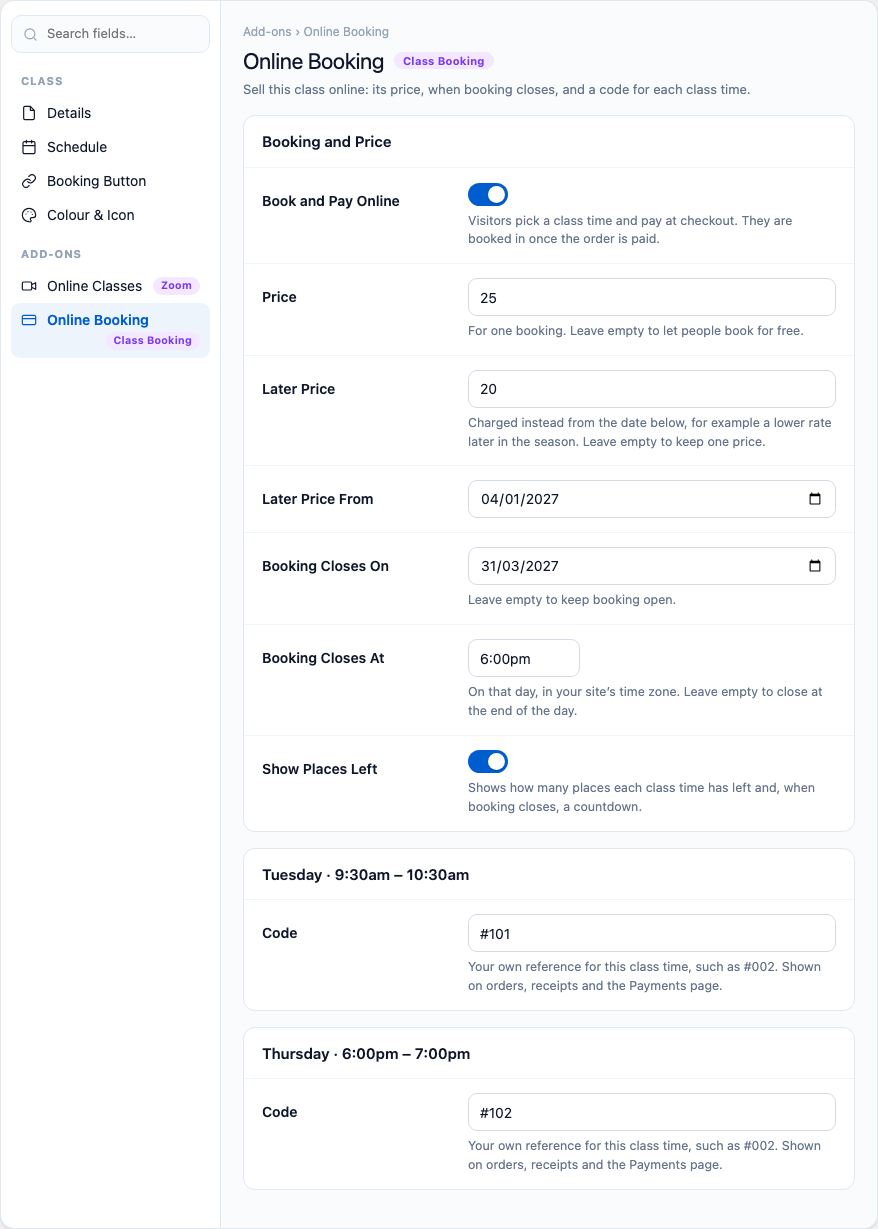
| Field | What it does |
|---|---|
| Book and Pay Online | Sells this class on your website. Visitors pick a class time and pay at checkout; they are booked in once the order is paid. Off = the class shows Gym Builder's usual Register button. |
| Price | What one booking costs, in your WooCommerce currency. Type the number only, such as 25 or 25.50. Leave it empty to let people book for free. |
| Later Price | A second price charged from the date below, for example a lower rate later in the season. Needs Later Price From as well. Leave it empty to keep one price. |
| Later Price From | The day the later price starts. Until then the booking card shows it as "From [date]: [price]". |
| Booking Closes On | The last day people can book. Leave it empty to keep booking open. |
| Booking Closes At | The time on that day, in your site's time zone. Leave it empty to close at the end of the day. |
| Show Places Left | Shows how many places each class time has left on the booking card and, when you set a closing date, a countdown to it. |
| Code | One box per class time: your own reference for that time, such as #002. See Codes for class times. |
Codes for class times
If you keep your own numbers for classes — "Osteofit, Monday, #002" — type them in the Code box under each class time on the Online Booking card. A class with three times has three Code boxes. The code is for your records: it shows with the booking in the cart, at checkout, on the WooCommerce order and its emails, on the Payments page and on printed receipts. It is not shown on the class page.
The Code boxes follow the class's Schedule. Add or change times under Schedule on the same screen, save the class, and the Code boxes for the new times appear.
Places
Each class time has its own number of places, set under Schedule on the class's edit screen. A paid booking takes one place in the time that was chosen. When a time has no places left, the booking card shows it as Full and it can't be chosen; on the class page and timetable it says Class full.
While an order waits for payment, its place is held for it (see Places held while an order waits), so others see that place as taken.
Locations (optional)
Gym Builder can show where each class time takes place: go to Gym Builder → Settings → Classes → Locations and switch on Show Class Locations. When you use it, the location of each class time shows under that time on the booking card, and is saved with the booking as Location on the cart, checkout, order and WooCommerce emails. When locations are off, nothing about them shows.
What visitors see
The booking card on the class page
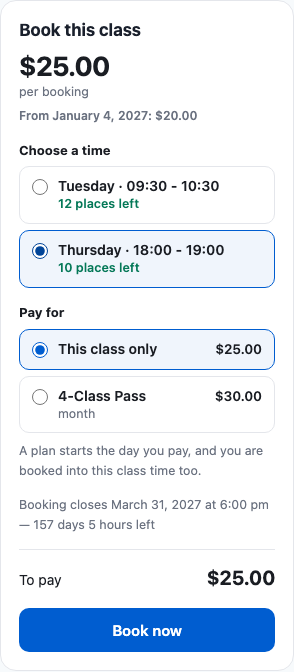
A class sold online gets a Book This Class card next to its details. It shows:
- The price "per booking", or Free. If a later price is coming, "From [date]: [price]" under it.
- Choose a time — every class time, in week order, with its location and (when Show Places Left is on) the places left. Full times can't be chosen. If only one time has places, it is already picked.
- Pay For — only when a plan that includes this class has a price (see Paying with a plan).
- Booking closes [date] at [time] — when you set a closing date. With Show Places Left on, a countdown follows ("— 157 days 5 hours left"); when it reaches zero the button is switched off.
- To Pay and the Book Now button.
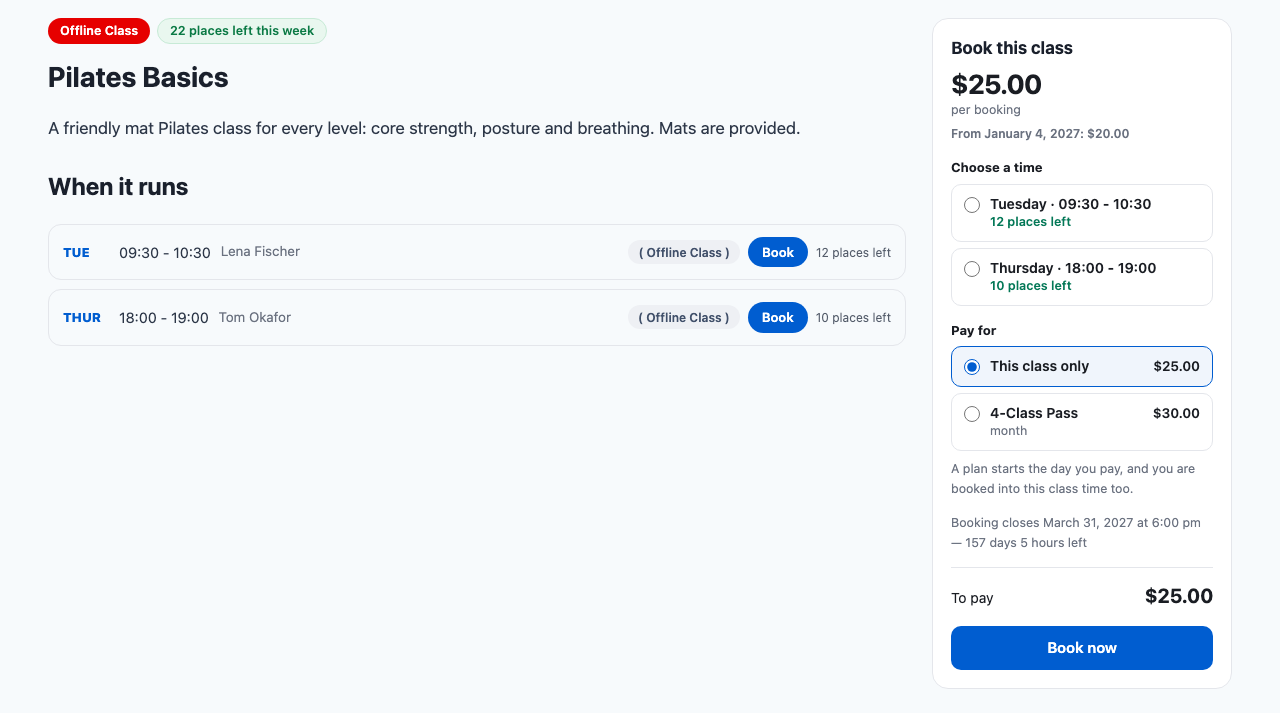
Pressing Book Now puts the booking in the WooCommerce cart and goes straight to checkout. If the booking can't be taken — the time just filled up, or booking has closed — the visitor stays on the class page and the card shows why, with their choices kept.
When booking has closed, the card says "Booking for this class has closed." A class with no times yet shows "There are no class times to book yet." and can't be added to the cart, and when every time is full, "Every class time is full."
Paying with a plan
If one or more of your membership plans include the class and have a price, the card adds Pay For: This Class Only at the class price, or one of those plans at the plan's price. To Pay changes with the choice.

Someone who pays with a plan gets both: the plan, and a place in the class time they picked. See The plan a member gets for when it starts and ends. Plans without a price are not offered here.
Book buttons on class times and class cards
Wherever a class time shows with a button — under "When it runs" on the class page and on Gym Builder's timetables — a class sold here shows Book instead of Register. It opens the class page with that time already picked on the booking card. Instead of the button it says Class full when the time has no places left, or Booking closed after the closing date.
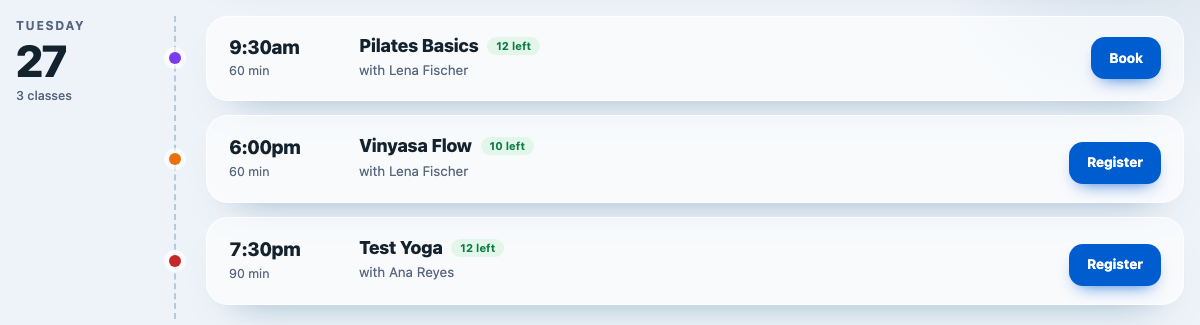
On class cards in your class lists, the class's button becomes Book Now and opens the booking card on the class page.
Buy Now on plan cards
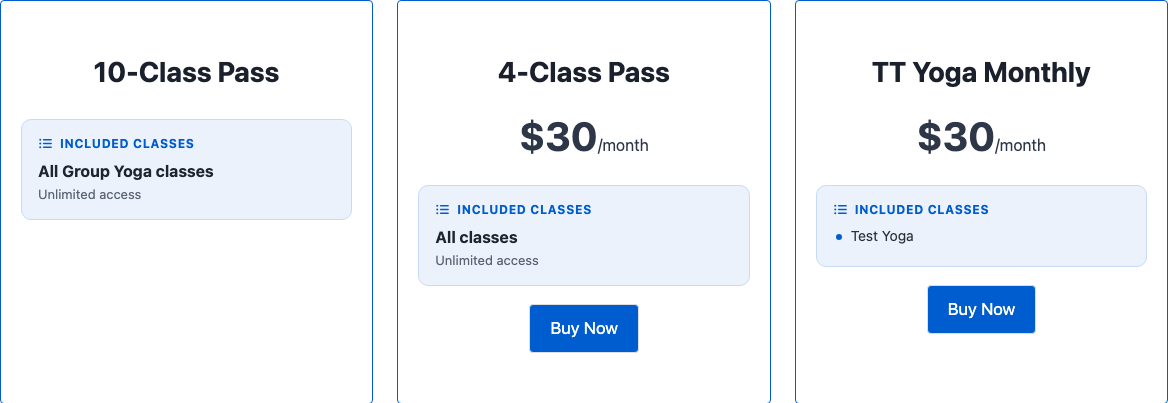
On Gym Builder's plan cards, every plan with a price gets a Buy Now button. It puts that plan in the cart — on its own, replacing anything already there — and opens checkout. When the order is paid the buyer holds the plan, exactly as when a plan is picked on a class page. Plans without a price show no Buy Now button.
On phones
On a phone the booking card sits under the class details, at full width.
Checkout through WooCommerce
Payment runs entirely through your WooCommerce cart and checkout, with the payment methods you set up there. The class is the item in the cart; under it, the booking details show in words.
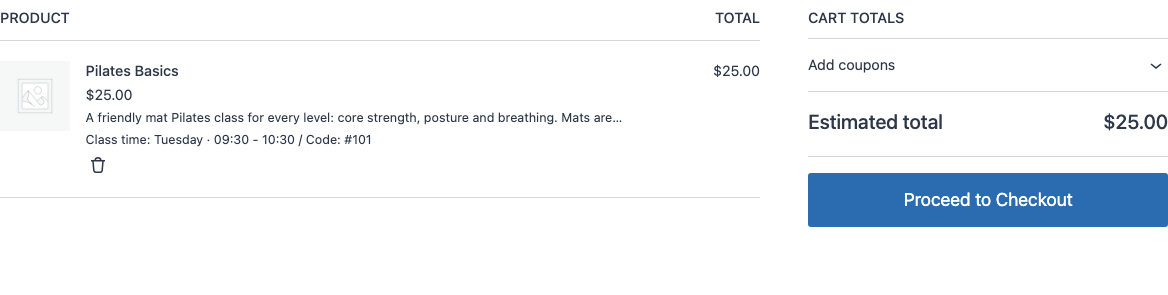
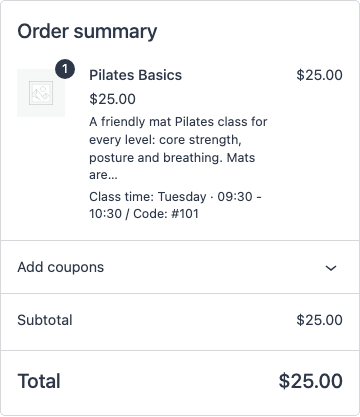
The same details are saved on the order, so you see them in WooCommerce → Orders and they appear in WooCommerce's own order emails:
- Class time — the day and time booked.
- Location — when you use class locations.
- Code — your code for that class time, when it has one.
- Plan — the plan, when the booking was paid with one.
The price charged is the class's price on the day (the later price once its date has come), or the plan's price. The quantity is always one — for a class and for a plan — so the cart has no quantity box. A class can be in an order only once: trying to add it again says "This class is already in your cart. Finish that booking first, or remove it from the cart."
The cart and the checkout check each class again, and the order can't be placed until the problem is fixed:
- The class time filled up — "Sorry, [class] on [class time] is now full. Please remove it from your cart and choose another time."
- Booking closed — "Booking for [class] has closed. Please remove it from your cart."
- The time was removed from the Schedule — "[class] on [class time] is no longer on the timetable. Please remove it from your cart and choose another time."
When an order is paid
The member is booked in
When the order's status becomes Processing or Completed in WooCommerce, the add-on:
- Finds the member — by the buyer's account, then by their email or phone. If there is none, it creates the member and a login for the member dashboard, and Gym Builder emails them their login details.
- Gives them the plan the order paid for, if any.
- Books them into the class time, taking one place.
- Emails them a confirmation (see Emails).
An order that waits for payment — for example a WooCommerce bank transfer order that is On hold — books nothing until you change it to Processing or Completed.
Places held while an order waits
When someone places an order that waits for payment (Pending payment, or On hold for a bank transfer or cheque), the class places in it are held for them. Other visitors see those places as taken, so two people can't pay for the same last place. The buyer's own order does not count against them if they try to pay again.
- How Long — WooCommerce's Hold stock (minutes) time, in WooCommerce → Settings → Products → Inventory (60 minutes unless you changed it). If that box is empty, nothing is held.
- When the hold ends — when the order is paid (the place becomes a booking), when it is cancelled or fails, or when the minutes run out.
If the hold runs out before the money arrives (a bank transfer can take days) and the class time fills up meanwhile, the order is paid but can't be booked. It gets the order note "Class booking could not be completed — one or more selected times are full. Please contact the member.", and you get an email "Paid but not booked: order #…" with the class time, the buyer's details and a link to the order. Refund the order in WooCommerce, or book them into another time.
The plan a member gets
A plan bought here — picked on a class page or bought with Buy Now — runs for one of its periods:
- It starts the day the order is paid. The plan's period (for example a month) decides the end date.
- A renewal follows on. If the member already holds the same plan and it hasn't ended, the new period starts the day after the current one ends.
- It shows on the member. On the member's page in the Dashboard and on their member dashboard, the plan is listed as Paid online with the WooCommerce order number.
Refunds and cancelled orders
When you set an order to Refunded or Cancelled in WooCommerce, the add-on frees the class places it booked and takes back the plan it gave. Give the refund itself in WooCommerce as usual. A partial refund that leaves the order's status unchanged does not free anything.
The Payments page
Go to Gym Builder → Class Booking → Payments in the Dashboard. This page is for money members pay you by hand — cash at the desk, a card machine, a bank transfer — and for keeping track of who should pay next. WooCommerce orders are not listed here; they stay in WooCommerce → Orders.
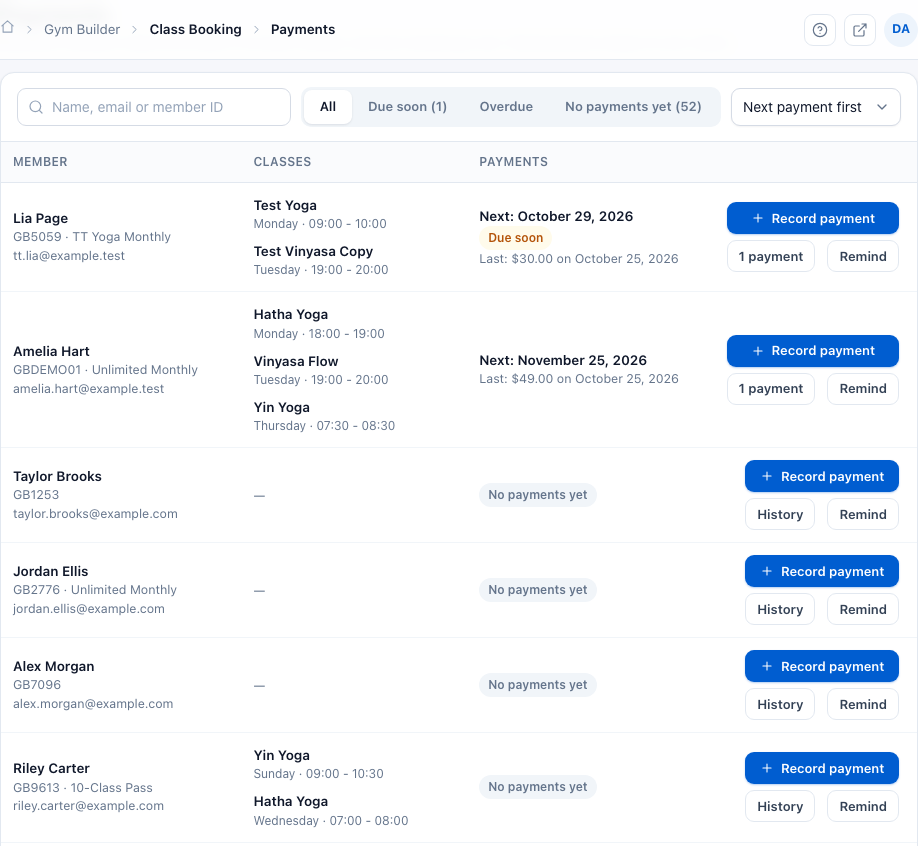
Every member is listed with their member ID, plan, classes (with class time, location and code) and payments:
- Next: [date] — the next payment due, from the latest payment you recorded. Due soon means within the next 7 days; Overdue means the date has passed.
- Last: [amount] on [date] — the latest payment recorded.
- No payments yet — nothing recorded for this member.
Use the search box (name, email or member ID — at least 2 letters), the filters All, Due soon, Overdue and No payments yet, and the order list (Next payment first, Name A–Z, Newest members first) to find people. The list shows 20 members per page.
Record a payment
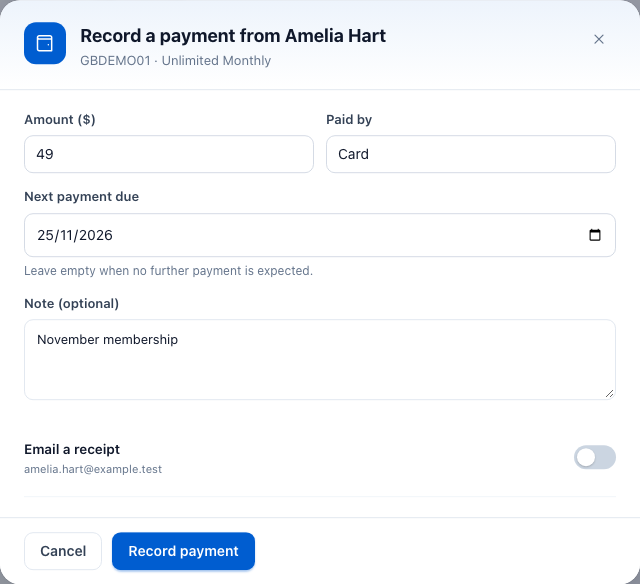
- Find the member and click Record payment.
- Type the Amount and how they paid in Paid by — pick Cash, Card, Bank transfer or Cheque from the suggestions, or type your own.
- Check Next payment due. It starts one month from today; change it, or clear it when no further payment is expected.
- Add a Note (optional).
- Email a receipt is on when the member has an email address. Switch it off if you don't want to send one.
- Click Record payment.
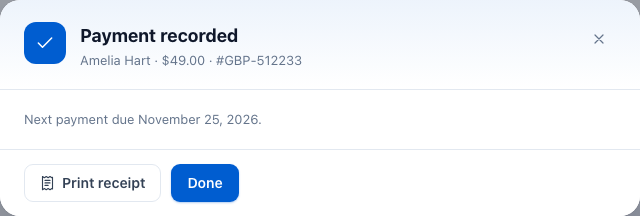
The payment gets a reference such as #GBP-512233. The window then shows Payment recorded, with Print receipt and Done.
Recording a payment does not change the member's plan, end date or classes. To extend a membership, edit the member in Gym Builder → Members.
See and delete payments
Click History — or the "1 payment" / "[n] payments" button once a member has some — to see every payment recorded for that member, newest first, with the date, reference, next due date and note.
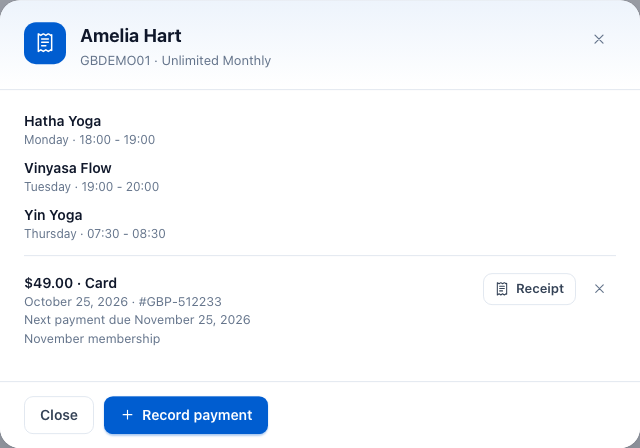
To remove a payment recorded by mistake, click the × next to it, then Delete (or Keep to leave it).
Print a receipt
Click Receipt next to a payment in the history, or Print receipt right after recording it. Your browser's print window opens; print it or save it as a PDF.
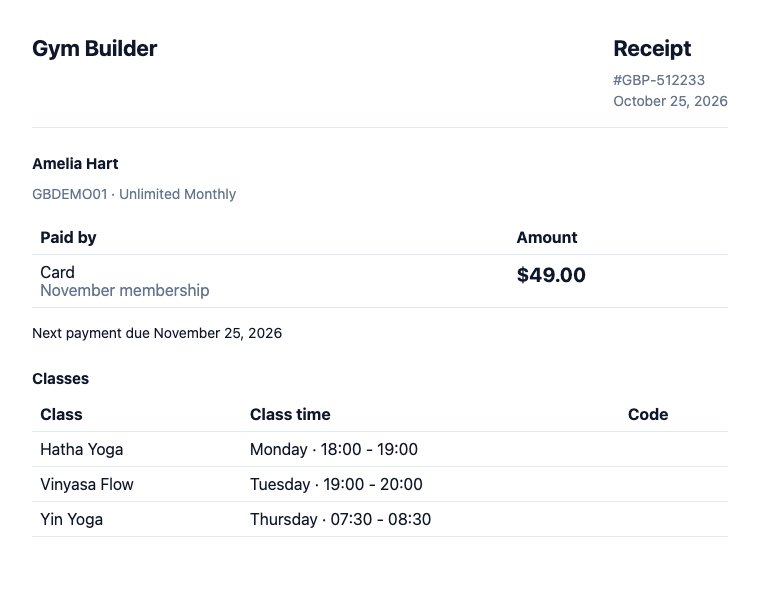
The top of the receipt uses your studio details from Gym Builder → Settings → General → Studio Details: Studio Name on ID Cards (or your site name), Address and Phone. Note on the Back of the Card is printed at the bottom.
Send a payment reminder
- Click Remind on the member's row. (It is grayed out when the member has no email address.)
- Check the Message. It is filled in for you: "This is a friendly reminder that your next payment is due on [date]." — or a general reminder when no date is set.
- Click Send reminder.

Emails
The add-on's own emails are sent from the address in Gym Builder → Settings → General → Emails (Send Emails From), with your studio name as the sender. WooCommerce sends its usual order emails as well.
- WooCommerce order emails — WooCommerce's own receipt and order emails, to the buyer and to you. Each class line includes the Class time, Location, Code and Plan.
- You are booked in (order #…) — to the buyer when a class booking is paid: the class, class time, location and plan. A new member also gets their member ID, to have with them at their first class.
- Your plan is active (order #…) — to the buyer when an order with only a plan is paid.
- Login details — Gym Builder's usual login email, when a buyer becomes a new member with a new account.
- Thank you for your payment — to the member when you record a payment with Email a receipt on: amount, how they paid, the reference and the next due date.
- A payment reminder — to the member when you press Send reminder: "Hello [name]," and your message.
- Paid but not booked: order #… — to you (the site's admin email address), once, when an order was paid but its class time was full by then. It lists the class time and the buyer, with an Open the order link.
Questions
Can I use it together with Stripe Payments or Offline Payments?
No. Neither can be active at the same time as this add-on; deactivate one before activating the other. With this add-on, card payments — and bank transfer or cash on delivery, if you switch those on in WooCommerce — go through the payment methods you set up in WooCommerce.
Can someone book two places in one order?
No. The quantity is always one, so each order books one place in one class time.
Is a booking for one date or every week?
A booking is for a class time — for example "Tuesday · 9:30 – 10:30" — the same way Gym Builder books a member into a class. It takes one of that time's places.
When does someone get their place?
When the WooCommerce order becomes Processing or Completed — normally right after an online payment. An order waiting for payment books nothing yet, but holds the place for WooCommerce's Hold stock (minutes) time.
Do buyers need an account first?
No. If the buyer isn't a member yet, the add-on makes them one when the order is paid, with a login for the member dashboard. Whether people can check out without an account is up to your WooCommerce settings.
How do I offer a class for free?
Switch on Book and Pay Online and leave Price empty. The card shows Free, people still go through checkout to give their details, and they are booked in when the order is placed.
How do I change the price later in the season?
Fill in Later Price and Later Price From. Until that date the card shows the later price under the current one; from that date it is the price charged.
Does the Payments page show WooCommerce orders?
No. It holds the payments you record by hand. WooCommerce orders stay under WooCommerce → Orders.
Does recording a payment extend a membership?
No. It only records the money and the next due date. Change the member's plan or dates on their member page if needed.
What happens to the place when I refund an order?
Set the order to Refunded (a full refund does this) or Cancelled. The place is freed and any plan the order gave is taken back.
Where does the class time's code show?
On the cart, checkout, the WooCommerce order and its emails, the Payments page and printed receipts — not on the class page.
If something goes wrong
- No booking card on the class page — check that Book and Pay Online is on and the class is saved and published, that WooCommerce is active, and that Gym Builder is 3.0.0 or newer.
- "There are no class times to book yet." — add at least one time on the class's Schedule, with places, and save the class.
- "Every class time is full." — all times have used their places. Add places to a time on the Schedule, or add another time.
- "Booking for this class has closed." — the Booking Closes On / At moment has passed (in your site's time zone). Change or clear it.
- Visitors get a "coming soon" page after Book now — WooCommerce's shop is still in "Coming soon" mode. Make the shop live in WooCommerce's site visibility settings.
- "There are no payment methods available." — set up a payment method in WooCommerce → Settings → Payments.
- No "Pay for" choices on the card — only published plans that include this class and have a price are offered. Check the plan's included classes and price.
- Paid, but not booked in — check the order's status is Processing or Completed, and look for the order note "Class booking could not be completed…" (you also get the "Paid but not booked" email) — the time was full when the payment came in, usually because the order's hold ran out first. For slow payments such as bank transfers, a longer Hold stock (minutes) time helps.
- The cart says a class is now full, closed or no longer on the timetable — the class changed while it waited in the cart. The visitor removes it and books again on the class page.
- Prices show a different currency from your plans — the booking card and checkout use WooCommerce's currency, set in WooCommerce → Settings → General. Make it match Gym Builder's currency in Gym Builder → Settings → General → Money.
- Stripe Payments or Offline Payments won't activate, or this add-on switches itself off — they can't run together with this add-on. Deactivate the one you don't use first.
- Receipt or reminder emails don't arrive — check Send Emails From in Gym Builder's General settings, and set up an email (SMTP) plugin if your site's emails tend to go missing.