
Check Members In at the Desk, by QR Code or at a Kiosk
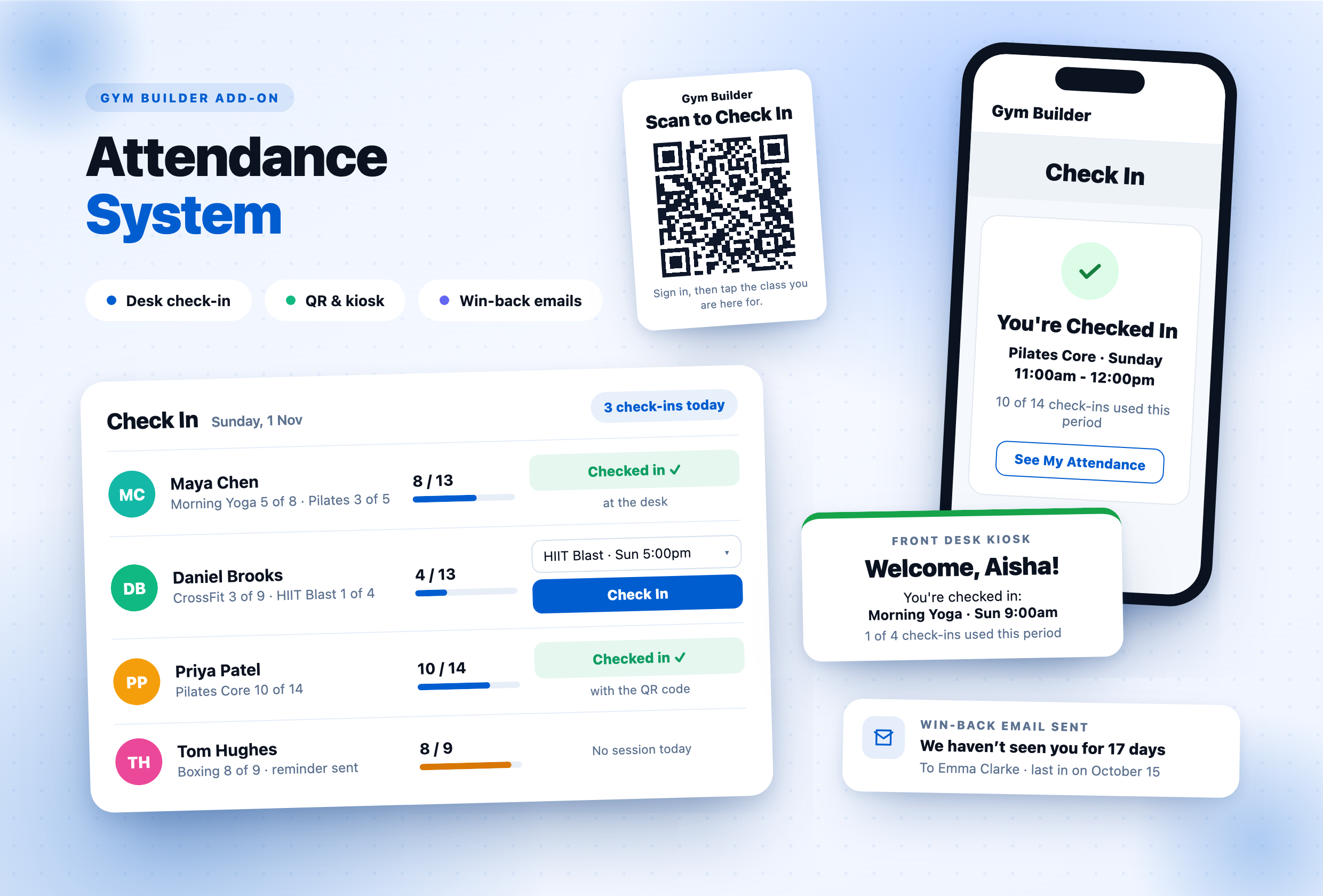
GB Attendance System counts every visit against the class times each member booked. Check them in from the front desk with one click, or let them check themselves in by scanning a QR code poster, at a front-desk kiosk, or from their Member Dashboard. See who has been coming, email the members who stopped, and remind everyone before their plan runs out.
Why this add-on exists
Gym Builder already knows which classes a member booked and when their plan runs. What it cannot tell you is who actually turned up — or who quietly stopped coming. GB Attendance System adds that half. A member checks in only to the class times they booked, once per class time per day, and each booked class time is worth the dates it falls on inside the plan period: a Sunday class in October is worth four check-ins. Every renewal starts from zero, and a class covered by two plans counts under the one that ends last, with the screens saying which. There is no visit number to type in and nothing to reset by hand — and members can check themselves in without queuing at the desk.
Everything you need
A complete attendance surface for your front desk and your members.
Check In at the Desk
Find the member by name, email, phone or member ID, see the class they booked for today, and click Check In. Works on a phone or tablet too.
QR Code Poster
Print a poster with your gym’s QR code. Members scan it with their phone, sign in and tap the class they are here for. No app needed.
Front-Desk Kiosk
A tablet at reception. Members hold up their own check-in code to its camera, or scan their member card with a barcode scanner.
Rules You Control
Let members check themselves in only around class time, or only on the gym’s Wi-Fi — so a photo of the poster does not work from home.
Allowance From the Calendar
Each booked class time is worth its dates in the plan period. No number to set: book Sunday in October and the member has four check-ins.
Report & History
Used and allowed for every member, all-time totals, and each member’s full history with class and time — printable.
Haven’t Been In
See who has stopped coming, longest away first, and send an email that asks them back — by hand, or automatically after the days you choose.
Period-ending Reminder
“You have 1 check-in left before your period ends on November 4” — sent once per plan period, with a button to renew.
Online Classes Count
With GB Zoom Integration, the meeting link goes only to members who booked that class, and sending it can count as the check-in.
One screen, one click.
Check members in at the front desk
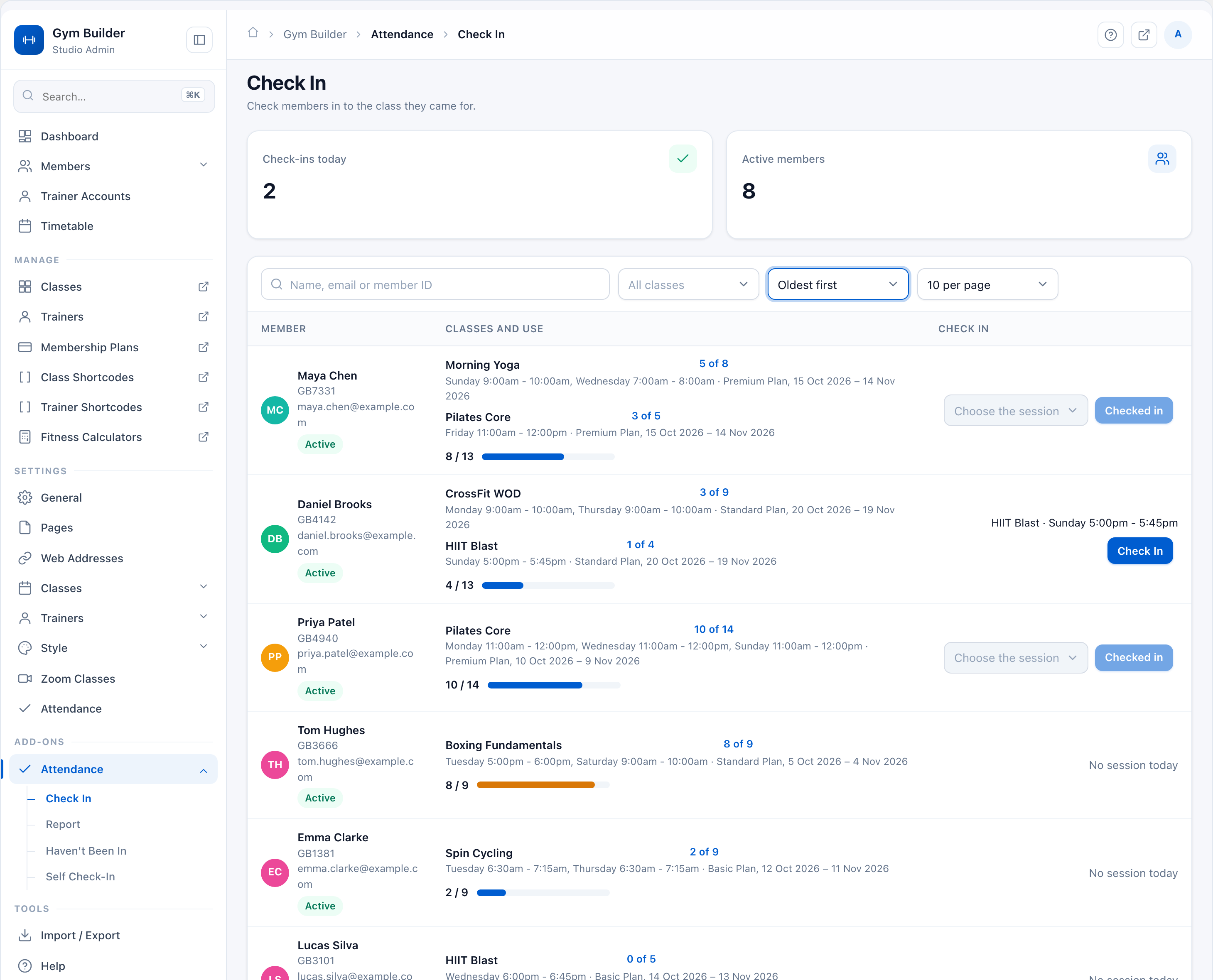
- Check-ins today and Active members at the top, then every member with today’s class time beside the Check In button.
- Classes and use shows each class as used of allowed — “5 of 8” — with its weekday, time and the plan dates it counts under.
- The plan total has a bar that turns orange once three quarters are used.
- Search by name, email, phone or member ID, filter by class, and sort newest or oldest first.
- A paused membership shows Paused, and anything the rules refuse says why: “Already checked in to this session today.”
Gym Builder › Attendance › Check InADMIN
Check In page, on the member’s phoneMEMBER
No queue, no app.
Scan the poster, tap the class
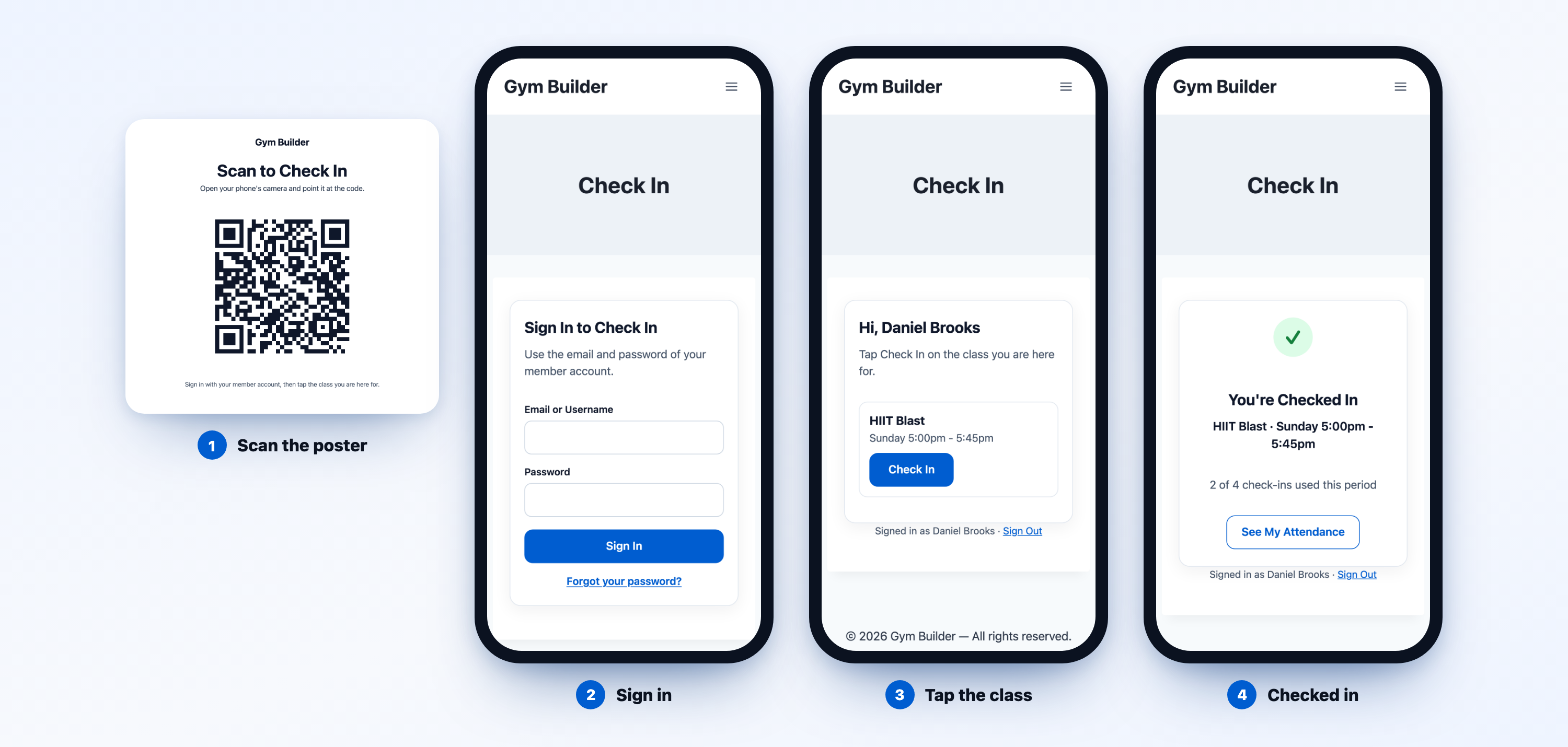
- Put the Scan to Check In poster up anywhere: the entrance, each studio, the changing rooms. One code works for every class.
- The member points their phone’s camera at it, signs in with their member account and taps Check In on today’s class.
- You’re Checked In shows the class and how many check-ins they have used this period.
- A photo of the poster going around? Make a New QR Code and the old posters stop working at once.
Hold up the code, you’re in.
A kiosk at reception
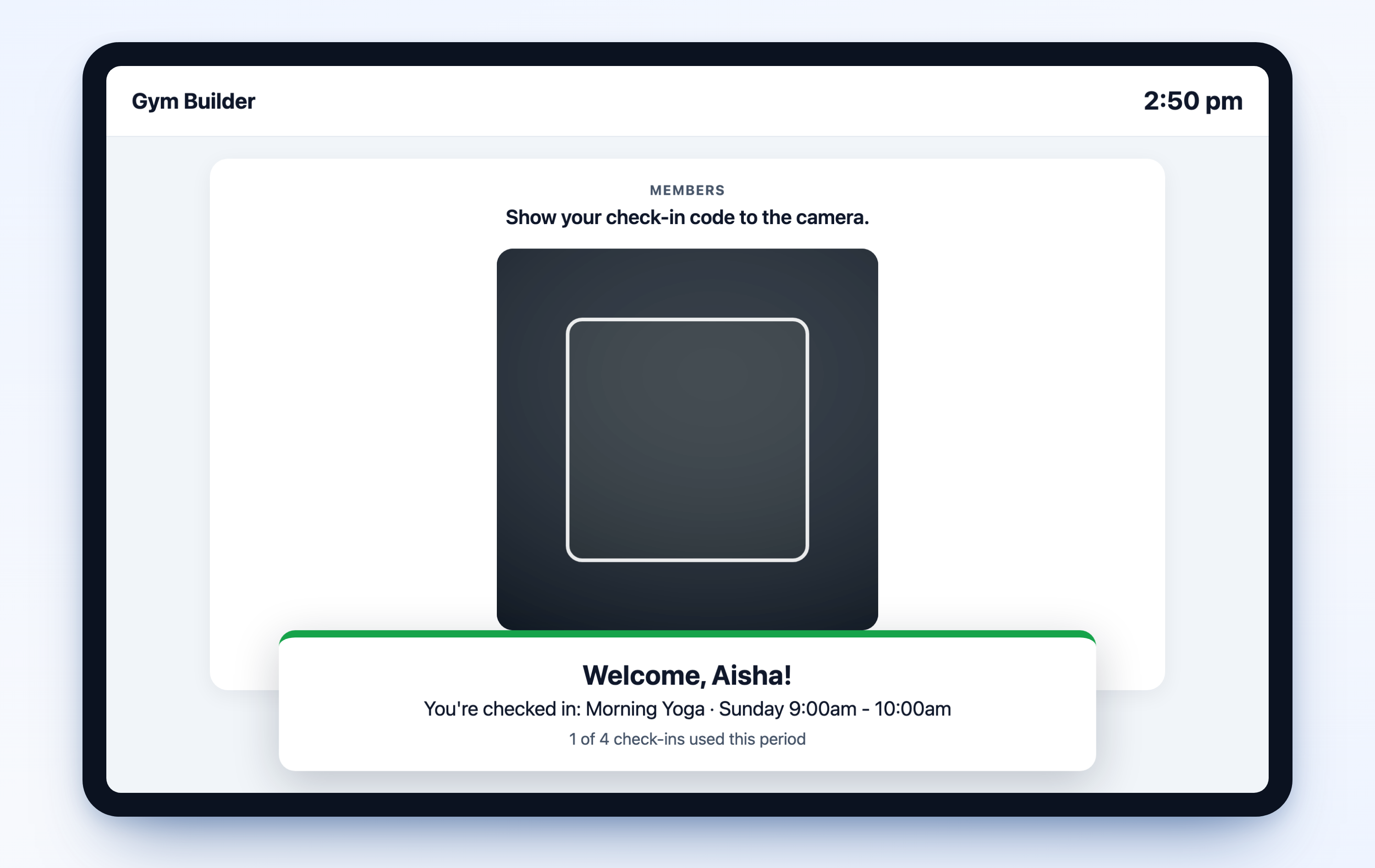
- Members hold the check-in code from their Member Dashboard up to the tablet’s camera — or scan their printed member card with a USB or Bluetooth scanner.
- With one class today they are checked in at once: “Welcome, Aisha!” With two, the kiosk asks which one.
- Set up a tablet once, signed in as an admin, then sign out: the kiosk keeps working.
- A lost tablet? Remove it and it stops working as a kiosk straight away.
- With GB Business Manager, staff clock in and out with their PIN on the same tablet.
Kiosk page, on the front-desk tabletFRONTEND
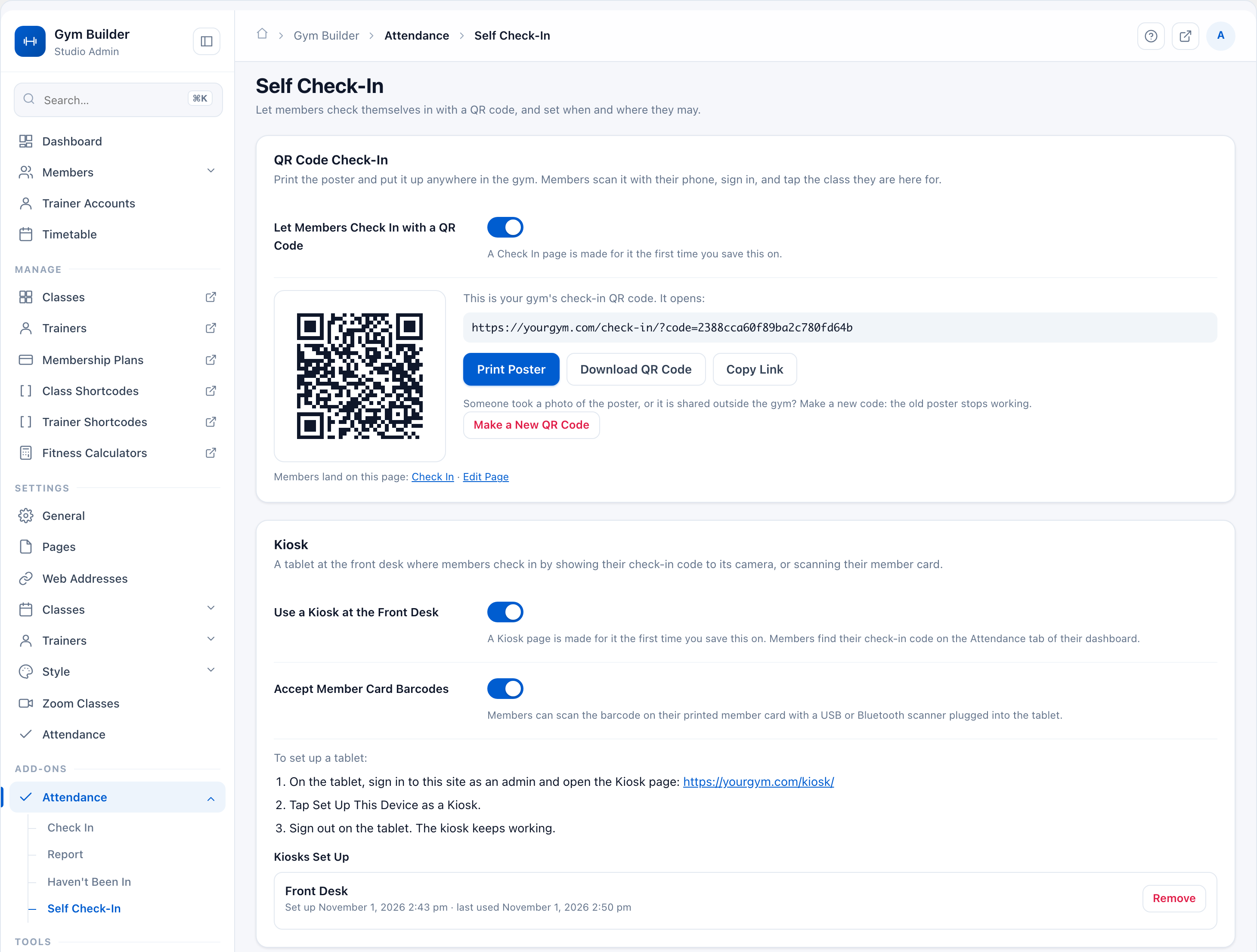
Gym Builder › Attendance › Self Check-InADMIN
One page, a few switches.
Switch on the QR code and the kiosk
- Let Members Check In with a QR Code makes the Check In page and your gym’s QR code.
- Print Poster, Download QR Code for a sign of your own, or Copy Link.
- Use a Kiosk at the Front Desk makes the Kiosk page, with the steps to set up a tablet.
- Accept Member Card Barcodes lets the scanner read the member cards you print from Gym Builder.
- Kiosks Set Up lists every tablet with when it was set up and last used.
Only if you want them.
Keep check-ins in the building
- Only Around Class Time — members check in from shortly before their class (30 minutes by default) until it ends.
- Gym Network Only — members check in only when their phone is on the gym’s Wi-Fi.
- Add the Network I’m On Now fills in the gym’s address for you.
- The rules apply to the QR code, the kiosk and the Attendance tab. Checking members in at the desk is never limited.
- Both are off by default, so nothing changes until you switch them on.
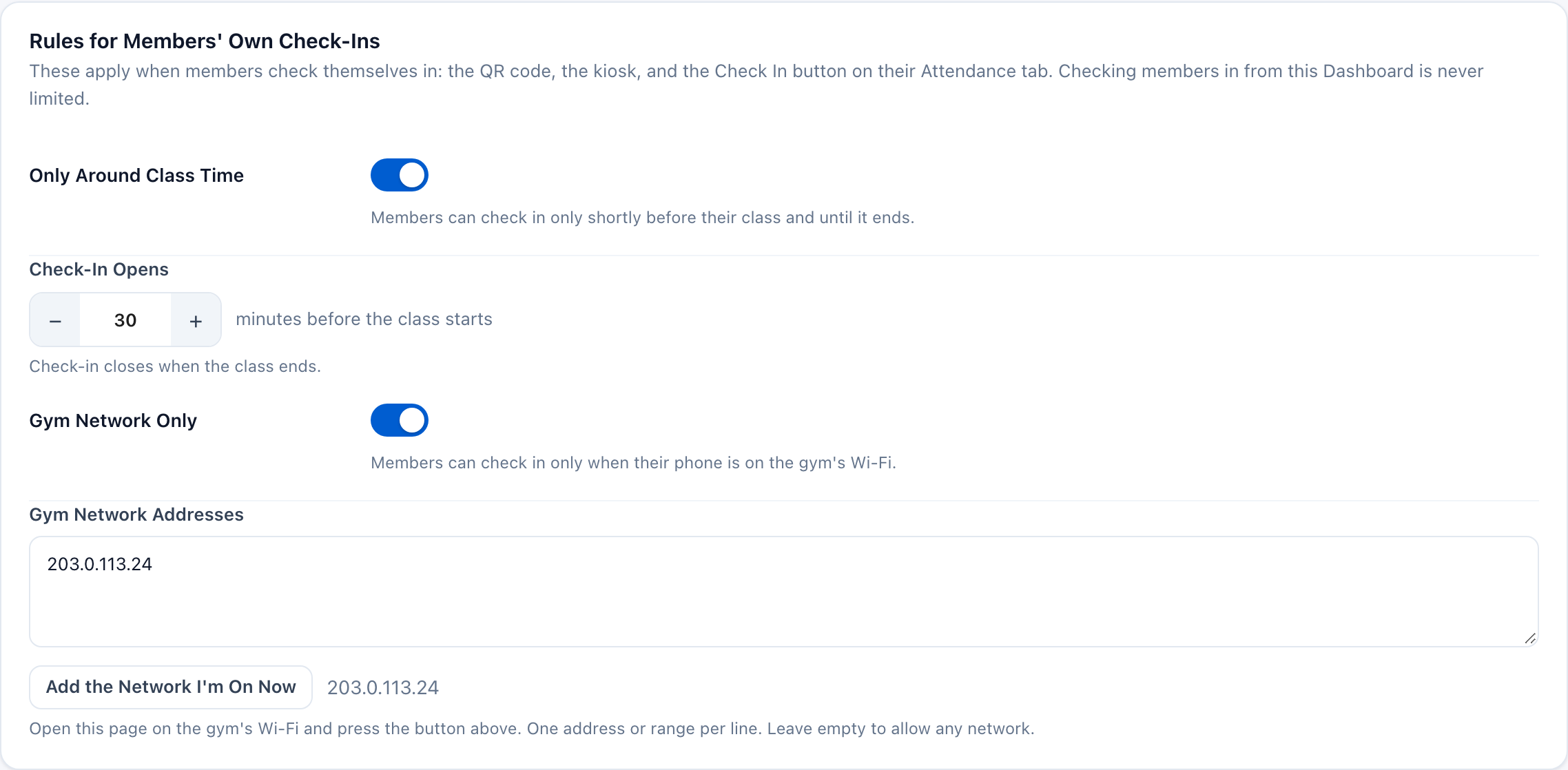
Attendance › Self Check-In › RulesADMIN
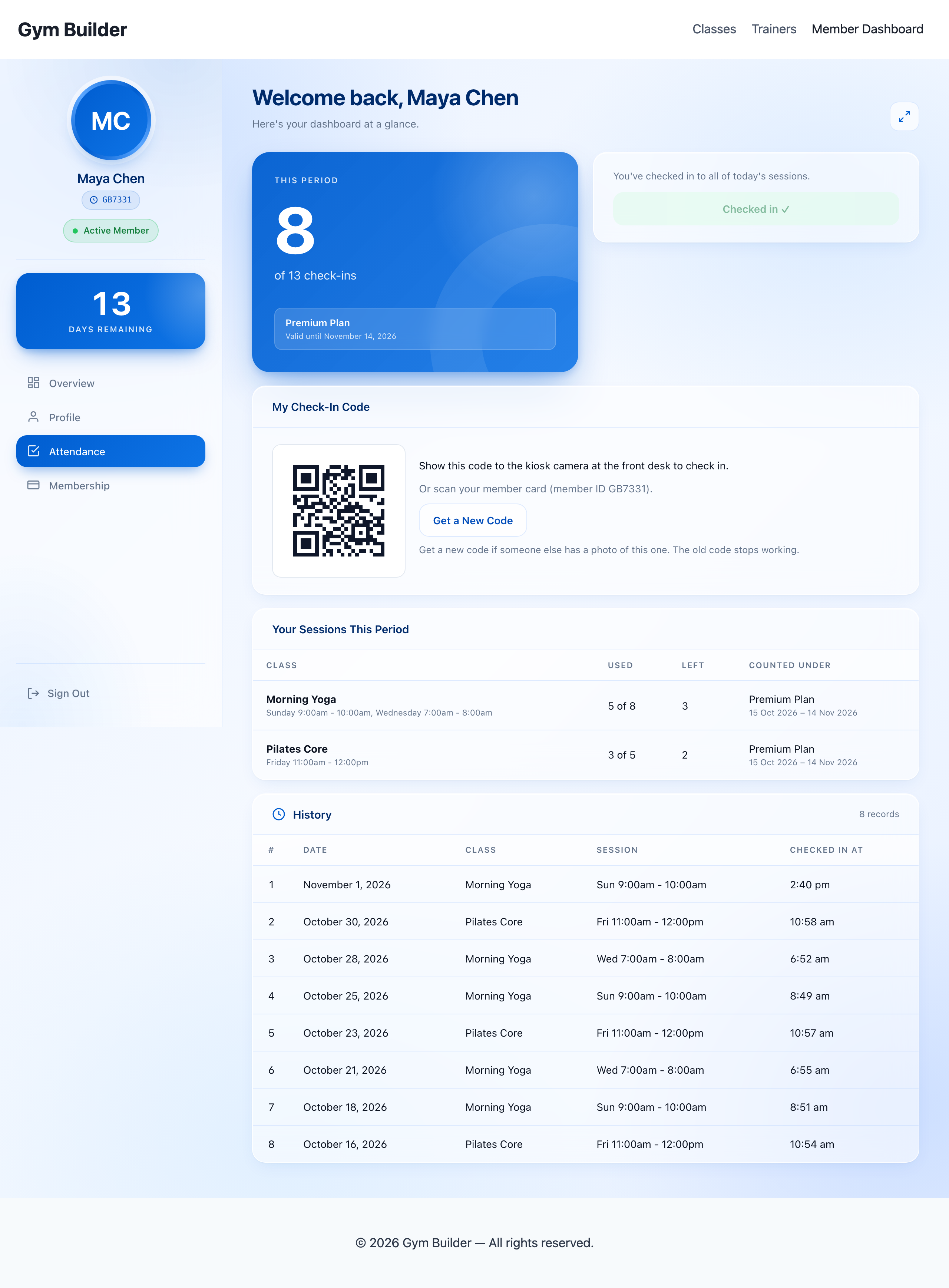
Member Dashboard › AttendanceMEMBER
On the dashboard they already use.
Members see where they stand
- This Period — check-ins so far out of the period’s total, with the plan and its end date.
- On a class day they choose today’s class and tap Check In.
- My Check-In Code — their own code for the kiosk, and the member ID on their card. Get a New Code if someone has a photo of it.
- Your Sessions This Period shows used, left and the plan each class counts under.
- Their own history, so “how many do I have left?” answers itself. In all seven bundled languages.
Nothing extra to configure.
The plan you sell sets the allowance
- Gym Builder’s Members Can Book decides which classes a plan covers.
- Times a Week per Class decides how many weekly times of each class the buyer may book.
- What they book is what they may attend: each class time is worth its dates in the period.
- A plan with no end date has no allowance to run down — check-ins are simply counted.
- Every renewal is a new period that starts from zero.
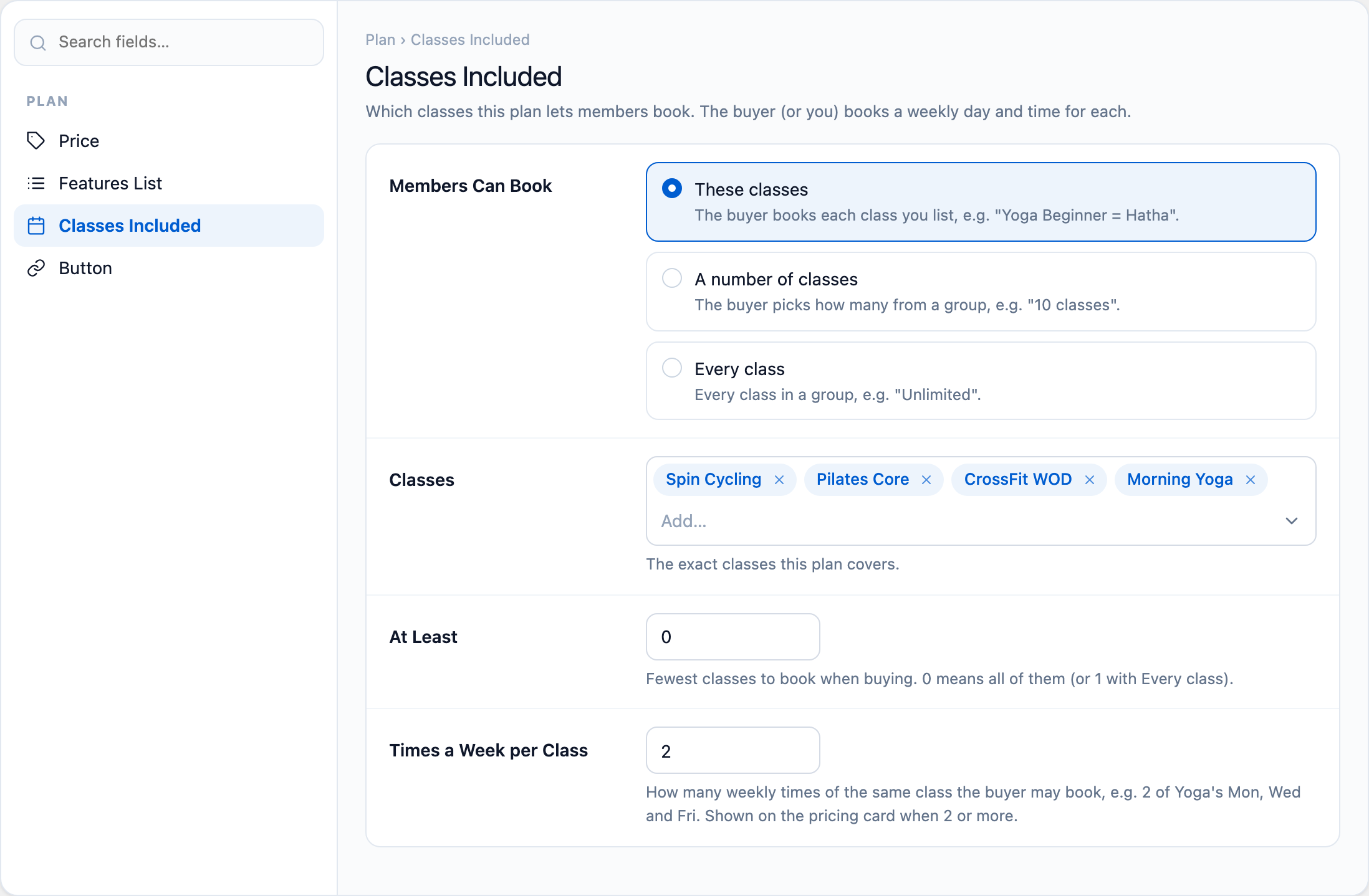
Membership Plans › a plan › Classes IncludedADMIN
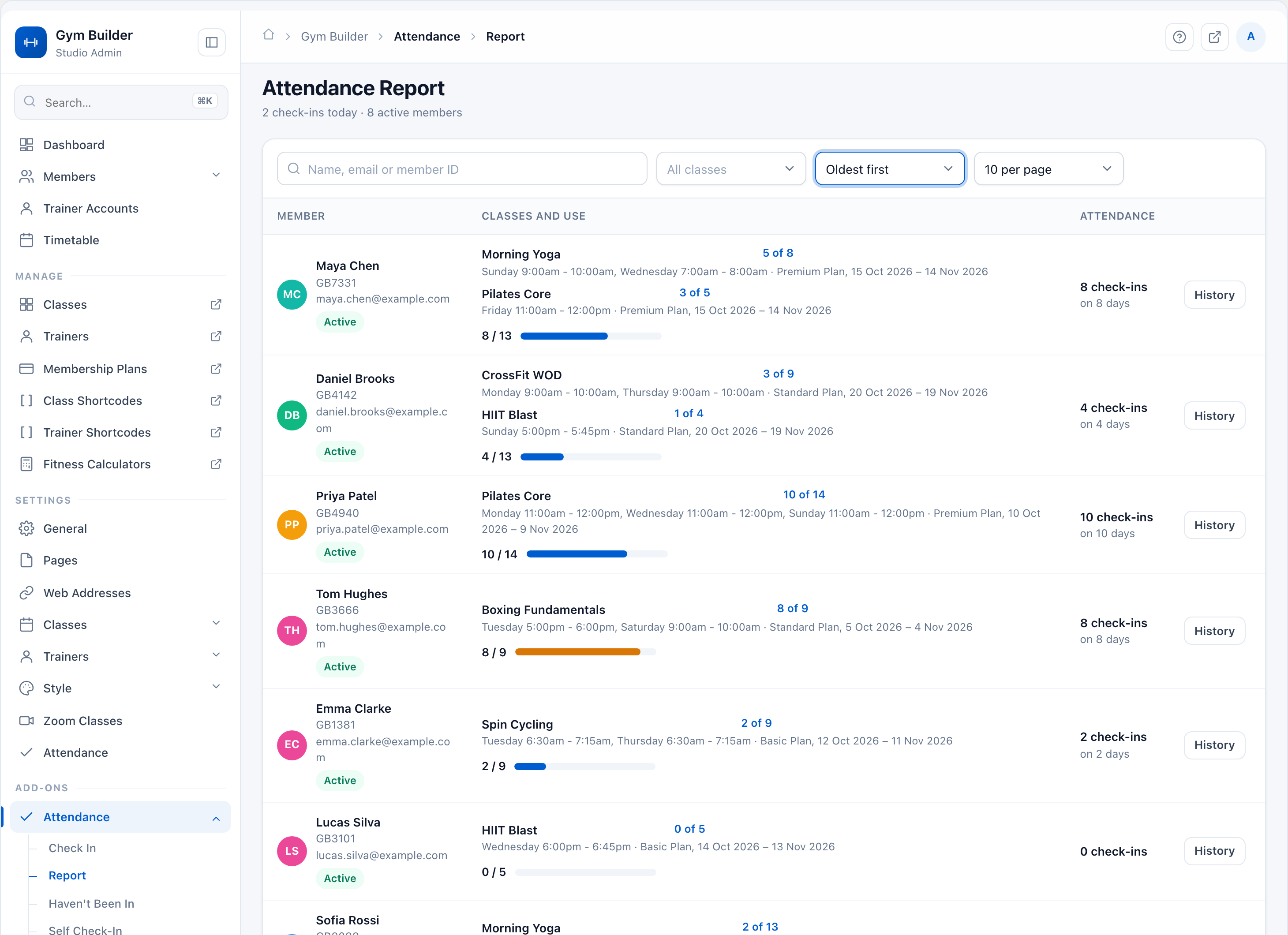
Gym Builder › Attendance › ReportADMIN
The whole studio at a glance.
See who has been coming
- All check-ins ever for every member — “8 check-ins on 8 days” — that never resets.
- Used / allowed for the current plan period beside it, class by class.
- The same search, class filter and sorting as the Check In page.
- History opens one member’s full record.
Drill into one member.
Every visit, on the record
- Every check-in with its date, class, class time and the time it was made.
- Sort newest or oldest first, 10 to 100 per page.
- Print gives a clean sheet of the whole history with your studio’s name — or save it as a PDF.
- Clear attendance sets a member back to zero when they start over.
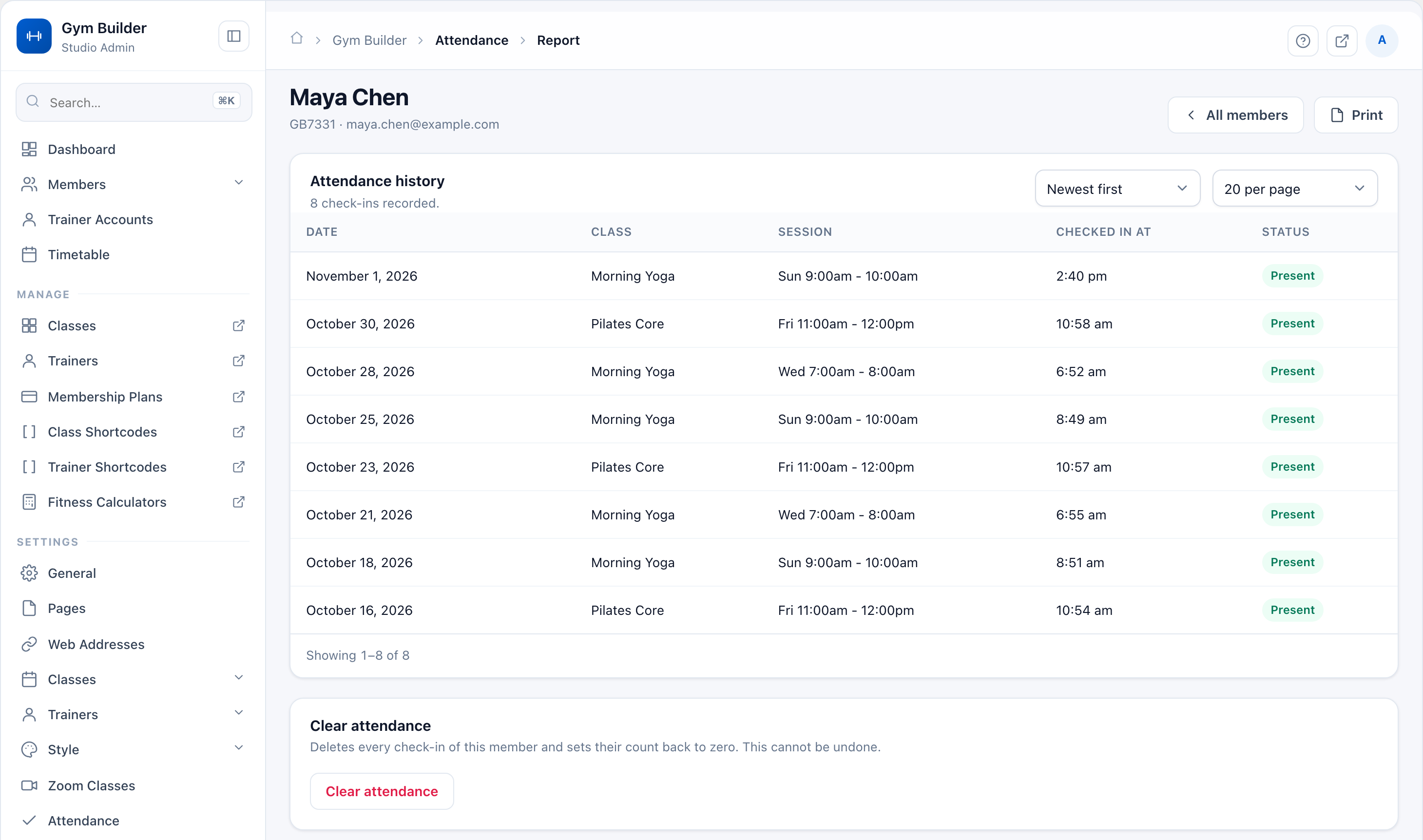
Attendance › Report › HistoryADMIN
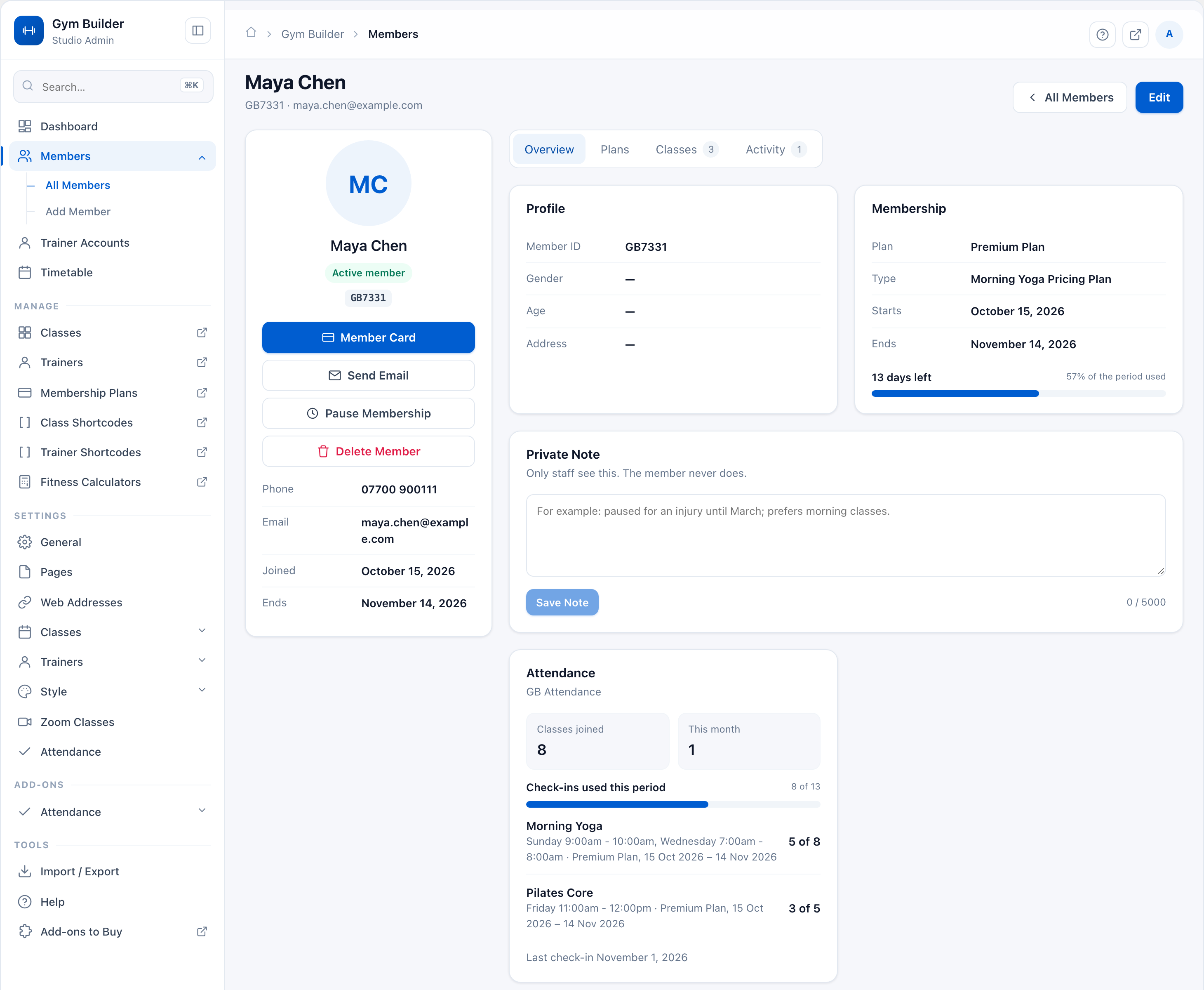
Gym Builder › Members › a memberADMIN
Where your staff already look.
Attendance on the member’s page
- Classes joined (all time) and This month at a glance.
- Check-ins used this period with a bar.
- One line per class with its booked class times, plan and dates.
- The date of the last check-in.
Before they give up on their plan.
Win back the members who stopped coming
- Every active member with no check-in for 7, 14, 30 or 60 days, longest away first.
- Away says how long and since when — “Last in on October 15” or “Never checked in”.
- Send the Email asks them back. The row then shows Emailed with the date.
- Or switch on Email Members Who Stop Coming and the email goes out by itself after the days you choose (14 by default).
- Paused memberships are left out, and members who were already away before you switched it on are not emailed.
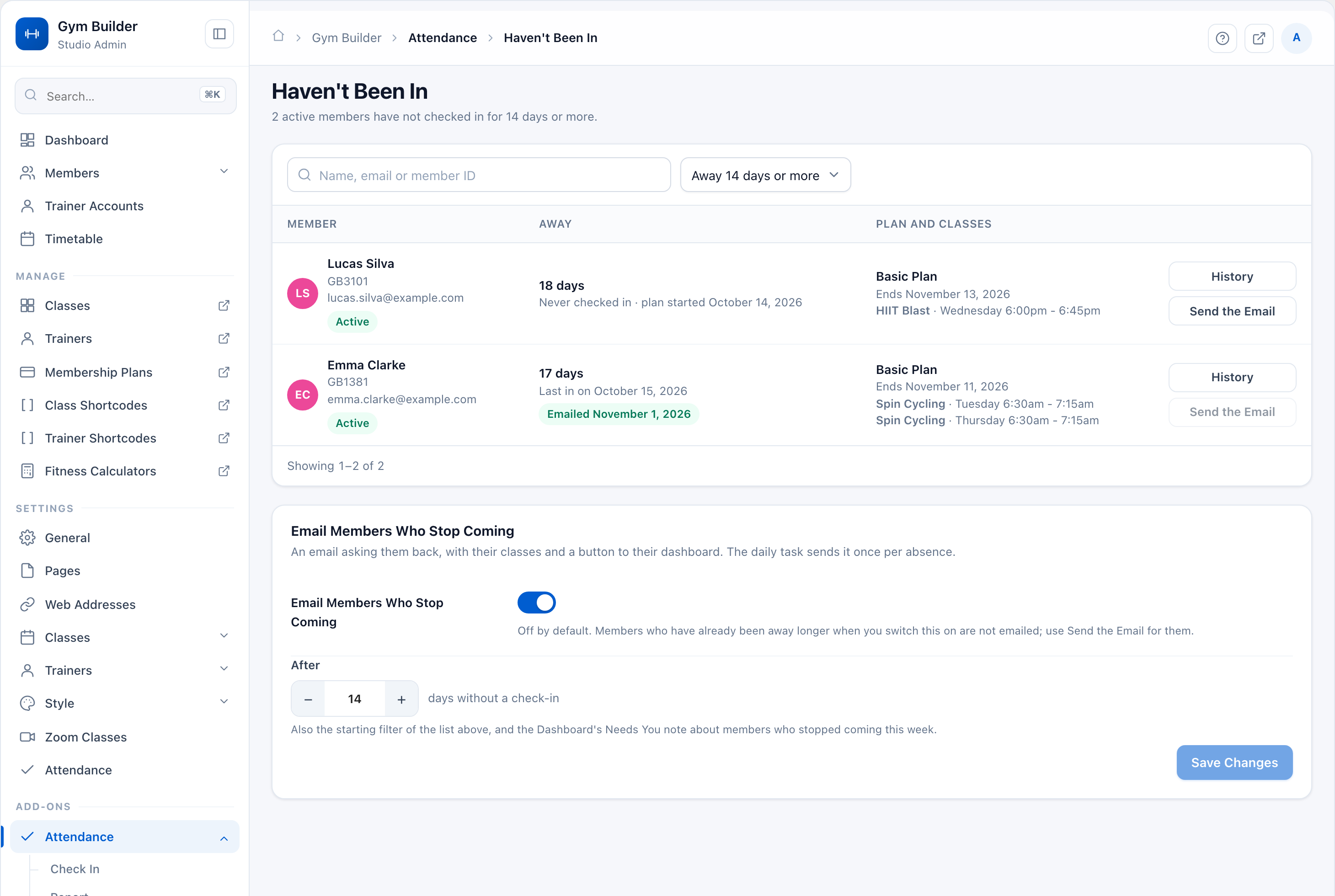
Gym Builder › Attendance › Haven’t Been InADMIN
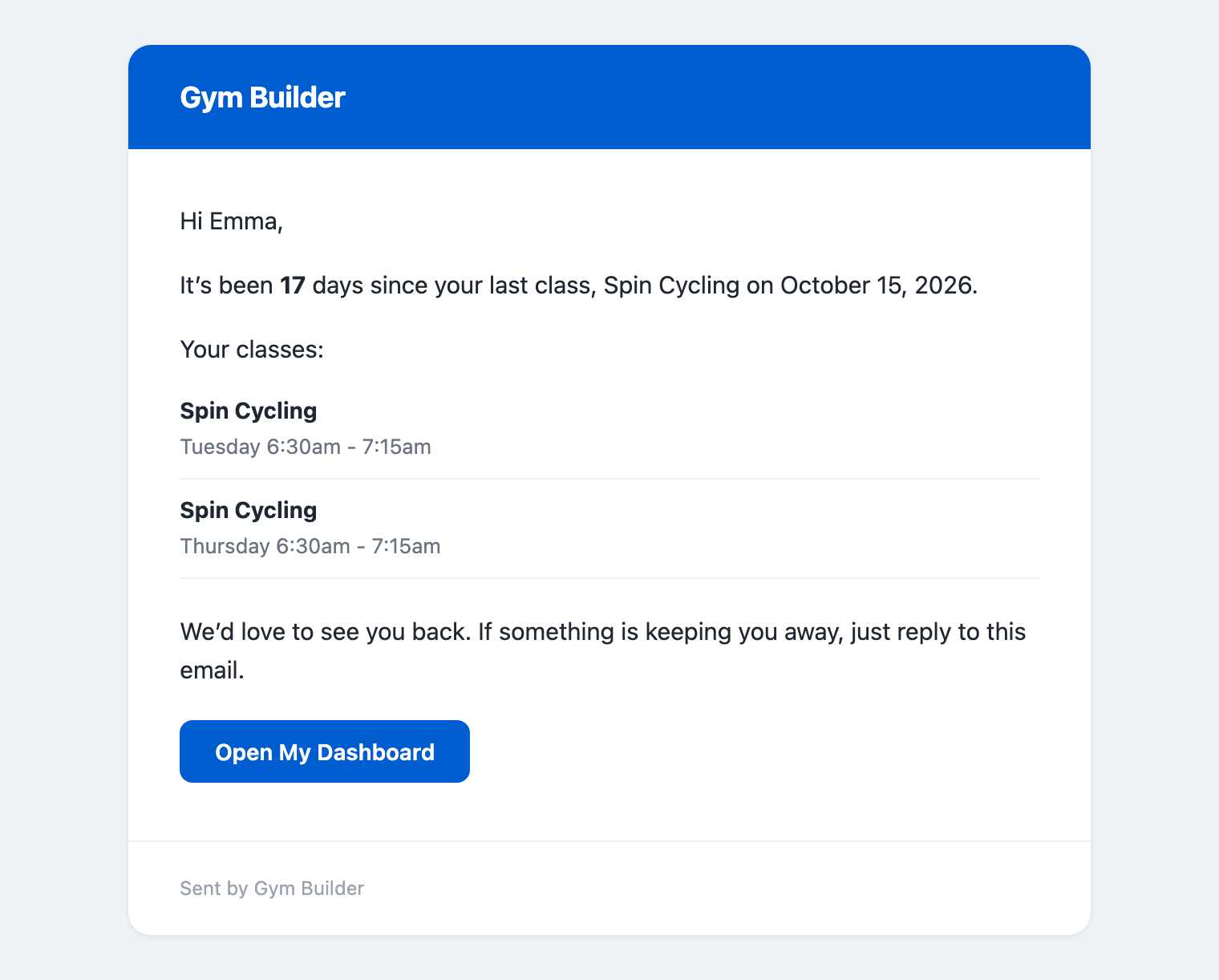
Email › we haven’t seen youMEMBER
One per absence.
An email that brings them back
- “It’s been 17 days since your last class, Spin Cycling on October 15, 2026.”
- Lists the class times they booked, so they know when to come back.
- An Open My Dashboard button, and a friendly line to reply if something keeps them away.
- Sent in your studio’s name and brand colour, once per absence.
The first thing you see.
Today’s check-ins on the Dashboard
- Check-ins today sits with your other studio figures, with Open Check In one click away.
- Needs You tells you when members stopped coming this week — “2 members stopped coming this week: no check-in for 14 days.”
- See Who opens Haven’t Been In.
- The note clears itself after a week.
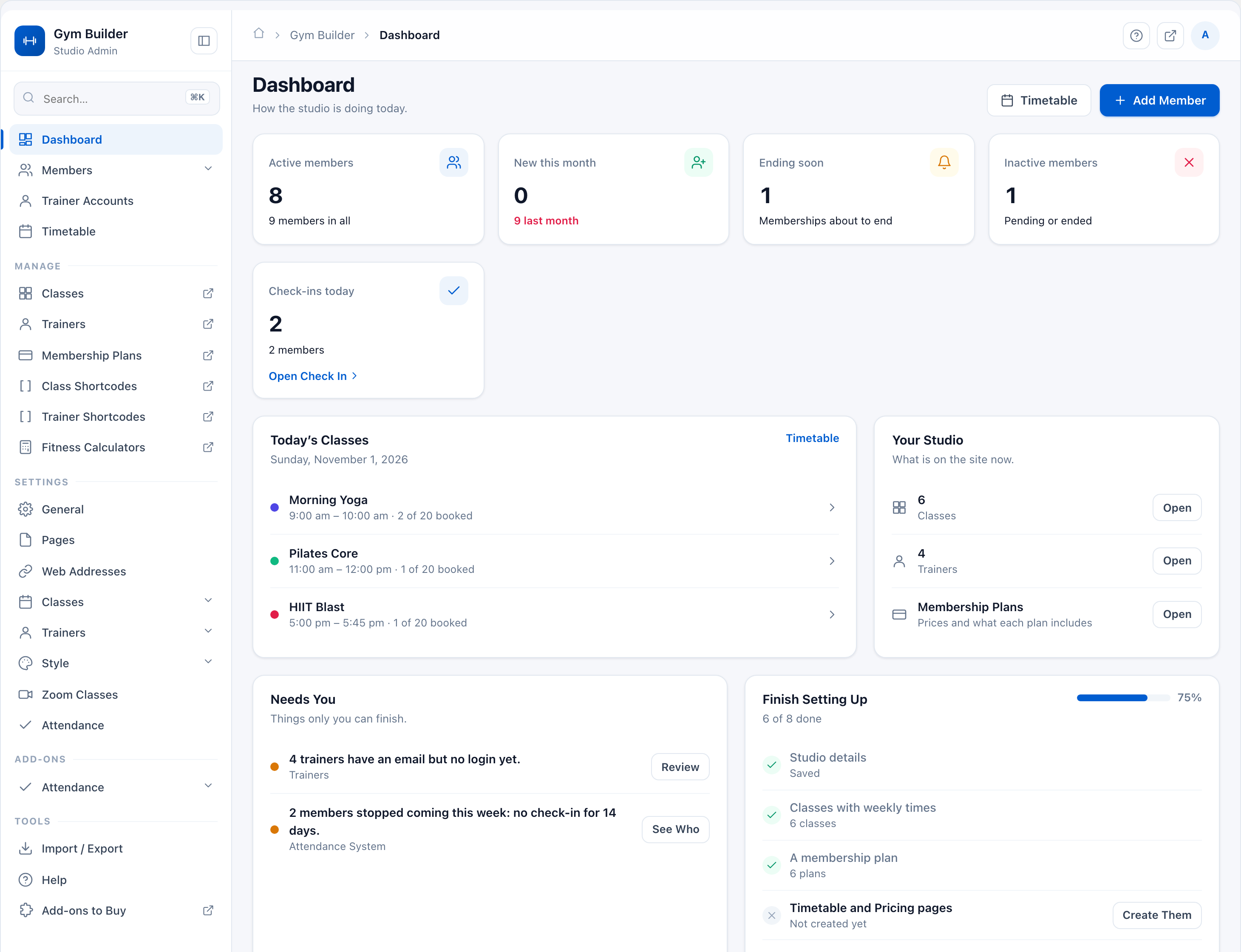
Gym Builder › DashboardADMIN
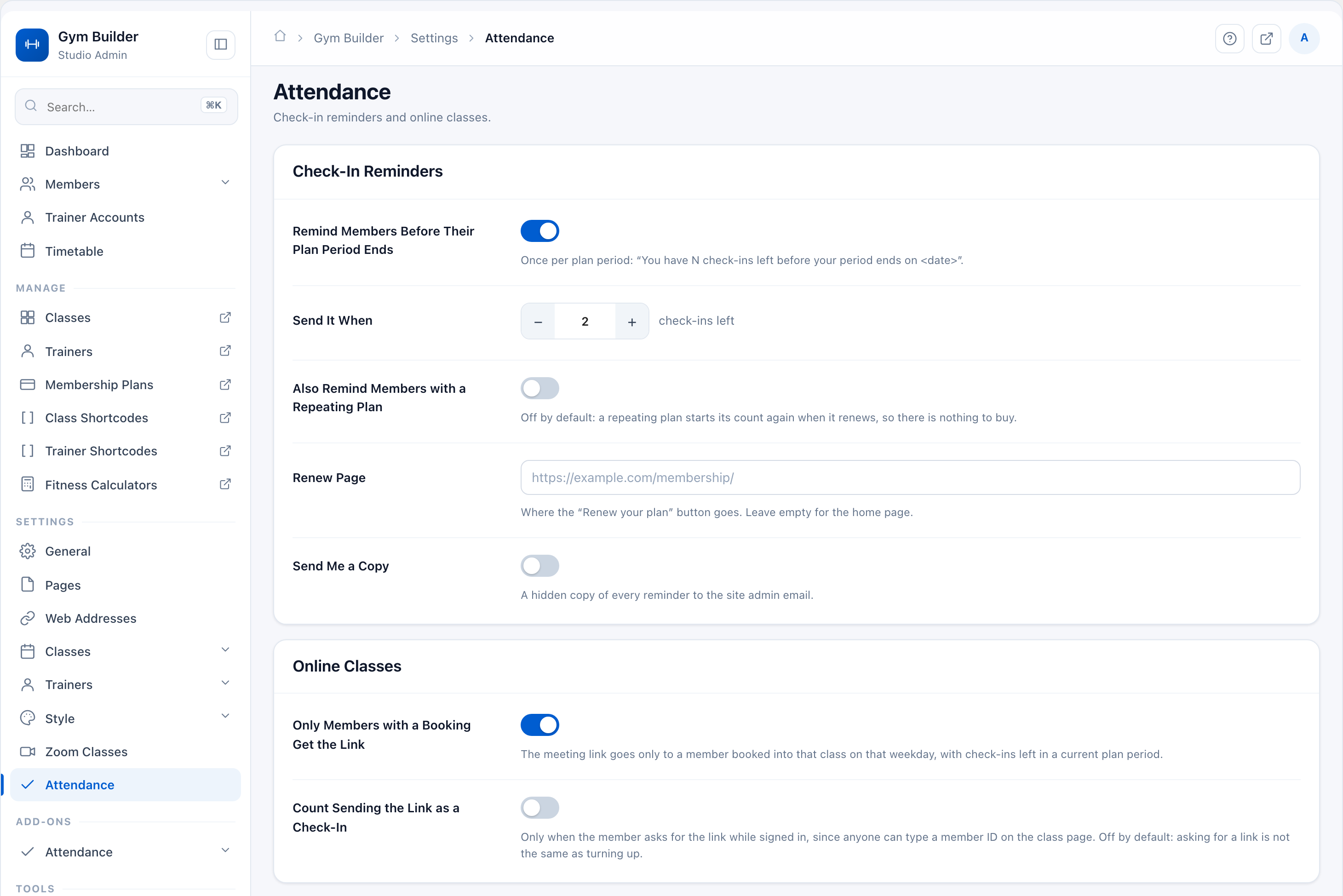
Gym Builder › Settings › AttendanceADMIN
Set it once.
A reminder before the period ends
- Remind Members Before Their Plan Period Ends — one email per plan period.
- Send It When — when this many check-ins are left (2 by default).
- Repeating plans are skipped by default: their count starts again on renewal.
- Renew Page sets where the email’s button goes; Send Me a Copy is optional.
- With GB Zoom Integration, Online Classes sits on the same page.
Clear, once, and on time.
What the member receives
- “You have 1 check-in left before your period ends on November 4, 2026.”
- Lists the class times that still have dates left, and how many times they have come.
- A Renew your plan button for a plan that ends.
- Checked every day and at every check-in, and never sent twice for the same period.
- In your studio’s name and brand colour, and easy to read on a phone.
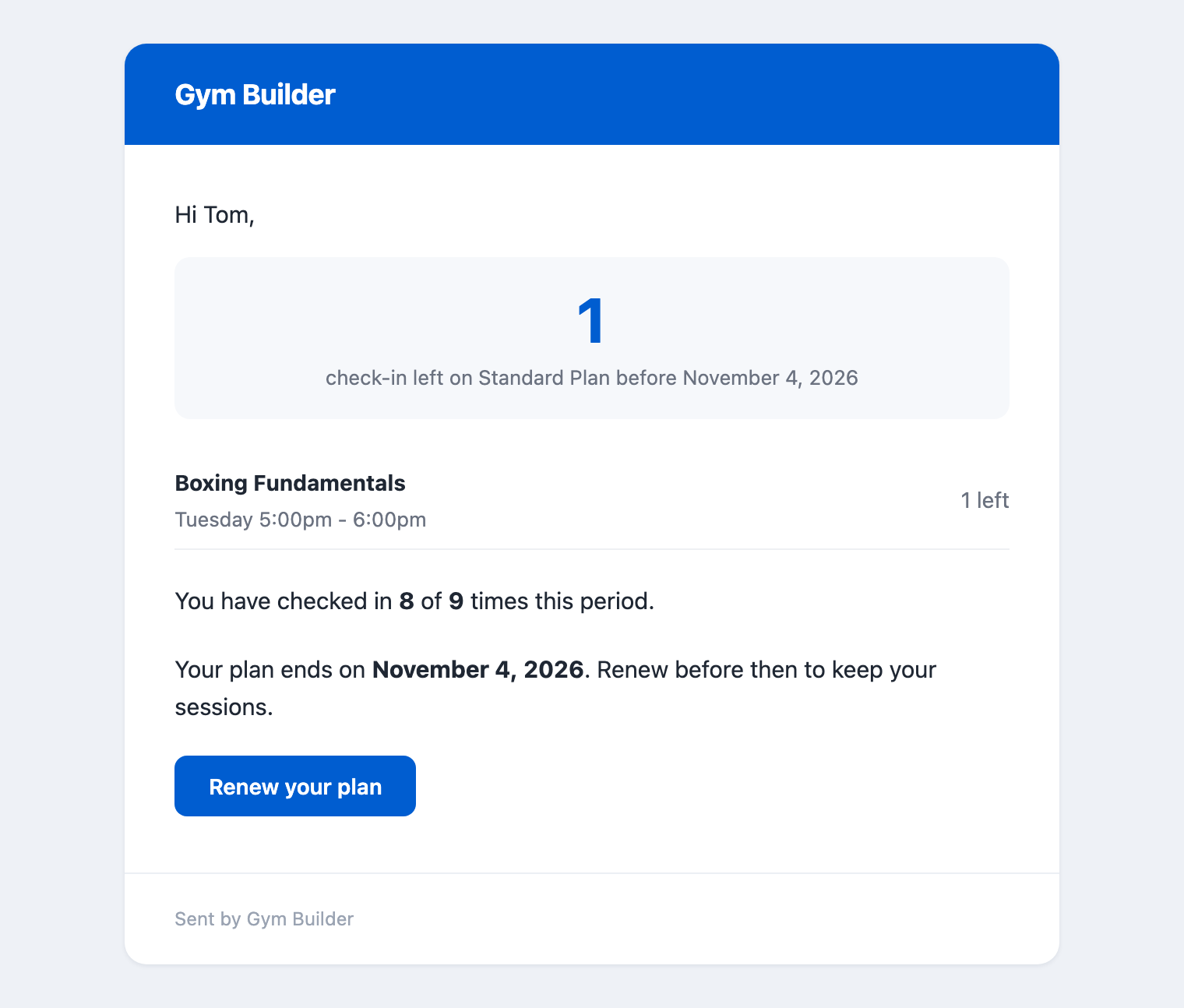
Email › period endingMEMBER
Frequently asked questions
Do I need the Gym Builder plugin to use this?
Yes. GB Attendance System is an add-on for Gym Builder 3.0.0 or newer. With an older Gym Builder it stays switched off and shows a notice with an Update Gym Builder link — your site keeps working normally.
Where does a member’s allowance come from?
From what they booked. Each booked class time (a class on a weekday at a time) allows one check-in on every date it falls on inside the plan period. There is no visit number to type in: the plan’s Classes Included and Times a Week per Class decide what can be booked, and the calendar does the rest.
What happens when a plan renews?
The new period starts from zero — nothing carries over. The all-time total on the report keeps counting.
Can a member check in to any class?
Only to a class time they booked, on its weekday, and once per class time per day. Two different classes on the same day — Yoga at 7am and Boxing at 6pm — are two check-ins. Anything else is refused with a message that says why.
Do members need an app?
No. The QR code opens a page in their phone’s browser, and the kiosk reads the code on their Member Dashboard or their printed member card.
Can someone check in from home with a photo of the poster?
Not if you switch on a rule: Gym Network Only keeps check-ins to the gym’s Wi-Fi, and Only Around Class Time to the time of the class. If a photo of the poster is going around, click Make a New QR Code and put up the new poster.
What do I need for the kiosk?
A tablet with a front camera, and a site that opens on https://. A USB or Bluetooth barcode scanner works too, with or without the camera: members scan the member card you print from Gym Builder.
Will the automatic email write to everyone who left months ago?
No. It only goes to members whose absence reaches the number of days from the moment you switch it on, once per absence. For members who have been away longer, use Send the Email on their row.
What about paused memberships?
A paused member shows Paused on the Check In page, the QR code and the kiosk tell them the membership is paused until its date, and they are left out of Haven’t Been In.
Does the reminder email repeat?
No. It is sent once per plan period, when the check-ins left drop to the number you set. A renewal, a new purchase or clearing the member’s attendance allows a new one.
Does it work with online classes?
With GB Zoom Integration active, the meeting link can be limited to members who booked that class, and asking for today’s link while signed in can count as the check-in.
Which languages does it ship in?
German, Spanish, Mexican Spanish, French, Italian, Dutch and Polish — admin, member pages, kiosk and emails alike. Set your site language and the add-on follows. A complete .pot file is included for any other language.
Simple, no-renewal-trap pricing
Six licence tiers — pay yearly for a year of updates and support, or once for lifetime. Every plan includes a 30-Days Money Back Guarantee.
Single Site
For one production site
$24 / year
or $79.99 lifetime
- ✓1 site activation
- ✓All features included
- ✓1 year of updates
- ✓1 year priority email support
- ✓30-Days Money Back Guarantee
MOST POPULAR
5 Sites
For agencies & multi-location gyms
$79.99 / year
or $239.99 lifetime
- ✓5 site activations
- ✓All features included
- ✓1 year of updates
- ✓1 year priority email support
- ✓30-Days Money Back Guarantee
10 Sites
For a growing client roster
$129.99 / year
or $389.99 lifetime
- ✓10 site activations
- ✓All features included
- ✓1 year of updates
- ✓1 year priority email support
- ✓30-Days Money Back Guarantee
15 Sites
For established agencies
$149.99 / year
or $449.99 lifetime
- ✓15 site activations
- ✓All features included
- ✓1 year of updates
- ✓1 year priority email support
- ✓30-Days Money Back Guarantee
20 Sites
For larger studio groups
$179.99 / year
or $539.99 lifetime
- ✓20 site activations
- ✓All features included
- ✓1 year of updates
- ✓1 year priority email support
- ✓30-Days Money Back Guarantee
Unlimited
For agencies with many client sites
$299.99 / year
or $899.99 lifetime
- ✓Unlimited site activations
- ✓All features included
- ✓1 year of updates
- ✓1 year priority email support
- ✓30-Days Money Back Guarantee
100% Money Back Guarantee
30-Days Money Back Guarantee
Safe & Secure Payment
Cards & Paypal Payments Supported
Quality and Support
Quality and support are the cornerstones of our approach.