
GB Zoom Integration — Complete Guide
Run online and hybrid gym classes through Zoom. Attach Zoom meeting IDs to any Gym Builder class, show online/offline badges to members, and automatically email the meeting link to registered attendees.
GB Zoom Integration — Complete Guide
Run online and hybrid gym classes through Zoom. Attach Zoom meeting IDs to any Gym Builder class, show online/offline badges to members, and automatically email the meeting link to registered attendees.
1. Welcome
GB Zoom Integration lets you run online and in-person gym classes side by side. Attach Zoom Meeting ID / URL / Password to any time-slot of any Gym Builder class, show Online / Offline badges on the public listing, and email the meeting details to members on demand via a “Get Zoom Class Link” button on the single-class page.
What you get
- Per-slot Class Type toggle — set each time-slot in the Schedule metabox to Online or Offline. (No separate “Hybrid” class type — a class with mixed slots automatically shows both badges.)
- Three Zoom fields per slot: Meeting ID, Meeting URL, Meeting Password — entered directly in the Schedule metabox.
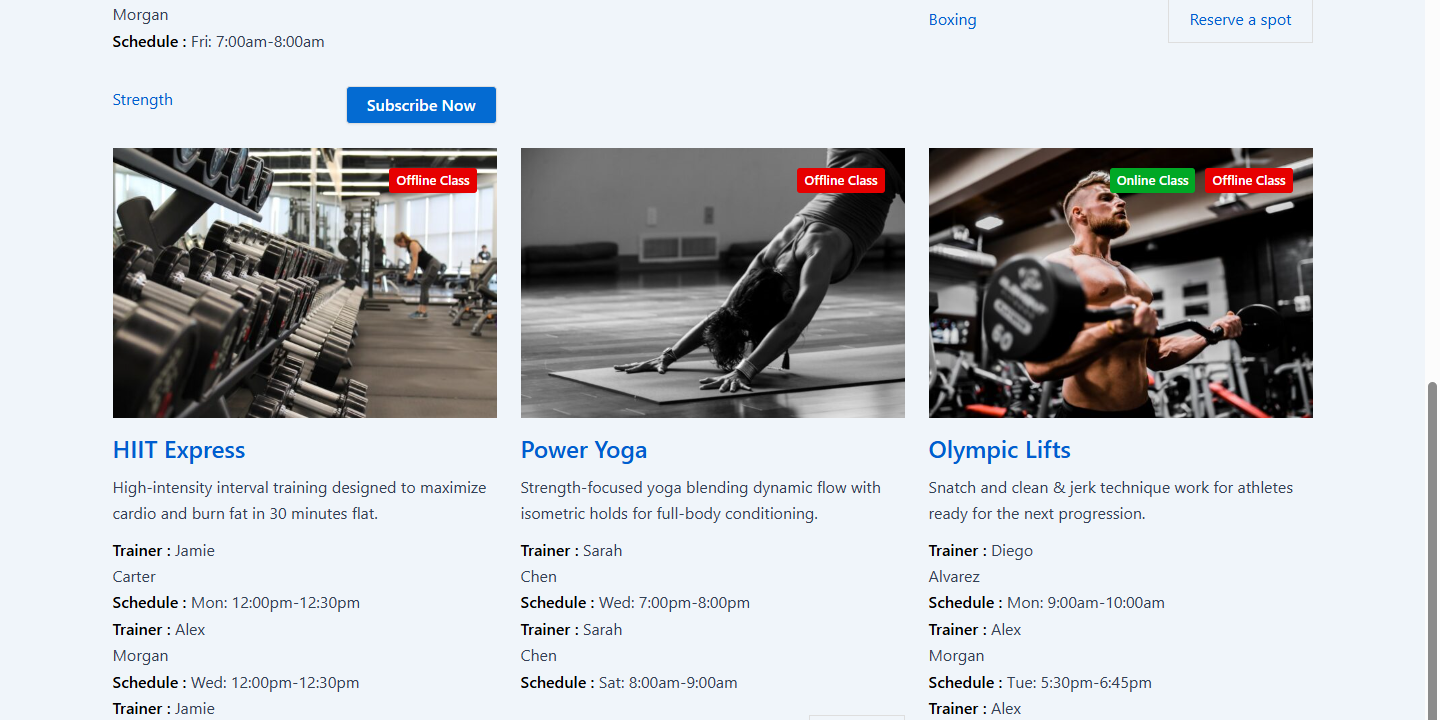
- Online / Offline badges on the public class listing. Badge text and colors customisable in Settings.
- Get Zoom Class Link button on the single-class page — logged-in members click it to receive the Zoom details by email.
- Customisable button label — change “Get Zoom Class Link” globally in Settings.
2. Installation
2.1 Requirements
- WordPress 5.5+ and PHP 7.4+.
- Gym Builder plugin — installed and activated.
- A Zoom account — Pro recommended for recurring meetings.
- At least one Gym Builder class already created.
2.2 Install & activate
- 1Download the
.zip. - 2In WordPress: Plugins → Add New → Upload Plugin.
- 3Choose the
.zipand click Install Now. - 4Click Activate.
- 5A new Zoom tab appears in Gym Builder → Settings, plus a Zoom metabox on the class edit screen.
3. Adding Zoom to a Class
Editing a class now shows a Zoom panel where you set the meeting details per day-of-week.
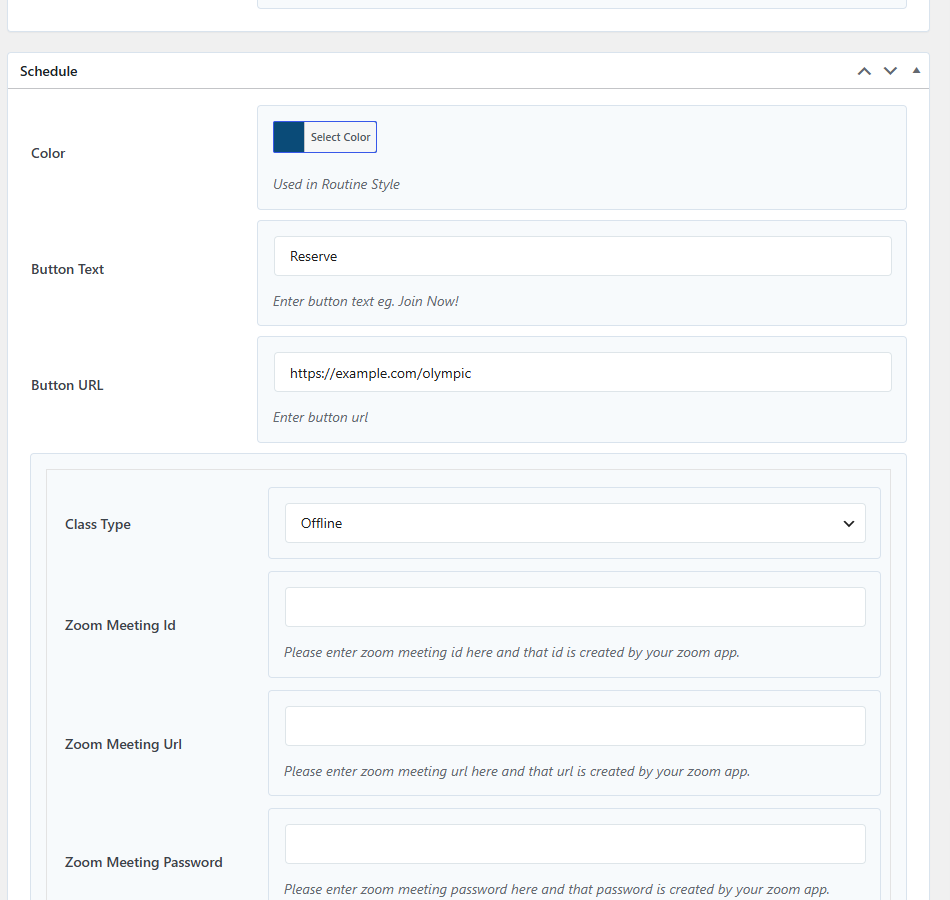
- 1Go to WordPress Admin → Classes → Add New Class (or edit an existing class).
- 2Scroll to the Schedule metabox. For each time-slot, pick the Class Type dropdown — two options: Offline (in-person) or Online (the slot’s Zoom details will be served to members).
- 3For each Online slot, fill: Zoom Meeting ID (10–11 digits), Meeting URL (looks like
https://us02web.zoom.us/j/...), Meeting Password. - 4A class with mixed slots (some Online, some Offline) shows both badges on the frontend — no separate “Hybrid” class type is required.
- 5Click Update to save.
4. Plugin Settings
Settings live at Gym Builder → Settings → Zoom Integration Settings. Global; apply to every Zoom-enabled class.
Offline Class or In-Person. Online Class Badge Text: Online Class or Live Online. Get Zoom Class Button Text: Get Zoom Link or Email me the Zoom link (the latter sets expectation that the link arrives by email, not in a new tab). Online Badge Color: green (#1aa874) for “go” energy. Offline Badge Color: red/orange (#dc2626) for contrast.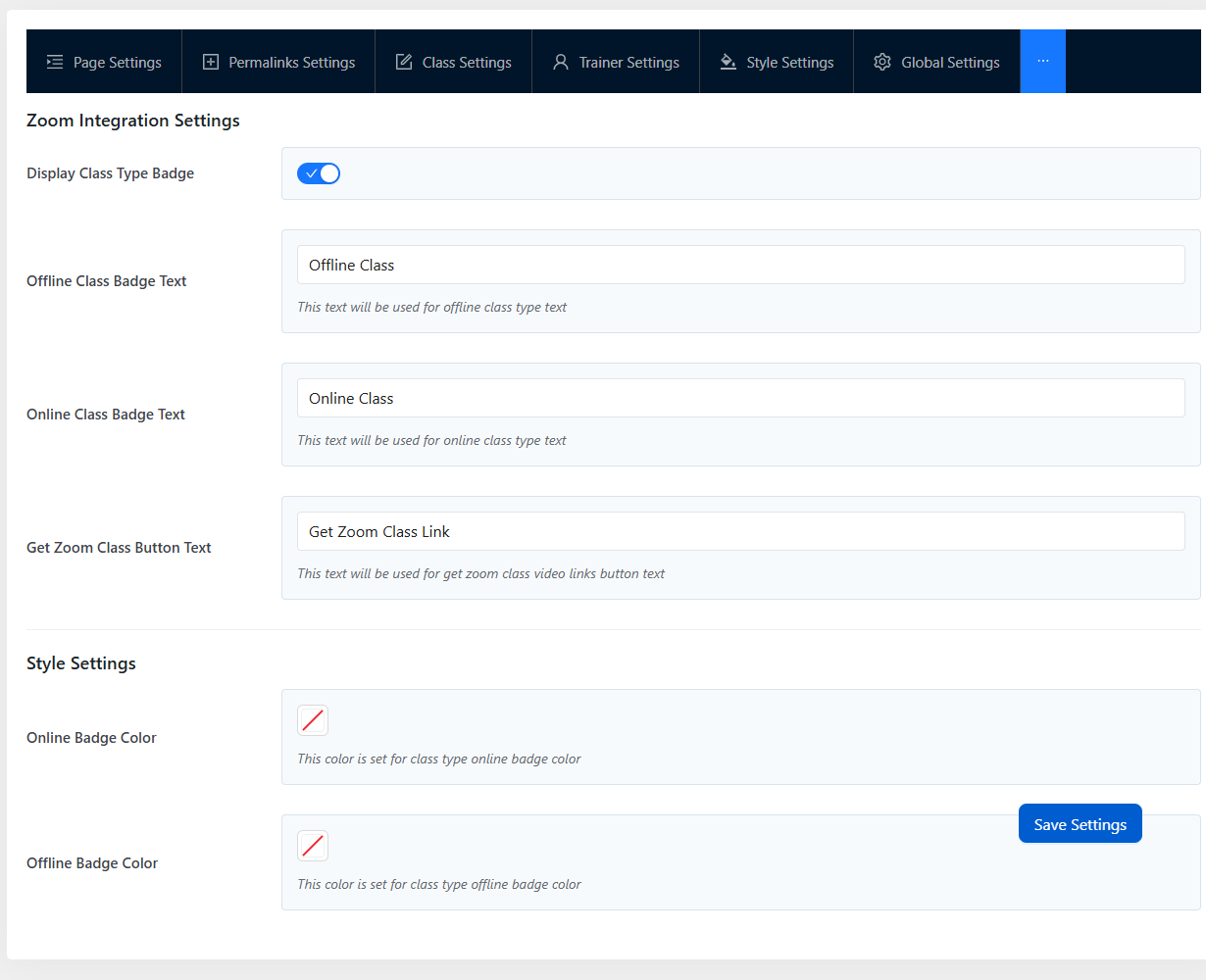
- 1Open Gym Builder → Settings → Zoom Integration Settings.
- 2Display Class Type Badge toggle — show/hide the Online / Offline badge on every class card.
- 3Offline Class Badge Text — what the badge says when a slot is Offline (default
Offline Class). - 4Online Class Badge Text — same for Online slots (default
Online Class). - 5Get Zoom Class Button Text — label of the button members click to request their Zoom link (default
Get Zoom Class Link). - 6Online Badge Color + Offline Badge Color — colour pickers under the Style Settings block in the same tab.
- 7Click Save Settings.
5. Member Experience
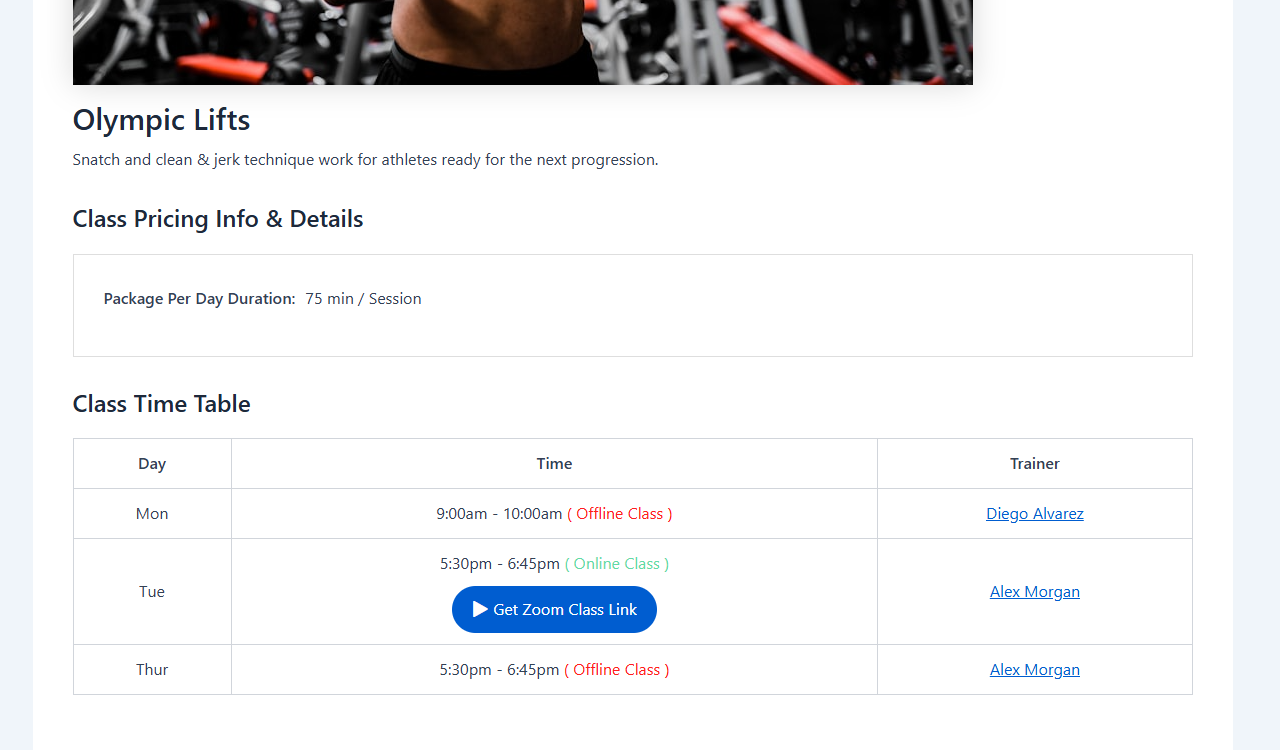
From a member’s perspective, the Zoom integration adds one thing: a button on the single-class page that emails the Zoom meeting details to them on demand.
- 1Member visits a single-class page (e.g.
/gym_builder_class/morning-spin/). - 2If the class has at least one Online slot, a Get Zoom Class Link button (label customisable in Settings) appears in that slot’s row of the Class Time Table.
- 3The member clicks the button. The plugin emails them the Zoom Meeting ID, URL and Password for the matching slot.
- 4The member opens their email and joins via the Zoom link there.
6. Tips & Best Practices
- Use recurring Zoom meetings for weekly classes — paste the same Meeting ID across every weekday slot of that class.
- Run hybrid by mixing slots — Monday 6am Offline + Monday 7pm Online in the same class shows both badges on the frontend and collects in-person + remote attendees with the same teacher.
- Test the email by registering a test member and clicking Get Zoom Class Link before going live.
- Style the badge in Zoom Integration Settings if your theme’s default colors clash with the plugin defaults.
7. FAQ
Q: Does it sync with the Zoom API?
Not in v1 — paste meeting details manually. v1.1 plans direct Zoom API sync.
Q: Can different classes share the same Zoom meeting?
Yes. Use the same meeting ID/URL/password across multiple classes.
Q: What happens if my Zoom password is wrong?
Members see Zoom’s “Wrong password” prompt. Fix in the class edit screen and resave; future emails go out corrected.
Q: Can I send the Zoom link as a calendar invite (.ics)?
Not in v1. The email contains the link as plain text + HTML hyperlink.
Q: Is recording supported?
Recording is handled inside Zoom itself. The plugin doesn’t manage recording — configure it in your Zoom meeting settings.
Q: Does the badge customise?
The ONLINE/OFFLINE badge can be filtered via gym_builder_class_type_badge.
8. Troubleshooting
Zoom panel doesn't appear on the class edit screen
The panel shows only when Class Type is Online or Hybrid.
Member registered but didn't receive the Zoom email
Check: (1) the member email isn’t bouncing, (2) the class has Zoom details set for that day, (3) your site can send mail.
Join button isn't showing on the day
Activates X minutes before class start, configurable in Settings → Zoom. Default 15. Outside that window the button is hidden.
Wrong meeting link emailed
You probably have different Zoom details across days. Confirm the day-of-week settings on the right class.
ONLINE badge missing on the public listing
Confirm Class Type = Online or Hybrid, then clear page caching.
9. The Gym Builder Plugin Family
GB Zoom Integration is one of ten plugins in the Gym Builder family.
GbZoom Integration v1.0.1 · A WpDreamers product · Requires Gym Builder · PHP 7.4+ · WordPress 5.5+
© WpDreamers — Zoom integration for Gym Builder.