
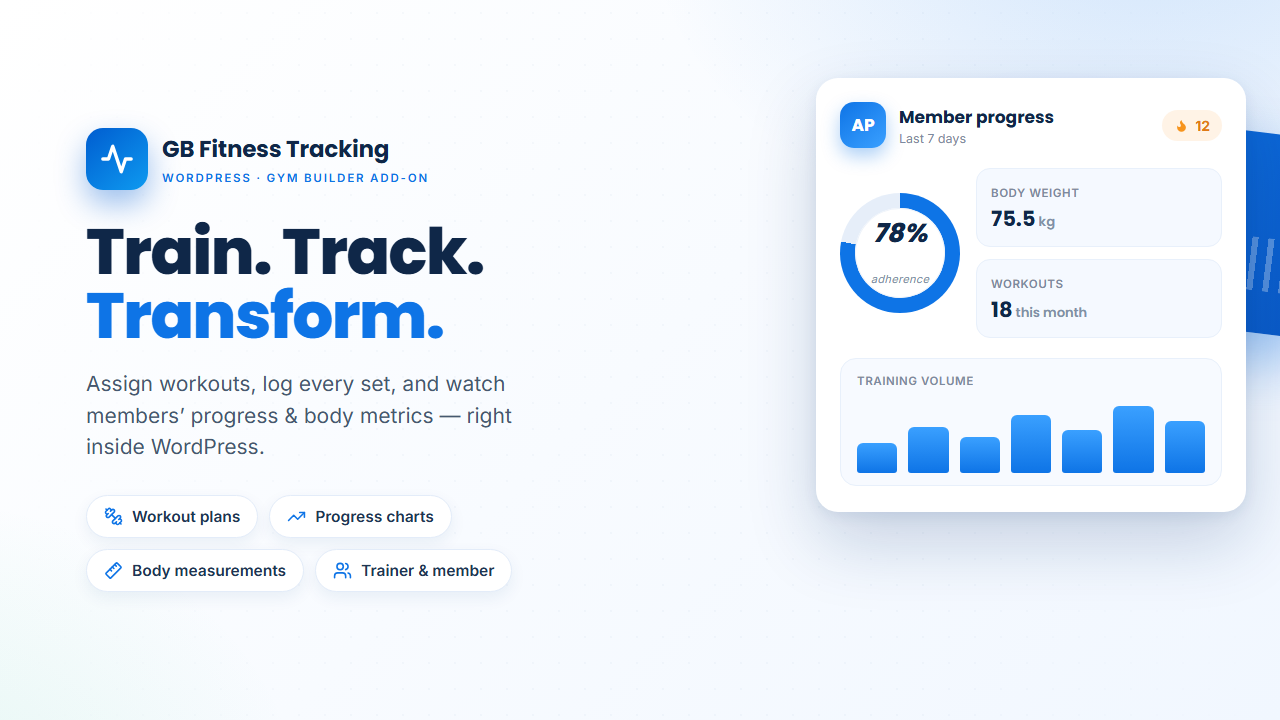
GB Fitness Tracking — Complete User Guide
Turn your Gym Builder website into a full personal-training platform — trainers assign workouts and track progress, members log every set and measurement, and both sides chat inside the dashboards your gym already uses.
Admins read sections 2–3 · Trainers jump to section 4 · Members jump to section 5.
1. What GB Fitness Tracking Does
| For trainers | A member roster with adherence rings + activity filters, reusable workout templates, per-member exercise customisation, a full paginated workout history, body-measurement history, two-way chat and pinned coach notes. |
| For members | A Today tab with assigned workouts and a set-by-set logger, quick-log tiles for water / calories / sleep / steps, body-metric history with auto BMI, progress charts, a coach-note inbox and chat with their trainer. |
| For admins | A 5-tab settings page under Gym Builder → Fitness Tracking: toggle features, configure email automations and manage the exercise library. |
| Automated emails | Daily reminders, weekly recaps, instant new-note alerts and throttled chat notifications. |
2. Requirements & Installation
2.1 Requirements
- WordPress 5.8+ (6.x recommended).
- PHP 7.4+ (PHP 8.x recommended).
- Gym Builder 2.3.3+, installed and activated — GB Fitness Tracking is a companion add-on and will not run without it.
- Gym Builder Pro login systems active — the Trainer and Student (member) login systems that power the dashboards.
2.2 Install & activate
- Download the GB Fitness Tracking
.zipfrom your account. - Go to Plugins → Add New → Upload Plugin.
- Choose the
.zip, click Install Now, then Activate. - A new Fitness Tracking item appears under Gym Builder in your sidebar.
Activation safety: if Gym Builder isn’t active when you activate this add-on, it shows a clear notice and stops — no fatal errors. Install Gym Builder first, then activate.
3. Admin Settings
All settings live under WordPress Admin → Gym Builder → Fitness Tracking. The page has five tabs — go through them once, top to bottom.
3.1 General — Units, reminders & permissions
Set your global preferences:
- Pick units — Metric (kg / cm) or Imperial (lb / in); this changes how every weight and measurement displays.
- Set the Daily Reminder Time (24-hour, default
18:00) — when cron emails members who haven’t logged today. - Toggle Members can set their own goals and Trainers can manage their own exercise library as you prefer.
- Click Save Settings.
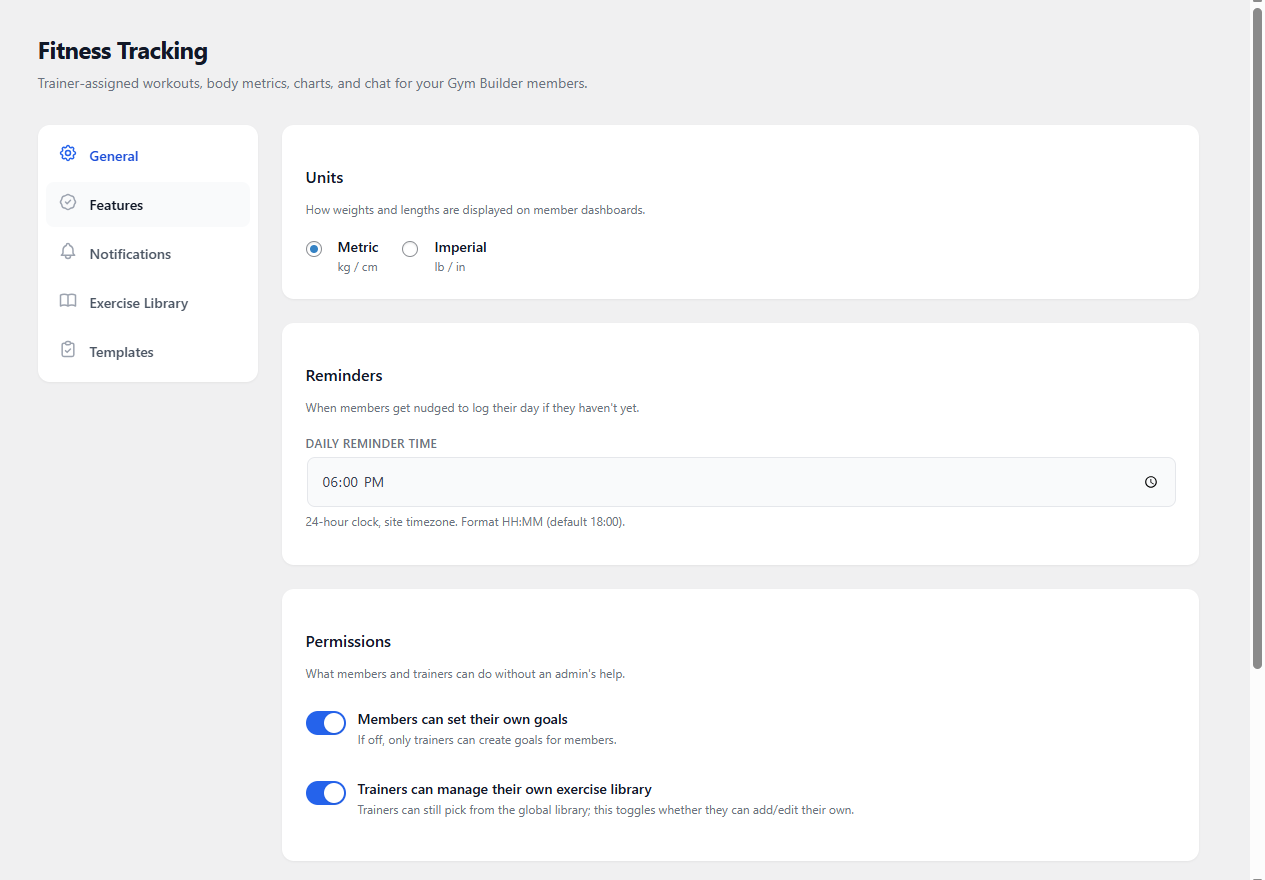
Admin → General settings
3.2 Features — Turn tracking surfaces on or off
Decide which surfaces members see. Turn one off and it disappears from every dashboard: Nutrition (calories + macros), Water, Sleep (hours + 1–5 quality), Steps, and Two-way chat (off = coach notes only). Click Save Settings.
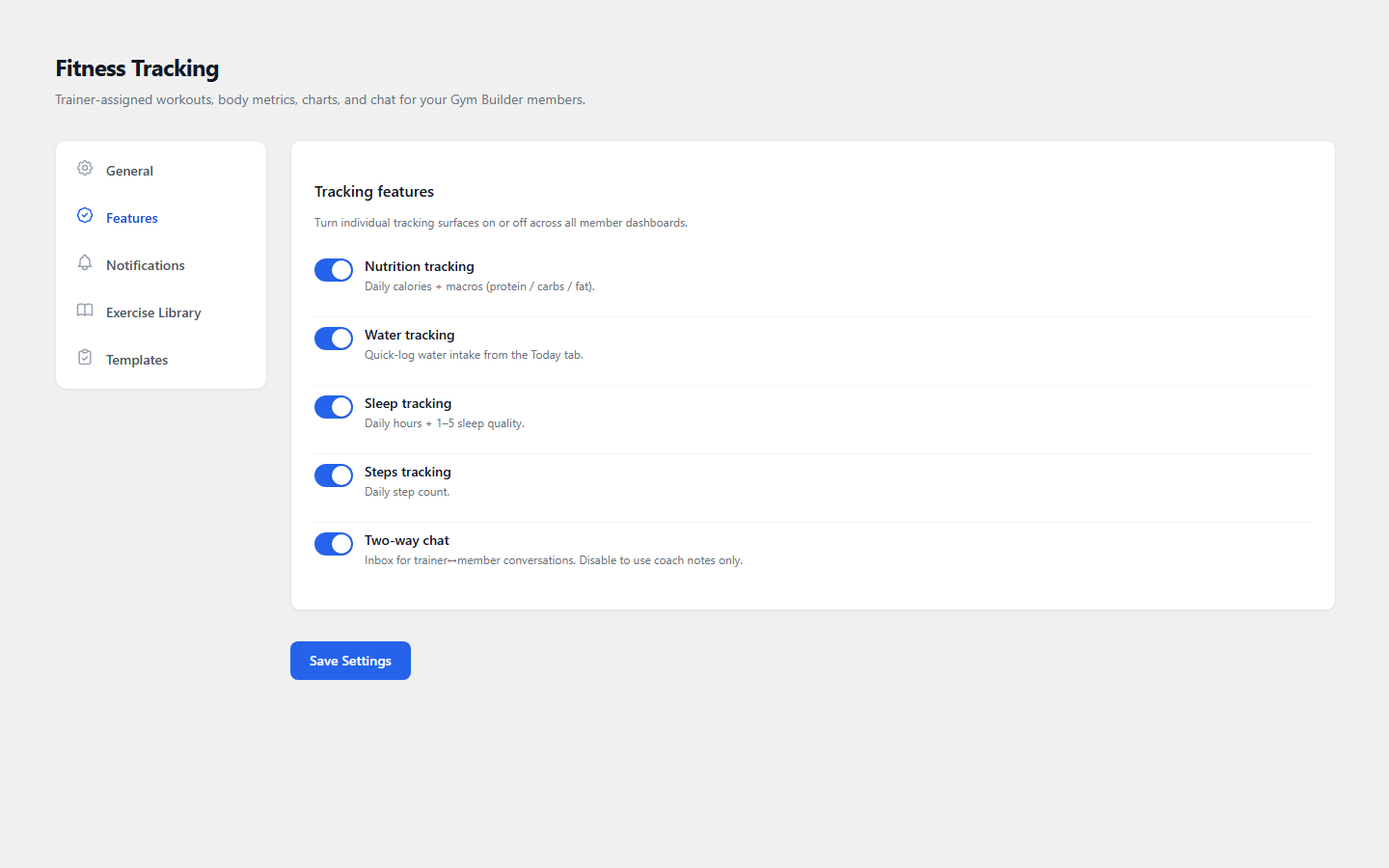
Admin → Features
3.3 Notifications — Email automations
Four built-in emails, each toggled independently: Daily reminder, Weekly recap (sets/days/volume), New coach note, and New chat message. Tune the chat throttle (default 60 min; 0 = email every message).
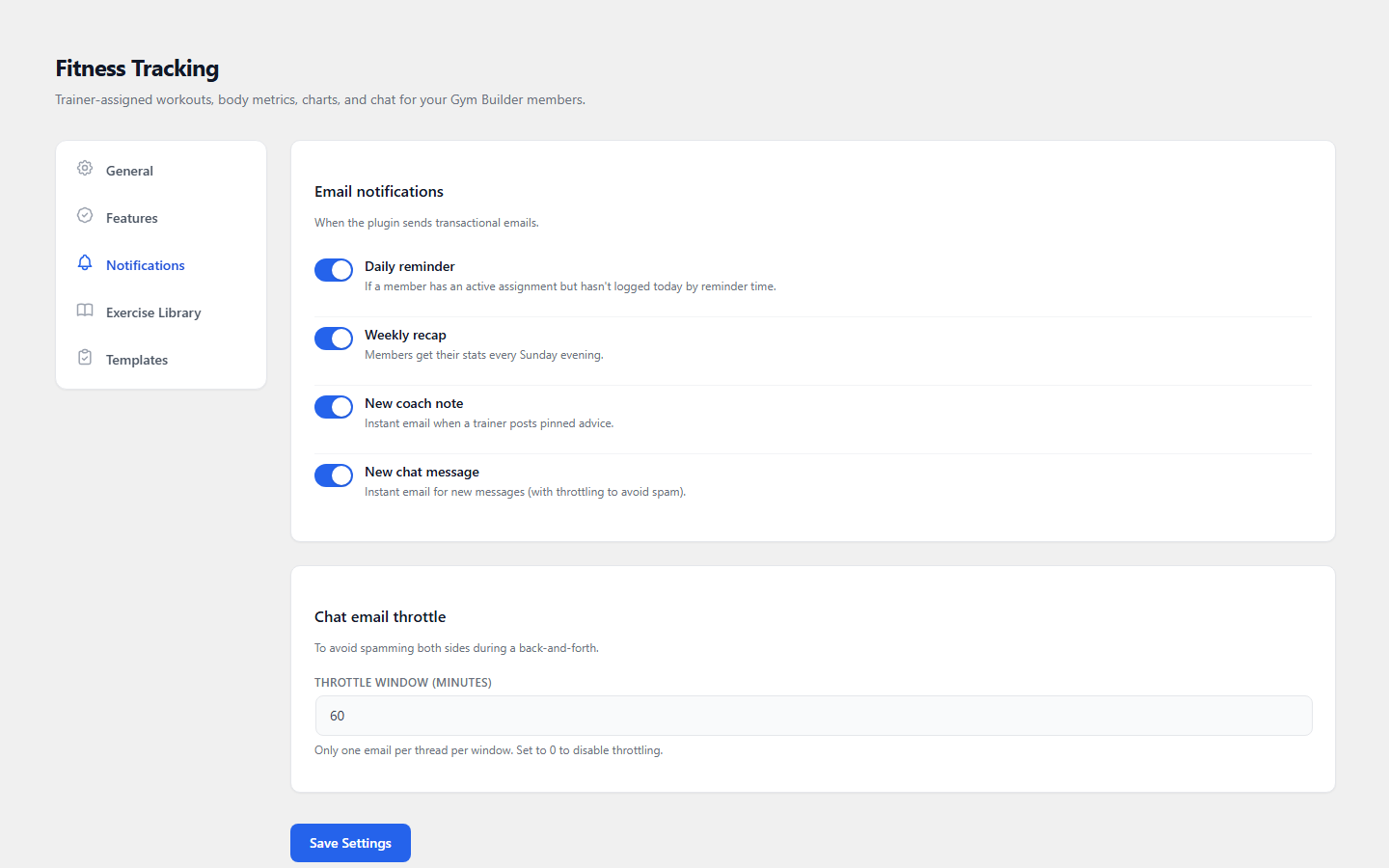
Admin → Notifications
3.4 Exercise Library
The central catalogue trainers drop into templates and assignments — each exercise has a name, category, muscle group, equipment, optional video/image URL and instructions. Review what trainers add here, or import a demo set to save typing.
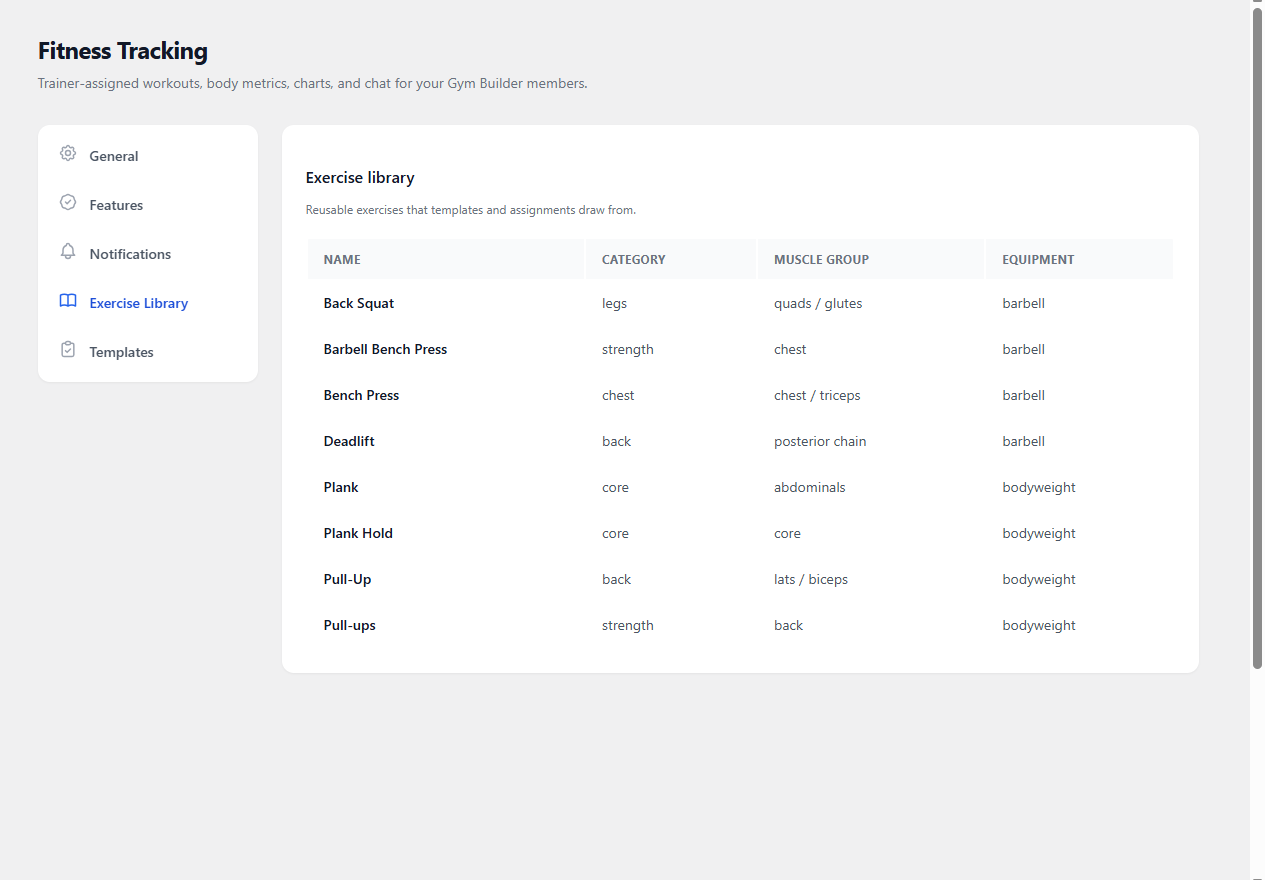
Admin → Exercise Library
3.5 Workout Templates
Reusable programmes — a name, duration in weeks, difficulty, optional category, and exercises scheduled across days. Assigning a template copies its exercises into the member’s assignment, so per-member tweaks never touch the master. Admins audit available templates here.
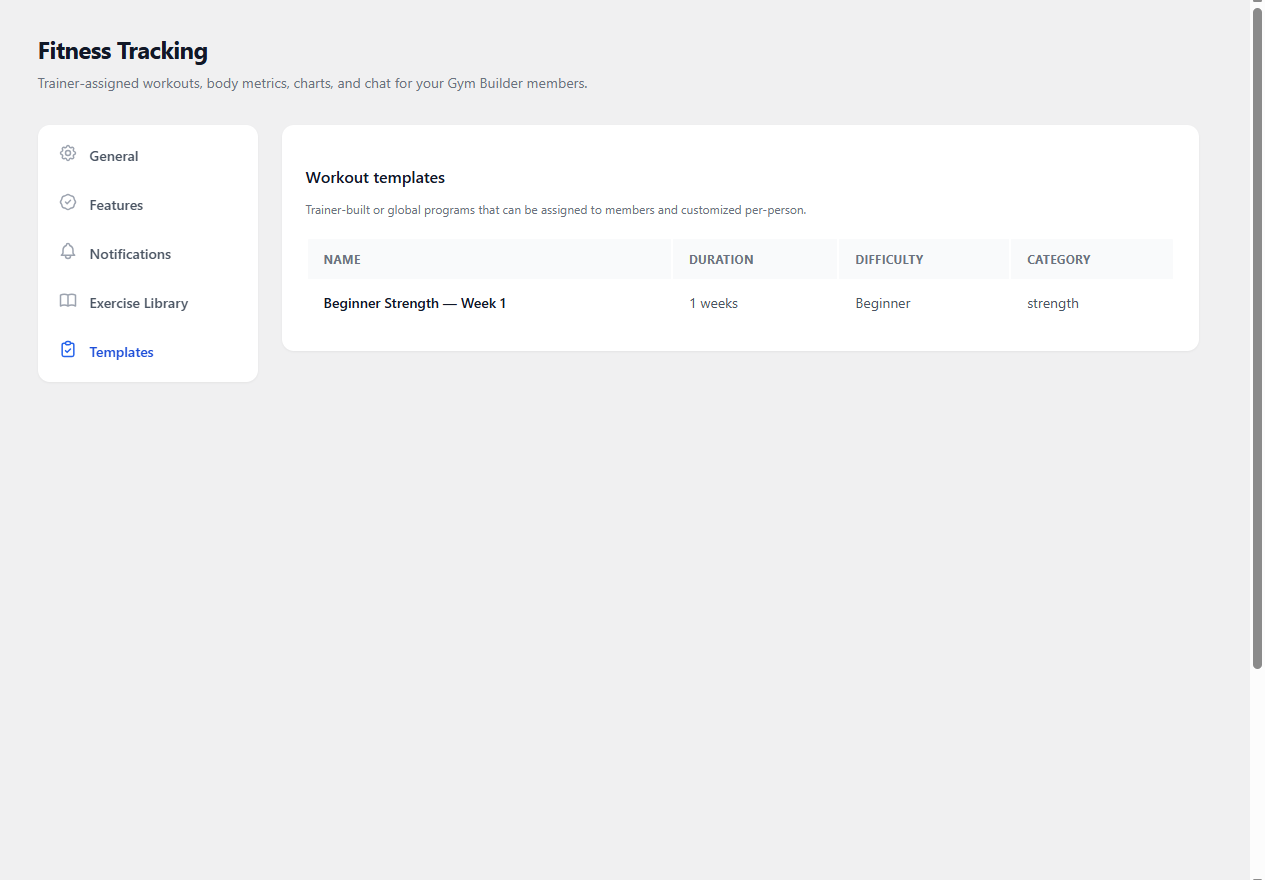
Admin → Workout Templates
4. For Trainers
Trainers find GB Fitness Tracking inside their Trainer Dashboard under a new Fitness Tracking item. Four tabs live there: Overview, Roster, Workouts, Messages.
4.1 Your Roster — everyone you coach
The Roster lists every member you coach, pulled from class enrolments and personal-session bookings (deduplicated). Each card shows an adherence ring (7-day completion), a streak chip, unread badges for notes and chat, and an inactive badge when a member goes quiet.
Filter by the search field (name), the membership chips (All / Class / Personal), and the activity filter (Any activity / Active this week / Inactive) — so drifting members are one click away. Click any card to open the member’s full profile.
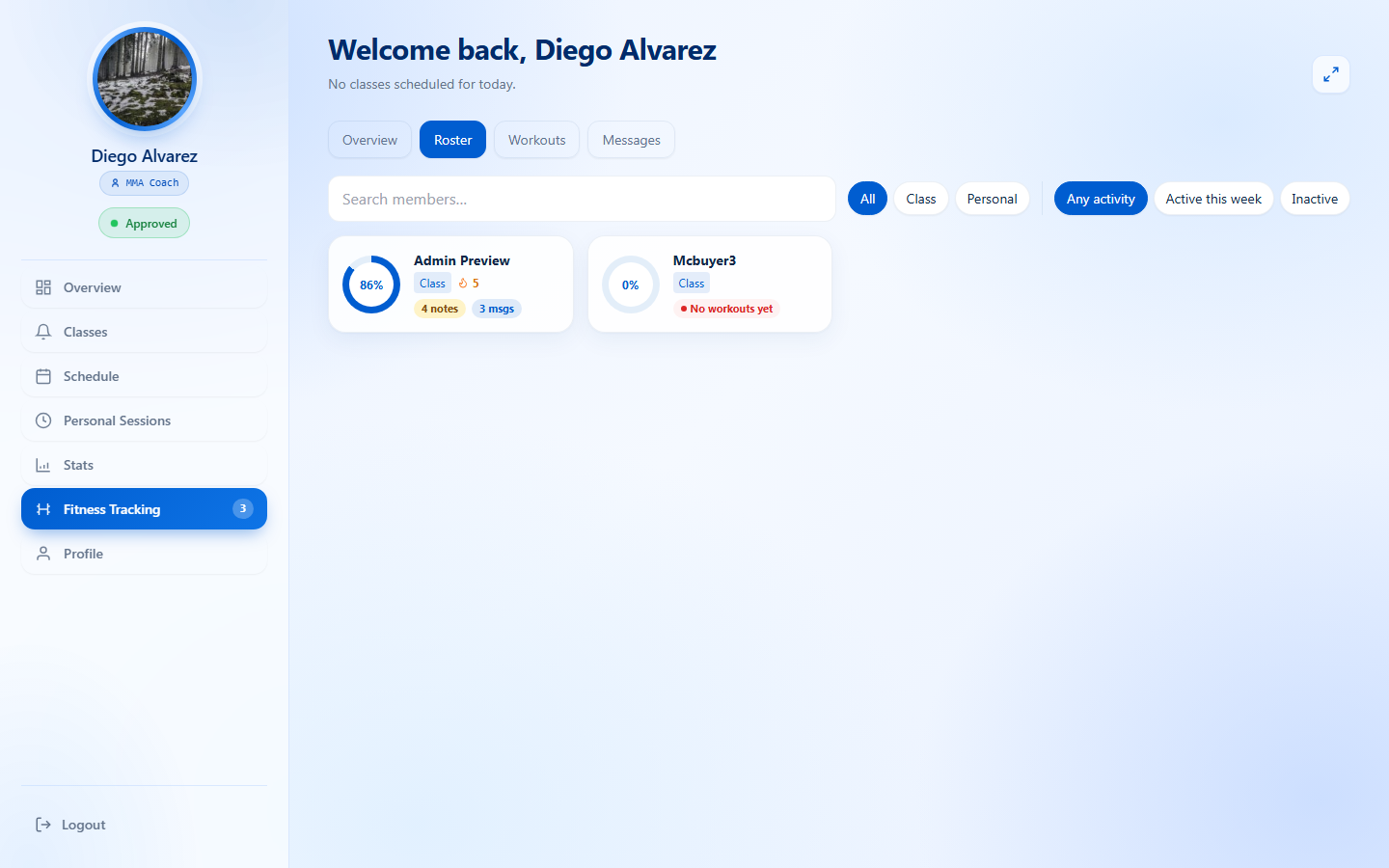
Trainer → Roster
4.2 Assign a Workout
Give a member a copy of one of your templates with their own dates:
- Open the member’s profile and click + Assign Workout.
- Pick a template (yours plus any global ones).
- Override the Assignment Name if you like, pick a Start Date and optional End Date.
- Click Assign workout — exercises copy in, so later edits don’t change the master template.
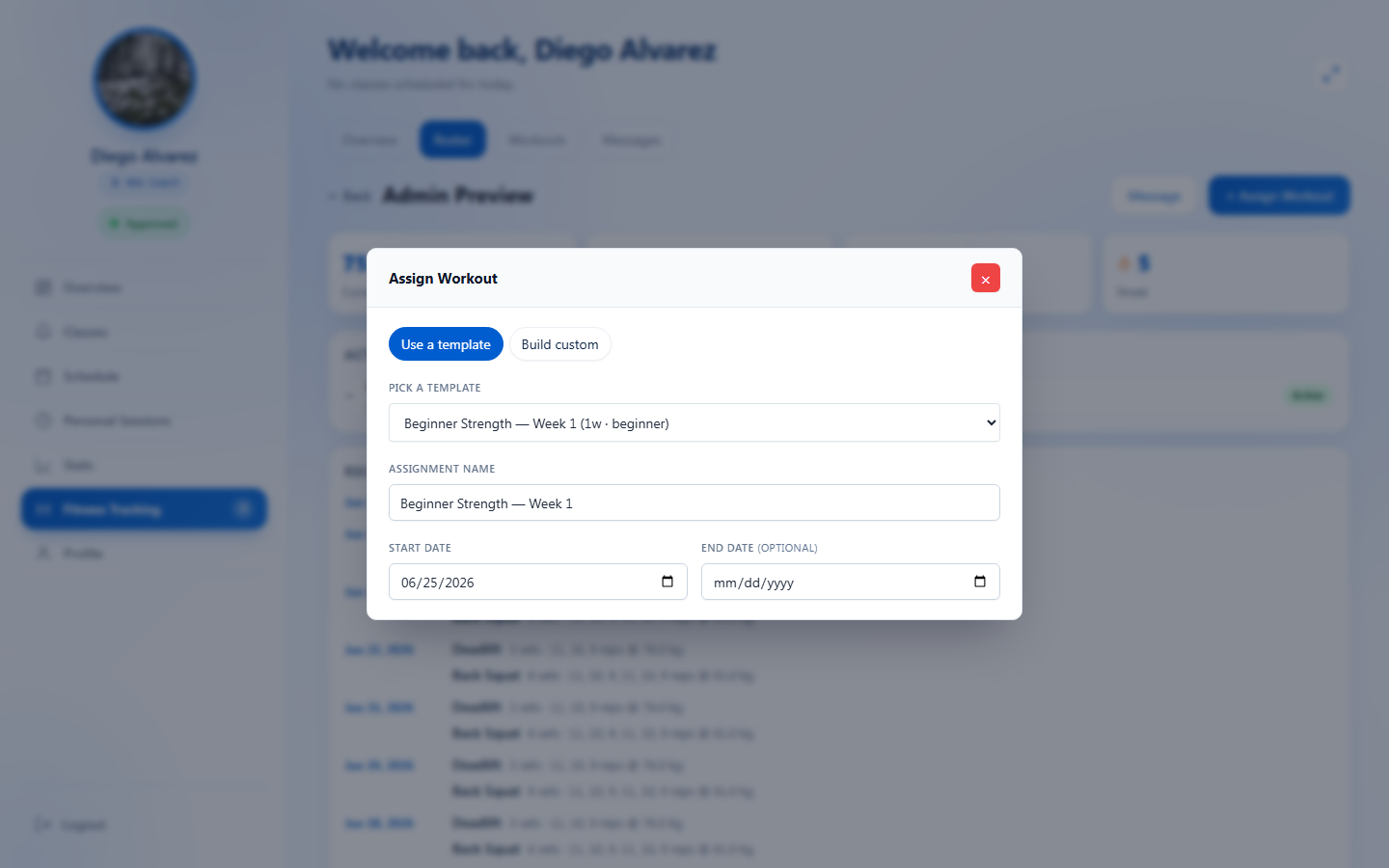
Trainer → Assign Workout
4.3 Member Profile — KPIs, Workout History & Measurements
A member’s profile shows KPI cards (current weight, 7- and 30-day adherence, streak), their active assignments, and two full data tables.
Workout history is a complete, paginated, date-filterable record of everything logged — one row per exercise per day, newest first. Columns: Date, Exercise, Sets, Reps, Weight; filter chips (All / Last year / 90 days / 30 days) plus a custom From / To picker; and Prev / Next pagination with a live “Page X of Y · N entries” count.
Below it, the Measurements table shows body-metric history with the same filtering and pagination. Use both to confirm progress and tailor the next block. You can also send a coach note from here.
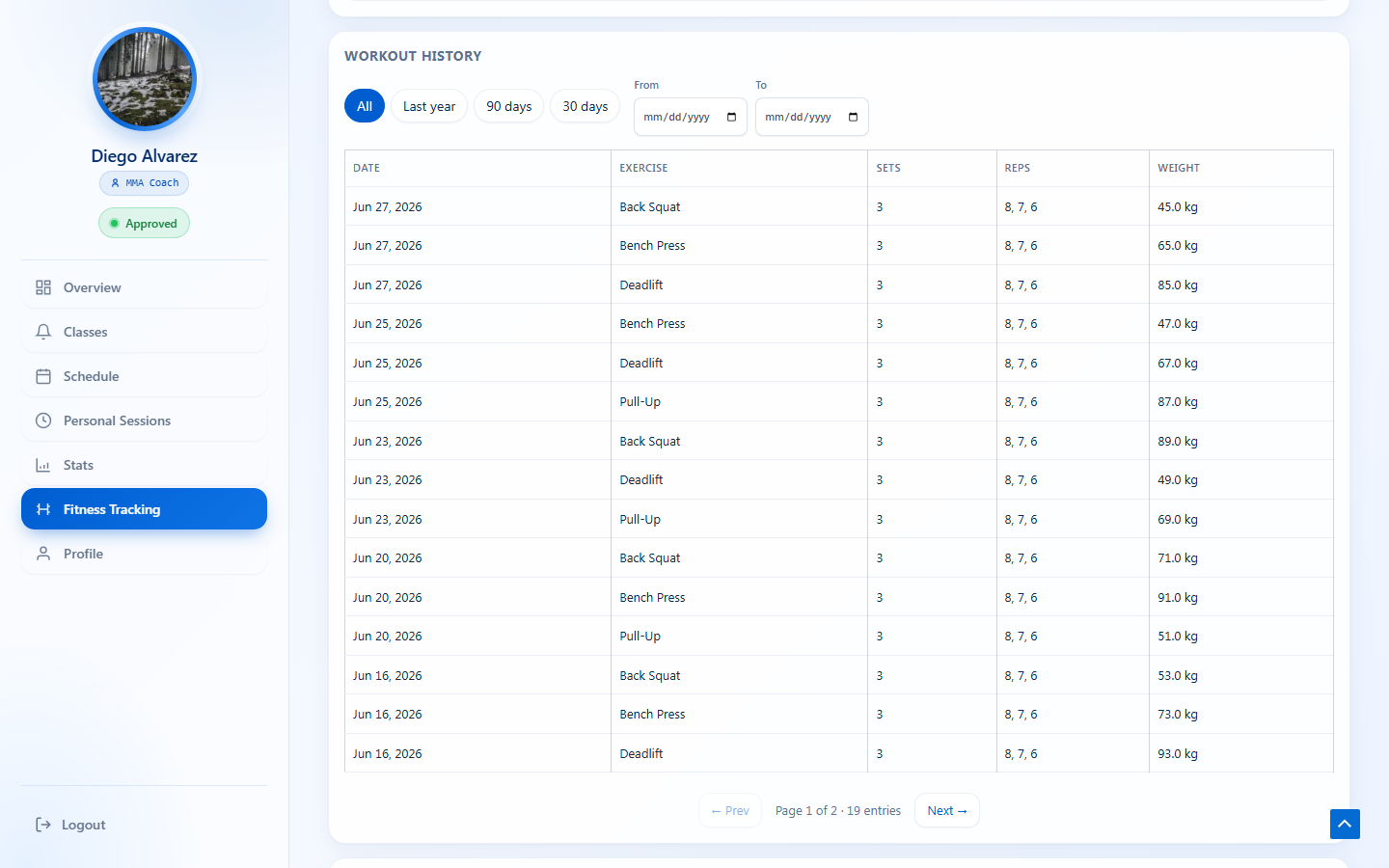
Trainer → Member Workout History
4.4 Chat with Members
Each conversation is its own thread; the recipient gets a throttled email on a new message. From the Messages tab (or a member’s Message button), type and press Enter — your message appears instantly and rolls back if the network drops. The thread refreshes on a ~15-second poll, and opening it marks messages read.
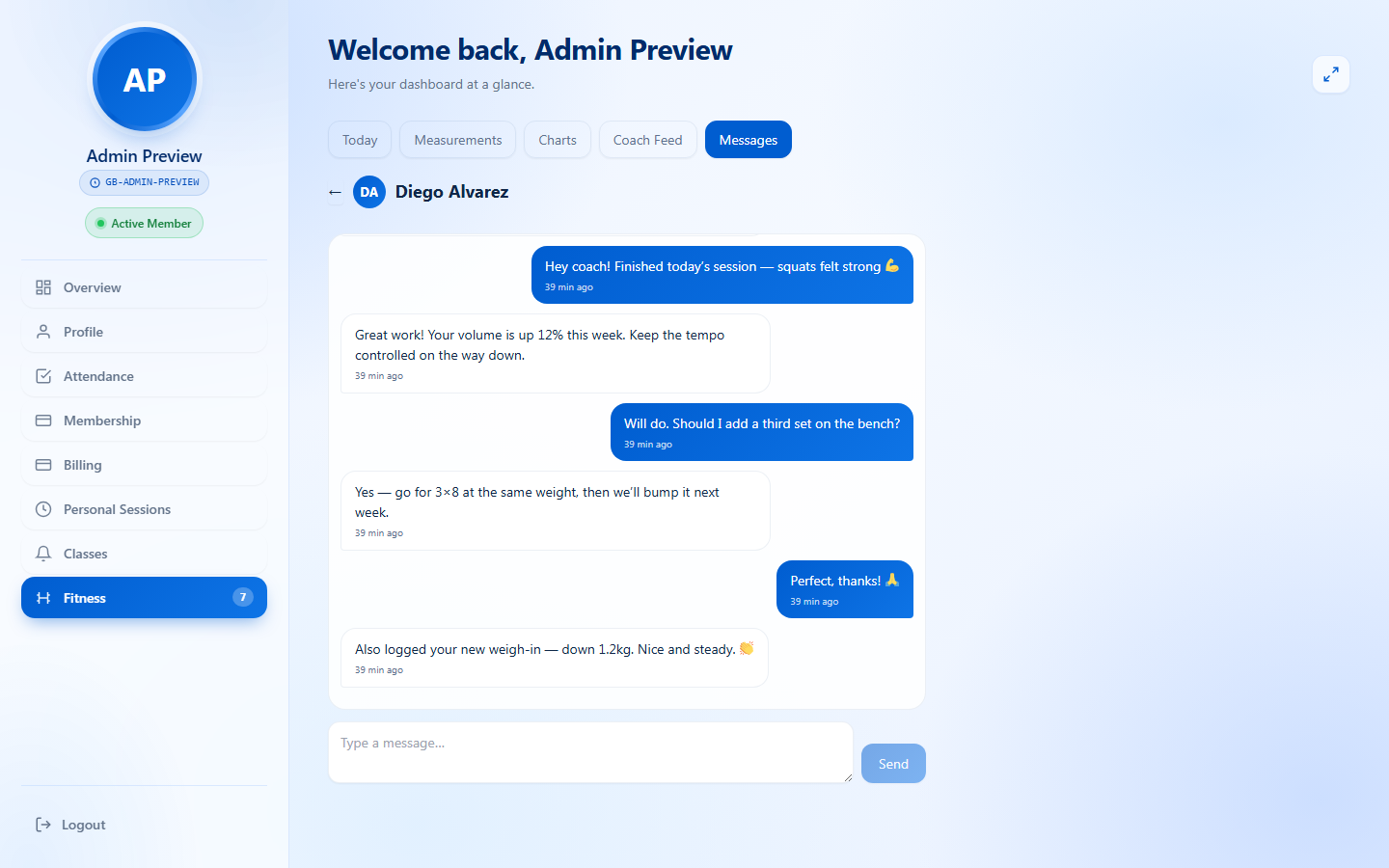
Trainer ↔ Member chat
5. For Members
Members find GB Fitness Tracking inside their Member Dashboard under a new Fitness item, with tabs across the top: Today · Measurements · Charts · Coach Feed · Messages.
5.1 Today’s Plan — log your workout set by set
The Today tab shows exactly what’s scheduled for the current day (or “rest day!”). Click an exercise to expand its set logger, enter the actual Reps, Weight and RPE 1–10, then click Log set (it advances set by set). A completed exercise gets a green checkmark.
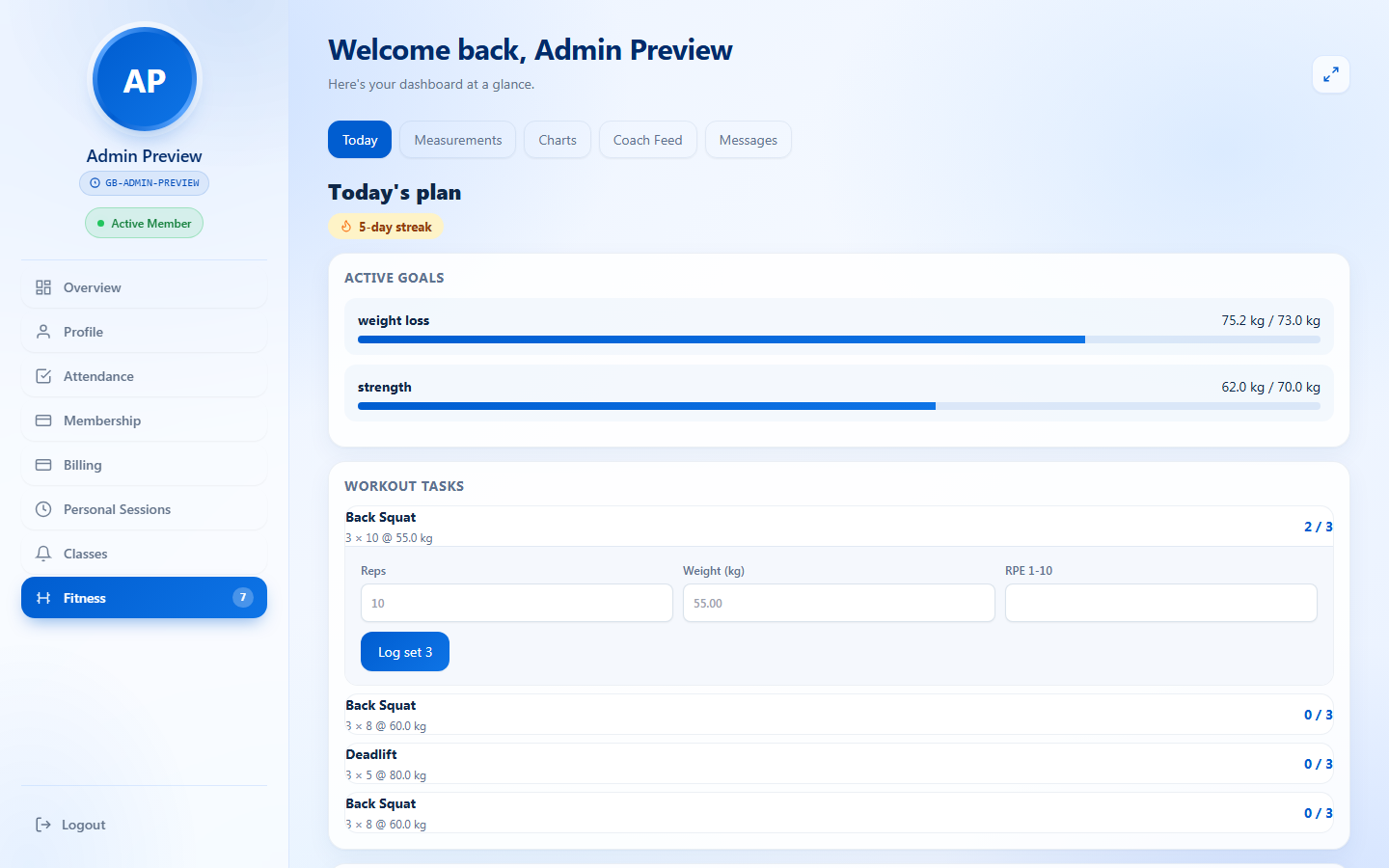
Member → Today + set logger
5.2 Quick Log — water, calories, sleep, steps
Below the workout tasks, four Quick log tiles capture daily lifestyle stats — tap a tile, type a value, press Enter. There’s one daily row per date, so updating one field keeps the rest intact.
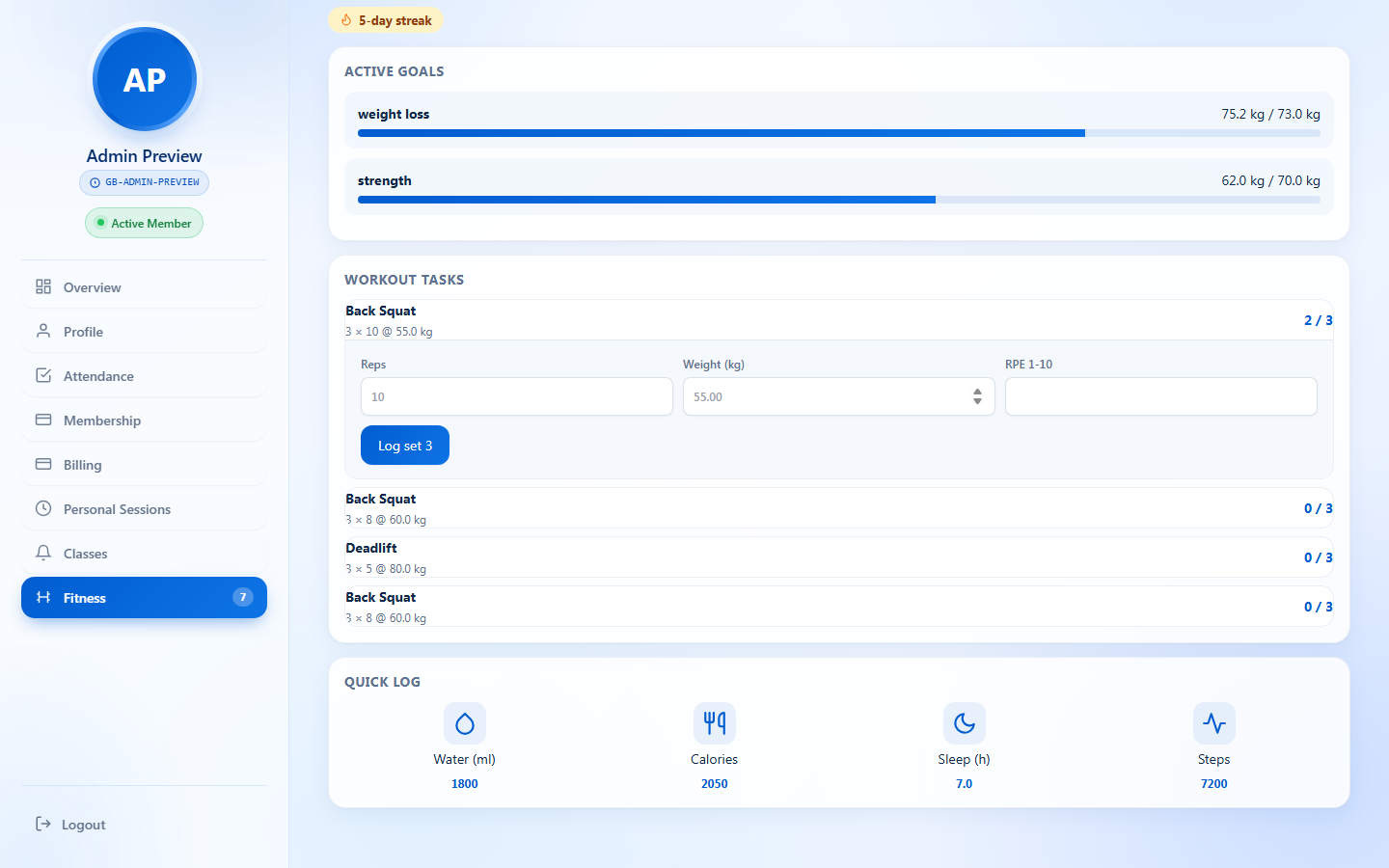
Member → Quick Log
5.3 Body Measurements
Log body metrics over time; BMI is auto-calculated from weight + height and the history shows every record newest-first. Click + Add measurement and fill any fields you track (Weight, Body fat %, Muscle %, Waist, Chest, Hips, Biceps, Thigh, Calf, Neck, and Height once for BMI) — leave the rest blank.
With lots of history, the table is paginated and offers the same date-range filter (All / Last year / 90 days / 30 days, plus custom From / To).
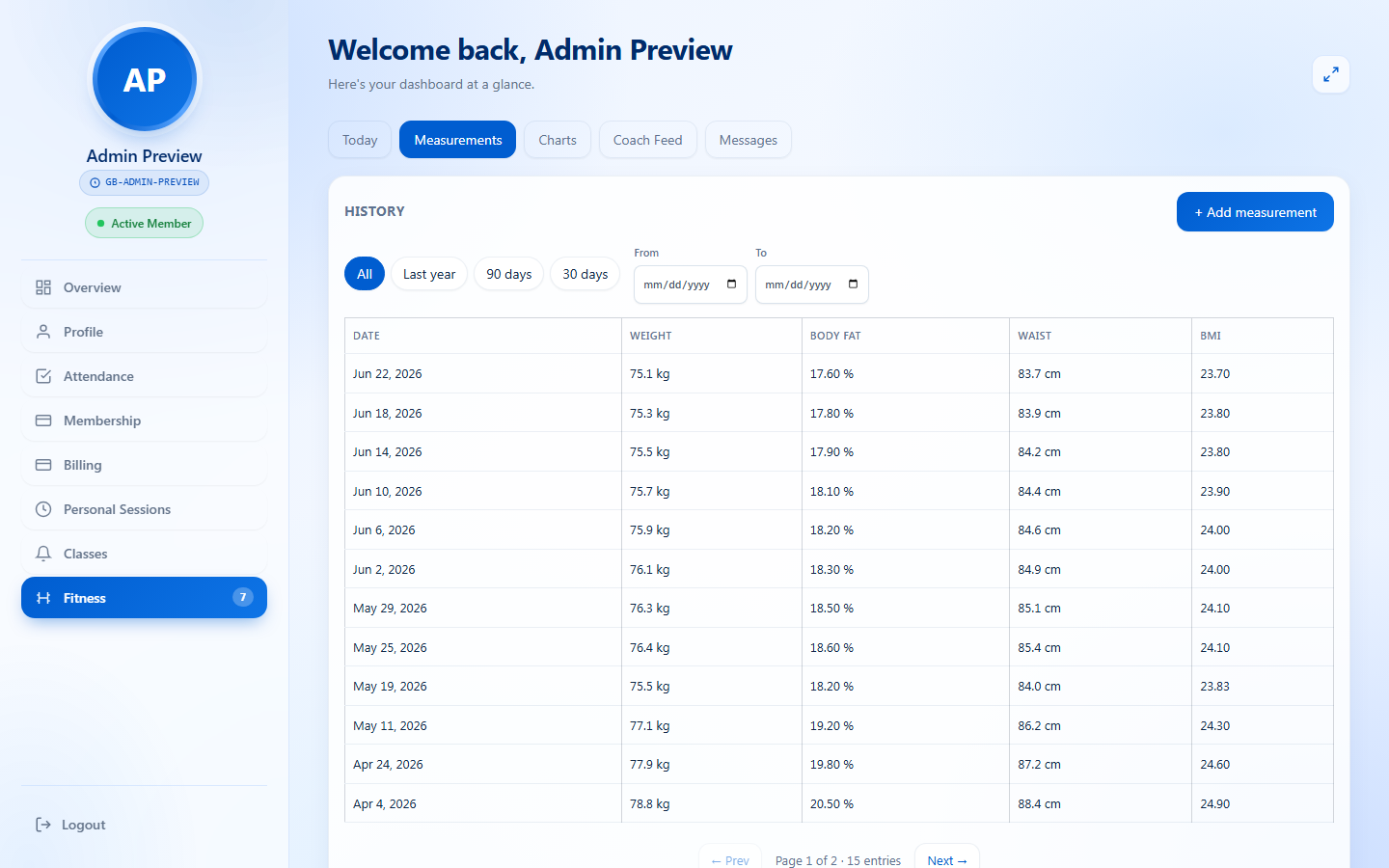
Member → Measurements
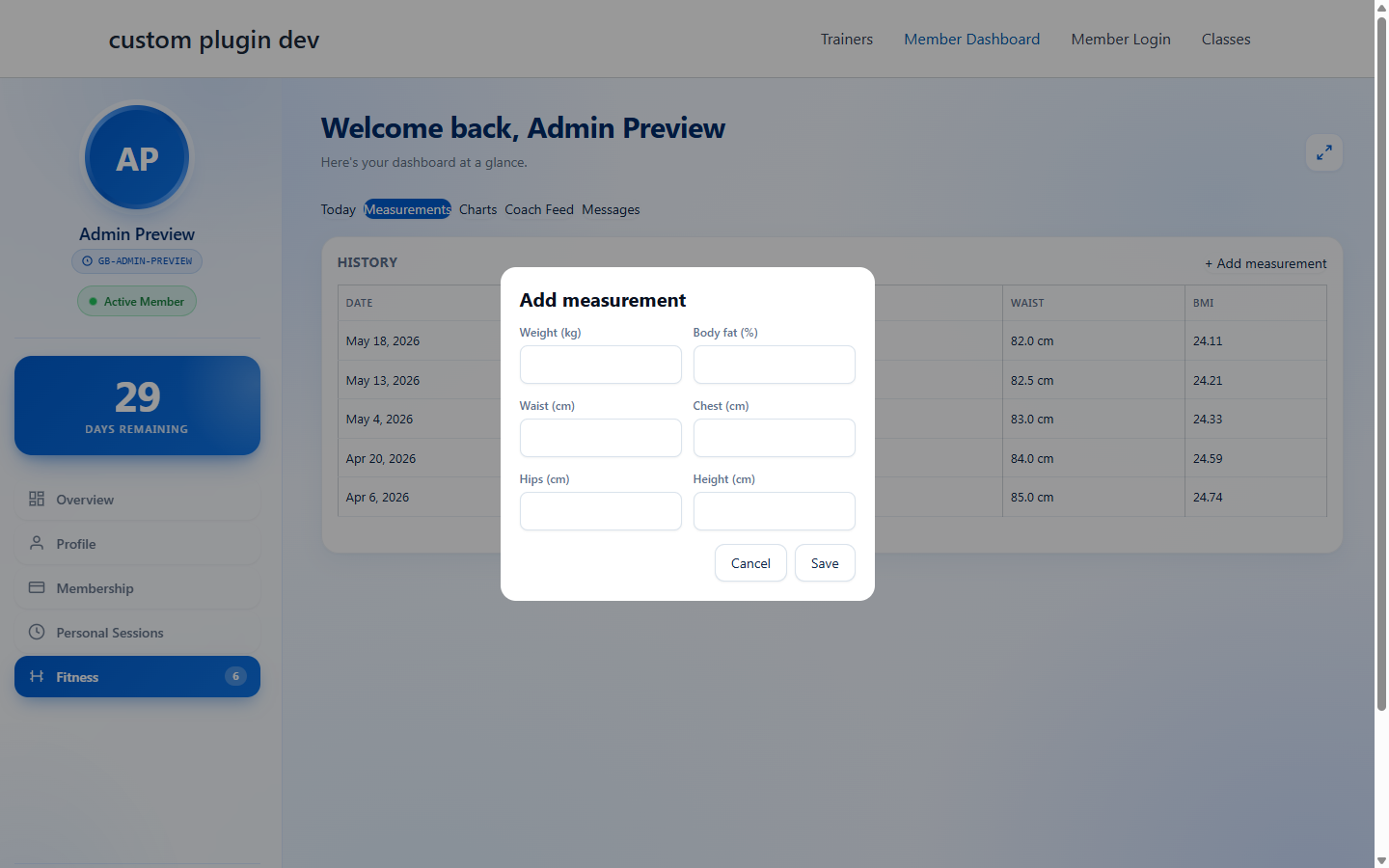
Member → Add measurement modal
5.4 Progress Charts
The Charts tab visualises everything logged; the range chips (7d / 30d / 90d / 1y) set the window. Weight trend draws a line from every measurement; Workout volume per week bars total weight moved (reps × weight) in your units; Adherence shows the percentage of days with a logged set. (The chart library loads only when you open this tab, keeping the dashboard fast.)
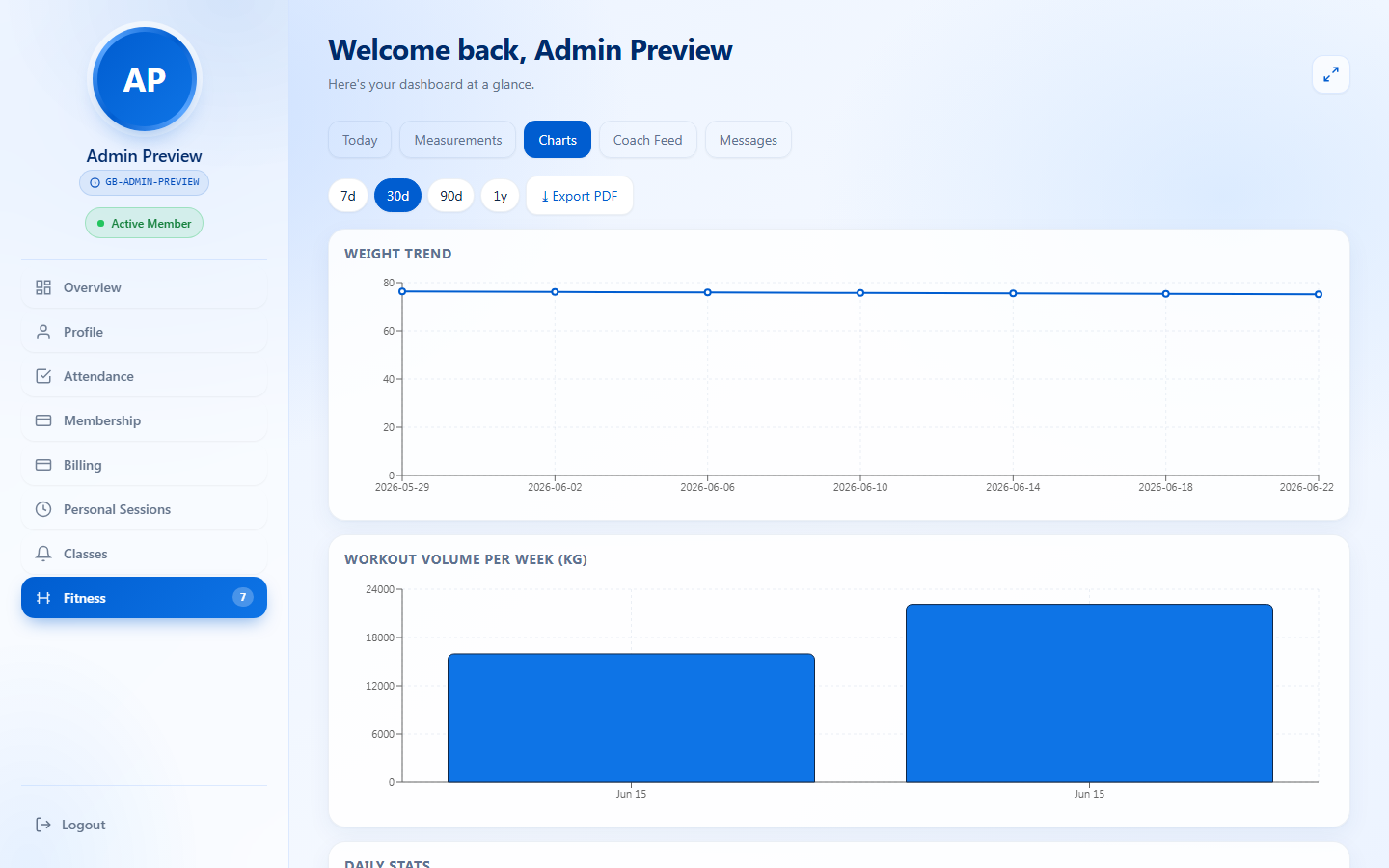
Member → Progress Charts
5.5 Coach Feed
Where your trainer leaves advice — pinned notes float to the top and unread notes glow until tapped. If your admin enabled it, you also get an email whenever your coach posts something new.
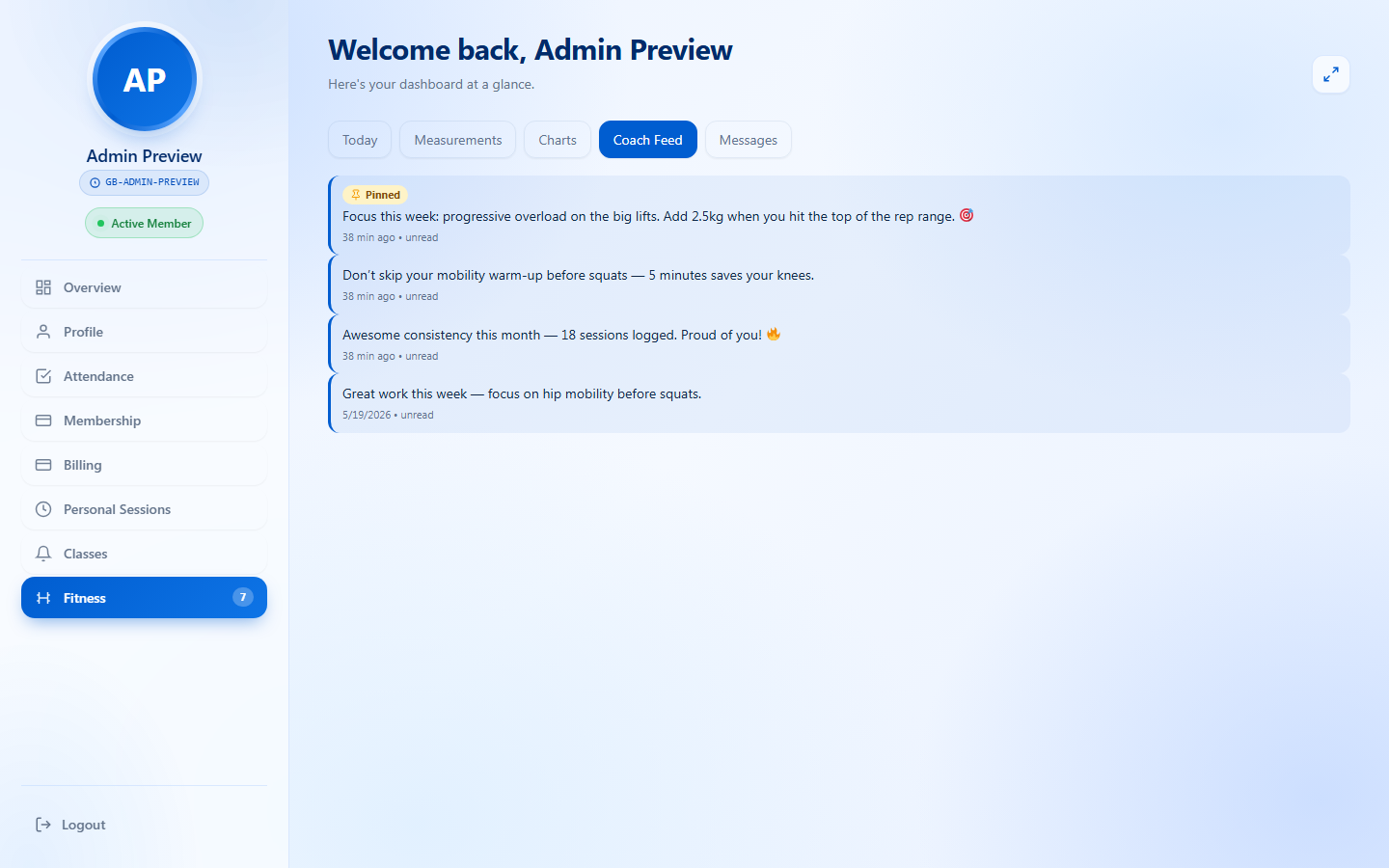
Member → Coach Feed
5.6 Messages — your private two-way chat with your trainer (the same thread they see in 4.4). Type, press Enter, and replies arrive on a short poll. If chat is disabled by your gym, you’ll see coach notes only.
6. Tips & Best Practices
For admins
- Set the reminder time to suit your members’ routine (e.g. 8 PM).
- Start with all surfaces enabled, then turn off the ones nobody uses.
- Pick metric or imperial once — switching later changes the display unit but doesn’t convert existing records.
For trainers
- Polish one reusable template before assigning; customise per-member only after it’s live.
- Use the roster activity filter daily — an “Inactive” flag is your earliest churn signal.
- Pinned notes for one-off advice; chat for ongoing conversation.
For members
- Log RPE honestly — it’s the most useful number for your trainer.
- Use Quick Log daily, even on rest days, to keep your streak.
- Measure weekly, not daily — daily weight swings with water and sleep.
7. Frequently Asked Questions
Do I need anything besides Gym Builder?
No. Only Gym Builder must be active. The Personal Session add-on is optional — if installed, the roster also pulls in personal-session members.
Does it work with my theme?
Yes. Every frontend class is gbft--prefixed and scoped, so the dashboards survive any theme.
Where is my data stored?
In dedicated database tables (templates, exercises, assignments, logs, measurements, daily logs, goals, notes, messages, plus join tables). Uninstalling drops them cleanly.
Can members export their progress?
Yes — each member can export a PDF progress report for any range (7d / 30d / 90d / 1y), bundling measurements, weekly volume, logged days, goals and coach notes.
Does chat use websockets?
No premium service required — chat refreshes on a ~15-second poll with optimistic send, and the recipient gets a throttled email per new message.
Can I translate the plugin?
Yes. Every string is translatable and a .pot ships in languages/; drop .po/.mo files into wp-content/languages/plugins/ with the text domain gb-fitness-tracking.
8. Troubleshooting
- The “Fitness Tracking” submenu doesn’t appear — confirm Gym Builder is active and on 2.3.3+; update or reactivate.
- Members don’t see the “Fitness” tab — the Student Login System must be active and the member needs a linked WordPress account.
- Daily reminder emails aren’t sending — check the toggle is on, WordPress cron is running, and your site can send mail (e.g. an SMTP plugin).
- Charts show “No data in range” — nothing logged in the window; switch to 1y or log some data.
- The set logger won’t advance past Set 1 — each set needs at least Reps or Weight; a fully blank set is rejected.
9. The Gym Builder Plugin Family
GB Fitness Tracking is one add-on in the Gym Builder family from WpDreamers. They share the same database, members, dashboards and styling — install only what your gym needs.
- Gym Builder (free core) — classes, trainers, members, schedules, calculators, packages. Required by every add-on.
- GB Stripe Payments — Stripe checkout, subscription sync, atomic slot booking.
- GB Personal Session — 1-on-1 booking with calendar slots, reminders, CSV export.
- GB Attendance System — member check-in tracking and attendance reports.
- GB Fitness Tracking (this plugin) — trainer-assigned workouts, body metrics, charts, daily stats, two-way chat & coach feed.
- GB Registration Page Popup, GB Zoom Integration, Gym Builder Block Tools, GB Elementor Widgets, Pre-built Templates — registration overlays, online classes, Gutenberg/Elementor blocks, and one-click demo imports.
One database, one styling system — whichever combination you install, your members and trainers get a consistent experience.