Attendance
Check members in at the front desk, or let them check themselves in: by scanning a QR code poster, at a front-desk kiosk, or from their Member Dashboard. Every check-in counts against the class times they booked, so you and your members always know how much of their plan is left.
What it does
A member books a weekly class time when they buy a plan — for example Yin Yoga, Sunday 9:00am. Attendance turns those bookings into check-ins: each time they come, someone at the desk checks them in (or they do it themselves), and Gym Builder counts how many of their booked class times they have used in the current plan period.
- Check In page — find a member, see today's class for them, click Check In.
- QR code check-in — print a poster with your gym's QR code and put it up anywhere. Members scan it with their phone, sign in and tap the class they are here for.
- Front-desk kiosk — a tablet at reception. Members hold up their own check-in code to its camera, or scan their member card. With Business Manager, staff clock in on the same screen with their PIN.
- From the Member Dashboard — members can also check in to today's class from the Attendance tab.
- Rules if you want them — let members check themselves in only around class time, or only on the gym's Wi-Fi.
- Used and left, per class — "3 of 4" for each class, a total for the whole plan, and the plan dates it counts under.
- Attendance Report — every member's check-ins, and each member's full history, which you can print or clear.
- Haven't Been In — who has stopped coming, with an email that asks them back: by hand, or automatically once they have been away for the number of days you choose.
- Check-ins today — a figure on the Gym Builder Dashboard home page with today's check-ins; click it to open Check In.
- Reminder email — once per plan period, members hear when only a few check-ins are left before their plan ends.
- Online classes — with the Zoom Integration add-on, only members with a booking get the meeting link, and sending the link can count as a check-in.
Before you start
- Gym Builder 3.0.0 or newer. With an older Gym Builder the add-on stays switched off and shows a notice with an Update Gym Builder link.
- Members with booked class times. Check-ins are made against the weekly class times a member booked. These are picked when someone buys a plan (with Stripe Payments or Offline Payments), or by you when you add or edit a member in Gym Builder → Members. A member with nothing booked cannot be checked in.
- Plans with dates. The member's plan start and end dates are the "plan period" that check-ins are counted in. A plan with no end date has no limit.
- A Member Dashboard page (Member Dashboard Page in Settings → Pages), if you want members to check themselves in. It is also where members find their check-in code for the kiosk.
- Member logins for checking themselves in: members sign in with the email and password of their member account.
- For a kiosk: a tablet with a front camera, and a site that opens on https:// — browsers only let a page use the camera on a secure site. A USB or Bluetooth barcode scanner plugged into the tablet works too, with or without the camera.
Install and switch on
- Go to Plugins → Add Plugin and click Upload Plugin.
- Choose the add-on's zip file, click Install Now, then Activate Plugin.
- Enter your license key when asked. If you skip it, the Gym Builder Dashboard shows Attendance → License Key in its menu until the license is active.
Once it is on, the Gym Builder Dashboard gets an Attendance group in its menu with four pages, Check In, Report, Haven't Been In and Self Check-In, and an Attendance page under Settings. Members get an Attendance tab on their Member Dashboard.
How check-ins are counted
There is no "10 visits a month" number to type in. What a member may attend comes from two things you already set: the class times they booked, and the dates of their plan.
- A booked class time is one class on one weekday at one time, for example Hatha Yoga, Wednesday 7:00am - 8:00am.
- Each booked class time allows one check-in on every date it falls on inside the plan period. October 2026 has four Sundays, so a member with a Sunday class time and a plan from October 1 to October 31 may check in to it 4 times.
- The plan's total is the sum of its class times. Two class times a week in October make 8 check-ins.
- Every new period starts from zero. When the plan is renewed or bought again, the new dates are a new period and nothing carries over.
Set how much a plan allows
You choose how many classes, and how many times a week, on the plan itself. Go to Gym Builder → Membership Plans, open a plan and click Classes Included.
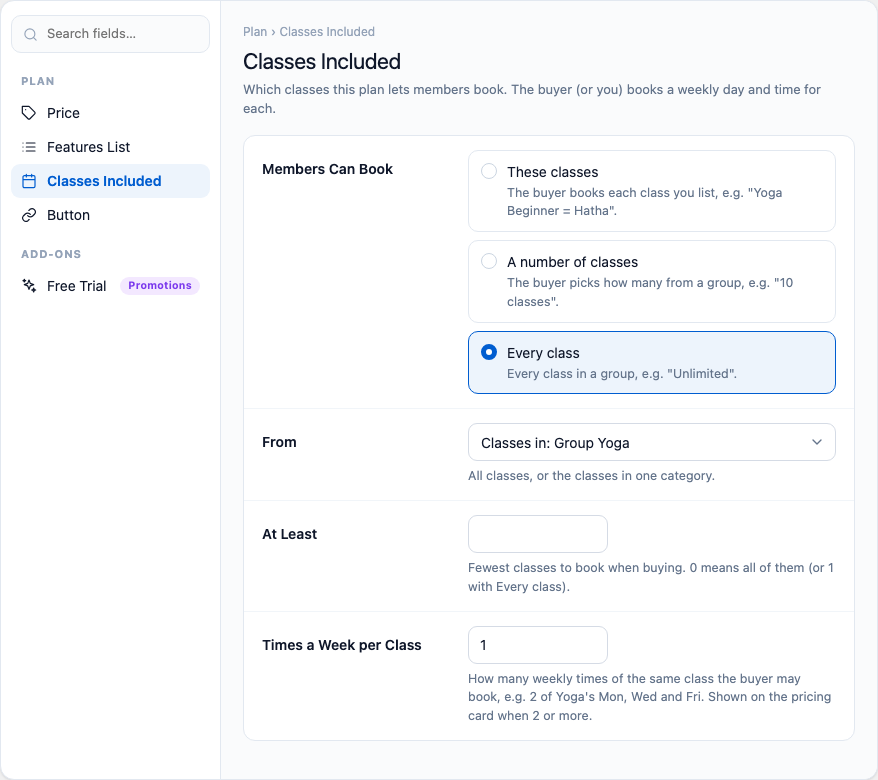
- Members Can Book — These classes, A number of classes (picked from a group) or Every class in a group.
- At Least — the fewest classes a buyer must book.
- Times a Week per Class — how many weekly times of the same class a buyer may book. Set 2 to let someone come to Yoga on Monday and Wednesday; each booked time then counts on its own.
A plan that allows one class time a week gives about 4 check-ins a month; two a week give about 8. To offer a smaller plan, allow fewer classes or fewer times a week.
The rules, in plain words
- Only booked class times. A member is checked in to a class time they booked, on its weekday.
- Once per class time per day. Yoga at 7am and Boxing at 6pm on the same day are two check-ins; Yoga at 7am twice is not.
- Only inside the plan period. Before the plan starts or after it ends, check-ins are refused.
- Two plans cover the same class? The class counts under the plan that ends last. The screens show which plan and dates it counts under.
- Your time zone. "Today" and every check-in time follow the time zone in your WordPress Settings → General.
Set it up
Go to Gym Builder → Settings → Attendance. The page has the Check-In Reminders card, and an Online Classes card when the Zoom Integration add-on is active too. Change what you need and click Save Settings at the bottom.
Check-In Reminders
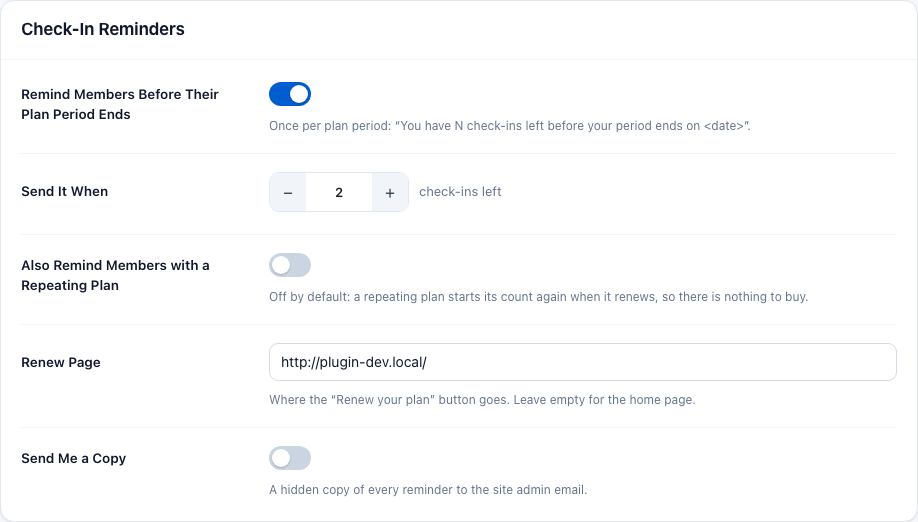
- Remind Members Before Their Plan Period Ends — sends the reminder email (see The reminder email). On by default.
- Send It When — how many check-ins are left when the email goes out, from 1 to 50. Default 2.
- Also Remind Members with a Repeating Plan — off by default: a plan that renews by itself starts its count again, so there is nothing to buy. Switch it on if you want those members told too.
- Renew Page — where the email's Renew your plan button goes, for example your pricing page. Leave it empty for your home page.
- Send Me a Copy — sends you a hidden copy of every reminder, at the site's admin email address.
Online Classes
This card only shows when the Zoom Integration add-on is active too: both settings are about Zoom's meeting link.

- Only Members with a Booking Get the Link — on by default. The Zoom meeting link goes only to a member who booked that class on that weekday and still has check-ins left in a current plan period.
- Count Sending the Link as a Check-In — off by default. When on, a member who asks for the link to today's online class while signed in to their own account is also checked in to it. A link asked for with someone else's member ID does not count.
Let members check themselves in
Go to Gym Builder → Attendance → Self Check-In. The page has three cards: QR Code Check-In, Kiosk and Rules for Members' Own Check-Ins. Change what you need and click Save Changes at the bottom. You can use the QR code, the kiosk, or both. The Check In button on the member's Attendance tab keeps working either way.
QR code poster
- Switch on Let Members Check In with a QR Code and click Save Changes. The first time, Gym Builder makes a Check In page for it.
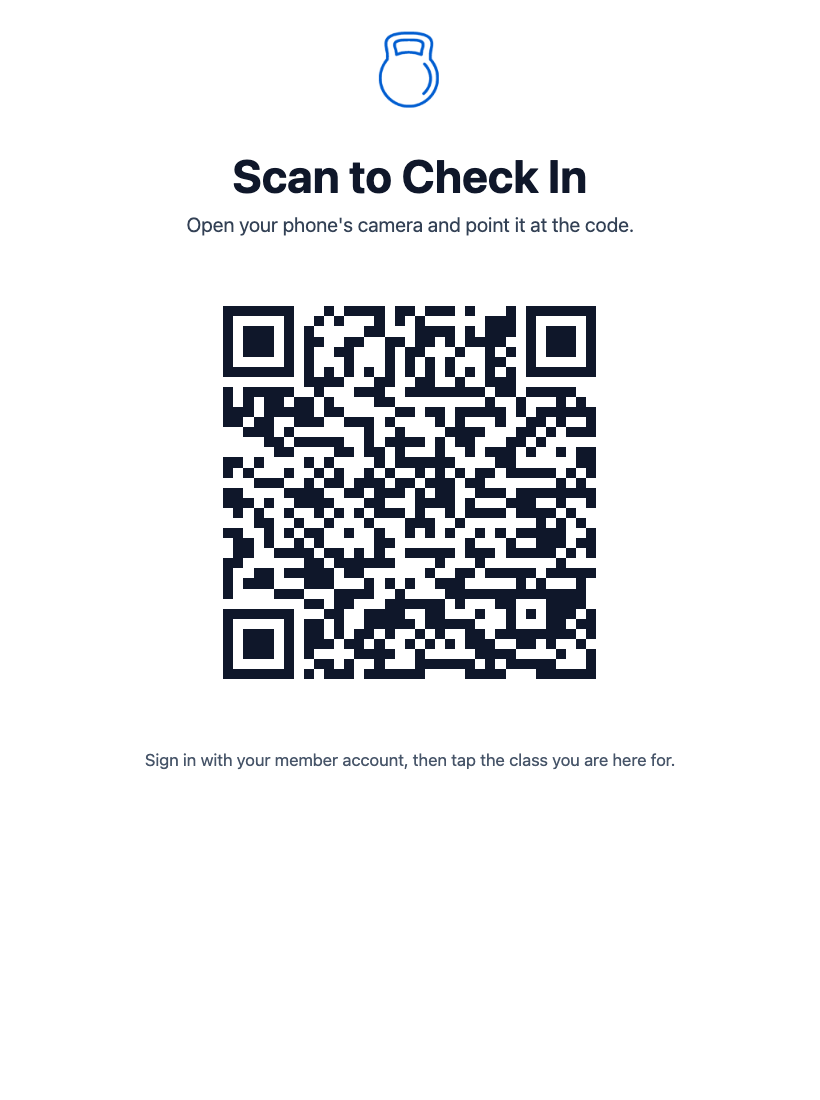
- Your gym's QR code appears in the card. Click Print Poster for a poster with the code, "Scan to Check In" and two lines of help, and print it from the window that opens.
- Put the poster up anywhere in the gym: at the entrance, in each studio, by the changing rooms. One code works for every class.
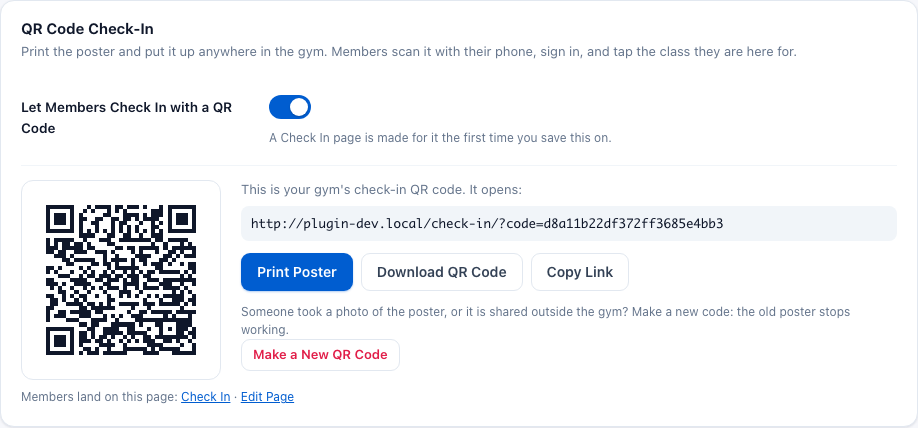
- Download QR Code — the code as a picture, for a poster or sign of your own, or a screen in the gym.
- Copy Link — the address the code opens.
- Members land on this page — the Check In page members see after scanning. Edit Page opens it if you want to change its title.
Click Make a New QR Code and confirm with Make a New Code. Posters with the old code stop working at once, so print the new poster and put it up in their place. To keep check-ins in the building, you can also switch on the rules.
Front-desk kiosk
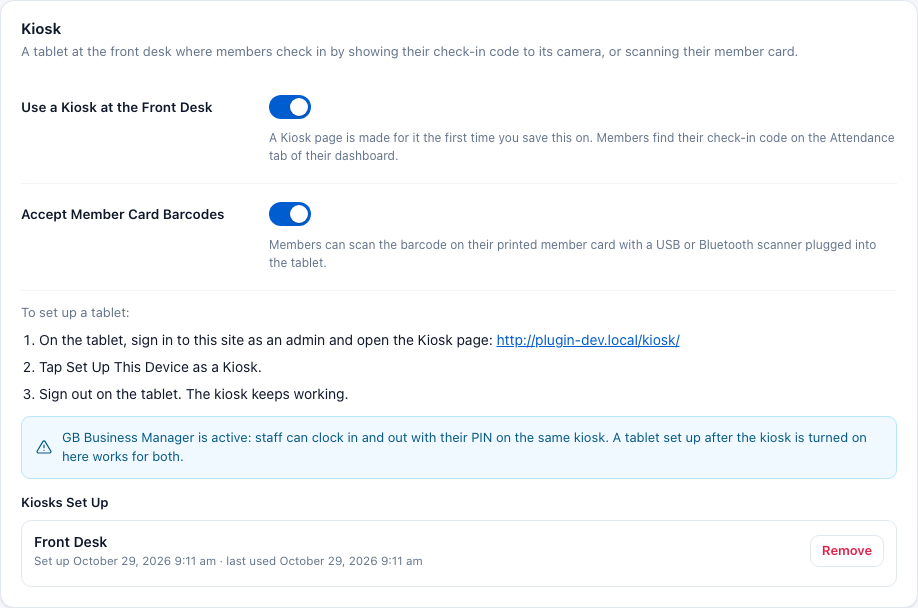
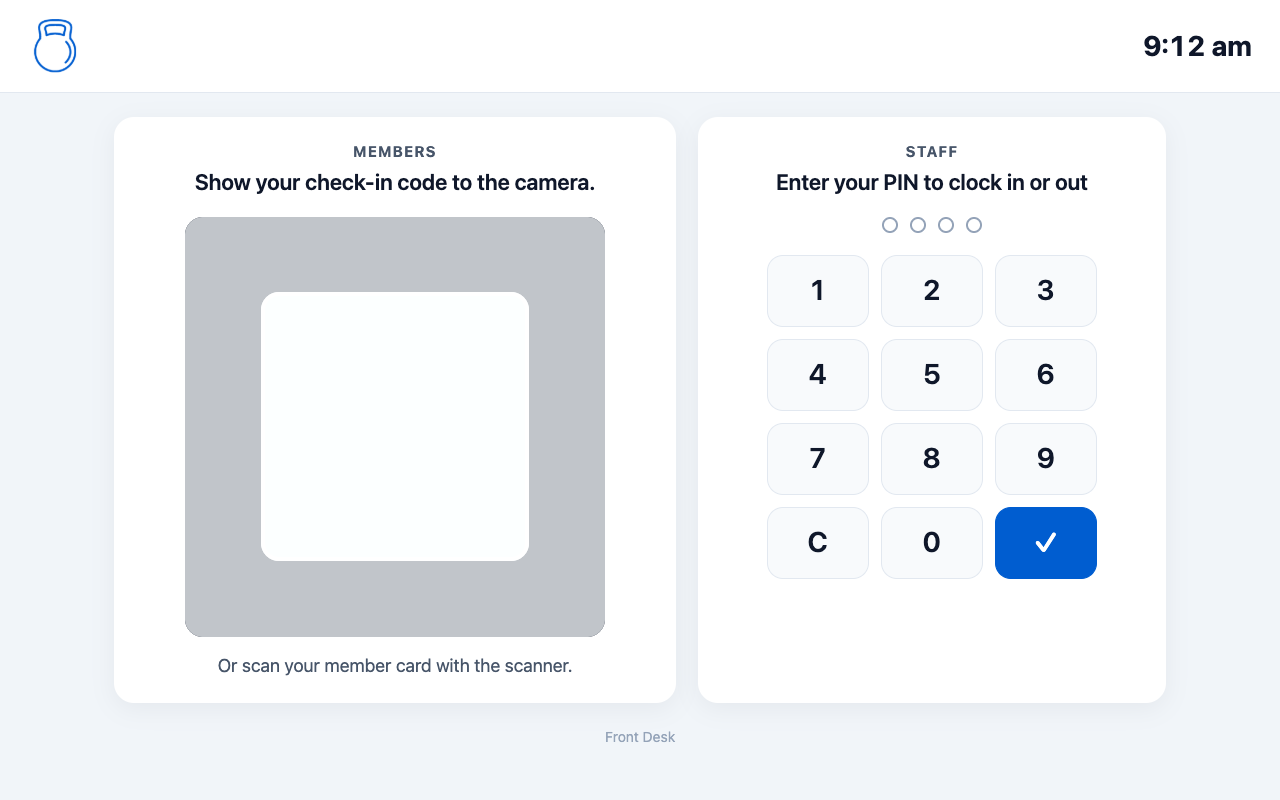
A kiosk is a tablet that stays at reception and shows a page of its own. Members check in by holding up the check-in code from their Member Dashboard to the tablet's camera, or by scanning their printed member card with a barcode scanner. Nobody needs to sign in on the tablet.
- Switch on Use a Kiosk at the Front Desk and click Save Changes. The first time, Gym Builder makes a Kiosk page.
- Leave Accept Member Card Barcodes on if you use a USB or Bluetooth barcode scanner: it reads the barcode on the member cards you print from Members → a member → Member Card. Switch it off to accept only the check-in codes.
- Set up the tablet (below).
Set up a tablet
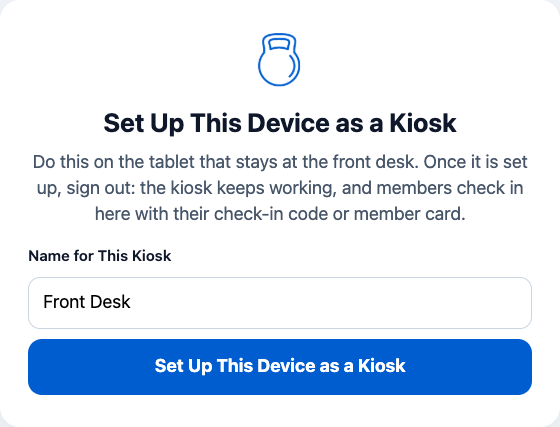
- On the tablet, sign in to your site as an admin and open the Kiosk page (its address is in the Kiosk card).
- Type a Name for This Kiosk, for example "Front Desk", and tap Set Up This Device as a Kiosk.
- Sign out on the tablet. The kiosk keeps working: the tablet remembers that it was set up.
- Allow the camera when the browser asks. Leave the tablet on the Kiosk page, plugged in, ideally full screen.
- Kiosks Set Up lists every tablet with when it was set up and last used. Remove stops that tablet working as a kiosk at once, for example when a tablet is lost. To use it again, set it up again.
- Any other device that opens the Kiosk page sees "This Device Is Not a Kiosk Yet".
- The clock shows your site's time, in the time format from WordPress Settings → General.
- If five different codes the kiosk does not know are shown within a few minutes, it asks everyone to wait 5 minutes. This stops people guessing codes. A member holding up an old code does not count toward it.
With Business Manager active and its front-desk kiosk switched on, a tablet you set up here also becomes a staff kiosk: staff type their PIN on the same screen to clock in and out. The Kiosk card says so while it applies. Removing the kiosk removes both.
Rules for members' own check-ins
These apply when members check themselves in: with the QR code, at the kiosk, and with the Check In button on their Attendance tab. Checking a member in from the Check In page is never limited. Both rules are off by default.
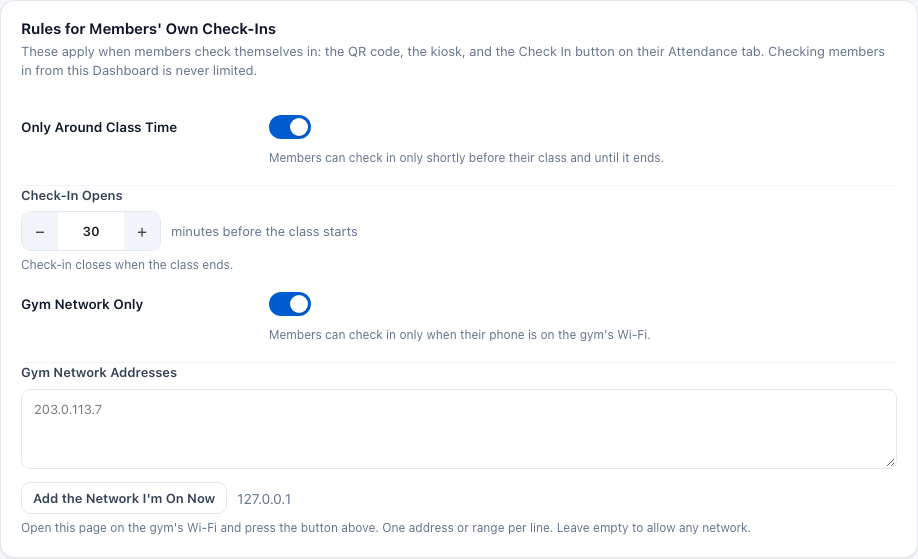
- Only Around Class Time — members can check in only from shortly before their class until it ends. Check-In Opens sets how many minutes before the class starts: 30 by default, up to 180, in steps of 5.
- Gym Network Only — members can check in only when their phone is on the gym's Wi-Fi. Open this page on a computer connected to the gym's Wi-Fi and click Add the Network I'm On Now, then Save Changes. Gym Network Addresses takes one address or range per line; leave it empty to allow any network.
Gym Network Only checks the address your internet provider gives the gym. Some providers change it from time to time; members are then told to connect to the gym's Wi-Fi even when they are on it. Add the new network the same way. Members on mobile data are refused too.
Everyday use
Check a member in
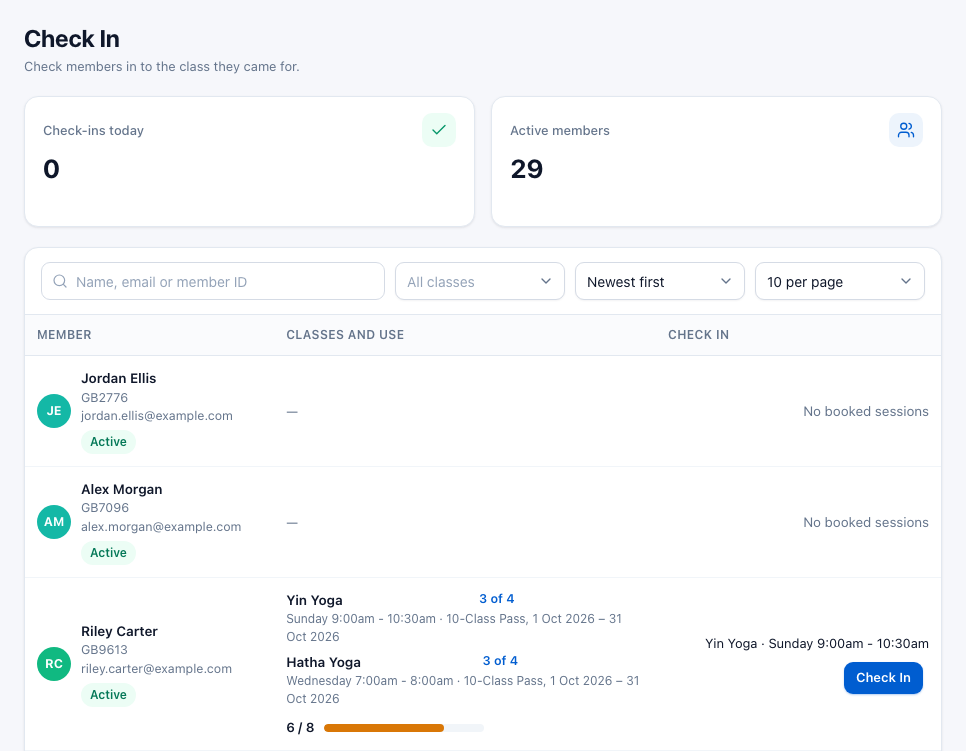
- Go to Gym Builder → Attendance → Check In.
- Type the member's name, email, member ID or phone number in the search box (at least 2 letters), or pick their class in All classes.
- In the Check In column you see the class time they booked for today. If they have more than one today, choose the right one in Choose the session.
- Click Check In.
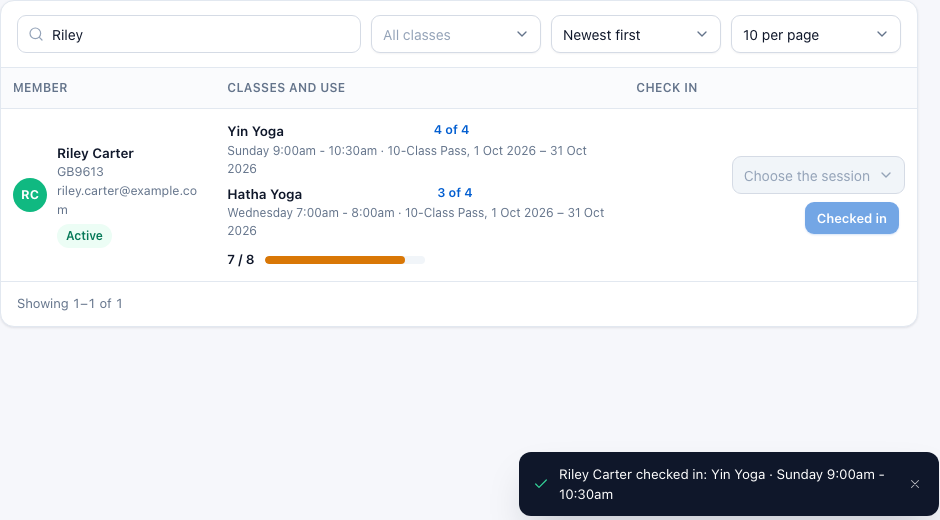
A message at the bottom of the screen confirms the check-in with the class and time, the counts in the row go up by one, and the button changes to Checked in.
What the Check In page shows
- Check-ins today — every check-in recorded today, by anyone.
- Active members — members marked Active.
- The filters — search, one class, Newest first or Oldest first (by when the member was added), and 10, 20, 50 or 100 per page.
- Member — name, member ID, email and Active or Inactive.
- Classes and use — one line per booked class: check-ins used of those allowed ("3 of 4"), the weekday and time, and the plan with its dates. Under them, the plan total ("6 / 8") with a bar that turns orange once three quarters are used.
- Check In — today's class time and the button. For a member whose membership is paused the button says Paused; QR, kiosk and member check-ins answer "This membership is paused until …".

What you may see instead of the button:
| On screen | What it means |
|---|---|
| No booked sessions | The member has no booked class times. Edit the member in Gym Builder → Members and give them a day and time for their class. |
| No session today | None of their booked class times is on today's weekday, or their plan is not running today. |
| Inactive | The member is marked Inactive. The button cannot be pressed. |
| Checked in | They are already checked in to every class time they have today. |
| Plan ended | The plan this class counts under has ended. A new purchase or new plan dates start a new period. |
| … used · no end date | The plan has no end date, so there is no limit; you only see how many times they came. |
At the desk on a phone or tablet
The Check In page works on a small screen: the filters stack and each member becomes a card with the Check In button at the bottom. Searching by name is the quickest way to find someone.

When a check-in is refused
The server checks every check-in again. If it cannot be saved, the message says why:
- This is not one of the booked class sessions. — book the class time for the member first (edit the member in Members).
- This session runs on Monday. — they booked that class on another weekday. Check-ins are only for today's class times.
- Already checked in to this session today. — nothing to do: it is already counted.
- The membership for this class has ended. — their plan's end date has passed. They need a new or renewed plan.
- The membership for this class is not active on this day. — their plan has not started yet.
- This membership is inactive, so the member cannot be checked in. — the member is marked Inactive. Make them Active in Members first.
See who has been coming
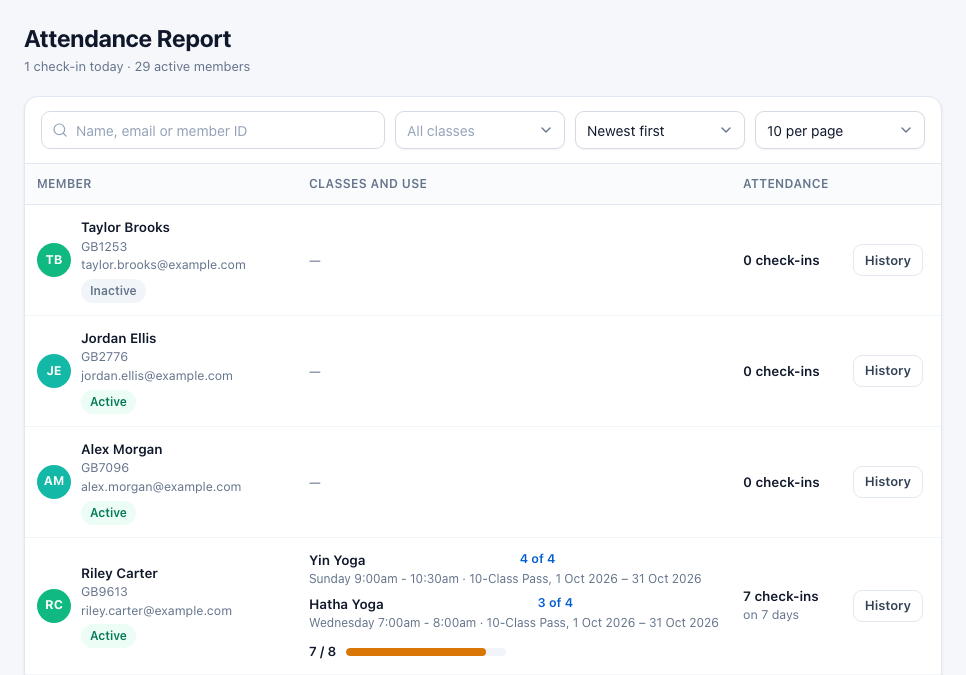
Go to Gym Builder → Attendance → Report. The Attendance Report has the same search and filters as the Check In page. Next to each member's classes and use, the Attendance column shows all their check-ins ever, and on how many different days ("7 check-ins on 7 days"). This total never starts again; only Clear attendance sets it back to zero.
One member's history
- In the Attendance Report, click History next to the member.
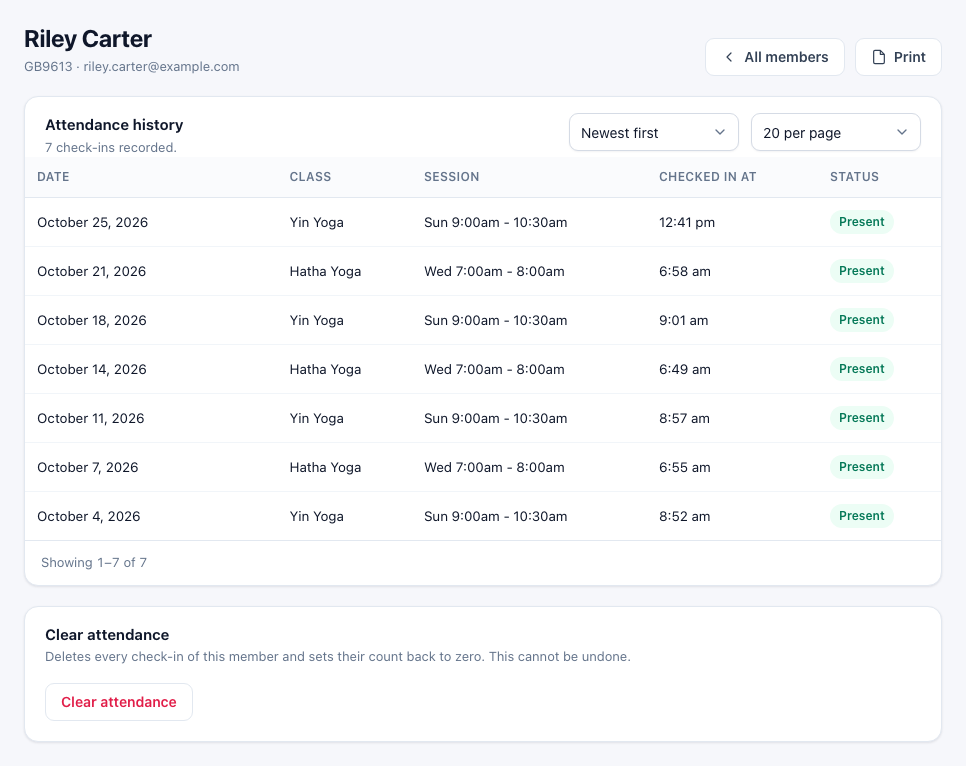
- The Attendance history lists every check-in with Date, Class, Session, Checked In At and Status. Sort it Newest first or Oldest first and show 10, 20, 50 or 100 per page.
- Click All members to go back to the list.
Print a member's history
On a member's history, click Print. A printable page opens with the member's whole history — every check-in, not only the page on screen — in the order you chose (Newest first or Oldest first), and your browser's print window. Choose your printer, or save it as a PDF.
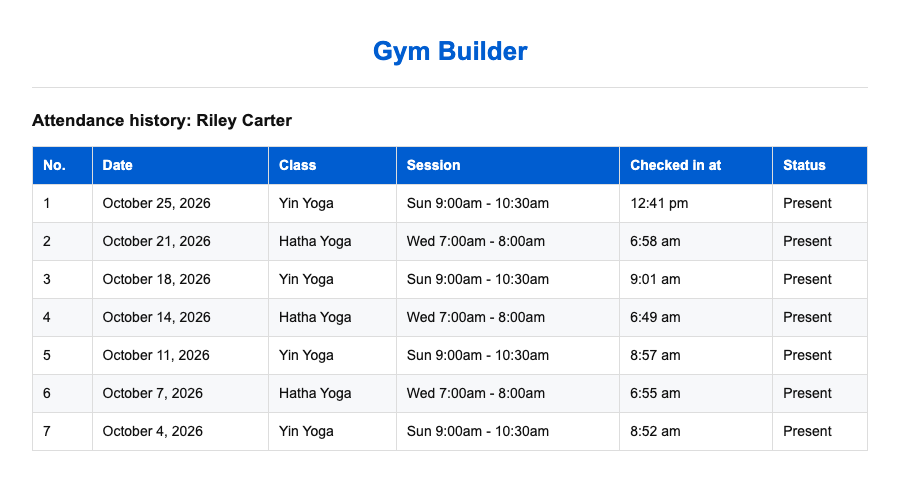
The top of the printed page shows your studio name (your site name when Studio Name on ID Cards is empty), address and phone, and the bottom shows your card note. They come from Settings → General → Studio Details.
There is no spreadsheet (CSV) download of attendance; printing, or saving as PDF, is the way to take a history out.
Clear a member's attendance
The Clear attendance card under a member's history deletes every check-in of that member and sets their count back to zero — for example for a test member, or a member who starts over.
- Open the member's history and click Clear attendance.
- Click Yes, delete them to confirm, or Keep them to stop.

The check-ins are deleted for good, including their all-time total. Because the member is back at zero, the reminder email can be sent to them again in the same period.
On the member's page
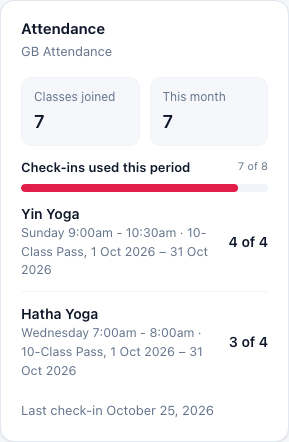
When you open a member in Gym Builder → Members, an Attendance card shows Classes joined (all time), This month, Check-ins used this period with a bar, one line per class, and the date of the last check-in.
Members who stopped coming
Go to Gym Builder → Attendance → Haven't Been In. It lists the active members who have not checked in for a number of days, longest away first, so you can get in touch before they give up on their plan.
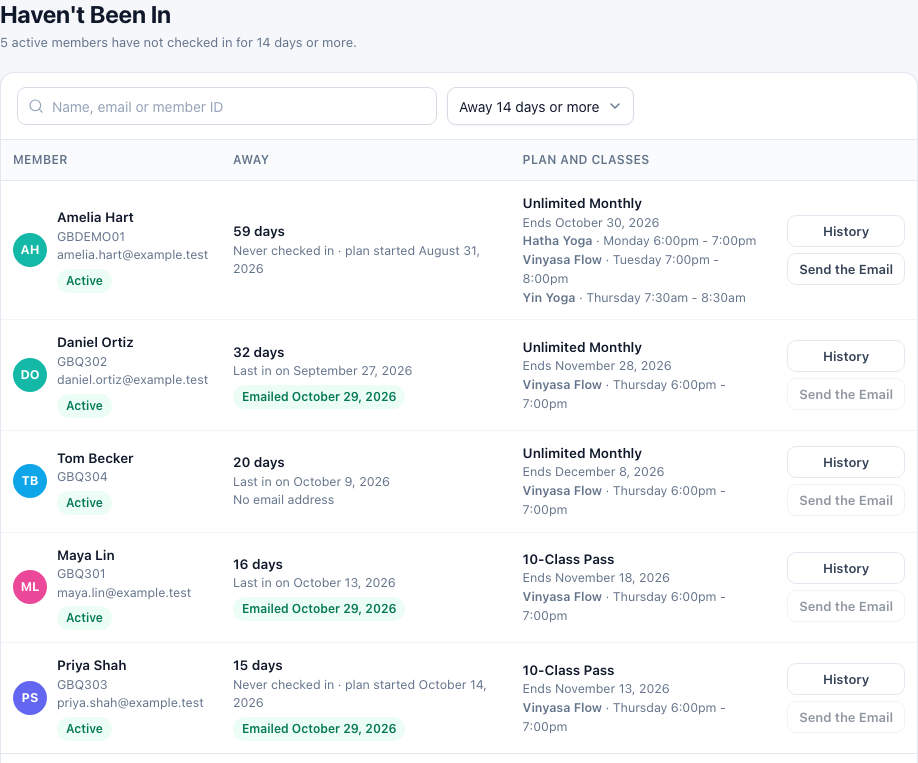
- Who is listed — members marked Active, whose plan has started and not ended, with at least one class time booked. A member with nothing booked cannot check in, so they are left out; so is a member whose membership is paused.
- Away — days since their last check-in. When a plan was renewed or bought after a long break, it counts from the day the new plan started; after a pause it counts from the day they were back ("Not in since a pause ended"), and the email says so; a member who has never checked in counts from their plan start ("Never checked in · plan started …").
- Away 14 days or more — choose 7, 14, 30 or 60 days (and the number set for the email below). Search finds a member by name, email or member ID.
- Plan and Classes — the plan, when it ends, and the class times they booked.
- History opens the member's check-ins in the Attendance Report.
Email them
Each member can get one email per absence: "We haven't seen you for 16 days", with their last class (or the day their plan started), the class times they booked and an Open My Dashboard button. It is sent in your studio's name, in your brand color, like the reminder email.
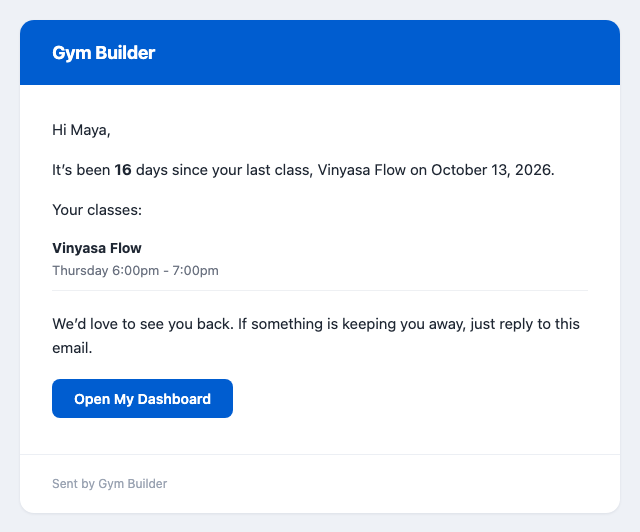
- By hand — click Send the Email on a member's row. The row then shows Emailed with the date, and the button stays greyed out until the member comes back and stays away again. It is greyed out for a member with no email address too ("No email address").
- Automatically — in the Email Members Who Stop Coming card under the list, switch on Email Members Who Stop Coming, set After (3 to 90 days; 14 by default) and click Save Changes. The add-on's daily task then emails each member on the day their absence reaches that number of days (or within the next three days, if the task missed a day).
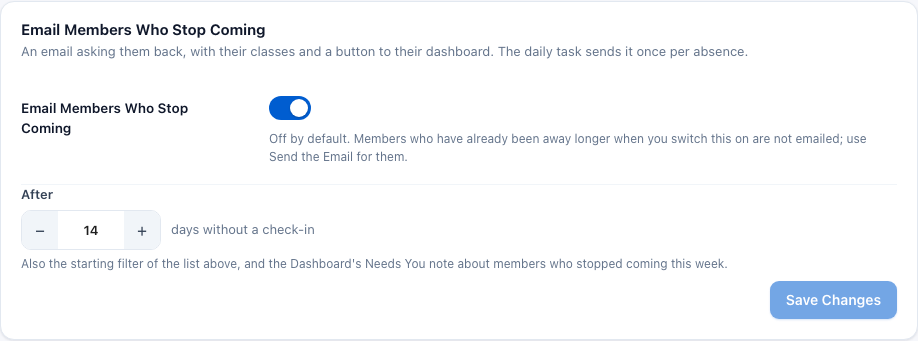
The automatic email is off until you switch it on, and it only goes to members whose absence has just reached the number of days. Members who had already been away longer when you switched it on are not emailed; send theirs by hand if you want to. Nobody gets it twice for the same absence.
When Send Me a Copy is on in Check-In Reminders, you get a hidden copy of these emails too.
On the Dashboard
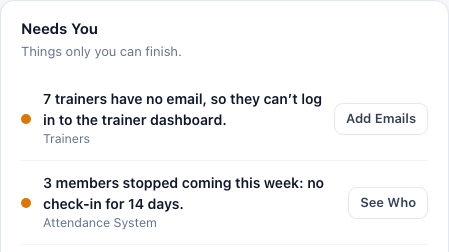
When members stopped coming in the last 7 days, the Dashboard's Needs You card says so ("3 members stopped coming this week: no check-in for 14 days."). See Who opens Haven't Been In. The note clears itself after a week; older absences stay on the Haven't Been In page.
What members see
The Attendance tab
When a member logs in to their Member Dashboard, they find an Attendance tab with:
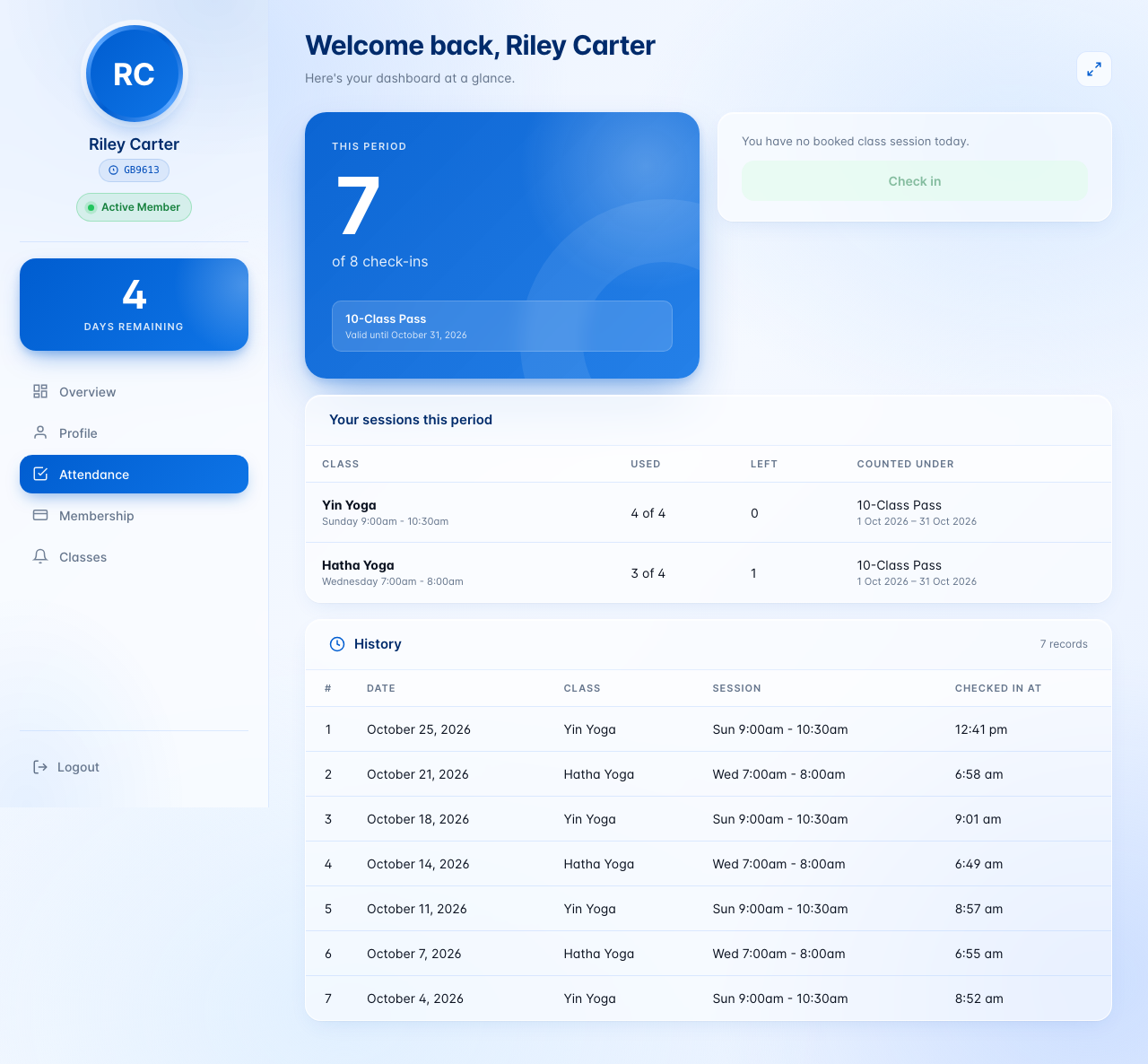
- This Period — check-ins so far "of 8 check-ins", and each plan with Valid until its end date (or Renews on for a plan that renews by itself).
- Check In — today's booked class times and the button to check in (see below).
- My Check-In Code — when the kiosk is on: their own code to show at the kiosk (see At the kiosk).
- Your Sessions This Period — one row per class with Used, Left and Counted Under (the plan and its dates).
- History — every check-in with Date, Class, Session and Checked In At (in your site's time format, for example "6:58 am"). The 10 newest show first; Show all opens the rest. On a phone, the tables scroll sideways.
Checking themselves in from the Attendance tab
- The member opens the Attendance tab on the day of their class.
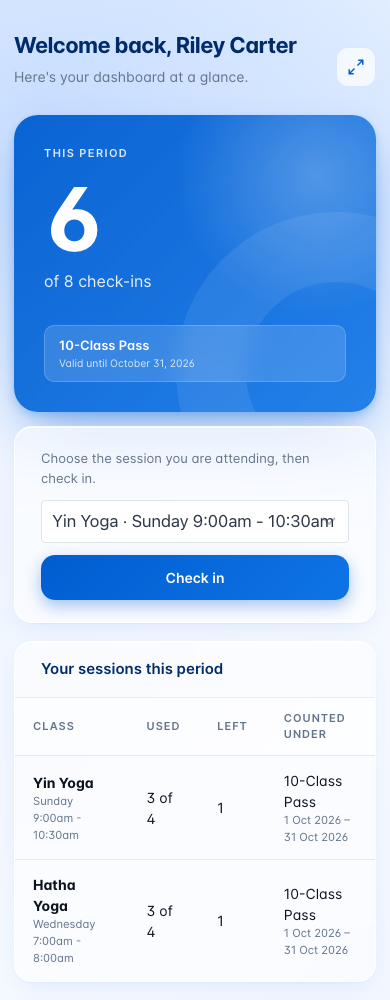
- They choose the class time they are attending in the list (when there is only one, it is already chosen).
- They tap Check In. The button shows Checked in ✓ and the tab reloads with the new counts.
The same rules apply as at the desk. Instead of the button, the member may see:
- "You have no booked class session today." — none of their class times is today.
- "You've checked in to all of today's sessions." — they are done for today.
- "Your membership is inactive — check-in is disabled." with a Membership inactive button — the member is marked Inactive.
When you switch on the rules, a member may also see "Check-in for Morning HIIT opens at 8:30 am.", "Check-in for Morning HIIT has closed: the class has ended." or "Check-in works only on the gym's Wi-Fi. Connect to it and try again." The same rules and messages apply to the QR code and the kiosk.
Out of the box, members can check themselves in from anywhere at any time on the day of their class. To change that, switch on Only Around Class Time or Gym Network Only in Attendance → Self Check-In.
With the QR code poster
- The member opens their phone's camera, points it at the poster and taps the link that appears. No app is needed.
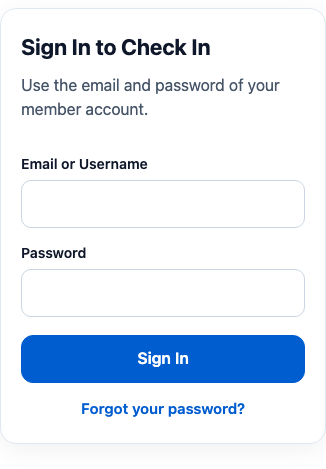
- The Check In page opens. If they are not signed in on their phone, they sign in with the email (or username) and password of their member account. Forgot your password? is right under the button.
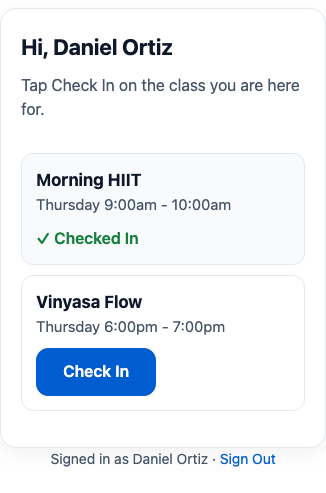
- They see today's booked classes and tap Check In on the one they are here for. A class they already checked in to shows Checked In.
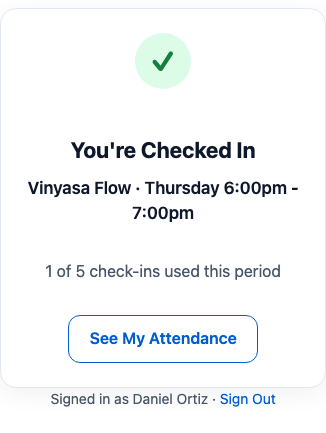
- "You're Checked In" shows the class and how many check-ins they have used this period. See My Attendance opens their Attendance tab.
Instead of their classes, the page may say:
| On screen | What it means |
|---|---|
| QR Check-In Is Off | Let Members Check In with a QR Code is switched off. The member is asked to check in at the front desk. |
| This QR Code Is No Longer in Use | The poster is older than your last Make a New QR Code. Put up the new poster. |
| This Login Is Not a Member's | They are signed in with an account that is not a member (for example your admin account on a shared phone). Sign Out and sign in with the member login. |
| Your Membership Is Inactive | The member is marked Inactive. |
| Connect to the Gym's Wi-Fi | Gym Network Only is on and their phone is not on the gym's Wi-Fi. |
| You have no booked class session today. | None of their class times is today. |
| Too many tries. Please wait 15 minutes and try again. | Five wrong passwords from the same place. They can wait, or use Forgot your password? |
At the kiosk
When the kiosk is on, every member's Attendance tab shows My Check-In Code: a QR code made just for them, and the member ID printed on their member card.
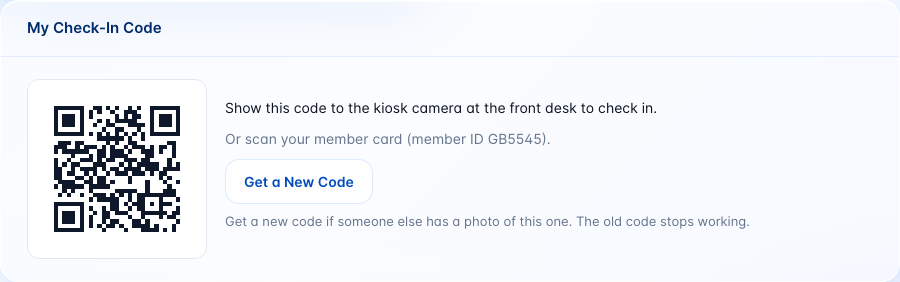
- At the kiosk, the member holds the code on their phone up to the tablet's camera, or scans their member card with the barcode scanner.
- With one class to check in to, they are checked in at once: "Welcome, Maya!" with the class and how many check-ins they have used this period.
- With more than one class today, the kiosk asks which class they are here for, and they tap it.
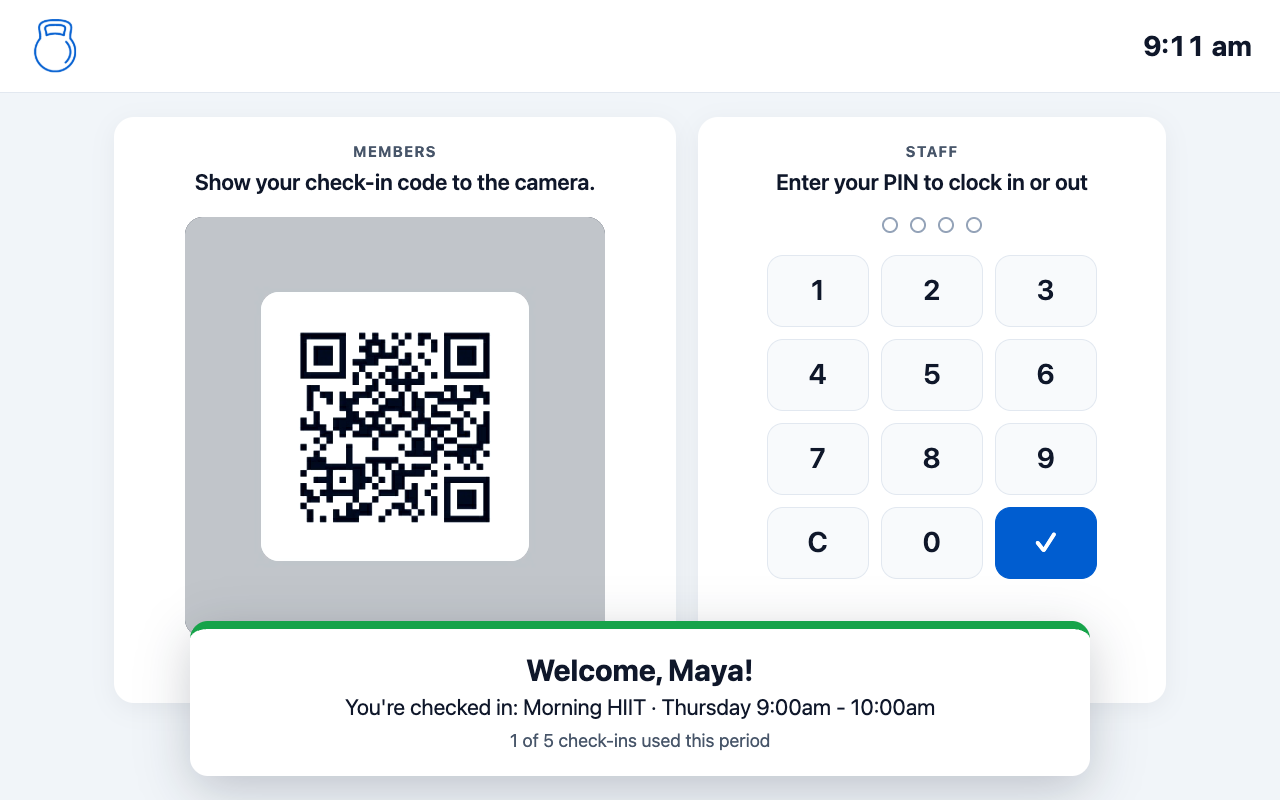
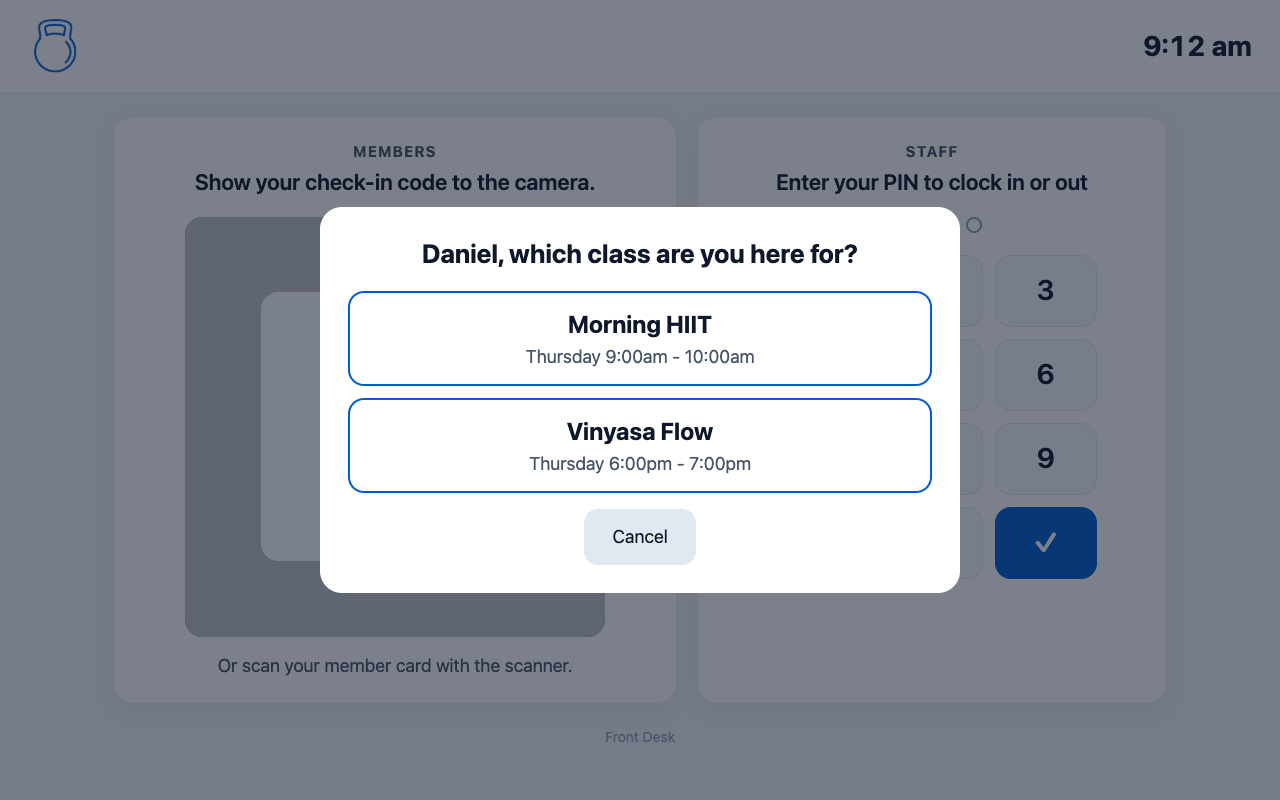
The kiosk shows only the member's first name. It may also say:
- "Maya, you are already checked in to Morning HIIT · Thursday 9:00am - 10:00am." — nothing more to do; it is counted once.
- "This check-in code is no longer in use. Open your member dashboard for your current one." — they showed a code they replaced with Get a New Code.
- "This code is not recognised. Please see the front desk." — not a code from your gym, or a card barcode while Accept Member Card Barcodes is off.
- "Your membership is inactive. Please see the front desk." and "You have no booked class session today." — as on the Attendance tab, plus the messages from the rules.
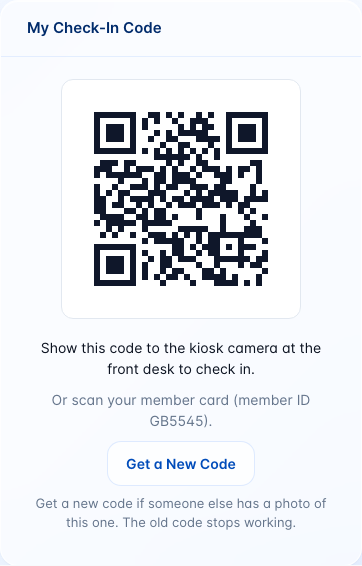
The member taps Get a New Code on their Attendance tab. The old code stops working at once and the new one shows straight away.
The reminder email
When a member is down to the number of check-ins you set (2 by default) before their plan ends, they get one email for that plan period: "You have 1 check-in left before your period ends on October 31, 2026". It lists the class times that still have dates left, how many times they have checked in, and — for a plan that does not renew by itself — a Renew your plan button to your Renew Page. For a plan that renews, it says the count starts again and there is nothing to do.
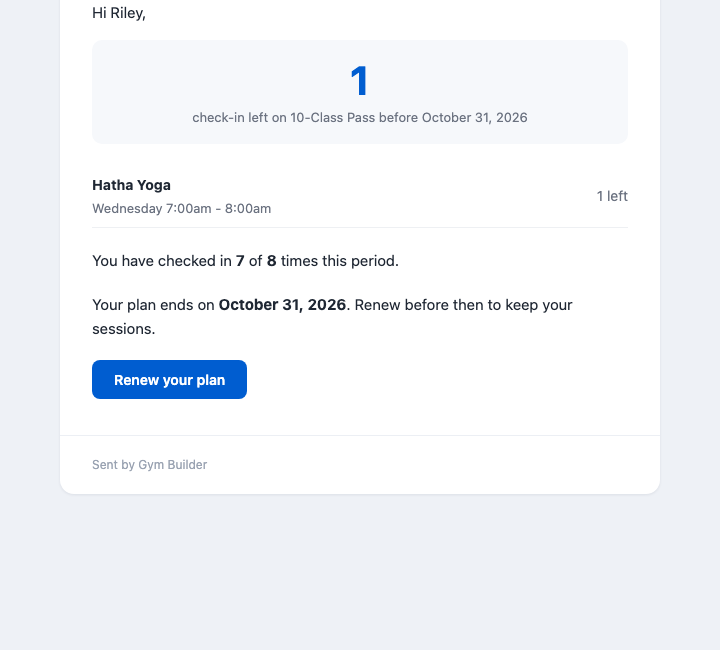
- "Left" runs down with the calendar. It counts the member's booked dates still ahead in the period, so the email can go out even on a day nobody checks in. Gym Builder looks once a day, and again after every check-in.
- Once per plan period. A renewal, a new purchase or clearing the member's attendance allows a new one.
- Not sent for plans with no end date, for plans whose whole period had no more check-ins than the number you set, for members marked Inactive, and for members with no email address (they get it once you add one).
- The email is sent in your studio's name, from the Send Emails From address in Settings → General.
Questions
Is there a "10 visits a month" setting?
No. What a member may attend comes from the class times they booked and their plan dates: one check-in for every date a booked class time falls on in the period. To sell less, let the plan include fewer classes or fewer times a week (see Set how much a plan allows).
Do check-ins start again when a plan renews?
Yes. Each renewal or new purchase is a new period that starts at zero; nothing carries over. The all-time total in the Attendance Report keeps counting.
Can I check someone in for a class they did not book?
No. Add the class time to the member first: open them in Gym Builder → Members, click Edit and give them a day and time for that class (within what their plan allows). Then check them in.
Can I check someone in for yesterday?
No. A check-in is always for today's class times, in your site's time zone.
Can trainers or reception staff check members in?
The Check In page and the Attendance Report are for site administrators. Members can check themselves in with the QR code poster, at the front-desk kiosk, or from their Member Dashboard.
Do members need an app?
No. The QR code opens a page in their phone's browser, and the kiosk reads the code on their Member Dashboard (or their printed member card).
Can someone check in from home with a photo of the poster?
Yes, unless you switch on a rule: Gym Network Only keeps check-ins to the gym's Wi-Fi, and Only Around Class Time to the time of the class. If a photo of the poster is going around, click Make a New QR Code and put up the new poster.
Does the kiosk work without a camera?
Yes. Plug a USB or Bluetooth barcode scanner into the tablet and leave Accept Member Card Barcodes on: members scan their printed member card. A scanner that reads QR codes can also read the code on their phone. Without a camera, the kiosk says "The camera is not available here. Scan your code or card with the scanner."
Will switching on the automatic email write to everyone who left months ago?
No. It only goes to members whose absence reaches the number of days from now on. For members who have been away longer, use Send the Email on their row.
A kiosk tablet was lost or stolen. What do I do?
Go to Attendance → Self Check-In and click Remove next to it under Kiosks Set Up. It stops working as a kiosk at once (and as a staff kiosk, with Business Manager).
Can I download attendance as a spreadsheet?
No. You can print a member's history, or save it as a PDF from the print window.
Does joining an online class count?
Only if you use Zoom Integration and switch on Count Sending the Link as a Check-In. Then a member who asks for today's link while signed in to their own account is checked in to that class. A link asked for with someone else's member ID does not count, and neither does clicking Join Now on the Member Dashboard.
What happens if I switch the add-on off?
The Attendance pages, the member tab and the reminders go away, and selling plans keeps working. Switch it back on and everything is there again. Deleting the add-on from the Plugins page, however, deletes all check-ins and its settings.
Some check-ins in a history have no class or session.
Those were saved by an older version, before check-ins recorded the class time. They stay in the history, and they still count toward their class when they fall on a day the member could have come. The member's Attendance tab says "Includes 1 earlier check-in" when that happens.
If something goes wrong
- A member shows "No booked sessions" — they have no class time booked. Edit the member and pick a day and time for each class.
- A member shows "No session today" but is here — look at their booked class times: is one of them today? Is today inside their plan dates? The page uses the time zone in WordPress Settings → General.
- A count looks too low or too high — check the member's plan start and end dates in Members. The allowance is the number of times each booked weekday falls between those dates.
- The member has no Attendance tab — the add-on must be on, the member must be logged in with their member account, and the Member Dashboard page must be set in Settings → Pages.
- Reminder emails never arrive — check that Remind Members Before Their Plan Period Ends is on, that the plan has an end date, and that the member has an email address. If other site emails also go missing, set up an email (SMTP) plugin.
- The Dashboard's "Needs you" card says "The daily task is not scheduled" — the daily reminder check is not running. Switch the add-on off and on again in Plugins.
- The "Needs you" card says "The attendance table is missing" — check-ins cannot be saved. Switch the add-on off and on again to rebuild it.
- The printed page shows your site name, not your studio name — fill in Studio Name on ID Cards in Settings → General → Studio Details.
- Print Poster does nothing — the browser blocked the print window ("The print window was blocked. Allow pop-ups for this site, then try again."). Allow pop-ups for your site, or use Download QR Code.
- Members' phones say "This QR Code Is No Longer in Use" — the poster is older than your last Make a New QR Code. Print the poster again.
- Members on the gym's Wi-Fi are told to connect to it — the gym's internet address changed. Open Self Check-In on the gym's Wi-Fi, click Add the Network I'm On Now and Save Changes.
- The kiosk says "The camera is not available here…" — the site must open on https://, and the tablet's browser must be allowed to use the camera (check its site settings). The barcode scanner still works.
- A tablet shows "This Device Is Not a Kiosk Yet" — it was removed under Kiosks Set Up, or the browser's data was cleared. Set it up again.
- The kiosk says "Too many codes this kiosk does not know. Wait 5 minutes and try again." — five different unknown codes were shown. Wait 5 minutes.
- A member card is not recognised — check that Accept Member Card Barcodes is on and that the card shows the member's current member ID. "This card's member ID belongs to more than one member" means two members have the same ID: ask the member to use the code on their Attendance tab instead.
- A member is missing from Haven't Been In — they must be Active, with a plan that has started and not ended, and at least one class time booked. A check-in, even by the QR code or the kiosk, ends the absence.
- The automatic email did not arrive — check that Email Members Who Stop Coming is on, that the member has an email address and that the row does not already say Emailed. If other site emails also go missing, set up an email (SMTP) plugin.
- Members have no My Check-In Code card — Use a Kiosk at the Front Desk is off, or their membership is inactive.